
Chromebooks, once perceived as simple web browsers, have evolved into versatile computing devices, increasingly blurring the lines between traditional laptops and Android tablets. Their growing capability to run Android applications from the Google Play Store has been a game-changer, transforming them into powerful productivity and entertainment hubs. However, not every app you might want or need is available through the official Play Store on your Chromebook, or perhaps you require a specific version of an app not widely distributed. This is where the ability to install apps from an Android Package Kit (APK) comes into play.
An APK is essentially the package file format used by the Android operating system for distribution and installation of mobile apps. Think of it as the .exe file for Windows or a .dmg for macOS, but for Android. Sideloading an APK — the process of installing an app directly from its APK file rather than through an official app store — unlocks a new level of customization and access for Chromebook users. It empowers you to bypass geographical restrictions, install beta versions of applications, access older versions that might be more stable or feature-rich for your specific needs, or even install proprietary apps not listed on the Play Store.
This comprehensive guide will walk you through everything you need to know about installing apps from an APK on your Chromebook. We’ll cover the fundamental concepts, prepare your device with the necessary settings, provide detailed step-by-step instructions for both simple and advanced sideloading methods, and discuss crucial considerations like security, app compatibility, and ongoing management. By the end of this article, you’ll be well-equipped to expand your Chromebook’s functionality beyond the official ecosystem, tapping into the vast universe of Android applications with confidence and control.
Understanding APKs and the Chromebook Ecosystem
Before diving into the technical steps, it’s essential to grasp what an APK is, why you might choose to sideload one on your Chromebook, and the inherent nuances of doing so within the Chrome OS environment. This foundational knowledge will help you make informed decisions and navigate the process more effectively.
What Exactly is an APK?
An APK, which stands for “Android Package Kit,” is the primary distribution format for Android applications. When you download an app from the Google Play Store, you’re essentially downloading an APK file, which the Play Store then automatically installs for you. Each APK file contains all the elements an app needs to install correctly on a device, including:
- Code: The compiled program code of the app.
- Resources: Images, audio files, UI layouts, and other non-code elements.
- Assets: Raw asset files that the app uses, like game levels or configuration files.
- Certificates: Digital certificates that verify the app’s authenticity and developer.
- Manifest file: A file that describes the app’s name, version, permissions required, hardware features needed, and more.
Understanding this structure highlights why APKs are self-contained and can be installed independently of an app store.
Why Sideload Apps on a Chromebook?
The primary motivation for sideloading APKs on a Chromebook stems from the desire to access apps not readily available through the official channels. Here are several common scenarios:
- Geographical Restrictions: Some apps are only available in specific countries. Sideloading allows you to bypass these regional blocks.
- Unavailable on Play Store: Certain niche apps, experimental software, or apps that don’t meet Google’s Play Store policies might only be distributed directly by developers via APKs.
- Beta or Older Versions: You might want to try out a beta version with upcoming features or revert to an older, more stable version of an app if a recent update introduced bugs or removed desired functionality.
- Development and Testing: Developers often sideload their own apps or those from colleagues for testing purposes before official release.
- Privacy Concerns: Some users prefer to download apps from independent sources to avoid tracking or data collection policies associated with app stores (though this requires careful vetting of the APK source).
- Specific Business Tools: Certain industry-specific applications might not be optimized or even available on the Play Store for Chromebooks, necessitating direct APK installation.
By embracing sideloading, you significantly expand the utility of your Chromebook, turning it into an even more adaptable tool for a wider range of tasks and entertainment options.
The Nuances of Chromebook Compatibility
While modern Chromebooks are largely compatible with Android apps, there are crucial nuances to consider:
- Android App Support: Most Chromebooks released after 2017 support Android apps via the Google Play Store. Older models or those running very specific Chrome OS versions might lack this capability entirely. Check your device’s specifications if unsure.
- Hardware Differences: Chromebooks vary widely in their hardware (processor, RAM, storage, screen size, input methods). An Android app designed primarily for a smartphone or tablet might not perform optimally or display correctly on a larger Chromebook screen, especially if it relies heavily on touch gestures or specific hardware sensors (like a gyroscope) that your Chromebook might lack.
- Chrome OS Integration: Android apps on Chromebooks run within a containerized environment. While integration is generally seamless, some apps might behave differently than they would on a dedicated Android phone or tablet. For instance, file access, notification handling, or background processes can sometimes be constrained by Chrome OS policies.
- Managed Devices: If your Chromebook is managed by an organization (school, business), administrators might have restricted the installation of apps from unknown sources or even the Google Play Store itself. In such cases, sideloading might not be possible without administrative intervention.
Being aware of these factors will help set realistic expectations and troubleshoot potential issues should they arise.
Preparing Your Chromebook for APK Sideloading
Before you can begin installing APK files, you need to ensure your Chromebook is properly configured. This involves enabling core Android app support and, critically, allowing installations from sources other than the Google Play Store.
Enabling Android App Support and Google Play Store
For most modern Chromebooks, the Google Play Store (and thus Android app support) is enabled by default or easily accessible through settings. If you haven’t used Android apps on your Chromebook before, here’s how to ensure it’s active:
- Open Settings: Click on the clock/status area in the bottom-right corner of your screen, then click the gear icon (Settings).
- Navigate to Apps: In the Settings menu, scroll down the left-hand pane and select “Apps.”
- Turn on Google Play Store: Look for the “Google Play Store” section. If it’s not already enabled, click “Turn on.” You’ll be prompted to agree to terms of service and complete a setup process. This step is fundamental, as it establishes the Android runtime environment necessary for any Android app, whether from the Play Store or an APK, to run on your Chromebook.
Without the Android runtime enabled, your Chromebook will not know how to handle APK files, making any attempt at sideloading futile.
Allowing Apps from Unknown Sources
This is the most critical step for sideloading APKs. By default, Android (and by extension, the Android environment on your Chromebook) prevents installations from “unknown sources” – meaning anything other than the Google Play Store. This is a security feature designed to protect users from potentially malicious software. To sideload, you must temporarily disable this protection.
- Access Android Settings: After ensuring the Google Play Store is enabled (as per the previous section), go back to your Chromebook’s Settings.
- Find Android Preferences: Under the “Apps” section, locate “Google Play Store” and click on “Manage Android preferences” or “Google Play Store settings.” This will open a new window that looks identical to the Settings app on an Android phone or tablet.
- Navigate to Security & Privacy: In the Android Settings window, scroll down and tap on “Security & privacy” (or simply “Security” on some versions).
- Enable Unknown Sources: Look for “Install unknown apps” or “Unknown sources.” You’ll likely see a list of apps that have permission to install other apps. For sideloading from your downloaded APK files, you’ll typically need to grant this permission to your Chromebook’s “Files” app (sometimes referred to as “Files by Google” or simply “Files”). Find “Files” in the list and toggle the switch to “Allowed” or “On.” If you’re using a web browser to download APKs, you might also need to grant permission to your browser (e.g., Chrome).
Important Security Note: Allowing installations from unknown sources does carry a risk. It disables a key security safeguard. It is strongly recommended to re-disable this setting once you have finished installing your desired APKs to minimize your exposure to potential threats.
A Brief Note on Linux (Beta) and Developer Mode
While not strictly required for basic APK sideloading, these advanced features of Chrome OS can play a role in certain scenarios:
- Linux (Beta): The Linux development environment on Chromebooks provides a full Linux distribution (Debian-based) that runs in a virtual machine. This environment is crucial if you plan to use more advanced sideloading methods, specifically ADB (Android Debug Bridge). ADB allows for more robust control over the Android container on your Chromebook, enabling installations that might fail through the simpler Files app method, or for debugging purposes. Setting up Linux is relatively straightforward through your Chromebook’s settings, but installing ADB tools within Linux requires command-line familiarity.
- Developer Mode: This mode unlocks access to the Chrome OS shell and allows for deeper system modifications. While historically, enabling developer mode was sometimes necessary for extensive Android app modifications or root access, it’s generally not required for standard APK sideloading on modern Chromebooks. In fact, enabling developer mode wipes your device and reduces its security, so it should be approached with extreme caution and only if absolutely necessary for specific advanced use cases. For the scope of this guide, we will assume you are not in developer mode unless explicitly stating otherwise for ADB methods.
For most users, simply enabling Android app support and allowing unknown sources via the Android settings is sufficient.
The Step-by-Step Guide to Installing APKs
With your Chromebook prepared, you’re ready to proceed with installing your desired Android applications from their APK files. We’ll cover the most common and simplest method first, followed by a more advanced approach using ADB.
Finding and Downloading Reliable APK Files

The integrity of your APK source is paramount for security. Downloading APKs from untrusted websites is the fastest way to expose your Chromebook to malware, viruses, or apps that contain malicious payloads. Always prioritize reputable sources:
- APKMirror: This is widely considered one of the safest and most reliable sources for APK files. APKMirror verifies the cryptographic signatures of all uploaded APKs to ensure they match the legitimate app and are not tampered with. They host free apps and updates from the Google Play Store.
- APKPure: Another well-regarded platform, similar to APKMirror, offering a vast repository of APKs with a focus on verification and security.
- Official Developer Websites: If an app isn’t on the Play Store, the developer might offer direct downloads from their official website. Always verify the URL and look for security indicators (HTTPS).
Precautions when downloading:
- Check App Permissions: Before installing, be mindful of the permissions the app requests. If a simple calculator app asks for access to your camera, microphone, and contacts, it’s a red flag.
- Read Reviews: Look for reviews or community feedback on the APK source or the specific app version you’re downloading.
- Use an Ad Blocker: Many APK download sites are ad-heavy, some of which might link to malicious sites.
Once you’ve identified a safe source, navigate to it, search for your desired app, and download the APK file to your Chromebook’s “Downloads” folder or another easily accessible location.
Initiating the Installation Process via the Files App
This is the simplest and most common method for sideloading.
- Open the Files App: Locate and open the “Files” app on your Chromebook (it looks like a blue folder icon).
- Navigate to the Downloaded APK: In the Files app, go to the folder where you saved the APK file (most likely “My files” > “Downloads”).
- Click the APK File: Simply click or double-click the
.apkfile. - Confirm Installation: A prompt will appear, asking if you want to install the application. It will also list the permissions the app requires. Review these permissions carefully.
- Install: Click “Install” to begin the process.
- App Installed: Once the installation is complete, you’ll see a confirmation message. You can then click “Open” to launch the app immediately, or “Done” to close the prompt.
- Find the App: The newly installed app should now appear in your Chromebook’s app launcher, alongside your other Android and Chrome OS applications.
This method works for the vast majority of APK installations on Chromebooks with Android app support enabled and “Install unknown apps” permission granted to the Files app.
Understanding the Installation Prompts
During the installation process, your Chromebook’s Android environment will present you with several important prompts:
- Permission Request: Before installation, you’ll see a list of permissions the app requires (e.g., access to storage, camera, microphone, contacts, location). Always review these carefully. If an app’s requested permissions seem excessive or unrelated to its stated function, consider canceling the installation. This is your primary defense against overreaching or malicious apps.
- Security Warning: Because you’re installing from an “unknown source,” you might receive a warning reiterating the risks involved. This is a standard security measure. As long as you’ve downloaded the APK from a reputable source, you can proceed with confidence.
- Update Prompts: If you’re updating an existing app via an APK, the prompt will typically ask if you want to update the existing application. Your existing data for that app will usually be preserved during an update.
Alternative: Sideloading with ADB (Android Debug Bridge)
For more complex scenarios, such as when the simple Files app method fails, or for developers needing more control, ADB offers a powerful alternative. This method requires enabling the Linux (Beta) environment on your Chromebook and using the command line.
Prerequisites for ADB Sideloading:
- Enable Linux (Beta): Go to your Chromebook’s Settings > “Linux development environment” and click “Turn on.” Follow the on-screen instructions to set it up. This may take some time.
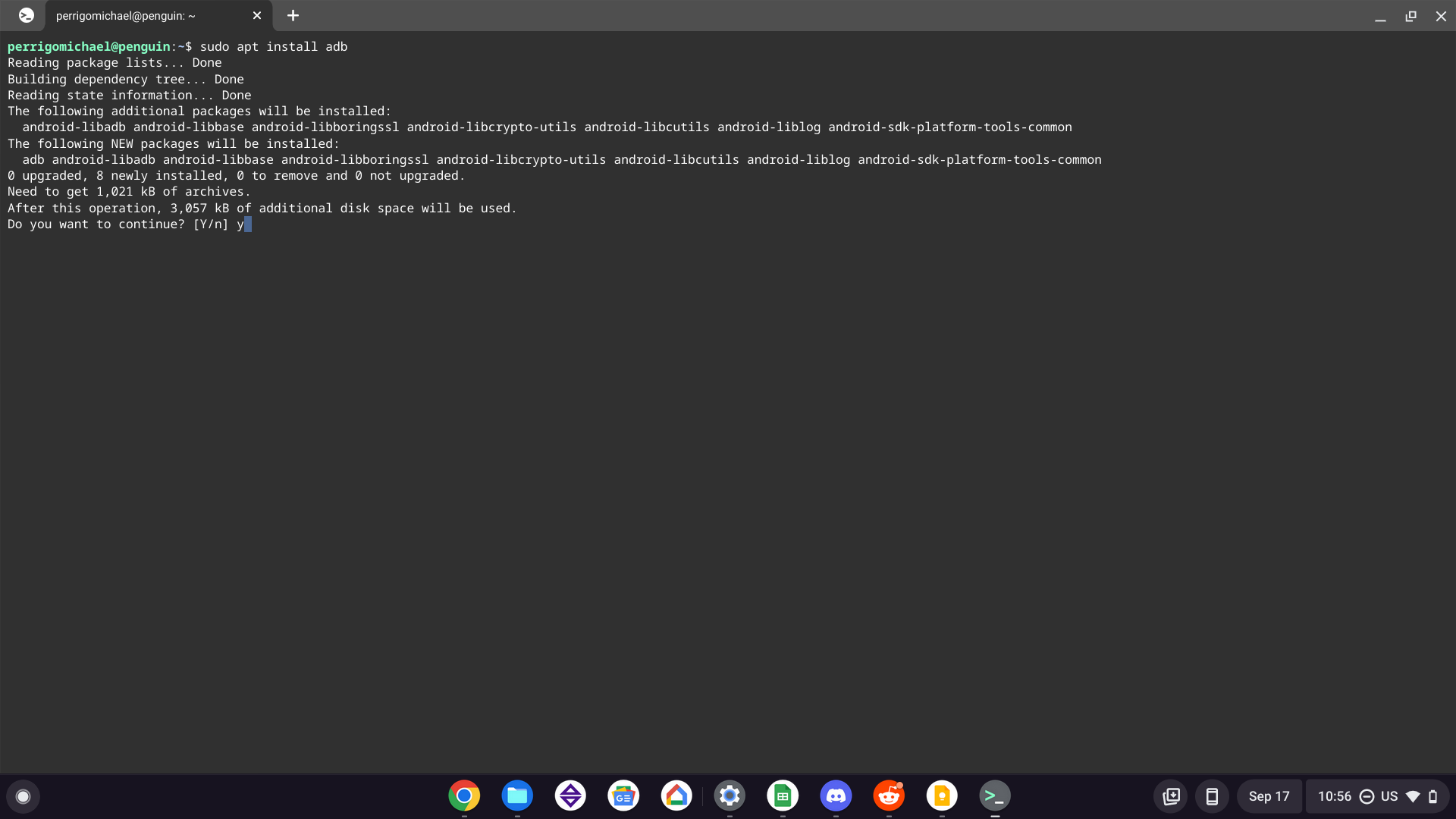
- Install ADB Tools in Linux: Once Linux is set up, open the Terminal app (found in your app launcher under “Linux apps”).
- First, update your package lists:
sudo apt update - Then, install ADB and Fastboot:
sudo apt install adb fastboot
- First, update your package lists:
- Enable ADB Debugging on Chromebook: This step is crucial.
- Go to your Chromebook’s Settings > “Apps” > “Google Play Store.”
- Click “Manage Android preferences.”
- In Android Settings, scroll down and find “About device” (or “About phone/tablet”).
- Tap “Build number” (or “Chrome OS build”) seven times rapidly. This will enable “Developer options” in the Android settings.
- Go back to the main Android Settings menu, and you’ll now see “Developer options.” Tap on it.
- Find “Android debugging” and toggle it “On.” You’ll receive a warning; confirm by clicking “OK.”
Steps to Sideload with ADB:
- Transfer APK to Linux: Download your APK file to your Chromebook’s “Downloads” folder. Then, open the Files app, right-click on the APK, and select “Share with Linux” or drag and drop it into the “Linux files” section. This will copy the APK into your Linux home directory (e.g.,
/home/yourusername/). - Open Linux Terminal: Launch the Terminal app from your Chromebook’s app launcher.
- Verify ADB Connection: In the terminal, type:
adb devices- The first time you run this after enabling Android debugging, you might see a prompt on your Chromebook’s screen (outside the Linux terminal) asking “Allow USB debugging?”. Check “Always allow from this computer” and click “OK.”
- Run
adb devicesagain. You should now see your device listed, often with a serial number, indicating it’s connected.
- Install the APK: Use the
adb installcommand, followed by the path to your APK file. If the APK is in your Linux home directory, the command will be:
adb install your_app_name.apk(replaceyour_app_name.apkwith the actual file name).- If you encounter an error like
adb: command not found, ensure ADB was installed correctly. - If the installation fails,
adb install -r your_app_name.apkmight work, forcing a reinstallation and preserving app data if it was already installed.
- If you encounter an error like
- Confirmation: If successful, the terminal will display “Success.” The app will now be available in your Chromebook’s app launcher.
ADB sideloading offers a more robust way to install apps, particularly useful for larger APKs or those that might have specific installation requirements. Remember to disable Android debugging in the Android settings once you’re done if you don’t intend to use ADB regularly, as it slightly reduces your device’s security posture.
Navigating Challenges and Best Practices
While sideloading APKs offers tremendous flexibility, it’s not without its challenges and considerations. Adhering to best practices will help you mitigate risks and ensure a smoother experience.
Common Issues and Troubleshooting
You might encounter a few hurdles when sideloading. Here’s how to troubleshoot common problems:
- “App Not Installed” Error:
- Unknown Sources Not Enabled: Double-check that “Install unknown apps” is enabled for the “Files” app (and potentially your browser) in the Android settings.
- Incompatible APK: The APK might not be compatible with your Chromebook’s architecture (e.g., trying to install an x86 app on an ARM-based Chromebook, or vice versa) or Android version. Check the app requirements and your Chromebook’s Android version (Settings > Apps > Google Play Store > Manage Android preferences > About device > Android version).
- Corrupted Download: The APK file might be incomplete or corrupted. Try downloading it again from a reputable source.
- Insufficient Storage: Ensure your Chromebook has enough free storage space for the app.
- Existing App Conflict: If you have an older version of the app installed from the Play Store, sometimes the sideloaded version might conflict. Try uninstalling the Play Store version first, then sideloading.
- App Crashes or Freezes:
- Compatibility Issues: The app might not be fully optimized for a Chromebook’s hardware, screen size, or Chrome OS Android environment.
- Missing Google Play Services: Some apps heavily rely on Google Play Services. While your Chromebook has these, the sideloaded APK might not correctly integrate if it’s an unofficial variant.
- Clear Cache/Data: Go to Android Settings > Apps > [Your problematic app] > Storage & cache, and try “Clear cache” or “Clear storage” (note: clearing storage will reset the app and delete its data).
- App Not Appearing in Launcher:
- Wait a few moments after installation. Sometimes, it takes a short while for the app icon to appear.
- Restart your Chromebook.
- Ensure the installation completed successfully.
Security Considerations and Risks
The biggest concern with sideloading is security. When you bypass the Google Play Store, you also bypass its robust security checks, which scan for malware and enforce strict developer policies.
- Malware and Viruses: Untrusted APK sources can host apps embedded with malware, ransomware, or spyware. These malicious apps can steal your personal data, compromise your accounts, or damage your device.
- Data Privacy: Even if an app isn’t explicitly malicious, it might have excessive permissions or questionable data collection practices that wouldn’t be permitted on the official Play Store.
- Lack of Updates: Sideloaded apps don’t receive automatic updates through the Play Store, leaving them vulnerable to unpatched security flaws.
- Loss of Warranty/Support: While unlikely for simple sideloading, extensive modifications or installing highly unofficial software could potentially complicate warranty claims or technical support.
Best Practices for Security:
- Only use reputable APK sources (APKMirror, APKPure, official developer sites).
- Always review app permissions carefully before installing. If something seems suspicious, don’t install it.
- Re-disable “Install unknown apps” immediately after you’ve finished installing your APKs. This restores a crucial security layer.
- Consider a reputable antivirus/anti-malware solution for your Chromebook if you frequently sideload apps, although Chrome OS itself offers strong built-in security.
- Keep Chrome OS updated: Regular Chrome OS updates include security patches that can protect against new threats.
Managing Updates for Sideloaded Apps
One significant drawback of sideloading is the lack of automatic updates. Apps installed directly from APKs won’t be updated by the Google Play Store.
- Manual Updates: To update a sideloaded app, you will need to manually download the newer version’s APK from your trusted source and install it over the existing app (following the same sideloading steps). This usually preserves your app data.
- Check for Updates Regularly: Make it a habit to periodically check your trusted APK sources for newer versions of your sideloaded apps, especially for apps that require frequent security updates or feature enhancements.
- Consider Official Versions: If an app eventually becomes available on the Google Play Store, it’s generally best practice to switch to the official Play Store version for convenience and automatic updates, even if it means uninstalling your sideloaded version and reinstalling the official one.
Optimizing Performance and Uninstallation
Sideloaded apps generally behave like Play Store apps in terms of performance and management, but there are a few points to remember:
- Resource Usage: Android apps, especially those not optimized for larger screens or desktop environments, can sometimes be resource-intensive. Keep an eye on your Chromebook’s performance if you notice slowdowns after installing many sideloaded apps.
- Uninstallation: To uninstall a sideloaded app, simply right-click its icon in the app launcher and select “Uninstall,” or go to your Chromebook’s Settings > Apps > Google Play Store > Manage Android preferences > Apps, find the app, and uninstall it from there. The process is identical to uninstalling Play Store apps.
Embracing the Full Potential of Your Chromebook
The ability to install apps from an APK file on your Chromebook is a powerful feature that significantly extends the device’s utility. By understanding the underlying concepts, carefully preparing your system, and following the outlined installation methods, you gain access to a wider world of Android applications, beyond the confines of the Google Play Store. Whether you’re seeking region-locked apps, beta features, specific legacy versions, or unique tools for a side hustle or personal project, sideloading empowers you to tailor your Chromebook experience to your exact needs.
However, with great power comes great responsibility. The freedom of sideloading necessitates a heightened awareness of security risks. Always prioritize downloading APKs from reputable sources, meticulously review app permissions, and remember to re-enable your Chromebook’s security safeguards once your installation tasks are complete. By doing so, you can enjoy the expanded capabilities of your device while maintaining a secure and stable computing environment.
Chromebooks are continuously evolving, and their integration with the Android ecosystem is a testament to their growing versatility. Mastering APK installation is another step in fully unlocking your Chromebook’s potential, transforming it into an even more indispensable tool for both personal productivity and digital exploration. Enjoy the journey of customizing your Chromebook to perfectly suit your digital lifestyle.
aViewFromTheCave is a participant in the Amazon Services LLC Associates Program, an affiliate advertising program designed to provide a means for sites to earn advertising fees by advertising and linking to Amazon.com. Amazon, the Amazon logo, AmazonSupply, and the AmazonSupply logo are trademarks of Amazon.com, Inc. or its affiliates. As an Amazon Associate we earn affiliate commissions from qualifying purchases.