
For many, the Sharp TV sitting in their living room is a gateway to entertainment. But what if you want to unlock a world of streaming content beyond traditional broadcasts? Enter Apple TV – a powerful device that transforms your television into a smart hub for movies, TV shows, music, games, and more. If you’re a Sharp TV owner wondering how to integrate this popular streaming service, you’re in the right place. This comprehensive guide will walk you through the process, ensuring you can enjoy all that Apple TV has to offer on your Sharp television.
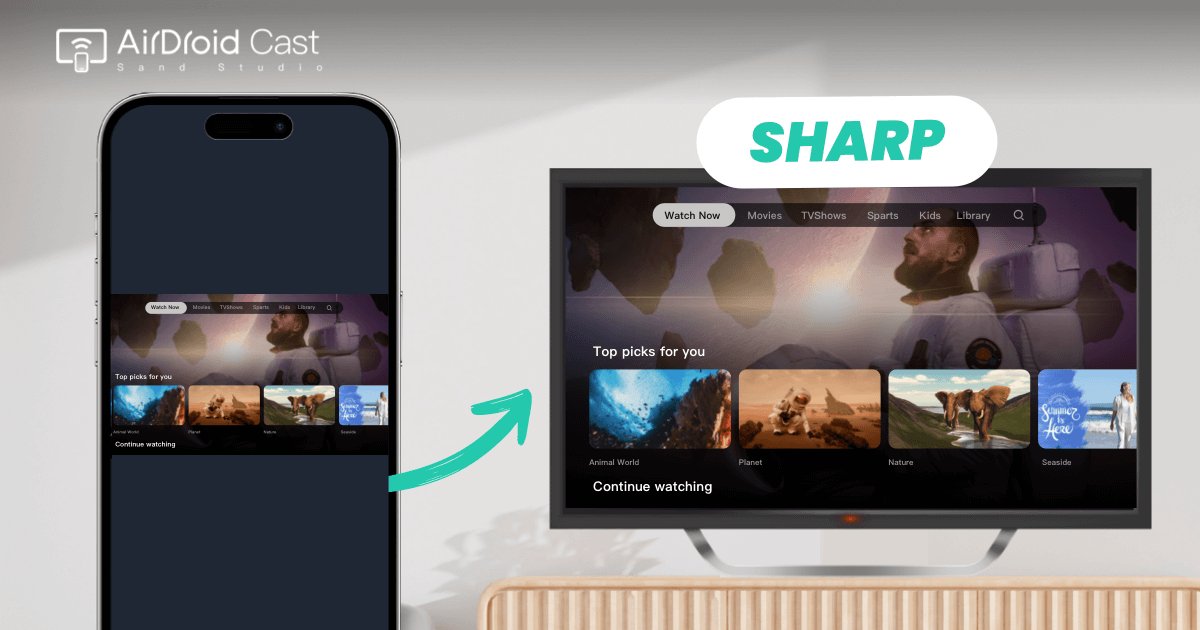
The beauty of modern technology is its interconnectedness. While Sharp has long been a reputable name in display manufacturing, Apple TV represents a significant leap forward in content delivery and user experience. Whether you’re looking to access the latest blockbusters on Apple TV+, delve into a vast library of purchased or rented movies, or even enjoy Apple Arcade games, connecting your Apple TV device to a Sharp TV is a straightforward process, achievable for most users regardless of their technical expertise.
Our focus here is on providing clear, actionable steps. We understand that not everyone is a tech wizard, so we’ll break down each stage of the installation and setup, from initial connections to navigating the Apple TV interface. We’ll also touch upon some common troubleshooting tips and highlight the benefits of this powerful combination. So, let’s get started on transforming your Sharp TV into an Apple TV powerhouse.
Understanding the Connection: Hardware Essentials for Apple TV on Sharp TV
Before diving into the software setup, it’s crucial to ensure you have the necessary hardware. The Apple TV device itself is a small, sleek box that connects to your television via an HDMI cable. Your Sharp TV, to be compatible, needs to have at least one available HDMI port. Fortunately, most Sharp TVs manufactured in the last decade, and even some older models, are equipped with multiple HDMI inputs, making this a widely accessible setup.
The HDMI Connection: Your Digital Lifeline
The HDMI (High-Definition Multimedia Interface) cable is the backbone of the connection between your Apple TV and your Sharp TV. It’s responsible for transmitting both high-definition video and digital audio signals.
What You’ll Need:
- Apple TV Device: This can be any model of Apple TV, such as the Apple TV HD or the Apple TV 4K.
- HDMI Cable: Most Apple TV devices come with an HDMI cable. If yours didn’t, or if you need a new one, ensure it supports the latest HDMI standards for the best picture and sound quality (e.g., HDMI 2.0 or higher for 4K content).
- Sharp TV with an HDMI Port: Check the back or side of your Sharp TV for available HDMI ports. They are usually labeled “HDMI 1,” “HDMI 2,” and so on.
- Power Outlet: The Apple TV device requires its own power source.
Steps for Connecting:
- Power Down Devices: It’s a good practice to unplug both your Sharp TV and your Apple TV device from their power sources before making any connections. This prevents potential electrical surges.
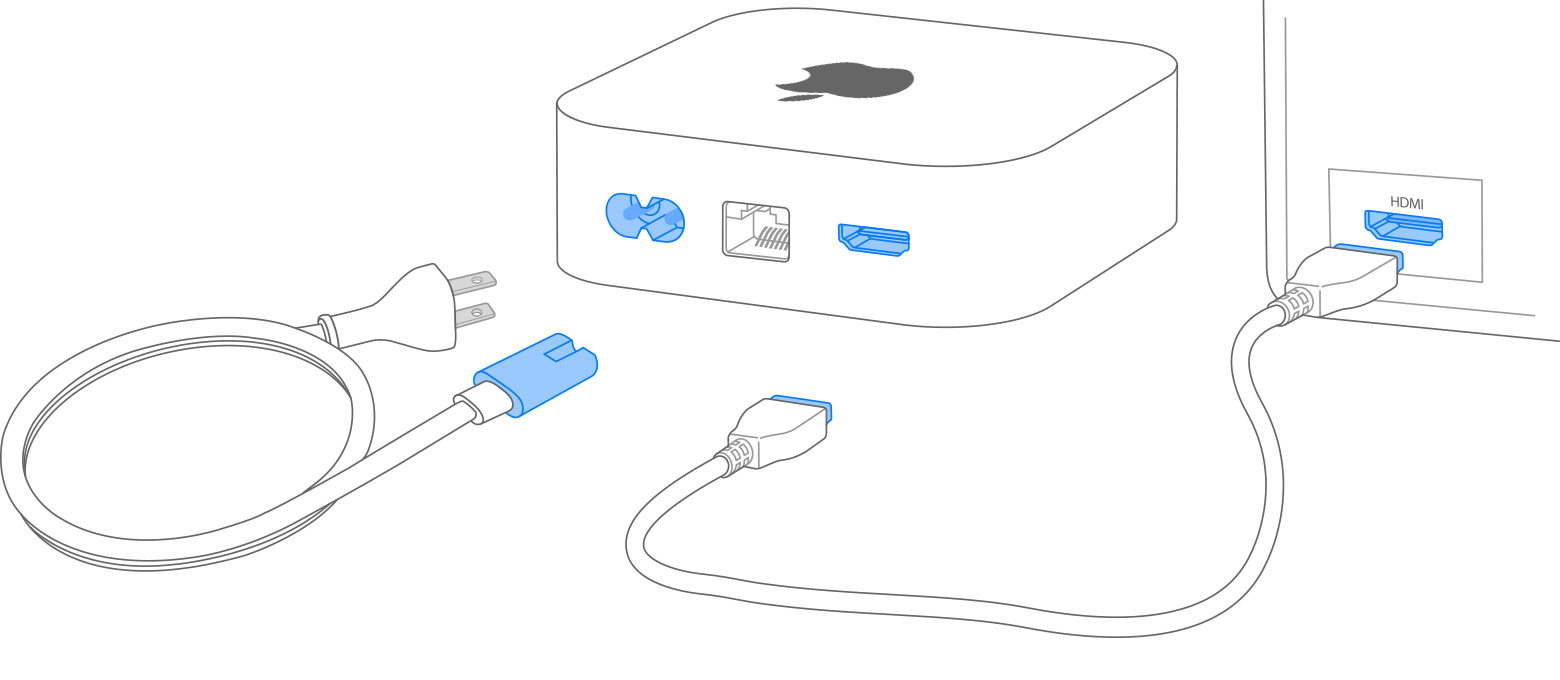
- Connect HDMI Cable to Apple TV: Plug one end of the HDMI cable into the HDMI port on the back of your Apple TV device.
- Connect HDMI Cable to Sharp TV: Plug the other end of the HDMI cable into an available HDMI port on your Sharp TV. Make a note of which HDMI port you use (e.g., HDMI 1). You’ll need this information later.
- Connect Power to Apple TV: Plug the power adapter into your Apple TV device and then into a wall outlet or power strip.
- Connect Power to Sharp TV: Plug your Sharp TV back into its power source.
This physical connection is the essential first step. Once these cables are securely plugged in, you’re ready to configure your TV and Apple TV for optimal performance.
Navigating Your Sharp TV Inputs: Selecting the Right Source
After physically connecting the devices, your Sharp TV needs to be told where to look for the Apple TV signal. This is done by selecting the correct input source.
Steps for Selecting the Input:
- Turn on Your Sharp TV: Power on your television using its remote control.
- Access the Input Menu: On your Sharp TV remote, look for a button labeled “Input,” “Source,” “AV,” or sometimes an icon that looks like a rectangle with an arrow pointing into it. Press this button.
- Select the Correct HDMI Port: A menu will appear on your TV screen listing the available input sources. Use the arrow keys on your Sharp TV remote to navigate through the list and select the HDMI port that you connected your Apple TV to (e.g., HDMI 1, HDMI 2).
- Confirm Your Selection: Press the “OK” or “Enter” button on your Sharp TV remote to confirm your selection.
If you’ve connected everything correctly, you should now see the Apple TV setup screen appear on your Sharp TV. If you don’t, double-check your HDMI connections and ensure you’ve selected the correct input source.
Initial Setup and Configuration: Bringing Your Apple TV to Life
With the hardware connected and your Sharp TV set to the correct input, the next step is to power on your Apple TV and go through the initial setup process. This is where you’ll connect your Apple TV to your Wi-Fi network, sign in to your Apple ID, and personalize your experience.
Powering On and First Boot
- Power on Apple TV: If your Apple TV is not already powered on (indicated by a light on the device), use your Apple TV remote. The remote usually has a “Menu” or “Back” button and a touch surface or directional buttons.
- Initial Welcome Screen: The Apple TV will boot up and display a welcome screen. You might be prompted to choose your language.
Connecting to Your Wi-Fi Network

To access streaming services and the App Store, your Apple TV needs an internet connection. This is typically done wirelessly via Wi-Fi.
Steps for Wi-Fi Connection:
- Select Your Network: The Apple TV will scan for available Wi-Fi networks. A list of nearby networks will appear on your Sharp TV screen. Use your Apple TV remote to navigate and select your home Wi-Fi network name (SSID).
- Enter Your Password: You will be prompted to enter your Wi-Fi password. Use the on-screen keyboard and your Apple TV remote to type in your password. Be mindful of capitalization and special characters.
- Connect: Once the password is entered, select “Connect” or a similar option. The Apple TV will attempt to connect to your Wi-Fi network. A confirmation message will appear if the connection is successful.
Tip: If you have an Ethernet port on your Apple TV and your Sharp TV is located close to your router, you can also use an Ethernet cable for a wired internet connection, which can sometimes offer more stable performance. Simply plug one end into the Apple TV’s Ethernet port and the other into an available port on your router.
Signing In with Your Apple ID
Your Apple ID is the key to unlocking the full potential of your Apple TV. It’s used for purchasing apps, subscribing to services like Apple TV+, and syncing content across your Apple devices.
Steps for Apple ID Sign-In:
- Enter Your Apple ID: You’ll be asked to enter your Apple ID email address.
- Enter Your Password: Next, enter your Apple ID password.
- Two-Factor Authentication (if enabled): If you have two-factor authentication enabled on your Apple ID, you may be prompted to enter a verification code sent to one of your other Apple devices or your trusted phone number.
- Accept Terms and Conditions: Review and accept the terms and conditions for Apple TV.
New to Apple? If you don’t have an Apple ID, the setup process will guide you through creating one. This typically involves providing an email address, creating a password, and setting up security questions.
Personalizing Your Apple TV Experience
Once you’re signed in, you can further personalize your Apple TV. This might include:
- Setting up Siri: If your Apple TV remote has a Siri button, you can configure it for voice commands.
- Location Services: Decide whether to enable location services for apps.
- App Store Preferences: Set up parental controls or decide if you want automatic app updates.
The setup wizard will guide you through these options. Take your time to configure them according to your preferences.
Exploring Your Apple TV on Sharp TV: Navigating the Interface and Accessing Content
Congratulations! You’ve successfully installed Apple TV on your Sharp TV. Now, it’s time to explore the rich world of content available. The Apple TV interface is designed to be intuitive and user-friendly, even for those new to the Apple ecosystem.
The Apple TV Home Screen: Your Central Hub
When you turn on your Apple TV, you’ll be greeted by the Home Screen. This is where all your installed apps are displayed.
- App Icons: Apps like Apple TV+, Netflix, Hulu, Disney+, Prime Video, and the App Store are prominent. You can download more apps from the App Store to expand your content library.
- Navigation: Use your Apple TV remote to move between app icons. Swipe up, down, left, or right on the touch surface (or use the directional buttons) to navigate. Press the center of the touch surface (or the “Select” button) to open an app.
- Top Shelf: Some apps feature a “Top Shelf” at the top of the screen, which displays curated content, recommendations, or previews from that app. Swipe up from an app icon to access its Top Shelf.
- Search: A search function is usually accessible from the Home Screen, allowing you to find content across multiple apps.
Essential Apps and Services
- Apple TV App: This is the central hub for Apple’s own content, including Apple TV+ originals, purchased or rented movies, and your connected streaming subscriptions.
- App Store: Browse and download thousands of apps, including popular streaming services, games, fitness apps, and more.
- YouTube: Access the vast library of videos from YouTube.
- Streaming Services (Netflix, Hulu, Disney+, etc.): Most major streaming services have dedicated apps on Apple TV. You’ll need separate subscriptions for these services.
- Apple Arcade: If you’re a gamer, Apple Arcade offers a subscription service with a curated selection of ad-free games.
Tips for an Enhanced Viewing Experience
- Picture Settings on Your Sharp TV: While Apple TV provides excellent video output, you can further optimize your viewing experience by adjusting your Sharp TV’s picture settings. Explore options like brightness, contrast, color, and sharpness in your TV’s settings menu. Many TVs also offer “Movie” or “Cinema” picture modes that can provide a more cinematic look.
- Audio Settings: Similarly, experiment with your Sharp TV’s audio settings to find what sounds best for your environment. Options like surround sound, bass boost, or dialogue enhancement can make a difference.
- Remote Control: Get familiar with your Apple TV remote. The Siri button allows for voice commands, which can be incredibly convenient for searching for content, controlling playback, or even asking general knowledge questions.
- Updates: Regularly check for software updates for both your Apple TV and your Sharp TV. Updates often bring new features, performance improvements, and security patches.
By following these steps, you can seamlessly integrate your Apple TV with your Sharp TV, unlocking a world of entertainment. The combination of Sharp’s visual quality and Apple TV’s vast content library creates an unparalleled home viewing experience. Enjoy exploring and discovering your next favorite show, movie, or game!