
In an increasingly connected world, our vehicles are evolving from mere modes of transportation into extensions of our digital lives. At the forefront of this transformation is Apple CarPlay, a smarter, safer way to use your iPhone in the car. For iPhone users, CarPlay brings the familiar iOS interface directly to your vehicle’s infotainment screen, offering seamless access to navigation, music, messages, and more, all while keeping your focus on the road.
This comprehensive guide will walk you through everything you need to know about setting up Apple CarPlay with your iPhone. We’ll cover the essential prerequisites, step-by-step installation for both wired and wireless connections, crucial troubleshooting tips, and even how to customize your experience. By the end, you’ll be well-equipped to transform your driving experience, making it safer, more enjoyable, and truly integrated with your personal technology ecosystem. As a key piece of modern vehicle tech, understanding and utilizing CarPlay can significantly enhance both your daily commute and your long-distance journeys, echoing the latest trends in automotive technology and user productivity.
Understanding Apple CarPlay and Its Essential Prerequisites
Before diving into the installation process, it’s vital to grasp what Apple CarPlay is and what foundational elements are required to make it work. This foundational knowledge ensures a smooth setup and helps you identify potential compatibility issues beforehand, saving you time and frustration.
What Exactly is Apple CarPlay?
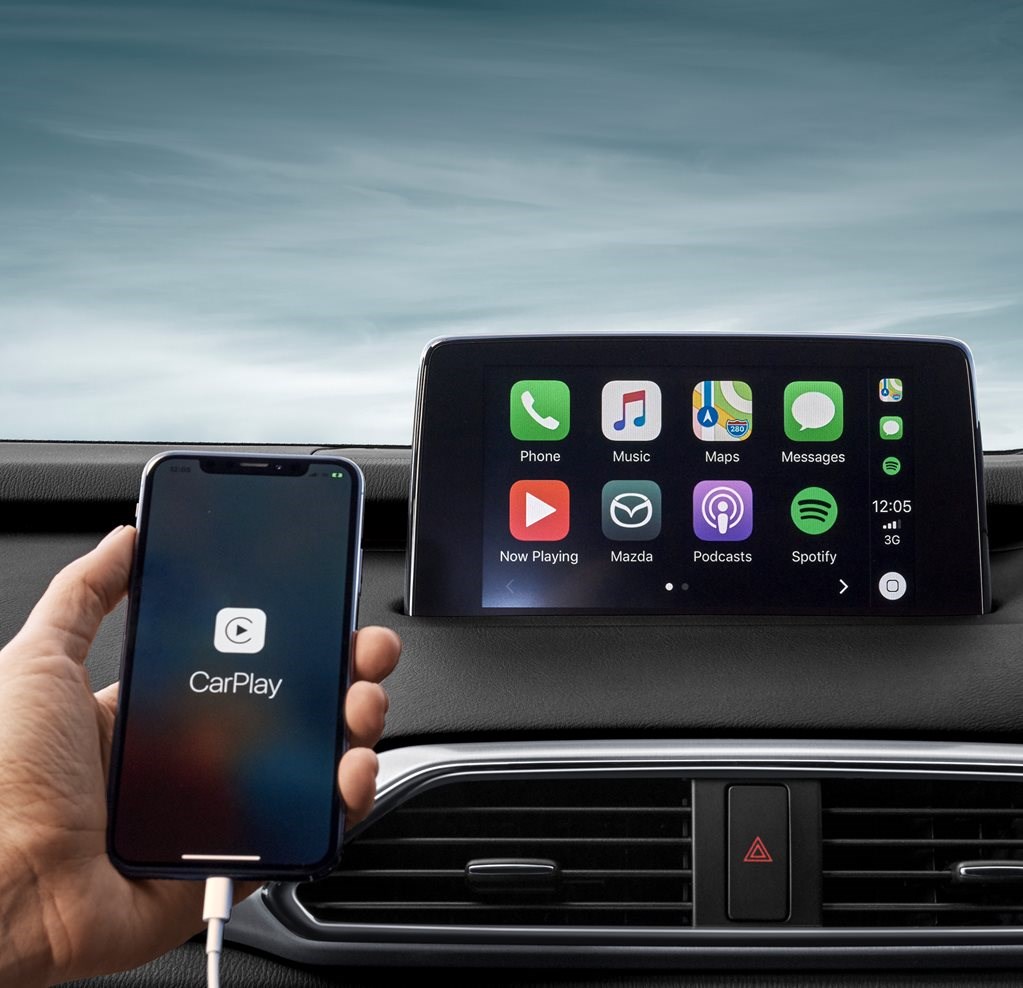
Apple CarPlay is an in-car system that allows an iPhone to display a simplified version of its iOS interface on a vehicle’s dashboard infotainment screen. Instead of fumbling with your phone, you can control essential apps like Maps, Music, Messages, Phone, and Podcasts directly through your car’s built-in controls – touch screen, rotary dials, or steering wheel buttons. Siri integration is central to CarPlay, enabling voice commands for almost every function, which is a significant safety feature as it minimizes driver distraction.
The beauty of CarPlay lies in its seamless integration. It mirrors the apps and functionalities you already rely on, presenting them in a car-optimized format. This means familiar icons, intuitive navigation, and quick access to information pertinent to driving, without the need to learn a new operating system specific to your car’s manufacturer. It’s a prime example of how mobile technology (Tech) enhances and simplifies everyday experiences, blending digital convenience with the physical act of driving.
Essential Prerequisites for CarPlay Installation
To ensure a successful CarPlay setup, several key requirements must be met. These prerequisites are critical whether you’re dealing with a brand-new vehicle or an aftermarket system.
- A Compatible iPhone: Your iPhone needs to be running iOS 7.1 or later. While technically compatible from this version, newer iOS versions offer enhanced features and stability. Most iPhones from the iPhone 5 upwards are compatible. Ensure your iPhone is updated to the latest iOS version for optimal performance and security.
- A CarPlay-Compatible Vehicle or Aftermarket Head Unit: This is non-negotiable. Your car must either come factory-equipped with CarPlay support or have an aftermarket stereo system installed that explicitly supports CarPlay. You can usually check your car manufacturer’s website, the vehicle’s manual, or the head unit’s specifications. If your car is older, an aftermarket unit might be your best bet to integrate this modern tech without buying a new car, a relevant consideration for “Money” when evaluating upgrades.
- High-Quality USB Cable (for Wired CarPlay): If your car supports wired CarPlay, the quality of your USB cable matters. A cheap, generic cable can lead to connection issues, intermittent drops, or slow charging. Always use an MFi (Made for iPhone/iPad) certified cable, preferably the one that came with your iPhone or a reputable third-party brand.
- Siri Enabled on Your iPhone: CarPlay heavily relies on Siri for voice commands, navigation, and interaction with apps. Ensure Siri is enabled on your iPhone (Settings > Siri & Search). Without Siri, many core CarPlay functionalities will be unavailable or cumbersome to use.
- Stable Bluetooth and Wi-Fi Connection (for Wireless CarPlay): For wireless CarPlay, your car’s infotainment system will typically use Bluetooth for the initial handshake and then Wi-Fi for data transfer. Both Bluetooth and Wi-Fi must be enabled on your iPhone and working correctly. Your car’s system must also support wireless CarPlay, which is often found in newer models.
Meeting these prerequisites lays the groundwork for a smooth installation and ensures you can fully leverage the capabilities of Apple CarPlay, integrating your digital life seamlessly into your driving routine.
Step-by-Step Installation Guides for Wired and Wireless CarPlay
Once you’ve confirmed all the prerequisites, the actual installation process for Apple CarPlay is straightforward. The method will primarily depend on whether your vehicle supports a wired connection, a wireless connection, or both. Most new vehicles offer wireless, while older compatible models might only offer wired.
Installing Wired Apple CarPlay
Wired CarPlay is the most common and generally the simplest to set up. It relies on a physical connection between your iPhone and your car’s USB port.
- Start Your Vehicle: Turn on your car’s ignition and ensure the infotainment system is powered up and fully booted.
- Locate the Correct USB Port: Your car might have multiple USB ports. For CarPlay, you need to use the one specifically designated for smartphone integration. This port is often labeled with a CarPlay icon, a smartphone icon, or text like “data” or “media.” Refer to your car’s owner’s manual if you’re unsure. Connecting to a “charging only” port will not initiate CarPlay.
- Connect Your iPhone: Using a high-quality MFi-certified USB cable, plug one end into your iPhone’s Lightning or USB-C port and the other end into the designated USB port in your car.
- Follow On-Screen Prompts on Your Car’s Display: Upon connection, your car’s infotainment system should detect your iPhone. You might see a prompt asking if you want to launch CarPlay or allow connection. Select “Yes” or “Enable.”
- Grant Permissions on Your iPhone: Your iPhone might display a pop-up asking for permission to “Allow CarPlay with this vehicle.” Tap “Allow.” If it asks for your passcode, enter it.
- CarPlay Interface Appears: Within a few seconds, your car’s display should transform to show the familiar CarPlay interface, complete with Apple Maps, Music, Phone, Messages, and other compatible apps.
That’s it for wired CarPlay! Your iPhone is now integrated, and you can control its functions safely through your car’s system. The reliability of a wired connection means fewer dropped connections and often faster data transfer for apps like navigation.
Setting Up Wireless Apple CarPlay
Wireless CarPlay offers the ultimate convenience, freeing your iPhone from cables. This method is becoming increasingly common in newer vehicles.
- Ensure Car’s Infotainment System is On: Just like with wired, start your car and ensure the infotainment system is fully operational.
- Enable Wi-Fi and Bluetooth on Your iPhone: On your iPhone, go to
Settingsand ensure bothWi-FiandBluetoothare turned on. - Initiate Pairing on Your Car’s Display: On your car’s infotainment screen, navigate to the
PhoneorConnectivitymenu. Look for an option likeAdd New Device,Connect Phone, orCarPlay. Select it to begin the pairing process. - Search for Your Car on Your iPhone’s Bluetooth: On your iPhone, go to
Settings > Bluetooth. Under “Other Devices,” you should see your car’s name appear. Tap on it. - Pair and Confirm: Both your iPhone and your car’s display will show a Bluetooth pairing code. Verify that the codes match and then confirm the pairing on both devices. Your iPhone might also ask if you want to “Use CarPlay” – tap “Use CarPlay.”
- Confirm Wi-Fi Connection: After the initial Bluetooth pairing, your iPhone will often connect to your car’s Wi-Fi network (even if it’s not an internet hotspot) to facilitate the data transfer for CarPlay. This usually happens automatically.
- CarPlay Interface Appears: Once successfully paired and connected, the CarPlay interface will load on your car’s screen.
For vehicles that only support wired CarPlay but you desire a wireless experience, there are aftermarket wireless CarPlay adapters available. These small gadgets plug into your car’s wired CarPlay USB port and then communicate wirelessly with your iPhone, effectively converting a wired system into a wireless one. This demonstrates the “Tech” innovation in extending functionality and user convenience, albeit at an additional “Money” cost.
Optimizing Your CarPlay Experience and Troubleshooting Common Issues

Once CarPlay is installed, there’s more to discover than just basic functionality. Customizing your dashboard and knowing how to troubleshoot common issues will significantly enhance your daily driving experience, promoting both safety and productivity.
Customizing Your CarPlay Dashboard
CarPlay offers a degree of personalization, allowing you to tailor the interface to your specific needs and preferences. This customization is primarily done through your iPhone.
- Access CarPlay Settings on iPhone: On your iPhone, go to
Settings > General > CarPlay. - Select Your Vehicle: Tap on your connected car from the list of vehicles.
- Customize: Here you’ll see a list of available CarPlay apps.
- Reorder Apps: Tap
Editin the top right corner. Then, use the three horizontal lines next to an app icon to drag and drop it into your desired position. The top left of the screen is the most prominent spot, so place your most frequently used apps there (e.g., Maps, Music). - Add/Remove Apps: While in
Editmode, tap the+icon next to an app under “More Apps” to add it to your CarPlay screen. Tap the-icon next to an app under “Include” to remove it. You can only remove compatible apps; core apps like Phone and Maps cannot be removed.
- Reorder Apps: Tap
- Consider Dark Mode: CarPlay automatically switches between light and dark mode based on ambient light or your car’s headlights. You can force it to always use Dark Mode via
Settings > General > CarPlay > [Your Car] > Appearance > Always Dark. - Wallpaper Options: Some CarPlay versions and car manufacturers allow you to choose from a limited selection of wallpapers, adding a touch of personal “Brand” to your car’s interface.
Thoughtful customization turns CarPlay into a truly personal cockpit, boosting “Productivity” by ensuring your most essential tools are always within easy reach and sight.
Troubleshooting Common CarPlay Problems
Even with careful setup, you might encounter issues. Here’s a guide to resolving common CarPlay problems, ensuring your digital security and seamless connectivity.
- CarPlay Not Connecting or Disconnecting Frequently:
- Check Cable (Wired): Ensure you’re using a high-quality, MFi-certified cable. Try a different cable. Inspect the cable for damage.
- Check USB Port: Ensure your car’s USB port is clean and functioning. Try a different USB port if available (especially the data-enabled one).
- Restart iPhone and Car: A simple restart of your iPhone and turning your car off and on (giving the infotainment system a full reboot) can often resolve glitches.
- Update Software: Ensure both your iPhone’s iOS and your car’s infotainment system software are up to date. Outdated software can cause compatibility issues.
- Check Siri: Ensure Siri is enabled on your iPhone (Settings > Siri & Search).
- Forget Car (Wireless): On your iPhone, go to
Settings > General > CarPlay, tap on your car, and thenForget This Car. On your car’s system, remove your iPhone from its Bluetooth/device list. Then, re-pair from scratch.
- No Sound or Intermittent Audio:
- Check Volume Levels: Ensure the volume on both your iPhone and your car’s audio system is turned up.
- Verify Audio Source: Ensure your car’s audio input is set to CarPlay (or the correct audio source, e.g., USB, Bluetooth).
- Close Other Audio Apps: Sometimes other apps on your iPhone playing audio in the background can interfere.
- Apps Not Appearing on CarPlay Screen:
- Compatibility: Only CarPlay-compatible apps will appear. Check if the app you’re looking for officially supports CarPlay.
- App Updates: Ensure the app itself is updated to its latest version.
- CarPlay Settings: Check
Settings > General > CarPlayon your iPhone to ensure the app is enabled and added to your CarPlay dashboard.
- Siri Not Responding or Working Correctly:
- Siri Enabled: Double-check
Settings > Siri & Searchon your iPhone to confirm Siri is enabled and configured correctly. - Microphone Access: Ensure CarPlay has access to your iPhone’s microphone (though this is usually automatic).
- Network Connection: Siri requires an internet connection (via your iPhone’s cellular data or Wi-Fi).
- Background Noise: Excessive background noise in the car can make it difficult for Siri to understand commands.
- Siri Enabled: Double-check
For persistent issues, consulting your car’s owner’s manual or contacting your car dealership or Apple Support is advisable. Ensuring a stable and secure connection is not only about convenience but also contributes to “Digital Security” by preventing data corruption or unauthorized access during your drives.
Enhancing CarPlay with Third-Party Apps and Accessories
The CarPlay ecosystem extends beyond Apple’s native offerings. A growing number of third-party applications are compatible, significantly broadening its utility. Navigation apps like Waze and Google Maps offer alternatives to Apple Maps, often with real-time traffic updates and community-reported hazards. Music streaming services such as Spotify, Pandora, and Amazon Music integrate seamlessly, putting your entire music library and personalized playlists at your fingertips. Messaging apps like WhatsApp and Telegram also have CarPlay support, allowing you to listen to incoming messages and reply using Siri, enhancing “Productivity” on the go.
Furthermore, for vehicles that lack native wireless CarPlay, dedicated wireless CarPlay adapters (as mentioned earlier) have become popular “Gadgets” that bridge this gap, offering a significant upgrade without the need for complex installations or expensive head unit replacements. These accessories can be a smart “Money” decision, providing modern convenience for a fraction of the cost of a new car.
The Broader Impact: CarPlay as a Smart Tech and Brand Enhancer
Apple CarPlay is more than just a convenient feature; it represents a significant advancement in automotive technology and has implications for both individual users and the wider industry. Its adoption reflects evolving “Tech Trends” and offers valuable insights into “Brand Strategy” for car manufacturers.
CarPlay: More Than Just an App
CarPlay is an integral component of the “connected car” revolution. It transforms the driving experience by making it inherently safer and more intuitive. By minimizing the need for drivers to handle their phones, it directly addresses a major cause of accidents – distracted driving. This focus on safety aligns perfectly with “Digital Security” and responsible technology use.
Beyond safety, CarPlay elevates the entire in-car experience. It provides access to a constantly updated suite of features and services that would otherwise require costly and often slower updates to a car’s native infotainment system. This ability to leverage the rapid innovation cycles of mobile technology within a vehicle is a powerful differentiator, making the car a smarter, more dynamic environment. It’s a prime example of how software and smart “Apps” are becoming as crucial as hardware in defining the user experience of modern gadgets.
Driving Brand and Value through Smart Integration
For car manufacturers, offering Apple CarPlay compatibility has become almost mandatory. It’s no longer a luxury feature but an expectation from consumers who are deeply integrated into the Apple ecosystem. Supporting CarPlay allows car brands to project an image of being tech-forward, customer-centric, and aligned with modern connectivity standards, directly influencing their “Brand Strategy” and “Corporate Identity.”
The presence of CarPlay can also subtly impact the perceived “Money” value of a vehicle. A car equipped with CarPlay is often seen as more modern and functional, potentially boosting its desirability and resale value. It adds a layer of future-proofing, ensuring that the in-car experience remains fresh and relevant as new apps and iPhone features are released. For consumers, choosing a CarPlay-compatible vehicle is an investment not just in transportation but in a connected, efficient, and safer driving future. This strategic integration by car brands highlights the critical role that technology partnerships play in shaping market perception and consumer choice in the automotive sector.
Conclusion
Installing Apple CarPlay on your iPhone is a straightforward process that unlocks a world of convenience, safety, and smart connectivity within your vehicle. Whether you opt for a wired or wireless setup, the benefits are immediate and substantial: intuitive navigation, effortless music control, hands-free communication, and access to a growing ecosystem of compatible apps, all managed through a familiar iOS interface.
By understanding the prerequisites, following the simple installation steps, and learning to troubleshoot common issues, you can seamlessly integrate your iPhone into your driving routine. CarPlay not only enhances personal “Productivity” and driving enjoyment but also exemplifies how cutting-edge “Tech” elevates the automotive industry, making vehicles smarter and safer extensions of our digital lives. Embrace the power of Apple CarPlay and transform every journey into a more connected and intelligent experience.
aViewFromTheCave is a participant in the Amazon Services LLC Associates Program, an affiliate advertising program designed to provide a means for sites to earn advertising fees by advertising and linking to Amazon.com. Amazon, the Amazon logo, AmazonSupply, and the AmazonSupply logo are trademarks of Amazon.com, Inc. or its affiliates. As an Amazon Associate we earn affiliate commissions from qualifying purchases.