
The digital landscape is constantly evolving, offering us an ever-expanding array of entertainment options right at our fingertips. For FireStick users, the quest for diverse and high-quality content is a continuous journey. Among the many applications promising to deliver this, Apollo TV has emerged as a notable contender, lauded for its user-friendly interface and extensive library of movies and TV shows. If you’re looking to unlock a new dimension of streaming on your Amazon FireStick, understanding how to install Apollo TV is your first crucial step.
This guide is designed to walk you through the entire process, from preparing your FireStick to launching and enjoying Apollo TV. We’ll cover the necessary prerequisites, detail each step of the installation, and offer some helpful tips to ensure a smooth and successful experience. Whether you’re a seasoned FireStick user or new to the world of custom app installations, this comprehensive tutorial will equip you with the knowledge you need.
Understanding Apollo TV and Its Appeal for FireStick Users
Before diving into the installation process, it’s beneficial to understand what Apollo TV is and why it’s become a popular choice among FireStick enthusiasts. Apollo TV is a third-party application that aggregates content from various sources, offering a vast selection of movies, TV series, and sometimes live channels. Its appeal lies in several key areas:
- Extensive Content Library: Apollo TV is known for its impressive collection of on-demand content, often featuring recently released films and popular TV shows that might not be readily available on mainstream streaming platforms.
- User-Friendly Interface: The application is designed with simplicity in mind, making it easy for users to navigate through categories, search for specific titles, and manage their viewing experience. This is particularly important for a device like the FireStick, where navigation can sometimes be clunky.
- Customization Options: While not as feature-rich as some premium apps, Apollo TV often allows for some degree of customization, such as setting favorite lists or choosing preferred playback quality.
- Affordability (Often Free): Many third-party apps like Apollo TV are offered free of charge, relying on ad revenue or voluntary donations from users. This makes it an attractive option for those looking to supplement their existing streaming subscriptions without additional costs.
It’s important to note that as a third-party application, Apollo TV is not available on the official Amazon Appstore. This means that installing it requires a few extra steps, primarily involving enabling “Apps from Unknown Sources” on your FireStick. This is a standard procedure for most third-party app installations on FireStick and is generally safe when downloading from reputable sources.
Preparing Your FireStick for Apollo TV Installation
Before you can begin downloading and installing Apollo TV, you need to ensure your FireStick is configured to allow installations from outside the official Amazon Appstore. This involves enabling a specific setting within your FireStick’s operating system.
Enabling “Apps from Unknown Sources”
This is the most critical step in preparing your FireStick for any third-party app installation. If this setting is not enabled, your FireStick will block any attempts to install applications that are not directly from the Amazon Appstore.
- Navigate to FireStick Settings: From your FireStick’s home screen, move to the rightmost option on the main menu bar. This will usually be labeled “Settings” or have a gear icon. Select it.
- Access “My Fire TV”: Within the Settings menu, scroll down and select “My Fire TV.” This section contains various device-related options.
- Select “Developer Options”: In the “My Fire TV” menu, you will find an option labeled “Developer Options.” Select this.
- Note: If you don’t see “Developer Options,” you’ll need to enable it first. To do this, go back to the “My Fire TV” screen, select “About,” and then repeatedly press the select button on your remote for your FireStick’s name (e.g., “Fire TV Stick 4K”) about seven times. You should see a notification indicating that “Developer Options” are now enabled. Then, go back to the “My Fire TV” menu, and you will see “Developer Options.”
- Turn on “Apps from Unknown Sources”: Within “Developer Options,” locate the toggle switch for “Apps from Unknown Sources.” Select it to turn it ON.
- Confirm the Warning: A warning message will appear, explaining the risks associated with installing apps from unknown sources. Read this carefully and select “Turn On” to confirm your decision.
Why is this step crucial? By enabling “Apps from Unknown Sources,” you are essentially granting your FireStick permission to install applications that have not undergone Amazon’s official vetting process. While this opens up a world of possibilities for enhanced entertainment and productivity apps, it’s vital to download installation files only from trusted and reputable websites to minimize security risks.
Understanding the Importance of a Downloader App
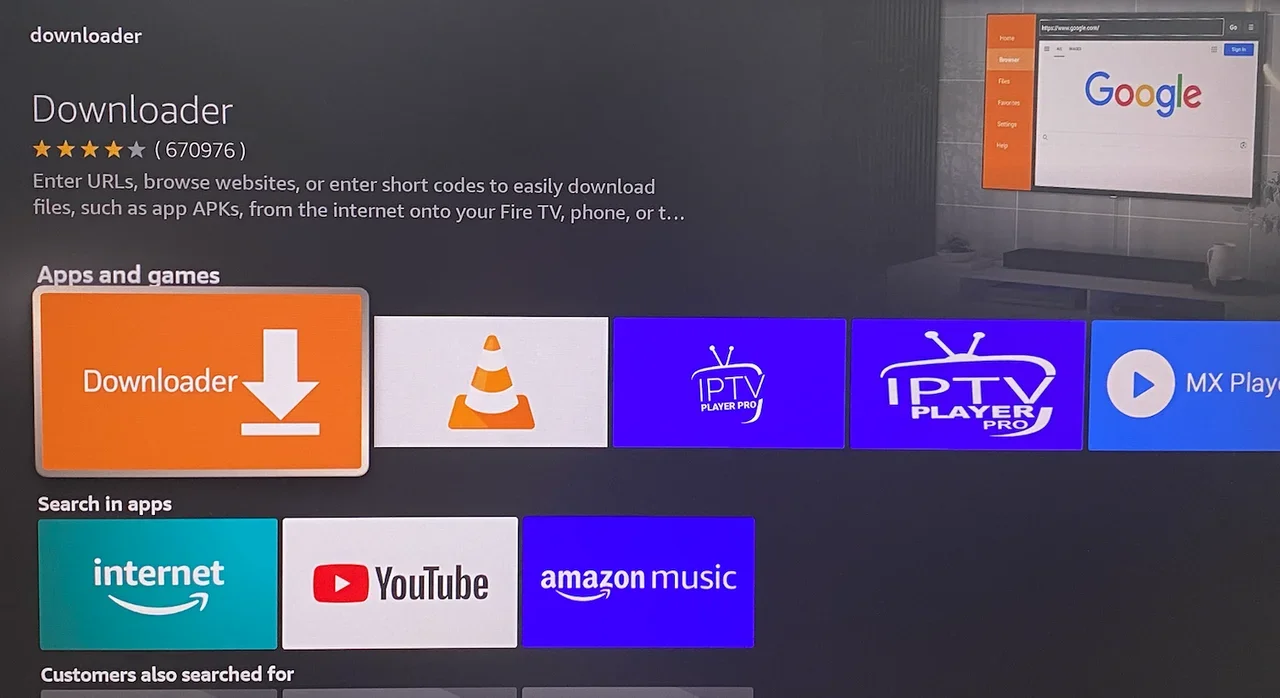
Since Apollo TV isn’t available on the Amazon Appstore, you’ll need a way to download its installation file (APK file). The most common and recommended method on FireStick is using an app called “Downloader.” This app allows you to easily navigate the web and download files directly to your FireStick.
If you don’t already have the Downloader app installed:
- Go to the Amazon Appstore: From your FireStick home screen, navigate to the search bar at the top.
- Search for “Downloader”: Type “Downloader” into the search bar and select the app from the search results.
- Install Downloader: Click on the Downloader app icon and then select “Get” or “Download” to install it on your FireStick.
- Launch Downloader: Once installed, open the Downloader app. You’ll likely see a prominent text field for entering URLs.
The Downloader app is your gateway to accessing websites and downloading the necessary APK files for Apollo TV. Ensure it’s installed and ready before proceeding to the next stage.
Step-by-Step Installation of Apollo TV on FireStick
With your FireStick prepared and the Downloader app ready, you can now proceed with the actual installation of Apollo TV. This process involves finding a reliable source for the Apollo TV APK file and using the Downloader app to install it.
Finding the Apollo TV APK Download Link
This is a critical step that requires caution. Since you are downloading from unofficial sources, it’s paramount to use reputable websites that are known for providing safe and up-to-date APK files. Searching for “Apollo TV APK download” on a regular web browser (or even within the Downloader app’s browser) will yield numerous results. However, not all sources are trustworthy.
Best practices for finding the APK:
- Look for well-known tech blogs or Android app review sites: These often have dedicated sections for providing download links to popular third-party apps.
- Check forums dedicated to FireStick or Android app installations: Communities can often share reliable sources and advise against untrustworthy ones.
- Prioritize websites that are frequently updated: This indicates that the APKs are likely to be current and functional.
- Be wary of sites that bombard you with pop-ups or ask for excessive personal information: These are often red flags.
For this guide, we will assume you have found a reliable URL for the Apollo TV APK. If you are unsure where to find one, searching for terms like “Apollo TV APK direct download” or looking for recent reviews of Apollo TV on reputable tech sites will guide you to a safe source.
Using Downloader to Install Apollo TV
Once you have the direct download URL for the Apollo TV APK, follow these steps:
- Open the Downloader App: Launch the Downloader app on your FireStick.
- Enter the URL: In the main screen of the Downloader app, you will see a URL input field. Carefully type or paste the exact URL of the Apollo TV APK file into this field. Ensure there are no typos.
- Press “Go”: After entering the URL, select the “Go” button. The Downloader app will now connect to the website and begin downloading the APK file. This may take a few moments depending on your internet speed and the size of the file.
- Installation Prompt: Once the download is complete, the Downloader app will automatically prompt you to install the application. You will see a screen with details about the app and an “Install” button.
- Click “Install”: Select the “Install” button. The FireStick will now begin the installation process for Apollo TV.
- Wait for Installation: Please wait patiently for the installation to finish. You will see a progress bar.
- App Installed Confirmation: Upon successful installation, you will see a confirmation message like “App installed.” You will typically have two options: “Done” or “Open.”
- Select “Done” or “Open”:
- “Done”: This will close the installer and return you to the Downloader app. You can then delete the downloaded APK file to save space.
- “Open”: This will immediately launch Apollo TV after installation.
Post-Installation: Launching and Configuring Apollo TV
After successfully installing Apollo TV, you’ll want to launch it and get it set up for your viewing pleasure.
- Locate Apollo TV:
- From Downloader: If you selected “Done” after installation, you need to find Apollo TV. Press the Home button on your FireStick remote to return to the main screen. Scroll down to the bottom of your app list, where newly installed apps usually appear. Apollo TV should be there.
- Using the “Your Apps & Channels” section: You can also go to Settings > Applications > Manage Installed Applications and find Apollo TV. You can launch it from there or select “Launch application.”
- Launch Apollo TV: Select the Apollo TV icon to open the application.
- Initial Setup (if any): The first time you launch Apollo TV, it might present you with an introductory screen or ask for certain permissions. Follow any on-screen prompts.
- Exploring the Interface: Familiarize yourself with the layout of Apollo TV. You’ll likely find categories for movies, TV shows, genres, and a search function.
- Optional: Clearing Downloader Cache: To free up storage space on your FireStick, it’s a good practice to clear the cache of the Downloader app. Open Downloader, go to Settings, and select “Clear Cache.” This will remove any downloaded APK files.
Troubleshooting Common Issues and Best Practices
While the installation process is generally straightforward, you might encounter a few hiccups. Here are some common issues and how to address them, along with best practices for using third-party apps like Apollo TV.
Troubleshooting Installation Errors
- “App not installed” Error:
- Check Storage Space: Ensure your FireStick has enough free storage. If not, delete unused apps or data.
- Corrupt APK File: The downloaded APK might be corrupt. Try finding a different download source and downloading it again.
- Incomplete Download: Ensure the download process completed fully before the installation prompt appeared.
- FireStick Restart: Sometimes a simple restart of your FireStick can resolve temporary glitches. Unplug the power adapter for 30 seconds, then plug it back in.
- “Unable to Load” or “App Crashes”:
- Internet Connection: A weak or unstable internet connection can cause issues. Ensure you have a strong Wi-Fi signal.
- App Compatibility: While Apollo TV is generally compatible with FireStick, there might be specific versions that have issues. Try searching for a slightly older or newer version of the APK.
- Clear App Cache and Data: Go to FireStick Settings > Applications > Manage Installed Applications > Apollo TV > Clear Cache and Clear Data. This will reset the app to its default state.
- “There was a problem parsing the package” Error: This usually indicates a problem with the APK file itself. It might be incomplete, corrupted, or not designed for FireOS. Try a different download source.
Maintaining a Secure and Optimized Experience
- Always Download from Reputable Sources: This is the most important rule for digital security. Stick to well-known tech websites and forums for your APK downloads. Avoid clicking on random download links from search results.
- Keep Your FireStick Updated: Ensure your FireStick’s firmware is up to date. Go to Settings > My Fire TV > About > Check for Updates.
- Use a VPN (Recommended): When using third-party streaming apps, it’s often recommended to use a Virtual Private Network (VPN). A VPN encrypts your internet traffic and masks your IP address, which can help protect your privacy and prevent your ISP from monitoring your online activity. Several VPN services are compatible with FireStick.
- Regularly Clear Cache: For both the Downloader app and Apollo TV, regularly clearing the cache can help free up storage space and resolve minor performance issues.
- Be Mindful of Permissions: When installing any app, pay attention to the permissions it requests. If an app asks for permissions that seem unnecessary for its function, be cautious.
- Apollo TV Updates: Like any app, Apollo TV may release updates. You might need to manually download and install newer APK versions when they become available to ensure you have the latest features and bug fixes.
By following these troubleshooting tips and best practices, you can ensure a smooth, enjoyable, and secure experience with Apollo TV on your Amazon FireStick, unlocking a world of entertainment at your fingertips.
The Broader Context: Tech, Brand, and Money Implications
The act of installing and using third-party apps like Apollo TV on a FireStick touches upon several key themes prevalent in today’s digital ecosystem. Understanding these connections can provide a more holistic view of our digital consumption habits and their implications.
Tech: The Ever-Expanding Universe of Apps and Devices
The core of installing Apollo TV is rooted in Technology. The FireStick itself is a testament to the miniaturization and increasing power of consumer electronics, designed to bring vast digital content into our living rooms. The development of APKs (Android Package Kits) and their distribution, even through unofficial channels, highlights the open-source nature of Android and its adaptability.
- Software Innovation: Apollo TV represents the continuous innovation in software development, where developers create applications that can augment the functionality of existing devices, often filling gaps left by official marketplaces.
- App Ecosystems: This practice also underscores the diverse app ecosystems that exist beyond official stores. While Amazon’s Appstore provides a curated and secure experience, the desire for more content and specialized applications drives users to explore third-party options.
- Digital Security: As we’ve emphasized, the “Apps from Unknown Sources” setting brings digital security into sharp focus. Users must develop a keen awareness of where they are downloading files from, understanding the potential risks of malware or spyware if not careful. This is a fundamental aspect of digital literacy in the modern age.
- Productivity and Entertainment: While Apollo TV is primarily for entertainment, the underlying technology of app installation can also be applied to productivity tools, educational apps, and more, demonstrating the versatile nature of platforms like the FireStick.
Brand: Navigating Trust and Reputation in the Digital Space
The reliance on third-party sources for Apollo TV also brings the concept of Brand into play, albeit in a more complex and less direct way than traditional consumer products.
- Brand Reputation of APK Sources: When searching for Apollo TV, you’ll encounter various websites claiming to offer the download. The “brand” reputation of these websites is crucial. Users implicitly trust or distrust these sites based on their perceived reliability, user reviews, and longevity. A site with a consistently positive reputation for providing clean APKs builds a form of brand equity among its users.
- Brand Perception of Apollo TV: Similarly, Apollo TV itself aims to build a brand perception as a reliable and comprehensive streaming solution. Its success hinges on its ability to deliver on its promises, maintain a stable application, and foster a positive user experience. Word-of-mouth and online reviews play a significant role in shaping this brand perception.
- Amazon’s Brand and Control: Amazon’s control over its Appstore is a core aspect of its brand strategy, emphasizing security and a curated user experience. Allowing third-party installations, while necessary for user flexibility, introduces a layer of risk that Amazon mitigates with the “Apps from Unknown Sources” toggle. This balance is key to maintaining user trust in the overall FireStick platform.
- Personal Branding for Tech Enthusiasts: For some users, successfully installing and utilizing these “unofficial” apps can be a form of personal branding within tech communities, signifying their knowledge and ability to navigate the more complex aspects of technology.
Money: The Economics of Content and Access
The pursuit of content through apps like Apollo TV is intrinsically linked to Money, both in terms of cost savings and the economics of content distribution.
- Cost-Effective Entertainment: A primary driver for installing Apollo TV is often the desire for cost-effective entertainment. By offering content that might otherwise require multiple paid subscriptions, Apollo TV presents a way to access a broad library of movies and shows at little to no direct cost to the user (though it may come with indirect costs like data usage and potential security risks).
- Online Income and Monetization Models: While Apollo TV might be free for users, the developers behind it often have their own monetization strategies. This could involve in-app advertising, affiliate marketing, or even donation-based models. Understanding these underlying economic models provides insight into how “free” apps sustain themselves.
- Disrupting Traditional Models: The proliferation of such third-party apps can be seen as a force that disrupts traditional content distribution and subscription models. They offer an alternative that challenges established players in the media landscape.
- Financial Tools for Managing Subscriptions: For users who still maintain official subscriptions, managing their budget effectively becomes important. This is where personal finance tools and side hustle ideas (like creating content about tech tutorials) can come into play. The desire to optimize entertainment spending often leads users to explore avenues that minimize recurring costs.
In conclusion, the seemingly simple act of installing Apollo TV on a FireStick is a gateway to understanding broader trends in technology, the intricate dynamics of brand trust in the digital age, and the ever-evolving economics of entertainment content. By navigating these aspects with awareness, users can enhance their digital experience while staying informed and secure.
aViewFromTheCave is a participant in the Amazon Services LLC Associates Program, an affiliate advertising program designed to provide a means for sites to earn advertising fees by advertising and linking to Amazon.com. Amazon, the Amazon logo, AmazonSupply, and the AmazonSupply logo are trademarks of Amazon.com, Inc. or its affiliates. As an Amazon Associate we earn affiliate commissions from qualifying purchases.