
Chromebooks have evolved significantly from their humble beginnings as cloud-centric devices. While they excel at web-based tasks and offer a seamless Google ecosystem experience, many users find themselves encountering a common question: can I install Android apps on my Chromebook? The answer, for most modern Chromebooks, is a resounding yes, and the key to unlocking this vast library of applications lies in understanding how to install APK files.
APK, which stands for Android Package Kit, is the file format used by Android to distribute and install applications. Traditionally, Chromebooks primarily relied on the Chrome Web Store for their software. However, with the integration of the Google Play Store, a massive library of Android apps became accessible. But what if the app you’re looking for isn’t on the Play Store, or if you need to install a specific version or a developer build? This is where the ability to sideload APKs comes into play, allowing you to bypass the official app store and directly install applications onto your Chromebook.
This comprehensive guide will walk you through the process of installing APKs on your Chromebook, covering everything from enabling the necessary settings to troubleshooting common issues. Whether you’re a tech enthusiast looking to experiment with new software, a student needing a specific educational app, or simply someone who wants to expand the functionality of their Chromebook, this tutorial will equip you with the knowledge to do so confidently.
Understanding the Basics: What are APKs and Why Install Them on a Chromebook?
Before we dive into the technicalities, it’s crucial to understand what APKs are and the rationale behind installing them directly on your Chromebook.
The Anatomy of an APK: More Than Just an App File
An APK file is essentially an archive file that contains all the elements required to install an application on an Android device. This includes:
- Application Code: The actual programming that makes the app function.
- Resources: Images, sounds, layout files, and other assets that the app uses.
- Manifest File: A crucial XML file that describes the app’s components, permissions it requires, and other essential information.
- Digital Certificate: Used to verify the authenticity and integrity of the app.
Think of an APK file as the digital equivalent of an installer package you might find on a Windows or macOS computer.
Why Sideload APKs on Your Chromebook?
While the Google Play Store offers an incredible selection of apps, there are several compelling reasons why you might choose to install APKs directly:
- Access to Non-Play Store Apps: Not every app is available on the Google Play Store. This could be due to geographical restrictions, beta testing programs, or apps developed for specific niche markets.
- Older or Newer Versions: Sometimes, you might need a specific older version of an app that has been removed from the Play Store or a pre-release version that offers new features or bug fixes not yet officially rolled out.
- Developer Builds and Custom Apps: If you are a developer or are testing an app under development, you’ll often receive APK files directly from the developer.
- Regional Exclusivity: Some apps are released in specific regions first and might not be available globally on the Play Store initially.
- Performance Tweaks and Customization: In some advanced scenarios, users might seek out modified APKs that offer performance enhancements or customization options not found in the official versions. However, this comes with significant risks.
It’s important to note that installing APKs from unofficial sources can expose your Chromebook to security risks, which we will discuss later.
Preparing Your Chromebook for APK Installation: Enabling Unknown Sources
Before you can install any APK file, you need to enable a specific setting on your Chromebook. This setting allows your device to install applications from sources other than the Google Play Store.
Step 1: Accessing Your Chromebook’s Settings
- Click the time in the bottom-right corner of your screen.
- Click on the gear icon (Settings).
Step 2: Navigating to the Developer Options
The exact location of this setting can vary slightly depending on your Chrome OS version, but generally, you’ll find it under the “Apps” or “Linux (Beta)” section.
- In the Settings menu, look for the “Apps” section on the left-hand sidebar.
- Under “Apps,” you should see an option for “Google Play Store.” Click on it.
- Within the Google Play Store settings, you might find an option like “Manage additional app settings” or a similar phrasing. Click on this.
If you are running a newer version of Chrome OS and have Linux (Beta) enabled, you might find APK installation options integrated within the Linux environment. However, for most users wanting to install standard Android apps, the Google Play Store settings are the primary route.
Step 3: Enabling “Unknown Sources”
Once you are in the relevant app settings, you need to find and enable the option that allows installation from unknown sources.
- Look for a toggle switch or checkbox labeled “Install apps from unknown sources” or “Allow installation from unknown sources.”
- Toggle this option ON.
- You will likely see a warning message explaining the risks associated with installing apps from outside the Play Store. Read this carefully and confirm that you understand the risks before proceeding.
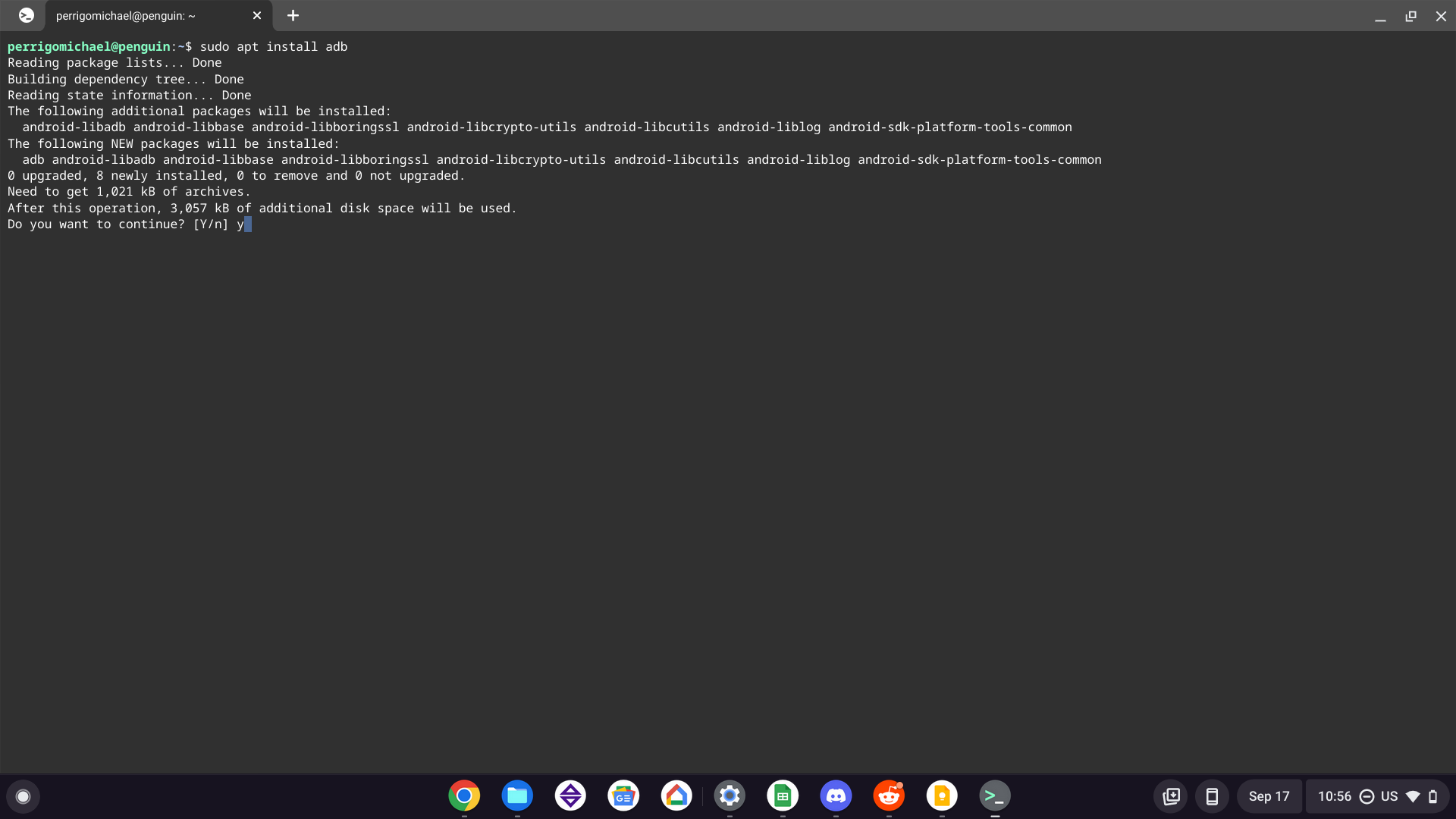
Important Note: Enabling “unknown sources” makes your Chromebook more vulnerable to malware. It is crucial to only download APKs from trusted sources and to disable this setting when you are finished installing the APKs you need.
The Installation Process: Downloading and Sideloading Your APK
With the necessary settings enabled, you’re ready to download and install your APK file.
Step 1: Finding and Downloading the APK File
This is arguably the most critical step, as the source of your APK directly impacts your device’s security.
- Trusted Developers: If you know the developer of the app, their official website is the best place to look for APK downloads.
- Reputable APK Mirror Sites: There are several well-established websites that act as mirrors for APK files. However, even on these sites, it’s essential to exercise caution. Look for sites that are transparent about their sources and have a good reputation within the Android community. Examples might include APKMirror, but always do your own due diligence.
- Avoid Unofficial Forums and Shady Websites: Steer clear of websites that seem unprofessional, bombard you with ads, or promise free premium apps. These are often breeding grounds for malware.
Once you’ve found a reputable source, download the APK file to your Chromebook. It will likely be saved in your “Downloads” folder.
Step 2: Locating the Downloaded APK File
- Open the “Files” app on your Chromebook.
- Navigate to your “Downloads” folder, where you should find the APK file you just downloaded.
Step 3: Installing the APK
Now, the actual installation begins.
- Double-click on the downloaded APK file.
- A dialog box will appear, asking if you want to install the application. It will usually list the permissions the app requires. Review these permissions carefully. If they seem excessive or unrelated to the app’s functionality, it’s a red flag.
- Click “Install.”
The installation process will begin, and you’ll see a progress bar. Once completed, you will typically see an option to “Open” the app or “Done.”
Step 4: Launching Your Newly Installed App
Your newly installed app should now appear in your Chromebook’s app launcher, just like any other app from the Play Store. You can find it by clicking the launcher icon (usually a circle in the bottom-left corner) and searching for its name.
Troubleshooting Common Issues and Security Best Practices
While the process is generally straightforward, you might encounter a few hiccups. Additionally, it’s paramount to be aware of security implications.
Common Issues and Solutions
- “App not installed” Error: This can occur for several reasons:
- Corrupted APK File: Try downloading the APK again from a trusted source.
- Incompatible App: The app might not be compatible with your Chromebook’s hardware or Chrome OS version.
- Insufficient Storage: Ensure you have enough free space on your Chromebook.
- Conflicting App: An existing app might be causing a conflict. Try uninstalling similar apps.
- Blocked by Security Settings: Double-check that “unknown sources” is enabled.
- App Crashes or Doesn’t Open:
- Permissions Issue: The app might be missing essential permissions. Check the app’s details in the Files app if possible, or re-install it ensuring you grant necessary permissions.
- Software Glitch: Restart your Chromebook.
- App Bug: The app itself might have a bug. Try searching online for known issues with that specific app version.
- “Parse Error” or “There was a problem parsing the package”:
- This usually indicates a corrupted or improperly formed APK file. Redownload from a reliable source.
Security Best Practices: Staying Safe
Installing APKs from sources other than the Google Play Store inherently carries risks. Adhering to these best practices will significantly mitigate those risks:
- Only Download from Trusted Sources: This cannot be stressed enough. Prioritize official developer websites or highly reputable APK mirror sites that have a proven track record.
- Scan APKs with Antivirus Software: Before installing, you can use online virus scanners (e.g., VirusTotal) to scan the APK file for malware. Upload the APK to such a service and check the results.
- Review App Permissions Meticulously: Before installation, pay close attention to the permissions an app requests. If an app that claims to be a simple calculator wants access to your contacts, messages, or microphone, it’s a massive red flag.
- Disable “Unknown Sources” When Not in Use: As soon as you have installed the APKs you need, go back into your Chromebook’s settings and disable the “Install apps from unknown sources” option. This acts as a crucial security layer, preventing accidental installations of malicious software.
- Be Wary of Modified or “Cracked” APKs: Apps that are offered for free when they are normally paid, or that claim to unlock premium features, are often bundled with malware or spyware. Avoid these at all costs.
- Keep Your Chromebook Updated: Ensure your Chrome OS is always up-to-date. Google frequently releases security patches that protect your device against emerging threats.
By following these guidelines, you can safely enjoy the expanded functionality that installing APKs can bring to your Chromebook, without compromising your digital security.
Conclusion: Embracing the Flexibility of Your Chromebook
Installing APKs on your Chromebook opens up a new dimension of possibilities, transforming your device from a strictly web-based tool into a more versatile platform capable of running a wider array of applications. While the Google Play Store remains the primary and safest method for acquiring Android apps, the ability to sideload APKs empowers users to access specific software, beta versions, or niche applications that might not be available through official channels.
Remember, with great power comes great responsibility. Always prioritize security by downloading APKs only from trusted sources, meticulously reviewing app permissions, and disabling the “unknown sources” setting when it’s no longer needed. By understanding the process and adhering to these best practices, you can confidently expand your Chromebook’s capabilities and unlock its full potential. Whether you’re a student, a professional, or a tech enthusiast, mastering the art of APK installation will undoubtedly enhance your overall Chromebook experience.
aViewFromTheCave is a participant in the Amazon Services LLC Associates Program, an affiliate advertising program designed to provide a means for sites to earn advertising fees by advertising and linking to Amazon.com. Amazon, the Amazon logo, AmazonSupply, and the AmazonSupply logo are trademarks of Amazon.com, Inc. or its affiliates. As an Amazon Associate we earn affiliate commissions from qualifying purchases.