
In today’s interconnected world, smartphones have transcended their original purpose of communication, evolving into indispensable tools for productivity, entertainment, learning, and much more. At the heart of this transformation lies the humble mobile application – a piece of software designed to perform a specific function. For the vast majority of smartphone users globally, an Android device is their digital companion, offering unparalleled flexibility and a vibrant ecosystem of apps. Whether you’re a new Android user unwrapping your first device, an experienced user looking to expand your digital toolkit, or simply curious about the safest and most efficient ways to enhance your phone’s capabilities, understanding how to install applications is fundamental.

This comprehensive guide will demystify the process of installing apps on your Android phone, covering everything from the official, secure methods to more advanced techniques like sideloading. We’ll delve into critical aspects of digital security, performance optimization, and even the financial considerations that come with expanding your app library, aligning with the core themes of technology, digital security, and personal finance that define our digital landscape. By the end of this article, you’ll not only know how to install any app you desire but also how to do so smartly and securely, ensuring your Android experience is both powerful and protected.
The Gateway to Android Apps: The Google Play Store
For the overwhelming majority of Android users, the Google Play Store is the primary and most recommended avenue for discovering and installing applications. It’s Google’s official marketplace, a vast digital repository housing millions of apps, games, movies, books, and more. The Play Store is not just convenient; it’s designed with user security and developer vetting in mind, offering a relatively safe and reliable environment for app acquisition. When you download an app from the Play Store, you benefit from Google’s extensive security checks, automatic updates, and a streamlined installation process. This brand recognition and trust are paramount in the digital age, where safeguarding personal data is as crucial as accessing innovative tools.
Setting Up Your Google Account for Seamless Downloads
Before you can embark on your app discovery journey within the Google Play Store, ensuring your Android device is linked to a Google account is a prerequisite. For most users, this step is completed during the initial setup of their new phone. If, however, you’re using a device that isn’t connected to a Google account, or if you wish to add an additional account (perhaps for work or family sharing), the process is straightforward.
To add or verify your Google account:
- Open Settings: Navigate to the ‘Settings’ app on your Android phone. This is usually represented by a gear icon.
- Find Accounts: Scroll down and tap on ‘Accounts’ or ‘Accounts & sync’ (the exact wording may vary slightly depending on your Android version and phone manufacturer).
- Add Account: Tap on ‘Add account’ and select ‘Google’ from the list of options.
- Sign In or Create: You’ll be prompted to sign in with an existing Google email address and password. If you don’t have one, you can create a new account directly from this screen.
- Sync Data: Once signed in, you’ll have options to sync various data like contacts, calendar, and app data. This linkage is crucial not only for app downloads but also for backing up your device and accessing other Google services seamlessly.
Having a Google account linked means all your app purchases, downloads, and preferences are tied to this digital identity, making it easy to restore apps on a new device or manage your subscriptions. It’s an essential first step in leveraging the full power of the Android ecosystem, acting as your passport to a world of applications.
Step-by-Step Guide to Installing Apps from the Play Store
With your Google account securely in place, you’re ready to dive into the Play Store. The process is designed to be intuitive, allowing users of all technical proficiencies to find and install apps with ease.
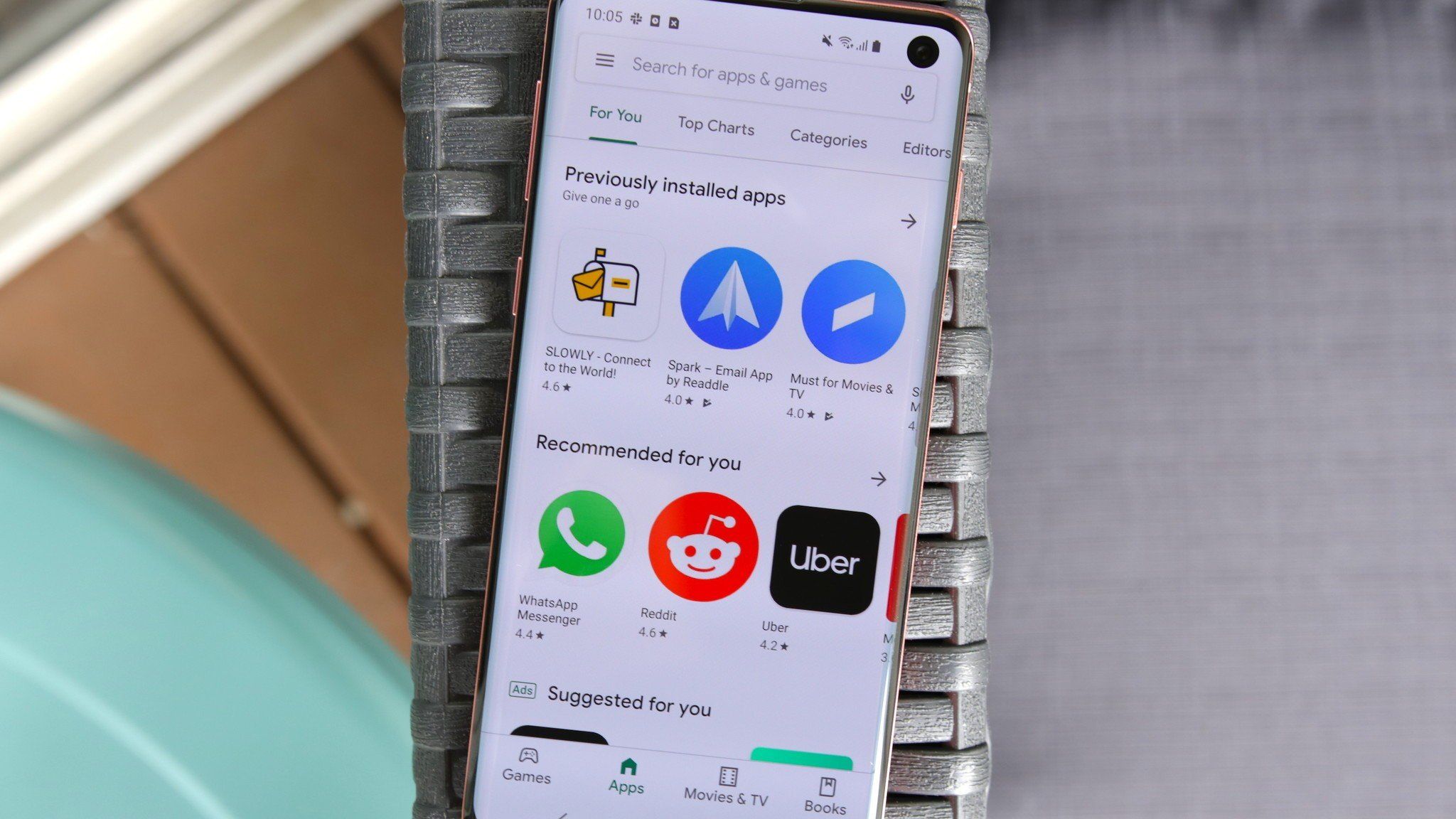
- Open the Google Play Store: Look for the Play Store icon on your home screen or in your app drawer. It’s typically a colorful triangle on a white background. Tap to open it.
- Navigate and Search:
- Browse Categories: The Play Store interface is organized into categories like ‘Games,’ ‘Apps,’ ‘Movies & TV,’ and ‘Books.’ You can tap on these to explore trending items, editor’s picks, or specific genres.
- Search Bar: If you know exactly what you’re looking for, use the search bar at the top of the screen. Type the app’s name (e.g., “WhatsApp,” “Spotify,” “Candy Crush”) and tap the search icon.
- Select an App:
- From the search results or category browsing, tap on the app you’re interested in. This will take you to its dedicated app page.
- Review App Details: On the app page, take a moment to review important information:
- Developer Name: Look for reputable developers, which often indicates a reliable app.
- Rating and Reviews: A higher rating and positive reviews from other users are good indicators of app quality and satisfaction.
- Description and Screenshots: Read the app’s description to understand its functionality and browse screenshots to get a visual preview.
- Permissions: This is crucial for digital security. Before installing, scroll down to the ‘About this app’ section (or similar) and check ‘App permissions.’ Understand what data the app requests access to (e.g., camera, microphone, location, contacts). Only grant permissions that make sense for the app’s functionality. A flashlight app asking for contacts access should raise a red flag.
- Install the App:
- Once you’re satisfied with your review, tap the green ‘Install’ button.
- If the app is paid, the button will display its price. Tapping it will prompt you for payment confirmation (via Google Play balance, credit/debit card, or other linked payment methods).
- Download and Installation: The app will begin to download. The progress will be shown on the screen. Once downloaded, it will automatically install on your device.
- Open the App: After installation, the ‘Install’ button will change to ‘Open.’ You can tap this to launch the app immediately. Alternatively, the app’s icon will appear on your home screen or in your app drawer, ready for use.
This seamless process is a testament to the Google Play Store’s efficiency, making app acquisition straightforward while offering critical information to help you make informed choices.
Managing Your Apps: Updates, Permissions, and In-App Purchases
Installing an app is just the beginning of its lifecycle on your device. Effective app management is crucial for maintaining your phone’s performance, security, and your personal financial health.
Keeping Apps Updated:
App updates are vital for several reasons:
- Security: Developers frequently release updates to patch security vulnerabilities, protecting your device from potential exploits. This is a core aspect of digital security.
- New Features: Updates often bring new functionalities, improvements, and bug fixes, enhancing the user experience.
- Performance: Optimized code in updates can make apps run smoother and more efficiently, conserving battery life and system resources.
To update apps:
- Open the Play Store.
- Tap on your profile icon (top-right corner).
- Select ‘Manage apps & device.’
- Tap ‘Updates available’ to see a list of apps that need updating. You can choose to ‘Update all’ or update specific apps.
It’s highly recommended to enable automatic updates over Wi-Fi in your Play Store settings to ensure you always have the latest, most secure versions.
Managing Permissions:
As discussed, app permissions are critical. You can review and modify permissions for any installed app at any time:
- Go to ‘Settings’ > ‘Apps’ (or ‘Apps & notifications’).
- Select the specific app you want to manage.
- Tap on ‘Permissions.’
- You’ll see a list of permissions the app has requested or been granted. You can toggle these on or off. Exercise caution when revoking permissions, as some apps may not function correctly without necessary access. Always ensure permissions align with the app’s stated purpose.
Navigating In-App Purchases (IAPs):
Many apps are free to download but offer additional features, content, or subscriptions through in-app purchases. This directly relates to personal finance.
- Transparency: The Play Store clearly indicates if an app offers IAPs on its detail page.
- Control: You can set up parental controls or require authentication for every purchase in the Play Store settings to prevent accidental or unauthorized spending.
- Budgeting: Be mindful of subscription costs and recurring fees. Regularly review your subscriptions through the Play Store (Profile icon > ‘Payments & subscriptions’ > ‘Subscriptions’) to avoid unwanted expenses.
Beyond the Official Store: Sideloading and Third-Party Sources
While the Google Play Store is the primary hub, Android’s open nature allows users to install applications from sources other than the official marketplace. This process is known as “sideloading,” and it involves directly installing an Application Package Kit (APK) file, which is the package file format used by the Android operating system for distribution and installation of mobile apps. Sideloading offers flexibility, enabling access to apps not available on the Play Store, older versions of apps, or beta releases. However, this flexibility comes with significant responsibilities and risks, demanding a heightened awareness of digital security.
Understanding the Risks: Security, Malware, and Data Privacy
Sideloading applications from third-party sources bypasses the rigorous security checks that Google applies to apps submitted to the Play Store. This significantly elevates the potential for encountering malicious software, often referred to as malware.
- Malware and Viruses: Unofficial APK files can be tampered with or intentionally designed to contain viruses, spyware, ransomware, or other forms of malware. These malicious programs can steal your personal data (passwords, banking information, contacts), hijack your device for botnet activities, display intrusive ads, or even lock you out of your phone. The financial implications of such attacks, from identity theft to direct monetary loss, can be severe.
- Data Privacy Concerns: Even if an app isn’t overtly malicious, a poorly coded or untrustworthy app from an unofficial source might excessively collect your personal data without proper safeguards, violating your privacy. The brand reputation of the source or developer is non-existent or hard to verify, leaving you vulnerable.
- System Instability: Apps from unofficial sources might not be optimized for your specific device or Android version, leading to crashes, performance issues, or even system instability.
- Lack of Updates: Sideloaded apps do not receive automatic updates via the Play Store. This means you’ll miss out on critical security patches, bug fixes, and new features, leaving your device exposed to known vulnerabilities over time.
For these reasons, sideloading should be approached with extreme caution and ideally reserved for users who understand the implications and can verify the legitimacy of their sources.
How to Safely Sideload an App (and When Not To)
Sideloading should be a last resort and performed only when absolutely necessary and from highly reputable sources. Here’s how to do it, emphasizing safety:
When to Consider Sideloading (and When Not To):
- Consider Sideloading if:
- The app is a legitimate open-source project not on the Play Store.
- You need an older version of an app for compatibility reasons.
- You’re a developer testing your own app.
- The app is unavailable in your region, but you have verified its authenticity from a trusted source.
- Do NOT Sideload if:
- You’re looking for a paid app for free (this is pirating and often comes with malware).
- The source seems suspicious or has poor reviews.
- You are unsure about the app’s origins or legitimacy.
- The app is available on the Play Store – always prefer the official channel.
Steps to Sideload an APK Safely:
- Find a Reliable APK Source: This is the most critical step. Look for well-known, established APK repositories (e.g., APKMirror for verified versions of free apps) that prioritize security and authenticity. Avoid obscure forums or websites promising free paid apps. Research the brand reputation of the source extensively.
- Enable “Install Unknown Apps”: By default, Android blocks installations from unknown sources. You’ll need to grant permission.
- Go to ‘Settings’ > ‘Apps’ (or ‘Apps & notifications’).
- Tap ‘Special app access’ or ‘Advanced’ (path varies by device).
- Look for ‘Install unknown apps’ or ‘Install other apps.’
- Here, you’ll see a list of apps (like your browser or file manager). You need to grant permission to the app you will use to download or open the APK file (e.g., Chrome, Files). Toggle the permission to ‘Allowed’ for that specific app.
- Crucial: Remember to disable this permission immediately after installing the APK to restore your device’s security posture.
- Download the APK File: Use your chosen trusted browser to download the APK file from your verified source.
- Install the APK File:
- Once the download is complete, you can usually tap the notification for the downloaded file, or open your file manager app (e.g., Google Files) and navigate to your ‘Downloads’ folder to find the APK.
- Tap on the APK file. You’ll see a prompt asking if you want to install the application. Review the permissions requested by the app one last time.
- Tap ‘Install.’
- Disable “Install Unknown Apps”: After installation, immediately return to ‘Settings’ > ‘Apps’ > ‘Special app access’ > ‘Install unknown apps’ and toggle off the permission for the app you used to install the APK. This is paramount for maintaining device security.
Sideloading is a powerful feature, but it puts the onus of security entirely on the user. Proceed with extreme caution and diligence.
Essential Considerations for a Smooth App Experience
Beyond the mechanics of installation, several factors contribute to a truly optimized Android app experience. Understanding these aspects helps you not only install apps but also manage them effectively throughout their lifecycle, ensuring your device remains fast, secure, and responsive.
Optimizing Your Device: Storage, Battery, and Performance
The more apps you install, the greater the demand on your phone’s resources. Prudent app management is key to maintaining optimal device performance.
- Storage Management:
- Internal Storage: Apps, especially games, can consume significant internal storage. Regularly check your storage usage (Settings > Storage) and consider uninstalling apps you no longer use.
- Clear Cache: Apps accumulate temporary data (cache) over time. Clearing an app’s cache (Settings > Apps > [App Name] > Storage & cache > Clear cache) can free up space without deleting important app data.
- Cloud Storage: Utilize cloud services (Google Drive, Dropbox) for photos and videos to free up local storage, reducing the need for apps that hog space.
- Battery Life:
- Some apps are notorious battery drainers, especially those that constantly run in the background, use location services extensively, or display many notifications.
- Monitor battery usage (Settings > Battery) to identify power-hungry apps.
- Restrict Background Activity: For non-essential apps, you can restrict their background activity (Settings > Apps > [App Name] > Battery > Restricted) to prevent them from consuming power when not in use.
- Overall Performance:
- Too many apps running simultaneously, especially resource-intensive ones, can slow down your phone.
- Regularly close apps you’re not actively using. While Android is good at managing memory, forcing closure can free up resources.
- Keep your Android operating system updated, as system updates often include performance enhancements and bug fixes.
By actively managing these aspects, you ensure that your phone operates at its peak, providing a seamless user experience regardless of the number of apps you have.
Troubleshooting Common Installation Issues
Even with the most straightforward process, you might occasionally encounter an issue when trying to install an app. Here are some common problems and their solutions:
- “Insufficient Storage” Error: This is the most frequent issue.
- Solution: Free up internal storage. Uninstall unused apps, clear app caches, move photos/videos to the cloud, or delete large, unnecessary files.
- “App Not Installed” or “Can’t Install App” Error:
- Solution:
- Check Compatibility: Ensure the app is compatible with your Android version and device hardware.
- Clear Play Store Cache: Go to Settings > Apps > Google Play Store > Storage & cache > Clear cache and then Clear data. Do the same for ‘Google Play Services.’
- Restart Device: A simple reboot can often resolve temporary glitches.
- Check Network Connection: A stable internet connection is crucial for downloads.
- Solution:
- App Stuck on “Downloading” or “Pending”:
- Solution:
- Check Network: Ensure strong Wi-Fi or mobile data.
- Pause/Resume Download: Go to the Play Store, find the app, and try pausing and resuming the download.
- Cancel and Retry: Cancel the download and attempt to install it again.
- Clear Play Store Cache/Data: As above.
- Solution:
- Sideloading Errors (Parsing Errors, Unknown Source Blocked):
- Solution:
- Enable Unknown Sources: Ensure you’ve correctly enabled “Install unknown apps” for the app handling the APK.
- Corrupt APK: The downloaded APK file might be corrupted. Try downloading it again from a reliable source.
- Compatibility: The APK might not be compatible with your device or Android version.
- Solution:
Most installation issues are minor and can be resolved with these basic troubleshooting steps.
Uninstalling Apps and Reclaiming Your Digital Space
Just as important as installing apps is knowing when and how to remove them. Decluttering your digital space regularly enhances performance, frees up storage, and can improve privacy by removing apps that might be collecting unnecessary data.
There are two primary ways to uninstall an app:
- From the Home Screen/App Drawer (Quick Method):
- Tap and Hold: Find the app icon on your home screen or in the app drawer. Tap and hold the icon.
- Drag to Uninstall/Info: A small menu or options will appear. You might see an ‘Uninstall’ option, or an ‘i’ (information) icon. Drag the app to the ‘Uninstall’ option or tap the ‘i’ icon.
- Confirm: Confirm your decision when prompted.
- From Settings (More Detailed Method):
- Go to ‘Settings’ > ‘Apps’ (or ‘Apps & notifications’).
- Scroll through the list and tap on the app you wish to uninstall.
- On the app’s info page, tap the ‘Uninstall’ button.
- Confirm: Confirm your decision when prompted.
Uninstalling apps not only cleans up your phone but also allows you to reclaim valuable storage space and potentially improve battery life by removing dormant processes. It’s a simple yet effective practice for digital hygiene.
The Financial & Brand Implications of App Choices
In the vibrant Android app ecosystem, the decisions you make about which apps to install extend beyond mere functionality. They carry significant financial implications and reflect on the brands you choose to engage with, impacting your personal finance and digital security. Understanding these broader contexts is crucial for making informed and responsible app choices.
Navigating Free vs. Paid Apps and In-App Purchases
The allure of “free” is powerful, but it’s essential to understand the underlying economic models that drive app development.
- Free Apps (with caveats): Many apps are free to download, but they often generate revenue through other means:
- Advertising: They display ads, which can sometimes be intrusive or consume mobile data.
- Data Collection: Some free apps collect and monetize user data (an important privacy concern tied to digital security).
- Freemium Model: They offer basic functionality for free but lock advanced features or content behind a paywall (in-app purchases or subscriptions).
- Paid Apps: These apps require an upfront payment for download. While this seems straightforward, ensure you’re getting value for money. Check reviews, features, and developer reputation before purchasing.
- In-App Purchases (IAPs) and Subscriptions:
- Microtransactions: Common in games, these allow you to buy virtual currency, items, or advantages. The costs can add up quickly.
- Subscriptions: Many apps now offer recurring subscriptions for premium features, ad removal, or cloud storage. These can range from a few dollars a month to substantial annual fees.
- Financial Prudence: Always review what you’re buying, understand if it’s a one-time purchase or a recurring subscription, and set up strong passwords or biometric authentication for purchases on your device. Regularly review your subscriptions in the Google Play Store to cancel any unwanted or forgotten services. Unchecked IAPs and subscriptions can significantly impact your personal budget.
The “money” aspect of apps is often hidden or subtly presented. Being aware of these models helps you make financially smart decisions and avoid unexpected costs.

The Importance of Developer Reputation and App Security
In a world brimming with apps, trust in the developer’s brand is as critical as the app’s functionality. This directly relates to both digital security and brand strategy.
- Official vs. Unofficial Sources:
- Google Play Store (Official): Google invests heavily in vetting developers and scanning apps for malware. While not 100% foolproof, it’s the safest channel. The Google brand offers a layer of assurance.
- Third-Party Stores/APKs (Unofficial): As discussed, these bypass Google’s security layers. The risk of malware, privacy breaches, and insecure code is significantly higher. The lack of a reputable brand behind the source means you’re largely on your own for security.
- Developer Reputation:
- Established Brands: Apps from well-known companies (e.g., Microsoft, Adobe, Spotify, major banks) generally have a higher degree of trustworthiness due to their brand reputation and resources for security and customer support.
- Independent Developers: Many excellent apps come from independent developers. For these, check their website, reviews, and how long they’ve been active. A strong personal or corporate branding effort from a developer, including clear communication and responsiveness, can be a good indicator.
- Red Flags: Anonymous developers, apps with excessive permissions that don’t match their function, or apps promising unrealistic features should be viewed with skepticism.
- App Security Best Practices:
- Read Reviews: Other users’ experiences can reveal security or privacy issues.
- Check Permissions Carefully: Only grant permissions that are absolutely necessary for the app to function.
- Keep Apps Updated: Updates often contain crucial security patches.
- Use Security Software: An antivirus app on your Android can add an extra layer of protection, especially if you occasionally sideload.
- Be Wary of Clones: Malicious actors often create fake versions of popular apps. Always verify the developer name and icon carefully.
Your choice of apps, and the sources from which you install them, are not just technical decisions but also strategic ones that directly impact your digital security and financial well-being. By being discerning, understanding the brand behind the app, and managing your app ecosystem diligently, you can harness the incredible power of Android applications safely and effectively.
In conclusion, installing apps on your Android phone is an essential skill for any smartphone user. By understanding the official methods through the Google Play Store, appreciating the nuances and risks of sideloading, and continuously managing your app library, you can ensure your Android experience remains productive, entertaining, and, most importantly, secure. Remember that vigilance and informed choices are your best defense in the ever-evolving digital landscape.
aViewFromTheCave is a participant in the Amazon Services LLC Associates Program, an affiliate advertising program designed to provide a means for sites to earn advertising fees by advertising and linking to Amazon.com. Amazon, the Amazon logo, AmazonSupply, and the AmazonSupply logo are trademarks of Amazon.com, Inc. or its affiliates. As an Amazon Associate we earn affiliate commissions from qualifying purchases.