
In the tightly controlled ecosystem of Apple’s iOS devices, the App Store stands as the sole official gatekeeper for applications. While this offers unparalleled security and a streamlined user experience, it also imposes significant limitations on what users can install. For those who yearn for greater freedom – whether to enjoy emulators, access open-source applications not sanctioned by Apple, or experiment with tweaked versions of popular apps – AltStore emerges as a powerful and ingenious solution.
AltStore is not just another app store; it’s a revolutionary way to “sideload” applications onto your iPhone, iPad, or iPod Touch without needing to jailbreak your device. It leverages a legitimate, albeit often overlooked, feature of Apple’s developer program, allowing users to sign applications with their own Apple ID. This guide will walk you through every step of installing AltStore, from understanding its core concepts to troubleshooting common issues, empowering you to unlock a new realm of possibilities for your iOS device.

Understanding AltStore and Its Essential Requirements
Before diving into the installation process, it’s crucial to grasp what AltStore is, how it functions, and the prerequisites necessary for a smooth setup. This foundational knowledge will not only demystify the process but also help in diagnosing any potential issues that may arise.
What is AltStore? A Closer Look at iOS Sideloading
At its heart, AltStore is an alternative app store for non-jailbroken iOS devices that allows users to install .ipa (iOS App Store Package) files, which are essentially the installation packages for iOS applications. Unlike traditional third-party app stores that rely on vulnerable enterprise certificates (which Apple frequently revokes, rendering installed apps unusable), AltStore employs a clever workaround.
It functions by creating a “developer certificate” using your personal Apple ID. Apple permits individual developers to sign their own applications and install them on their personal devices for testing purposes. AltStore cleverly utilizes this feature, allowing you to sign and install apps (including AltStore itself) using your own Apple ID. The catch, however, is that these “developer-signed” apps expire every seven days. To keep them active, AltStore includes a mechanism to refresh these certificates before they expire, ensuring uninterrupted access to your sideloaded applications. This refresh process is automated, provided your device can connect to your computer running its companion app, AltServer.
This method makes AltStore remarkably resilient against Apple’s revocation attempts, as it relies on a standard developer feature rather than exploiting enterprise loopholes. It’s a testament to ingenuity in navigating Apple’s ecosystem without resorting to invasive jailbreaking.
Essential Requirements Before You Begin
To successfully install and run AltStore, you’ll need a specific set of tools and a stable environment. Ensuring all these prerequisites are met before you start will prevent unnecessary delays and frustration.
- A Computer (Windows or macOS): AltStore requires a desktop or laptop computer to run its companion application, AltServer, which handles the initial installation and subsequent refreshes.
- For Windows users: You will need
iTunesandiCloud. It is critically important to download these directly from Apple’s website (apple.com) and NOT from the Microsoft Store. The Microsoft Store versions often lack certain components or have compatibility issues with AltServer. - For macOS users:
iTunesfunctionality is integrated into Finder for newer macOS versions (Catalina and later). For older macOS versions, ensure you have a compatible version of iTunes installed.iCloudis usually pre-installed and integrated.
- For Windows users: You will need
- An Apple ID: You will need a functioning Apple ID (the same one you use for the App Store, iCloud, etc.). This Apple ID will be used to generate the necessary developer certificate for signing apps. Don’t worry, your credentials are used locally by AltServer for signing purposes and are not sent to any third-party servers.
- An iOS Device: This includes an iPhone, iPad, or iPod Touch running iOS 12.2 or later. Ensure your device is charged and has sufficient storage space.
- A USB Cable: A reliable USB-to-Lightning or USB-C cable is needed to connect your iOS device to your computer for the initial installation and, optionally, for refreshing apps.
- Stable Internet Connection: Both your computer and iOS device will need internet access during the installation and refresh processes to communicate with Apple’s servers.
Step-by-Step Installation Guide: From Computer to iOS Device
The installation of AltStore is a two-part process: first, setting up AltServer on your computer, and then using AltServer to sideload AltStore onto your iOS device. Follow these steps carefully to ensure a successful installation.
Preparing Your Computer for AltServer
The first hurdle is getting your computer ready to host AltServer. This involves installing crucial Apple software and then the AltServer application itself.
- Install Correct Versions of iTunes and iCloud (Windows Users Only):
- If you’re on Windows, uninstall any existing versions of iTunes and iCloud, especially if they were downloaded from the Microsoft Store.
- Navigate to Apple’s website (support.apple.com/downloads/itunes for iTunes, support.apple.com/en-us/HT204283 for iCloud) and download the desktop versions. Install them, then restart your computer. This step is paramount for AltServer to function correctly.
- Download AltServer:
- Go to the official AltStore website (altstore.io).
- Click on the download link for your operating system (macOS or Windows).
- Once downloaded, locate the file (it will likely be a
.zipfile for Windows or a.dmgfor macOS).
- Install AltServer:
- For macOS: Open the downloaded
.dmgfile. Drag the AltServer icon into your Applications folder. Eject the.dmgwhen done. - For Windows: Extract the contents of the
.zipfile. Run thesetup.exeinstaller and follow the on-screen prompts.
- For macOS: Open the downloaded
Setting Up and Running AltServer
With AltServer installed on your computer, the next step is to configure and run it, preparing it to communicate with your iOS device.
- Launch AltServer:
- For macOS: Go to your Applications folder and launch AltServer. You’ll see an AltStore icon appear in your menu bar (top right corner of your screen).
- For Windows: Find AltServer in your Start Menu and launch it. An AltStore icon will appear in your system tray (bottom right corner, near the clock).
- Install Mail Plug-in (macOS Only):
- Click the AltStore icon in the menu bar.
- Select “Install Mail Plug-in.”
- Open the Mail app on your Mac. Go to Mail > Preferences > General > Manage Plug-ins.
- Ensure “AltPlugin” is enabled. You may need to restart Mail for changes to take effect. This plug-in is essential for AltServer to interact with Apple’s developer services.
- Connect Your iOS Device:
- Using your USB cable, connect your iPhone, iPad, or iPod Touch to your computer.
- If it’s the first time connecting, you may need to tap “Trust” on your device and enter your passcode.
- Ensure iTunes (or Finder on macOS Catalina+) recognizes your device.
Sideloading AltStore to Your iOS Device
Now for the main event: installing AltStore onto your actual iOS device.
- Initiate AltStore Installation:
- Click the AltStore icon in your computer’s menu bar (macOS) or system tray (Windows).
- Hover over “Install AltStore” and then select your connected iOS device from the list.
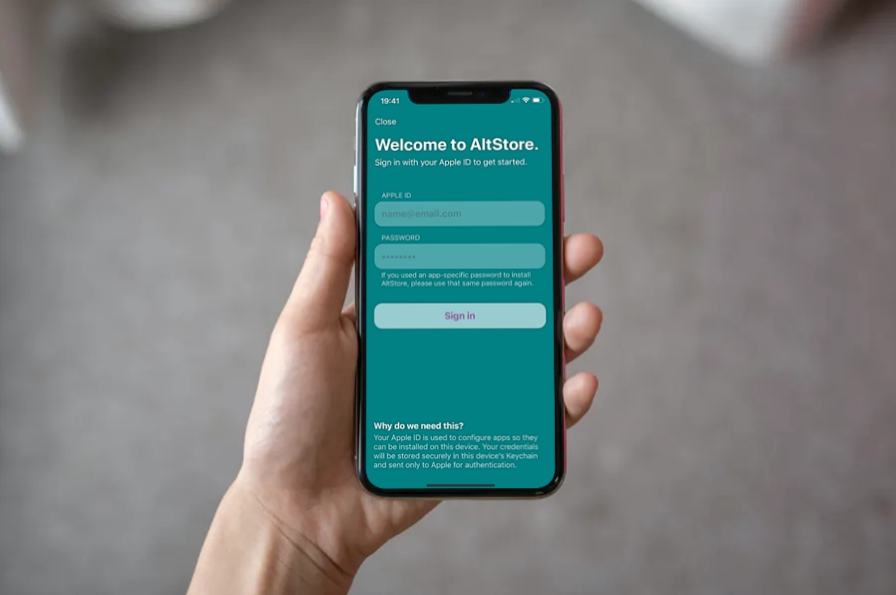
- Enter Apple ID Credentials:
- A pop-up will appear asking for your Apple ID and password. Enter them carefully. Remember, these credentials are used locally to sign the AltStore app with your developer certificate and are not transmitted to AltServer’s creators.
- Wait for Installation:
- AltServer will now begin the process of signing and installing AltStore onto your device. This can take a few minutes.
- You might see a progress indicator on your computer. On your device, you’ll eventually see the AltStore app icon appear on your home screen.
- Trust the Developer Profile on Your iOS Device:
- After installation, you won’t be able to open AltStore immediately. You’ll see an “Untrusted Developer” message.
- On your iOS device, go to Settings > General > VPN & Device Management.
- Under the “Developer App” section, you should see your Apple ID. Tap on it.
- Tap “Trust [Your Apple ID]” and confirm.
- Launch AltStore:
- You can now go back to your home screen and open the AltStore app! Congratulations, the hardest part is over.
Managing Apps with AltStore: Installing, Refreshing, and Syncing
With AltStore successfully installed, the next stage involves understanding how to use it to install other applications, keep them active, and streamline the refresh process for convenience.
Installing IPA Files Through AltStore
AltStore allows you to install any .ipa file directly from your device.

- Download Your Desired IPA:
- On your iOS device, use Safari or another browser to download the
.ipafile for the app you wish to install. Many popular unofficial apps and emulators distribute their IPAs this way. - Alternatively, you can download the IPA on your computer and transfer it to your device using AirDrop, Files app sharing, or by emailing it to yourself.
- On your iOS device, use Safari or another browser to download the
- Open the IPA in AltStore:
- Once the IPA file is downloaded, tap on it (e.g., in the Files app or Safari’s downloads).
- Choose “Share” or “Open In…” and select “AltStore.”
- Install the App:
- AltStore will open, and you’ll see a prompt to install the app.
- Tap “Install.” AltStore will sign the app with your Apple ID and install it. This process can take some time depending on the app’s size.
- Once installed, the app will appear on your home screen and within the “My Apps” section of AltStore.
Keeping Your Apps Active: The Refresh Process
As mentioned, apps installed via AltStore using a free developer certificate expire every seven days. To avoid them becoming unusable, you must refresh them.
- Understanding Refreshing:
- Refreshing essentially re-signs the application’s certificate, resetting the 7-day timer.
- It must be done before the certificate expires. AltStore will send you notifications when apps are close to expiring.
- How to Refresh Apps:
- Method 1 (Wired Connection): Connect your iOS device to your computer with AltServer running in the background. Open AltStore on your device, navigate to “My Apps,” and tap “Refresh All.”
- Method 2 (Wi-Fi Sync): If you’ve enabled Wi-Fi Sync (see next section), you simply need to ensure your iOS device and computer (with AltServer running) are on the same Wi-Fi network. Then, open AltStore on your device and tap “Refresh All.”
- It’s recommended to refresh your apps every 4-5 days to give yourself a buffer.
Enabling Wi-Fi Sync for Convenience
Wi-Fi Sync significantly enhances the convenience of AltStore by allowing you to refresh apps without physically connecting your device to your computer via a cable.
- Enable Wi-Fi Sync in iTunes/Finder:
- Connect your iOS device to your computer with a USB cable.
- Open iTunes (Windows/older macOS) or Finder (macOS Catalina+).
- Select your device.
- In iTunes, under “Options,” check “Sync with this [device] over Wi-Fi.”
- In Finder, under the “General” tab for your device, check “Show this [device] when on Wi-Fi.”
- Click “Apply” or “Sync” to save changes.
- Verify Wi-Fi Sync:
- Now, when your computer (with AltServer running) and iOS device are on the same Wi-Fi network, AltServer should be able to detect your device wirelessly.
- You can then refresh apps remotely through AltStore on your device.
Troubleshooting Common Issues
Even with careful following of instructions, issues can sometimes arise. Here are some common problems and their solutions.
“Could not find iTunes/iCloud” Errors (Windows Specific)
- Problem: AltServer fails to launch or reports that iTunes/iCloud is not installed, even if you have them.
- Solution: This is almost always due to having the Microsoft Store versions of iTunes and iCloud. Uninstall them completely. Download and install the desktop versions directly from Apple’s website (links provided in “Essential Requirements” section). Restart your computer after installation.
Installation Failed or Connection Issues
- Problem: AltStore won’t install on your device, or AltServer can’t detect it.
- Solutions:
- Check USB Connection: Ensure the cable is secure and not faulty. Try a different USB port.
- Restart Everything: Restart AltServer, your computer, and your iOS device. A fresh start often resolves minor glitches.
- Disable VPN/Firewall: Temporarily disable any VPN software or aggressive firewall settings on your computer. These can sometimes block communication between AltServer and Apple’s services.
- Update Software: Ensure your iOS device is running a supported iOS version (12.2+), and your computer’s OS, iTunes/Finder, and AltServer are up to date.
App Not Refreshing or Expired
- Problem: Your sideloaded apps are expiring, and refreshing isn’t working.
- Solutions:
- AltServer Running: Ensure AltServer is actively running on your computer. It must be open in the background for refreshing to work (even for Wi-Fi sync).
- Network Connectivity: For Wi-Fi sync, ensure both your computer and iOS device are connected to the same Wi-Fi network.
- Wired Refresh: If Wi-Fi sync isn’t working, try a wired refresh by connecting your device to your computer.
- Apple ID Credentials: If AltStore prompted you to re-enter your Apple ID, ensure you do so correctly. Sometimes, Apple requires re-authentication.
- Revoke Certificates: In AltStore on your device, go to “Settings > Account > Sign In” (or “AltStore > My Apps > Sign In”). Ensure your Apple ID is signed in. If issues persist, you might need to try “Revoke All Certificates” from the AltServer menu on your computer, then try reinstalling AltStore and refreshing apps.
“Untrusted Developer” Message (After Initial Install)
- Problem: You see this message when trying to open AltStore or an installed app for the first time.
- Solution: This is a standard Apple security measure. Go to Settings > General > VPN & Device Management on your iOS device. Tap on your Apple ID listed under “Developer App” and then tap “Trust [Your Apple ID]”. Confirm your choice.
Benefits, Considerations, and Limitations of AltStore
Understanding the capabilities and constraints of AltStore will help you set realistic expectations and appreciate its unique position in the iOS ecosystem.
Why AltStore Stands Out Among Sideloading Options
- No Jailbreak Required: This is perhaps the most significant advantage. AltStore provides extensive sideloading capabilities without compromising the security or warranty of your device through jailbreaking.
- Resilient to Revocations: Unlike enterprise certificate-based stores, AltStore uses your personal Apple ID, making it far more robust against Apple’s revocation efforts. You control the signing, minimizing downtime.
- Access to a Wider Range of Apps: Gain entry to emulators for retro gaming, modified versions of existing apps with enhanced features, and open-source utilities not permitted on the official App Store.
- Free and Open Source: AltStore is a community-driven, open-source project, offering transparency and ensuring it remains free for everyone to use.
Important Considerations for AltStore Users
- Computer Dependency: While Wi-Fi sync reduces the need for constant cable connections, AltStore fundamentally relies on AltServer running on a computer for initial setup and regular refreshes. This means you can’t be completely free of a desktop/laptop for long.
- 7-Day Refresh Cycle: The requirement to refresh apps every seven days can be a minor inconvenience, though AltStore’s notification system and Wi-Fi sync make it manageable. Forgetting to refresh will lead to apps becoming unusable until re-signed.
- Using Your Apple ID: While generally safe and common practice for developers, some users might be hesitant to use their primary Apple ID for this purpose. AltServer only uses your credentials locally to sign the app, not sending them to third-party servers.
What AltStore Cannot Do
- Bypass All iOS Security: AltStore operates within the confines of Apple’s developer provisions. It cannot grant deeper system access or run apps that fundamentally break iOS security models without a jailbreak.
- Install Non-IPA Files: It’s strictly for
.ipafiles. You can’t use it to install Android APKs or other incompatible application packages. - Completely Eliminate Apple’s Control: While it offers greater freedom, it’s still tied to Apple’s developer certificate system. If Apple were to drastically change its developer program rules, AltStore’s functionality could be impacted.
Conclusion: Empowering Your iOS Experience
AltStore represents a remarkable triumph of ingenuity, offering iOS users a legitimate and resilient pathway to customize their device experience beyond the confines of the official App Store. By leveraging existing developer provisions, it enables the installation of emulators, modified applications, and a wealth of open-source tools, all without the need for a jailbreak.
While it comes with the minor overhead of a 7-day refresh cycle and a temporary reliance on a companion computer, the freedom and capabilities it unlocks are invaluable for tech enthusiasts and anyone looking to truly make their iPhone or iPad their own. By meticulously following this guide, you are now equipped to install AltStore, manage your sideloaded applications, and troubleshoot any potential issues, opening up a fascinating new dimension to your iOS journey. Embrace the power of choice and explore the vast world of unofficial iOS applications with confidence.
aViewFromTheCave is a participant in the Amazon Services LLC Associates Program, an affiliate advertising program designed to provide a means for sites to earn advertising fees by advertising and linking to Amazon.com. Amazon, the Amazon logo, AmazonSupply, and the AmazonSupply logo are trademarks of Amazon.com, Inc. or its affiliates. As an Amazon Associate we earn affiliate commissions from qualifying purchases.