
The world of gaming is constantly evolving, bringing beloved franchises to new platforms and audiences. One such highly anticipated release is Age of Empires Mobile, a fresh take on the iconic real-time strategy (RTS) series designed for on-the-go play. While optimized for smartphones and tablets, many veteran players and newcomers alike yearn to experience the strategic depths of Age of Empires Mobile on a larger screen, with the precision of a mouse and keyboard. The good news is, you absolutely can bring the battlefield to your desktop or laptop. This comprehensive guide will walk you through every step of installing and playing Age of Empires Mobile on your PC, transforming your mobile gaming experience into something truly grand.
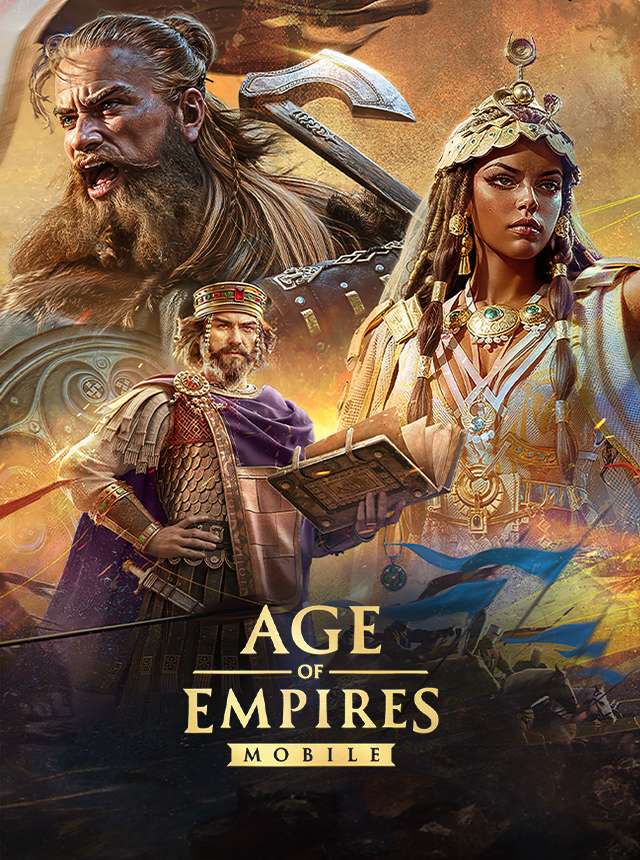
Why Play Age of Empires Mobile on PC? Unlocking a Superior Experience
While mobile gaming offers unparalleled convenience, playing Age of Empires Mobile on your PC through an Android emulator unlocks a host of advantages that significantly enhance your gameplay. It’s not just about a bigger screen; it’s about control, performance, and an overall more immersive strategic session.
Enhanced Gaming Experience: Larger Screen, Better Controls, and Immersion
One of the most immediate and impactful benefits is the sheer visual scale. Age of Empires is renowned for its intricate details, from individual units clashing in battle to the evolving architecture of your civilization. Playing on a large monitor or widescreen display allows you to appreciate these visual nuances more fully, offering a much clearer overview of your empire and the sprawling battlefields. No more squinting at tiny unit icons or struggling to distinguish between different structures.
Beyond visuals, the shift to PC controls is a game-changer for an RTS title. Age of Empires thrives on precise micro-management and swift macro-decisions. While mobile touchscreens have improved, they can never fully replicate the accuracy and speed offered by a mouse and keyboard. With a mouse, you can precisely select units, target abilities, and navigate the map with unparalleled efficiency. A keyboard provides quick access to hotkeys for unit production, building construction, and command execution, shaving off precious milliseconds that can make all the difference in a heated skirmish or a full-scale siege. This level of control translates directly into better strategic execution and a more satisfying, less frustrating gameplay experience. The tactile feedback of physical keys and mouse clicks further deepens the immersion, making you feel truly in command of your legions.
Performance and Stability: Smooth Gameplay Without Interruptions
Mobile devices, despite their advancements, have inherent limitations when it comes to sustained high-performance gaming. Battery life drain is a constant concern, often forcing players to cut sessions short or play tethered to a charger. Overheating can lead to performance throttling, reducing frame rates and responsiveness precisely when you need them most. Furthermore, notifications for calls, messages, or other apps can abruptly interrupt your game, breaking concentration and potentially leading to costly mistakes in the middle of a battle.
Playing on a PC mitigates all these issues. Your desktop or laptop, especially if it’s a dedicated gaming machine, typically boasts significantly more powerful processors, ample RAM, and dedicated graphics cards. This translates into smoother frame rates, faster loading times, and a more stable gaming environment free from stutters or crashes due to hardware limitations. You can enjoy extended play sessions without worrying about battery life or your device getting hot to the touch. With your mobile notifications handled by your phone, your PC becomes a dedicated portal to your empire, allowing for uninterrupted strategic planning and execution.
Multitasking and Convenience: Integrating Mobile Gaming into Your Workflow
Another often-overlooked advantage is the ability to seamlessly integrate your Age of Empires Mobile sessions into your existing PC workflow. Many of us spend hours daily on our computers for work, study, or other entertainment. Having the game running in an emulator means you can easily switch between tasks, whether it’s checking emails, browsing the web for strategy guides, or chatting with friends, without having to pick up a separate device. This convenience allows for more flexible gaming sessions, letting you dive into a quick skirmish during a break or manage your empire passively while multitasking. For content creators or streamers, playing on PC also simplifies recording gameplay or streaming to platforms like Twitch or YouTube, leveraging existing capture software and high-quality microphones without needing complex mobile streaming setups.
Choosing the Right Android Emulator: Your Gateway to Mobile PC Gaming
The key to playing Age of Empires Mobile on your PC lies in a robust and reliable Android emulator. An emulator is software that mimics an Android operating system environment on your computer, allowing you to run Android apps and games as if they were native PC applications. The market offers several excellent choices, each with its own strengths.
Popular Emulator Options: Finding Your Ideal Match
When it comes to Android emulators, a few names consistently rise to the top, known for their performance, compatibility, and user-friendly interfaces.
- BlueStacks: Often considered the most popular Android emulator, BlueStacks has been a pioneer in this space. It’s known for its robust performance, extensive compatibility with a vast library of Android games, and a wealth of gaming-centric features. BlueStacks offers excellent key-mapping tools, multi-instance capabilities (allowing you to run multiple games or accounts simultaneously), and regular updates that improve performance and add new functionalities. It’s generally user-friendly, making it a great starting point for beginners, though it can be resource-intensive on older systems.
- NoxPlayer: Another strong contender, NoxPlayer is highly favored by gamers for its focus on optimization and speed. It tends to be lighter on system resources compared to BlueStacks and offers a smooth gaming experience even on mid-range PCs. NoxPlayer provides extensive customization options for key-mapping, multi-instance management, and macro recording, which can be particularly useful for automating repetitive tasks in games. Its interface is clean and intuitive, making navigation straightforward.
- LDPlayer: Specifically designed with gaming in mind, LDPlayer often boasts superior performance for many titles. It focuses on high frame rates, low latency, and efficient resource utilization, making it a top choice for competitive mobile gamers. LDPlayer also includes a suite of gamer-centric features such as key-mapping, multi-instance synchronization, and support for high-resolution graphics. It’s often praised for its ability to run even demanding games smoothly.
- Gameloop: Developed by Tencent, Gameloop (formerly Tencent Gaming Buddy) is another excellent option, particularly if Age of Empires Mobile is published by Tencent or related entities. It’s specifically optimized for running popular mobile games and often provides a streamlined experience. While not as universally compatible with all Android apps as BlueStacks or Nox, for its targeted games, it often offers a highly optimized and stable experience.
When choosing, consider your PC’s specifications and read recent reviews for the most up-to-date performance insights. For Age of Empires Mobile, any of these top-tier emulators should provide an excellent experience.
System Requirements for Emulation: Ensuring a Smooth Ride
Before downloading any emulator, it’s crucial to ensure your PC meets the minimum system requirements. While emulators have become more efficient, they still require a decent amount of processing power, RAM, and graphics capability to run smoothly.
General Minimum Requirements:
- Operating System: Windows 7/8/10/11 (64-bit recommended)
- Processor: Intel or AMD Dual-Core Processor (e.g., Intel Core i3 or AMD Ryzen 3 equivalent)
- RAM: At least 4GB of RAM (8GB+ recommended for optimal performance)
- Storage: 5GB of free disk space (SSD highly recommended for faster loading)
- Graphics: DirectX 11 compatible graphics card (Intel HD Graphics 5200 or better; NVIDIA GeForce GTX 660 or AMD Radeon R9 280 equivalent for better performance)
- Virtualization: Hardware Virtualization Technology (Intel VT-x or AMD-V) enabled in your BIOS/UEFI. This is critical for performance and usually needs to be manually enabled.
Exceeding these minimums will significantly improve your experience, especially with RAM and GPU. More RAM allows the emulator to run more smoothly and handle demanding games, while a better graphics card ensures crisp visuals and higher frame rates.
Step-by-Step Guide: Installing and Setting Up Your Emulator
Once you’ve chosen your preferred emulator and verified your system meets the requirements, the installation process is straightforward. We’ll use BlueStacks as a general example, but the steps are largely similar for most emulators.
Downloading and Installing the Emulator
- Visit the Official Website: Always download emulators from their official websites to ensure you get the legitimate, malware-free version. For BlueStacks, navigate to
www.bluestacks.com. For NoxPlayer, go towww.bignox.com, and for LDPlayer, visitwww.ldplayer.net. - Download the Installer: Look for the “Download” or “Download [Emulator Name]” button. Click it to download the installer file to your computer.
- Run the Installer: Once the download is complete, locate the installer file (usually in your “Downloads” folder) and double-click it to start the installation process.
- Follow On-Screen Instructions: The installer will guide you through the setup. You’ll typically be asked to accept the terms and conditions, choose an installation directory (the default is usually fine), and wait for the installation to complete. This process may involve downloading additional files, so an active internet connection is necessary.
- Launch the Emulator: After the installation finishes, the emulator will usually offer to launch itself automatically, or you can find its shortcut on your desktop or in your Start Menu.
Initial Setup and Google Account Integration
Upon launching the emulator for the first time, you’ll be prompted to complete a few initial setup steps, much like setting up a new Android phone.

- Welcome Screens: You might see some welcome messages or tutorials. Click through them.
- Google Account Sign-In: This is a crucial step. To access the Google Play Store and download Age of Empires Mobile, you’ll need to sign in with your Google account. This is the same account you use for Gmail, YouTube, or your Android phone. Enter your email address and password when prompted. If you don’t have a Google account, you’ll be given an option to create one. This step is essential for accessing the vast library of Android apps.
- Complete Basic Setup: After signing in, you might be asked to accept Google’s terms of service, set up payment methods (optional for free games), or configure other basic Android settings. Complete these steps to finish the initial setup.
Optimizing Emulator Settings for Age of Empires Mobile
To ensure the best possible experience, it’s highly recommended to adjust the emulator’s settings. These optimizations can significantly impact game performance, graphics quality, and overall responsiveness.
- Access Settings: Look for a gear icon or “Settings” option within the emulator’s interface (usually in the top or side menu).
- Performance Settings:
- CPU Cores: Allocate more CPU cores if your PC has them available. For most users, 2-4 cores are sufficient, but you can try allocating more if you have a powerful CPU (e.g., 6 or 8 cores). Do not allocate all cores, as your PC still needs some for its operating system.
- RAM Allocation: Increase the amount of RAM allocated to the emulator. If you have 8GB of RAM on your PC, allocate 4GB to the emulator. If you have 16GB, you can safely allocate 6-8GB. More RAM generally leads to smoother gameplay and fewer stutters.
- Performance Mode: Many emulators offer “High Performance” or “Gaming Mode” options. Select this if available.
- Graphics Settings:
- Graphics Engine: Choose “Performance mode (DirectX)” or “Compatibility mode (OpenGL).” DirectX often offers better performance on newer systems and graphics cards, while OpenGL might be more stable on older hardware. Experiment to see which works best for you.
- Graphics Renderer: Set this to “Dedicated graphics” or “High-performance graphics” if your PC has a dedicated GPU.
- Resolution: Start with a resolution that matches your monitor or a common gaming resolution like 1920×1080 (Full HD). You can adjust this lower if you experience performance issues, or higher if you have a powerful system and a high-resolution monitor.
- FPS (Frames Per Second): Set the FPS to 60 or higher if your monitor supports it and your PC can handle it. Higher FPS results in smoother animations.
- ADB (Android Debug Bridge) Settings (Advanced): Ensure this is enabled if you plan to use external tools or troubleshooting, though it’s not strictly necessary for basic gameplay.
Remember to save your changes and restart the emulator for the settings to take full effect.
Installing Age of Empires Mobile on Your PC
With your emulator set up and optimized, you’re just a few steps away from commanding your empire on PC. The process of installing the game is virtually identical to how you would install it on a physical Android device.
Accessing the Google Play Store
- Locate the Play Store Icon: On the emulator’s home screen, you’ll find an icon for the “Google Play Store” (often represented by a colorful triangle). Click on it.
- Browse or Search: The Play Store interface will open, looking identical to its mobile counterpart. You can browse trending apps, categories, or use the search bar.
Searching and Installing Age of Empires Mobile
- Search for the Game: In the Play Store’s search bar at the top, type “Age of Empires Mobile” or “Age of Empires” and press Enter.
- Select the Official Game: From the search results, carefully identify and select the official Age of Empires Mobile game. Always ensure you’re downloading from the legitimate publisher to avoid unofficial or malicious versions.
- Install the Game: Once on the game’s page, click the “Install” button. The game will download and install itself within the emulator, just like it would on your phone. The download size might be significant, so be patient.
- Launch the Game: After installation is complete, you can click “Open” directly from the Play Store, or go back to the emulator’s home screen where a new icon for Age of Empires Mobile will now be present. Click this icon to launch the game.
Configuring Game Controls: Precision at Your Fingertips
This is where the magic of playing mobile games on PC truly shines. Emulators come with powerful key-mapping tools that allow you to assign keyboard keys and mouse actions to touch controls within the game. For an RTS like Age of Empires, precise control is paramount.
- Open Key-mapping Tool: Once Age of Empires Mobile is running, look for a “Keyboard Controls,” “Key-mapping,” or “Game Controls” icon in the emulator’s sidebar or toolbar (often a keyboard icon). Click it to open the control editor.
- Drag and Drop Controls: The editor will typically overlay touch control points onto the game screen. You can then drag virtual buttons (like tap, D-pad, swipe) from a palette onto the corresponding areas of the game’s UI.
- Assign Keys: For each virtual button, click on it and then press the desired key on your physical keyboard to assign it.
- Movement: If the game uses a virtual joystick, assign WASD for movement.
- Actions/Abilities: Map frequently used actions (e.g., building units, attacking, using abilities) to easily accessible keys like Q, E, R, F, 1, 2, 3, 4.
- Camera/Zoom: Configure mouse wheel scroll for zooming in/out, and potentially assign arrow keys or other mouse gestures for camera panning.
- Unit Selection: Ensure mouse clicks correctly select units and issue commands. You might want to assign “group select” or “all units” to specific keys.
- Menu Navigation: Assign a key like ‘Esc’ for opening/closing menus.
- Save Profile: Once you’re satisfied with your keybindings, save the control profile. Most emulators allow you to save multiple profiles for different games.
- Test and Refine: Launch the game and play a few rounds or tutorials to test your controls. You’ll likely need to go back into the key-mapping tool a few times to fine-tune placements and assignments for optimal comfort and efficiency. Experiment until it feels natural and responsive.
Troubleshooting Common Issues
Even with careful setup, you might encounter some hiccups. Here are solutions to common problems when playing Age of Empires Mobile on PC.
Performance Lags and Stuttering
- Enable Virtualization: This is the most common cause of poor performance. Ensure Intel VT-x or AMD-V is enabled in your PC’s BIOS/UEFI settings. Without it, emulators run significantly slower.
- Allocate More Resources: Go to the emulator settings and increase CPU cores and RAM allocated. Remember not to allocate all your PC’s resources.
- Update Graphics Drivers: Outdated graphics drivers can cause performance issues. Visit your graphics card manufacturer’s website (NVIDIA, AMD, Intel) to download and install the latest drivers.
- Close Background Applications: Other demanding applications running on your PC can compete for resources. Close unnecessary programs before launching the emulator.
- Adjust Graphics Settings: Lower the emulator’s resolution, FPS, or graphics quality settings if your PC struggles.
- Switch Graphics Renderer: Experiment with DirectX vs. OpenGL in the emulator’s graphics settings.
- Try a Different Emulator: If one emulator consistently performs poorly, try another like NoxPlayer or LDPlayer, which might be better optimized for your system or the specific game.
Installation Errors
- Check Disk Space: Ensure you have enough free disk space on your PC for both the emulator and Age of Empires Mobile.
- Antivirus/Firewall Interference: Temporarily disable your antivirus or firewall during installation if it’s blocking the process. Remember to re-enable it afterwards. Add the emulator to your antivirus exclusions.
- Run as Administrator: Right-click the installer or emulator shortcut and select “Run as administrator” to ensure it has the necessary permissions.
- Corrupt Download: If the installer file itself is corrupt, delete it and re-download it from the official website.
Control Configuration Problems
- Incorrect Key-mapping: Revisit the key-mapping tool and ensure all keys are correctly assigned to the intended in-game actions. Make sure you’ve saved the profile.
- Conflicting Hotkeys: Check if any emulator hotkeys or PC system hotkeys conflict with your in-game assignments.
- Emulator Updates: Sometimes, emulator updates can reset control profiles or introduce new key-mapping features. Check for updates and reconfigure if necessary.
- Game-Specific Issues: Some games might have quirky touch control implementations that require creative key-mapping solutions. Check online forums for specific Age of Empires Mobile control tips from other emulator users.
Network Connectivity Issues
- PC Internet Connection: Ensure your PC has a stable and active internet connection.
- Emulator Network Settings: Most emulators automatically use your PC’s network connection. If you experience issues, check the emulator’s network settings (if available) to ensure they are configured correctly (usually “Bridge Mode” or “NAT Mode”).
- Firewall Blocking: Your PC’s firewall might be blocking the emulator’s internet access. Create an exception for the emulator in your firewall settings.
- VPN/Proxy: If you’re using a VPN or proxy on your PC, it might interfere. Try disabling it temporarily to see if it resolves the issue.
By systematically working through these troubleshooting steps, you should be able to resolve most common issues and get back to enjoying Age of Empires Mobile on your PC.

Conclusion: Command Your Empire with Unrivaled Precision
Installing Age of Empires Mobile on your PC is a straightforward process that unlocks a vastly superior gaming experience. From the immersive visuals on a large monitor to the precision and speed afforded by a mouse and keyboard, playing on an emulator elevates your strategic gameplay to new heights. You’ll enjoy smoother performance, uninterrupted sessions, and the convenience of integrating your favorite mobile RTS into your PC environment.
By choosing a reliable emulator like BlueStacks, NoxPlayer, or LDPlayer, following the simple installation and setup steps, and dedicating a little time to optimizing settings and configuring controls, you’ll transform your Age of Empires Mobile journey. Bid farewell to cramped screens and awkward touch controls, and embrace the grand strategy as it was perhaps always meant to be played – with a panoramic view of your burgeoning empire and every command at your fingertips. Dive in, build your civilization, train your armies, and conquer your foes with unrivaled precision and control. The age of PC-powered mobile strategy awaits!
aViewFromTheCave is a participant in the Amazon Services LLC Associates Program, an affiliate advertising program designed to provide a means for sites to earn advertising fees by advertising and linking to Amazon.com. Amazon, the Amazon logo, AmazonSupply, and the AmazonSupply logo are trademarks of Amazon.com, Inc. or its affiliates. As an Amazon Associate we earn affiliate commissions from qualifying purchases.