
In the modern digital landscape, a robust and stable internet connection is the backbone of the contemporary home. Whether you are managing a remote workstation, streaming high-definition content, or maintaining an ecosystem of smart home devices, the Wi-Fi router serves as the central nervous system of your digital life. While many Internet Service Providers (ISPs) offer proprietary equipment, savvy users often opt for third-party routers to unlock higher speeds, better security, and greater customization. However, the process of transitioning from a box of hardware to a high-speed wireless network can be daunting. This guide provides a professional, step-by-step walkthrough of the installation process, focusing on technical best practices to ensure your network is both high-performing and secure.

Preparation and Hardware Setup
The physical installation of a router is a critical phase that dictates the baseline performance of your entire network. Before diving into software configurations, one must ensure the hardware is positioned and connected according to engineering standards.
Unboxing and Identifying Components
Upon unboxing your new router, you will typically find the router unit itself, a set of detachable antennas (in some models), a power adapter, and an Ethernet cable (usually Category 5e or 6). It is essential to verify that you have all these components. If your router features external antennas, attach them firmly but do not over-tighten. These antennas are responsible for broadcasting the radio frequency (RF) signals throughout your home; their orientation—usually one vertical and one horizontal—can help cover multiple floors and orientations.
Choosing the Ideal Location
Placement is perhaps the most overlooked aspect of router installation. Wi-Fi signals operate on microwave frequencies that are easily obstructed by physical barriers. For optimal throughput, place the router in a central, elevated location. Avoid placing the unit inside cabinets, behind television sets, or near large metal objects, as these can cause significant signal attenuation. Furthermore, keep the router away from other electronics that emit electromagnetic interference, such as microwaves and cordless phones, which often operate on the 2.4GHz band.
Connecting to the Modem
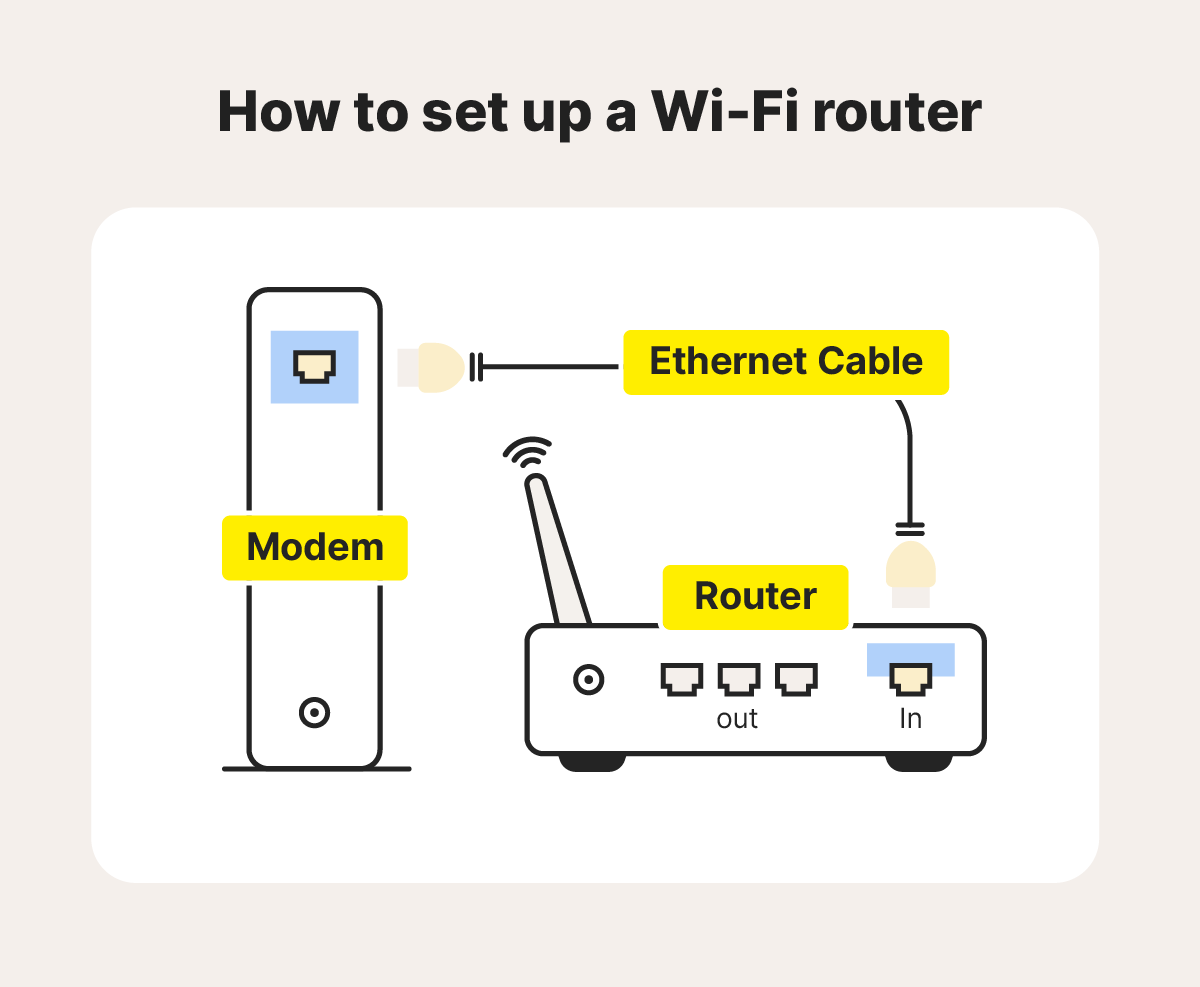
The bridge between your local area network (LAN) and the wide area network (WAN) is the connection between your modem and your router. First, power down your modem by unplugging its power supply. Use the provided Ethernet cable to connect the “Internet” or “WAN” port on the back of the router to the Ethernet port on your modem. Once the physical link is established, power on the modem first and wait for its lights to indicate a stable connection to the ISP. Only then should you plug in the router. This sequential boot-up ensures that the router correctly requests an IP address from the modem via DHCP.
Configuring Your Network Settings
With the hardware active, the next phase involves the digital handshake between your devices and the router’s operating system. Modern routers often provide a streamlined setup wizard, but understanding the underlying mechanics allows for a more tailored experience.
Accessing the Router Admin Console
To configure the router, you must access its internal web interface. This is typically done by connecting a computer to one of the router’s LAN ports via Ethernet or by joining the default Wi-Fi network listed on the device’s bottom sticker. Open a web browser and enter the default gateway IP address—commonly 192.168.1.1 or 192.168.0.1. You will be prompted for a username and password. For security reasons, it is imperative to move past these default credentials as soon as possible, as they are widely known and pose a significant security risk.
Setting Up Your SSID and Password
The Service Set Identifier (SSID) is the name of your Wi-Fi network. While it may be tempting to use a creative name, avoid using personal information like your name or address. When configuring security, always select WPA3 (Wi-Fi Protected Access 3) if your devices support it; otherwise, WPA2-AES remains the industry standard. Your password should be a complex passphrase—ideally over 12 characters—incorporating a mix of alphanumeric characters and symbols. This prevents “brute-force” attacks where malicious actors attempt to guess your credentials through automated software.
Updating Firmware for Security and Performance
One of the first tasks in any professional tech installation is checking for firmware updates. Manufacturers frequently release patches to fix security vulnerabilities, improve hardware compatibility, and enhance signal stability. Within the admin console, navigate to the “Advanced” or “System Tools” tab to find the firmware update section. If the router does not have an “Auto-Update” feature, download the latest firmware file from the manufacturer’s official support website and upload it manually. Never interrupt a firmware update, as this can “brick” the device, rendering it permanently unusable.
Advanced Wireless Features and Customization

For power users and those with high-demand environments, the default settings are rarely sufficient. Fine-tuning the way your router handles data can significantly reduce latency and increase the longevity of your hardware.
Dual-Band vs. Tri-Band Management
Most modern routers are at least dual-band, broadcasting on both 2.4GHz and 5GHz frequencies. The 2.4GHz band offers greater range but slower speeds and more interference, while the 5GHz band offers much higher speeds but shorter range. Many routers offer “Smart Connect,” which merges these into a single SSID and automatically assigns devices to the best band. However, for a high-performance setup, it is often better to separate them. Assign low-bandwidth IoT devices (like smart bulbs) to the 2.4GHz band and high-performance devices (like gaming PCs and 4K streamers) to the 5GHz band to prevent congestion.
Guest Networks and Parental Controls
A guest network is a secondary Wi-Fi environment that allows visitors to access the internet without having access to your primary network’s shared resources, such as printers or NAS (Network Attached Storage) drives. This is a critical security layer. Additionally, many routers now include robust parental controls. These allow you to schedule “offline hours,” block specific categories of websites, and monitor the bandwidth usage of specific devices, ensuring a safe and disciplined digital environment for younger family members.
Quality of Service (QoS) Settings
Quality of Service is a feature that allows you to prioritize specific types of traffic. In a household where one person might be on a Zoom call while another is downloading a large video game, QoS is invaluable. By navigating to the QoS settings, you can instruct the router to prioritize “Real-Time Communications” or “Gaming” packets over “File Downloads.” This ensures that critical, latency-sensitive applications remain stable even when the network is under a heavy load.
Securing Your Digital Perimeter
Installing a router is not just about connectivity; it is about establishing a defensive perimeter for your home’s data. Cyber threats often target home routers as a gateway into a user’s personal life.
Changing Default Admin Credentials
As mentioned earlier, the administrative password is the keys to the kingdom. If a hacker gains access to your admin console, they can redirect your traffic, sniff your data, or use your connection for illegal activities. Change the admin username (if possible) and set a password that is entirely different from your Wi-Fi password. This “defense in depth” strategy ensures that even if someone discovers your Wi-Fi password, they cannot alter your router’s core settings.
Implementing WPA3 and Disabling WPS
Wi-Fi Protected Setup (WPS) was designed to make connecting devices easier (usually via a physical button), but it is a notorious security vulnerability. It is highly recommended to disable WPS in the settings. Furthermore, if you are using modern hardware, enable WPA3. WPA3 provides much stronger encryption and protection against “offline dictionary attacks,” which are common methods used to crack Wi-Fi passwords.
Enabling Firewall and VPN Features
Most routers come with a built-in SPI (Stateful Packet Inspection) firewall. Ensure this is enabled. For users who require even more privacy, some high-end routers allow for the installation of a VPN (Virtual Private Network) at the router level. By configuring a VPN directly on the router, every single device in your home—even those that don’t support VPN apps, like smart TVs—benefits from encrypted traffic and an obscured IP address.
Troubleshooting and Performance Optimization
Even the best installations require occasional maintenance. Understanding how to interpret the router’s performance metrics can save hours of frustration when the connection inevitably dips.
Managing Channel Interference
In crowded environments like apartment buildings, many routers may be broadcasting on the same channel, leading to “co-channel interference.” Use a Wi-Fi analyzer app to see which channels are most congested in your area. For the 2.4GHz band, stick to channels 1, 6, or 11, as these do not overlap. On the 5GHz band, there are many more options, and modern routers are generally better at “Auto-Selecting” the cleanest path, but manual intervention can sometimes yield better results in high-density areas.
Testing Speeds and Coverage
Once the installation is complete, perform a series of speed tests in different rooms of your house. Use tools like Ookla Speedtest or Fast.com. If you notice “dead zones,” you may need to reconsider the router’s placement or look into a Mesh Wi-Fi system or a Wi-Fi extender. Remember that the speed you pay for from your ISP is the speed delivered to the modem; the speed you experience over Wi-Fi will always be slightly lower due to the overhead of wireless transmission and physical distance.
By following these professional tech standards, you transform a simple hardware installation into a sophisticated network deployment. A well-installed router provides more than just internet access; it provides a secure, efficient, and scalable foundation for all your technological endeavors.
aViewFromTheCave is a participant in the Amazon Services LLC Associates Program, an affiliate advertising program designed to provide a means for sites to earn advertising fees by advertising and linking to Amazon.com. Amazon, the Amazon logo, AmazonSupply, and the AmazonSupply logo are trademarks of Amazon.com, Inc. or its affiliates. As an Amazon Associate we earn affiliate commissions from qualifying purchases.