
In an increasingly interconnected digital world, safeguarding your online privacy and security has become paramount. From protecting sensitive personal data to accessing geo-restricted content, a Virtual Private Network (VPN) stands as an indispensable tool for anyone navigating the internet. This comprehensive guide will walk you through the entire process of installing a VPN, demystifying the technology, helping you choose the right provider, and ensuring you can secure your digital footprint with confidence.
Whether you’re concerned about snoopers on public Wi-Fi, frustrated by content blocks, or simply seeking a higher level of anonymity online, understanding how to install and effectively use a VPN is a crucial skill for the modern internet user. Let’s dive into the world of VPNs and empower you to take control of your digital life.
Why You Need a VPN: Understanding the Benefits
Before we delve into the mechanics of installation, it’s essential to grasp the fundamental reasons why a VPN is not just a luxury, but often a necessity. The benefits extend across various aspects of your digital interactions, touching upon security, privacy, and freedom of access.
Protecting Your Digital Footprint
Every action you take online leaves a trace – your digital footprint. Without a VPN, your Internet Service Provider (ISP), government agencies, and even malicious actors can potentially monitor your browsing habits, the websites you visit, the data you transmit, and your geographic location. A VPN works by encrypting your internet connection and routing it through a server operated by the VPN provider. This process effectively masks your IP address and scrambles your data, making it unreadable to anyone attempting to intercept it. This level of encryption is akin to putting your online activities into a secure, private tunnel, making it incredibly difficult for third parties to track or identify you. For businesses and individuals, this protection against data interception can be critical for maintaining confidentiality and preventing identity theft.
Bypassing Geo-Restrictions and Censorship
One of the most popular applications of VPNs is their ability to bypass geographic restrictions and censorship. Many online services, streaming platforms, and websites restrict access to their content based on your physical location, determined by your IP address. By connecting to a VPN server in a different country, you can effectively “trick” these services into thinking you are located elsewhere. This opens up a world of content, from international streaming libraries to news sites blocked in certain regions. Similarly, in countries with strict internet censorship, a VPN can provide a vital lifeline to the uncensored global internet, allowing access to information and communication platforms that would otherwise be blocked. This freedom of access is not just about entertainment; it’s about exercising digital rights and ensuring a free flow of information.
Securing Public Wi-Fi Connections
Public Wi-Fi networks, while convenient, are notorious security risks. Whether you’re at a coffee shop, airport, or hotel, these networks are often unsecured, making them prime targets for hackers. Malicious actors can easily intercept data transmitted over public Wi-Fi, potentially gaining access to your personal information, login credentials, and even financial details through techniques like “eavesdropping” or “man-in-the-middle” attacks. A VPN acts as a crucial shield in these environments. By encrypting your connection before it even leaves your device, it renders any intercepted data useless to snoopers. This makes a VPN an absolute must-have for anyone who frequently connects to public Wi-Fi, transforming risky hotspots into secure conduits for your digital activities.
Enhancing Privacy and Anonymity
Beyond specific threats, a VPN fundamentally enhances your overall online privacy and anonymity. It helps you browse the internet without feeling constantly monitored or tracked. In an era where data is a commodity, and targeted advertising follows you across the web, a VPN offers a degree of detachment. While no tool offers absolute anonymity, a reputable VPN significantly reduces the amount of personal data that can be collected about you, both by your ISP and by the myriad of websites and services you interact with daily. For those concerned about maintaining a low digital profile or conducting sensitive research, the enhanced privacy offered by a VPN is invaluable.
Choosing the Right VPN Provider
The market is saturated with VPN providers, each promising the best service. Selecting the right one is a critical step, as your choice will directly impact your security, speed, and overall user experience. It’s not just about installing any VPN, but installing the right VPN for your specific needs.
Key Factors to Consider
When evaluating VPN services, keep the following crucial factors in mind:
- Security Features and Encryption Standards: Look for VPNs that offer strong encryption protocols like OpenVPN, WireGuard, or IKEv2/IPsec, ideally with AES-256 bit encryption. Essential features include a kill switch (which automatically disconnects your internet if the VPN connection drops, preventing data leaks) and DNS leak protection.
- No-Logs Policy: A trustworthy VPN provider will have a strict “no-logs” policy, meaning they do not record your online activities, connection timestamps, or IP addresses. This is paramount for privacy. Ideally, this policy should be independently audited.
- Speed and Performance: A VPN will inevitably introduce some latency, but a good provider minimizes this. Look for providers with a large network of high-speed servers globally. Test speeds during free trials if available.
- Server Network and Locations: A wider distribution of servers in various countries gives you more options for bypassing geo-restrictions and finding faster connections closer to your physical location.
- Pricing and Payment Options: While there are free VPNs, paid services generally offer superior security, speed, and features. Compare pricing plans, subscription lengths, and money-back guarantees. Consider anonymous payment options like cryptocurrency if privacy is a top concern.
- Customer Support: Reliable customer support (24/7 live chat is ideal) is essential for troubleshooting installation issues or connection problems.
- Device Compatibility: Ensure the VPN offers dedicated apps for all your devices (Windows, macOS, Linux, Android, iOS, smart TVs, routers).
- Simultaneous Connections: Check how many devices can be connected to the VPN simultaneously under a single subscription.
Free vs. Paid VPNs
The allure of a free VPN can be strong, but it often comes at a significant cost to your privacy and security. Free VPNs typically have limitations such as data caps, slower speeds, fewer server locations, and intrusive ads. More concerningly, some free VPNs have been caught collecting user data, injecting malware, or even selling user bandwidth to third parties – directly contradicting the purpose of a VPN.
Paid VPNs, on the other hand, fund their operations through subscriptions, allowing them to invest in robust infrastructure, strong encryption, strict no-logs policies, and excellent customer support. For serious security and privacy, a reputable paid VPN is almost always the superior choice. Treat your online security as an investment, not an area for cost-cutting.
Step-by-Step VPN Installation Guides
Once you’ve chosen a reputable VPN provider, the installation process is typically straightforward. While exact steps may vary slightly between providers and operating systems, the general workflow remains consistent.
Installing a VPN on Desktop (Windows/macOS)
Desktop computers are often the primary device for internet activity, making them a crucial target for VPN protection.
- Subscription & Account Creation:
- Visit your chosen VPN provider’s website.
- Select a subscription plan that fits your needs.
- Complete the payment process and create an account using your email address and a strong password. You’ll typically receive a confirmation email.
- Download the VPN Client:
- After subscribing, you’ll be directed to a download page or find a “Download” or “Apps” section on the provider’s website.
- Download the appropriate client software for your operating system (e.g., “VPN for Windows” or “VPN for macOS”).
- Save the installer file (usually an .exe for Windows or .dmg for macOS) to a location you can easily find, like your Downloads folder.
- Installation Process:
- Windows: Locate the downloaded .exe file and double-click it. Follow the on-screen prompts of the installation wizard. This usually involves agreeing to terms and conditions, choosing an installation directory (default is fine for most users), and clicking “Install” or “Next.”
- macOS: Double-click the downloaded .dmg file. A window will open, often with an icon for the VPN app and an “Applications” folder alias. Drag and drop the VPN app icon into the Applications folder. You may then need to open your Applications folder and launch the VPN app.
- During installation, your operating system might ask for administrative permissions. Grant these to allow the software to install correctly.
- First Connection & Basic Settings:
- Once installed, launch the VPN application.
- You’ll be prompted to log in using the credentials (email and password) you created during subscription.
- The app will typically display a main interface with a “Connect” button and an option to choose a server location.
- Click “Connect” to connect to the fastest available server or select a specific country/city from the server list.
- Once connected, the app will usually indicate its status (e.g., “Connected,” green light, or a shield icon).
- Explore the app’s settings. You can often configure features like the kill switch, auto-connect on startup, and protocol selection. It’s recommended to enable the kill switch for maximum protection.
Installing a VPN on Mobile (Android/iOS)
Protecting your mobile devices is just as important, if not more, given their constant connectivity and the sensitive data they hold.
- App Store Download:
- On your Android device, open the Google Play Store.
- On your iOS device, open the Apple App Store.
- Search for your VPN provider by name (e.g., “ExpressVPN,” “NordVPN,” “Surfshark”).
- Locate the official app and tap “Install” (Android) or “Get” (iOS). The app will download and install automatically.
- Login & Connection:
- Once the app is installed, open it.
- Log in using your VPN account credentials.
- The app will typically request permission to set up a VPN configuration on your device. Grant this permission; it’s necessary for the VPN to function.
- Similar to desktop apps, you’ll see a prominent “Connect” button and a server list.
- Tap “Connect” to secure your mobile connection, choosing a server if desired.
- You’ll usually see a key or VPN icon in your device’s notification bar or status bar when the VPN is active.
Installing a VPN on a Router (Advanced Setup)
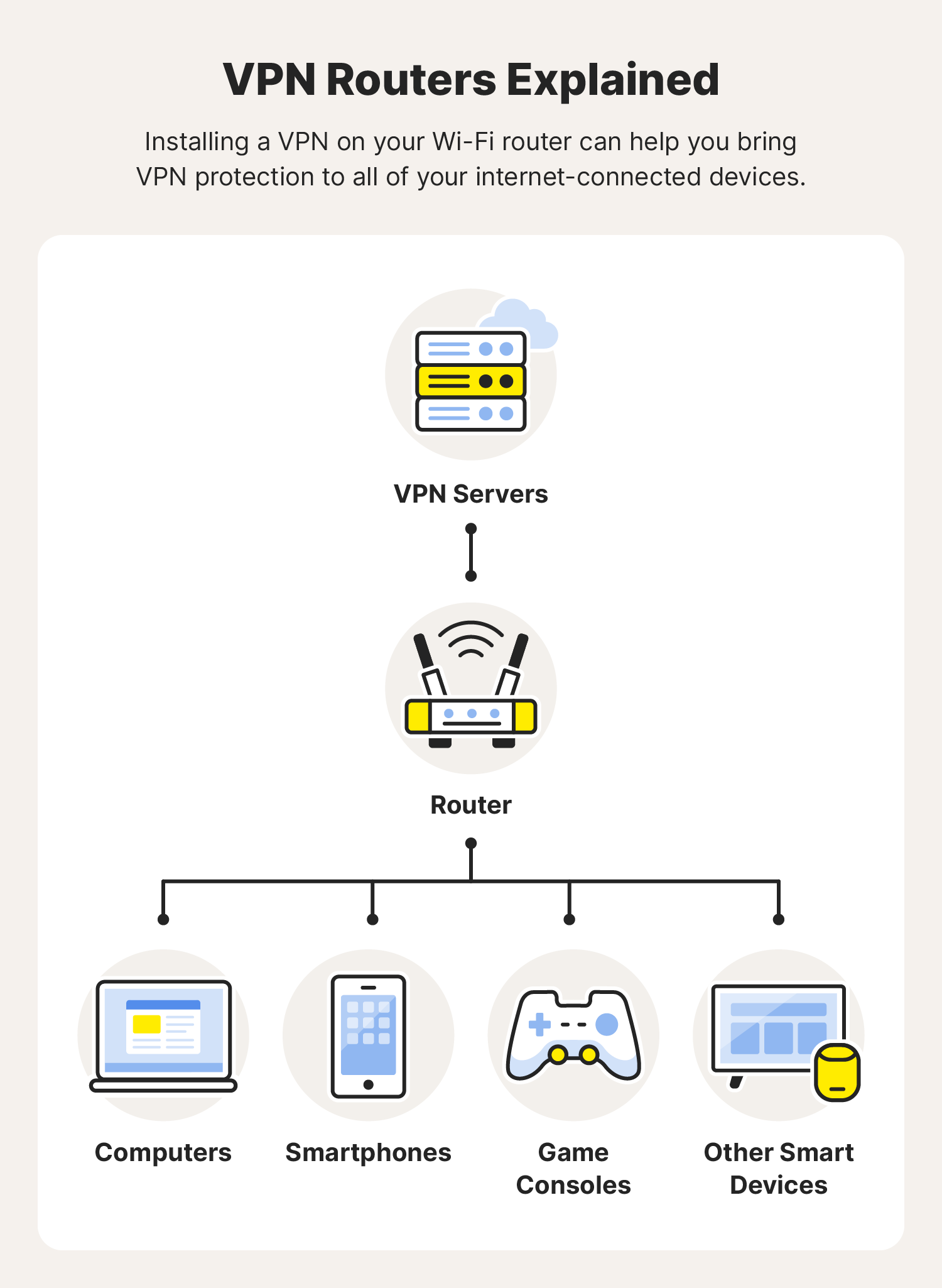
For ultimate protection, installing a VPN directly on your router encrypts traffic for all devices connected to your home network, including smart TVs, gaming consoles, and IoT devices that might not support direct VPN apps.
- Why Router VPN?
- Protects every device on your network without individual app installations.
- Always-on protection for your entire home.
- Ideal for devices that don’t have native VPN support.
- Router Compatibility & Firmware:
- Not all routers are VPN-compatible. You’ll typically need a router that supports OpenVPN client configuration or has custom firmware like DD-WRT or Tomato.
- Check your VPN provider’s website for a list of compatible routers and specific setup guides. You might need to flash your router with custom firmware, which can be complex and carries a small risk if not done correctly.
- Configuration Steps (General Overview):
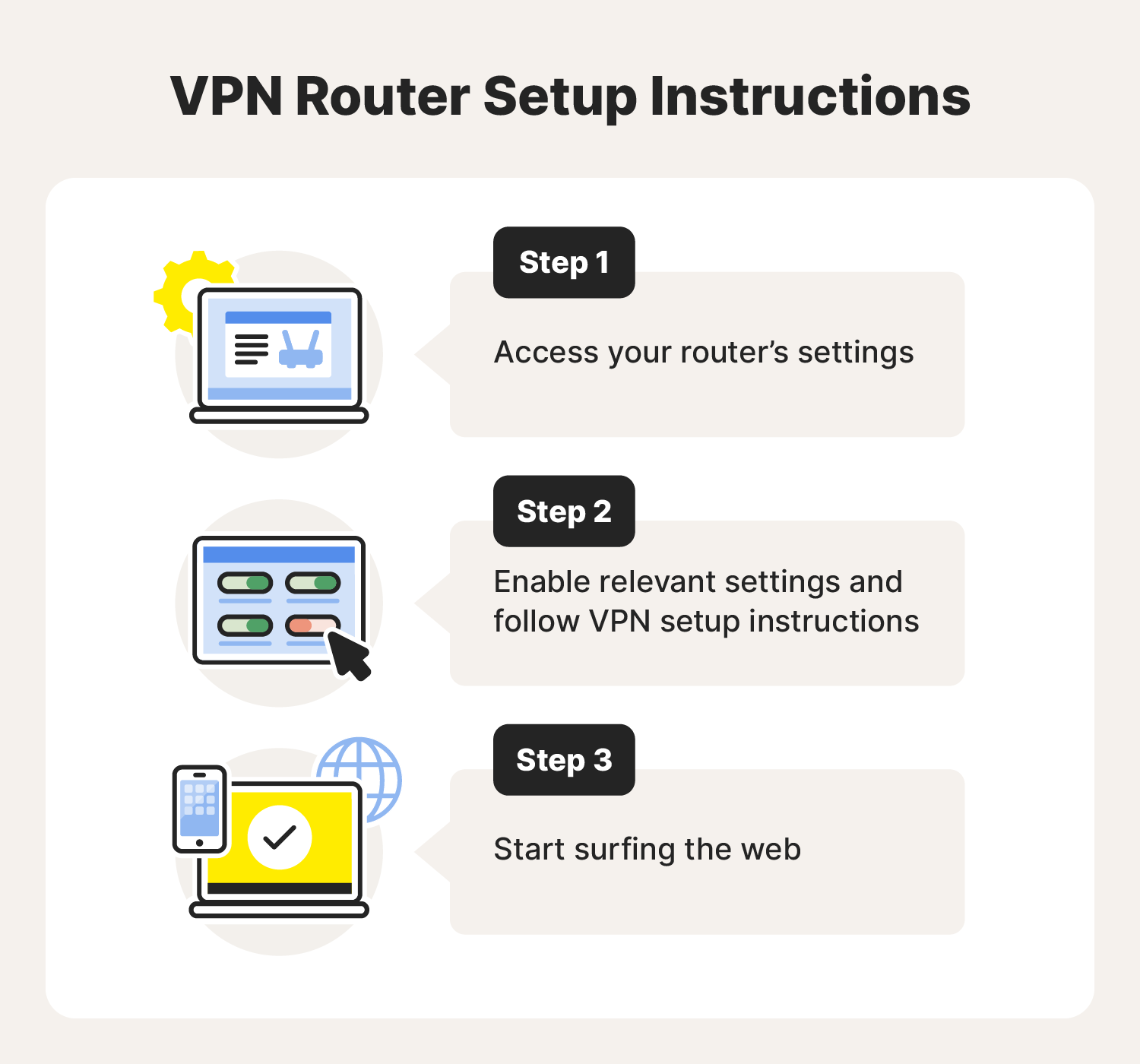
- Access Router Settings: Log in to your router’s administrative interface via a web browser (usually by typing your router’s IP address, e.g., 192.168.1.1, into the address bar).
- Download Configuration Files: Your VPN provider will supply specific configuration files (often .ovpn files) and login credentials required for router setup.
- Upload/Input Settings: Navigate to the “VPN Client” section in your router’s settings. Upload the .ovpn files or manually input the server details, encryption settings, and your VPN username/password.
- Connect: Enable the VPN client within your router settings. All devices connected to this router will now be routed through the VPN.
- Verify: Test the connection by checking your IP address on a device connected to the network; it should show the VPN server’s IP.
Installing a VPN as a Browser Extension (for specific uses)
Some VPNs offer browser extensions (for Chrome, Firefox, Edge, etc.). These are generally not full VPNs but rather proxies that encrypt only your browser traffic. They are convenient for quick access to geo-blocked websites within the browser but do not protect other applications on your device.
- Find Extension: Search for your VPN provider’s official extension in your browser’s extension store.
- Add to Browser: Click “Add to Chrome,” “Add to Firefox,” etc.
- Login & Connect: Once installed, click the VPN icon in your browser’s toolbar, log in, and choose a server to connect.
Optimizing Your VPN Experience
Installing a VPN is the first step; optimizing its usage ensures you get the most out of your investment in digital security.
Understanding VPN Protocols
VPN protocols are the set of rules that determine how your data is encrypted and transmitted. Different protocols offer varying balances of speed, security, and stability.
- OpenVPN: Widely considered the gold standard for security and open-source transparency. It’s highly configurable and offers strong encryption.
- WireGuard: A newer, leaner protocol known for its exceptional speed, modern cryptography, and smaller codebase, making it easier to audit. Many providers are now integrating WireGuard.
- IKEv2/IPsec: Often praised for its stability, especially when switching between networks (e.g., Wi-Fi to cellular), making it popular for mobile devices.
- L2TP/IPsec: Offers good security but can be slower than OpenVPN. Requires IPsec for encryption.
- PPTP: Older, less secure, and generally not recommended due to known vulnerabilities. Avoid if possible.
Most VPN apps allow you to switch between protocols in their settings. If speed is crucial, try WireGuard or IKEv2. For maximum security, OpenVPN is a solid choice.
Essential Security Features
Beyond the core encryption, certain features enhance your VPN’s protective capabilities.
- Kill Switch: This is non-negotiable. An automatic kill switch monitors your VPN connection. If the connection unexpectedly drops, it immediately blocks all internet traffic from your device, preventing your real IP address or unencrypted data from being exposed (a “VPN leak”).
- Split Tunneling: This feature allows you to choose which applications or websites use the VPN tunnel and which connect directly to the internet. For example, you might route your streaming app through the VPN to access content while allowing your banking app to use your direct, local connection (which some banks prefer). This offers flexibility and can improve speed for non-VPN-dependent tasks.
- DNS Leak Protection: Ensures that your DNS requests (which translate website names into IP addresses) are routed through the VPN’s secure DNS servers, preventing your ISP from seeing your browsing activity. Most reputable VPNs include this by default.
Troubleshooting Common Issues
While VPNs are generally robust, you might encounter occasional issues.
- Connection Problems: Try switching to a different server location or a different VPN protocol within the app. Restarting the VPN app or your device can often resolve temporary glitches.
- Slow Speeds: Connect to a server closer to your physical location. Try a different protocol (WireGuard is often fastest). Close other bandwidth-heavy applications.
- VPN Not Connecting: Check your internet connection. Ensure your firewall or antivirus software isn’t blocking the VPN. Reinstalling the VPN app can sometimes fix persistent issues.
- Geo-restriction Bypass Not Working: Clear your browser’s cache and cookies, as websites sometimes use this information to detect your true location. Try a different server in the desired country.
Integrating VPN with Your Digital Lifestyle
A VPN isn’t just a background utility; it’s a tool that can actively enhance various aspects of your digital life, making it safer, more accessible, and sometimes even more enjoyable.
VPN for Streaming and Entertainment
For many, the ability to access a wider range of streaming content is a primary motivator for using a VPN. By connecting to servers in different countries, you can unlock region-locked libraries on platforms like Netflix, Hulu, BBC iPlayer, and more. This expands your entertainment horizons significantly, allowing you to catch up on shows and movies unavailable in your home country. When choosing a VPN for streaming, prioritize providers known for reliable server performance, fast speeds, and good unblocking capabilities.
VPN for Online Gaming
While some might worry about increased latency, a VPN can actually benefit online gaming in certain scenarios. It can protect you from DDoS attacks (Distributed Denial of Service) that malicious players might launch to disrupt your game. Furthermore, by connecting to game servers in different regions, a VPN might help you find less congested routes, potentially reducing ping in some cases. It can also allow you to access games or game content that is geo-restricted, or participate in early releases from other countries. For gaming, low ping and stable connections are key, so look for VPNs with high-speed servers and features like WireGuard protocol support.
VPN for Remote Work and Productivity
As remote work becomes more prevalent, securing your connection when accessing company resources or handling sensitive client data is paramount. A VPN ensures that your communication with company servers remains encrypted and protected from interception, especially when working from public Wi-Fi networks. It adds an essential layer of digital security to your professional activities, safeguarding proprietary information and maintaining client confidentiality. Many businesses even mandate VPN usage for remote employees to comply with data protection regulations. Beyond security, a VPN can also help bypass internet restrictions in workplaces or educational institutions, ensuring uninterrupted access to necessary research or tools, thereby boosting productivity.
Conclusion
Installing a VPN is a foundational step towards building a more secure, private, and unrestricted online experience. From protecting your personal data against cyber threats and unwanted surveillance to unlocking a world of global content, the benefits are clear and compelling. By carefully selecting a reputable VPN provider, following the straightforward installation steps for your devices, and understanding how to optimize its settings, you empower yourself with a powerful tool for navigating the complexities of the digital landscape.
In an era where digital security is synonymous with personal freedom, learning how to install a VPN is no longer a technical niche but a vital skill for anyone who values their privacy and wants to explore the internet without boundaries. Embrace the digital confidence that comes with a secure connection, and take control of your online journey today.
aViewFromTheCave is a participant in the Amazon Services LLC Associates Program, an affiliate advertising program designed to provide a means for sites to earn advertising fees by advertising and linking to Amazon.com. Amazon, the Amazon logo, AmazonSupply, and the AmazonSupply logo are trademarks of Amazon.com, Inc. or its affiliates. As an Amazon Associate we earn affiliate commissions from qualifying purchases.