
In today’s fast-paced digital world, a reliable printer remains an indispensable tool for students, professionals, and home users alike. From printing critical documents and reports to cherished photographs, the ability to translate digital content into tangible form is crucial for productivity and organization. While connecting a printer to a laptop might seem like a straightforward task, various connection methods, driver requirements, and potential troubleshooting steps can make the process daunting for the uninitiated. This comprehensive guide aims to demystify the entire procedure, offering clear, step-by-step instructions for establishing a seamless connection, regardless of your printer model or laptop operating system. We’ll delve into the essential prerequisites, explore different installation methodologies, guide you through post-installation checks, and provide valuable tips to optimize your printing experience, ensuring your tech setup enhances your overall productivity and digital security.
The Essential Pre-Installation Checklist: Paving the Way for Success
Before you even think about plugging in cables or connecting to Wi-Fi, a little preparation can save you a lot of headaches down the line. A methodical approach ensures that all necessary components are in place and compatible, setting the stage for a smooth and successful printer installation. This preparatory phase is critical for avoiding common pitfalls and ensuring your system is ready to integrate new hardware efficiently.
Gathering Your Tools: What You’ll Need
Having the right tools at your fingertips is the first step. While the specific items may vary slightly depending on your chosen connection method, a general toolkit will include:
- Your Printer: Ensure it’s unpacked, all protective tapes and packaging materials are removed, and ink/toner cartridges are correctly installed according to the manufacturer’s instructions.
- Your Laptop: Power it on and ensure it’s fully charged or connected to a power source. Make sure it’s connected to the internet, as this will be crucial for downloading drivers.
- Power Cables: For both the printer and the laptop.
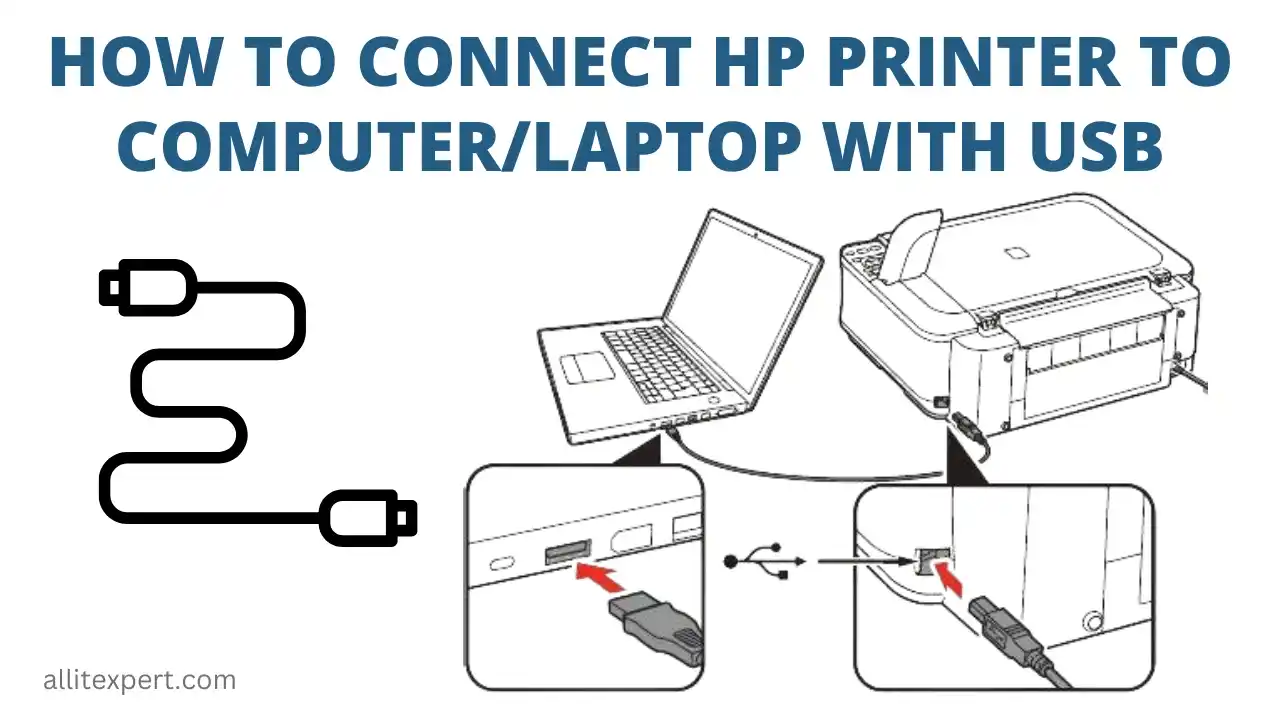
- USB Cable (Type A to Type B): This is essential if you plan to connect your printer directly via USB. Most printers come with one, but if yours didn’t, you might need to purchase one.
- Router/Wi-Fi Information: If you’re installing a wireless printer, you’ll need your Wi-Fi network name (SSID) and password. Ensure your laptop is already connected to the same network.
- Printer Manual/Setup Guide: This often contains specific instructions, driver disc information, or unique passwords for network setup.
- Sufficient Space: Make sure there’s enough room for your printer, with access to power outlets and ventilation.
Taking a moment to gather these items will prevent interruptions during the installation process, allowing you to focus on each step without scrambling for missing components.
Initial Printer Setup and Power Connection
Once you’ve unboxed your printer and removed all internal packaging, the next crucial step is to get it powered up and ready. Plug the printer’s power cable into a wall outlet or a surge protector. Do not use an unpowered USB hub, as it might not provide sufficient power. Turn on the printer and wait for it to initialize. Many modern printers will run a self-test or alignment process upon first power-up. Follow any on-screen prompts on the printer’s display panel, such as selecting language, loading paper, and confirming ink/toner cartridge installation. Ensure the printer is in a ready state, often indicated by a steady green light or a specific message on its display, before proceeding. This initial setup ensures the printer itself is functional and prepared for connection to your laptop.
Driver Discovery: The Heart of Connectivity
Printer drivers are specialized software programs that allow your laptop’s operating system to communicate effectively with the printer. Without the correct drivers, your printer won’t function, even if physically connected. There are several ways to obtain the necessary drivers:
- Manufacturer’s Website (Recommended): This is the most reliable method. Navigate to the official support section of your printer manufacturer’s website (e.g., HP, Epson, Canon, Brother). Search for your specific printer model and download the latest drivers for your laptop’s operating system (Windows, macOS). These drivers are often bundled with utility software that enhances printer functionality.
- Installation CD/DVD: Some older printers come with an installation disc. While convenient, these discs often contain outdated drivers. If using a disc, it’s still advisable to check the manufacturer’s website for newer versions after the initial installation.
- Operating System’s Built-in Drivers: Windows and macOS often have a repository of generic or basic drivers that might work for common printer models. While convenient for quick setup, these “in-box” drivers might not unlock all of your printer’s features.
Always prioritize downloading drivers directly from the manufacturer’s website to ensure compatibility, access to the latest features, and critical security updates. It’s a key step in protecting your digital environment from potential vulnerabilities associated with outdated software.
Step-by-Step Installation Methods: Connecting Your Printer
With your printer prepared and drivers located, it’s time to establish the connection between your laptop and the printer. There are generally three primary methods: direct USB, wireless (Wi-Fi), and network-based. Each method offers distinct advantages and is suitable for different usage scenarios. Understanding these methods will help you choose the best approach for your specific setup.
Method 1: The Classic USB Connection
The USB connection is arguably the simplest and most direct method, ideal for individual users who keep their printer close to their laptop. It offers a reliable, point-to-point connection with minimal configuration.
- Install Drivers First (Recommended): Before connecting the USB cable, run the driver installer you downloaded from the manufacturer’s website. Many installers will prompt you to connect the printer at a specific stage.
- Connect the USB Cable: Plug the square-shaped (Type B) end of the USB cable into the corresponding port on your printer. Then, plug the rectangular (Type A) end into an available USB port on your laptop.
- Allow Automatic Detection: Your laptop’s operating system should detect the new hardware. If you installed the drivers beforehand, the system will recognize the printer and configure it automatically. If you didn’t install drivers first, the system might attempt to find suitable drivers online or prompt you for the installation disc.
- Follow On-Screen Prompts: Complete any final setup steps on your laptop, such as naming the printer or setting it as the default.
This method is robust and rarely suffers from connectivity issues once the drivers are correctly installed, making it a dependable choice for many users.
Method 2: Embracing Wireless Freedom with Wi-Fi
Wireless printing offers unparalleled flexibility, allowing you to place your printer almost anywhere within your Wi-Fi network’s range and print from multiple devices without physical cables. This is particularly beneficial for shared environments or optimizing workspace layout.
- Printer’s Wireless Setup: On your printer’s control panel, navigate to the wireless setup menu (often under “Settings,” “Network,” or “Wireless”).
- Select Your Network: Choose “Wi-Fi Setup Wizard” or a similar option. The printer will scan for available Wi-Fi networks. Select your home or office network (SSID) from the list.
- Enter Password: Input your Wi-Fi network’s password (WPA2 key). Be careful with capitalization, as passwords are case-sensitive. Once entered, the printer should connect to your network, indicated by a stable wireless icon on its display.
- Install Drivers on Laptop: On your laptop, run the wireless printer driver installer you downloaded from the manufacturer’s website. The installer will typically detect the printer on your network automatically. If prompted, select “Wireless Connection” or “Network Connection.”
- Add Printer Manually (if needed): If the installer doesn’t find your printer, you might need to add it manually through your operating system:
- Windows: Go to
Settings > Bluetooth & devices > Printers & scanners > Add a device. Windows will scan for network printers. - macOS: Go to
System Settings > Printers & Scanners > Add Printer, Scanner, or Fax. The system will search for available network printers.
- Windows: Go to
Wireless setup requires a bit more initial configuration but provides immense long-term convenience and aligns with modern connectivity trends.
Method 3: Connecting to a Network Printer (Wired or Wireless)
Network printers are designed for shared environments, enabling multiple users on a local network to print to a single device. This can be either a dedicated network printer connected via Ethernet (wired) or a wireless printer designated for shared access.
- Ensure Printer is on Network:
- Wired: Connect an Ethernet cable from your printer’s network port to an available port on your router or network switch.
- Wireless: Follow Method 2 to connect the printer to your Wi-Fi network.
- Confirm the printer has an IP address (you can usually find this in the printer’s network settings menu or by printing a network configuration page).
- Install Drivers on Laptop: Download and run the full feature driver package from the manufacturer’s website on each laptop that needs to access the printer. During the installation, select “Network Connection” or “Wired/Wireless Network” when prompted. The installer should be able to detect the printer on the network.
- Add Printer Manually (if needed):
- Windows:
Settings > Bluetooth & devices > Printers & scanners > Add a device. If Windows doesn’t find it, click “Add manually” or “The printer I want isn’t listed.” You might need to select “Add a printer using a TCP/IP address or hostname” and enter the printer’s IP address. - macOS:
System Settings > Printers & Scanners > Add Printer, Scanner, or Fax. If it’s not automatically detected, click the “IP” tab and enter the printer’s IP address and specify the protocol (e.g., HP Jetdirect – Socket).
- Windows:
Network printing is a cornerstone of office productivity, enabling seamless collaboration and resource sharing, making it a vital aspect of modern tech infrastructure.
Post-Installation, Testing, and Troubleshooting Common Issues
Successfully installing your printer is a significant step, but the process doesn’t end there. Verifying its functionality and being prepared to address common issues ensures a consistently smooth printing experience. This section focuses on validating the setup and empowering you with solutions for potential roadblocks.

Printing a Test Page and Verifying Functionality
The simplest way to confirm your printer is working correctly is to print a test page. This checks the basic communication between your laptop and the printer, driver integrity, and the printer’s mechanical functions.
- From the Printer Properties:
- Windows: Go to
Settings > Bluetooth & devices > Printers & scanners. Select your installed printer, then click “Printer properties” or “Printing preferences.” Look for a “Print Test Page” button. - macOS: Go to
System Settings > Printers & Scanners. Select your printer, then click “Options & Supplies.” Look for a “Print Test Page” option or a “Utility” tab that might offer this function.
- Windows: Go to
- Print a Document: Open a simple document (e.g., a Word document, a PDF, or a web page) and initiate a print job. This tests the real-world application of your setup.
If the test page prints successfully, congratulations! Your printer is correctly installed and ready for use. If not, don’t despair; the next section will guide you through troubleshooting.
Advanced Printer Settings and Management
Beyond basic printing, modern printers offer a wealth of features that can be configured through their settings. Exploring these can significantly enhance your productivity and control over print jobs:
- Default Printer: Set your newly installed printer as the default if it’s your primary device. This saves time by pre-selecting it for all print jobs.
- Printing Preferences: Access
Printing PreferencesorPrint Propertiesto configure default print quality (draft for speed, high for best results), paper type and size, double-sided printing (duplex), color settings, and more. Tailoring these settings can save ink/toner and paper. - Scanner Functions: If your printer is an All-in-One (multifunction) device, ensure the scanning utility is installed. This usually comes with the full driver package and allows you to scan documents directly to your laptop.
- Maintenance: Utilize printer utilities for tasks like printhead cleaning, nozzle checks, and firmware updates. Regular maintenance prolongs your printer’s life and maintains print quality.
Familiarizing yourself with these advanced settings empowers you to get the most out of your printing hardware, aligning with the website’s focus on maximizing tech utility and productivity.
Diagnosing and Resolving Connectivity Problems
Despite careful installation, you might encounter issues. Here are common problems and their solutions:
-
Printer Not Found/Offline:
- Check Power and Cables: Ensure the printer is on and all cables (power, USB, Ethernet) are securely connected.
- Restart Everything: Power cycle your printer, laptop, and router. This can often resolve temporary network glitches.
- Verify Wi-Fi Connection: For wireless printers, check the printer’s display to ensure it’s still connected to your Wi-Fi network. Re-enter the password if necessary.
- Check IP Address: For network printers, ensure the printer’s IP address hasn’t changed. If your router uses DHCP, the IP address might occasionally refresh. Consider assigning a static IP address to your printer for stability.
- Printer Queue: Check if there are stuck print jobs in the print queue. Go to
Settings > Bluetooth & devices > Printers & scanners, select your printer, and click “Open print queue” to clear any pending jobs. - Windows Troubleshooter: In Windows,
Settings > Bluetooth & devices > Printers & scanners, select your printer, and click “Run the troubleshooter.”
-
Printing Issues (Blank Pages, Streaks, Faded Prints):
- Check Ink/Toner Levels: Low ink or toner is a common culprit.
- Clean Printheads/Nozzles: Use the printer’s utility software to perform printhead cleaning or nozzle checks.
- Paper Type/Loading: Ensure you’re using the correct paper type and it’s loaded properly.
- Update Drivers: Outdated drivers can sometimes lead to print quality issues. Re-download and install the latest drivers.
-
Driver Not Installing/Recognized:
- Administrator Privileges: Ensure you’re running the driver installer with administrator rights.
- Antivirus/Firewall: Temporarily disable your antivirus or firewall, as they can sometimes block driver installations. Re-enable them immediately after installation.
- Operating System Updates: Ensure your laptop’s operating system is fully updated.
- Compatibility: Double-check that you downloaded the correct driver for your specific printer model and OS version.
By systematically going through these troubleshooting steps, you can resolve most common printer issues and restore your printing capabilities.
Optimizing Your Printing Experience: Tips for Productivity and Security
Beyond basic installation, a truly optimized printing setup involves leveraging advanced features, maintaining your hardware, and being mindful of digital security. These tips will help you maximize your printer’s utility, streamline your workflow, and protect your data, aligning perfectly with the website’s themes of tech, productivity, and digital security.
Leveraging Cloud Printing and Mobile Solutions
Modern printing extends beyond traditional laptop connections. Cloud printing services and mobile apps offer unparalleled convenience and flexibility, allowing you to print from virtually anywhere.
- Cloud Printing Services (e.g., Google Cloud Print – legacy, HP Smart, Epson Connect): Many manufacturers offer their own cloud printing solutions. These allow you to send print jobs to your printer from remote locations, even when you’re not on the same network. This is incredibly useful for business travelers or family members who need to print from different locations.
- Mobile Apps: Most major printer brands provide dedicated mobile apps for smartphones and tablets. These apps not only allow you to print photos and documents directly from your mobile device but often include features for scanning, checking ink levels, ordering supplies, and managing printer settings. This brings a new level of productivity to your mobile workflow.
Embracing these technologies means you’re no longer tethered to your desk, significantly boosting your personal and professional productivity.
Keeping Your Printer Drivers Updated for Peak Performance
Just like any other software on your laptop, printer drivers require regular updates. These updates aren’t just about fixing bugs; they often introduce new features, improve performance, enhance compatibility with new operating system versions, and crucially, patch security vulnerabilities.
- Regular Checks: Periodically visit your printer manufacturer’s support website to check for new driver versions. Set a reminder in your calendar if needed.
- Automatic Updates: Some printer utility software includes an option for automatic driver updates. If available, enable this feature to ensure you’re always running the latest software.
- Firmware Updates: Beyond drivers, printers often have internal software called firmware. Manufacturers release firmware updates to improve hardware functionality, enhance security, and resolve operational issues. Check your printer’s control panel or the manufacturer’s website for instructions on how to perform firmware updates.
Keeping your drivers and firmware current is a proactive measure that ensures optimal performance, reliability, and security for your printing ecosystem.
Digital Security and Printer Best Practices
While often overlooked, printers, especially network-connected ones, can pose security risks if not properly secured. Integrating your printer into your digital security strategy is vital.
- Strong Passwords: If your wireless printer has a web interface or administrator settings, ensure you change any default passwords to strong, unique ones.
- Network Segmentation (Advanced): For businesses, consider segmenting your printer network to isolate it from sensitive data.
- Firmware Updates: As mentioned, these often include critical security patches. Always keep your printer’s firmware updated.
- Secure Print: Many office printers offer a “Secure Print” or “Confidential Print” feature where documents are held at the printer until a PIN is entered. This prevents unauthorized access to sensitive documents.
- Dispose of Old Printers Securely: Before discarding or donating an old network printer, perform a factory reset to erase any saved network credentials or print job data stored on its internal memory.
- Privacy Settings: Be mindful of sharing settings. Only share your printer with trusted users and networks.
By adopting these security best practices, you can protect your data and network from potential vulnerabilities, reinforcing a robust digital security posture across all your connected devices.
Conclusion: Empowering Your Digital Workflow
Connecting a printer to your laptop is a fundamental step in building a productive and efficient digital workspace. While the process may involve several steps, understanding the different connection methods, preparing adequately, and knowing how to troubleshoot common issues empowers you to manage your printing needs confidently. From the simplicity of a USB connection to the freedom of wireless printing and the collaborative power of network printers, each method caters to distinct requirements, enhancing your ability to produce tangible outputs from your digital endeavors.
Furthermore, by embracing advanced features like cloud printing, maintaining up-to-date drivers, and integrating robust security practices, you transform your printer from a mere peripheral into an integral part of a seamless, secure, and highly productive technology ecosystem. In an era defined by rapid technological advancements, ensuring your core tools function flawlessly is not just about convenience; it’s about safeguarding your time, resources, and digital integrity. Armed with this guide, you are now well-equipped to master your printer connections and elevate your overall digital workflow.
aViewFromTheCave is a participant in the Amazon Services LLC Associates Program, an affiliate advertising program designed to provide a means for sites to earn advertising fees by advertising and linking to Amazon.com. Amazon, the Amazon logo, AmazonSupply, and the AmazonSupply logo are trademarks of Amazon.com, Inc. or its affiliates. As an Amazon Associate we earn affiliate commissions from qualifying purchases.