
In the ever-evolving landscape of PC gaming, achieving the smoothest frame rates and the most visually stunning experiences is a constant pursuit for enthusiasts. NVIDIA’s Deep Learning Super Sampling (DLSS) technology has been a game-changer in this regard, offering significant performance boosts without compromising visual fidelity. While DLSS 2 has been a staple for years, the introduction of DLSS 3, particularly with its groundbreaking Frame Generation technology, represents a monumental leap forward. This article delves into the intricacies of how to install DLSS 3, guiding you through the process to unlock its full potential and transform your gaming sessions.

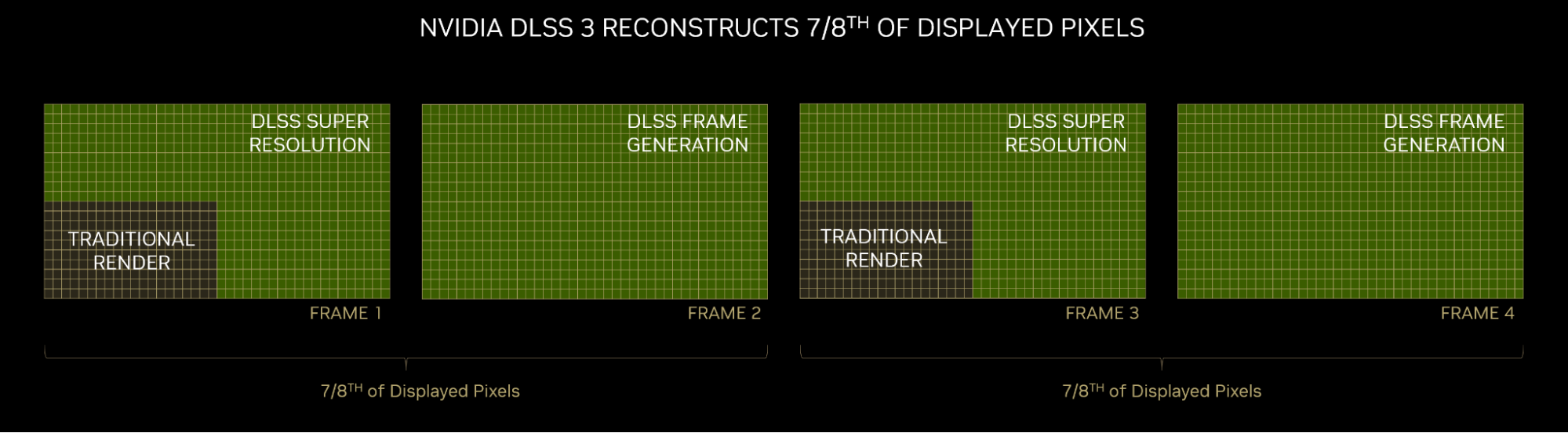
DLSS 3 isn’t just an upgrade; it’s a paradigm shift. It builds upon the AI-powered upscaling of previous DLSS versions but introduces a revolutionary component: Frame Generation. This feature leverages AI to create entirely new frames between traditionally rendered ones, dramatically increasing the perceived frame rate. This is particularly impactful in CPU-bound scenarios where even the most powerful GPUs might struggle to keep up.
Understanding the Prerequisites: What You Need for DLSS 3
Before we dive into the installation process, it’s crucial to ensure your system is equipped to handle the demands of DLSS 3. This advanced technology, especially Frame Generation, has specific hardware requirements.
Hardware Requirements: The Foundation of DLSS 3 Performance
The most critical requirement for DLSS 3, and specifically for its Frame Generation feature, is a NVIDIA GeForce RTX 40 Series GPU. This generation of graphics cards, powered by the Ada Lovelace architecture, incorporates new Optical Flow Accelerators and Tensor Cores specifically designed to power DLSS 3’s advanced AI algorithms.
- GeForce RTX 40 Series GPUs: This includes the RTX 4090, RTX 4080, RTX 4070 Ti, RTX 4070, RTX 4060 Ti, and RTX 4060. If you don’t have one of these cards, you will be able to utilize DLSS 2’s upscaling capabilities in compatible games, but you won’t have access to Frame Generation.
- CPU Considerations: While Frame Generation is designed to alleviate CPU bottlenecks, having a reasonably modern and capable CPU is still beneficial for overall system responsiveness and the initial rendering of frames. Extremely older or underpowered CPUs might still present limitations, though DLSS 3 aims to significantly mitigate this.
- RAM and Storage: Standard gaming PC requirements apply here. Ensure you have sufficient RAM (16GB is generally recommended for modern gaming) and ample storage space for your games and drivers.
Software Requirements: Keeping Your System Up-to-Date
Beyond hardware, keeping your software environment pristine is paramount for optimal performance and compatibility.
- Windows 10 or Windows 11: DLSS 3 is designed to function on these modern operating systems. Ensure your Windows installation is up-to-date with the latest patches and updates.
- Latest NVIDIA Game Ready Drivers: This is arguably the most critical software component. NVIDIA releases dedicated Game Ready Drivers that are optimized for new game releases and include the necessary support for DLSS 3 features. Always download the latest drivers directly from the official NVIDIA website or through the GeForce Experience application. Do not rely on generic Windows updates for graphics drivers.
- Games with DLSS 3 Support: DLSS 3 is not a universal feature that can be applied to any game. It needs to be implemented by the game developers themselves. Therefore, you must be playing a game that has specifically integrated DLSS 3 support. A growing list of titles are embracing this technology, and more are expected to follow.
Installing DLSS 3: A Step-by-Step Guide
The installation of DLSS 3 is primarily an in-game setting. There isn’t a separate “DLSS 3 installer” that you run like a standalone application. Instead, you enable and configure it within the graphics settings of a compatible game after ensuring your system meets the prerequisites.
Step 1: Download and Install the Latest NVIDIA Game Ready Drivers
This is the foundational step. Without the correct drivers, your RTX 40 Series GPU won’t be able to leverage DLSS 3.
- Visit the NVIDIA Driver Download Page: Navigate to the official NVIDIA driver download website (nvidia.com/drivers).
- Select Your Product: Choose your GPU series (GeForce RTX 40 Series), your specific GPU model (e.g., GeForce RTX 4070), your operating system (Windows 10 64-bit or Windows 11), and the download type (Game Ready Driver).
- Download the Driver: Click the “Search” button and then “Download” for the latest available driver.
- Run the Installer: Once downloaded, double-click the installer executable.
- Choose Installation Options: NVIDIA typically offers a “Express Installation” and a “Custom Installation.” For most users, Express Installation is recommended. It will automatically uninstall previous drivers and install the new ones. If you’re troubleshooting or have specific needs, Custom Installation allows you to select components.
- Restart Your PC: After the installation is complete, it is highly recommended to restart your computer to ensure all changes take effect properly.
Alternatively, using GeForce Experience:
- Open GeForce Experience: Launch the GeForce Experience application.
- Navigate to the Drivers Tab: Click on the “Drivers” tab in the top left corner.
- Check for Updates: GeForce Experience will automatically scan for the latest drivers. If a new driver is available, you’ll see a download button.
- Download and Install: Click “Download” and then choose “Express Installation” or “Custom Installation” as desired.
- Restart: Reboot your PC after installation.
Step 2: Launch a DLSS 3 Compatible Game
With your drivers updated, you can now launch a game that has implemented DLSS 3 support. As of this writing, prominent titles include Cyberpunk 2077, Alan Wake 2, Microsoft Flight Simulator, Portal RTX, and Warhammer 40,000: Darktide. The list is continuously expanding.
Step 3: Access In-Game Graphics Settings
Once the game is running, you’ll need to navigate to its graphics or display settings menu. The exact location and naming convention can vary slightly between games, but it’s usually found under “Settings,” “Options,” “Graphics,” or “Display.”
Step 4: Locate and Enable DLSS Settings
Within the graphics settings, you should find an option related to DLSS.
- Find the DLSS Option: Look for a setting labeled “DLSS,” “NVIDIA DLSS,” or similar.
- Enable DLSS: Select “On” or “Enabled” for the DLSS option.
- DLSS Mode Selection (Upscaling): You will typically be presented with several DLSS modes, such as:
- Quality: Prioritizes image quality with a slight performance boost.
- Balanced: A good mix of performance and visual fidelity.
- Performance: Offers a significant performance increase with a more noticeable impact on image quality.
- Ultra Performance: Maximizes frame rates but can result in the most visual degradation.
- Auto: The game may automatically select the best mode based on your resolution and frame rate targets.
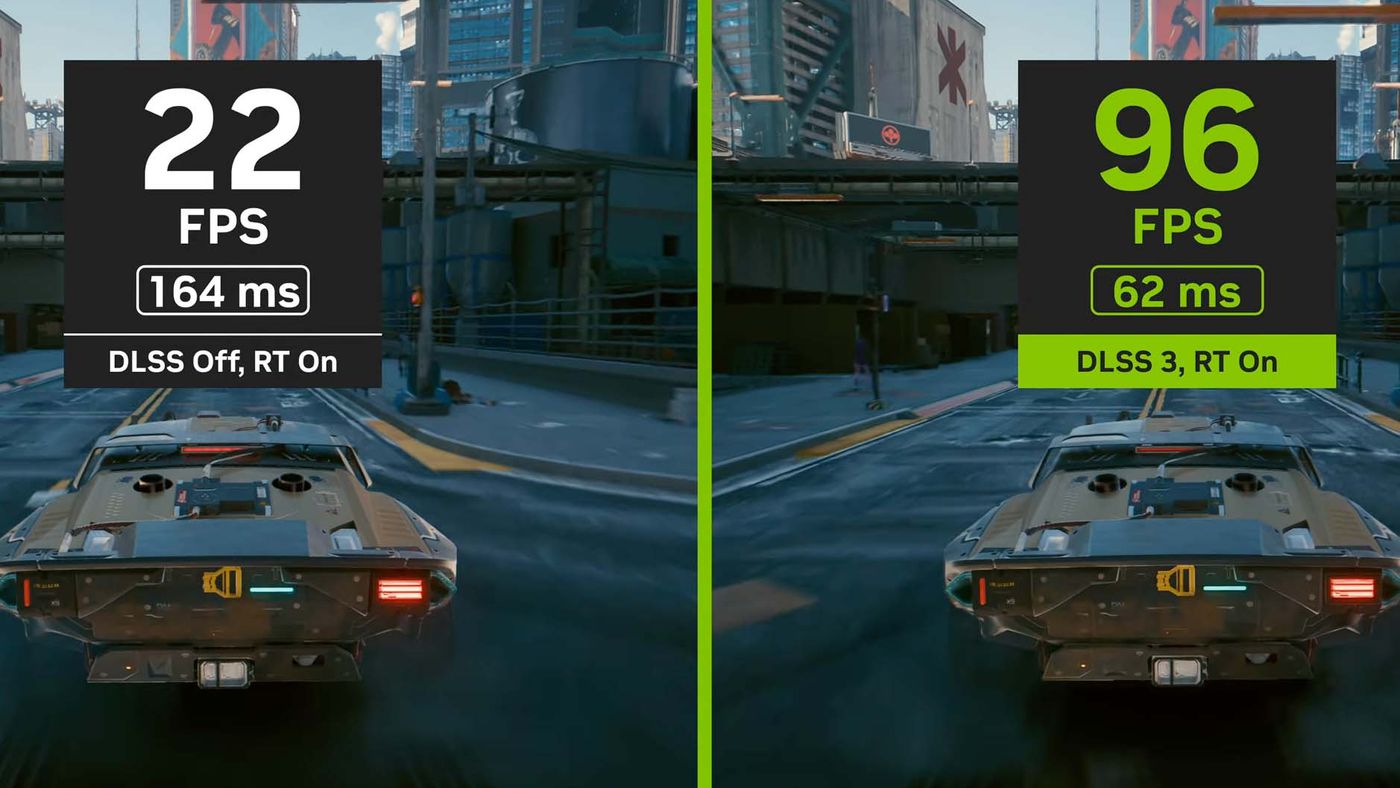
For DLSS 3, these modes primarily control the **upscaling** aspect. The higher the resolution you are playing at, the more beneficial these modes are.
- Enable Frame Generation: This is the key component of DLSS 3. Look for a separate option labeled “Frame Generation,” “NVIDIA Frame Generation,” or similar. This option will only appear and be selectable if you have an RTX 40 Series GPU and are running a game that supports DLSS 3 Frame Generation.
- Set Frame Generation to “On”: Once found, enable this feature.
Step 5: Configure DLSS 3 Settings for Optimal Performance
Experimentation is key to finding the perfect balance for your system and preferences.
- Resolution: DLSS 3 is most effective at higher resolutions (1440p and 4K). At 1080p, the upscaling benefits are less pronounced, and Frame Generation might offer less of a perceived improvement unless you are severely CPU-bound.
- DLSS Mode vs. Frame Generation: Understand that DLSS modes (Quality, Balanced, Performance) manage upscaling, while Frame Generation creates new frames. You can often use DLSS upscaling in conjunction with Frame Generation. For instance, you might set DLSS to “Quality” for good visual clarity and then enable Frame Generation to push frame rates higher.
- Target Frame Rate: Consider your monitor’s refresh rate. If you have a 144Hz monitor, aiming for consistently high frame rates will provide the smoothest experience. Frame Generation can help you hit those targets more reliably.
- Experiment: Don’t be afraid to try different DLSS modes and toggle Frame Generation on and off to see the impact on both performance and visual quality in your specific game. Some games may have built-in benchmarks or performance overlays that can help you monitor frame rates.
The Benefits of DLSS 3: Beyond Just More Frames
Installing DLSS 3 isn’t just about achieving higher numbers on your screen; it unlocks a richer and more immersive gaming experience.
Enhanced Frame Rates and Smoother Gameplay
The most immediate and obvious benefit of DLSS 3, particularly Frame Generation, is the significant increase in frame rates. This translates to:
- Smoother Motion: Reduced stuttering and more fluid animations, making fast-paced action easier to follow and more enjoyable.
- Improved Responsiveness: In competitive games, higher frame rates can lead to quicker reaction times, giving you an edge.
- Mitigating CPU Bottlenecks: Frame Generation is a lifesaver for gamers who have powerful GPUs but are held back by their CPU. It effectively bypasses some of the CPU’s rendering work, allowing the GPU to shine.
Unlocking Ray Tracing and Higher Settings
With the performance headroom provided by DLSS 3, you can:
- Enable Ray Tracing: Ray tracing offers incredibly realistic lighting, reflections, and shadows, but it comes at a significant performance cost. DLSS 3 makes it far more feasible to enable these demanding visual effects without tanking your frame rates.
- Push Graphics Settings Higher: You can crank up other demanding graphical settings, such as texture quality, anti-aliasing, and draw distance, to achieve the absolute best visual fidelity.
Future-Proofing Your Gaming Rig
As games continue to become more graphically demanding, technologies like DLSS 3 become increasingly important for maintaining optimal performance. Investing in an RTX 40 Series GPU now not only grants you access to DLSS 3 but also positions you well for future game releases that will likely leverage these advanced AI technologies.
Troubleshooting Common DLSS 3 Issues
While the installation process is generally straightforward, you might encounter a few hiccups. Here’s how to address them:
Issue: DLSS 3 or Frame Generation Option is Greyed Out or Missing
- Check Your GPU: Ensure you have a GeForce RTX 40 Series GPU. If not, Frame Generation will not be available. DLSS upscaling (DLSS 2) may still be an option if the game supports it.
- Update Drivers: This is the most common culprit. Re-download and perform a clean installation of the latest NVIDIA Game Ready Drivers.
- Game Support: Verify that the game you are playing has officially implemented DLSS 3 and Frame Generation. Check the game’s patch notes or official website.
- Resolution: In some cases, DLSS 3 might be tied to specific resolutions. Ensure you’re playing at a resolution that supports DLSS 3.
- DirectX Version: Ensure your game is running in DirectX 12 mode. DLSS 3 requires DirectX 12.
Issue: Visual Artifacts or Flickering with Frame Generation
- DLSS Mode: Experiment with different DLSS modes (Quality, Balanced, Performance). Sometimes, a more demanding DLSS mode for upscaling can help stabilize Frame Generation.
- Game Updates: Ensure the game itself is updated to the latest version, as developers often release patches to address DLSS-related issues.
- Driver Updates: Wait for newer driver releases. NVIDIA and game developers continuously work to refine DLSS performance.
- Disable Frame Generation: If artifacts persist and significantly detract from your experience, consider disabling Frame Generation and relying on DLSS upscaling alone.
Issue: Performance Isn’t as Expected
- CPU Bottleneck: While DLSS 3 aims to reduce CPU bottlenecks, an extremely old or underpowered CPU can still limit performance.
- Background Applications: Close unnecessary background applications that might be consuming CPU or RAM resources.
- In-Game Settings: Ensure you haven’t inadvertently set other graphical settings too high, negating the benefits of DLSS.
- Monitor Refresh Rate: DLSS 3 aims to increase frame rates, but your actual perceived smoothness is also tied to your monitor’s refresh rate.
Conclusion: Embracing the Future of Gaming Performance
Installing DLSS 3 is a vital step for any gamer with an NVIDIA GeForce RTX 40 Series GPU looking to maximize their gaming experience. By ensuring you have the right hardware, the latest drivers, and a game that supports this advanced technology, you can unlock unprecedented levels of performance and visual fidelity. The combination of AI-powered upscaling and revolutionary Frame Generation is set to redefine what’s possible in PC gaming, making your favorite titles look and play better than ever before. Keep your drivers updated, explore the in-game settings, and enjoy the cutting edge of gaming technology.
aViewFromTheCave is a participant in the Amazon Services LLC Associates Program, an affiliate advertising program designed to provide a means for sites to earn advertising fees by advertising and linking to Amazon.com. Amazon, the Amazon logo, AmazonSupply, and the AmazonSupply logo are trademarks of Amazon.com, Inc. or its affiliates. As an Amazon Associate we earn affiliate commissions from qualifying purchases.