
In the modern digital landscape, the calculator remains one of the most ubiquitous yet underutilized pieces of technology. Whether you are using a high-end Texas Instruments graphing calculator, a specialized mobile app, or the built-in software on your desktop operating system, understanding how to manipulate fractions is a fundamental skill. While many view calculators as simple decimal-processing machines, the underlying software architecture of modern devices allows for complex rational number computation. This guide explores the technical methodologies for performing fraction operations across various hardware and software platforms, ensuring you maximize the computational power at your fingertips.
1. Navigating Physical Hardware: The Scientific Calculator Interface
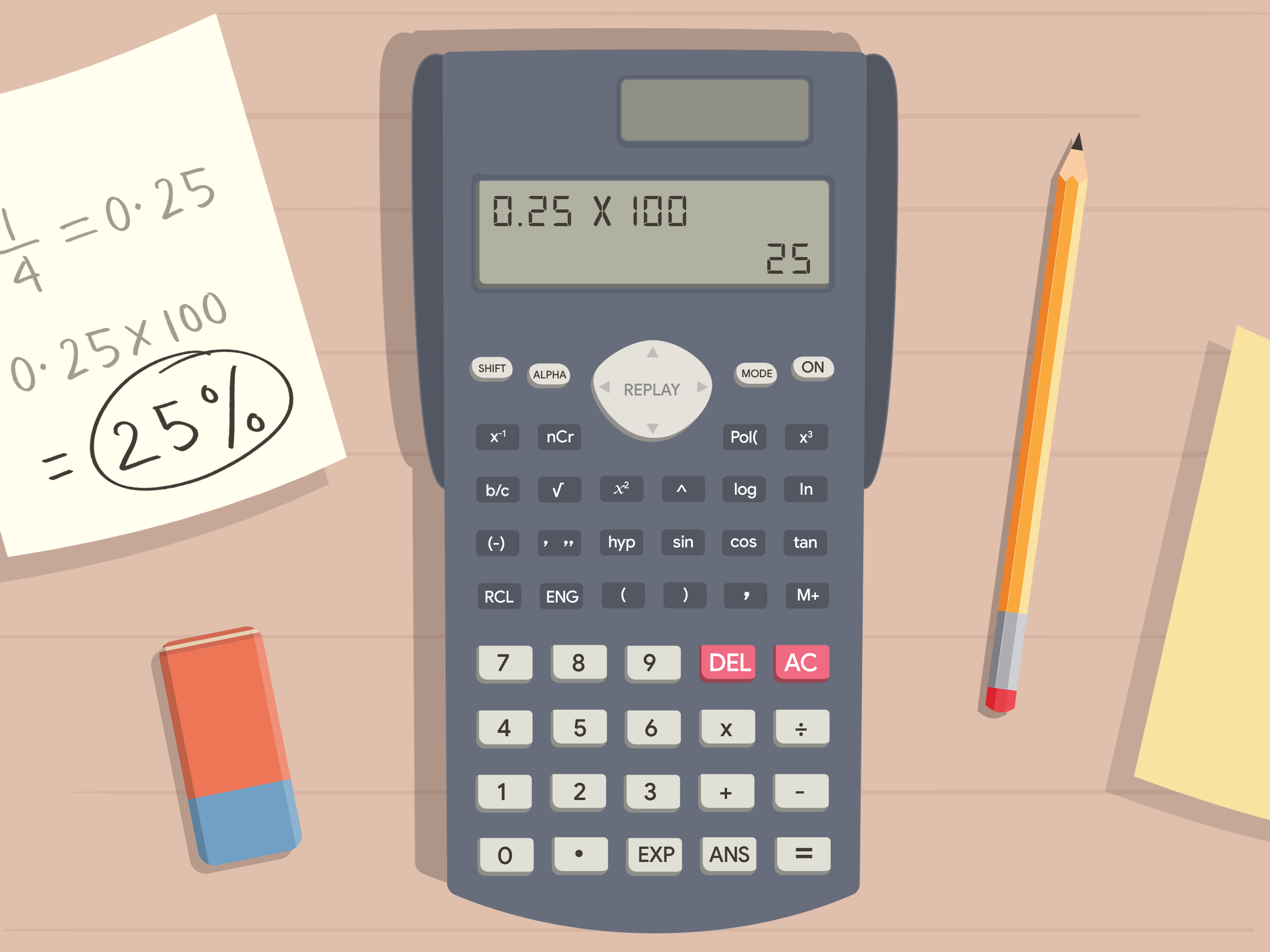
Before diving into mobile apps and AI-driven tools, it is essential to understand the hardware that set the standard for digital mathematics. Scientific calculators, such as the Casio fx-series or the TI-30XIIS, utilize specific firmware designed to handle “Natural Display” or “Linear” input modes.
Identifying the Fraction Key ($a b/c$)
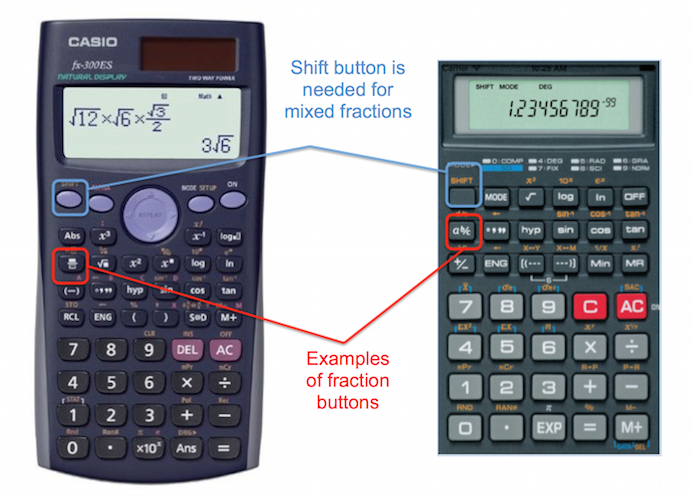
The first step in any technical workflow is identifying the correct interface element. On most traditional scientific calculators, you are looking for a button labeled $a b/c$ or a dedicated fraction icon that looks like two stacked squares ($frac{square}{square}$).
On older “linear” displays, pressing this button acts as a separator. For example, to input $3/4$, you would press 3, then the fraction key, then 4. The screen will often display a small right-angle symbol (┘) to represent the fraction bar. This is a limitation of older liquid crystal displays (LCDs) that could only show one line of text.
Working with Mixed Numbers
Modern firmware allows for the input of mixed numbers (a whole number combined with a fraction). To input $2 frac{1}{2}$ on a Casio or TI device, you usually need to utilize the “Shift” or “2nd” function.
- Press the Shift/2nd key.
- Press the Fraction key (the secondary function is usually “Mixed Fraction”).
- Input the whole number, the numerator, and the denominator using the directional pad to navigate between the boxes.
The Conversion Logic: From Fraction to Decimal
Most technical users need to toggle between exact values (fractions) and approximate values (decimals). In the tech world, this is often handled by a toggle button labeled $S iff D$ (Standard to Decimal) or $F iff D$. Pressing this button after a calculation triggers a software algorithm that converts the rational number into a floating-point decimal representation based on the calculator’s internal precision limits.
2. Advanced Computational Tools: Graphing Calculators and Math Software
For engineers, data scientists, and students using graphing calculators like the TI-84 Plus CE or the Casio CG50, the process is more software-oriented. These devices are essentially specialized computers with dedicated operating systems designed for mathematical visualization.
Leveraging “MathPrint” and Natural UI
One of the most significant technological leaps in calculator design was the introduction of “MathPrint” (Texas Instruments) and “Natural Textbook Display” (Casio). This software feature allows the screen to render fractions exactly as they appear in a textbook, rather than as a single line of code.
To access this on a TI-84:
- Press the ALPHA key and then the Y= (F1) button.
- A pop-up menu appears with fraction templates.
- Select n/d for a simple fraction or Un/d for a mixed number.
This graphical user interface (GUI) reduces input errors by providing a visual confirmation of the mathematical syntax before the “Enter” command is executed.
Fractional Operations in Graphing Software
When working with software like Desmos or GeoGebra, the interface shifts from physical buttons to keyboard shortcuts. In these digital environments, the forward slash (/) is the universal command for creating a fraction. The software automatically recognizes the slash as a division operator and formats it visually as a fraction. This is a prime example of intuitive UX design in mathematical software.
3. The Digital Transition: Mobile Apps and Operating System Calculators
As we move away from dedicated hardware, our primary interaction with fractions occurs through smartphones and desktop operating systems. However, the default “Basic” view on most mobile calculators often hides fraction functionality to maintain a clean aesthetic.
Unlocking Scientific Modes on iOS and Android
On an iPhone, the native calculator app appears to lack a fraction button. However, the technology is hidden behind a simple UI trigger: rotating the phone to landscape mode. This action switches the app from “Basic” to “Scientific” mode.
While the native iOS calculator prefers decimals, third-party apps like PCalc or HiPER Scientific Calculator (Android) provide robust fraction engines. These apps use specialized algorithms to keep calculations in fractional form throughout a multi-step process, preventing the rounding errors that often occur when converting to decimals too early in a computational sequence.
Specialized Math Solver Apps
A significant trend in educational technology is the rise of camera-based math solvers like Photomath or Microsoft Math Solver. These apps use Optical Character Recognition (OCR) and Machine Learning (RL) to “read” a handwritten fraction.
- The app captures an image of the fraction.
- The OCR engine identifies the numerator, denominator, and operator.
- The backend solver calculates the result and provides a step-by-step breakdown of the simplification process.
This represents the pinnacle of current “fraction tech,” where AI assists in the bridge between physical handwriting and digital computation.
4. Software Precision and the Logic of Fractions
From a technical perspective, how a calculator “thinks” about a fraction is different from how it thinks about a decimal. Understanding this distinction is key for those working in fields that require high precision.
Floating-Point vs. Rational Representation
Most basic calculators convert fractions into “floating-point numbers” immediately. For example, $1/3$ becomes $0.33333333333$. However, floating-point math has inherent limitations; it cannot represent $1/3$ perfectly, leading to tiny “rounding errors” in complex calculations.
High-end mathematical software (like Mathematica or Maple) and advanced scientific calculators use “symbolic logic.” They treat $1/3$ as a discrete object rather than a division problem. When you multiply $(1/3) times 3$ on a symbolic calculator, it returns exactly $1$. A basic calculator might return $0.99999999999$. Understanding whether your tool uses symbolic or floating-point logic is vital for technical accuracy.
Simplifying Fractions via Algorithms
Modern calculators include an “Auto-Simplify” feature. This is an algorithmic process that finds the Greatest Common Divisor (GCD) of the numerator and denominator and divides both by that number. When you input $4/8$ and hit enter, the software’s “Simplify” subroutine runs instantly to display $1/2$. Users can often toggle this setting in the “Mode” or “Setup” menu to see the unsimplified version if necessary.
5. The Future of Mathematical Computing: AI and Natural Language
We are currently entering a new era where the “calculator” is becoming a conversational interface. The way we perform fractions is shifting from button-mashing to natural language processing (NLP).
WolframAlpha and Computational Intelligence
WolframAlpha is perhaps the most powerful example of a “knowledge engine” rather than a simple calculator. You don’t need to find a fraction button; you simply type “add 3/4 and 5/6” into the search bar. The engine interprets the linguistic intent, performs the calculation using its massive symbolic database, and provides the result as a fraction, a decimal, and even a visual pie chart.
Large Language Models (LLMs) and Math
Tools like ChatGPT and Google Gemini are increasingly being used to solve mathematical problems. However, it is important to note that earlier versions of LLMs struggled with fractions because they were “predicting text” rather than “calculating logic.”
The latest tech updates have integrated “code interpreter” plugins. Now, when you ask an AI to do a fraction, it writes a small snippet of Python code in the background to perform the calculation precisely. This integration of AI and traditional programming ensures that even complex fractional calculus is handled with 100% accuracy.

Conclusion
Mastering fractions on a calculator is more than just knowing which button to press; it is about understanding the intersection of hardware interface, software logic, and emerging AI trends. Whether you are using a classic scientific calculator with its $a b/c$ key, a graphing device with MathPrint UI, or a modern AI engine, these tools are designed to enhance human computational speed and accuracy.
As technology continues to evolve, the friction between human intent and machine execution decreases. By understanding the “Tech” behind the tools—from OCR scanning to symbolic logic—you can navigate any mathematical challenge with confidence. The next time you face a complex set of fractions, remember that your device is not just a screen and buttons; it is a sophisticated computational engine capable of incredible precision.
aViewFromTheCave is a participant in the Amazon Services LLC Associates Program, an affiliate advertising program designed to provide a means for sites to earn advertising fees by advertising and linking to Amazon.com. Amazon, the Amazon logo, AmazonSupply, and the AmazonSupply logo are trademarks of Amazon.com, Inc. or its affiliates. As an Amazon Associate we earn affiliate commissions from qualifying purchases.