
In the evolving landscape of digital entertainment, streaming services have become an indispensable part of our daily lives. Among these, YouTube TV stands out as a comprehensive live TV streaming platform, offering a vast array of channels, on-demand content, and cloud DVR capabilities. As with any subscription-based service, maintaining an active and accurate payment method is crucial for uninterrupted access to your favorite shows, sports, and news. Whether your credit card has expired, you’ve switched banks, or you simply want to use a different payment method for better rewards or budgeting, knowing how to update this information is a fundamental skill for any YouTube TV subscriber.
This article serves as a comprehensive technical guide, walking you through the precise steps to modify your payment details on YouTube TV. We’ll delve into the intricacies of YouTube TV’s billing system, provide a clear, step-by-step tutorial, address common issues you might encounter, and offer best practices for managing your digital subscriptions securely and efficiently. By the end of this guide, you’ll be fully equipped to manage your YouTube TV payment settings with confidence, ensuring your entertainment never skips a beat.
Understanding YouTube TV’s Billing System
Before diving into the mechanics of changing your payment method, it’s essential to grasp how YouTube TV’s billing system operates. Understanding these foundational elements will not only demystify the process but also highlight the importance of proactive account management.
The Subscription Model
YouTube TV, like many modern streaming platforms, operates on a recurring monthly subscription model. This means that at the beginning of each billing cycle, your linked payment method is automatically charged for the upcoming month’s service. This automation is incredibly convenient, eliminating the need for manual payments, but it also places the onus on the subscriber to ensure their payment information remains current and valid. The subscription is typically tied to your Google Account, which houses a broader Google Pay profile that manages payment methods across various Google services.
Importance of Accurate Payment Information
The validity of your payment method directly impacts your access to YouTube TV. If a recurring charge fails due due to an expired card, insufficient funds, or other banking issues, YouTube TV will typically attempt to re-charge the card a few times. If these attempts are unsuccessful, your subscription will eventually be suspended or canceled. This can lead to an abrupt interruption in service, loss of access to your DVR recordings, and the inconvenience of having to reactivate your account. While reactivating is usually straightforward, it’s an unnecessary hassle that can be easily avoided by keeping your payment details up-to-date. Moreover, for new subscribers, failed initial payments can delay the start of service, impacting your ability to immediately enjoy the content.
Supported Payment Methods
YouTube TV primarily accepts major credit and debit cards, including Visa, MasterCard, American Express, and Discover. Given its integration with the broader Google ecosystem, in many regions, you might also have the option to use Google Pay, which can link to various payment sources like PayPal or other banking methods. It’s crucial to ensure that the card you intend to use is supported and is active. Prepaid cards can sometimes be problematic if they don’t have sufficient recurring funds or if their issuer does not support subscription services. Always check with your card issuer if you encounter persistent issues with a specific card.
Step-by-Step Guide: Updating Your Payment Information
Changing your payment method on YouTube TV is a straightforward process, primarily managed through the web browser interface. While you can watch YouTube TV on various devices, direct payment management is almost exclusively done via a computer or mobile web browser.
Accessing Your YouTube TV Account
The first step is to log in to your YouTube TV account.
- Open a Web Browser: Use your preferred web browser (Chrome, Firefox, Safari, Edge) on a computer, tablet, or smartphone.
- Navigate to YouTube TV: Go to the official YouTube TV website: tv.youtube.com.
- Sign In: Click the “Sign in” button, usually located in the top-right corner. Make sure you sign in with the Google Account that is linked to your YouTube TV subscription. If you have multiple Google accounts, double-check that you’re using the correct one to avoid confusion.
Navigating to Billing Settings
Once you’re logged in, you’ll need to locate the billing and membership settings.
- Access Settings: In the top-right corner of the YouTube TV interface, click on your profile picture (or initial icon).
- Select “Settings”: From the dropdown menu, select “Settings.” This will open a new page with various account management options.
- Go to “Membership” or “Billing”: On the left-hand navigation pane within the Settings page, look for a section labeled “Membership,” “Billing,” or similar. The exact label might vary slightly over time due to UI updates, but it will always relate to your subscription and payments. Click on it.
- Review Membership Details: You will see an overview of your current membership, including your next billing date and your active payment method.
Adding a New Payment Method
Now that you’re in the billing section, you can add new payment details.
- Find “Payment Method”: Under your membership details, you should see an option like “Payment Method” or “Manage payment methods.” Click on it.
- Add or Update: You might see your current payment method listed. Look for an option to “Add payment method” or “Update payment method.” Click this option.
- Enter Card Details: A form will appear, prompting you to enter the details for your new credit or debit card:
- Card number: The 16-digit number on the front of your card.
- Expiration date: Month and year (MM/YY).
- CVV/CVC: The 3 or 4-digit security code, usually on the back of the card.
- Cardholder name: As it appears on the card.
- Billing address: Ensure this matches the address registered with your bank for that card.
- Save/Confirm: After entering all details, click “Save” or “Update.” YouTube TV (via Google Pay) will verify the card.
Setting as Primary and Removing Old Method
Once the new payment method is added, you typically need to set it as the primary method and optionally remove the old one.
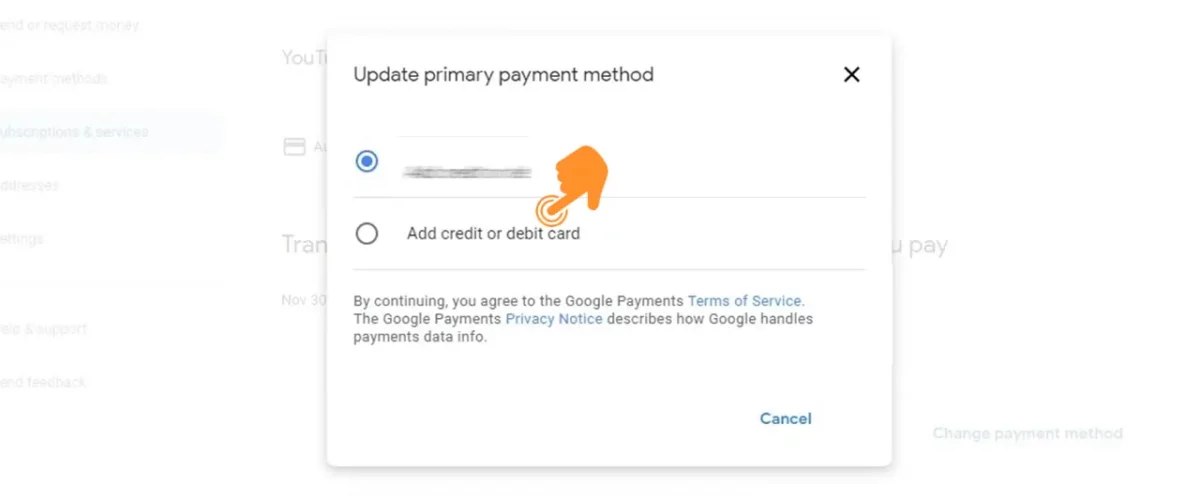
- Set as Primary: If you’ve just added a new card and have multiple methods on file, ensure the new one is selected as your primary payment method for YouTube TV. There’s usually a dropdown or radio button option next to each payment method to designate it as the primary.
- Remove Old Method (Optional but Recommended): To avoid confusion or potential issues with expired cards, it’s a good practice to remove the old payment method. Select the outdated card and look for an option like “Remove” or “Delete.” Confirm your decision. Only do this if you are certain you no longer need that card linked to your Google Pay profile for any Google services.
Confirmation and Verification
After successfully updating your payment information, you should receive a confirmation.
- On-Screen Confirmation: The YouTube TV interface will usually display a message confirming that your payment method has been updated.
- Email Confirmation: You might also receive an email from Google Pay or YouTube TV confirming the change. Check your inbox (and spam folder) for this notification.
- Check Next Billing: Verify that the “Next Billing Date” and the associated payment method displayed in your Membership settings now reflect the new information.
Common Challenges and Troubleshooting Tips
While changing your payment method is generally straightforward, users sometimes encounter issues. Here’s how to troubleshoot some common problems:
Payment Method Not Accepted
- Incorrect Details: Double-check every digit of your card number, expiration date, CVV, and billing address. A single typo can cause a rejection.
- Bank Restrictions: Your bank might decline the transaction due to international restrictions, fraud prevention measures, or if you’ve recently made several online purchases. Contact your bank to confirm if there are any holds or issues on your card.
- Unsupported Card Type: Ensure the card is a major credit or debit card (Visa, MasterCard, Amex, Discover). Some prepaid cards or gift cards may not be accepted for recurring subscriptions.
- Insufficient Funds: While less common when merely adding a card, if you’re attempting an immediate payment or if the card needs to be verified with a small temporary charge, insufficient funds could be an issue.
Difficulty Locating Settings
- Wrong Google Account: Ensure you are logged into the precise Google Account that manages your YouTube TV subscription. Many users have multiple Google accounts, leading to confusion.
- Using the Right Interface: Remember that payment changes are almost always done via a web browser (on a computer or mobile device), not directly through the YouTube TV app on your smart TV, streaming stick, or game console. These devices are for viewing, not for deep account management.
- UI Updates: Service interfaces occasionally change. If the exact menu names differ, look for keywords like “Membership,” “Billing,” “Payments,” or “Subscriptions” within your account settings.
“Processing Payment” Delays
- System Lag: Sometimes, after updating a payment method, it can take a few minutes for the system to fully process and reflect the change, especially if it’s right before a billing cycle.
- Retry Attempts: If a payment failed and you’ve just updated the method, YouTube TV might need a little time before it initiates a new charge attempt. You usually don’t need to manually trigger a re-charge; the system will try again within a day or two. If you need immediate access, sometimes signing out and signing back in can refresh the system.
Account Access Issues
- Forgotten Password: If you can’t log into your Google Account, use Google’s account recovery tools. You’ll need access to your recovery email or phone number.
- Account Suspension: If your account was suspended due to a previous payment failure, updating your payment method should reactivate it, but you might need to confirm the reactivation prompt on the website.
Impact on Other Google Services
- Shared Payment Profile: Changes made to a payment method within your Google Account (via Google Pay) are often reflected across all Google services where that profile is used. This can be a convenience or a point of caution, depending on your preferences. Be mindful that removing a card might impact Google Play purchases, YouTube Premium, or other subscriptions linked to the same profile.
Best Practices for Managing Your Digital Subscriptions
Beyond just knowing how to change a payment method, adopting best practices for managing all your digital subscriptions can save you time, money, and hassle in the long run.
Regular Review of Payment Methods
Make it a habit to periodically review all your linked payment methods across various streaming services, online retailers, and subscription apps. Many people set a reminder every 6-12 months to check for expired cards or services they no longer use. This proactive approach helps prevent unexpected service interruptions and ensures you’re not paying for services accidentally.
Utilizing Payment Reminders
For credit and debit cards, note down their expiration dates. Set a calendar reminder a month or two before a card expires to prompt you to update it across your essential services like YouTube TV. This simple step can prevent the immediate stress of a failed payment and service suspension.
Security Considerations
Your payment information is sensitive data. Always ensure you are on the official YouTube TV or Google Pay website (check the URL in your browser) when entering card details. Be wary of phishing emails or messages that ask for your payment information directly – Google will never ask for your full card number via email. Use strong, unique passwords for your Google Account, and enable two-factor authentication (2FA) for an extra layer of security. This protects not just your payment methods but your entire digital identity.
Leveraging Account Features
Explore other account management features offered by YouTube TV and the broader Google ecosystem. You can often view past billing statements, manage add-ons, and even pause or cancel your subscription directly from the same settings page. Understanding these features empowers you to have full control over your digital entertainment budget and preferences. Regularly checking your transaction history within Google Pay can also help identify any unauthorized charges.
Conclusion
Managing your payment method on YouTube TV is a straightforward technical task that ensures seamless access to your favorite live and on-demand content. By following the detailed steps outlined in this guide – accessing your account via a web browser, navigating to the membership/billing settings, adding your new card details, and setting it as primary – you can confidently update your information. Understanding the underlying billing system, anticipating common challenges, and adopting best practices for digital subscription management further empower you as a tech-savvy consumer.
In an age where digital subscriptions are the norm, maintaining accurate and secure payment information is not just about convenience; it’s about control over your services and your data. With this comprehensive guide, you now possess the knowledge to keep your YouTube TV subscription running smoothly, ensuring your entertainment is always within reach.
aViewFromTheCave is a participant in the Amazon Services LLC Associates Program, an affiliate advertising program designed to provide a means for sites to earn advertising fees by advertising and linking to Amazon.com. Amazon, the Amazon logo, AmazonSupply, and the AmazonSupply logo are trademarks of Amazon.com, Inc. or its affiliates. As an Amazon Associate we earn affiliate commissions from qualifying purchases.