
In the modern digital economy, peer-to-peer (P2P) payment applications have transitioned from luxury conveniences to essential financial tools. Among the leaders in this space is Cash App, developed by Block, Inc. Its minimalist interface and lightning-fast transaction speeds have made it a favorite for millions. However, the very feature that makes it successful—its speed—can become a source of technical anxiety when a user sends money to the wrong recipient or enters the incorrect amount.
Understanding the technical framework of Cash App is crucial for any user looking to navigate the complexities of digital transfers. Unlike traditional banking systems that may take days to clear a “pending” transaction, Cash App is designed for near-instantaneous settlement. This guide provides a deep dive into the technical steps required to cancel a payment, the underlying logic of the app’s transaction state, and how to optimize your digital security to prevent errors before they occur.
The Architecture of Instant Transactions: Why Canceling is Complex
To understand how to cancel a payment, one must first understand the software architecture that governs Cash App. Most P2P platforms operate on a ledger system that prioritizes “real-time” processing. When you hit “Pay,” the app initiates a series of API calls that verify your balance, check the recipient’s account status, and update the internal database.
Understanding the Peer-to-Peer (P2P) Protocol
Cash App functions as a closed-loop system. When you send money to another Cash App user, the funds aren’t necessarily moving through the Federal Reserve’s ACH (Automated Clearing House) network immediately. Instead, Cash App updates its internal ledger to reflect a debit on your account and a credit on the recipient’s. Because this internal update happens in milliseconds, the window of opportunity to “intercept” the data packet before it reaches its destination is incredibly narrow.
Pending vs. Completed: The State of Your Digital Ledger
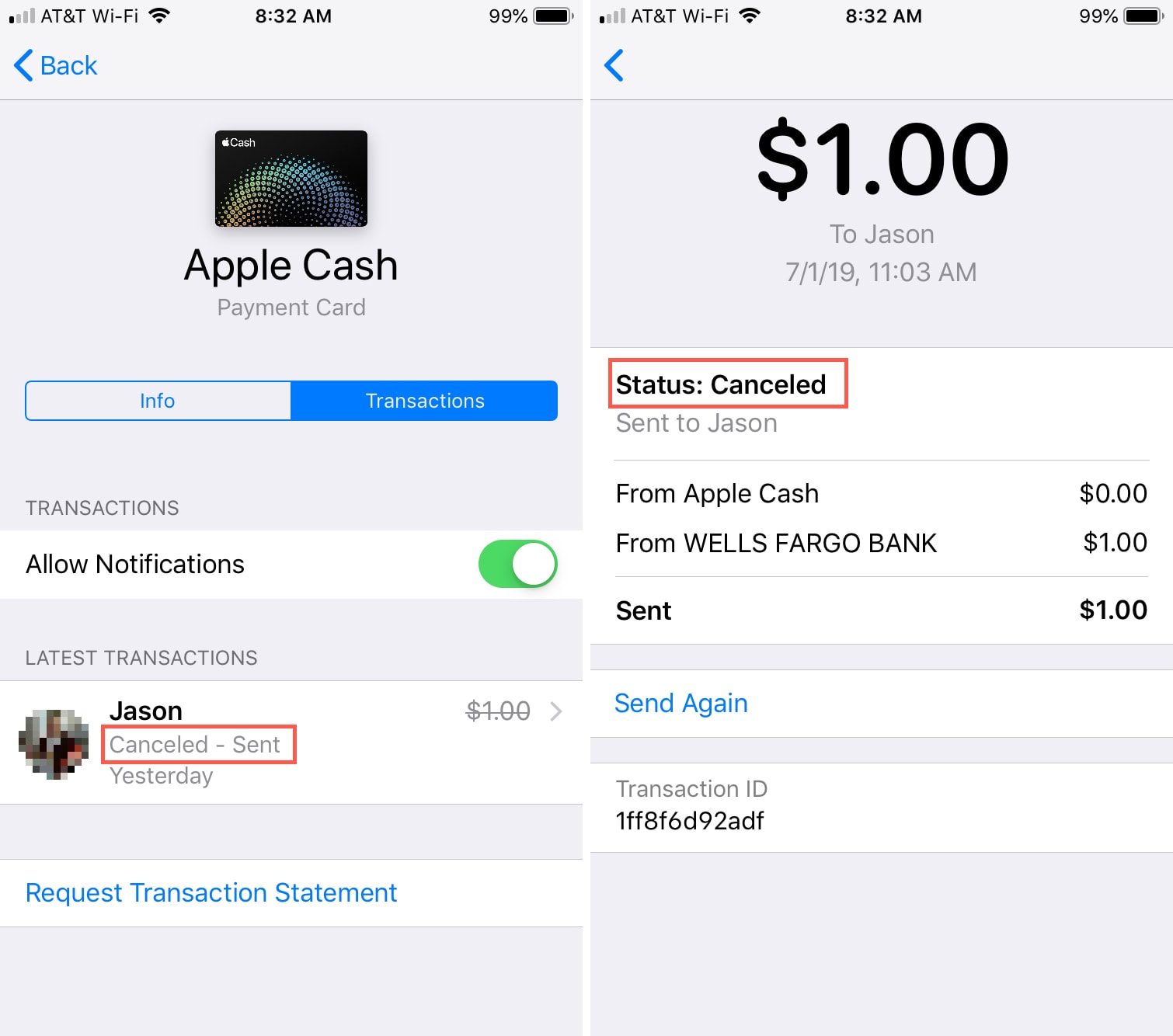
In the technical lifecycle of a payment, there are two primary states: “Pending” and “Completed.”
- Pending: This state indicates that the transaction is caught in a holding pattern. This usually happens due to security flags, network latency, or if the recipient has not yet “accepted” a payment from a new contact. In this state, the “Cancel” option is technically available within the app’s UI.
- Completed: Once the ledger is updated and the recipient’s balance reflects the new funds, the transaction is “committed” to the database. At this point, the sender no longer has the technical permission to unilaterally reverse the transaction.
Step-by-Step Technical Tutorial: How to Initiate a Cancellation
If you have realized an error immediately after tapping the pay button, speed is of the essence. You are essentially racing against the app’s automated processing scripts. Follow these technical steps to attempt a cancellation.
Locating the Activity Tab and Payment History
The first step is navigating to the “Activity” section of the application. This is represented by the clock icon in the bottom-right corner of the home screen.
- Launch the Cash App on your mobile device.
- Tap the Activity icon to view your chronological list of transactions.
- Scroll through the ledger to find the specific transaction you wish to cancel.
The “Cancel” Button: When and Why It Appears
Once you select the specific transaction, the app will open a detailed view of the metadata (time, amount, recipient $Cashtag).
- Look for a button labeled “Cancel” or a three-dot menu (…) in the top right corner.
- If the “Cancel” option is visible, tapping it will send a request to the server to terminate the transaction before the ledger is finalized.
- If the option is not visible, the transaction has already reached the “Completed” state. In this scenario, the software has finalized the transfer, and you must move to a secondary recovery protocol.

Advanced Troubleshooting: Requesting Refunds and Disputing Charges
When a payment cannot be canceled because it has already been processed, the technical flow shifts from “transaction termination” to “fund recovery.” This involves user-to-user interaction or escalating the issue to Cash App’s support infrastructure.
The Refund Request Protocol
Cash App includes a built-in feature to request funds back from another user. This is not an automated reversal but a new transaction request sent to the recipient.
- From the Activity tab, select the completed payment.
- Tap the three dots (…) in the top-right corner.
- Select Refund and confirm by tapping OK.
This sends a push notification to the recipient. From a technical standpoint, you are now dependent on the recipient’s willingness to initiate a return transaction. Because the funds are legally in their digital possession, Cash App cannot force a reversal for authorized payments.
Navigating the Cash App Support Infrastructure
If the recipient is unresponsive or the transaction was the result of a technical glitch (such as a double-charge), you must engage with the Support API.
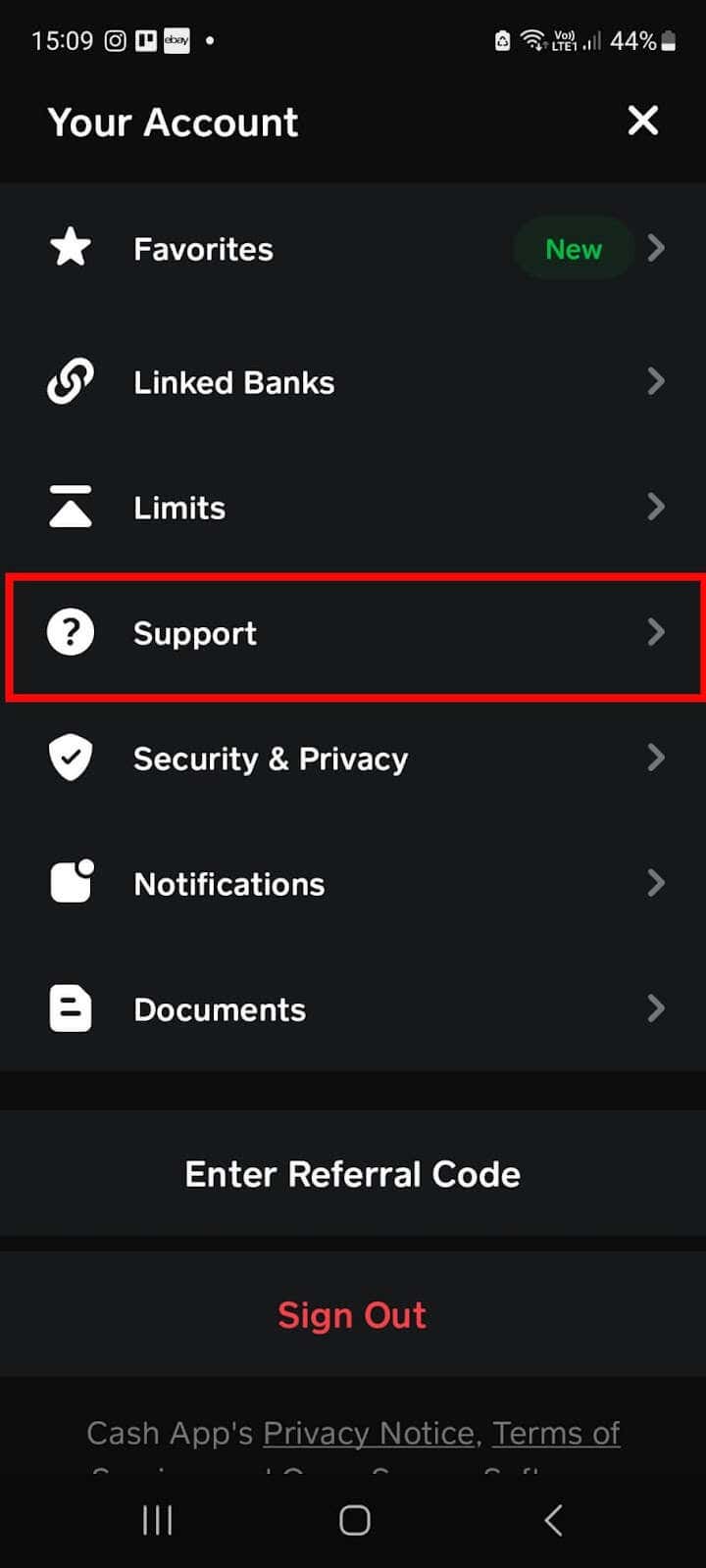
- In-App Support: Navigate to your Profile icon, scroll to “Support,” and initiate a chat.
- The Dispute Process: If the payment was made via a linked debit or credit card (rather than your Cash App balance), you have the option to contact your bank to initiate a chargeback. However, be aware that this can lead to your Cash App account being flagged or restricted, as the app’s terms of service prioritize internal resolution.
Digital Security: Protecting Your Account from Fraudulent Transfers
The best way to manage “canceled” payments is to ensure they never need to be canceled in the first place. By utilizing the built-in security features of the software, users can create “friction” in the payment process—a technical strategy designed to prevent accidental or unauthorized out-bound data.
Enabling Security Locks and Two-Factor Authentication (2FA)
Cash App allows users to require a PIN or biometric authentication (FaceID/TouchID) before any payment is authorized. This is the single most effective technical barrier against accidental transfers.
- Tap the Profile icon on the home screen.
- Select Privacy & Security.
- Toggle on the Security Lock.
By enabling this, the app’s execution script will pause until a biometric match or PIN is confirmed, giving the user a final moment to verify the $Cashtag and amount.
Recognizing Social Engineering and Phishing Attempts
Many requests for “payment cancellations” arise because of sophisticated social engineering. Scammers often use technical-sounding language to trick users into sending money. Always verify the recipient’s identity. Cash App identifies “Verified” users with a blue checkmark. If you are sending money to a non-verified user, the app’s software will often trigger a “Confirmation” pop-up. Do not bypass these warnings; they are technical safeguards designed to verify that the destination address is correct.
Future-Proofing Your Digital Wallet
As P2P technology evolves, we are seeing the integration of more robust AI tools designed to flag suspicious transactions before they are completed. However, the responsibility for transaction accuracy still rests largely with the user.
Best Practices for Error-Free Transfers
To minimize the need for the “Cancel” button, implement a “Verification First” workflow:
- The $1 Test: For large transfers to a new contact, send a $1 “test” payment first. Once the recipient confirms receipt, the $Cashtag is saved in your “Recents” list, ensuring subsequent larger transfers are routed to the correct account.
- QR Code Scanning: Instead of manually typing a $Cashtag, use the app’s built-in QR scanner. This eliminates human input error, which is the leading cause of misdirected payments.
- Regular Software Updates: Ensure you are running the latest version of Cash App. Developers frequently release patches that improve transaction transparency and add new security features that make the cancellation process more intuitive.
In conclusion, while the “Cancel” button in Cash App is a powerful tool, its availability is strictly governed by the state of the transaction on the digital ledger. By understanding the technical nuances of “Pending” versus “Completed” statuses, utilizing refund protocols, and hardening your account’s security settings, you can navigate the Cash App ecosystem with professional-grade confidence. The future of finance is digital, and mastering the tools of the trade is the best way to ensure your capital remains secure.
aViewFromTheCave is a participant in the Amazon Services LLC Associates Program, an affiliate advertising program designed to provide a means for sites to earn advertising fees by advertising and linking to Amazon.com. Amazon, the Amazon logo, AmazonSupply, and the AmazonSupply logo are trademarks of Amazon.com, Inc. or its affiliates. As an Amazon Associate we earn affiliate commissions from qualifying purchases.