
In the ever-evolving landscape of digital entertainment, subscription services like YouTube TV offer unparalleled convenience, bringing live television and on-demand content directly to our devices. However, personal viewing habits change, financial priorities shift, or perhaps a different streaming service catches your eye. Whatever the reason, knowing how to efficiently manage and, if necessary, cancel your digital subscriptions is a fundamental aspect of modern tech literacy. This guide will walk you through the process of canceling your YouTube TV subscription, ensuring a smooth transition without unexpected charges or prolonged commitments.
YouTube TV, a popular live TV streaming service from Google, provides access to over 100 channels, unlimited DVR storage, and a user-friendly interface. While it boasts many advantages, the decision to cancel often stems from factors such as budget constraints, a desire to explore alternative services, or simply a reduction in the need for live TV. Understanding the steps involved in cancellation is crucial for taking control of your digital entertainment ecosystem. This article will delve into the policies, the precise technical steps, and important post-cancellation considerations, all within the framework of digital service management and consumer technology.
Understanding YouTube TV Cancellation Policies
Before diving into the mechanics of cancellation, it’s essential to understand YouTube TV’s policies regarding subscription management. Knowledge of these policies can save you from potential frustration and ensures you make an informed decision, whether you decide to cancel outright or simply pause your service. These policies are designed to be relatively straightforward, aligning with common practices across many digital subscription models, but nuances exist that are important for every subscriber to grasp.
What Happens When You Cancel?
When you initiate the cancellation of your YouTube TV subscription, the service doesn’t typically terminate immediately. Instead, your access to YouTube TV and all its features, including live channels and your DVR recordings, will continue until the end of your current billing cycle. For instance, if your billing cycle renews on the 15th of the month and you cancel on the 5th, you will still have access to YouTube TV for the remaining ten days. Once that billing period concludes, your subscription will officially end, and no further charges will be applied.
It’s important to note that your DVR recordings, which YouTube TV famously stores indefinitely, will also become inaccessible once your subscription officially ends. Any saved shows or movies will be lost, so if you have content you wish to finish, plan your cancellation accordingly. Your user profile and viewing preferences are usually retained by Google, allowing for a seamless re-subscription experience should you decide to return in the future. This approach provides a grace period, ensuring users get full value for their last payment while allowing ample time to adjust to the transition away from the service.
Refund Policy Considerations
YouTube TV generally operates on a “no refunds” policy for partial billing periods. This means that if you cancel mid-cycle, you won’t receive a pro-rata refund for the unused portion of your subscription. Your access simply continues until the end of the period you’ve already paid for. This standard industry practice reinforces the importance of timing your cancellation, especially if you’re looking to optimize your spending.
However, there can be exceptions, particularly in cases where local consumer protection laws mandate different refund policies, or if there were technical issues that prevented you from using the service. Such instances are rare and usually require direct communication with YouTube TV support. For the vast majority of users, the expectation should be that cancellation takes effect at the end of the current paid period, with no partial refund. Always review the terms of service specific to your region if you believe you have a unique circumstance that might warrant a refund.
Pausing vs. Cancelling: A Strategic Choice
Before committing to a full cancellation, it’s worth considering YouTube TV’s “pause” feature. This option allows you to temporarily suspend your subscription for a period of 4 weeks up to 6 months. During the paused period, you won’t be charged, and your DVR recordings will remain accessible. This is an excellent choice for individuals who anticipate a temporary break from the service, such as during extended vacations, seasonal changes in viewing habits, or a temporary financial crunch, but plan to return.
When you pause, your subscription automatically resumes at the end of the chosen pause duration, and billing restarts. You can unpause manually at any time before the scheduled resume date. This feature offers flexibility, retaining your preferences and DVR library, without the hassle of a full cancellation and subsequent re-subscription process. Weighing the pros and cons of pausing versus outright cancelling can help you manage your digital subscriptions more strategically, aligning them with your lifestyle and financial goals.
Step-by-Step Guide to Cancelling Your YouTube TV Subscription
The process of canceling your YouTube TV subscription is designed to be straightforward, primarily managed through your Google account settings. Google provides clear pathways on both its web platform and mobile applications to ensure users can control their subscriptions with minimal effort. While the steps are similar across devices, there are slight variations in navigation.
Via Web Browser (Recommended Method)
Cancelling via a web browser is often the most reliable method due to the full interface visibility and fewer potential app-specific glitches.
- Access YouTube TV: Open your preferred web browser (Chrome, Firefox, Safari, Edge) and navigate to the YouTube TV website (tv.youtube.com).
- Sign In: Ensure you are signed in with the Google account associated with your YouTube TV subscription. If you manage multiple Google accounts, double-check that you’re using the correct one.
- Navigate to Settings: In the top right corner of the YouTube TV interface, click on your profile picture. From the dropdown menu, select “Settings” (it’s usually represented by a gear icon).
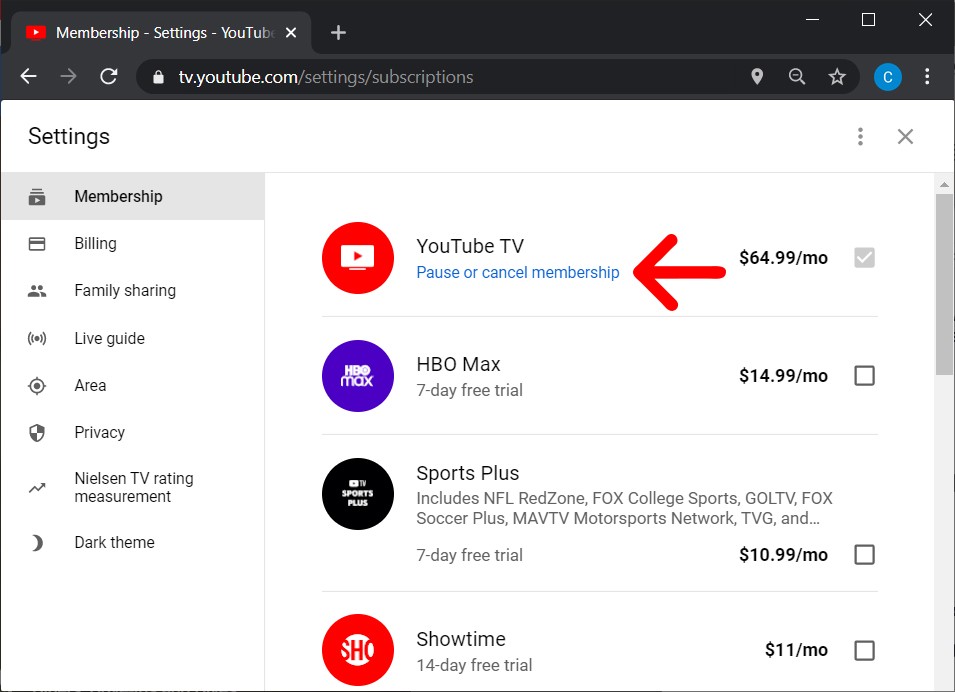
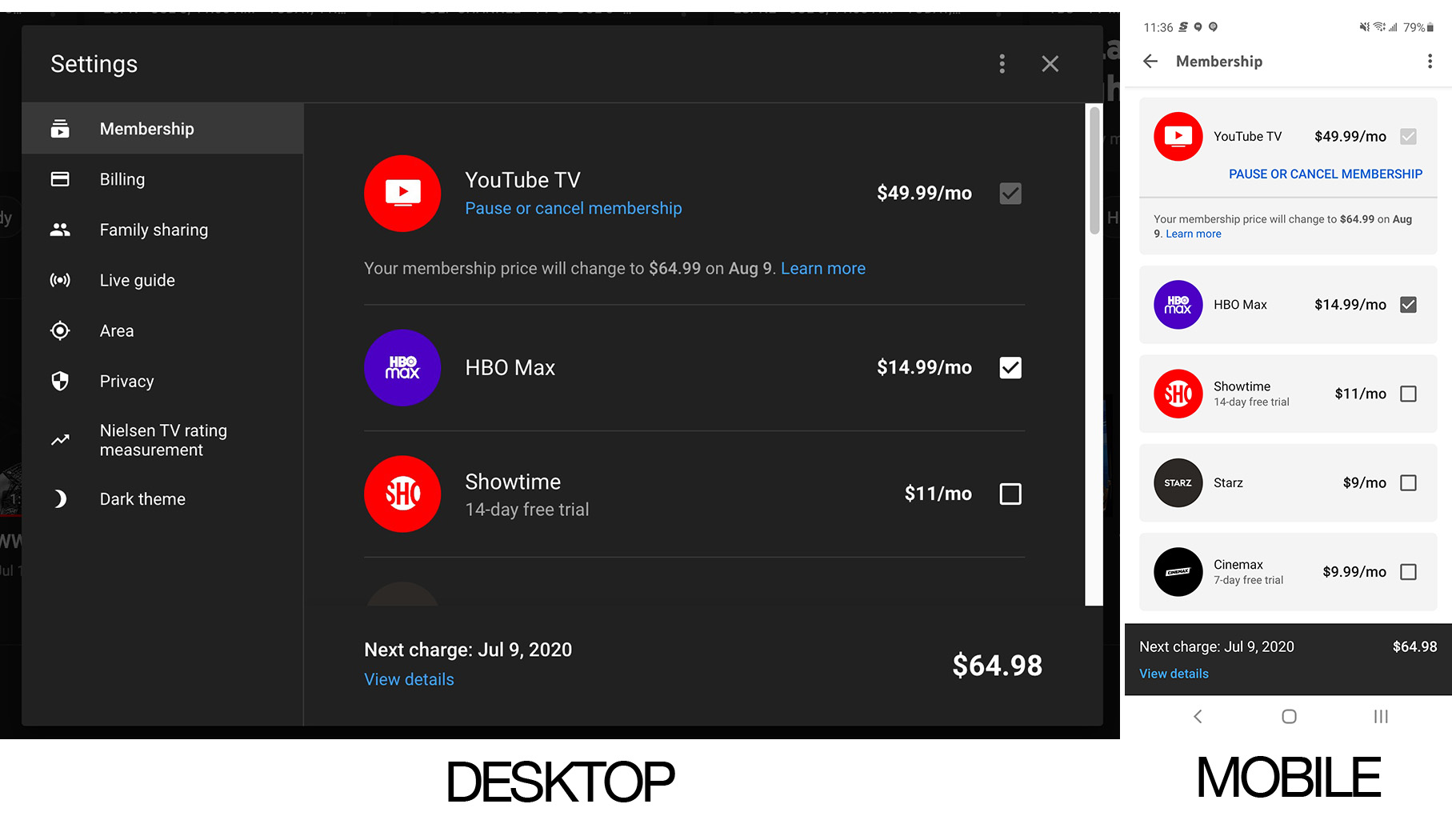
- Manage Membership: Within the Settings menu, you’ll see various categories. Look for “Membership” or “Billing” on the left-hand sidebar. Click on it.
- Find “Cancel Membership”: On the Membership page, you’ll see details about your current plan, billing date, and options to manage your subscription. Locate the “Cancel membership” or “Manage membership” option. If it says “Manage membership,” click it, and it will typically reveal the cancellation option.
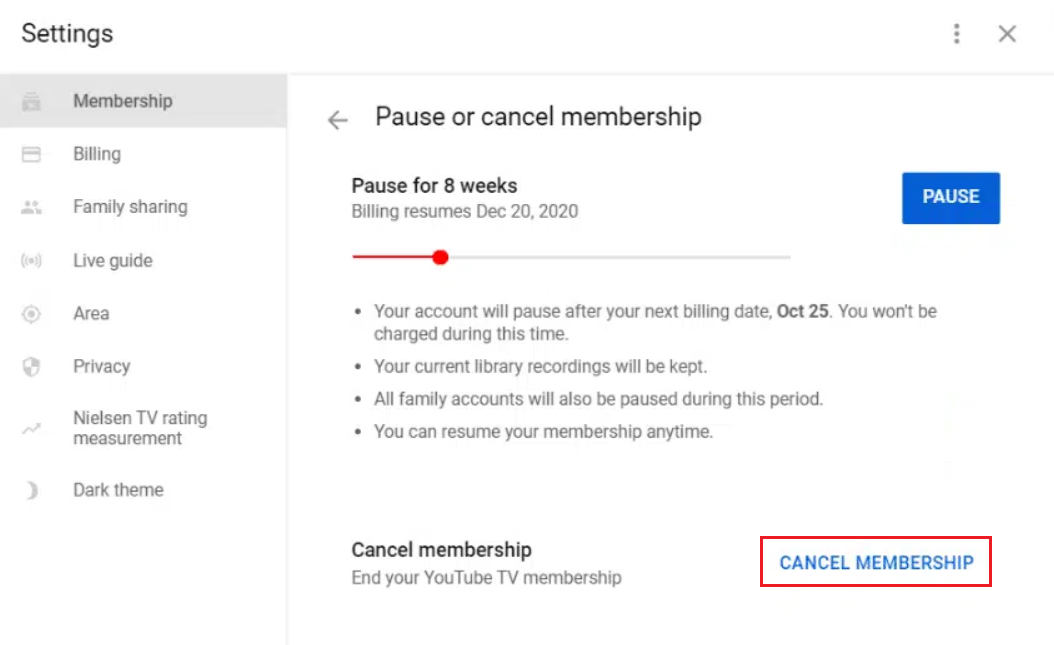
- Follow On-Screen Prompts: YouTube TV will usually present a series of screens asking why you’re canceling (this is feedback for them, not mandatory to answer for cancellation) and may offer alternatives like pausing your subscription. Continue through these prompts, confirming your decision to cancel.
- Final Confirmation: You will reach a final confirmation screen. Click the button that explicitly states “Cancel YouTube TV” or “Confirm Cancellation.”
- Confirmation Email: Immediately after successful cancellation, you should receive a confirmation email from YouTube TV to the email address associated with your Google account. Keep this email as proof of cancellation.
Via the YouTube TV App (Mobile)
While the web browser method is often recommended for its clarity, you can also initiate the cancellation process through the YouTube TV app on your mobile device (iOS or Android).
- Open the YouTube TV App: Launch the YouTube TV app on your smartphone or tablet.
- Sign In: Ensure you are signed in to the correct Google account.
- Access Profile: Tap on your profile picture, typically located in the top right corner of the app.
- Go to Settings: From the profile menu, tap on “Settings.”
- Select “Membership”: Within Settings, find and tap on “Membership.”
- Manage Subscription: Look for an option that says “Manage” or “Manage membership.” Tapping this might redirect you to a web browser page to complete the cancellation process, as Google often centralizes subscription management on its web platform for consistency and security.
- Complete Cancellation: If redirected, follow the web browser steps outlined above. If the cancellation can be completed within the app, follow the on-screen prompts to confirm your decision.
- Confirmation: As with the web method, expect a confirmation email once the cancellation is processed.
What to Expect During the Process
During the cancellation process, YouTube TV often presents options to pause your subscription or offers a discount to retain you as a subscriber. These are standard retention strategies. If your firm intent is to cancel, simply decline these offers and proceed. The system will likely ask for your reason for canceling. While providing feedback can be helpful for the service, it is usually optional, and your cancellation will proceed regardless of whether you provide a reason. The entire process, from initiation to final confirmation, should take no more than a few minutes if you have your login details ready.
Common Pitfalls and Troubleshooting During Cancellation
Even with a straightforward process, users can occasionally encounter issues when trying to cancel a digital subscription. These often stem from common user errors or minor technical hiccups rather than inherent flaws in the cancellation mechanism. Being aware of these potential pitfalls and knowing how to troubleshoot them can ensure a hassle-free experience.
Forgotten Login Credentials
One of the most frequent hurdles is forgetting the Google account email or password associated with your YouTube TV subscription. Since YouTube TV is intrinsically linked to your Google account, you’ll need those credentials to access your settings.
- Solution: If you’ve forgotten your password, use Google’s account recovery tools. Visit account.google.com/signin/recovery and follow the prompts to reset your password. If you’ve forgotten which email address you used, try common email addresses you might have, or look through old billing statements for clues about which Google account is being charged.
Multiple Google Accounts
Many individuals have multiple Google accounts (e.g., personal, work, family). It’s easy to accidentally sign in with the wrong account and then not see an active YouTube TV subscription or the option to cancel.
- Solution: Before starting the cancellation process, verify that you are signed in with the specific Google account that holds the YouTube TV subscription. In the web browser, click on your profile picture in the top right corner to see which account is active. If it’s the wrong one, click “Add another account” or “Sign out” to switch. On mobile, similarly check your profile in the app. If you’re unsure, check your billing statements – they will clearly indicate which Google account is being charged for YouTube TV.
Billing Issues and Unrecognized Charges
Sometimes, users cancel, but then notice a charge still appears on their bank statement. This can be alarming and lead to confusion.
- Solution: First, re-verify your cancellation. Did you receive a confirmation email? Did you follow all the steps to the final confirmation? Remember that access continues until the end of your billing cycle; a charge appearing before that date might be for the current period you’ve already paid for. If a charge appears after your confirmed cancellation date, or for a period you genuinely believe you’ve canceled, immediately contact YouTube TV customer support. Have your confirmation email ready, along with relevant billing statements. Screenshotting the cancellation confirmation page can also be valuable proof.
Technical Glitches
Although rare, technical issues can sometimes impede the cancellation process, such as pages not loading correctly or buttons being unresponsive.
- Solution:
- Clear Browser Cache and Cookies: Sometimes, old data stored by your browser can interfere with website functionality. Clearing your cache and cookies can resolve this.
- Try a Different Browser: If one browser isn’t working, switch to another (e.g., if you’re using Chrome, try Firefox or Edge).
- Try a Different Device: If you’re having trouble on your computer, try using your mobile device’s browser, or vice-versa.
- Disable Browser Extensions: Certain browser extensions (like ad blockers or privacy tools) can sometimes interfere with website scripts. Try disabling them temporarily.
- Check Internet Connection: Ensure you have a stable internet connection.
If none of these troubleshooting steps work, contacting YouTube TV support directly is your next best option.
Post-Cancellation Considerations and Alternatives
Successfully canceling your YouTube TV subscription isn’t just about clicking a button; it’s about understanding the implications and planning your next steps in your digital entertainment journey. There are several considerations to keep in mind once the cancellation process is complete, from verifying its success to exploring other options.
Verifying Successful Cancellation
The most crucial step after initiating cancellation is to confirm it was successful. This proactive measure prevents future unwanted charges and provides peace of mind.
- Confirmation Email: The primary verification method is the confirmation email from YouTube TV. This email typically reiterates that your subscription will not renew and confirms the date your access will end. Keep this email safe.
- Check Account Status: Log back into your YouTube TV account (or Google account settings) after a day or two. The “Membership” section should now indicate that your subscription is canceled and will not renew, or that it has ended. It might also offer an option to “Re-subscribe” rather than “Manage membership.”
- Monitor Bank/Credit Card Statements: While the confirmation email is strong proof, the ultimate verification comes from your financial statements. Monitor your bank or credit card statements for the next billing cycle to ensure no further charges from YouTube TV appear.
Exploring Other Live TV Streaming Services
Canceling YouTube TV often opens the door to exploring other live TV streaming services that might better suit your current needs, preferences, or budget. The market is competitive, offering a variety of alternatives, each with its unique channel lineup, features, and pricing structure.
- Sling TV: Known for its customizable channel packages and lower starting price.
- Hulu + Live TV: Combines live TV with a vast on-demand library, often bundled with Disney+ and ESPN+.
- fuboTV: Strong focus on sports content, with a wide array of sports channels.
- Philo: A more budget-friendly option, focusing on entertainment and lifestyle channels without sports or news.
- DIRECTV STREAM: Offers a traditional cable-like experience with premium channel options.
When considering alternatives, thoroughly research their channel lineups, device compatibility, DVR capabilities, and pricing to find the best fit for your household. Each platform offers different user interfaces and feature sets, so a free trial can be an invaluable tool for evaluation.
Re-subscribing to YouTube TV in the Future
Should your circumstances change or you find that you miss YouTube TV, re-subscribing is typically a very simple process. Google retains your account history, viewing preferences, and even your custom channel lineup (though DVR recordings will have been cleared).
To re-subscribe:
- Navigate back to tv.youtube.com or open the YouTube TV app.
- Sign in with your Google account.
- The platform will likely recognize your previous subscription and offer a straightforward path to “Reactivate Membership” or “Re-subscribe.”
- Confirm your payment method and start enjoying the service again.
The ease of re-subscription is a testament to the flexibility of modern digital services, allowing users to move in and out of subscriptions as their needs dictate, without penalty.
Conclusion
Managing digital subscriptions is a core aspect of our connected lives, and knowing how to cancel services like YouTube TV efficiently is a valuable skill. By understanding YouTube TV’s cancellation policies, following the clear step-by-step guides for web and mobile platforms, and being aware of common troubleshooting tips, you can ensure a smooth and hassle-free experience.
Whether you’re pausing for a short break, canceling to explore new entertainment horizons, or simply streamlining your monthly expenses, taking control of your subscriptions empowers you. Remember to always verify your cancellation, monitor your billing, and explore the robust landscape of alternatives available in the streaming world. With this guide, you are now equipped to navigate the cancellation process with confidence, maintaining mastery over your digital entertainment choices.
aViewFromTheCave is a participant in the Amazon Services LLC Associates Program, an affiliate advertising program designed to provide a means for sites to earn advertising fees by advertising and linking to Amazon.com. Amazon, the Amazon logo, AmazonSupply, and the AmazonSupply logo are trademarks of Amazon.com, Inc. or its affiliates. As an Amazon Associate we earn affiliate commissions from qualifying purchases.