
The rise of peer-to-peer (P2P) financial applications has fundamentally transformed how we handle micro-transactions, split bills, and send gifts. Among these platforms, Cash App has emerged as a leader due to its streamlined user interface and rapid processing speeds. However, the very feature that makes Cash App attractive—its near-instantaneous transaction speed—can also be a source of significant anxiety when a user sends money to the wrong person or enters an incorrect amount.
Understanding the technical nuances of how Cash App processes data is essential for any user looking to navigate the complexities of payment reversals. Unlike traditional banking systems that may take days to clear a transaction, Cash App functions on a high-velocity ledger system. This guide provides an in-depth look at the technical steps required to cancel a payment, the limitations of the software, and the digital security measures necessary to protect your funds.
Understanding the Technical Architecture of Cash App Transactions
To effectively manage your payments, you must first understand how Cash App’s backend handles your requests. When you tap “Pay,” the application initiates a series of API calls to verify your balance, check for fraud triggers, and update the recipient’s ledger.
The Mechanics of Instant Settlements
Most Cash App transactions are designed to be “Instant.” From a technical perspective, this means the ledger entry for your account is debited, and the recipient’s account is credited in real-time. Once the server confirms this handshake, the transaction is considered “Completed.” In the world of software-driven finance, a completed transaction is immutable, meaning the app’s code does not allow for a simple “undo” button once the data has been committed to the database.
Why Some Payments Remain “Pending”
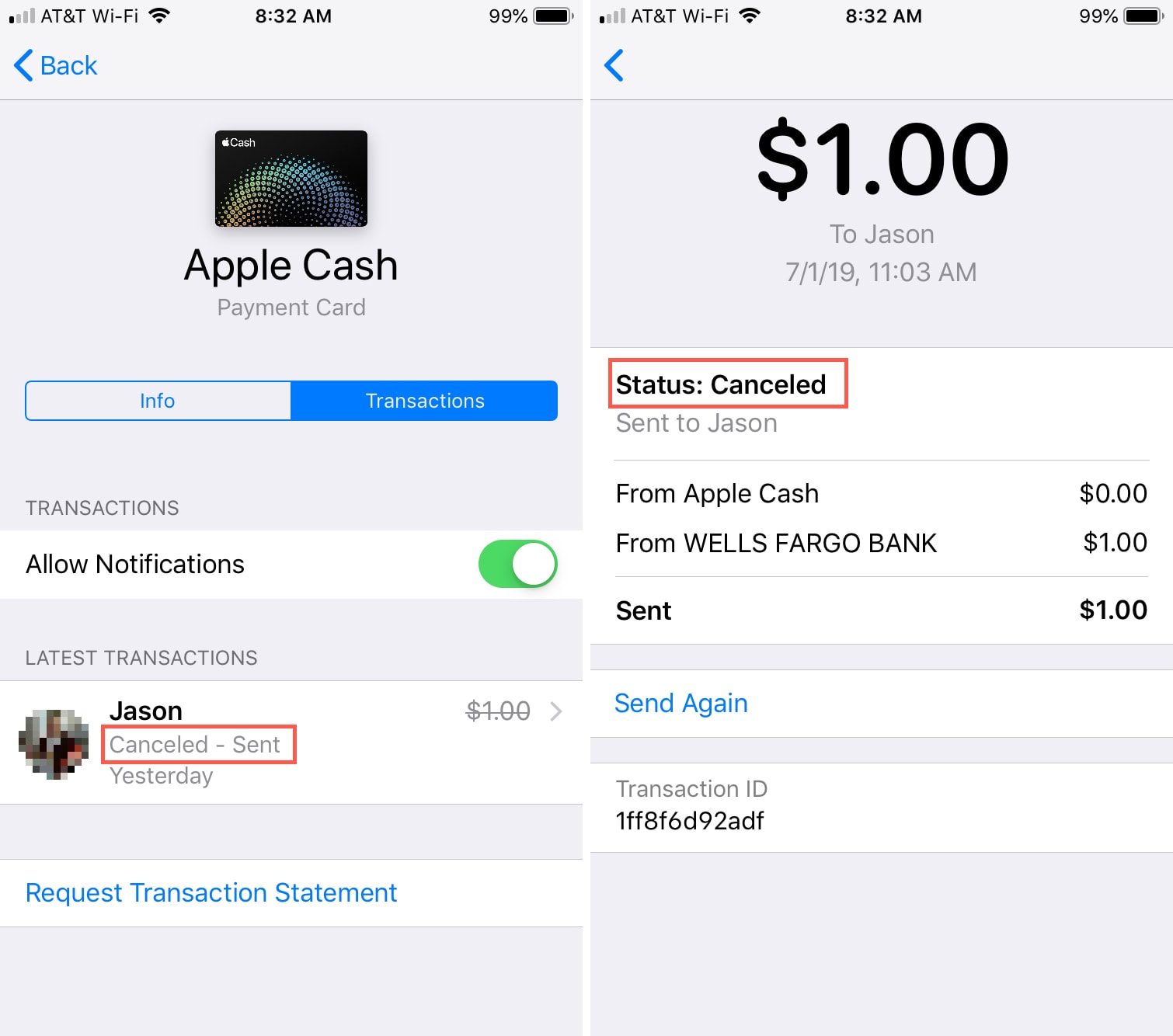
Occasionally, a payment will not process immediately and will instead sit in a “Pending” state. This usually occurs due to one of three technical reasons: a lag in the connection between Cash App and your linked bank, a security flag raised by the app’s AI-driven fraud detection system, or a requirement for the recipient to manually accept the funds (often common with new accounts). A pending payment is the only scenario where a direct cancellation is technically feasible through the user interface.
The Role of Blockchain and Traditional Ledgers
While Cash App allows for Bitcoin transactions, its primary USD ledger operates on centralized cloud servers. This distinction is important because while Bitcoin transactions are governed by network confirmations, standard Cash App payments are governed by Square Inc.’s (Block, Inc.) proprietary software protocols. Understanding this difference helps users realize why they have a narrow window of control over their digital assets.
Step-by-Step Guide: How to Cancel a Pending Cash App Payment
If you have realized an error immediately after hitting the send button, your first move should be to check the status of the transaction. If the transaction has not yet been finalized by the server, you may be able to intercept it.
Navigating the Activity Tab
The “Activity” tab, represented by the clock icon in the bottom right corner of the home screen, serves as the primary log for all incoming and outgoing data packets related to your account.
- Open Cash App on your mobile device.
- Tap the Activity icon to view your transaction history.
- Locate the specific payment you wish to stop.
Executing the Cancellation Procedure
If the payment is indeed pending, you will see a specific set of options within the transaction details.
- Tap on the payment entry.
- Look for a button labeled “Cancel” or a menu (three dots “…”) in the top right corner.
- If the “Cancel” option is visible, tap it and confirm the action.
Once confirmed, the software sends a “Void” command to the server, stopping the transfer of funds and returning the balance to your account or your linked debit card.
What to Do if the “Cancel” Option is Missing
If you open the transaction details and the “Cancel” button is nowhere to be found, it means the transaction has already reached the “Completed” status on the Cash App servers. At this stage, the software has finalized the transfer. From a technical standpoint, the money is no longer in your digital wallet; it has been successfully moved to the recipient’s ledger. In this case, your strategy must shift from “cancellation” to “refund request.”
Strategies for Recovering Funds from Completed Transactions

When a payment cannot be cancelled, you must utilize the app’s built-in communication and dispute tools. While these methods are not as instantaneous as a cancellation, they represent the official technical pathways for fund recovery.
Utilizing the “Request a Refund” Feature
Cash App includes a UI element specifically for requesting funds back from a recipient. This sends a push notification to the other user, essentially asking them to authorize a reverse transaction.
- Go to the Activity tab.
- Tap the completed payment.
- Tap the three dots in the corner and select “Refund.”
- Confirm the request.
This method relies on the cooperation of the recipient. Because Cash App is a peer-to-peer service, the company generally views these transactions as authorized by the user, making the “Refund Request” the primary tool for error correction.
Reporting a Problem through the App UI
If the recipient is uncooperative or if you suspect you have been the victim of a technical exploit, you can file a formal report. This moves the issue from an automated process to a manual review by the Cash App support team.
- In the Activity tab, select the transaction.
- Tap “Report a Problem.”
- Select the reason (e.g., “Scammed,” “Accidental Payment,” or “Technical Error”).
- Provide a detailed description. This data is logged into the support ticket system for investigation.
Escalating to Cash App Support
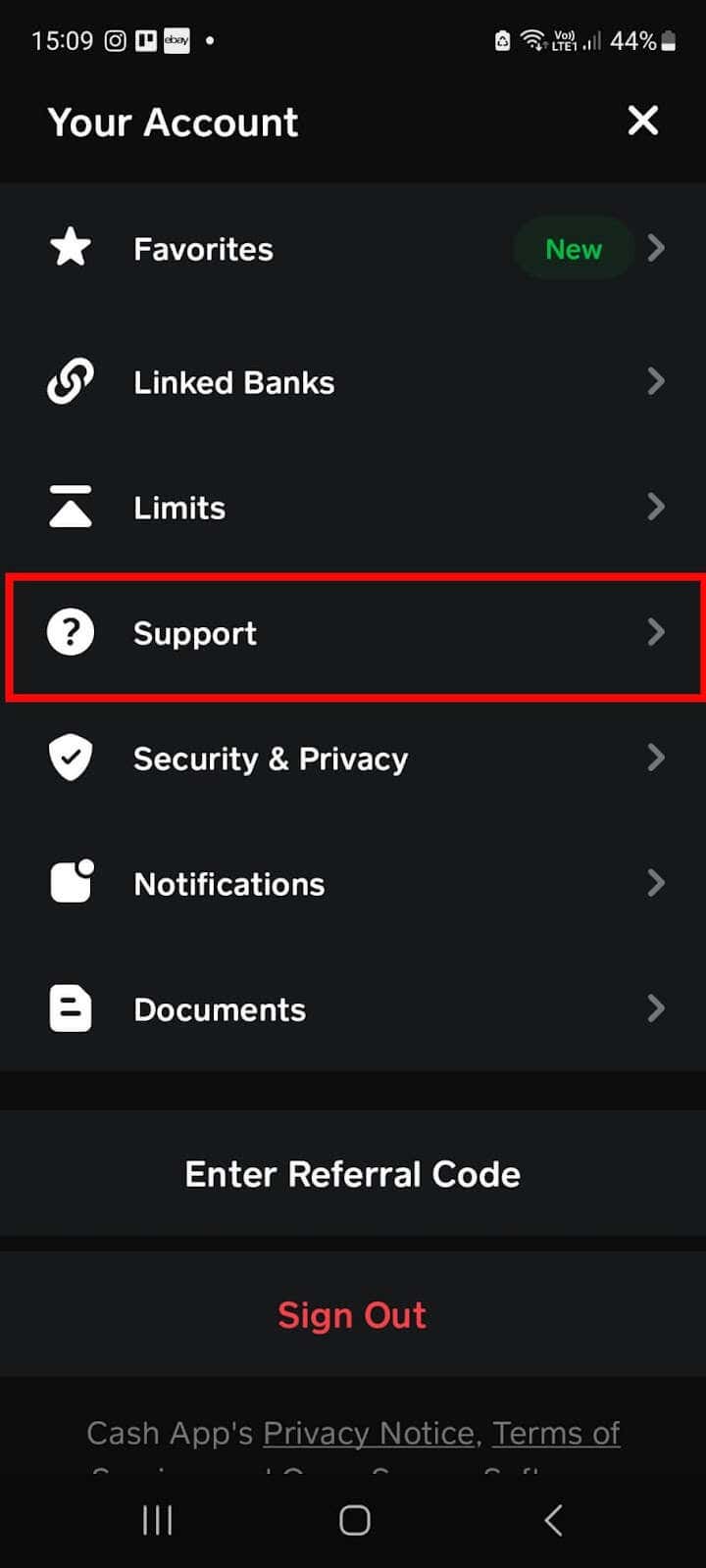
For complex technical issues, such as duplicate charges or app glitches that resulted in unauthorized transfers, you must contact support directly. You can do this by tapping your profile icon, selecting “Support,” and initiating a chat. Be prepared to provide transaction IDs and timestamps, as these are critical for the support engineers to track the data flow in the backend logs.
Digital Security and Scam Prevention
In the context of software and app usage, prevention is always more effective than recovery. High-level digital security habits can eliminate the need for payment cancellations entirely.
Identifying Common Tech-Based Scams
Many users find themselves needing to cancel payments because they have been targeted by “Cash Circle” schemes, fake “Cash App Fridays,” or phishing attempts. These scammers often use social engineering to trick users into sending “verification” payments. From a technical perspective, these are legitimate authorized transactions, which makes them incredibly difficult to reverse. Always verify the $Cashtag of the recipient through a secondary communication channel before sending money.
Strengthening Your App Security Settings
Cash App provides several technical layers to prevent accidental or unauthorized payments. Enabling these features adds a “confirmation” step to the UX (User Experience) that acts as a buffer against mistakes.
- Security Lock: Go to your profile settings and toggle on the Security Lock. This requires your Touch ID, Face ID, or PIN for every single payment.
- Notification Settings: Ensure push notifications and email alerts are active. This allows you to see instantly if a payment was made, giving you the best chance to catch a “Pending” transaction.
The Role of the Cash Card in Transaction Control
If you use the Cash Card (a physical Visa debit card linked to your balance), you have an extra layer of technical control. Through the app, you can “Lock” your card instantly. While this doesn’t cancel a payment you just sent to a friend, it does stop any pending merchant authorizations or recurring subscriptions that may be draining your balance.
Advanced Troubleshooting and App Optimization
Sometimes, the inability to cancel a payment or a glitch in the refund process is a result of local technical issues on the user’s device rather than a server-side problem.
Resolving Connection and App Errors
If the Cash App UI is freezing or failing to load the Activity tab, your first step should be to clear the app cache or check for software updates. An outdated version of the app may not communicate properly with the latest API updates on the server, leading to “ghost” transactions where a payment looks pending on your screen but has actually been completed on the server. Always ensure you are running the latest version of Cash App from the iOS App Store or Google Play Store.
Understanding Merchant Holds and Authorizations
When using Cash App at gas stations or hotels, you may see a “Pending” charge for a higher amount than expected. This is a technical “authorization hold.” In this specific niche of app usage, you cannot cancel the payment yourself; the software is designed to wait for the merchant to settle the transaction. Once the merchant sends the “Capture” command for the actual amount, the hold will be released, and the excess funds will return to your balance automatically.
Conclusion: Mastering the Flow of Digital Currency
Canceling a Cash App payment is a race against the clock and the underlying software architecture. Because the platform is built for speed, the window for cancellation is often measured in seconds rather than minutes. By understanding the difference between “Pending” and “Completed” statuses, mastering the “Request Refund” UI, and hardening your digital security settings, you can navigate the Cash App ecosystem with professional-grade confidence. Always remember that in the digital world, data moves fast—taking a moment to verify a recipient’s $Cashtag is the most effective way to ensure your money stays exactly where it belongs.