
Windows 11, Microsoft’s latest operating system, promises a refined user experience, enhanced security, and a host of new features designed to boost productivity and creativity. However, one of the most frequently asked questions by users considering an upgrade or a new PC build revolves around storage: “How many GB do I actually need to install Windows 11?” While Microsoft provides a minimum specification, the reality of everyday usage often demands a more generous approach. This article will delve into the official requirements, dissect the true storage footprint of Windows 11, and offer strategic advice to ensure your system runs smoothly and efficiently, touching upon key tech considerations and even the financial implications of your storage choices.
Understanding the Official Minimums: What Microsoft Recommends
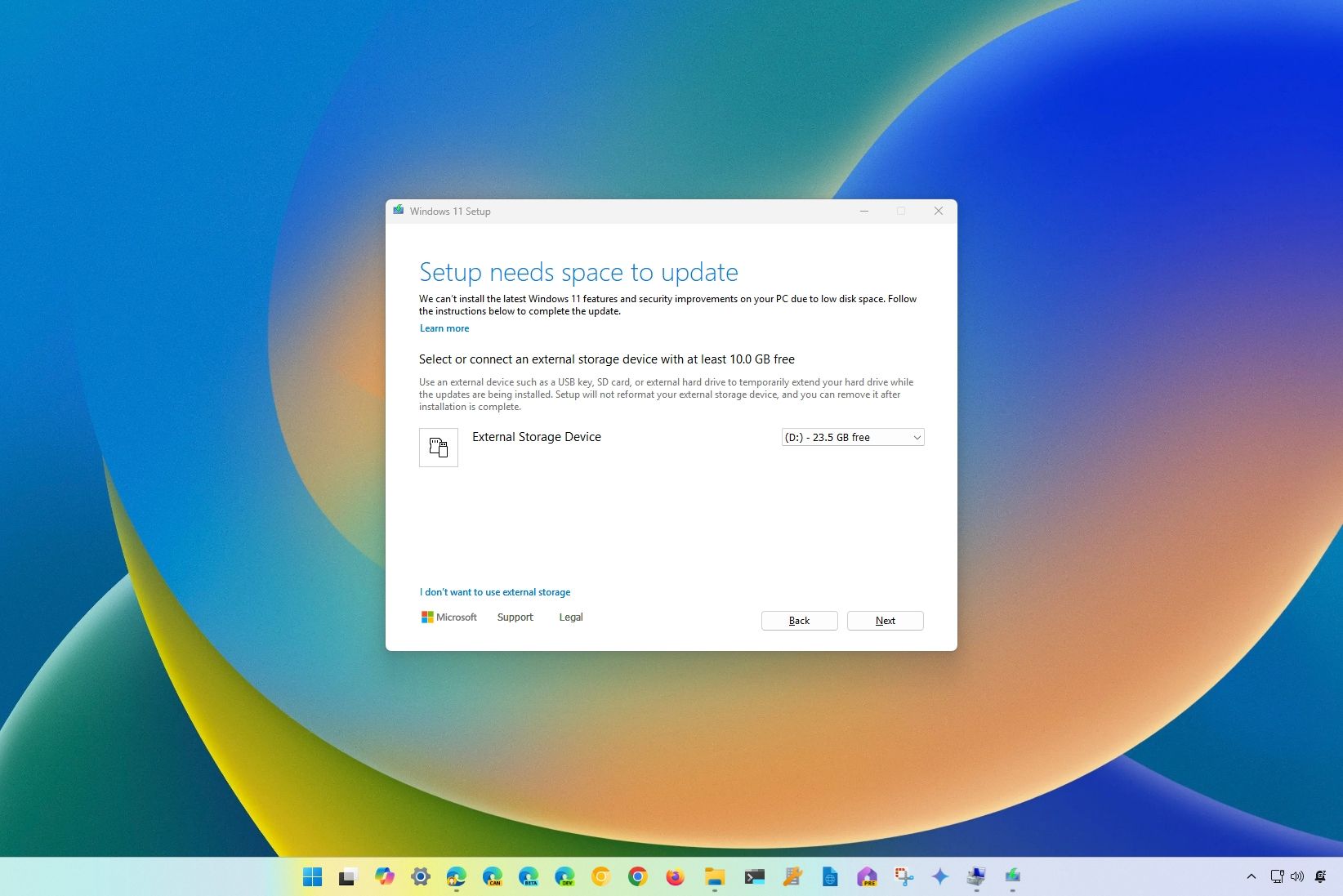
When Microsoft rolls out a new operating system, it publishes a set of minimum system requirements designed to ensure basic functionality. For Windows 11, the storage requirement is explicitly stated.
The 64 GB Baseline: A Starting Point, Not a Destination
Microsoft officially states that Windows 11 requires a minimum of 64 gigabytes (GB) of available storage space. This figure is often the first piece of information users encounter, leading many to believe that a drive with just 64GB or slightly more will suffice. However, this is a critical point of misconception. The 64 GB minimum is precisely that – a bare minimum designed for the core operating system files in an ideal, stripped-down scenario. It doesn’t account for post-installation necessities, future updates, crucial applications, or personal files that accumulate over time.
Think of it like the advertised fuel efficiency of a car: achievable under perfect, controlled conditions, but rarely reflective of real-world driving. Installing Windows 11 on a 64GB drive is technically possible, but it will almost immediately lead to severe performance bottlenecks, lack of space for essential updates, and a frustrating user experience. It’s a technical compliance point rather than a practical recommendation for sustained productivity. From a tech perspective, falling below practical storage limits directly impacts system responsiveness, boot times, and the ability to run multiple applications concurrently, severely hindering the overall user experience and potentially shortening the lifespan of your storage device due to excessive read/write cycles on limited space.
Beyond Storage: Other Critical Windows 11 System Requirements
While storage is the focus here, it’s worth briefly contextualizing it within the broader Windows 11 requirements. A complete upgrade or new PC setup demands attention to other hardware components, as they collectively dictate the system’s performance and compatibility. These include:
- Processor (CPU): 1 GHz or faster with 2 or more cores on a compatible 64-bit processor or System on a Chip (SoC). This ensures the OS can handle modern multitasking and application demands.
- RAM: 4 gigabytes (GB) or greater. Insufficient RAM is a common cause of system slowdowns, forcing the OS to rely heavily on slower disk paging (virtual memory), which exacerbates issues on already constrained storage.
- System Firmware: UEFI, Secure Boot capable. This is a modern firmware interface that offers enhanced security and faster boot times.
- TPM (Trusted Platform Module): Version 2.0. This hardware component is crucial for Windows 11’s enhanced security features, encrypting sensitive data and protecting against malware.
- Graphics Card: Compatible with DirectX 12 or later with WDDM 2.0 driver. This ensures smooth visual performance and support for modern graphics applications.
- Display: High definition (720p) display that is greater than 9” diagonally, 8 bits per color channel. This ensures a comfortable and clear visual interface.
- Internet Connection and Microsoft Account: Required for initial setup and ongoing feature updates.
Ignoring any of these, particularly RAM and CPU, can negate the benefits of even ample storage. However, inadequate storage often presents itself as the most immediate and visible bottleneck for many users, as it prevents updates, new software installations, and even basic file saving. A balanced system where all components meet or exceed recommended specifications is the cornerstone of a fluid and reliable computing experience.
The Reality of Installation: More Than Just the Core OS
Once you move past the official minimums, the actual storage footprint of Windows 11 begins to reveal itself. The core operating system files are just the beginning; a multitude of other components, both essential and optional, consume significant disk space. Understanding these factors is crucial for planning your storage effectively.
Post-Installation Footprint: What Actually Consumes Space?
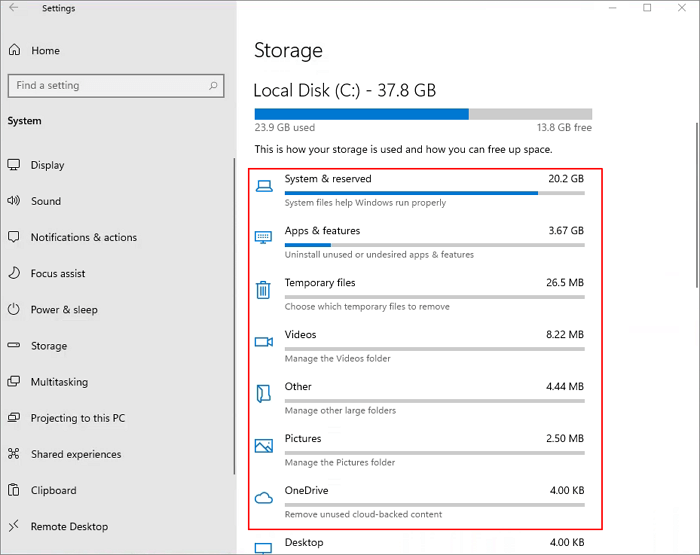
Immediately after a clean installation, a Windows 11 system typically occupies more than the advertised 64 GB. This “initial footprint” includes:
- Core Operating System Files: These are the essential files that make Windows 11 run, including the kernel, system libraries, and drivers.
- Pre-installed Applications: Even a clean install comes with a suite of Microsoft applications (Edge, Calculator, Photos, Mail, Calendar, etc.) and sometimes bloatware from PC manufacturers (OEM installations). While some can be uninstalled, they still contribute to the initial bulk.
- Drivers: Hardware drivers for your specific components (graphics card, motherboard, peripherals) are installed during setup, ensuring proper device functionality. These can vary significantly in size.
- Recovery Partition: Windows often creates a dedicated recovery partition (typically 5-10 GB) that allows you to restore your system to a factory state without needing installation media. This is a vital but often overlooked consumer of space.
- Virtual Memory/Page File: Windows uses a “page file” (also known as virtual memory) on your hard drive to supplement RAM. When physical RAM runs low, Windows moves less frequently used data to this file. Its size dynamically adjusts but can easily consume several gigabytes, especially on systems with less RAM.
Cumulatively, these elements can easily push the initial storage usage well into the 70-90 GB range, sometimes even higher depending on the specific hardware and pre-installed software package from an OEM. This immediate usage already puts a strain on a minimal 64 GB drive, leaving very little headroom for anything else.
Updates and Feature Releases: The Ever-Expanding OS
One of the most significant factors contributing to Windows 11’s long-term storage demands is its continuous update cycle. Microsoft regularly releases:
- Security Updates and Patches: These are typically smaller, cumulative updates released monthly (Patch Tuesday) to address vulnerabilities and improve system stability. While individual updates might be small, their cumulative effect, especially when old versions are retained for rollback purposes, adds up.
- Feature Updates (Version Upgrades): Roughly once a year, Microsoft releases major feature updates (e.g., from Windows 11 22H2 to 23H2). These are substantial, often acting like a full OS reinstallation in terms of the files they bring. They can temporarily require tens of gigabytes of free space for the download and installation process, and then retain old system files for up to 10 days for rollback, consuming a significant chunk of space.
Each feature update not only adds new functionalities but also often increases the overall size of the OS. Over time, a system that started with, say, 70 GB of used space can easily grow to 100 GB or more just from OS updates, without even considering user applications or files. Neglecting to account for this expansion is a common mistake that leads to “disk full” warnings and failed updates, a major productivity killer.
User Data, Applications, and System Files: The Hidden Guzzlers
Beyond the core OS and its updates, a working computer environment rapidly accumulates data from various sources:
- Installed Applications: From web browsers and office suites (like Microsoft 365) to creative software (Adobe Creative Suite, video editors) and games, applications are major storage consumers. A single modern game can occupy 50-100 GB, while professional software suites might take up hundreds of gigabytes. Even common productivity apps add up.
- User Data: Documents, photos, videos, music, and downloads are arguably the fastest-growing category of storage usage. High-resolution photos, 4K videos, and large project files can rapidly fill even large drives. Users often underestimate the cumulative size of their personal digital lives.
- Temporary Files: Web browser caches, system log files, installation remnants, and temporary work files generated by applications can consume several gigabytes. While some are automatically cleaned, many linger until manually removed.
- Hibernation File (hiberfil.sys): If enabled, hibernation allows your PC to save its current state to disk and power down completely. The
hiberfil.sysfile is typically 75% the size of your installed RAM. For a system with 16GB RAM, this means a 12GB file. - System Restore Points: Windows automatically creates restore points, snapshots of your system’s state, to help you recover from issues. While incredibly useful, these can consume significant space, depending on how much disk space you allocate to them and how many points are kept.
- Recycle Bin: Deleted files aren’t immediately removed; they sit in the Recycle Bin, still consuming space, until permanently deleted.
Cumulatively, these elements mean that a functional Windows 11 PC, used for daily tasks, will very quickly exceed the minimal specifications. A true tech enthusiast or power user will find even 256GB restrictive within months, if not weeks, if managing large media files or multiple software installations.
Strategic Storage Planning: What’s the Ideal Drive Size for Windows 11?

Given the dynamic and ever-expanding nature of Windows 11’s storage footprint, proactive planning is essential. Choosing the right drive size isn’t just about meeting today’s needs; it’s about anticipating future demands and ensuring a smooth, performant experience for years to come.
SSD vs. HDD: Performance and Practicality
Before discussing specific sizes, it’s paramount to address the type of storage drive. For a primary drive running Windows 11, a Solid State Drive (SSD) is almost universally recommended over a traditional Hard Disk Drive (HDD).
- Speed: SSDs offer significantly faster boot times, application loading, and file transfers compared to HDDs. This dramatically improves overall system responsiveness and user experience. Windows 11, with its modern interface and multitasking capabilities, truly benefits from the low latency and high throughput of an SSD.
- Durability: SSDs have no moving parts, making them more resilient to physical shocks and vibrations, ideal for laptops and even desktop environments where physical damage is a concern.
- Noise and Power Consumption: SSDs are silent and consume less power, contributing to better battery life in laptops and a quieter desktop experience.
While HDDs still offer a lower cost per gigabyte, they are best relegated to secondary storage for bulk data (photos, videos, archives) where access speed isn’t critical. For your operating system and frequently used applications, investing in an SSD is a non-negotiable step for a truly modern Windows 11 experience. From a ‘Money’ perspective, the slightly higher upfront cost of an SSD is a wise investment, paying dividends in productivity gains and user satisfaction, ultimately reducing the likelihood of expensive, performance-related upgrades down the line.
Recommendations for Optimal Performance and Longevity
Based on the real-world usage patterns and the factors outlined above, here are practical recommendations for storage sizes for your Windows 11 primary drive:
- 128 GB SSD (Not Recommended for Primary): While available, this size is barely above the initial installation footprint and will rapidly fill up. It’s suitable only for extremely niche, single-purpose devices or as a secondary drive in a very specific setup. Avoid for general-purpose computing.
- 256 GB SSD (Bare Minimum for General Use): This is the absolute minimum we would recommend for a primary Windows 11 drive if budget is extremely tight. It allows for the OS, essential drivers, a selection of productivity apps (like Office, a web browser), and some user files. However, you’ll need diligent storage management, especially with updates and any significant software installations. Expect to manage space regularly, a potential drag on productivity.
- 512 GB SSD (Recommended for Most Users): This is the sweet spot for the vast majority of Windows 11 users. It provides ample space for the OS, all essential applications, a good number of games or creative software, and a substantial amount of personal data (photos, documents, some videos). This size offers a comfortable buffer for updates and future growth without constant worry about running out of space. It’s a balance of cost, performance, and practicality, aligning well with the typical needs of a home user, student, or most professionals.
- 1 TB (1024 GB) SSD (Highly Recommended for Power Users, Gamers, Creators): For users who engage in demanding activities like gaming, video editing, graphic design, software development, or simply accumulate large amounts of media, a 1TB SSD is the ideal choice. It offers generous headroom for multiple large applications, extensive game libraries, large project files, and years of accumulated data without performance compromises. This option provides the best peace of mind and minimizes the need for external storage solutions for critical data.
The Cost-Benefit Analysis: Investing in Adequate Storage
From a financial perspective, investing in adequate storage upfront is almost always more cost-effective than trying to expand it later.
- Avoiding Future Upgrades: Swapping out a primary drive is a time-consuming process involving data migration or a fresh OS installation. It’s often cheaper to buy a larger drive initially than to purchase a smaller one and then replace it with a larger one later, essentially buying two drives.
- Productivity Gains: The frustration and time wasted dealing with “disk full” errors, failed updates, and slow performance on an undersized drive can be significant. The slightly higher cost of a larger drive is an investment in uninterrupted productivity and a smoother workflow.
- Resale Value: A system with a more generous SSD will generally hold its value better and be more attractive to potential buyers in the future.
In the rapidly evolving tech landscape, storage needs only tend to increase. While cloud storage can offload some data, local speed and accessibility remain paramount for the operating system and active applications. Therefore, choosing a drive size that comfortably exceeds your current perceived needs is a wise strategic decision, representing value for money in the long run.
Optimizing Your Windows 11 Storage: Tips for Productivity and Performance
Even with ample storage, efficient management is key to maintaining peak system performance and ensuring a smooth Windows 11 experience. Proactive storage hygiene not only frees up space but also contributes to faster load times, more reliable updates, and extended drive longevity.
Essential Storage Management Tools in Windows 11
Windows 11 comes equipped with several built-in tools to help you manage your disk space effectively:
- Storage Sense: This intelligent feature, found in Settings > System > Storage, is your primary weapon against accumulating junk files. When enabled, Storage Sense can automatically delete temporary files, clear the Recycle Bin, empty the Downloads folder (after a configurable period), and remove old versions of Windows. It’s a “set and forget” solution that silently cleans up your drive, preventing unnecessary clutter from building up. Regularly reviewing its settings ensures it aligns with your specific needs.
- Disk Cleanup (cleanmgr.exe): A classic Windows utility, Disk Cleanup provides a more manual and granular approach to freeing up space. To access it, type “Disk Cleanup” into the Start menu search. Running it and then clicking “Clean up system files” reveals a wealth of data that can be safely removed, including old Windows update files, temporary internet files, Windows Defender logs, and even previous Windows installations (if you’ve upgraded). This tool is particularly useful after major feature updates to reclaim many gigabytes.
- Uninstalling Applications: The “Apps & features” section in Settings > Apps allows you to easily see all installed applications and their respective sizes. Regularly review this list and uninstall any software you no longer use. Many applications, especially games or creative suites, can consume tens or even hundreds of gigabytes. Removing dormant software is one of the quickest ways to reclaim substantial space. Be mindful of “bloatware” often pre-installed by PC manufacturers and remove it if not needed.
Leveraging these tools consistently will prevent your drive from becoming unnecessarily cluttered, ensuring that critical system files and essential applications always have the space they need to operate efficiently.
Advanced Strategies for Freeing Up Space
For those needing to reclaim even more space, or for users with more complex storage setups, advanced strategies can be employed:
- Moving Files to External Drives or Cloud Storage: For large personal media collections (photos, videos, music) or archived documents, consider moving them off your primary drive. External HDDs or SSDs offer high-capacity, cost-effective storage for non-critical files. Alternatively, cloud storage services like OneDrive, Google Drive, or Dropbox provide accessible, offsite backup and synchronization, especially useful for frequently accessed documents and collaborative work. Many cloud services also offer “Files On-Demand” features, allowing you to see all your files in File Explorer while only downloading them when needed, saving local space.
- Disabling Hibernation (if not used): As mentioned, the
hiberfil.sysfile can be quite large. If you rarely use the hibernation feature (preferring sleep or shutdown), you can disable it to reclaim that disk space. Open Command Prompt as an administrator and typepowercfg /hibernate off. This is a power user tip; be aware that it will remove the hibernation option from your power menu. - Managing System Restore Points: While crucial for recovery, too many restore points or an overly generous allocation of disk space to them can consume significant gigabytes. In System Properties > System Protection, you can configure the maximum disk space allocated to system restore and even delete older restore points to free up space. Striking a balance between sufficient restore points and conserving space is key.
- Compressing Old Files and Folders: For rarely accessed but important files, Windows allows you to compress them to save space. Right-click a file or folder, go to Properties > Advanced, and check “Compress contents to save disk space.” While this saves space, it might slightly increase the time it takes to access those files.
- Analyzing Disk Usage with Third-Party Tools: Tools like WinDirStat or TreeSize Free provide a visual representation of your disk usage, making it easy to identify which files and folders are consuming the most space. This can be invaluable for tracking down unexpected storage hoggers.
Implementing these strategies requires a bit more technical comfort but can yield significant results in terms of available disk space, ensuring your system remains responsive and free from storage-related performance issues.
Maintaining Peak Performance: Regular Storage Hygiene
Just like any other aspect of system maintenance, storage management is an ongoing process, not a one-time task. Establishing a routine of storage hygiene ensures long-term system health and performance:
- Schedule Storage Sense: Ensure Storage Sense is enabled and configured to run automatically at regular intervals (e.g., weekly or monthly).
- Regularly Review Installed Apps: Every few months, take a few minutes to review your installed applications and uninstall anything you no longer use.
- Monitor Disk Space: Keep an eye on your drive space, especially your C: drive, through File Explorer or the Storage settings. Don’t let it dip below 15-20% free space for optimal performance. When a drive becomes too full, fragmentation and the OS’s ability to efficiently manage files are severely impacted, leading to noticeable slowdowns.
- Backup Important Data: While not directly about freeing space, regularly backing up your important data to external drives or cloud services provides peace of mind and allows you to confidently delete old files from your primary drive when space is tight, knowing you have a copy. This aligns with digital security best practices and productivity, ensuring you never lose critical work due to storage issues.
By adopting these practices, you transform your approach from reactive problem-solving to proactive optimization, ensuring your Windows 11 system remains a powerful and efficient tool for all your tech endeavors.
The question “how many GB to install Windows 11” is more complex than it appears. While Microsoft specifies a 64 GB minimum, this is merely a starting point that fails to account for the dynamic and ever-expanding nature of a modern operating system. For a truly smooth, productive, and frustration-free experience, a 256 GB SSD should be considered the absolute practical minimum, with 512 GB or 1 TB SSDs being the recommended sweet spot for most users and power users, respectively. Investing in adequate, high-speed storage upfront is a wise financial and technological decision that pays dividends in performance, reliability, and peace of mind. By understanding the true storage footprint of Windows 11 and actively managing your disk space with the right tools and strategies, you can ensure your system remains responsive, secure, and ready for whatever the digital world throws your way.
aViewFromTheCave is a participant in the Amazon Services LLC Associates Program, an affiliate advertising program designed to provide a means for sites to earn advertising fees by advertising and linking to Amazon.com. Amazon, the Amazon logo, AmazonSupply, and the AmazonSupply logo are trademarks of Amazon.com, Inc. or its affiliates. As an Amazon Associate we earn affiliate commissions from qualifying purchases.