
In an era defined by on-demand entertainment and personalized viewing experiences, the traditional television schedule has become an anachronism for many. YouTube TV, a leading live TV streaming service, addresses this shift head-on by integrating a robust Digital Video Recorder (DVR) system. Far from the bulky, expensive hardware of yesteryear, YouTube TV’s DVR operates entirely in the cloud, offering unparalleled flexibility and convenience. But how exactly does this modern marvel work, and what makes it such a cornerstone of the YouTube TV experience? This article delves into the mechanics, features, and nuances of YouTube TV’s cloud-based DVR, illuminating its advantages and helping users maximize its potential.
Unpacking the Cloud DVR Advantage
The very concept of a Digital Video Recorder has undergone a radical transformation with the advent of streaming services. YouTube TV stands at the forefront of this evolution, offering a cloud DVR that fundamentally reshapes how we record and consume live television.
The Shift from Hardware to Cloud
Traditionally, a DVR was a physical box connected to your television, with limited storage capacity and often a steep price tag. Recording conflicts were common – you couldn’t record two shows airing at the same time if your hardware only had one tuner. YouTube TV obliterates these constraints by moving the entire recording process to remote servers – the “cloud.” When you tell YouTube TV to record a show, it doesn’t store a copy on your local device; instead, it saves it digitally on Google’s vast server infrastructure. This immediately unlocks a host of benefits that hardware-based DVRs simply cannot match.
Unlimited Storage: A Game-Changer
Perhaps the most compelling feature of YouTube TV’s DVR is its unlimited storage capacity. Unlike physical DVRs that fill up, forcing you to constantly manage recordings, YouTube TV allows you to record as many shows, movies, and events as you wish without ever worrying about running out of space. This liberates viewers to build an expansive personal library of their favorite content, ensuring they never miss an episode of a beloved series or a crucial moment in a sporting event. This “set it and forget it” approach is a major draw for power users and casual viewers alike.
Accessibility and Multi-Device Sync
Because your recordings reside in the cloud, they are not tied to a single device. You can access your entire DVR library from any device where you’re logged into your YouTube TV account – whether it’s your smartphone, tablet, computer, smart TV, or streaming media player. This means you can start watching a recorded show on your living room TV, pause it, and then pick up exactly where you left off on your phone during your commute. The seamless synchronization across devices is a core benefit of a cloud-based system, providing unparalleled freedom in how and where you consume your content.
No Recording Conflicts, Ever
With a cloud DVR, the notion of a “recording conflict” becomes obsolete. Since recordings are handled by the server, multiple simultaneous recordings pose no technical challenge. You can record every show airing across different channels at the same time without any issues. This eliminates the frustration of having to choose between two must-watch programs, a common pain point with legacy DVR systems. Every show you mark for recording will be captured, ready for your viewing pleasure whenever you are.
Step-by-Step: Recording with YouTube TV’s DVR
Recording content on YouTube TV is designed to be intuitive and straightforward, mirroring the ease of use found across modern streaming platforms. The process is streamlined, ensuring users can quickly add content to their personal library.
Adding Shows to Your Library: The Simple Click
The primary method for recording content on YouTube TV is by adding it to your “Library.” When you browse the live guide, search for a show, or explore specific channel pages, you’ll see an option to add content to your library. Typically, this is represented by a “+” icon or a clear “Add to Library” button. Clicking this button performs two key functions:
- Series Recording: For TV shows, adding them to your library automatically sets up a series recording. This means YouTube TV will record all future airings of that particular show, regardless of the channel or time. It intelligently identifies new episodes, reruns, and even different airings of the same episode, adding them all to your library.
- Movie/Event Recording: For movies, documentaries, or one-off live events, adding them to your library records that specific instance or any future airings within a certain timeframe.
Setting Up Series Recordings
YouTube TV’s DVR is particularly adept at managing series recordings. Once a show is added to your library, you don’t need to manually check for new episodes. The system continuously monitors the broadcast schedule across all available channels and automatically adds new episodes as they air. While there isn’t a granular “record new episodes only” setting in the traditional sense, YouTube TV’s algorithm generally prioritizes recording unique episodes, ensuring your library isn’t inundated with endless reruns, though some reruns might appear. The beauty lies in its automation, allowing you to subscribe to a show and trust that its episodes will be there when you’re ready to watch.
Locating Recorded Content in Your Library
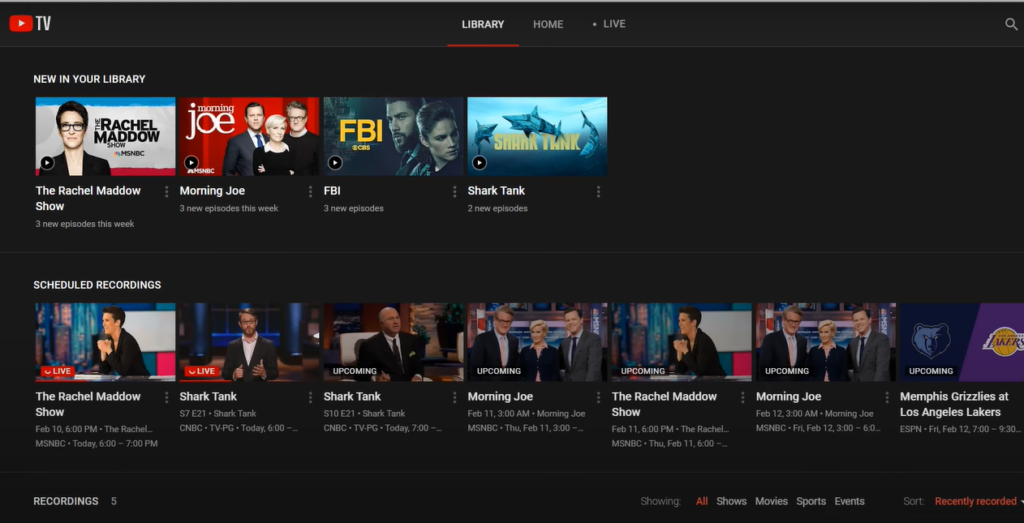
All your recorded content, alongside on-demand offerings and VOD versions (more on this shortly), resides within the “Library” tab of the YouTube TV interface. This section is organized to help you quickly find what you’re looking for. You’ll typically see categories like “New in your library,” “Shows,” “Movies,” “Sports,” and “Events.” Within each category, content is often sorted by recency or alphabetically, making navigation easy. Clicking on a show will take you to its dedicated page, where you can view all available episodes, both recorded and on-demand.
Understanding Recording Priorities (Live vs. VOD)
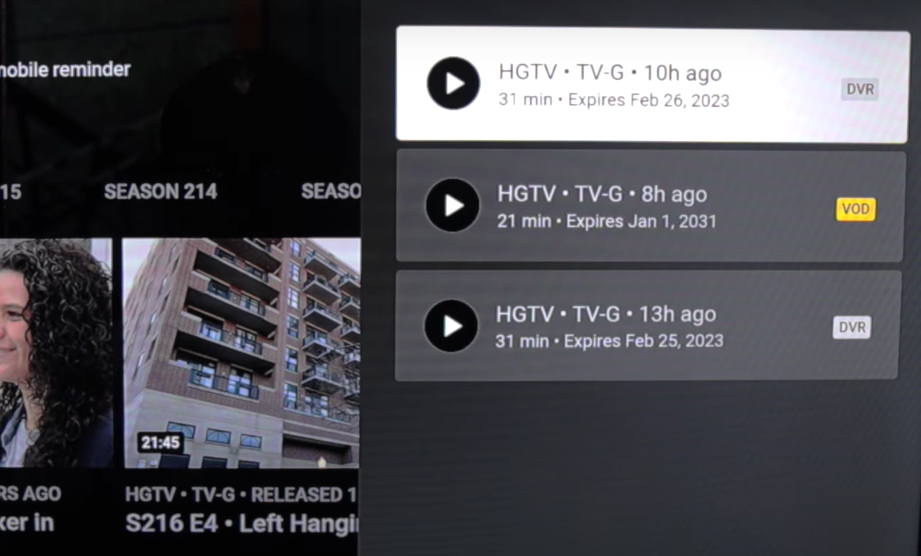
This is a crucial nuance of YouTube TV’s DVR. While YouTube TV records the live broadcast version of a show when you add it to your library, it also has access to on-demand (VOD) versions provided by the networks. In many cases, if a recorded broadcast version of a show expires (which can happen, though recordings generally last for 9 months), or if an on-demand version becomes available sooner, YouTube TV might default to playing the VOD version.
The key difference lies in commercial skipping. Live broadcast recordings often allow for unrestricted commercial skipping, whereas VOD versions typically have unskippable commercials, much like watching a show on a network’s dedicated app. YouTube TV usually tries to provide the DVR recording first for the best experience, but it’s important for users to be aware that VOD versions can sometimes take precedence, especially for older content or after the 9-month recording window for a specific broadcast has passed.
Navigating and Enjoying Your DVR Content
Once your content is recorded, YouTube TV provides a suite of playback features designed to enhance your viewing experience, putting you in control.
Playback Features: Pause, Rewind, Fast Forward

Just like a traditional DVR, YouTube TV’s cloud DVR offers complete control over playback. You can pause a live recording if you need to step away, rewind to catch a missed line of dialogue, or fast-forward through parts you’ve already seen. These controls are standard across all supported devices, providing a consistent and familiar user experience. The responsiveness of these functions is generally excellent, reflecting the robust infrastructure backing the service.
Commercial Skipping: The Viewer’s Best Friend
One of the most celebrated features of YouTube TV’s DVR, and a significant differentiator from many on-demand streaming services, is its ability to skip commercials in most recorded live broadcasts. When watching a show that was recorded directly from its live airing, you will typically see a small visual cue (often a timeline marker or a clear “skip ad” button) that allows you to jump past commercial breaks with a single click. This feature dramatically improves the viewing experience, allowing for uninterrupted storytelling.
However, as mentioned, this unrestricted skipping applies primarily to the recorded broadcast versions. If you end up watching an on-demand (VOD) version of a show – which might happen if the recorded version has expired or if YouTube TV defaults to the VOD for certain content – commercial skipping might be restricted, with ads becoming unskippable. YouTube TV generally prioritizes playing the DVR version for content in your library precisely for this commercial-skipping benefit.
Managing Multiple Versions of a Show
For popular shows, you might find multiple versions in your library: potentially several recorded airings, plus one or more on-demand versions. YouTube TV’s interface aims to simplify this by presenting all available episodes within a show’s dedicated page. It will usually highlight the “best” available version (often the latest recorded broadcast with commercial skipping enabled). You can typically see details about each version, including its air date and whether it’s a DVR recording or VOD. While the system attempts to streamline this, power users appreciate the transparency and ability to choose if a specific version (e.g., the original broadcast recording) is preferred.
Sharing Your Library with Family Members
YouTube TV supports up to six individual accounts (a “family group”), each with their own unique login, personalized recommendations, and, crucially, their own separate DVR library. This means that if you add a show to your library, it only appears in your library, not everyone else’s. Each family member can curate their own set of recorded shows, ensuring that personalized preferences are maintained without cluttering other users’ interfaces. This individual DVR per user is a significant convenience, allowing households to share the core subscription while maintaining individual viewing autonomy.
Beyond the Basics: Advanced DVR Nuances
While the core functionality of YouTube TV’s DVR is straightforward, there are several advanced nuances and considerations that users should be aware of to fully optimize their experience.
Recording Expirations and Content Availability
While YouTube TV offers unlimited storage, recordings are not permanent in the same way a physical hard drive copy might be. YouTube TV recordings are typically saved for nine months from the date of the broadcast. After this period, the recording may expire. However, in many cases, an on-demand (VOD) version of the content, provided by the network, will replace the expired recording in your library. While convenient, remember that VOD versions often come with unskippable ads. For shows that cycle through reruns, adding a series to your library will continuously capture new airings, effectively refreshing the “9-month clock” for those episodes. Special events, like sports games, also typically adhere to this 9-month rule.
Sports and Special Event Recordings
YouTube TV excels at handling live sports and special events. When you add a sporting event or a major broadcast to your library, YouTube TV ensures the entire event is recorded, even if it runs over its scheduled time. This “smart recording” feature is invaluable for live TV, where exact schedules are often fluid. Whether it’s an overtime game or an awards show running long, you can be confident that the full broadcast will be captured. This eliminates the frustration of truncated recordings common with older DVR systems.
Geo-Restrictions and Local Channels
Your access to local channels and the specific content available on them is determined by your current geographical location. YouTube TV uses your home zip code to provide the correct local network affiliates (ABC, CBS, FOX, NBC, etc.). This also impacts DVR functionality. Recordings of local broadcasts will reflect the content and schedule of your home area. While traveling, you might temporarily access local channels for your new location, but your DVR library still primarily reflects recordings from your home market. This ensures continuity and compliance with regional broadcast rights.
Troubleshooting Common DVR Scenarios
Most DVR issues on YouTube TV are minor and easily resolved. If a show isn’t recording, first ensure it’s correctly added to your library. Check your internet connection for stability, as recording and playback are cloud-dependent. Sometimes, specific content might be unavailable for DVR recording due to network restrictions or rights issues, though this is rare. If a show unexpectedly plays with unskippable ads, verify if it’s a VOD version rather than a direct DVR recording. For persistent issues, clearing the app cache or reinstalling the app can often resolve glitches, and YouTube TV’s support resources are generally helpful.
The Future of TV Viewing: Why Cloud DVR Matters
YouTube TV’s cloud DVR is more than just a feature; it’s a fundamental pillar of modern TV consumption, reflecting a broader shift in how audiences engage with media.
Personalization and Control
The ability to record anything, store it indefinitely (within the 9-month window for individual broadcasts), and access it anywhere gives viewers unprecedented control over their entertainment. It personalizes the TV experience, turning a linear broadcast schedule into a custom-curated library. This level of agency empowers viewers to watch what they want, when they want, on their preferred device, truly putting them in the driver’s seat.
The Evolution of Streaming and DVR
As streaming continues to dominate the entertainment landscape, the line between live TV and on-demand content blurs. Cloud DVRs like YouTube TV’s are a critical bridge, combining the immediacy of live broadcasting with the convenience of a vast on-demand library. They ensure that even traditional linear content fits seamlessly into the modern, flexible streaming paradigm, catering to diverse viewing habits.
YouTube TV’s Position in the Market
YouTube TV’s robust cloud DVR offering is a significant competitive advantage in the crowded live TV streaming market. Its unlimited storage, commercial-skipping capabilities (for DVR recordings), and multi-device accessibility often set it apart from rivals that may impose storage limits, charge extra for enhanced DVR, or have more restrictive commercial policies. It underscores YouTube TV’s commitment to providing a comprehensive, user-centric streaming solution that respects viewer preferences and modern technological expectations.
In conclusion, YouTube TV’s DVR is a sophisticated yet user-friendly system that leverages cloud technology to offer an advanced, flexible, and powerful recording solution. It frees viewers from the constraints of traditional hardware, allowing them to build an extensive personal library of content accessible anytime, anywhere. Understanding its nuances, from commercial skipping to content availability, ensures that users can fully harness its potential, truly transforming their live TV experience into a personalized, on-demand journey.
aViewFromTheCave is a participant in the Amazon Services LLC Associates Program, an affiliate advertising program designed to provide a means for sites to earn advertising fees by advertising and linking to Amazon.com. Amazon, the Amazon logo, AmazonSupply, and the AmazonSupply logo are trademarks of Amazon.com, Inc. or its affiliates. As an Amazon Associate we earn affiliate commissions from qualifying purchases.