
Fractions are fundamental to mathematics, appearing in everything from basic arithmetic to advanced calculus. While their concept might seem straightforward – representing a part of a whole – inputting, manipulating, and understanding them on a calculator can often present an unexpected challenge. Many assume a calculator will simply handle any number thrown at it, yet the nuances of fraction representation and operation vary significantly across different devices and platforms. This guide demystifies the process, offering a comprehensive look at how to effectively work with fractions, ensuring accuracy, efficiency, and a deeper understanding of your digital tools.
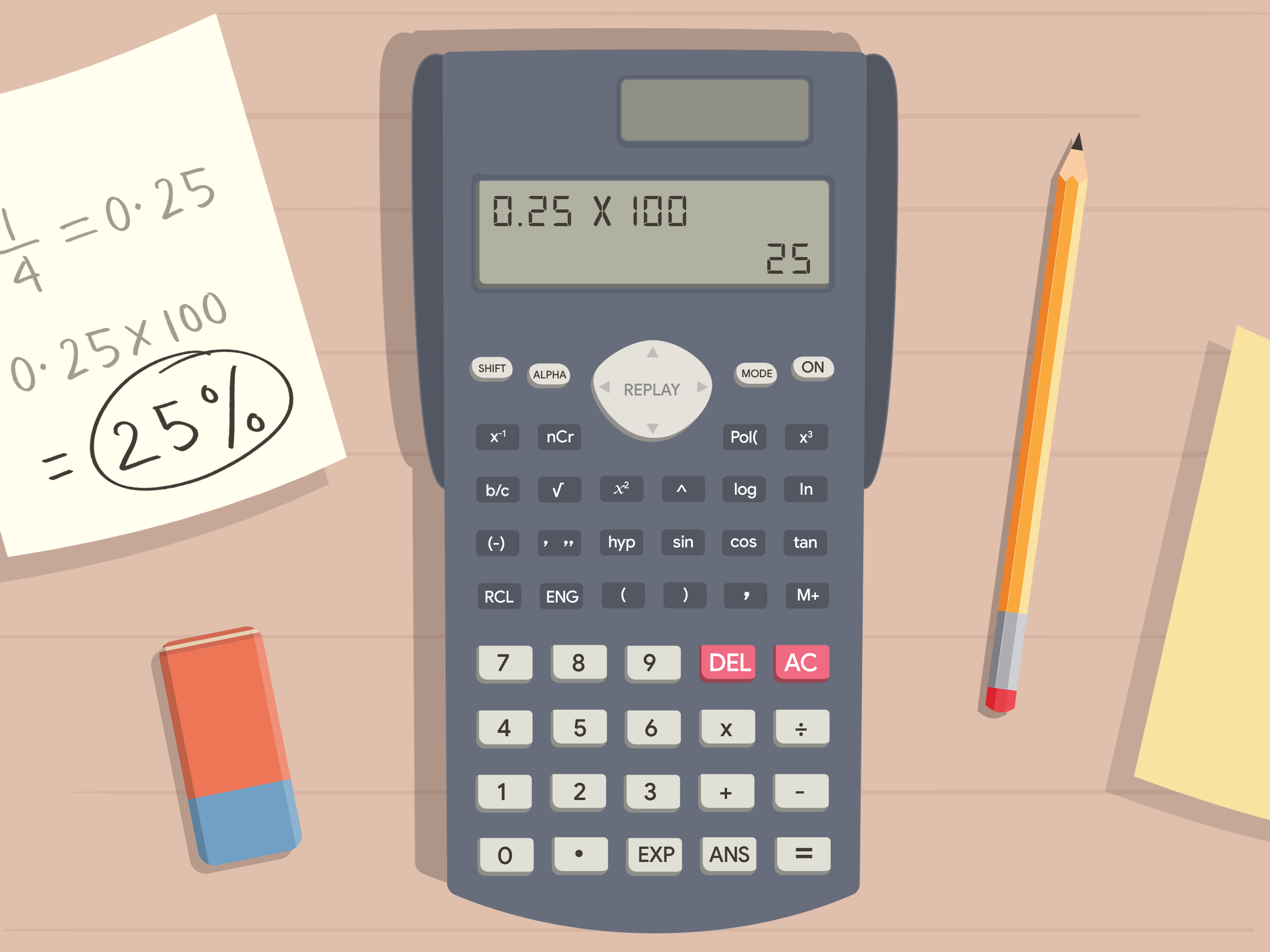
For many, the go-to method for entering a fraction like 1/2 into a calculator is to simply type “1 ÷ 2”. While this works perfectly for evaluation, it often displays the result as a decimal (0.5), which isn’t always what’s desired, especially when maintaining exact fractional form is crucial for subsequent calculations or problem-solving. This article will explore the functionalities of various calculators, from basic scientific models to sophisticated graphing devices and intuitive online apps, revealing the specific keys, modes, and strategies required to master fraction input and output. We’ll delve into the practical steps, advanced features, and the often-overlooked benefits of truly understanding how your calculator handles these essential mathematical constructs.
Understanding Fraction Representation on Different Calculators
The way a fraction is “made” or displayed on a calculator isn’t universal. It largely depends on the type and sophistication of the device you’re using. Each calculator is designed with specific functionalities that dictate its approach to fractions, ranging from simple decimal conversions to full fractional display and manipulation.
Basic Scientific Calculators
Basic scientific calculators are the workhorses of high school mathematics and many technical fields. They typically offer more functionality than standard four-function calculators, including dedicated keys for exponents, roots, and sometimes, fractions.
- Dedicated Fraction Buttons: Many scientific calculators feature a specific fraction button, often labeled “a b/c” or “d/c”. This button allows you to input fractions directly.
- To enter a simple fraction (e.g., 3/4), you would typically press
3, then thea b/cbutton, then4. - For mixed numbers (e.g., 2 1/3), you would press
2, thena b/c, then1, thena b/cagain, then3. The calculator often interprets the second press ofa b/cas the separator for the denominator of the proper fraction part.
- To enter a simple fraction (e.g., 3/4), you would typically press
- Decimal Conversion: If a scientific calculator doesn’t have a dedicated fraction button, or if you simply perform a division (e.g.,
3 ÷ 4), it will typically output a decimal. Most scientific calculators, however, have a function to convert decimals back to fractions, often labeledF↔DorS↔D(Fraction-to-Decimal or Standard-to-Decimal). This allows you to toggle between the decimal and fractional representation of a number.
Graphing Calculators
Graphing calculators are powerful tools used in advanced mathematics and engineering, offering extensive capabilities for symbolic manipulation, graphing, and programming. Their handling of fractions is significantly more advanced and user-friendly.
- Fraction Templates: Modern graphing calculators (like those from TI or Casio) often feature a “math print” or “natural display” mode. In this mode, when you want to enter a fraction, you can access a fraction template (often found under a “Math” or “Alpha-Y=” menu). This template typically shows a numerator box stacked above a denominator box, allowing you to input the fraction exactly as it appears in textbooks. This visual representation greatly reduces input errors.
- Automatic Simplification and Conversion: Graphing calculators are usually set to automatically simplify fractions to their lowest terms. They also offer robust options for converting between improper fractions, mixed numbers, and decimals, often through dedicated menu options or toggle keys.
- Fraction Mode: Some graphing calculators allow you to set a “fraction mode” where all results, if possible, are displayed in fractional form rather than decimals by default. This is particularly useful for maintaining precision throughout a series of calculations.
Online Calculators and Apps
The digital age has brought a proliferation of online calculators and mobile apps designed to handle complex mathematical tasks with ease. These often provide the most intuitive experience for fractions.
- User-Friendly Interfaces: Many online fraction calculators or apps feature clear, visual interfaces where you can type the numerator and denominator into separate input fields, or use a
numerator/denominatorinput format that automatically converts to a stacked fraction display. - Real-time Results: These tools often provide real-time calculation and simplification, making it easy to see the result of your fraction operations instantly.
- Specialized Fraction Calculators: There are numerous apps specifically designed for fractions, offering step-by-step solutions for addition, subtraction, multiplication, division, simplification, and conversion, making them excellent educational aids.
Standard/Basic Calculators
Standard four-function calculators (addition, subtraction, multiplication, division) are the simplest and most common. When it comes to fractions, their capabilities are extremely limited.
- Limitations: These calculators do not have dedicated fraction buttons or display modes. The only way to “enter” a fraction is by performing the division operation. For example, 1/2 must be entered as
1 ÷ 2, and it will always display0.5. - Workarounds: To work with fractions on a basic calculator, you must convert them to decimals manually or keep track of the numerators and denominators separately, performing operations on them before recombining. This is cumbersome and prone to error, highlighting the necessity of more advanced calculators for fraction work.
Step-by-Step Guides to Inputting Fractions
Mastering fraction input on your calculator requires understanding specific key sequences and modes. While the exact steps might vary slightly by brand (e.g., Casio vs. TI), the underlying principles are generally consistent.
Entering Simple Fractions (Numerator/Denominator)
This is the most common task: inputting a fraction like 5/8.
- Using the Division Key (Most Calculators):
- Type the numerator (e.g.,
5). - Press the division key (
÷or/). - Type the denominator (e.g.,
8). - Press
=to see the decimal result (e.g.,0.625).
- Type the numerator (e.g.,
- Using a Dedicated Fraction Button (Scientific Calculators):
- Type the numerator (e.g.,
5). - Press the fraction key (e.g.,
a b/cord/c). - Type the denominator (e.g.,
8). - Press
=to display the fraction (e.g.,5┘8). Some calculators may automatically simplify or display as a mixed number if possible.
- Type the numerator (e.g.,
- Using Fraction Templates (Graphing Calculators):
- Go to the “Math” menu (often
[MATH]button) or a dedicated fraction menu (e.g.,[ALPHA] [Y=]on TI-84). - Select the fraction template (usually
n/dfor numerator/denominator). - A fraction template will appear on the screen with cursor in the numerator. Type the numerator (e.g.,
5). - Use the down arrow key to move the cursor to the denominator. Type the denominator (e.g.,
8). - Press
ENTERto display the fraction as5/8.
- Go to the “Math” menu (often
Mixed Numbers and Improper Fractions
Calculators offer specific ways to handle mixed numbers (e.g., 2 1/2) and improper fractions (e.g., 5/2).
- Entering Mixed Numbers (Scientific Calculators with
a b/c):- Type the whole number part (e.g.,
2). - Press the fraction key (
a b/c). - Type the numerator of the fractional part (e.g.,
1). - Press the fraction key (
a b/c) again. - Type the denominator of the fractional part (e.g.,
2). - Press
=(displays as2┘1┘2).
- Type the whole number part (e.g.,
- Converting Improper to Mixed (and vice-versa): Many scientific and graphing calculators have dedicated functions to convert between improper fractions and mixed numbers. Look for buttons like
A b/c ↔ d/cor functions in the “Math” menu.- Enter the improper fraction (e.g.,
5/2). - Use the conversion function (e.g.,
[SHIFT]thena b/con some Casio models, or a menu option on TI). - The calculator will display the mixed number (e.g.,
2 1/2).
- Enter the improper fraction (e.g.,
Fractions in Expressions and Equations
When fractions are part of larger expressions, parentheses become your best friend, especially if your calculator doesn’t have a natural display.
- Using Parentheses for Division: To ensure fractions are evaluated correctly within an expression (e.g.,
(1/2) + (3/4)), always enclose each fraction in parentheses if you are using the division key.(1÷2)+(3÷4)=
- Natural Display Mode: If your calculator has a “natural display” or “math print” mode, you can input the fractions using their templates directly, and the calculator will respect the order of operations visually. For example, you would enter
(1/2) + (3/4)by using the fraction template for each fraction and then connecting them with+. - Fraction Mode: Some advanced calculators have a “fraction mode” which ensures results are always shown as fractions where possible, preventing automatic decimal conversion. This is usually set in the calculator’s
MODEorSETUPmenu.
Simplifying and Converting Fractions
Calculators can be invaluable for simplifying fractions and converting between formats.
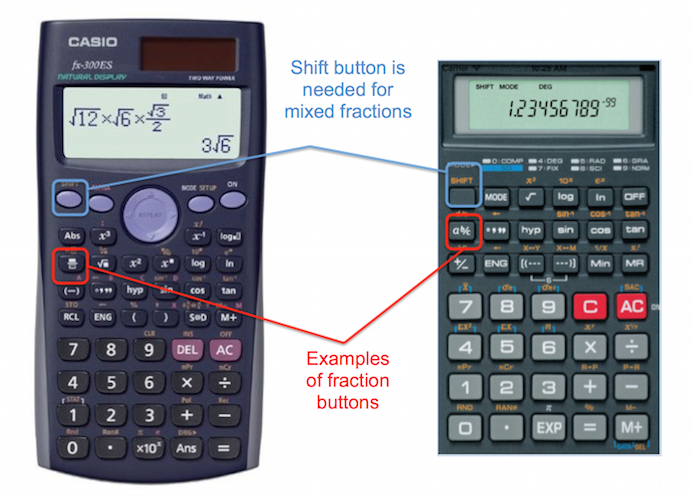
- Automatic Simplification: Most scientific and graphing calculators will automatically simplify fractions to their lowest terms when they are entered or after an operation. If not, there’s often a
simplifyfunction in the “Math” menu. - Fraction to Decimal / Decimal to Fraction:
- To convert a fraction to a decimal, simply enter it and press
=, or use a dedicatedF↔DorS↔Dbutton. - To convert a decimal to a fraction, enter the decimal, then press the
F↔DorS↔Dbutton. Be aware that repeating or non-terminating decimals might not convert perfectly to simple fractions on all calculators.
- To convert a fraction to a decimal, simply enter it and press
Advanced Fraction Operations and Features
Beyond basic input, modern calculators offer sophisticated features for handling fractions in complex scenarios, significantly enhancing your mathematical capabilities.
Fractions in Algebraic Calculations
When solving algebraic equations involving fractions, the ability to input and manipulate them precisely is paramount.
- Solving for Variables: Calculators with symbolic capabilities (like graphing calculators) can solve equations directly, even if they involve fractional coefficients or constants. For instance, to solve
(1/3)x + (1/4) = 1, you can often input the equation into a solver function, and the calculator will provide the exact fractional solution forx. - Graphing Fractional Functions: Graphing calculators allow you to input functions like
y = (1/x)ory = (x^2 + 1)/(x - 2)using fraction templates, providing accurate visual representations of their behavior.
Working with Complex Fractions
Complex fractions, where the numerator, denominator, or both contain fractions themselves, can be daunting. Calculators simplify this process.
- Layered Templates: Graphing calculators with natural display can handle complex fractions by allowing you to nest fraction templates. For example, to input
(1/2) / (3/4), you would use the main fraction template, then use the fraction template again for the numerator and denominator sections. - Strategic Use of Parentheses: For calculators without nested templates, carefully placed parentheses are essential. For
(1/2) / (3/4), you would enter((1 ÷ 2) ÷ (3 ÷ 4)).
Fraction Display Settings
Many calculators allow you to customize how fractions are displayed, offering flexibility based on your specific needs.
- Improper vs. Mixed: You can often choose whether results should be displayed as improper fractions (e.g., 5/2) or mixed numbers (e.g., 2 1/2). This is typically found in the
MODEorSETUPmenu, or through a dedicated toggle function. - Decimal Places for Conversion: When converting fractions to decimals, you can usually set the number of decimal places for rounding in the display settings, though internal calculations often maintain higher precision.
- Exact vs. Approximate: Advanced calculators might offer options to display results as exact fractions (e.g.,
√2/2) or their decimal approximations.
Error Handling and Troubleshooting
Even with advanced features, encountering errors when working with fractions is possible.
- Syntax Errors: Often occur if fraction buttons or templates are used incorrectly, or if parentheses are mismatched. Review your input carefully.
- Domain Errors: For fractions with variables, a “domain error” might occur if the denominator evaluates to zero, indicating an undefined expression.
- Memory Limitations: Extremely complex fractional expressions can sometimes exceed a calculator’s display or processing memory, leading to errors or simplified outputs.
- Mode Settings: Ensure your calculator is in the correct mode (e.g., “Math” mode for natural display, “Fraction” mode for fractional outputs) to avoid unexpected decimal conversions.
The Benefits of Mastering Fraction Input in Calculators
Beyond simply getting the right answer, a deep understanding of how to use fractions on your calculator offers several significant advantages that resonate across academic and practical domains.
Enhanced Accuracy in Calculations
Perhaps the most crucial benefit is the ability to maintain exact precision. When you convert fractions to decimals early in a multi-step calculation, you introduce rounding errors. Even if you use many decimal places, that error can accumulate, leading to an inaccurate final result.
- Avoiding Rounding Errors: By inputting and manipulating fractions in their fractional form, calculators can often perform operations with infinite precision (up to their internal limits), only converting to decimal at the very end if required. This is vital in fields like engineering, physics, and finance where exactness is critical.
- Exact Answers: For many mathematical problems, especially in algebra and calculus, the expectation is an exact fractional answer, not a decimal approximation. Mastering fraction input ensures you can meet this requirement effortlessly.
Efficiency in Problem Solving
Manual fraction arithmetic, especially with different denominators or complex expressions, can be time-consuming and prone to human error. Your calculator can drastically speed up this process.
- Streamlined Operations: Instead of finding common denominators, multiplying numerators and denominators, or simplifying by hand, the calculator handles these intricate steps instantly. This allows you to focus on the problem’s conceptual aspects rather than the arithmetic minutiae.
- Faster Complex Calculations: For problems involving multiple fractional terms, nested fractions, or operations like powers and roots of fractions, the calculator’s ability to process these quickly saves immense time and mental effort.
Foundation for Advanced Mathematics
A solid grasp of fractional calculations on a calculator builds a robust foundation for higher-level mathematics.
- Algebra and Calculus: Fractions are ubiquitous in algebra (solving equations, rational expressions), pre-calculus (functions, limits), and calculus (derivatives, integrals). Proficiency in calculator fraction operations allows students to tackle these complex topics without being bogged down by arithmetic.
- Conceptual Understanding: By letting the calculator handle the rote calculation, students can dedicate more mental energy to understanding the underlying mathematical concepts and principles rather than getting lost in the arithmetic.

Practical Applications
Fractions are not confined to the classroom; they are an integral part of many real-world scenarios.
- Cooking and Baking: Recipes frequently use fractions (e.g., 1/2 cup, 3/4 teaspoon). While often simple, scaling recipes up or down can involve more complex fractional adjustments.
- Carpentry and Construction: Measurements, cutting angles, and material calculations often involve fractions of inches or feet, where accuracy is paramount.
- Finance: Calculating interest rates, stock splits, or proportional shares can involve fractions.
- Science and Engineering: From mixing chemical solutions to calculating material stress, fractional values are common and demand precise handling.
In essence, mastering fraction input and manipulation on your calculator transforms it from a mere number-crunching device into a powerful mathematical assistant. It enables greater accuracy, efficiency, and a deeper engagement with the mathematical world, whether for academic pursuits or practical applications. By investing the time to understand your calculator’s fraction capabilities, you unlock a new level of mathematical fluency and problem-solving prowess.
aViewFromTheCave is a participant in the Amazon Services LLC Associates Program, an affiliate advertising program designed to provide a means for sites to earn advertising fees by advertising and linking to Amazon.com. Amazon, the Amazon logo, AmazonSupply, and the AmazonSupply logo are trademarks of Amazon.com, Inc. or its affiliates. As an Amazon Associate we earn affiliate commissions from qualifying purchases.