
Roblox has solidified its position as a global phenomenon, captivating millions of users of all ages with its unique blend of gaming and creation. More than just a collection of games, it’s a vast user-generated platform where players can design their own experiences, interact with friends, and explore an ever-expanding universe of virtual worlds. From intricate role-playing scenarios and competitive obstacle courses to vibrant social hubs and educational simulations, Roblox offers an unparalleled sandbox for digital creativity and entertainment. For newcomers, however, the first step into this metaverse often begins with a fundamental question: “How do I install Roblox?” This comprehensive guide aims to demystify the installation process across various devices, ensuring a smooth entry point for both eager young gamers and their digitally-savvy parents.

Our platform, deeply rooted in Tech insights, understands the importance of clear, actionable tutorials for navigating today’s digital landscape. Installing software, especially a platform as dynamic as Roblox, can sometimes present minor hurdles. This article will walk you through each step, cover crucial system requirements, address common troubleshooting scenarios, and even touch upon important aspects of digital security, a topic paramount to our focus on robust Technology Trends and Digital Security. By the end, you’ll not only have Roblox successfully installed but also a better understanding of how to optimize your experience and ensure a safe, enjoyable journey within its virtual worlds.
Understanding Roblox: More Than Just a Game
Before diving into the technicalities of installation, it’s beneficial to grasp the essence of Roblox. Unlike traditional video games that offer a single, predefined experience, Roblox is a platform. Think of it as a digital toolkit and marketplace combined, where users (known as “developers” in the Roblox ecosystem) can create their own games and experiences using the Roblox Studio software, and then share them with the entire community. This democratized approach to game development has fostered an incredible diversity of content, ranging from professional-grade simulations to quirky, experimental projects. This model, a testament to evolving Software paradigms, highlights a key Technology Trend: user-generated content driving massive engagement.
For children and teenagers, Roblox offers a safe, moderated environment to express creativity, collaborate with peers, and learn basic coding concepts without even realizing it. For adults, it can be a source of entertainment, a platform for showcasing development skills, or even a way to engage with younger family members. The sheer breadth of its content means there’s genuinely something for everyone, regardless of age or interest. Its persistent popularity and vast user base underscore its robust Brand Strategy – a platform that empowers users to be both consumers and creators, fostering a strong sense of community and ownership. Understanding this core philosophy enriches the installation process, turning a mere technical task into the gateway to a vibrant digital world.
Preparing for Play: System Requirements and Pre-Installation Checks
Before initiating any software installation, it’s crucial to ensure your device meets the minimum system requirements. This preventative step can save you significant time and frustration by avoiding performance issues or installation failures down the line. Roblox is designed to be accessible across a wide range of devices, but optimal performance often hinges on your hardware specifications. As specialists in Tech, we emphasize that compatibility is the cornerstone of any smooth software experience.
For Windows PCs:
- Operating System: Windows 7, 8, 8.1, 10, or 11. (For Windows 8/8.1 users, desktop mode is recommended.)
- Processor: Roblox recommends a processor from 2005 or newer with a clock speed of 1.6 GHz or better. Anything newer and more powerful will naturally offer a superior experience.
- Memory (RAM): 1 GB of RAM is the minimum, but 2 GB or more is highly recommended for smoother gameplay, especially in more graphically intensive experiences.
- Graphics Card: A graphics card with DirectX 9 (Shader Model 2.0) capabilities is required. Modern integrated graphics cards (like Intel HD Graphics 4000 series or newer) or dedicated GPUs will work well.
- Storage: At least 20 MB of free disk space for the initial installation of the Roblox Player. Game files will download as you play, requiring more space over time.
- Internet Connection: A broadband internet connection is essential for downloading, playing, and updating Roblox.
For macOS Devices:
- Operating System: macOS 10.10 (Yosemite) or newer.
- Processor: Roblox recommends a processor from 2005 or newer with a clock speed of 1.6 GHz or better.
- Memory (RAM): 1 GB of RAM is the minimum, with 2 GB or more recommended.
- Graphics Card: A graphics card with DirectX 9 (Shader Model 2.0) capabilities is required. Most modern Macs will meet this easily.
- Storage: Similar to Windows, at least 20 MB for the player, plus additional space for game content.
- Internet Connection: Broadband internet connection.
For Mobile Devices (iOS & Android):
- Operating System: iOS 11 or later for Apple devices; Android OS 5.0 (Lollipop) or later for Android devices. Newer versions are always better for compatibility and performance.
- Memory (RAM): 1 GB of RAM is the minimum for both iOS and Android, but 2 GB or more is highly recommended for optimal performance, especially for playing complex games.
- Storage: Varies greatly depending on the device and number of games downloaded, but generally requires a few hundred MBs for the app itself, plus extra for game content.
- Internet Connection: Wi-Fi or cellular data connection.
For Xbox Consoles:
- Console Model: Xbox One, Xbox Series X, or Xbox Series S.
- Xbox Live Account: Required for online play.
- Storage: Available storage space on your console.
- Internet Connection: A stable internet connection.
Before proceeding, it’s wise to ensure your operating system is up-to-date, close any unnecessary background applications to free up system resources, and check your internet connection for stability. These minor pre-installation checks, a fundamental practice in Productivity and system maintenance, can significantly enhance your installation success rate and initial gameplay experience.
Step-by-Step Installation Guides Across Platforms
With your system checked and ready, it’s time to get Roblox installed. The process varies slightly depending on your device, but the core steps remain straightforward. Our Tutorials aim to provide clear, concise instructions for each platform.
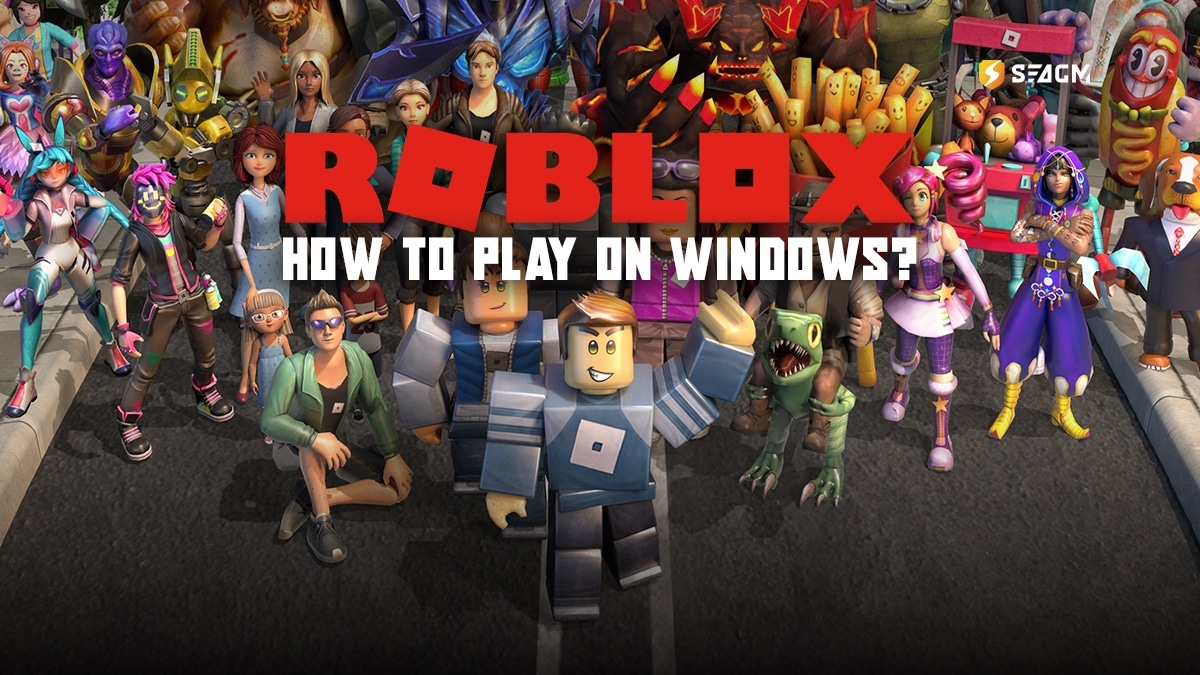
Installing Roblox on Windows PCs
The most common way to install Roblox on a Windows PC is directly from the official website.
- Open Your Web Browser: Navigate to the official Roblox website:
www.roblox.com. - Sign Up or Log In: If you don’t have an account, you’ll need to create one. Click “Sign Up” and follow the prompts to enter your birthdate, username, and password. If you already have an account, click “Log In.”
- Find a Game: Once logged in, browse the vast library of experiences (games) available. Select any game that catches your eye and click on its thumbnail.
- Click the Green Play Button: On the game’s page, you’ll see a large green play button. Click this button.
- Initiate Download: A pop-up window will appear, prompting you to “Download and Install Roblox.” Click the “Download Now” or “Download & Install” button.
- Run the Installer: Your browser will download a small executable file (e.g.,
RobloxPlayerLauncher.exe). Once the download is complete, locate the file (usually in your “Downloads” folder) and double-click it to run the installer. - Follow On-Screen Instructions: The installer is generally quick and automated. It will download the necessary Roblox Player files and install them on your system. You’ll see a progress bar.
- Launch Roblox: Once the installation is complete, a confirmation message will appear. Roblox Player will typically launch automatically, opening the game you initially selected. From now on, you can launch Roblox directly from your desktop shortcut or by clicking the play button on any game page on the website.
Alternative (Microsoft Store): If you prefer, you can also download the Roblox app directly from the Microsoft Store on Windows 10/11. Search for “Roblox,” click “Get” or “Install,” and follow the prompts. This version often installs as a Universal Windows Platform (UWP) app.
Installing Roblox on macOS Devices
Installing Roblox on a Mac follows a very similar process to Windows, primarily through the web browser.
- Open Safari or Your Preferred Browser: Go to
www.roblox.com. - Sign Up or Log In: Create an account or log in with your existing credentials.
- Choose a Game: Browse the experiences and select one to play.
- Click the Green Play Button: On the game’s page, click the play button.
- Download Prompt: A pop-up will instruct you to “Download and Install Roblox.” Click the relevant download button.
- Run the Installer: Your browser will download a
.dmgfile (e.g.,RobloxPlayer.dmg). Open this file. - Drag and Drop: A new window will open. Drag the “Roblox” application icon into your “Applications” folder.
- Launch Roblox: Once copied, you can close the
.dmgwindow. Navigate to your Applications folder and launch Roblox. The first time you launch it, it will finalize the installation and download any necessary updates. - Security Prompt (if any): If your Mac’s security settings prevent opening apps from unidentified developers, you might need to go to System Settings/Preferences > Security & Privacy > General, and click “Open Anyway” next to the Roblox app, then confirm.
- Start Playing: After the initial setup, Roblox will launch the chosen game.
Getting Roblox on Mobile (iOS & Android)
Mobile installation is perhaps the simplest, leveraging the respective app stores.
- Open Your Device’s App Store:
- iOS (iPhone/iPad): Open the “App Store.”
- Android: Open the “Google Play Store.”
- Search for Roblox: Use the search bar to type “Roblox.”
- Select the Official App: Look for the official Roblox application, usually identifiable by its iconic logo.
- Download and Install: Tap the “Get” or “Install” button. You may need to authenticate the download using your Apple ID password, Face ID, Touch ID, or Google account password.
- Launch the App: Once downloaded and installed, an “Open” button will appear, or you can find the Roblox icon on your home screen or app drawer.
- Log In or Sign Up: Open the app and log in with an existing account or create a new one. You’re now ready to play!
Accessing Roblox on Xbox Consoles

Roblox is fully integrated into the Xbox ecosystem, offering a seamless console gaming experience.
- Turn On Your Xbox Console: Ensure it’s connected to the internet.
- Navigate to the Store: From the Xbox home screen, go to “Store.”
- Search for Roblox: Use the search function and type “Roblox.”
- Select and Install: Find the official Roblox app and select it. Click “Get” or “Install” to download and install the application onto your console.
- Launch Roblox: Once installed, you can launch Roblox directly from the Xbox home screen or your games library.
- Log In or Sign Up: You’ll be prompted to log in with an existing Roblox account or create a new one, which can be linked to your Xbox Live Gamertag for convenience.
Beyond Installation: Account Creation and First Steps
Once Roblox is installed, the next crucial step is ensuring you have an active account. For most users, this will have happened during the initial web-based installation. However, if you installed via an app store or need to create a new profile, the process is straightforward and secures your identity within the platform. Creating a unique account is not just about logging in; it’s about establishing your digital persona and securing your progress, a fundamental aspect of online Productivity and user experience.
When signing up, you’ll be asked for:
- Birthdate: This is important as Roblox uses it to apply age-appropriate safety settings.
- Username: Choose a unique username that you like. This will be your identity within the Roblox metaverse.
- Password: Create a strong, unique password to protect your account.
After logging in for the first time, you’ll land on the Roblox home screen, which serves as your portal to millions of experiences. Take a moment to familiarize yourself with the interface:
- Home Feed: Displays recommended games, friends’ activities, and popular experiences.
- Games Tab: Browse an extensive catalog of games categorized by popularity, genre, and recommendations.
- Avatar Shop: Customize your avatar with clothing, accessories, and animations.
- Friends Tab: Manage your friend requests and see who’s online.
- Chat: Communicate with friends.
Before diving into a game, consider customizing your avatar. This allows for a unique expression of your Personal Branding within the Roblox universe, making your presence distinct among millions of other players. Your initial steps might involve joining a few popular games to get a feel for the platform, or adding friends you know from real life. Remember, the Roblox universe is constantly evolving, with new games and features added daily, ensuring a fresh experience every time you log in.
Ensuring a Smooth Experience: Troubleshooting and Digital Security
Even with the most detailed instructions, technology can sometimes present unexpected hiccups. Furthermore, with platforms that cater to a young audience, digital security becomes an paramount concern. Our commitment to Digital Security and practical Tutorials extends to helping you resolve common issues and navigate Roblox safely.
Common Installation & Login Issues and Their Solutions
- Installation Failed/Stuck:
- Check Internet Connection: A stable connection is vital. Try restarting your router.
- Antivirus/Firewall Interference: Temporarily disable your antivirus or firewall during installation. Remember to re-enable it afterward. If this resolves the issue, you might need to add Roblox to your security software’s whitelist.
- Run as Administrator: Right-click the installer file and choose “Run as administrator.”
- Insufficient Disk Space: Ensure you have enough free storage on your device.
- Corrupted Download: Delete the downloaded installer file and download it again from the official Roblox website.
- Roblox Won’t Launch/Games Won’t Start:
- Restart Device: Often, a simple restart can resolve temporary software glitches.
- Update Graphics Drivers: Outdated graphics drivers can cause launch issues. Visit your graphics card manufacturer’s website (NVIDIA, AMD, Intel) to download the latest drivers.
- Check for Roblox Updates: Ensure both the Roblox Player and Roblox Studio (if installed) are up-to-date. Sometimes a game won’t launch if your client isn’t the latest version.
- Clear Browser Cache: If launching from the website, clear your browser’s cache and cookies.
- Reinstall Roblox: As a last resort, completely uninstall Roblox and then reinstall it following the steps above.
- Login Issues:
- Incorrect Username/Password: Double-check your credentials. Passwords are case-sensitive.
- Forgot Password: Use the “Forgot Password” link on the login page to reset it via email or phone number.
- Account Banned/Moderated: If you believe your account might be suspended or banned, check your email for a message from Roblox Support or contact them directly.
- Connectivity Problems: Ensure a stable internet connection.
If these solutions don’t work, visiting the official Roblox Support page (support.roblox.com) is always recommended. They offer detailed articles and a robust customer service system.
Navigating Roblox Safely: A Parent’s Guide to Digital Security
For parents, ensuring a child’s safety in any online environment is paramount. Roblox has implemented numerous features to promote a secure experience, aligning with best practices in Digital Security.
- Account Privacy Settings: Roblox offers extensive privacy and chat settings. Parents can access these through their child’s account settings (or their own, if managing a child’s account). Options include:
- Chat Filtering: Roblox automatically filters inappropriate language and personal information. Parents can further restrict chat to “Friends” or “No one.”
- Who Can Message Me: Control who can send private messages.
- Who Can Join Me in Games: Control who can follow your child into games.
- Who Can Make Me a Friend: Restrict friend requests.
- Age Verification: For users 13 and older, voice chat and other features may be available upon age verification.
- Parental PIN: Set up a four-digit Parental PIN within the account settings. This PIN prevents unauthorized changes to the account’s privacy and spending settings, giving parents greater control.
- Monitor Playtime and Interactions: Encourage open communication with your child about their online activities. Ask them about the games they play and who they interact with.
- Educate About Online Safety: Teach children about the importance of not sharing personal information (full name, address, phone number, school, etc.), not clicking suspicious links, and reporting inappropriate behavior.
- In-App Purchases (Robux): Robux is Roblox’s virtual currency. While not mandatory for gameplay, it’s used to buy avatar items, game passes, and developer products. Connects to our Money section:
- Manage Spending: Link payment methods to your Roblox account but ensure you monitor purchases. Setting up a Parental PIN can restrict who authorizes Robux purchases.
- Beware of Scams: Teach children about Robux scams (e.g., “free Robux” generators), which often lead to phishing attempts or malware. Always purchase Robux through official channels.
- Reporting System: Roblox has an in-game reporting system. Teach children how to use it to report users or content that violates Roblox’s Community Standards.
By actively utilizing these tools and maintaining open dialogue, parents can empower their children to enjoy the vast and creative world of Roblox securely.
Unlocking the Full Roblox Experience: Robux, Premium, and Community
Once you’re comfortably installed and familiar with the basics, you might wonder about the broader ecosystem that enhances the Roblox experience. This touches upon elements of Money (in-app purchases), Brand (platform features), and deeper Tech functionalities.
Robux: The Virtual Economy:
Robux is the virtual currency of Roblox, allowing players to purchase various items, from exclusive avatar clothing and accessories to in-game advantages like special abilities or virtual pets. While many games are free to play, Robux often enhances the experience by providing customization or accelerating progress. It can be acquired through direct purchase with real money, a Roblox Premium subscription, or by creating popular games and selling items within them (a fascinating aspect of online Income for developers). Understanding how Robux works is key to managing virtual spending and appreciating the developer economy.
Roblox Premium: Enhanced Membership:
Roblox Premium is a subscription service that offers several benefits:
- Monthly Robux Stipend: Subscribers receive a set amount of Robux each month, depending on their plan.
- Exclusive Items & Discounts: Access to exclusive items and discounts in the Avatar Shop.
- Robux Boost: A bonus on Robux purchases.
- Improved Trading System: For those interested in item trading.
For frequent players or those who plan to spend on Robux, a Premium subscription can offer better value, tying into principles of Personal Finance and optimizing digital entertainment budgets.
Community and Creation:
Beyond playing, Roblox offers immense opportunities for creation. Using Roblox Studio (a separate, free download), users can develop their own games, virtual items, and experiences. This platform for user-generated content is a prime example of a Technology Trend where creative tools are put directly into the hands of the end-user. Many successful Roblox developers have even turned their passion into a significant source of Online Income, showcasing the platform’s potential beyond mere entertainment. Engaging with the developer community, participating in forums, and even learning scripting languages like Lua can open up entirely new dimensions of the Roblox experience.
Conclusion
Installing Roblox is the first exciting step into a sprawling, dynamic digital universe unlike any other. Whether you’re a seasoned gamer looking for new worlds to explore, a creative mind eager to build your own, or a parent guiding your child through their digital journey, Roblox offers an unparalleled platform for entertainment, learning, and social interaction. By following our detailed installation guides, performing necessary system checks, and staying vigilant about digital security, you can ensure a smooth, enjoyable, and safe experience across any device.
As a platform deeply invested in Tech advancements, Brand growth, and the nuances of Money in the digital age, we recognize Roblox’s significance. It’s not just a game; it’s a testament to the power of user-generated content, a virtual economy in action, and a vibrant community shaping the future of interactive entertainment. So, go ahead, install Roblox, create your avatar, and step into an infinite world of possibilities. The metaverse awaits!
aViewFromTheCave is a participant in the Amazon Services LLC Associates Program, an affiliate advertising program designed to provide a means for sites to earn advertising fees by advertising and linking to Amazon.com. Amazon, the Amazon logo, AmazonSupply, and the AmazonSupply logo are trademarks of Amazon.com, Inc. or its affiliates. As an Amazon Associate we earn affiliate commissions from qualifying purchases.