
In the modern digital landscape, staying connected is no longer just a convenience—it is a necessity. Facebook Messenger has evolved from a simple chat feature within a social network into a robust, standalone communication ecosystem. With over a billion users worldwide, it serves as a primary hub for text messaging, voice calls, high-definition video conferencing, and even business transactions.
Whether you are transitioning to a new smartphone, setting up a workstation, or looking to streamline your digital interactions, understanding the nuances of installing and configuring Messenger is the first step toward seamless connectivity. This guide provides an in-depth, technical walkthrough on how to install Messenger across various platforms, ensuring you leverage its full potential while maintaining digital security.

1. Understanding the Messenger Ecosystem and Requirements
Before diving into the installation process, it is essential to understand that Messenger operates as a cross-platform application. This means your messages sync in real-time across your phone, tablet, and computer. However, to ensure a smooth installation, your hardware and software must meet specific baseline requirements.
Hardware and Software Compatibility
For mobile users, Messenger is optimized for the latest versions of Android and iOS. For Android, it is generally recommended to have version 9.0 (Pie) or higher for the best performance, although the app supports older versions. On the Apple side, iOS 13.0 or later is typically required to access the newest features like “Secret Conversations” and advanced AR filters.
Account Prerequisites
While Messenger was once strictly tied to a Facebook profile, the architecture has shifted. While you still technically need a Facebook account to initialize the service, you can deactivate your main Facebook profile and continue using Messenger independently. This distinction is vital for users who wish to maintain a professional communication channel without the distractions of a social media feed.
2. Installing Messenger on Mobile Devices
Mobile devices are the primary platform for Messenger users. The installation process is designed to be intuitive, yet there are specific steps to ensure you are downloading the official, secure version of the application.
Step-by-Step for Android Users
The Android ecosystem offers several ways to install apps, but the Google Play Store remains the safest and most reliable method.
- Open the Google Play Store: Locate the Play Store icon on your home screen or app drawer.
- Search for Messenger: Use the search bar at the top and type “Messenger.” Look for the app developed by “Meta Platforms, Inc.” with the iconic blue-to-purple gradient speech bubble icon.
- Initiate Download: Tap “Install.” The Play Store will automatically check for available storage space and begin the download.
- Permissions and Launch: Once installed, tap “Open.” The app will request permissions for your contacts, camera, and microphone. For the full experience, it is recommended to grant these permissions, though you can manage them individually in your phone’s settings later.
Step-by-Step for iOS (iPhone and iPad)
For Apple users, the process is streamlined through the App Store, prioritizing security and integration with the Apple ID.
- Access the App Store: Open the App Store and tap the “Search” tab at the bottom right.
- Find the Official App: Type “Messenger” and ensure you select the app provided by Meta.
- Authentication: Tap “Get.” You may be prompted to authenticate the download via FaceID, TouchID, or your Apple ID password.
- Integration: After the download completes, the app will appear on your home screen. Upon opening, iOS will ask for permission to send you notifications—a crucial setting if you intend to use Messenger for real-time alerts.
Messenger Lite: An Alternative for Older Hardware
In regions with limited connectivity or for users with older devices, “Messenger Lite” was once a popular alternative. While Meta has transitioned many users back to the standard app due to optimization improvements, some legacy versions still exist. If your device struggles with memory management, ensuring you have the latest “standard” update is often more effective than seeking out Lite versions, as the main app now includes an “Adaptive UI” that scales based on hardware capabilities.

3. Setting Up Messenger on Desktop and Web
To maximize productivity, many professionals prefer using Messenger on their desktop. This allows for faster typing, easier file sharing, and the ability to multi-task without constantly checking a mobile device.
The Dedicated Desktop Application
Meta provides native applications for both Windows and macOS. These are superior to the web version as they offer system-level notifications and better stability for long-form video calls.
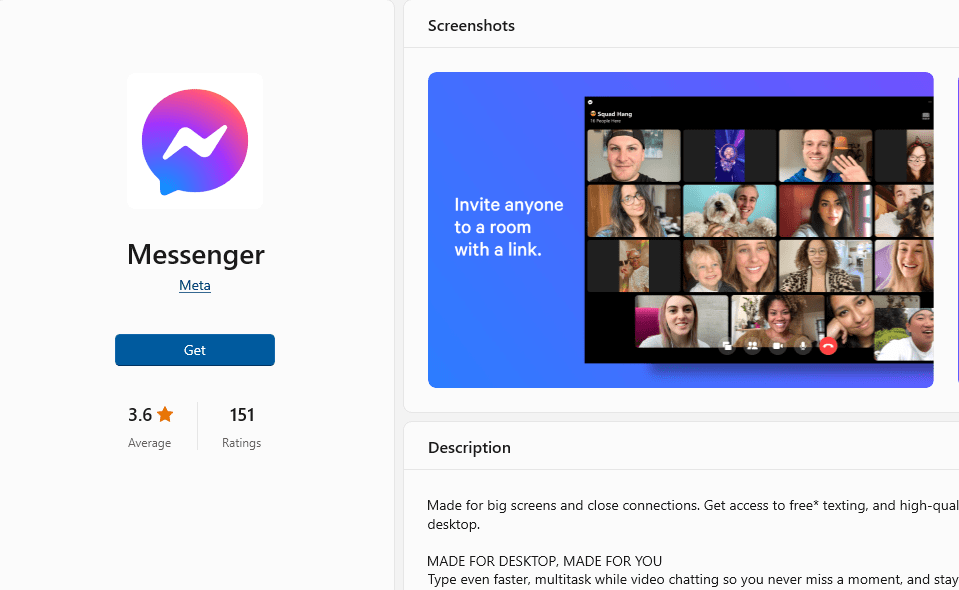
- For Windows: Navigate to the Microsoft Store, search for “Messenger,” and click “Get.” The Windows version integrates perfectly with the Action Center, allowing you to reply to messages directly from the notification toast.
- For macOS: Open the Mac App Store and download Messenger. The macOS version supports “Dark Mode” natively and is optimized for Apple Silicon (M1/M2/M3 chips), ensuring minimal battery drain.
Messenger for Web (Browser-Based)
If you are using a public computer or do not wish to install software, the web version is a powerful alternative.
- Go to www.messenger.com.
- Log in with your credentials.
- Pro Tip: You can enable “Desktop Notifications” in your browser settings (Chrome, Safari, or Firefox) to receive alerts even when the tab isn’t active. This is an excellent way to stay connected without the footprint of a full installation.
4. Configuration, Security, and Troubleshooting
Installation is only the beginning. To ensure your communication remains private and the app functions correctly, you must navigate the post-installation setup.
Securing Your Installation
Digital security is paramount. Once Messenger is installed, you should immediately review your privacy settings.
- Two-Factor Authentication (2FA): Ensure 2FA is enabled on your Facebook/Meta account. This prevents unauthorized access even if someone obtains your password.
- Secret Conversations: Messenger offers end-to-end encryption through its “Secret Conversations” feature. To use this, you must initiate a specific chat that is tied to the hardware of your device, ensuring that not even Meta can read the contents of your messages.
Troubleshooting Common Installation Issues
Occasionally, the installation might fail or the app may crash upon launch.
- Insufficient Storage: Messenger requires approximately 250MB–500MB for the initial install, but it grows as data is cached. Clear your phone’s “Cached Data” if the installation hangs.
- Pending Updates: On Android, if the “Install” button is stuck on “Pending,” it is usually because the Play Store is updating other apps in the background. Pause other updates to prioritize Messenger.
- Network Conflicts: If you are using a VPN, the App Store or Play Store may block the download due to regional restrictions. Temporarily disable the VPN to complete the installation.
5. Optimizing Your Messenger Experience
Once the app is successfully installed and secured, you can optimize it to suit your lifestyle. Messenger is more than a chat tool; it is a customizable workspace.
Managing Notifications and Data
To prevent “notification fatigue,” utilize the “Mute” and “Quiet Mode” features. You can mute specific group chats that are too active or set a schedule where notifications are silenced during work hours. Furthermore, if you are on a limited data plan, navigate to Settings > Data Saver to prevent the app from auto-downloading images and videos when you are not on Wi-Fi.
Leveraging Cross-App Communication
With the integration of the Meta ecosystem, Messenger now allows you to communicate with Instagram users without switching apps. During the setup process, you may be asked to “Sync Centers.” Doing so allows for a unified inbox, which is incredibly efficient for users who manage personal and professional identities across both platforms.
Conclusion
Installing Messenger is a straightforward process, but doing it correctly involves more than just clicking a button. By choosing the right platform, ensuring hardware compatibility, and prioritizing security settings, you transform a simple app into a powerful communication engine. Whether you are using the mobile app for on-the-go chats or the desktop version for professional collaboration, Messenger remains a cornerstone of digital interaction in the tech-driven world of today. Following the steps outlined in this guide will ensure that your installation is secure, optimized, and ready for whatever your digital life demands.
aViewFromTheCave is a participant in the Amazon Services LLC Associates Program, an affiliate advertising program designed to provide a means for sites to earn advertising fees by advertising and linking to Amazon.com. Amazon, the Amazon logo, AmazonSupply, and the AmazonSupply logo are trademarks of Amazon.com, Inc. or its affiliates. As an Amazon Associate we earn affiliate commissions from qualifying purchases.