
In the vast and dynamic world of smartphones, your Android device is more than just a communication tool; it’s a powerful pocket computer, a personal assistant, a gaming console, and a productivity hub, all rolled into one. The true potential of an Android phone, however, lies in its ability to host a myriad of applications designed to cater to every conceivable need and desire. From managing your finances and boosting your productivity to streaming entertainment and connecting with loved ones, apps transform a piece of hardware into a truly personalized device.

But for many, especially new Android users or those looking to explore beyond the familiar, the process of installing, managing, and securing these applications can seem daunting. This comprehensive guide aims to demystify the art of Android app installation, taking you through every method from the safe confines of the official Google Play Store to the more adventurous terrain of sideloading. We’ll not only cover the ‘how-to’ but also delve into the critical aspects of digital security, performance optimization, and responsible app management, ensuring your Android experience is seamless, secure, and incredibly rewarding. Whether you’re a tech enthusiast eager to experiment with the latest innovations or a casual user seeking to enhance your daily digital life, understanding how to effectively install apps is your first step towards unlocking the full power of your Android device.
The Official Gateway: Installing Apps from the Google Play Store
The Google Play Store stands as the undisputed primary portal for Android applications. It’s Google’s official digital distribution service, offering millions of apps, games, movies, TV shows, books, and more. For most users, the Play Store is the go-to destination for app discovery and installation due to its convenience, security features, and seamless integration with the Android ecosystem.
Navigating the Play Store Interface
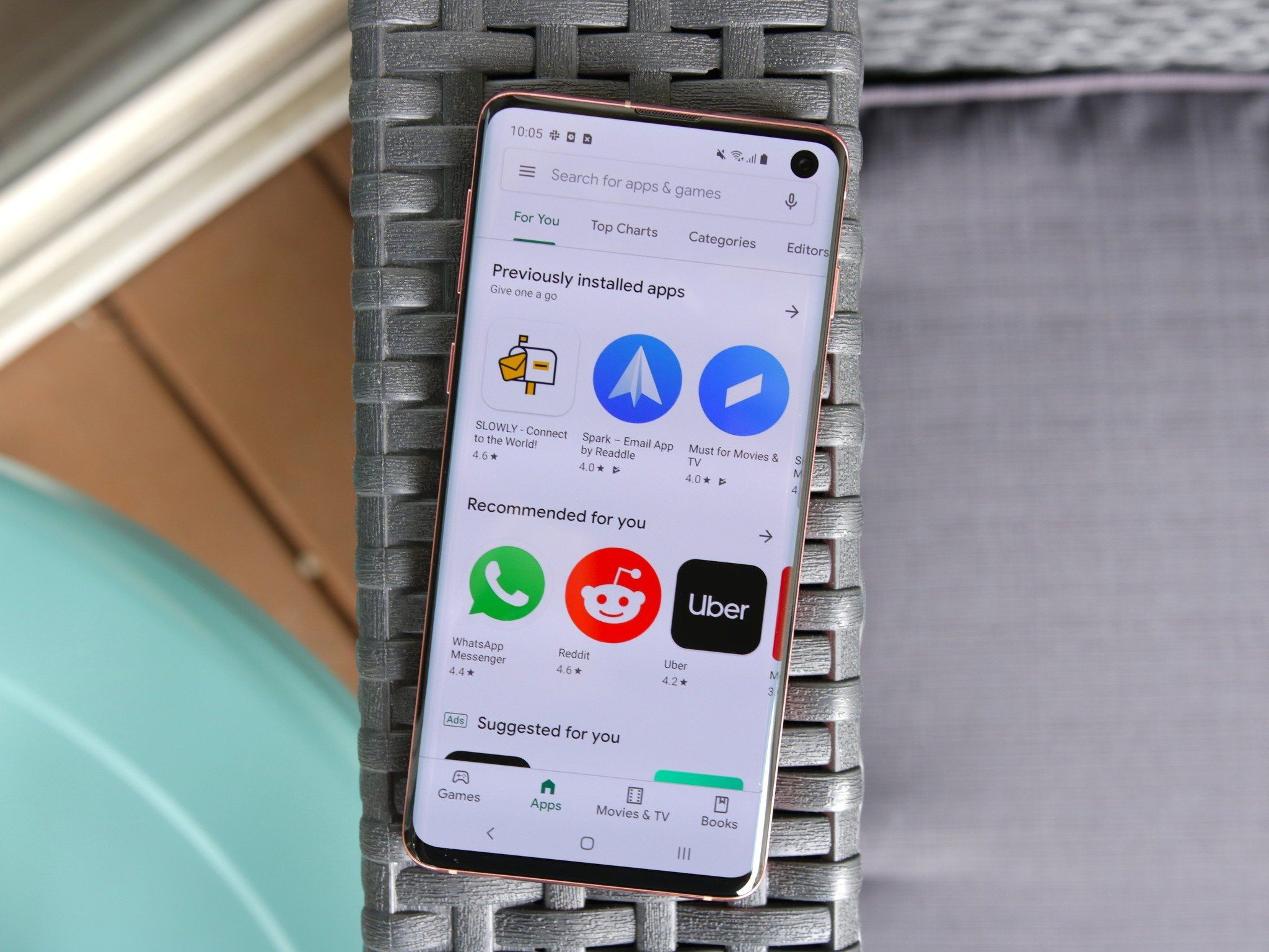
Upon launching the Play Store app, you’ll be greeted by a user-friendly interface designed for easy discovery. The homepage typically features trending apps, editor’s choices, and personalized recommendations based on your past downloads and interests. You’ll find categories like “Apps,” “Games,” “Movies & TV,” and “Books” at the top or bottom navigation bar, allowing you to browse specific types of content.
The most efficient way to find a specific app is by using the search bar, usually located at the top of the screen. Simply type in the name of the app or keywords related to its function (e.g., “photo editor,” “meditation app,” “budget tracker”), and the Play Store will present a list of relevant results. Each app listing provides crucial information, including its name, developer, average user rating, number of downloads, and often a brief description.
The Installation Process: A Step-by-Step Walkthrough
Once you’ve found an app you wish to install, the process is straightforward:
- Tap on the App: Select the app from the search results or browsing categories to view its dedicated page.
- Review App Details: On the app’s page, you’ll find a more comprehensive description, screenshots, video previews, user reviews, and essential information about the developer. It’s crucial to take a moment here to assess if the app meets your expectations and needs.
- Check Permissions: Before installing, scroll down to the “About this app” section and look for “App permissions.” This outlines what aspects of your phone the app needs to access (e.g., camera, microphone, contacts, location, storage). Understanding these permissions is vital for your digital security and privacy – more on this later.
- Initiate Installation: If you’re satisfied, tap the green “Install” button. For paid apps, this button will display the price. You’ll need to confirm your purchase via your Google account password or fingerprint.
- Download and Install: The app will begin downloading. Once the download is complete, it will automatically install on your device. The size of the app and your internet connection speed will determine how long this takes.
- Open the App: After successful installation, the “Install” button will change to “Open.” You can tap this to launch the app immediately, or find its icon on your home screen or in your app drawer.
Understanding App Permissions and Reviews
App permissions are at the heart of your digital security. When an app requests access to your camera, microphone, or contacts, it’s asking for a specific level of control over your device’s hardware and data. While many permissions are legitimate for an app’s functionality (e.g., a camera app needs camera access), others might be excessive or suspicious for certain app types (e.g., a calculator app requesting location data). Always review permissions carefully and revoke any that seem unnecessary from your phone’s settings after installation if allowed by the app’s functionality. This ties directly into the ‘Tech’ aspect of digital security and personal privacy.
User reviews and ratings are equally important. They offer real-world feedback on an app’s performance, usability, and potential bugs. A high rating combined with numerous positive, specific reviews is a good indicator of a quality app. Conversely, apps with low ratings, frequent complaints about crashes, excessive ads, or data privacy concerns should be approached with caution.
Managing Updates and Subscriptions
The Google Play Store also handles app updates automatically by default, ensuring you always have the latest features and security patches. You can manage this setting in the Play Store’s preferences. For apps that offer subscriptions or in-app purchases, the Play Store provides a centralized place to view and manage these financial commitments, falling under the ‘Money’ aspect of personal finance and managing digital expenditures.
Exploring Beyond the Official Store: Alternative App Sources and Sideloading
While the Google Play Store is the primary and safest source for Android apps, it’s not the only source. Android’s open-source nature allows for greater flexibility, enabling users to install applications from alternative app stores or directly from an application package file (APK) — a process commonly known as “sideloading.”
What is Sideloading and Why Consider It?
Sideloading refers to the installation of apps onto an Android device from a source other than the Google Play Store. An APK (Android Package Kit) is the package file format used by the Android operating system for the distribution and installation of mobile apps. Think of it like an .exe file for Windows or a .dmg for macOS.
There are several legitimate reasons why a user might consider sideloading:
- Access to Beta Versions: Developers often release beta versions of apps for testing before they hit the Play Store. Sideloading allows enthusiastic users to try new features early.
- Geo-Restricted Apps: Some apps might not be available in your region via the Play Store due to licensing or regulatory restrictions. Sideloading can bypass these geographical limitations.
- Open-Source and Niche Apps: Communities sometimes develop apps that don’t meet Google’s strict Play Store guidelines or are designed for a very specific niche, making them ideal candidates for distribution via APK. F-Droid, for instance, is an app store specifically for free and open-source software (FOSS) Android apps.
- Legacy or Discontinued Apps: If an app has been removed from the Play Store or is no longer updated, sideloading might be the only way to obtain an older version that still works.
- Apps from Other Ecosystems: Some smartphone manufacturers have their own app stores (e.g., Amazon Appstore, Samsung Galaxy Store) which might offer exclusive deals or apps not found on Google Play.
- Customization and Modding: Advanced users often sideload apps to customize their Android experience, install modified versions of apps (mods), or gain access to features not officially supported.
Step-by-Step: Installing Apps from Unknown Sources
Sideloading requires a crucial security setting to be enabled: “Install unknown apps” or “Unknown sources.” Google disables this by default for your protection, as apps from unofficial sources may pose security risks.
Warning: Proceed with extreme caution. Only download APKs from trusted websites and developers. Malicious APKs can contain malware, viruses, or spyware, compromising your device and personal data. This is where the ‘Digital Security’ aspect of ‘Tech’ and the ‘Brand’ reputation of the source become paramount.
- Download the APK File: Use your phone’s web browser to download the APK file from a reputable source. Reputable sources often include the developer’s official website, well-known tech blogs with strong security vetting, or dedicated FOSS repositories like F-Droid. Avoid random websites promising “free” versions of paid apps, as these are frequently vectors for malware.
- Enable “Install Unknown Apps”:
- Go to your phone’s Settings.
- Search for “Install unknown apps” or navigate to Apps & notifications > Special app access > Install unknown apps (the exact path may vary slightly depending on your Android version and phone manufacturer).
- You’ll see a list of apps that can install other apps (e.g., your browser, file manager). Grant permission to the specific app you used to download the APK (e.g., Chrome, Files by Google) by toggling its switch to “Allowed.” This is a more granular approach than older Android versions which had a single “Unknown sources” toggle.
- Locate and Install the APK:
- Open your phone’s file manager app (e.g., “Files,” “My Files”).
- Navigate to the “Downloads” folder where your APK file should be located.
- Tap on the APK file.
- A prompt will appear, asking if you want to install this application. Review the permissions again.
- Tap “Install.”
- Disable “Install Unknown Apps”: After the installation is complete, it is highly recommended to immediately revoke the “Install unknown apps” permission from the browser or file manager you used. This closes the security loophole, preventing future accidental or malicious installations from unknown sources.
Reputable Third-Party App Stores
Beyond direct APK downloads, several reputable third-party app stores offer an alternative to Google Play, often with their own unique selections or focus:
- Amazon Appstore: Pre-installed on Amazon’s Fire devices, it also runs on other Android devices. It’s known for its “Free App of the Day” promotions and a selection of apps that often integrate with Amazon’s ecosystem.
- F-Droid: As mentioned, F-Droid is a catalog of free and open-source software (FOSS) applications for the Android platform. It emphasizes privacy, transparency, and user control, making it a favorite among privacy-conscious users and developers. All apps on F-Droid are open source and verifiable.
- Samsung Galaxy Store: Pre-installed on Samsung devices, offering exclusive apps, themes, and deals optimized for Samsung hardware.
- Aurora Store: An open-source, unofficial Google Play client that allows users to download apps from the Google Play Store without needing a Google account, offering more privacy.
While these stores offer legitimate alternatives, always verify their reputation and understand their security policies before downloading apps. The ‘Brand’ reputation of these alternative stores is crucial for ensuring the integrity of the apps you install.
Security, Permissions, and Responsible App Management
Installing apps is just the first step. Effective app management, with a strong focus on security and privacy, is crucial for maintaining a healthy and efficient Android device. Neglecting these aspects can lead to performance issues, data breaches, and a compromised user experience.
Understanding App Permissions: What They Mean for Your Data
Permissions are the bedrock of Android security. Each permission grants an app specific access to your phone’s resources. Android has evolved to offer more granular control over these permissions. Instead of an “all or nothing” approach during installation, modern Android versions allow you to grant or deny individual permissions as needed while using the app.
Common permission categories include:
- Location: Access to your precise or approximate location. Essential for mapping apps, but suspicious for others.
- Camera & Microphone: Access to record video or audio. Be wary of apps that don’t explicitly need these functions requesting them.
- Contacts: Read, modify, or add contacts. Often used by communication apps.
- Storage: Read or write files on your device. Necessary for photo editors, file managers, etc.
- SMS & Call Logs: Read or send messages, access call history. Primarily for messaging and phone apps.
- Biometrics: Use fingerprint or face unlock. For security-sensitive apps like banking.
Best Practice: When an app requests a permission, ask yourself: “Does this app really need this to function?” If a flashlight app asks for contact access, that’s a red flag. You can review and modify app permissions at any time via Settings > Apps > See all apps > [App Name] > Permissions. Regularly auditing these permissions helps protect your data and aligns with best practices for ‘Digital Security’ and ‘Productivity’ in managing your device efficiently.
The Critical Importance of Device Security Settings
Beyond app-specific permissions, your overall device security settings play a pivotal role:
- Android Security Updates: Always keep your Android operating system updated. These updates often include critical security patches that protect against newly discovered vulnerabilities.
- Google Play Protect: Built into the Google Play Store, Play Protect automatically scans apps on your device (even those from outside the Play Store) for potentially harmful behavior. Ensure it’s active in your Play Store settings.
- Screen Lock: Use a strong PIN, pattern, or biometric authentication (fingerprint, face unlock) to prevent unauthorized access to your device.
- Find My Device: Enable this feature to locate, lock, or erase your device remotely if it’s lost or stolen.
- Antivirus/Anti-malware Apps: While Play Protect offers baseline protection, reputable third-party security apps can provide an additional layer of defense, particularly if you frequently sideload apps.
- Two-Factor Authentication (2FA): Enable 2FA for your Google account and other critical services to add a robust security layer against unauthorized access.
Best Practices for Maintaining App Health and Privacy
- Regular App Audits: Periodically review your installed apps. Uninstall apps you no longer use. Not only does this free up storage, but it also reduces the number of apps that could potentially track your data or run in the background.
- Clear Cache and Data: If an app is acting sluggish or consuming too much storage, try clearing its cache (Settings > Apps > [App Name] > Storage & cache > Clear cache). Clearing data will reset the app to its original state, so use it sparingly as it deletes login info and settings.
- Monitor Data Usage: Keep an eye on which apps are consuming the most mobile data in your phone’s settings. Some apps might be running in the background and draining your data plan unexpectedly.
- Disable Background App Refresh: For apps that don’t require constant real-time updates, disable their ability to refresh in the background to save battery life and data.
- Read Privacy Policies: Especially for apps handling sensitive information, take a moment to skim their privacy policies to understand how your data is collected, used, and shared. This is crucial for maintaining personal ‘Brand’ integrity and digital ‘Money’ security.
Uninstalling Apps and Freeing Up Storage
Uninstalling an app is even simpler than installing one:
- From the App Drawer/Home Screen: Long-press the app icon. A menu will usually appear with an “Uninstall” option. Tap it and confirm.
- From Settings: Go to Settings > Apps > See all apps. Tap on the app you wish to remove, then select “Uninstall” and confirm.
Uninstalling apps is an excellent way to reclaim storage space, which is vital for your phone’s performance. As part of ‘Productivity’ and ‘Tech’ management, regularly decluttering your device can significantly improve speed and responsiveness, especially as apps tend to grow in size over time.
Optimizing Your Android Experience: Tips for App Discovery and Usage
With millions of apps available, finding the right ones to truly enhance your Android experience can be a journey of discovery. Beyond basic installation, optimizing how you find, organize, and interact with apps transforms your phone from a mere gadget into a highly productive and enjoyable extension of yourself.
Leveraging App Reviews and Ratings
As previously touched upon, user reviews and ratings are invaluable tools for app discovery. However, dig deeper than just the star rating:
- Read Recent Reviews: App quality can change with updates. Prioritize reviews from the last few months to get an accurate picture.
- Look for Specific Feedback: Generic “great app!” reviews are less helpful than those detailing specific features, pros, and cons.
- Check Developer Responses: A responsive developer who addresses user concerns in reviews often indicates good ‘Brand’ engagement and support.
- Compare Across Apps: If considering multiple apps for the same function, compare their reviews side-by-side to identify common strengths and weaknesses.
Discovering New Apps for Productivity and Leisure
The Play Store offers several features to help you discover new apps:
- “Editor’s Choice”: Hand-picked by Google, these apps are often high-quality, innovative, and well-designed.
- “Top Charts”: See what’s popular, both free and paid, in various categories.
- Categories: Browse specific categories like “Productivity,” “Finance,” “Health & Fitness,” or “Entertainment” to find apps tailored to your interests.
- “You might also like”: On an app’s page, Google often recommends similar apps based on its algorithms.
- Tech Blogs and Websites: Reputable tech publications and websites (like the one you’re reading!) often feature reviews, roundups, and recommendations for the best apps in various categories, aligning perfectly with ‘Technology Trends’ and ‘Apps’ under our ‘Tech’ focus. Look for apps that enhance your workflow, provide valuable ‘AI Tools’, or simply offer engaging leisure activities.
App Organization and Home Screen Management
A cluttered home screen can hinder productivity. Organize your apps strategically:
- Folders: Group similar apps into folders (e.g., “Social,” “Work,” “Utilities,” “Games”). Most Android launchers allow you to create folders by dragging one app icon onto another.
- App Drawer: Utilize the app drawer for less frequently used apps. Keep your home screens clean for essential daily apps.
- Widgets: Leverage widgets for quick access to information or functions without opening the app (e.g., weather, calendar, music controls, note-taking).
- Custom Launchers: For advanced users, third-party launchers (e.g., Nova Launcher, Action Launcher) offer extensive customization options for layout, icons, gestures, and overall app management, significantly impacting your ‘Productivity’.
The Financial Side: Free vs. Paid Apps and In-App Purchases
The ‘Money’ aspect of app usage is increasingly relevant:
- Free Apps with Ads/In-App Purchases (IAPs): Most apps are free to download but rely on advertising or offer IAPs for premium features, virtual currency, or content. Be mindful of how IAPs accumulate. Set spending limits if necessary.
- Paid Apps: Some developers charge a one-time fee for their apps. These often provide an ad-free experience and full features upfront, potentially offering better long-term value than a free app with aggressive IAPs.
- Subscriptions: Many apps now offer subscription models for ongoing access to premium features or content. Track these subscriptions carefully, as they can add up. The Play Store provides a centralized place to manage all your subscriptions.
- Apps for Financial Management: Paradoxically, apps themselves can be powerful tools for managing your ‘Personal Finance’, ‘Investing’, or tracking ‘Online Income’ and ‘Side Hustles’. Budgeting apps, stock market trackers, and banking apps are essential ‘Financial Tools’ for many Android users. Always ensure these apps come from reputable ‘Brand’ developers and have robust security measures.
Being savvy about app monetization models ensures you get the most value for your money and avoid unexpected costs, thereby aligning with responsible ‘Personal Finance’ management.
Troubleshooting Common App Installation Issues
Even with the best practices, sometimes things don’t go as planned. App installation and usage can occasionally run into hiccups. Here’s how to address some common issues.
Addressing “App Not Installed” Errors
This frustrating message can appear for several reasons:
- Insufficient Storage: This is the most common culprit. Your phone simply doesn’t have enough space to install the app.
- Solution: Delete unnecessary files, clear app caches, or uninstall old apps. Go to Settings > Storage to see a breakdown of what’s consuming space.
- Corrupted APK File: If sideloading, the APK file might be incomplete or corrupted during download.
- Solution: Re-download the APK from a reliable source.
- Incompatible Android Version: The app might require a newer Android version than your device currently runs, or it might be too old to be compatible with your current OS.
- Solution: Check the app’s requirements on its Play Store page. Update your Android OS if possible via Settings > System > System update.
- Conflicting App Package: Sometimes, a leftover file from a previous, partially uninstalled version of the app can cause conflicts.
- Solution: Ensure any previous versions of the app are completely uninstalled. Consider using a cleaner app to remove residual files (use cautiously from trusted developers).
- Security Settings (for Sideloading): If you’re sideloading, ensure “Install unknown apps” permission is granted to the source app (e.g., Chrome, file manager) as described earlier.
Resolving Download and Storage Problems
- Slow or Stuck Downloads:
- Check Wi-Fi/Mobile Data: Ensure you have a stable internet connection. Try switching between Wi-Fi and mobile data.
- Restart Play Store: Force close the Google Play Store app (Settings > Apps > Google Play Store > Force stop) and reopen it.
- Clear Play Store Cache/Data: Go to Settings > Apps > Google Play Store > Storage & cache and tap “Clear cache” and then “Clear data.” This often resolves download issues but will require you to log back into your Google account in the Play Store.
- Restart Device: A simple restart can often resolve temporary glitches.
- “Insufficient Storage” Warnings (even if you think you have space):
- Android needs some overhead storage for system operations and app updates. Even if you have 1-2GB free, a very large app might still trigger this warning.
- Solution: Free up more significant chunks of storage. Cloud services for photos and videos can help.
What to Do When an App Crashes or Freezes
If an app installs but then consistently crashes or freezes:
- Force Stop and Restart: Go to Settings > Apps > [App Name] > Force stop, then try opening the app again.
- Clear App Cache: If force-stopping doesn’t work, clear the app’s cache (Settings > Apps > [App Name] > Storage & cache > Clear cache).
- Update the App: Ensure the app is updated to its latest version via the Google Play Store. Developers frequently release updates to fix bugs.
- Reinstall the App: Uninstall the app completely, then reinstall it from the Play Store. This often resolves deeper issues.
- Check for OS Updates: An outdated Android operating system can sometimes cause compatibility issues with newer apps.
- Contact Developer Support: If none of the above work, reach out to the app’s developer. They might be aware of the issue or offer specific troubleshooting steps. Their contact information is usually available on the app’s Play Store page.
By understanding these common troubleshooting steps, you can quickly address most app-related problems and get back to enjoying your Android device. It’s an essential part of ‘Tech’ literacy and maintaining your ‘Productivity’ flow.

Conclusion
The journey of installing apps on your Android phone is a gateway to unlocking its full potential. From the secure and curated environment of the Google Play Store to the flexibility and specific use cases of sideloading, Android offers a diverse range of options for populating your device with tools, games, and utilities.
Remember that while flexibility is a hallmark of the Android ecosystem, responsibility and awareness are equally crucial. Prioritizing digital security by understanding app permissions, staying vigilant about the sources of your APKs, and keeping your device’s software updated are non-negotiable steps. Furthermore, effective app management – from regular audits and storage optimization to intelligent app discovery and thoughtful handling of in-app purchases – ensures that your Android experience remains not only secure but also highly productive and enjoyable.
By following the guidance in this comprehensive article, you’re now equipped to confidently navigate the world of Android app installation and management. Embrace the power of customization, explore the vast possibilities, and transform your smartphone into the ultimate personalized digital companion that supports your ‘Tech’ endeavors, enhances your ‘Brand’ presence, and smartly manages your ‘Money’. Happy app exploring!
aViewFromTheCave is a participant in the Amazon Services LLC Associates Program, an affiliate advertising program designed to provide a means for sites to earn advertising fees by advertising and linking to Amazon.com. Amazon, the Amazon logo, AmazonSupply, and the AmazonSupply logo are trademarks of Amazon.com, Inc. or its affiliates. As an Amazon Associate we earn affiliate commissions from qualifying purchases.