
Chromebooks, powered by Google’s Chrome OS, have revolutionized the way many people approach computing. Known for their simplicity, speed, and security, they offer a streamlined experience that’s ideal for everything from everyday browsing and productivity to creative endeavors and even gaming. A core part of this flexibility comes from the ability to install a wide range of applications. But for those new to the platform, or perhaps transitioning from traditional operating systems like Windows or macOS, the question of “how do you install apps on a Chromebook?” is a common and important one.

This guide will demystify the process, exploring the primary methods for adding software to your Chromebook. We’ll delve into the most common and recommended approach – the Google Play Store – and then touch upon other avenues like web apps and Linux applications for more advanced users. Understanding these options will unlock the full potential of your Chromebook and ensure you can leverage it for all your needs, whether personal or professional, aligning perfectly with our website’s focus on Technology, Brand, and Money.
The Primary Path: Leveraging the Google Play Store
For the vast majority of Chromebook users, the easiest and most common way to install applications is through the Google Play Store. This is the same digital storefront that powers Android phones and tablets, offering a massive library of apps designed to enhance your productivity, entertainment, and learning.
Accessing the Google Play Store
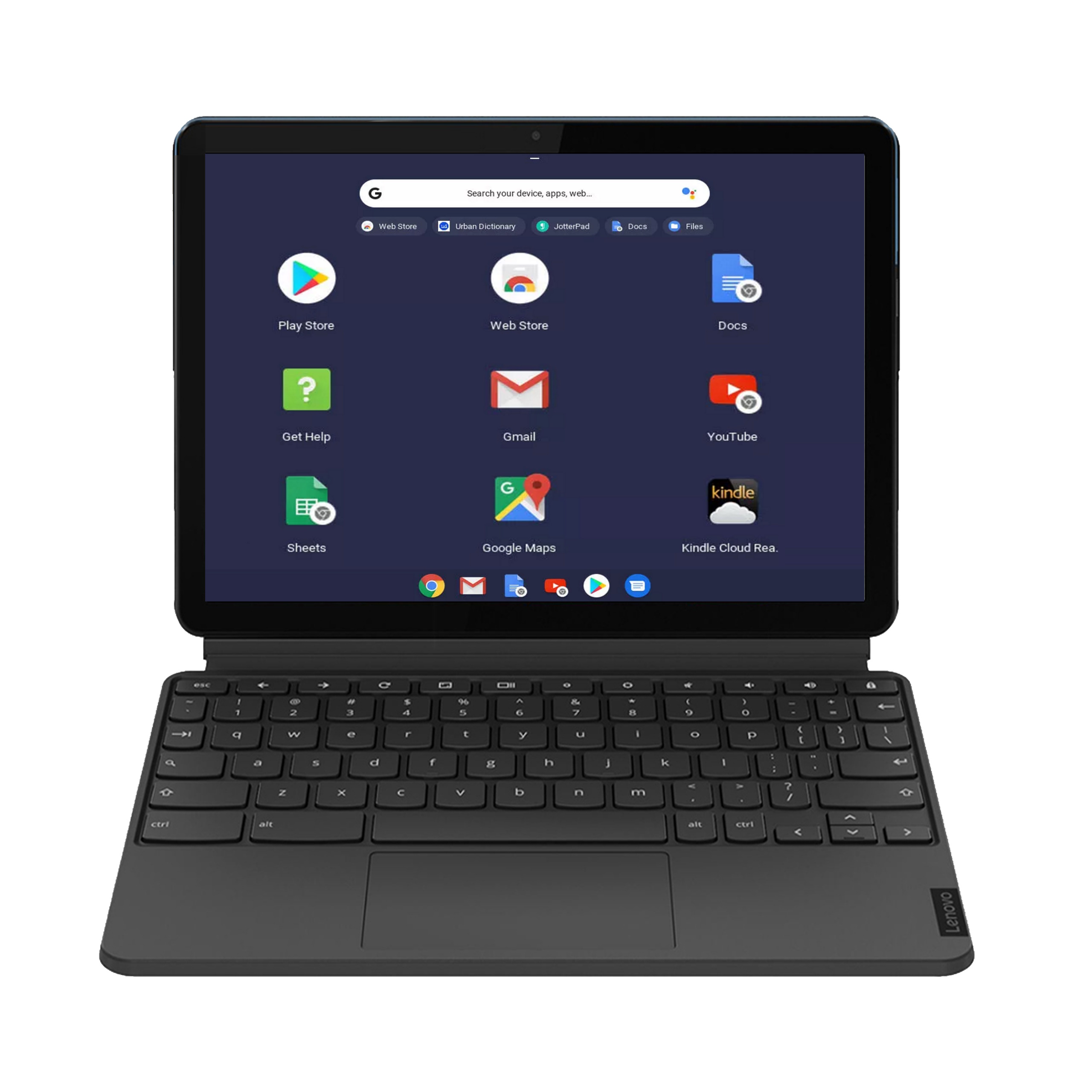
The Google Play Store is integrated directly into Chrome OS. To find it, you simply need to open your app launcher, which is typically located in the bottom-left corner of your screen, represented by a circle icon. Within the launcher, you’ll see a search bar. Type “Play Store” into the search bar, and the Google Play Store app icon will appear. Clicking this icon will launch the store.
Once the Play Store is open, you’ll be presented with a familiar interface. You can browse through various categories, explore featured apps, or use the search bar at the top to find specific applications by name. The layout is designed for intuitive navigation, much like its mobile counterpart.
Finding and Installing Apps
When you find an app you want to install, click on its listing. This will take you to the app’s detail page, where you can read a description, view screenshots, check user reviews, and see the app’s permissions. If you decide to proceed, you’ll see a prominent “Install” button.
Clicking the “Install” button will initiate the download and installation process. For most apps, this is a quick and straightforward affair, often taking only a few seconds to a minute, depending on your internet connection speed and the size of the app. Once the installation is complete, the app will appear in your Chromebook’s app launcher, ready to be used.
Types of Apps Available on the Play Store
The Google Play Store offers an incredible diversity of applications. You’ll find:
- Productivity Suites: Google’s own suite, including Docs, Sheets, and Slides, are pre-installed or easily accessible. Beyond that, you can find powerful alternatives like Microsoft Office apps (Word, Excel, PowerPoint) for cross-platform compatibility, and dedicated note-taking apps like Evernote and OneNote.
- Communication Tools: Essential for staying connected, apps like Zoom, Skype, Slack, and WhatsApp are readily available.
- Entertainment: Stream your favorite music and videos with Spotify, YouTube Music, Netflix, Hulu, and more.
- Gaming: Chromebooks are increasingly capable of running a wide variety of games, from casual puzzle games to more demanding titles available through cloud gaming services or directly from the Play Store.
- Educational Apps: Whether you’re a student or a lifelong learner, the Play Store offers a wealth of educational resources, language learning apps (Duolingo, Babbel), and skill-building platforms.
- Creative Tools: While Chromebooks might not replace high-end desktop workstations for professional graphic design or video editing, you can find capable apps for photo editing (Snapseed, Adobe Lightroom Mobile), drawing, and basic video creation.
- Utilities and Tools: This category encompasses a vast range of helpful apps, from file managers and password managers to system cleaners and specialized tools for developers.
Important Considerations for Play Store Apps
While the Play Store is a treasure trove, a few points are worth noting:
- Compatibility: Most Android apps are designed to work well on Chromebooks. However, some apps that rely heavily on specific touch gestures or hardware features unique to smartphones might not function perfectly. Developers are increasingly optimizing their apps for larger screens, but occasional quirks can still arise.
- Permissions: When you install an app, it will request certain permissions (e.g., access to your camera, microphone, location). It’s crucial to review these permissions and ensure you are comfortable with what the app will be able to access. This is a critical aspect of digital security.
- Updates: Apps from the Play Store are automatically updated in the background by default, ensuring you always have the latest features and security patches. You can manage these update settings within the Play Store app.
Beyond the Play Store: Web Apps and Progressive Web Apps (PWAs)
While the Google Play Store is the most prominent way to get apps, it’s not the only one. Chromebooks are fundamentally designed around the web, and this is reflected in their support for web applications and, more specifically, Progressive Web Apps (PWAs).
What are Web Apps?
Web apps are simply applications that run within your web browser. Many services you use daily, like Gmail, Google Calendar, or your online banking portal, are web apps. You access them by navigating to a specific website. Chrome OS makes it easy to integrate these into your app experience.
Progressive Web Apps (PWAs): The Best of Both Worlds
Progressive Web Apps (PWAs) are a more advanced form of web app that offers an app-like experience. They are built using web technologies but are designed to offer features traditionally associated with native apps, such as:
- Offline Access: Many PWAs can function even when you don’t have an internet connection, storing data locally.
- App-like Icon: You can “install” a PWA directly to your desktop or app launcher, giving it its own icon, just like a traditional app.
- Push Notifications: PWAs can send you notifications, keeping you updated without needing to have the browser tab open.
- Faster Performance: PWAs are often optimized for speed and responsiveness.
Installing PWAs on Your Chromebook
Installing a PWA is remarkably simple. When you visit a website that offers a PWA, you’ll often see an icon in the address bar (usually a computer monitor with a down arrow or a “+” sign) indicating that the site is installable. Clicking this icon will bring up a prompt to “Install [App Name].”
Once installed, the PWA will appear in your app launcher, just like any other app. This is a fantastic way to bring your favorite web services into a more integrated and accessible format, enhancing your productivity and digital workflow. Many popular services, like Twitter, Spotify (web player), and various news sites, offer PWAs.
Advanced Installation: Linux Apps
For users who need more power and flexibility, or for specific development and technical tasks, Chromebooks offer support for Linux applications. This feature, often referred to as “Linux (Beta),” allows you to run a Linux container on your Chromebook, opening up a world of command-line tools, development environments, and specialized software not typically available through the Play Store or as web apps.
Enabling the Linux Development Environment
To use Linux apps, you first need to enable the Linux development environment in your Chromebook’s settings.
- Go to your Chromebook’s Settings.
- In the left-hand menu, scroll down and click on Advanced.
- Under the “Developers” section, you’ll find “Linux development environment.” Click “Turn on.”
- Follow the on-screen prompts. This process involves downloading and setting up a Linux container, which may take a few minutes. You’ll be asked to choose a username and a disk size for your Linux environment.
Installing Linux Apps
Once the Linux environment is set up, a terminal window will open. This is your gateway to the Linux command line. You can install applications using standard Linux package managers, most commonly apt (Advanced Package Tool).
The general process involves:
-
Updating your package list: Before installing anything, it’s good practice to update your system’s list of available software. Open the terminal and type:
sudo apt updatePress Enter and enter your password if prompted.
-
Upgrading existing packages: It’s also recommended to upgrade any installed packages to their latest versions:
sudo apt upgradeThis command will list packages that can be upgraded and ask for your confirmation. Type ‘Y’ and press Enter to proceed.
-
Installing specific applications: To install a Linux application, you’ll use the
apt installcommand followed by the application’s package name. For example, to install the popular text editornano, you would type:
bash

sudo apt install nano
To install the VLC media player:
bash

sudo apt install vlc
You can find package names for many applications online by searching for “[Application Name] Linux package name.”
Important Considerations for Linux Apps
- Resource Usage: Running Linux apps can consume more system resources (CPU, RAM, storage) than Android apps or web apps. This is especially true for more complex or resource-intensive Linux applications.
- Compatibility and Stability: While powerful, the Linux environment on Chromebooks is still a containerized version. Not all Linux applications may run flawlessly, and some may require specific configurations or workarounds.
- Security: As with any command-line interface, be cautious about the commands you execute. Only install software from trusted sources. The
sudocommand grants administrative privileges, so it should be used with care. - Integration: Linux apps installed this way will also appear in your app launcher, allowing for seamless integration into your Chrome OS experience.
Conclusion: Empowering Your Chromebook Experience
Understanding how to install apps on your Chromebook is fundamental to unlocking its full potential. Whether you’re a student, a professional, or simply looking for a versatile and efficient computing device, the methods described above provide a comprehensive toolkit.
The Google Play Store offers the most accessible and extensive library for everyday use, providing access to millions of Android applications that cover virtually every need. For a more integrated and streamlined experience with web services, Progressive Web Apps (PWAs) bridge the gap between the web and native applications, offering app-like features directly from your browser. Finally, for those who require advanced functionality, development tools, or specific software not found elsewhere, the Linux development environment opens up a powerful realm of possibilities.
By mastering these installation methods, you can transform your Chromebook into a personalized hub for productivity, creativity, and entertainment, aligning perfectly with our website’s commitment to exploring the latest in Technology, building a strong Brand through effective tool utilization, and managing your Money more efficiently by choosing the right digital tools for your financial and business needs. So, go ahead, explore, and install the apps that will empower your digital life on your Chromebook.
aViewFromTheCave is a participant in the Amazon Services LLC Associates Program, an affiliate advertising program designed to provide a means for sites to earn advertising fees by advertising and linking to Amazon.com. Amazon, the Amazon logo, AmazonSupply, and the AmazonSupply logo are trademarks of Amazon.com, Inc. or its affiliates. As an Amazon Associate we earn affiliate commissions from qualifying purchases.