
The Amazon Fire Stick has revolutionized how many of us consume media, transforming any television into a smart hub for streaming services, apps, and online content. Its accessibility and affordability have made it a ubiquitous device in living rooms worldwide. However, as with any internet-connected device, security and privacy concerns are paramount. This is where a Virtual Private Network (VPN) steps in, offering a robust solution to enhance your Fire Stick experience by encrypting your traffic, masking your IP address, and unlocking geo-restricted content. If you’ve been wondering “how do you install a VPN on a Fire Stick?” you’ve come to the right place. This comprehensive guide will walk you through the process, making it accessible even for those new to VPN technology.
Why Use a VPN on Your Fire Stick?
Before diving into the installation process, it’s crucial to understand the benefits a VPN brings to your Fire Stick. While the primary drivers are often access and privacy, the advantages extend further, impacting your digital security and even your potential to access a wider array of entertainment.
Enhancing Your Digital Security and Privacy
When you connect to the internet without a VPN, your Internet Service Provider (ISP) can see every website you visit, every app you use, and potentially the content you stream. This data can be logged, sold to advertisers, or even handed over to authorities under certain circumstances. A VPN acts as a shield, encrypting all your internet traffic before it leaves your Fire Stick. This means that even if someone were to intercept your data, it would appear as unreadable gibberish.
Furthermore, a VPN masks your real IP address, replacing it with the IP address of the VPN server you connect to. Your IP address is a unique identifier that can be used to pinpoint your location. By masking it, you prevent websites, streaming services, and even your ISP from tracking your online activities back to you. This is particularly important when using public Wi-Fi networks, which are often unsecured and ripe for exploitation. For Fire Stick users, this translates to a more secure and anonymous streaming experience.
Unlocking Geo-Restricted Content
One of the most popular reasons for using a VPN on a Fire Stick is to bypass geo-restrictions. Many streaming services and individual content libraries are licensed for specific regions. This means that if you’re traveling abroad or simply want to access content not available in your country, you’ll be blocked. A VPN allows you to connect to a server in a different country, making it appear as though you are browsing from that location.
For example, if you’re in the UK and want to watch a show exclusively available on US Netflix, you can connect to a US-based VPN server. Your Fire Stick will then be assigned a US IP address, and Netflix will grant you access to its US content library. This is invaluable for avid streamers who want to maximize their entertainment options and don’t want geographical limitations to dictate what they can watch. This capability extends to other streaming platforms, sports broadcasts, and even news websites that might restrict access based on your location.
Protecting Against Bandwidth Throttling
Some ISPs engage in bandwidth throttling, which means they intentionally slow down your internet connection for certain activities, particularly high-bandwidth usage like streaming. They might do this to manage network congestion or to encourage users to upgrade to more expensive plans. When your ISP detects that you’re streaming a lot of data, they can throttle your connection, leading to buffering and a degraded viewing experience.
Since a VPN encrypts your traffic, your ISP cannot see what you are doing online. They can see that you are connected to a VPN server, but they cannot discern that you are streaming video. This effectively prevents them from selectively throttling your connection based on your streaming habits, ensuring a smoother and more consistent playback experience on your Fire Stick.
Installing a VPN on Your Fire Stick: The Step-by-Step Guide
The process of installing a VPN on your Fire Stick is surprisingly straightforward, thanks to the Amazon Appstore. Most reputable VPN providers offer dedicated apps that can be downloaded directly onto your device.
Step 1: Choose a Reputable VPN Provider
The first and arguably most crucial step is selecting a reliable VPN provider. Not all VPNs are created equal, and some may not be suitable for use with a Fire Stick. When choosing a VPN, consider the following factors:
- Fire Stick Compatibility: Ensure the VPN offers a dedicated Fire Stick app. This significantly simplifies the installation process.
- Server Network: Look for a provider with a vast network of servers in various locations. This is essential for bypassing geo-restrictions and finding optimal connection speeds.
- Speed and Performance: Streaming requires a fast and stable connection. Read reviews and look for VPNs known for their speed.
- Security Features: A strong VPN should offer robust encryption (AES-256 is the industry standard), a no-logs policy (meaning they don’t store your browsing activity), and a kill switch to prevent data leaks if the VPN connection drops.
- Ease of Use: The app should be intuitive and easy to navigate on the Fire Stick interface.
- Customer Support: Reliable customer support can be invaluable if you encounter any issues.
Popular and well-regarded VPNs that offer excellent Fire Stick apps include ExpressVPN, CyberGhost, NordVPN, and Surfshark. It’s often worth exploring their websites and comparing their features and pricing plans. Many offer free trials or money-back guarantees, allowing you to test them risk-free.
Step 2: Subscribe to a VPN Service
Once you’ve chosen your VPN provider, you’ll need to subscribe to their service. This is typically done through their website on a computer or mobile device. Navigate to the VPN provider’s website, select a subscription plan (usually offering monthly, annual, or multi-year options), and complete the payment process. After subscribing, you will receive your login credentials (username and password) which you’ll need to sign in to the VPN app on your Fire Stick.
Step 3: Download and Install the VPN App
With your subscription in place and login details ready, it’s time to install the VPN app on your Fire Stick.
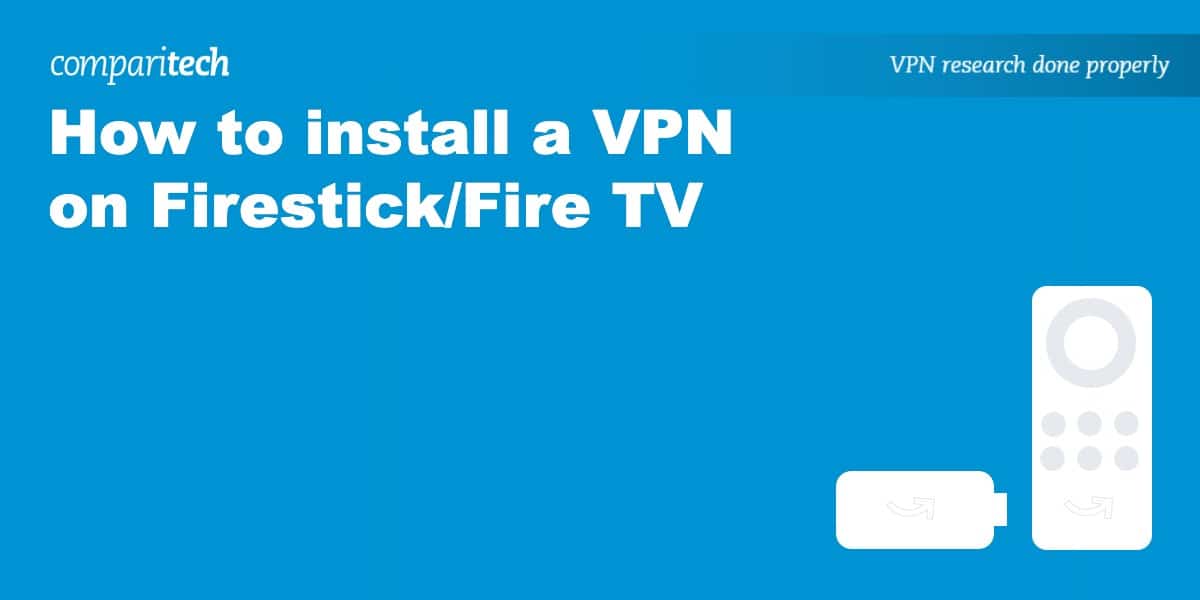
- Navigate to the Amazon Appstore: On your Fire Stick’s home screen, go to “Search” or “Apps” and then find the “Appstore.”
- Search for your VPN Provider: In the Appstore’s search bar, type the name of your chosen VPN provider (e.g., “ExpressVPN,” “NordVPN”).
- Select and Download: The VPN app should appear in the search results. Select it, and then click “Get” or “Download.” The app will then be downloaded and installed on your Fire Stick. This process is similar to installing any other app from the Appstore.
Step 4: Log In and Connect to a Server
After the app has been installed, you’ll find it in your Fire Stick’s “Apps” section.
- Open the VPN App: Launch the VPN app.
- Log In: You’ll be prompted to enter the username and password you created during your subscription. Carefully enter your credentials.
- Choose a Server Location: Once logged in, you’ll typically see a list of available server locations. For the best speeds, it’s often recommended to choose a server geographically close to you. However, if your goal is to access geo-restricted content, select a server in the country where that content is available.
- Connect: Click the “Connect” or “On” button. The VPN app will establish a secure connection to the chosen server. You’ll usually see an indicator on the screen confirming that you are connected.
Advanced Considerations and Troubleshooting
While the primary installation method is straightforward, there are a few advanced considerations and common troubleshooting tips that can enhance your Fire Stick VPN experience.
Manual Installation (Sideloading) for VPNs Without Fire Stick Apps
Occasionally, you might want to use a VPN service that doesn’t have a dedicated app on the Amazon Appstore. In such cases, you can resort to “sideloading” the VPN’s Android application file (APK). This is a more technical process but offers greater flexibility.
Before you begin, you’ll need to enable “Apps from Unknown Sources” on your Fire Stick:
- Go to Settings > My Fire TV.
- Select Developer Options.
- Turn on ADB Debugging and Apps from Unknown Sources. Be cautious when enabling “Apps from Unknown Sources,” as it can expose your device to security risks if you download apps from untrusted sources.
To sideload an APK:
- Install a File Manager: Download and install a file manager app like “Downloader” or “ES File Explorer” from the Amazon Appstore.
- Obtain the VPN’s APK: On a separate device (computer or phone), download the VPN’s Android APK file from the provider’s official website.
- Transfer the APK: Use a cloud storage service (like Google Drive or Dropbox) or a file transfer app to get the APK onto your Fire Stick. Alternatively, you can use the “Downloader” app to directly download the APK from a URL provided by your VPN service.
- Install the APK: Open your file manager on the Fire Stick, navigate to where you saved the APK file, and select it to install.
- Log In and Connect: Once installed, open the VPN app and log in with your credentials.
Ensuring Optimal Performance and Connection Stability
Even with a VPN installed, you might encounter occasional performance issues. Here are some tips to ensure a smooth streaming experience:
- Choose the Closest Server: For general browsing and streaming, connecting to a VPN server geographically closest to your actual location will usually provide the fastest speeds.
- Try Different Protocols: Most VPN apps allow you to choose between different VPN protocols (e.g., OpenVPN, IKEv2, WireGuard). Some protocols are faster than others, so experiment to see which works best for your Fire Stick.
- Clear App Cache: If you notice sluggish performance with the VPN app itself, try clearing its cache through your Fire Stick’s settings (Settings > Applications > Manage Installed Applications > [VPN App] > Clear Cache).
- Restart Your Fire Stick and Router: A simple restart of both your Fire Stick and your home router can often resolve connectivity issues and improve performance.
- Check Your Internet Speed: Ensure your underlying internet connection is robust enough for streaming. Run a speed test without the VPN connected to establish a baseline.
Troubleshooting Common Issues
- Cannot Connect to VPN: Double-check your login credentials. Ensure your Fire Stick has a stable internet connection. Try connecting to a different server location or using a different VPN protocol.
- Buffering Issues: This could be due to a slow VPN server, your ISP throttling your connection (though the VPN should prevent this), or an overall slow internet speed. Try closer servers, different protocols, or test your internet speed.
- App Not Found in Appstore: This is rare for major VPN providers. If it happens, you might need to sideload the app or consider a different VPN.
- VPN Disconnects Frequently: This could be a signal issue with your Wi-Fi. Ensure your Fire Stick is within range of your router. The VPN app’s kill switch feature is designed to prevent data leaks if this happens.

Conclusion
Installing a VPN on your Amazon Fire Stick is a wise decision for anyone looking to enhance their online security, privacy, and access to a wider world of entertainment. The process, especially with the availability of dedicated apps in the Amazon Appstore, is designed to be user-friendly. By following the steps outlined above, from choosing a reputable provider to connecting to your desired server, you can transform your Fire Stick into a more secure and versatile streaming device. Remember to prioritize providers that offer strong encryption, a no-logs policy, and a broad server network to unlock the full potential of your Fire Stick. Embrace the benefits of a VPN and enjoy a safer, more expansive digital experience.
aViewFromTheCave is a participant in the Amazon Services LLC Associates Program, an affiliate advertising program designed to provide a means for sites to earn advertising fees by advertising and linking to Amazon.com. Amazon, the Amazon logo, AmazonSupply, and the AmazonSupply logo are trademarks of Amazon.com, Inc. or its affiliates. As an Amazon Associate we earn affiliate commissions from qualifying purchases.