
In today’s digitally driven world, a reliable printer remains an indispensable tool for both personal and professional use. Whether you’re printing important documents for work, school projects, creative endeavors, or even just the occasional recipe, a functioning printer is key. While the thought of setting up new hardware can sometimes seem daunting, the process of installing a printer on your laptop has become remarkably user-friendly, largely thanks to advancements in technology and streamlined operating systems. This comprehensive guide will walk you through the essential steps, covering various connection methods, troubleshooting common issues, and even offering tips for maintaining your printer’s optimal performance. We aim to demystify the process, ensuring that whether you’re a tech novice or a seasoned user, you can confidently connect your printer and get back to printing in no time.
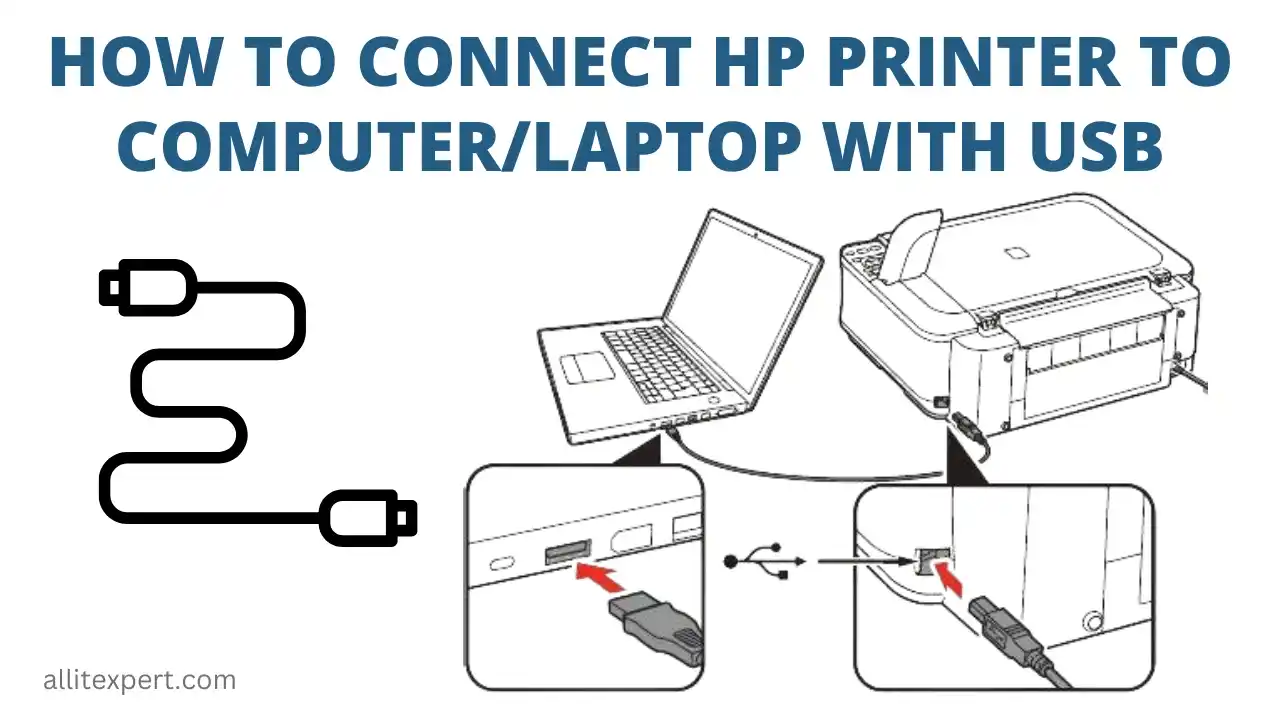
The journey of connecting a printer to your laptop typically involves a few core stages: physically connecting the printer, installing the necessary software, and then configuring it within your operating system. The specific steps might vary slightly depending on the type of printer you have (inkjet, laser, all-in-one) and the connectivity options it offers (USB, Wi-Fi, Ethernet), as well as your laptop’s operating system (Windows or macOS).
Understanding Your Printer and Connection Options
Before diving into the installation process, it’s crucial to understand the types of printers available and the common ways they connect to your laptop. This initial understanding will help you choose the most suitable method and anticipate any specific requirements.
Types of Printers
Printers have evolved significantly, offering a range of functionalities to suit diverse needs. The most common types you’ll encounter include:
- Inkjet Printers: These are typically more affordable and ideal for home use. They use liquid ink cartridges to spray tiny droplets of ink onto paper, making them excellent for printing vibrant color photos and graphics. However, ink cartridges can be expensive to replace, and print speeds might be slower compared to laser printers.
- Laser Printers: Known for their speed and cost-effectiveness for high-volume black-and-white printing, laser printers use toner powder fused onto the paper. They are generally more expensive upfront but have lower per-page printing costs, making them a popular choice for offices and businesses. Color laser printers are also available, offering good quality color output but at a higher price point.
- All-in-One (AIO) or Multi-Function Printers (MFP): These versatile devices combine printing capabilities with scanning, copying, and sometimes faxing. They are a space-saving and cost-effective solution for users who need multiple functionalities from a single device. AIO printers can be either inkjet or laser based.
- Photo Printers: Dedicated to producing high-quality photographic prints, these printers often feature multiple ink cartridges for a wider color gamut and specialized paper handling.
Common Connection Methods
The way your printer physically connects to your laptop is a key factor in the installation process. Modern printers offer a variety of connection options:
- USB Connection: This is the most straightforward and widely used method, especially for older or simpler printers. A USB cable directly links the printer to a USB port on your laptop. It’s a reliable connection that doesn’t require a network.
- Wi-Fi (Wireless) Connection: This offers the greatest flexibility, allowing you to print from any device connected to your home or office network without physical cables. Most modern printers come with Wi-Fi capabilities. You’ll typically need to connect the printer to your Wi-Fi network first, often using a setup wizard on the printer’s control panel or via a dedicated setup application.
- Ethernet (Wired Network) Connection: Similar to Wi-Fi, this method connects the printer to your network, but via an Ethernet cable to your router or network switch. This provides a stable and fast connection, often preferred in business environments where reliability is paramount.
- Bluetooth: While less common for full-sized printers, some portable or mobile printers utilize Bluetooth for direct, short-range wireless printing from your laptop or smartphone.
Installing Your Printer: Step-by-Step Guides
The installation process generally involves preparing your hardware, installing software drivers, and then configuring the printer within your operating system. We’ll break this down into common scenarios for both Windows and macOS.
Installing a Printer on Windows
Windows has made printer installation incredibly simple. The operating system often automatically detects and installs drivers for many common printers, but manual steps are also straightforward.
Method 1: Automatic Detection (Plug and Play)
- Power On and Connect: Turn on your printer and ensure it’s loaded with paper and ink/toner. Connect the printer to your laptop using the appropriate cable (USB, Ethernet) or ensure it’s connected to your Wi-Fi network.
- Windows Detection: Windows should automatically detect the new hardware. You might see a notification in the system tray indicating that a device is being set up. In many cases, Windows will automatically download and install the necessary drivers from Windows Update.
- Confirmation: Once detected and drivers are installed, your printer should appear in the list of available printers under “Devices and Printers” in the Control Panel or “Printers & scanners” in Windows Settings.
Method 2: Manual Installation
If automatic detection fails or you need to install additional software/features from the manufacturer:
- Use the Setup CD/DVD (if provided): Many printers come with an installation disc. Insert it into your laptop’s optical drive and follow the on-screen prompts. This will typically install the drivers and any bundled utility software.
- Download Drivers from the Manufacturer’s Website: This is often the most reliable method, especially for newer printers or if you’ve lost the installation disc.
- Identify your printer’s exact model number. This is usually found on the front or back of the printer.
- Visit the printer manufacturer’s official website (e.g., HP, Canon, Epson, Brother).
- Navigate to the “Support” or “Downloads” section.
- Enter your printer model number to find the correct drivers and software for your operating system version (e.g., Windows 11, Windows 10, 64-bit or 32-bit).
- Download the driver package.
- Run the downloaded installer file and follow the on-screen instructions. The installer will guide you through connecting the printer (if not already connected) and installing the necessary software.
- Adding a Printer Manually in Windows Settings:
- Go to Settings > Bluetooth & devices > Printers & scanners.
- Click on Add device.
- Windows will scan for available printers.
- If your printer is found, select it and click Add device.
- If your printer is not found, click Add manually. You’ll then be presented with several options:
- “My printer is a little older. Help me find it.” – Windows will attempt to locate older printers.
- “Select a shared printer by name.” – For printers shared on a network.
- “Add a printer using a TCP/IP address or hostname.” – For network printers where you know the IP address.
- “Add a Bluetooth, wireless or network discoverable printer.” – To search for network printers again.
- “Add a local printer or network printer with manual settings.” – This option allows you to select a port (like a USB port) and then manually choose the driver from a list or disk.
Installing a Printer on macOS
macOS is renowned for its user-friendly interface, and printer installation is no exception.
Method 1: Automatic Detection (AirPrint and Standard Drivers)
- Power On and Connect: Turn on your printer, load paper and ink/toner. Connect it to your laptop via USB, Ethernet, or ensure it’s connected to your Wi-Fi network.
- macOS Detection: macOS often automatically detects printers connected via USB or on your network. If your printer supports AirPrint (Apple’s wireless printing protocol), it might be set up automatically without needing drivers.
- Add Printer:
- Go to System Settings (or System Preferences on older macOS versions) > Printers & Scanners.
- Click the Add Printer, Scanner, or Fax… button.
- Your Mac will scan for available printers. Select your printer from the list.
- macOS will usually automatically select the correct driver under “Use.” If it says “Generic PCL Printer” or similar, try selecting “Select Software” and searching for your specific printer model.
- Click Add.
Method 2: Manual Installation and Driver Downloads
If your printer isn’t detected or you need specific features:
- Download Drivers from the Manufacturer’s Website:
- Similar to Windows, identify your printer’s model number.
- Visit the printer manufacturer’s support website.
- Download the latest macOS drivers and software for your printer model and macOS version.
- Run the downloaded installer package and follow the on-screen instructions.
- Add Printer Manually:
- Follow steps 1-3 from the Automatic Detection method above.
- If your printer isn’t appearing in the initial scan, you might need to select the “IP” tab (for network printers where you know the IP address) or ensure your printer is discoverable on the network.
- For USB printers not detected, ensure the manufacturer’s drivers are installed before attempting to add the printer in System Settings.
Wireless Printer Setup: Connecting to Wi-Fi
Setting up a printer for wireless printing is often the most convenient option. The exact process varies by manufacturer, but the general steps are:
- Initiate Wireless Setup on the Printer: Most printers with Wi-Fi have a setup wizard on their control panel. Navigate through the printer’s menu to find “Wi-Fi Setup,” “Network Settings,” or similar options.
- Scan for Networks: The printer will scan for available Wi-Fi networks. Select your home or office network from the list.
- Enter Wi-Fi Password: You’ll be prompted to enter your Wi-Fi network password. This can sometimes be tedious using a small printer display, but some printers offer alternative methods like WPS (Wi-Fi Protected Setup) or using a mobile app to transfer settings.
- Connect and Confirm: Once you enter the password correctly, the printer will attempt to connect to the network. A confirmation message on the printer’s screen or an indicator light will confirm a successful connection.
- Install on Laptop: After the printer is connected to your Wi-Fi, proceed with the printer installation on your laptop as described in the Windows or macOS sections above. Your laptop will then discover the printer on the network.
Tip for Wi-Fi Setup: If your printer has a WPS button, and your router also supports it, you can often press the WPS button on both devices within a short timeframe to establish a connection without manually entering the password.

Troubleshooting Common Printer Installation Issues
Even with simplified processes, you might encounter hiccups. Here are some common issues and how to resolve them:
- Printer Not Detected:
- Check Cables and Connections: Ensure USB cables are firmly plugged in at both ends. For network printers, verify the Ethernet cable is secure or that the printer is connected to the correct Wi-Fi network (check the Wi-Fi password).
- Restart Devices: A simple restart of your laptop, printer, and router can often resolve temporary glitches.
- Update Operating System: Ensure your Windows or macOS is up to date, as updates often include improved driver support.
- Firewall/Antivirus: Sometimes, security software can block printer discovery. Temporarily disable your firewall or antivirus to see if that resolves the issue, and then re-enable it and add an exception for your printer if needed.
- Driver Issues:
- Incorrect Driver: Ensure you’ve downloaded the driver for the exact printer model and your operating system version.
- Corrupted Driver: Uninstall the existing printer driver (via Control Panel or Settings on Windows, or by removing the printer and ensuring its software is uninstalled on macOS) and re-download and install the latest driver from the manufacturer’s website.
- Driver Signing: On Windows, you might encounter warnings about unsigned drivers. If you trust the source (the manufacturer’s official website), you can proceed.
- Printing Blank Pages or Incorrect Formatting:
- Ink/Toner Levels: Check if ink or toner cartridges are low or empty.
- Print Head Cleaning/Alignment: Most printer software includes tools for cleaning and aligning print heads, which can resolve printing quality issues.
- Paper Type Settings: Ensure the paper type selected in the print dialog box matches the paper loaded in the printer.
- Software Conflicts: If you’re printing from a specific application, try printing from another application to see if the issue is application-specific.
- Wi-Fi Connectivity Problems:
- Signal Strength: Ensure the printer is within a reasonable range of your Wi-Fi router.
- Network Band: Some older printers only support 2.4GHz Wi-Fi bands, while newer routers might default to 5GHz. Check your router settings if needed.
- Router Settings: Certain router settings like MAC address filtering can prevent new devices from connecting.
By following these steps and being aware of potential troubleshooting solutions, you should be able to successfully install your printer on your laptop and enjoy seamless printing. Remember to consult your printer’s user manual for specific instructions tailored to your model, as it’s an invaluable resource for any printer-related task.
aViewFromTheCave is a participant in the Amazon Services LLC Associates Program, an affiliate advertising program designed to provide a means for sites to earn advertising fees by advertising and linking to Amazon.com. Amazon, the Amazon logo, AmazonSupply, and the AmazonSupply logo are trademarks of Amazon.com, Inc. or its affiliates. As an Amazon Associate we earn affiliate commissions from qualifying purchases.