
In an increasingly digital world, managing our online footprint has become a critical aspect of personal data security and digital well-being. Whether you’re decluttering your online presence, taking a digital detox, moving to another platform, or simply no longer need your channel, the decision to delete a YouTube account is significant. This guide delves into the technical process of removing your YouTube presence, detailing the steps, implications, and crucial distinctions between deleting a channel versus your entire Google account. Understanding these nuances is essential to ensure you achieve your desired outcome without unintended consequences.

Understanding the Implications Before Deletion
Before proceeding with any deletion, it’s paramount to understand what exactly happens and the irreversible nature of the process. A YouTube account isn’t merely a standalone profile; it’s intricately linked to your broader Google ecosystem.
What Happens When You Delete Your YouTube Channel?
Deleting your YouTube channel is a comprehensive action that erases a significant portion of your digital identity on the platform. Once initiated and confirmed, the following occurs:
- Permanent Content Removal: All videos you have ever uploaded, regardless of their privacy settings (public, unlisted, private), will be permanently deleted. This also extends to all comments you’ve posted, messages you’ve sent, playlists you’ve created, and your entire watch and search history. There is no recovery option for this content once deletion is complete.
- Channel Inaccessibility: Your channel’s unique URL will cease to function, and your channel name will no longer be searchable or visible on YouTube. Any links to your channel or its content will lead to an error page.
- Loss of Analytics and Monetization: If your channel was part of the YouTube Partner Program, you will permanently lose access to all earnings, analytics data, and any associated AdSense account links specific to that channel.
- Subscriber and Subscription Loss: Your subscriber count will be gone, and all subscriptions you made to other channels will also be removed from your profile.
- Google Account Remains Intact: This is a crucial distinction. Deleting your YouTube channel does not delete your underlying Google account. You will still have access to other Google services like Gmail, Google Drive, Google Photos, and so forth, using the same login credentials. Only your YouTube presence tied to that specific channel will be removed.
Distinguishing Between Hiding and Deleting Your Channel
YouTube offers two primary options for removing your channel from public view, each with vastly different implications:
- Hiding Your Channel: This is a temporary measure that essentially makes your channel and all its content private. Your videos, playlists, subscribers, and comments are hidden from public view. Your channel name will no longer appear on YouTube, but your existing comments and replies might still be visible (though unlinked to a channel). Crucially, a hidden channel can be reactivated at any time, restoring all its content and settings as they were. This is ideal for those considering a break or temporary privacy.
- Permanently Deleting Your Content/Channel: As detailed above, this is an irreversible action. All content is erased, and while your Google account remains, your specific YouTube channel and its history are gone forever. There is no simple “reactivate” button once this process is complete.
The Google Account Connection
Every YouTube channel is inextricably linked to a Google account. This foundational connection means that actions taken on one can affect the other, though not always symmetrically. Deleting a YouTube channel will not delete your Google account. However, deleting your entire Google account will inevitably lead to the deletion of all associated YouTube channels, along with all data across all Google services, including your Gmail, Google Drive files, Google Photos, calendar entries, Play Store purchases, and more. Understanding this hierarchy is vital for making an informed decision about your digital assets.
Step-by-Step Guide to Deleting Your YouTube Channel
The process of deleting your YouTube channel is straightforward but requires careful attention to detail due to its permanent nature.
Preparation: Backing Up Your Data
Before you even consider deletion, the most critical preparatory step is to back up any content you wish to retain. Once deleted, your videos and other data are unrecoverable.
- Utilize Google Takeout: Google provides a comprehensive data export service called Google Takeout (takeout.google.com). Through this tool, you can select specific Google products, including YouTube, to download all your associated data. For YouTube, this typically includes your uploaded videos, comments, playlists, subscriptions, and more. It’s highly recommended to download all your uploaded videos and any other valuable data before proceeding.
- Consider Third-Party Tools: While Google Takeout is robust, some creators might prefer specialized tools for specific types of content, such as higher-resolution video downloads or transcriptions. Researching such options might be beneficial if your content library is extensive or highly valuable.
Accessing Your YouTube Studio
Once your data is backed up, you can initiate the deletion process.
- Log In: Go to youtube.com and ensure you are logged in to the Google account associated with the YouTube channel you wish to delete.
- Navigate to YouTube Studio: Click on your profile icon (usually in the top right corner of the YouTube homepage). From the dropdown menu, select “YouTube Studio.” This is the backend interface for managing your channel.
Navigating to Advanced Settings
Within YouTube Studio, you’ll find the options for channel management.
- Access Settings: In the left-hand menu of YouTube Studio, scroll down and click on “Settings.” A new pop-up window will appear with various channel settings.
- Go to Channel Settings: In the “Settings” window, click on “Channel” from the left-hand navigation.
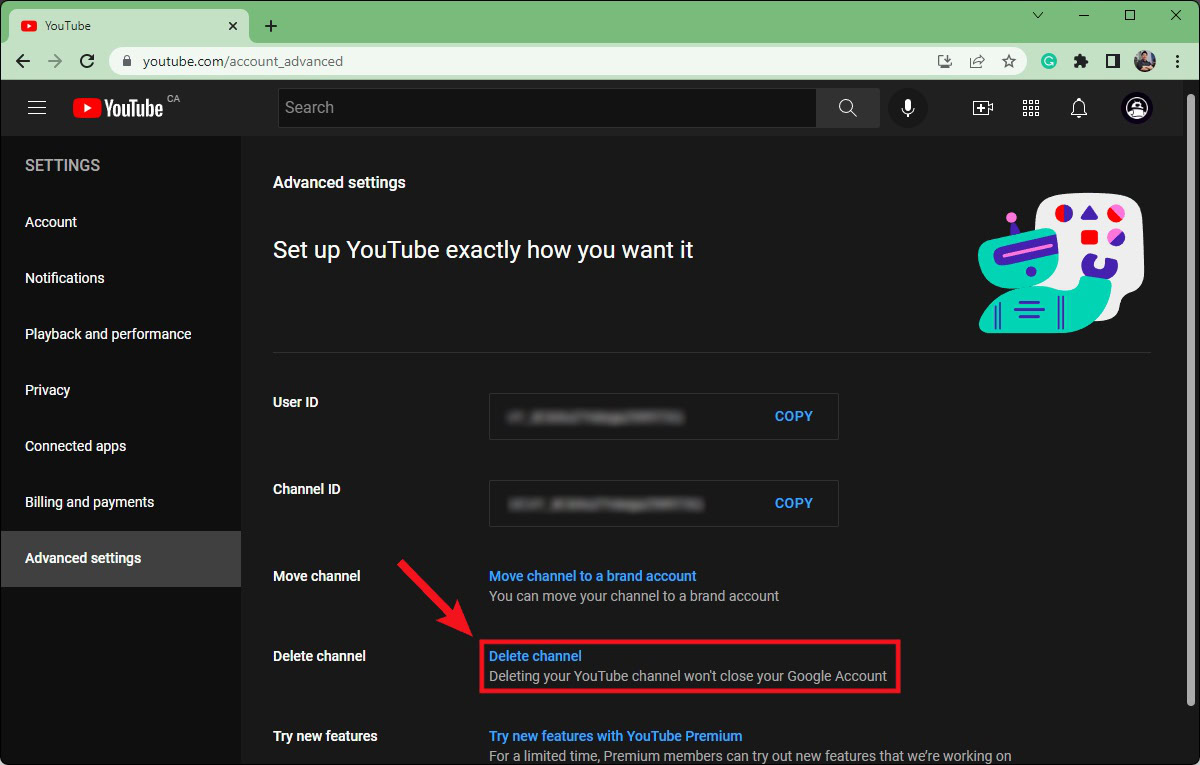
- Select Advanced Settings: Within the “Channel” section, click on the “Advanced settings” tab.
Locating the Delete Option
Scroll to the bottom of the “Advanced settings” page.
- Find “Remove YouTube Content”: You will see an option labeled “Remove YouTube content” or something similar. Click on this link.
- Re-authenticate: For security purposes, Google will likely ask you to re-enter your password to verify your identity.
- Choose Deletion: You will be presented with two main options: “Hide my channel” and “I want to permanently delete my content.” Select “I want to permanently delete my content.”
Confirmation and Verification
This is the final, critical stage.

- Review Checkboxes: YouTube will present you with a list of items that will be deleted (e.g., your videos, playlists, comments, messages, subscribers, etc.). You must check the boxes to confirm that you understand and agree to the permanent deletion of these items. Read these carefully to ensure you fully comprehend the scope of the action.
- Confirm Channel Name: You might also be asked to re-type your channel name to double-confirm your intent.
- Final Confirmation: Click the “Delete My Content” button.
The Waiting Period (If Any)
While the deletion is generally immediate from your perspective, it might take some time for YouTube’s systems to fully process and remove all your content from their servers. This can range from a few minutes to a few hours, and in rare cases, up to a couple of days. During this period, your channel might appear as “unavailable.”
Deleting Your Entire Google Account (and Linked YouTube Channel)
If your goal is a complete digital exodus from Google’s ecosystem, including YouTube, then deleting your entire Google account is the path to take. However, this is a far more drastic action with widespread implications for your digital life.
Understanding the Broader Impact
Deleting your Google account is like cutting ties with a major digital hub. It affects virtually every Google service you use:
- Gmail: Your primary email address will be deleted, and all emails will be lost.
- Google Drive: All files, documents, spreadsheets, and presentations stored in your Drive will be permanently deleted.
- Google Photos: All your photo and video backups will be erased.
- Google Calendar: All your appointments and events will be lost.
- Google Play Store: All app purchases, movie rentals, and music downloads linked to the account will be inaccessible.
- Android Devices: Any Android devices linked to the account may lose functionality for app downloads, backups, and more.
- YouTube: All associated YouTube channels and their content will be permanently deleted.
Comprehensive Data Backup Strategy
Given the extensive impact, a comprehensive data backup strategy is absolutely essential.
- Use Google Takeout Extensively: Before deleting your Google account, use Google Takeout to download all data from all Google services you use. This includes Gmail archives, Drive files, Photos, Calendar events, and any other data you wish to preserve. Do not skip this step, as account deletion is irreversible.
- Transfer Ownership: If you have important documents or photos, consider transferring ownership or sharing copies with trusted individuals or other accounts before deletion.
- Update Recovery Options: Ensure you have alternative recovery email addresses and phone numbers updated for any other online accounts (social media, banking, etc.) that might have used your Google account email for verification or login.
The Deletion Process
- Access Google Account Settings: Go to myaccount.google.com and log in to the Google account you wish to delete.
- Navigate to Data & Privacy: In the left-hand navigation pane, click on “Data & privacy.”
- Find Deletion Option: Scroll down to the “More options” section and click on “Delete your Google Account.”
- Read Warnings Carefully: Google will present a detailed list of all services and data that will be lost. Read every warning carefully and ensure you understand the full implications.
- Confirm Identity: You will be prompted to re-enter your password to verify your identity.
- Final Confirmation: Check all the required boxes to acknowledge your understanding of the consequences, and then click “Delete Account.”
Irreversibility and Recovery Window
Once you confirm the deletion of your Google account, it is permanently gone. While Google sometimes offers a very short, limited recovery window (often 20-30 days) for accidentally deleted accounts, this is not guaranteed and should never be relied upon. Treat the deletion as final and irreversible. If you’ve backed up your data correctly, you’ll retain your content, but the account itself will be unrecoverable.
Best Practices for Digital Detox and Account Management
Managing your digital life extends beyond just deletion. It involves proactive strategies for privacy and mental well-being.
Reviewing Connected Apps and Services
Before a full account deletion, it’s a good practice to review all third-party applications and services that have been granted access to your Google/YouTube account.
- Revoke Access: Go to your Google Account (myaccount.google.com) -> “Security” -> “Third-party apps with account access.” Here, you can review and revoke access for any apps or services that no longer need your data or that you no longer use. This minimizes potential data exposure even after deletion.
Notifying Your Audience (If Applicable)
If you’re a content creator with an audience, consider posting a final video or a community tab announcement to inform your subscribers about your departure. This provides closure and allows them to follow you elsewhere if you’re transitioning platforms.
Alternatives to Full Deletion
If you’re uncertain about permanently deleting your channel or account, consider these less drastic alternatives:
- Hiding Your Channel: As discussed, this is a reversible option for a temporary break or increased privacy.
- Setting Videos to Private or Unlisted: For specific videos you want to remove from public view but not entirely delete, you can set them to “private” (only you and chosen viewers can see them) or “unlisted” (anyone with the direct link can view, but they won’t appear in search results or on your channel page).
- Taking a Break: Simply stopping content creation and disengaging from the platform can be a form of digital detox without the permanence of deletion.
Regular Digital Housekeeping
Periodically reviewing your online accounts, associated data, and privacy settings is a healthy habit. This “digital housekeeping” ensures you maintain control over your online presence, minimize unnecessary data retention, and contribute to your overall digital security and well-being.
Conclusion
Deleting a YouTube account or your entire Google account is a significant digital decision with permanent consequences. While the process itself is technically straightforward, the implications for your content, data, and interconnected online services are far-reaching. By thoroughly understanding the differences between hiding and deleting, backing up all necessary data, and carefully following each step, you can ensure that your digital decluttering or departure from YouTube is executed precisely as intended, maintaining control over your online identity and data security. Remember, in the digital realm, preparation and careful consideration are key to informed and secure actions.
aViewFromTheCave is a participant in the Amazon Services LLC Associates Program, an affiliate advertising program designed to provide a means for sites to earn advertising fees by advertising and linking to Amazon.com. Amazon, the Amazon logo, AmazonSupply, and the AmazonSupply logo are trademarks of Amazon.com, Inc. or its affiliates. As an Amazon Associate we earn affiliate commissions from qualifying purchases.