
In the modern digital landscape, the Graphics Processing Unit (GPU) has evolved from a simple component responsible for rendering pixels into the powerhouse behind high-end gaming, complex 3D rendering, and even the acceleration of Artificial Intelligence. However, even the most expensive hardware is only as effective as the software that commands it. This software—the graphics driver—acts as the vital translator between your operating system and your hardware. Keeping this bridge updated is not merely a matter of maintenance; it is a critical step in ensuring system stability, unlocking peak performance, and safeguarding your digital environment.

Why Keeping Your Graphics Drivers Updated Matters
The frequency with which companies like NVIDIA, AMD, and Intel release driver updates might seem overwhelming, but these updates serve several fundamental purposes that directly impact your daily computing experience.
Performance Optimization for Gaming and Productivity
For gamers, driver updates are often synonymous with “Game Ready” releases. Manufacturers work closely with game developers to release specific optimizations ahead of major title launches. These updates can provide double-digit percentage increases in frame rates and significantly reduce input latency. For creative professionals using software like Adobe Premiere Pro or DaVinci Resolve, updated drivers ensure that hardware acceleration—where the GPU takes over heavy lifting from the CPU—works seamlessly, drastically reducing export times and improving timeline fluidity.
System Stability and Bug Fixes
A primary cause of the dreaded “Blue Screen of Death” (BSOD) or spontaneous application crashes is an outdated or corrupt graphics driver. Operating systems like Windows 11 undergo constant updates that change how software interacts with hardware. If your driver is stagnant, it may struggle to interpret new system calls, leading to memory leaks or hardware hangs. Update cycles frequently include patches for known bugs that might cause flickering, screen tearing, or visual artifacts in specific applications.
Support for New Technologies and Security
Modern GPUs are packed with features like Ray Tracing, AI-driven upscaling (DLSS or FSR), and advanced encoding formats like AV1. As these technologies evolve, drivers are updated to refine their efficiency. Furthermore, drivers are not immune to security vulnerabilities. Hackers can sometimes exploit flaws in driver code to gain kernel-level access to a system. Regular updates ensure that these security loopholes are closed, protecting your data at a foundational level.
Identifying Your Graphics Hardware
Before you can update your drivers, you must accurately identify the make and model of your GPU. While many users are aware of their brand, the specific series and model number are required to download the correct software package.
Using Windows Device Manager
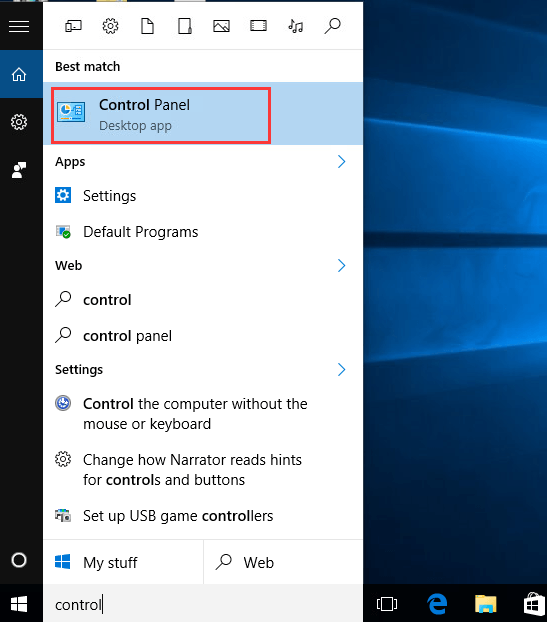
The most direct way to identify your hardware within Windows is through the Device Manager. By right-clicking the Start button and selecting “Device Manager,” you can navigate to the “Display adapters” section. Expanding this will reveal the exact model of your GPU, such as an “NVIDIA GeForce RTX 3070” or “AMD Radeon RX 6800 XT.” This tool also provides the current driver version and date, allowing you to cross-reference it with the manufacturer’s latest release.
System Information and Diagnostic Tools
For a more detailed overview, the DirectX Diagnostic Tool (dxdiag) is invaluable. By typing “dxdiag” into the Windows search bar and hitting enter, you open a comprehensive report. Under the “Display” tab, you will find the chip type, the amount of VRAM (Video RAM), and the specific driver file version currently in use. This is particularly helpful for identifying integrated graphics in laptops, which may use Intel Iris Xe or AMD Radeon mobile chips.
Third-Party Utilities for Hardware Monitoring
If you prefer a more visual or detailed interface, tools like GPU-Z or HWiNFO provide real-time data on your hardware. These utilities show the GPU’s clock speeds, temperature, and even the manufacturer of the memory modules on the card. For users with custom-built PCs, these tools can confirm if the hardware is performing to its factory specifications before and after a driver update.
Step-by-Step Guide: Updating NVIDIA, AMD, and Intel Drivers
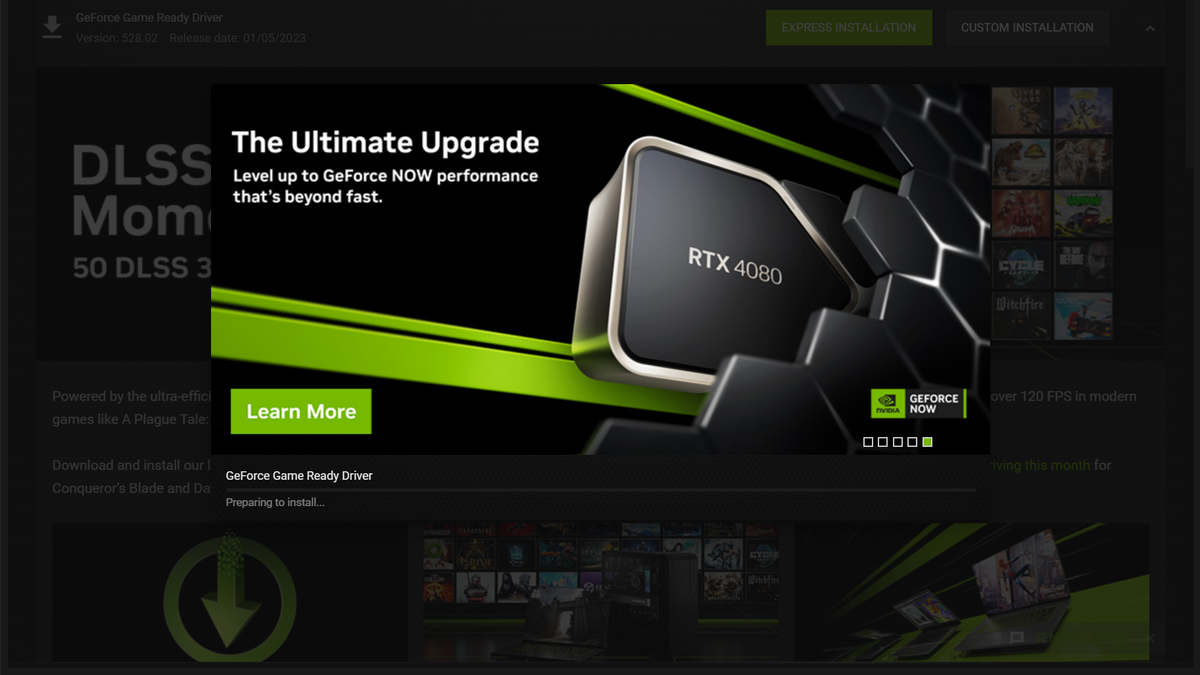
Each of the major hardware manufacturers provides a unique software ecosystem for managing drivers. Depending on your preference for automation versus manual control, there are two primary ways to handle the update process.
NVIDIA: Using GeForce Experience and Manual Downloads
NVIDIA users generally rely on GeForce Experience, a companion app that notifies you the moment a new driver is available. With a single click, the software downloads and installs the “Game Ready” driver. However, for professionals, NVIDIA also offers “Studio Drivers,” which prioritize stability for creative apps over day-one game optimizations.
- Manual Update: If you prefer not to use the app, visit the NVIDIA Driver Downloads page. You must manually select your Product Type, Series, and Operating System. Once downloaded, running the
.exefile will initiate the installation wizard.
AMD: Leveraging Radeon Software (Adrenalin Edition)
AMD’s Radeon Software Adrenalin is often praised for its comprehensive feature set. To update, right-click on your desktop, open “AMD Software,” and check the “System” tab. If an update is available, it will provide a “Download” button.
- Optional/Recommended: AMD often categorizes drivers into “Recommended” (WHQL certified for stability) and “Optional” (latest features but potentially less tested). For most users, sticking to Recommended versions is the safest bet for a work-from-home or professional environment.
Intel: Graphics Command Center and Support Assistant
While Intel was historically known for integrated graphics, their entry into the discrete GPU market with the Arc series has changed their driver landscape. Most Intel users should use the Intel Driver & Support Assistant (DSA). This web-based tool scans your system and provides a list of all out-of-date Intel components. For those using Intel Arc GPUs, the Intel Arc Control software provides a modern interface for driver management and performance tuning, similar to NVIDIA and AMD’s offerings.
Advanced Methods: Clean Installations and Troubleshooting
Sometimes, a standard update isn’t enough. If you are experiencing persistent visual glitches or are upgrading from one brand of GPU to another (e.g., switching from AMD to NVIDIA), a “clean install” is recommended to prevent driver conflicts.
Using Display Driver Uninstaller (DDU)
The “Clean Install” option provided by manufacturers in their installers is helpful, but it often leaves behind registry keys and stray files. Display Driver Uninstaller (DDU) is the industry-standard tool for a total purge.
- Download DDU and the new driver for your GPU.
- Disconnect your internet (to prevent Windows Update from automatically installing a generic driver).
- Boot your PC into Safe Mode.
- Run DDU and select “Clean and restart.”
- Once back in normal Windows, install the driver you downloaded earlier. This ensures that no legacy code interferes with the new software.
Rolling Back Drivers After a Faulty Update
Not every update is perfect. Occasionally, a new driver version might introduce a bug that affects your specific workflow. If this happens, Windows allows you to “Roll Back Driver.” In the Device Manager, right-click your GPU, select “Properties,” go to the “Driver” tab, and click “Roll Back Driver.” This returns the system to the previously functioning version.
Windows Update vs. Manufacturer-Specific Drivers
A common mistake is relying solely on Windows Update. While Microsoft does provide graphics drivers, they are often “generic” versions designed for basic display functionality rather than performance. They are frequently several months behind the manufacturers’ versions. For the best experience, always download drivers directly from NVIDIA, AMD, or Intel rather than relying on the automated Windows system.
The Future of GPU Drivers: AI Integration and Automation
As we move further into the decade, graphics drivers are becoming more than just translators; they are becoming intelligent managers of system resources.
Driver-Level AI Enhancements
We are seeing a shift where AI is integrated directly into the driver level. NVIDIA’s DLSS (Deep Learning Super Sampling) and AMD’s FSR (FidelityFX Super Resolution) rely on driver-side algorithms to upscale lower-resolution images in real-time. Future drivers will likely use AI to predict thermal throttles before they happen, adjusting clock speeds dynamically to maintain a smooth frame rate without user intervention.
Cloud-Based Optimization and Automatic Patching
The next frontier for drivers is cloud integration. We are already seeing “cloud-optimized” settings where the driver checks a central database to see what settings other users with your exact hardware are using for specific games or apps. As internet speeds increase, we may see “streaming drivers” that patch small portions of code on the fly to fix bugs in specific applications without requiring a full system reboot or a 600MB download.
In conclusion, knowing how to update your graphics driver is an essential skill in the modern tech toolkit. By understanding the “why,” identifying your hardware correctly, and following a disciplined update routine, you ensure that your computer remains fast, stable, and secure. Whether you are a hardcore gamer, a digital artist, or a business professional, your GPU is your window into the digital world—keep it clear with the latest software.
aViewFromTheCave is a participant in the Amazon Services LLC Associates Program, an affiliate advertising program designed to provide a means for sites to earn advertising fees by advertising and linking to Amazon.com. Amazon, the Amazon logo, AmazonSupply, and the AmazonSupply logo are trademarks of Amazon.com, Inc. or its affiliates. As an Amazon Associate we earn affiliate commissions from qualifying purchases.