
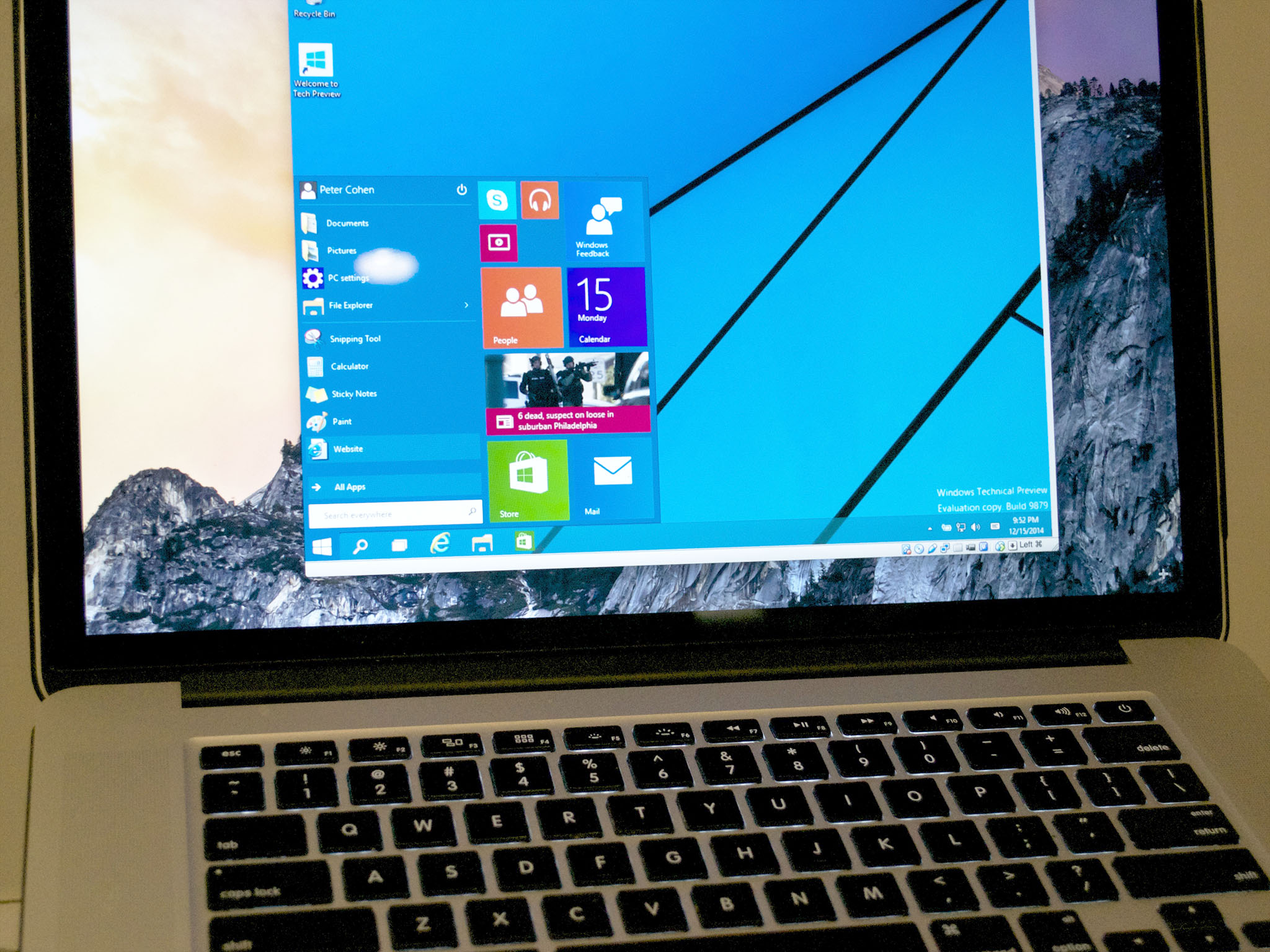
The allure of Apple’s sleek design and macOS ecosystem is undeniable, yet many Mac users occasionally find themselves needing the functionality, specific software, or gaming capabilities that only Windows can offer. Whether it’s for a specialized business application, a favorite PC game not available on macOS, or simply to test software across different platforms, running Windows on a Mac is a surprisingly common and achievable goal. This comprehensive guide will walk you through the various methods, requirements, and considerations for integrating Windows seamlessly into your Mac workflow, ensuring you make an informed decision tailored to your specific needs.
Understanding Your Mac’s Architecture: Intel vs. Apple Silicon
Before diving into the installation process, it’s crucial to understand a fundamental difference that dictates your options: your Mac’s processor architecture. Apple has transitioned from Intel processors to its own M-series Apple Silicon chips (M1, M2, M3, etc.). This distinction significantly impacts which methods are available and how Windows performs.
The Boot Camp Advantage (Intel Macs Only)
For Macs powered by Intel processors, Apple provides a native utility called Boot Camp Assistant. This solution allows you to create a separate partition on your Mac’s internal drive and install a full version of Windows alongside macOS. When you start your Mac, you can choose to boot into either operating system. This method offers the best possible performance for Windows on an Intel Mac, as Windows has direct access to the hardware without any virtualization overhead. However, it requires a restart to switch between macOS and Windows, and it’s not an option for Apple Silicon Macs.
Virtualization: A Cross-Platform Solution (Intel & Apple Silicon)
Virtualization software creates a “virtual machine” (VM) within macOS, allowing you to run Windows as an application within your existing operating system. This means you can have both macOS and Windows running simultaneously, switching between them like any other open program. Virtualization is the primary method for running Windows on Apple Silicon Macs, as Boot Camp is not supported. It also offers flexibility for Intel Mac users who prefer not to dual-boot or frequently switch OSes. While generally more convenient, virtualization introduces a performance overhead compared to native Boot Camp installations, as the virtual machine shares resources with macOS.
Method 1: Installing Windows with Boot Camp (Intel Macs)
For those with Intel-based Macs, Boot Camp remains the gold standard for achieving native Windows performance. It’s an official Apple solution, designed to make the process as straightforward as possible.
Prerequisites for Boot Camp
Before you begin, ensure your Intel Mac meets these requirements:
- Intel-based Mac: Only Macs with Intel processors support Boot Camp. To check, click the Apple menu > About This Mac. If it shows “Processor” as an Intel chip (e.g., Intel Core i5, i7, i9, Xeon), you’re good to go.
- Sufficient Free Storage: You’ll need at least 64GB, but 128GB or more is highly recommended for a functional Windows installation with applications. Windows updates alone can consume significant space.
- Windows 10 or 11 ISO File: You’ll need a legitimate Windows 10 or 11 Home or Pro 64-bit ISO (disk image) file. You can download this directly from Microsoft’s website. Ensure you choose the correct version (Home or Pro) that matches your license.
- Windows License Key: While you can install Windows without a key, you’ll need one to activate it and unlock full functionality.
- USB Flash Drive (Optional for Newer Macs): Some newer Macs (typically 2015 and later) can create the Boot Camp installer directly on the internal drive. Older Macs might require a 16GB or larger USB flash drive to create the bootable Windows installer. Boot Camp Assistant will guide you.
- Administrator Account: You’ll need administrator privileges on your Mac.
- Stable Internet Connection: For downloading updates and drivers during installation.
- Time Machine Backup: Crucially, always back up your entire Mac using Time Machine or another backup solution before making significant changes to your disk partitions. This protects your data in case anything goes wrong.
Step-by-Step Boot Camp Installation Guide
Follow these steps carefully to install Windows using Boot Camp:
- Back Up Your Mac: Reiterate the importance of a full Time Machine backup. This cannot be stressed enough.
- Download Windows ISO: Visit the Microsoft website (e.g., “Download Windows 11 Disk Image (ISO)”) and download the 64-bit version of Windows 10 or 11. Save it to your Downloads folder or Desktop.
- Open Boot Camp Assistant: Navigate to
Applications/Utilities/Boot Camp Assistantand launch it. - Follow On-Screen Instructions:
- Click “Continue” on the introduction screen.
- Boot Camp Assistant will automatically locate your Windows ISO file. If it doesn’t, click “Choose…” and navigate to where you saved the ISO.
- Partition Your Drive: This is a critical step. Drag the slider to allocate the desired amount of disk space for your Windows partition. Remember that Windows and its applications will need significant space. Apple recommends at least 64GB, but aim for 128GB or more if possible. Do not make the Windows partition too small, as resizing it later is complex.
- Click “Install.” Boot Camp Assistant will then download necessary Windows support software (drivers for your Mac’s hardware), create the Windows partition, and copy the Windows installation files. This process can take some time.
- Windows Installation: Your Mac will restart and boot into the Windows installer.
- Select your language, time and currency format, and keyboard input. Click “Next.”
- Click “Install now.”
- When prompted for a product key, you can enter it now or click “I don’t have a product key” and enter it later after installation.
- Choose the version of Windows you purchased (Home or Pro).
- Accept the license terms.
- When asked “Which type of installation do you want?”, choose “Custom: Install Windows only (advanced).”
- Select the partition labeled “BOOTCAMP.” Be very careful not to select any other partition, as this will erase your macOS data. Click “Format” to prepare the partition, then click “Next.”
- Windows will now install. Your Mac may restart several times during this process.
- Boot Camp Installer in Windows: Once Windows is installed and you’re at the desktop, the Boot Camp installer should automatically launch. If it doesn’t, navigate to the
BootCampdrive (usually mounted asD:orE:) and runsetup.exe.- Follow the prompts to install all necessary Apple drivers and support software for Windows. This ensures Wi-Fi, Bluetooth, graphics, audio, trackpad, and other hardware components function correctly.
- Restart your Mac when prompted.
Post-Installation & Troubleshooting Tips
- Switching Between OSes: To choose your operating system at startup, restart your Mac and immediately press and hold the Option (Alt) key. You’ll see icons for your macOS volume and your Windows (Boot Camp) volume. Release the key and click the desired OS.
- Default OS: In either macOS or Windows, you can set a default startup disk. In macOS, go to System Settings/Preferences > General > Startup Disk. In Windows, go to the Boot Camp Control Panel (usually found in the system tray).
- Updates: Regularly update both Windows and macOS, and check for updated Apple Boot Camp drivers via the Apple Software Update tool within Windows.
- Storage Management: Remember that Boot Camp partitions are fixed. If you realize you need more space, it’s generally easier to back up Windows, delete the Boot Camp partition, and reinstall it with more space.
Method 2: Running Windows via Virtualization (Intel & Apple Silicon Macs)
Virtualization offers immense flexibility, allowing you to run Windows concurrently with macOS. This is the only viable method for Apple Silicon Macs and a popular choice for Intel Mac users who prioritize convenience over raw performance.
Choosing a Virtualization Software (Parallels Desktop, VMware Fusion, VirtualBox)
Several excellent virtualization applications are available, each with its strengths:

- Parallels Desktop: Widely considered the most user-friendly and feature-rich option for Mac users, especially optimized for Apple Silicon. It offers excellent integration with macOS (e.g., shared folders, seamless app launching). It’s a paid solution, often with an annual subscription.
- VMware Fusion: Another highly capable and popular commercial virtualization platform. It offers robust features for power users and IT professionals. It has a free “Player” version for personal use and a paid “Pro” version with advanced features. VMware Fusion also supports Apple Silicon.
- Oracle VirtualBox: A free and open-source solution. While it lacks some of the seamless integration and performance optimizations of Parallels or VMware, it’s a solid choice for basic Windows needs and users on a budget. It generally supports both Intel and Apple Silicon (with specific versions).
For Apple Silicon Macs, Parallels Desktop and VMware Fusion are currently the most mature and recommended solutions for running Windows 11 ARM.
Prerequisites for Virtualization
- Windows 10/11 ISO File: You’ll need a Windows ISO. For Apple Silicon Macs, you MUST use a Windows 11 ARM Insider Preview build (or the official Windows 11 ARM release if available for consumer use). Standard x86 Windows versions won’t run natively. For Intel Macs, a standard 64-bit Windows 10/11 ISO is sufficient. Download from Microsoft.
- Windows License Key: A valid license is required for activated Windows.
- Sufficient RAM: At least 8GB of RAM on your Mac is recommended for decent performance, with 16GB or more being ideal, especially if you plan to run demanding applications in both macOS and Windows simultaneously.
- Sufficient Free Storage: Allocate at least 50-60GB for the virtual machine file, allowing for Windows installation, updates, and applications.
- Virtualization Software: Purchased or downloaded and installed (Parallels, VMware Fusion, VirtualBox).
- Internet Connection: For downloading updates and the initial setup.
Step-by-Step Virtual Machine Setup (General Guide)
While the exact steps vary slightly between virtualization software, the general process is similar:
- Install Virtualization Software: Download and install your chosen virtualization application (Parallels Desktop, VMware Fusion, or VirtualBox) on your Mac.
- Create a New Virtual Machine: Launch the software and choose the option to “Create a New Virtual Machine” or “New.”
- Select OS Installation Method: The software will typically ask how you want to install the operating system. You’ll usually choose to “Install Windows from an image file” or similar, then point it to your downloaded Windows ISO file.
- Choose Operating System: Select “Microsoft Windows” and the correct version (e.g., Windows 11 64-bit).
- Configure VM Resources:
- RAM: Allocate a portion of your Mac’s RAM to the virtual machine. A good starting point is 4GB (4096MB) for basic use. Avoid allocating too much, as macOS also needs RAM to function.
- CPU Cores: Assign 2 or 4 virtual CPU cores, depending on your Mac’s processor and your intended use.
- Hard Disk Space: Specify the size of the virtual hard drive for Windows. A dynamic size (grows as needed) is common, but set an initial limit (e.g., 60-100GB).
- Customize Settings (Optional): Most software allows further customization like network settings (bridged vs. NAT), shared folders, USB device passthrough, and display resolution.
- Start the Virtual Machine: Once configured, start the VM. It will boot into the Windows installation process, similar to a physical PC.
- Install Windows: Follow the standard Windows installation prompts:
- Select language, time, and keyboard.
- Enter your product key or choose “I don’t have a product key.”
- Select the correct Windows version.
- Accept license terms.
- Choose “Custom: Install Windows only (advanced).”
- Select the virtual hard disk created by your virtualization software (it will usually be the only option).
- Proceed with the installation.
- Install Guest Additions/Tools: After Windows is installed and you’re at the desktop, you must install the “Guest Additions” (VirtualBox), “Parallels Tools” (Parallels), or “VMware Tools” (VMware Fusion). These are critical drivers and utilities provided by the virtualization software that improve performance, enable features like shared folders, drag-and-drop, copy-paste between macOS and Windows, and dynamic display resolution. The virtualization software will usually prompt you or have an option in its menu to install these.
- Activate Windows: Enter your Windows product key to activate the operating system.
Optimizing Your Virtual Windows Experience
- Allocate Enough Resources: While running too many resources can slow down your Mac, running too few in the VM will make Windows sluggish. Find a balance based on your Mac’s specs and Windows usage.
- Snapshots: Most virtualization software allows you to take “snapshots” of your VM’s state. This is invaluable for testing new software or configurations, as you can easily revert to a previous working state.
- Shared Folders: Configure shared folders to easily exchange files between macOS and your Windows VM.
- Coherence/Unity Mode: Parallels and VMware Fusion offer modes (Coherence and Unity, respectively) that allow Windows applications to appear directly on your macOS desktop, blurring the lines between the two operating systems.
- Updates: Keep both Windows and your virtualization software updated to ensure security and optimal performance.
Key Considerations Before You Begin
Before embarking on your Windows-on-Mac journey, reflect on these important factors to ensure a smooth and effective setup.
Licensing and Cost Implications
- Windows License: A full, legitimate Windows license (Home or Pro) is required for activation and full functionality, regardless of whether you use Boot Camp or virtualization. These can cost anywhere from $100 to $200 USD. Be wary of heavily discounted keys from unofficial sources.
- Virtualization Software: Parallels Desktop and VMware Fusion are premium, paid products. While they offer free trials, continued use requires a purchase, often via an annual subscription. VirtualBox is free, which can be a significant cost saving if its features meet your needs.
- Total Cost of Ownership: Factor in the cost of Windows itself, the virtualization software (if applicable), and potentially any Windows-specific software you plan to run. This moves beyond pure “Tech” and squarely into “Money” considerations for individuals and “Business Finance” for companies.
Performance Expectations and Hardware Requirements
- Boot Camp vs. Virtualization: Boot Camp generally offers superior performance because Windows runs natively on the hardware. This is ideal for demanding tasks like gaming, video editing, or CAD software. Virtual machines, by their nature, introduce overhead, making them less suitable for high-performance applications.
- RAM and CPU: For virtualization, the more RAM and CPU cores your Mac has, the better Windows will perform. Running two operating systems simultaneously requires substantial resources. An 8GB RAM Mac can run a VM, but 16GB is where the experience becomes truly comfortable and productive.
- SSD vs. HDD: An SSD (Solid State Drive) is virtually a requirement for a good experience with either method. Installing Windows on an external HDD via virtualization is possible but will be significantly slower.
- Apple Silicon Performance: While virtualization on Apple Silicon has come a long way, running Windows 11 ARM (and its emulated x86 applications) is still a different experience than native x86 Windows on an Intel Mac or PC. Performance for certain applications may vary.
Storage Management and Backup Strategies
- Partitioning (Boot Camp): Once created, a Boot Camp partition is fixed in size. Carefully consider your storage needs upfront. Resizing is possible but complex and risky.
- Virtual Disk Space (Virtualization): Virtual machine files can grow quite large. Ensure you have ample free space on your Mac’s internal drive.
- Backups Are Essential: Whether you use Boot Camp or virtualization, always back up your macOS data before making major system changes. For Boot Camp, a full Time Machine backup is paramount. For virtual machines, you should back up the entire VM file regularly, as well as using standard Windows backup methods within the VM. This ties into “Digital Security” and data integrity.
Security and Compatibility Concerns
- Windows Security: When running Windows, you are exposed to Windows-specific security threats (viruses, malware). Install and maintain a robust antivirus solution within your Windows environment, keep Windows Defender active, and regularly apply updates. This is a critical aspect of “Digital Security.”
- Driver Compatibility: Boot Camp Assistant provides necessary Apple drivers for Windows, but ensuring all hardware functions perfectly can sometimes be a challenge, especially with older Macs or specific peripherals. Virtualization software generally handles driver compatibility for the virtual hardware it presents to Windows, simplifying this aspect.
- Software Compatibility (Apple Silicon): Running Windows 11 ARM on Apple Silicon Macs means that traditional x86 Windows applications will run via emulation. While Windows 11’s emulation is good, some legacy or highly specialized applications may not perform optimally or might not run at all. Always test critical applications before committing to a virtualization setup on an Apple Silicon Mac.
Conclusion
Installing Windows on a Mac transforms your device into a versatile powerhouse, bridging the gap between two distinct operating system worlds. Whether you opt for the raw performance of Boot Camp on an Intel Mac or the seamless multitasking capabilities of a virtual machine on either Intel or Apple Silicon, the chosen method fundamentally depends on your Mac’s architecture, your performance demands, and your budget.
For Intel Mac users, Boot Camp delivers an uncompromised Windows experience, ideal for gaming or resource-intensive applications. However, the need to restart to switch operating systems can be a minor inconvenience. Virtualization software like Parallels Desktop, VMware Fusion, or VirtualBox, on the other hand, offers unparalleled flexibility, allowing you to run both macOS and Windows side-by-side. This is the only practical solution for Apple Silicon Macs, bringing Windows to the M-series chips through ARM virtualization, and a highly productive option for Intel Mac users who need to switch between OSes frequently without rebooting.
Remember to factor in the cost of a Windows license and any premium virtualization software, allocate sufficient system resources, and, most importantly, always perform a full backup before making any significant changes to your system. By carefully considering these points and following the outlined steps, you can successfully integrate Windows onto your Mac, unlocking a world of new possibilities for productivity, entertainment, and specialized software, truly globalizing your digital workspace.
aViewFromTheCave is a participant in the Amazon Services LLC Associates Program, an affiliate advertising program designed to provide a means for sites to earn advertising fees by advertising and linking to Amazon.com. Amazon, the Amazon logo, AmazonSupply, and the AmazonSupply logo are trademarks of Amazon.com, Inc. or its affiliates. As an Amazon Associate we earn affiliate commissions from qualifying purchases.