
In today’s hyper-connected world, staying in touch with friends, family, and colleagues is more important than ever. Among the myriad of communication platforms available, WhatsApp stands out as a global leader, boasting billions of users worldwide. Its intuitive interface, end-to-end encryption, and rich feature set make it an indispensable tool for instant messaging, voice and video calls, and sharing multimedia. Whether you’re looking to connect with loved ones across the globe, coordinate with your team, or simply send a quick photo, understanding how to install and use WhatsApp is a fundamental digital literacy skill. This comprehensive guide will walk you through the entire process, from downloading the app to setting up your profile and understanding its core functionalities, all while keeping in mind the broader tech landscape and its impact on our daily lives.
Getting Started: Downloading and Installing WhatsApp on Your Devices
The first hurdle in using any application is getting it onto your device. Fortunately, WhatsApp is readily available on all major mobile operating systems and even offers desktop versions for enhanced productivity. The installation process is generally straightforward and intuitive, designed to be accessible to users of all technical skill levels.
Installing WhatsApp on Android Devices
For the vast majority of smartphone users who own an Android device, the Google Play Store is your gateway to WhatsApp.
- Open the Google Play Store: Locate the Play Store icon on your home screen or app drawer. It’s typically a colorful triangle.
- Search for WhatsApp: Tap the search bar at the top of the Play Store and type “WhatsApp Messenger.”
- Select the Official App: Look for the official WhatsApp app, usually listed as “WhatsApp Messenger” by “WhatsApp LLC.” It’s characterized by its distinctive green speech bubble icon.
- Tap “Install”: Once you’ve found the correct app, tap the prominent “Install” button.
- Grant Permissions: The Play Store will prompt you to review the permissions WhatsApp requires to function. These typically include access to your contacts, SMS, phone calls, and storage, all necessary for its core communication features. Tap “Accept” or “Install” to proceed.
- Wait for Download and Installation: The app will download and install automatically. You’ll see a progress bar indicating the status.
- Open WhatsApp: Once installed, the “Install” button will change to “Open.” Tap it to launch the application.
Installing WhatsApp on iOS Devices (iPhones)
Apple users will find WhatsApp conveniently available on the App Store. The process is very similar to Android.
- Open the App Store: Find and tap the App Store icon on your iPhone’s home screen. It’s a blue icon with a white “A” inside a circle.
- Search for WhatsApp: Tap the “Search” tab at the bottom right of the App Store and type “WhatsApp Messenger” in the search bar.
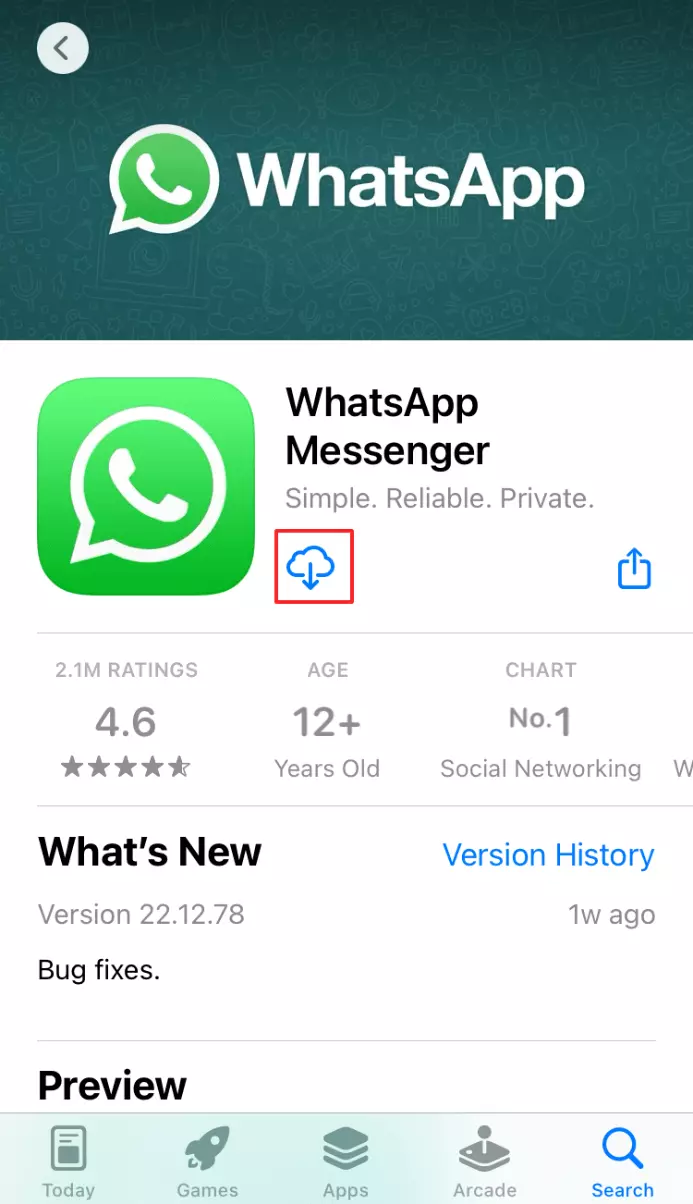
- Find and Download: Locate the official “WhatsApp Messenger” by “WhatsApp LLC” and tap the “Get” button. You may need to authenticate your download using Face ID, Touch ID, or your Apple ID password.
- Wait for Installation: The app will download and install on your iPhone.
- Launch WhatsApp: After installation, the “Get” button will turn into “Open.” Tap it to start using WhatsApp.
Installing WhatsApp on Desktops and Laptops
WhatsApp isn’t just for your phone anymore. To enhance productivity and offer a more convenient messaging experience on your computer, WhatsApp provides dedicated desktop applications and a web interface.
WhatsApp Web:
- Open a Web Browser: On your computer, open your preferred web browser (e.g., Chrome, Firefox, Safari, Edge).
- Go to web.whatsapp.com: Type
web.whatsapp.cominto the address bar and press Enter. - Open WhatsApp on Your Phone: Launch the WhatsApp app on your smartphone and navigate to “Settings” (or “WhatsApp Web/Desktop” on Android).
- Scan the QR Code: On your computer screen, you’ll see a QR code. On your phone, tap “Link a Device” or “Scan QR Code” and point your phone’s camera at the QR code displayed on your computer screen.
- Your Chats Will Appear: Once scanned successfully, your WhatsApp chats will sync and appear on your computer’s web browser.
WhatsApp Desktop App:
- Visit the Official WhatsApp Download Page: Go to
whatsapp.com/downloadin your web browser. - Select Your Operating System: Choose the download option for Windows or macOS.
- Download the Installer: Click the download button.
- Run the Installer: Once the download is complete, open the installer file and follow the on-screen instructions to install WhatsApp on your computer.
- Link Your Account: Similar to WhatsApp Web, you’ll be presented with a QR code. Open WhatsApp on your phone, go to “Settings” > “Linked Devices” (or “WhatsApp Web/Desktop”), and scan the QR code to link your account.
Setting Up Your WhatsApp Account: Personalization and Security
Once WhatsApp is installed, the next crucial step is setting up your account. This involves verifying your phone number, configuring your profile, and understanding the initial privacy settings.
Verifying Your Phone Number
WhatsApp uses your phone number as your unique identifier. This process ensures that you are who you say you are and helps prevent misuse.
- Open WhatsApp: Tap the WhatsApp icon on your device.
- Agree to Terms of Service: You’ll be presented with WhatsApp’s Terms of Service and Privacy Policy. Tap “Agree and Continue” to proceed.
- Enter Your Phone Number: Select your country code and enter your mobile phone number. Ensure you enter it correctly, as this is critical for verification.
- Verify Your Number: WhatsApp will send an SMS message containing a six-digit verification code to your phone number.
- Automatic Verification: In most cases, if you have the SIM card in the device and have granted SMS permissions, WhatsApp will automatically detect the code and verify your number.
- Manual Verification: If automatic verification fails, you’ll need to manually enter the six-digit code from the SMS message into the provided field in WhatsApp.
- Contact Verification (Optional): If you don’t receive the SMS within a few minutes, you can tap “Didn’t receive a code?” and choose to “Resend SMS” or “Call Me.” The “Call Me” option will provide an automated voice call with the verification code.
Creating Your Profile
Your WhatsApp profile is how other users will see you. Personalizing it can make your communication more engaging.
- Profile Photo: Tap the “Profile” section. You can tap the camera icon to take a new photo or choose an existing one from your gallery. Select a clear, recognizable image.
- Your Name: Enter the name you want to be displayed to your contacts. This is often your real name but can be a nickname or even a business name if you’re using WhatsApp for professional purposes.
- About Information: This is a short status message. You can use it to share what you’re up to, your interests, or a brief greeting. WhatsApp provides default “About” options, but you can customize it freely.
Understanding Privacy Settings
WhatsApp places a strong emphasis on user privacy with its end-to-end encryption. However, you have further control over what information is visible to your contacts and others.
- Access Privacy Settings: On Android, go to “Settings” > “Account” > “Privacy.” On iOS, go to “Settings” > “Account” > “Privacy.”
- Last Seen and Online: Choose who can see when you were last active on WhatsApp and when you are currently online. Options include “Everyone,” “My Contacts,” “My Contacts Except…,” and “Nobody.”
- Profile Photo: Control who can see your profile picture.
- About: Determine who can view your “About” status message.
- Status: Manage who can see your Status updates (similar to Instagram Stories).
- Read Receipts: When enabled, this allows others to see if you’ve read their messages (indicated by two blue checkmarks). You can disable this, but be aware that if you disable it, you also won’t see when others have read your messages.
- Groups: Control who can add you to groups. This is a useful setting to prevent unsolicited additions.
Essential WhatsApp Features: Beyond Basic Messaging
Once your account is set up, you’ll want to explore the core features that make WhatsApp so popular. These tools are designed to facilitate seamless and rich communication.
Starting Conversations and Making Calls
- One-on-One Chats: To start a new chat, tap the “New Chat” icon (usually a speech bubble with a plus sign) and select a contact from your list. If a contact isn’t in your list, ensure they are saved in your phone’s address book and have a WhatsApp account.
- Group Chats: Create group chats by tapping the “New Chat” icon and selecting “New Group.” You can add multiple contacts to a group for shared conversations.
- Voice and Video Calls: Within any chat window, you’ll find a phone icon (for voice calls) and a video camera icon (for video calls) at the top. Tap these to initiate a call over your internet connection, which can save you mobile minutes.
Sharing Multimedia and Files
WhatsApp isn’t just for text. You can enhance your conversations with a variety of media:
- Photos and Videos: In a chat, tap the paperclip icon (Android) or the plus icon (iOS) and select “Gallery” or “Photo & Video Library” to send existing media. You can also use the camera icon to take a new photo or video directly within the app.
- Documents: Share documents (PDFs, Word files, etc.) by tapping the paperclip/plus icon and selecting “Document.”
- Location: Share your live location or a specific point on the map by selecting “Location” from the attachment menu.
- Contacts: Share contact information of mutual acquaintances by choosing “Contact” from the attachment menu.
Integrating WhatsApp with Your Digital Life
WhatsApp’s ubiquity means it often intersects with other aspects of our digital lives, from personal finance to brand building. While the core installation is straightforward, understanding these broader connections can maximize its utility.
WhatsApp for Business and Personal Branding
For small businesses, entrepreneurs, and freelancers, WhatsApp Business offers a dedicated app with enhanced features like business profiles, automated messages, and product catalogs. This allows for direct customer engagement, building a personal brand through consistent and responsive communication. Establishing a professional WhatsApp presence can translate into increased customer trust and loyalty, indirectly impacting financial outcomes through improved sales and customer retention.
Digital Security and Responsible Usage
While WhatsApp’s end-to-end encryption provides a strong layer of security for your conversations, responsible digital citizenship is still paramount. Be mindful of phishing scams, misinformation, and privacy concerns. Regularly review your privacy settings and be cautious about sharing sensitive information. Understanding how to report abusive content or block unwanted contacts is also crucial for maintaining a safe online experience. This aligns with the broader “Digital Security” aspect of the tech landscape, ensuring your online interactions are both functional and secure.

Conclusion: Staying Connected in the Digital Age
Installing and setting up WhatsApp is a fundamental step for anyone looking to participate in modern digital communication. Its accessibility across various devices, coupled with its robust feature set and commitment to privacy, makes it an essential tool. By following this guide, you’re not just learning how to install an app; you’re unlocking a powerful platform for connection, collaboration, and communication. As technology continues to evolve, WhatsApp remains a cornerstone of our interconnected lives, bridging distances and fostering relationships across the globe, all within a secure and user-friendly environment.
aViewFromTheCave is a participant in the Amazon Services LLC Associates Program, an affiliate advertising program designed to provide a means for sites to earn advertising fees by advertising and linking to Amazon.com. Amazon, the Amazon logo, AmazonSupply, and the AmazonSupply logo are trademarks of Amazon.com, Inc. or its affiliates. As an Amazon Associate we earn affiliate commissions from qualifying purchases.