
In the ever-evolving landscape of digital entertainment, both Kodi and Roku have carved out significant niches. Roku, with its user-friendly interface and vast array of official streaming channels, has become a household name for accessible content consumption. Kodi, on the other hand, is a powerful, open-source media center software lauded for its unparalleled customization, robust media management capabilities, and extensive add-on ecosystem. Many users, seeking to combine the best of both worlds, often ask the crucial question: “How do I install Kodi on Roku?”
The desire to merge these platforms is understandable. Imagine having the flexibility of Kodi’s media library and add-ons displayed seamlessly on your Roku-connected TV. However, this seemingly straightforward goal presents a unique technical challenge. Roku’s operating system (Roku OS) is a closed environment, designed to run proprietary channels from its app store. Unlike a smartphone or a smart TV with a more open architecture, Roku does not natively support direct installation of third-party software like Kodi. This fundamental incompatibility is the core hurdle we must address.
This article delves deep into this challenge, exploring why direct installation isn’t an option and, more importantly, providing comprehensive workarounds that allow you to bring Kodi’s rich media experience to your Roku-connected display. We’ll explore various methods, from screen mirroring to utilizing intermediary devices, ensuring you can leverage the full potential of your home entertainment system. We’ll also touch upon crucial aspects like digital security, performance optimization, and responsible use, aligning with the broader themes of technology trends, software utilization, and digital security that are paramount in today’s tech landscape.
The Ecosystem Challenge: Why Direct Installation Isn’t Possible
Understanding the foundational differences between Kodi and Roku is key to comprehending why a direct installation isn’t feasible. It’s not a matter of a missing feature but rather an inherent design philosophy that dictates each platform’s operation.
Understanding Roku’s Walled Garden
Roku operates on a “walled garden” principle, a common strategy employed by many tech companies to ensure a controlled and often curated user experience. This means that Roku devices are designed to run only applications, or “channels” as they call them, that are approved and distributed through the official Roku Channel Store. This approach offers several benefits from Roku’s perspective:
- Security: By controlling the software that runs on its devices, Roku can minimize the risk of malware and ensure a more secure environment for its users. Every channel undergoes a review process, ensuring it meets certain standards.
- Stability and Performance: Limiting software to approved channels helps maintain the stability and performance of Roku devices. Unauthorized applications could potentially hog resources, introduce bugs, or cause crashes.
- User Experience: A controlled environment allows Roku to deliver a consistent and intuitive user experience across all its devices, simplifying navigation and support.
- Monetization and Partnerships: This model allows Roku to forge strategic partnerships with content providers and potentially monetize through advertising or channel subscriptions, which is central to their business model.
While beneficial for the average user seeking simplicity and reliability, this closed ecosystem explicitly prohibits the sideloading of applications like Kodi. Kodi is not an “official” Roku channel, nor is it designed to integrate directly with Roku OS. This makes the traditional installation process, where you download an app directly to the device, impossible.
The Open-Source Appeal of Kodi
In stark contrast to Roku, Kodi embodies the spirit of open-source software. Developed by the XBMC Foundation, Kodi is a free and open-source media player software application designed for home entertainment. Its primary appeal lies in:
- Customization: Users can heavily customize Kodi’s interface, themes, and functionalities through various skins and settings.
- Add-ons: The true power of Kodi lies in its vast array of add-ons. These extend Kodi’s functionality, allowing users to stream content from various online sources, manage local media libraries, play games, and much more. Both official and unofficial add-ons exist, offering a broad spectrum of entertainment options.
- Media Management: Kodi excels at organizing and playing local and network-stored media files, including videos, music, and photos, providing a rich library experience with metadata, fan art, and more.
- Cross-Platform Compatibility: Kodi can be installed on a multitude of devices, including Windows, macOS, Linux, Android, iOS, Raspberry Pi, and various dedicated media boxes like Amazon Fire TV Stick or Nvidia Shield TV.
The desire to bring Kodi’s expansive capabilities to the big screen, often powered by a Roku device, is a natural one. While direct installation is a non-starter, understanding these fundamental differences clears the path for exploring indirect, yet highly effective, methods.
Bridging the Gap: Effective Workarounds to Get Kodi on Your Roku Screen
Since direct installation is off the table, the solution lies in utilizing Roku’s existing capabilities to display content from other devices that can run Kodi. Essentially, we’re using Roku as a display conduit for a Kodi-enabled device. Here are the most effective workarounds:
Method 1: Screen Mirroring from Compatible Devices
Screen mirroring is arguably the simplest method for many users, turning your Roku device into a receiver for your Kodi-enabled phone or computer screen. This method projects whatever is on your source device’s screen directly onto your TV via Roku.
Setting Up Screen Mirroring on Your Roku
Before you can mirror, you need to ensure your Roku device is set up to receive mirrored content. This feature is usually enabled by default on newer Roku models (Roku 3, 4, Premiere, Express, Streaming Stick, and Ultra) but it’s good to confirm.
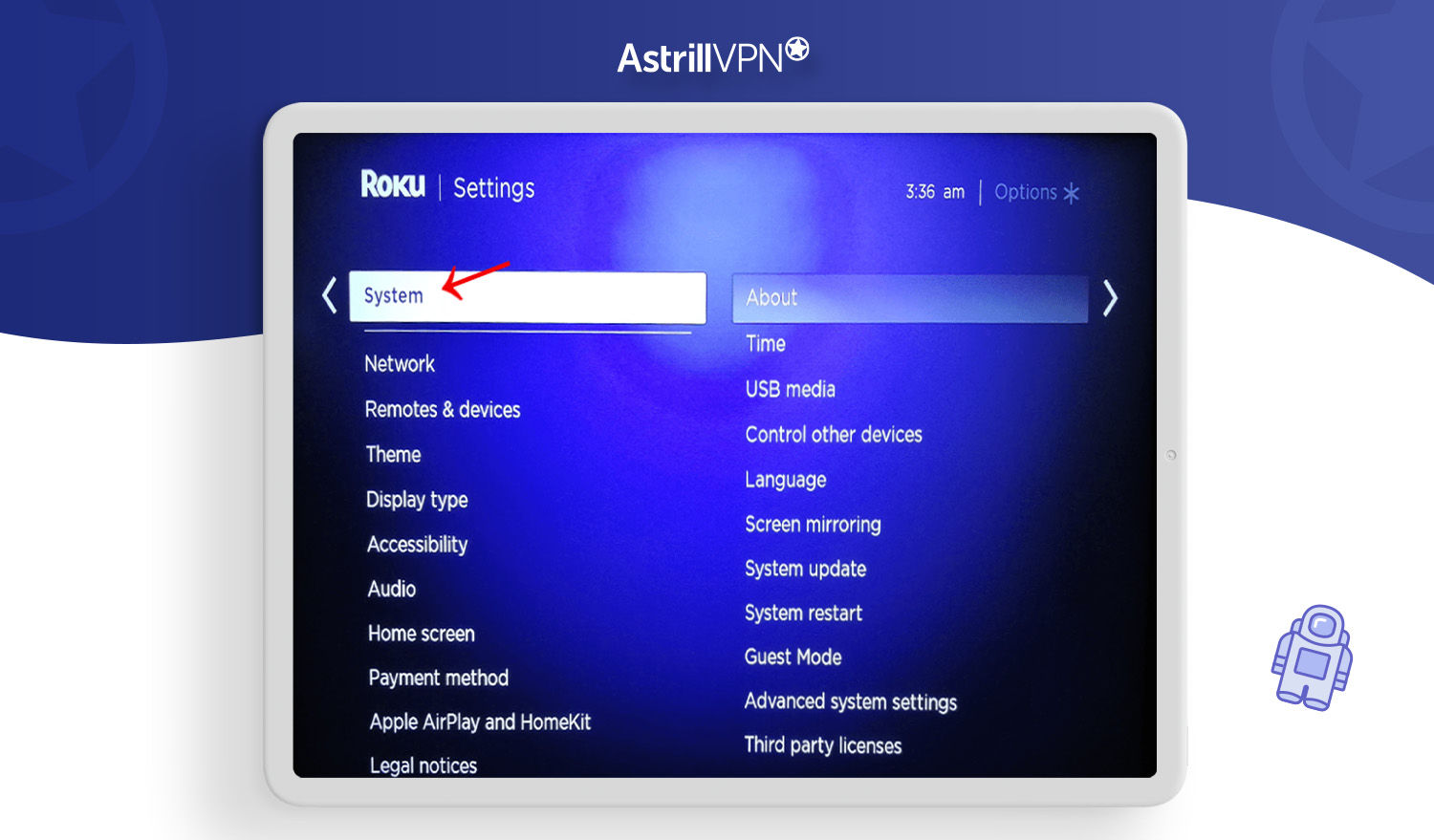
- Access Roku Settings: On your Roku home screen, navigate to “Settings.”
- Select System: Scroll down and select “System.”
- Choose Screen Mirroring: Within the System menu, select “Screen mirroring.”
- Mirroring Mode: Ensure “Screen mirroring mode” is set to “Prompt” or “Always allow.” “Prompt” is generally recommended for security, as it requires your approval each time a device attempts to connect.
Once configured, your Roku is ready to receive a mirrored signal. Keep in mind that for this to work, both your Roku device and the Kodi-enabled device (e.g., Android phone, Windows PC) must be connected to the same Wi-Fi network.
Mirroring from Android Devices
Android devices are well-equipped for screen mirroring, often referred to as “Cast” or “Smart View.”
- Install Kodi on Android: First, ensure Kodi is installed and running on your Android smartphone or tablet. You can download it directly from the Google Play Store.
- Launch Kodi: Open Kodi on your Android device and navigate to the content you wish to display.
- Initiate Screen Mirroring:
- Quick Settings: Swipe down from the top of your Android screen to open the Quick Settings panel. Look for an icon labeled “Cast,” “Smart View,” “Screen Share,” or something similar (the name varies by Android manufacturer).
- Select Roku Device: Tap the mirroring icon. Your phone will scan for nearby devices. Select your Roku device from the list.
- Accept on Roku (if prompted): If your Roku is set to “Prompt,” you’ll see a notification on your TV. Accept the connection.
- Enjoy Kodi on Roku: Your Android device’s screen, including Kodi, should now be mirrored on your TV. You’ll control Kodi from your Android device.
Mirroring from Windows PCs
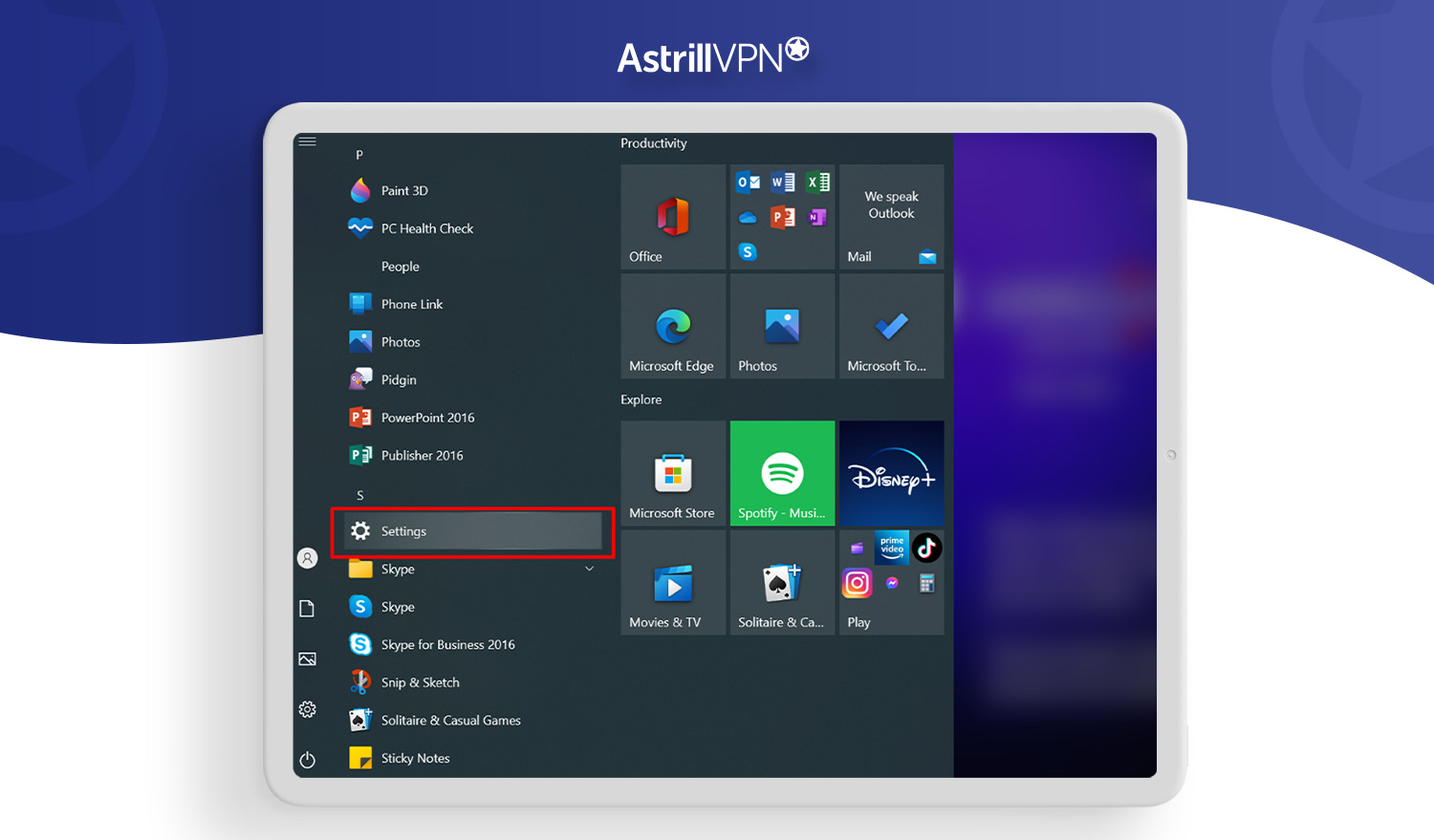
Windows 10 and 11 also support screen mirroring (often called “Connect” or “Project to a wireless display”) to Miracast-compatible devices, which Roku devices generally are.
- Install Kodi on Windows: Ensure Kodi is installed on your Windows PC. Download it from the official Kodi website or the Microsoft Store.
- Launch Kodi: Open Kodi and select the content you want to watch.
- Initiate Screen Mirroring:
- Keyboard Shortcut: Press
Windows Key + P. This opens the “Project” menu. - Select “Connect to a wireless display”: Click on this option.
- Choose Roku Device: Your PC will scan for displays. Select your Roku device from the list.
- Accept on Roku (if prompted): Just like with Android, you might need to approve the connection on your Roku TV.
- Keyboard Shortcut: Press
- Optimize Display Settings: You can choose between “Duplicate” (shows the same thing on both screens) or “Extend” (uses your TV as a second monitor). For Kodi, “Duplicate” is usually sufficient.
- Enjoy Kodi on Roku: Kodi from your PC will now be mirrored on your Roku-connected TV.
Limitations of Screen Mirroring: While convenient, screen mirroring relies heavily on your Wi-Fi network’s strength and the processing power of your source device. You might experience latency, stuttering, or lower video quality if your network is congested or your device isn’t powerful enough. It’s also not ideal for long-term, passive viewing as your source device’s screen must remain on.
Method 2: Casting from Kodi-Enabled Devices
Casting differs from mirroring in that it streams content directly from a service or app to your Roku, often with the source device acting merely as a remote control after the cast is initiated. While Kodi doesn’t have native Roku casting support built-in, you can use an intermediary casting device.
Leveraging Chromecast or Other Casting Solutions
The most common way to “cast” Kodi to a Roku is to use a device that does support casting, and then connect that device to the same TV as your Roku, switching inputs. This isn’t strictly casting to Roku, but rather casting alongside Roku. For example:
- Kodi on an Android Device (or PC): Have Kodi running on your phone, tablet, or PC.
- Chromecast or Smart TV with Built-in Cast: If you have a Chromecast plugged into an another HDMI port on your TV (or a Smart TV with built-in casting capabilities), you can cast content from your Kodi-enabled device to that Chromecast.
- Switch TV Input: Once the content is casting to the Chromecast, simply switch your TV’s input from the Roku HDMI port to the Chromecast HDMI port.
This method leverages a separate casting solution rather than Roku’s limited direct casting support for non-approved apps. It offers better performance than mirroring because the content stream is often handled directly by the casting device rather than being re-processed by your source device for mirroring.
Step-by-Step Casting from a Kodi Device (Indirectly)
This method typically involves a specific scenario: casting web content that Kodi might access. If Kodi is accessing content via a web browser (e.g., through an add-on that functions like a browser), some browsers on Android/PC might allow you to “cast” that specific tab or video to a Chromecast.
- Ensure Kodi is installed: On your Android phone or PC.
- Open content in a browser (if applicable): If the Kodi add-on allows opening content in an external browser, use that.
- Initiate Cast from Browser: In Chrome browser on PC or Android, look for the “Cast” icon (usually in the top right or within the menu).
- Select Chromecast: Choose your Chromecast device from the list.
- Switch TV Input: Change your TV’s input to the HDMI port where your Chromecast is connected.
This method is less direct for Kodi itself but can be useful in specific content scenarios. It highlights that Roku is fundamentally not a casting target for Kodi in the way a Chromecast or an Android TV device is.
Method 3: The Dedicated Kodi Device Approach
This is often the most robust and recommended method for a truly seamless Kodi experience on your TV, effectively sidestepping Roku’s limitations entirely by using a dedicated device that can run Kodi.
Connecting a Kodi Box (e.g., Fire Stick, Nvidia Shield, Raspberry Pi)
Instead of trying to force Kodi onto Roku, the solution is to use a device specifically designed or easily adaptable to run Kodi, and then connect that device to an available HDMI input on your TV.
- Choose a Kodi-Compatible Device:
- Amazon Fire TV Stick/Cube: These Android-based devices are extremely popular and relatively inexpensive. Kodi can be easily sideloaded onto them.
- Nvidia Shield TV: A more powerful, premium Android TV box that excels at running Kodi, handling 4K content, and even gaming.
- Raspberry Pi: A cost-effective, customizable mini-computer that can be set up as a dedicated Kodi box (often running LibreELEC or OSMC distributions). Requires some technical know-how.
- Other Android TV Boxes: Numerous generic Android TV boxes are available that can run Kodi.
- Mini PCs: A small form-factor PC can be a very powerful dedicated Kodi machine.
- Install Kodi on the Chosen Device: Follow the specific instructions for your chosen device to install Kodi. This usually involves sideloading for Fire TV devices or direct installation from an app store (like Google Play Store on Android TV devices).
- Connect to TV: Plug the Kodi-enabled device into an available HDMI port on your television.
- Connect Peripherals: Connect any necessary power adapters and, if desired, a remote control or keyboard/mouse.
Switching Inputs for a Seamless Experience
Once your dedicated Kodi device is connected and configured:
- Power On: Ensure both your TV and the Kodi device are powered on.
- Select HDMI Input: Use your TV remote to select the correct HDMI input for your Kodi device. For example, if your Roku is on HDMI 1 and your Fire TV Stick (with Kodi) is on HDMI 2, simply switch your TV’s input to HDMI 2 when you want to use Kodi.
- Enjoy Kodi: You can now navigate and use Kodi directly from its dedicated device, with all its features and performance benefits, displayed on your TV screen. When you want to return to Roku’s channels, simply switch your TV’s input back to the Roku’s HDMI port.
This method offers the best performance, stability, and dedicated control for Kodi, providing a true media center experience without compromises due to mirroring or casting limitations. It’s essentially treating your TV as a central hub, switching between your Roku for official channels and your Kodi device for custom media.
Maximizing Your Kodi and Roku Experience: Tips and Considerations
Integrating Kodi into your home entertainment setup, especially alongside a Roku device, opens up a world of possibilities. However, to truly maximize this experience, it’s essential to consider optimization, security, and responsible use. These considerations resonate deeply with the website’s focus on technology trends, digital security, and productivity.
Optimizing Performance for Smooth Streaming
Regardless of the method you choose to get Kodi on your TV, optimizing performance is crucial for an enjoyable, buffer-free experience.
- Network Stability: A strong, stable Wi-Fi connection is paramount. For critical streaming, consider using an Ethernet connection for your Kodi-enabled device (if available) or ensuring your Wi-Fi router is centrally located and optimized. Upgrading to a faster Wi-Fi standard (e.g., Wi-Fi 6) can also help.
- Device Power: If you’re screen mirroring, ensure your source device (Android phone/PC) has sufficient processing power and RAM. For dedicated Kodi boxes, invest in a device with decent specifications to handle high-resolution video and complex add-ons. Nvidia Shield TV, for example, is renowned for its performance.
- Kodi Settings: Within Kodi, you can adjust various settings to improve performance.
- Hardware Acceleration: Ensure hardware acceleration is enabled in Kodi’s settings (Player -> Videos -> Allow hardware acceleration). This offloads video decoding to your device’s dedicated hardware, significantly improving playback.
- Cache Settings: Advanced users can tweak Kodi’s cache settings (via
advancedsettings.xml) to buffer more content, reducing buffering, especially on slower connections. - Skins and Add-ons: Resource-intensive Kodi skins or too many active add-ons can slow down the interface. Opt for lighter skins and only install necessary add-ons.
Digital Security and Legal Considerations with Kodi
The open-source nature of Kodi and its vast add-on ecosystem, while powerful, also necessitates a keen awareness of digital security and legal implications. This directly ties into the “Digital Security” aspect of our technology themes.
The Importance of a VPN
When using Kodi, especially with third-party add-ons, a Virtual Private Network (VPN) becomes an indispensable tool for protecting your privacy and security.
- Anonymity: A VPN encrypts your internet traffic and routes it through a server in a different location, masking your IP address. This makes your online activities, including streaming via Kodi, far more anonymous from your Internet Service Provider (ISP) and other third parties.
- ISP Throttling: Some ISPs might throttle internet speeds for certain types of traffic, including streaming. A VPN can help circumvent this by hiding your activity, ensuring consistent speeds.
- Geo-restrictions: While less about Kodi’s core function, a VPN can also help bypass geo-restrictions for legitimate streaming services if you combine Kodi with other apps.
Choose a reputable VPN provider with a strict no-logs policy, strong encryption, and fast servers. Install the VPN directly on your Kodi-enabled device (if supported) or on your router to protect all devices on your network.
Navigating Kodi Add-ons Responsibly
The legality of using Kodi is often misunderstood. Kodi itself is perfectly legal. It’s a media player. The legal issues arise when users install third-party add-ons that facilitate access to copyrighted content without proper authorization.
- Official vs. Unofficial Add-ons: Stick to add-ons from Kodi’s official repository whenever possible. These are generally vetted and provide access to legitimate, legal content sources.
- Copyright Infringement: Be aware that using unofficial add-ons to stream copyrighted movies, TV shows, or live sports without paying for them is illegal in most jurisdictions. Ignorance is not a defense.
- Security Risks: Unofficial add-ons can also pose security risks, potentially containing malware or exposing your system to vulnerabilities.
- The “Legal Gray Area”: Many add-ons exist in a legal gray area, but the general rule of thumb is: if it feels like you’re getting content for free that you would normally pay for, it’s likely infringing on copyright.
Always prioritize legal and ethical consumption of media. Kodi is a fantastic tool for managing your own legally obtained media library and accessing legitimate streaming services through official add-ons.
Customizing Kodi for Enhanced Productivity and Entertainment
Kodi’s strength lies in its flexibility, which can be leveraged for both entertainment and even a degree of digital productivity.
- Centralized Media Hub: Use Kodi to consolidate all your local media files – movies, TV shows, music, photos – into one beautifully organized interface. This eliminates the need to jump between different apps or folders, saving time and simplifying access.
- Smart Playlists: Create smart playlists based on genres, actors, years, or custom tags. This can be a great way to rediscover content or streamline specific viewing experiences (e.g., “Workout Mix,” “Family Movie Night”).
- Music Library Management: For audiophiles, Kodi offers robust music library management, including tagging, album art, and various playback options, turning your TV into a powerful stereo system.
- Accessing Podcasts and News: Many add-ons provide access to podcasts, news feeds, and even educational content, turning your entertainment hub into a source of information and learning.
- User Profiles: If multiple people use your Kodi setup, create separate user profiles. This allows each person to have their own library, watched status, and personalized settings, enhancing individual productivity and a tailored entertainment experience.
By thoughtfully configuring Kodi, users can transform their Roku-connected TV into a truly personalized and versatile entertainment and information center, far beyond the capabilities of off-the-shelf streaming platforms.
Conclusion: Empowering Your Home Entertainment Setup
While directly installing Kodi on a Roku device remains impossible due to Roku’s closed ecosystem, the desire to combine the robust customization of Kodi with the ubiquitous presence of Roku is entirely achievable through smart workarounds. Whether you opt for the immediate convenience of screen mirroring, the dedicated performance of a separate Kodi box, or even an indirect casting solution, you have viable paths to bring your personalized media center to your big screen.
The journey to integrate Kodi with your TV setup isn’t just about technical configuration; it’s about empowering your home entertainment. By choosing the right method, optimizing performance, and critically, understanding the digital security implications and legal responsibilities associated with Kodi add-ons, you can create a truly customized and secure media experience. Leveraging a VPN is a critical step for privacy and security, transforming your Kodi usage from potentially risky to confidently anonymous.
Ultimately, the choice of method depends on your technical comfort level, budget, and desired level of integration. For those seeking the most seamless and performant Kodi experience, investing in a dedicated Kodi-compatible device like an Amazon Fire TV Stick or Nvidia Shield TV offers the greatest rewards, providing a dedicated environment for Kodi that runs alongside your Roku, ready to be accessed with a simple input switch. By embracing these strategies, you’re not just installing software; you’re taking control of your digital entertainment, aligning with the broader technology trends that emphasize personalization, flexibility, and robust digital security in our interconnected world.
aViewFromTheCave is a participant in the Amazon Services LLC Associates Program, an affiliate advertising program designed to provide a means for sites to earn advertising fees by advertising and linking to Amazon.com. Amazon, the Amazon logo, AmazonSupply, and the AmazonSupply logo are trademarks of Amazon.com, Inc. or its affiliates. As an Amazon Associate we earn affiliate commissions from qualifying purchases.