
Navigating the digital landscape often requires the right tools, and a robust web browser is arguably one of the most essential. For Mac users, while Safari is the default, many seek the flexibility, customization, and privacy features offered by alternative browsers. Mozilla Firefox stands out as a powerful and popular choice, known for its open-source nature, extensive add-on ecosystem, and strong commitment to user privacy. If you’re wondering “how do I install Firefox on Mac?” this comprehensive guide will walk you through the entire process, ensuring you can get this versatile browser up and running smoothly on your Apple device.
Whether you’re a seasoned tech enthusiast looking to diversify your browser options, a privacy-conscious individual seeking an alternative to mainstream trackers, or simply curious about what Firefox has to offer, this tutorial will provide all the necessary steps. We’ll cover everything from finding the official download to completing the installation and even offer some tips on getting started with Firefox once it’s on your Mac.
Downloading Firefox for Your Mac
The first and most crucial step in installing Firefox on your Mac is to obtain the official installer package. It’s paramount to always download software directly from the developer’s website to avoid malware or unwanted bundled programs. For Firefox, this means heading to the official Mozilla website.
Navigating to the Official Download Page
- Open Your Current Browser: Launch the web browser you are currently using on your Mac. This will likely be Safari, but it could also be another browser if you’ve already installed one.
- Go to the Mozilla Firefox Website: In the address bar of your browser, type
www.mozilla.org/firefox/and press Enter. This URL will take you directly to the Firefox download page for macOS. - Locate the Download Button: On the Firefox download page, you’ll typically see a prominent button that says “Download Firefox” or something similar. The website is usually intelligent enough to detect your operating system, so it should automatically offer the macOS version.
- Initiate the Download: Click on the download button. This will begin the process of downloading the Firefox installer file. The file will usually be in a
.dmg(disk image) format, which is standard for Mac application installations.
Important Considerations During Download:
- System Compatibility: Firefox generally supports recent versions of macOS. The download page will often indicate if your system meets the minimum requirements, but for most modern Macs, this won’t be an issue.
- Installer File Size: The download size for Firefox is typically a few hundred megabytes. Ensure you have a stable internet connection to avoid interruptions. The download time will vary depending on your internet speed.
- Security Verification: While downloading from the official site is safe, some users may wish to verify the digital signature of the downloaded file for an extra layer of security. However, for most users, clicking the official download button is sufficient.
Once the download is complete, you’ll find the Firefox .dmg file in your default download location, which is usually your “Downloads” folder. You can access this folder by opening Finder and selecting “Downloads” from the sidebar.
Installing Firefox on Your Mac
With the Firefox installer file downloaded, the next step is to run it and integrate Firefox into your macOS system. The installation process for macOS applications in .dmg format is generally straightforward and intuitive.

The Installation Process Explained
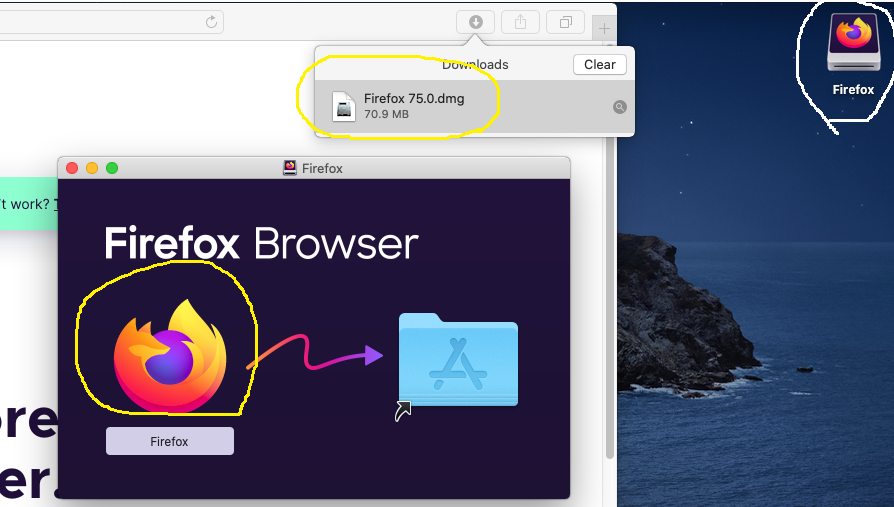
- Open the Downloaded DMG File: Locate the Firefox
.dmgfile in your Downloads folder (or wherever you saved it). Double-click on this file.- Mounting the Disk Image: When you double-click the
.dmgfile, macOS will “mount” it, treating it as a virtual disk drive. A new window will typically appear, displaying the contents of the disk image.
- Mounting the Disk Image: When you double-click the
- Drag Firefox to Applications: Inside the mounted disk image window, you will usually see the Firefox application icon and often an “Applications” folder icon.
- Drag and Drop: The standard macOS installation method for
.dmgfiles is to drag the application icon (Firefox) into the “Applications” folder icon. Click and hold the Firefox icon and drag it over to the Applications folder icon, then release.
- Drag and Drop: The standard macOS installation method for
- Eject the Disk Image: After dragging Firefox to the Applications folder, you’re done with the installer. To properly remove the virtual disk, you should eject it.
- Ejecting via Finder: In Finder, you’ll see the mounted Firefox disk image listed under “Locations” in the sidebar. Click the eject icon next to its name.
- Ejecting via Desktop (if applicable): If the disk image icon is on your Desktop, you can drag it to the Trash icon (which will change to an eject symbol).
- Move the DMG to Trash (Optional): Once the disk image is ejected, you can delete the original
.dmgfile from your Downloads folder if you wish to save disk space.
The act of dragging the application to the Applications folder is the core of the installation. macOS then copies the application files to the designated system location, making them accessible from your Launchpad and Applications folder.
Launching Firefox and Initial Setup
Once Firefox is installed in your Applications folder, it’s time to launch it for the first time and begin your browsing experience. The initial launch will involve a few user-friendly prompts to customize your settings.
Your First Steps with Firefox
- Locate Firefox in Applications:
- Finder: Open Finder, click on “Applications” in the sidebar, and find the Firefox icon.
- Launchpad: Click the Launchpad icon in your Dock, and locate the Firefox icon.
- Open Firefox: Double-click the Firefox icon to launch the browser.
- Security Prompt: The first time you open an application downloaded from the internet, macOS will present a security warning asking if you’re sure you want to open it. Click “Open.”
- Importing Bookmarks and Settings (Optional): Firefox will often prompt you to import data from another browser. If you have bookmarks, history, or saved passwords in Safari or another browser, you can choose to import them now. This makes switching to Firefox much smoother.
- Follow the On-Screen Prompts: If you choose to import, Firefox will guide you through selecting which browser to import from and what data you want to transfer.
- Setting Firefox as Your Default Browser (Optional): Firefox will likely ask if you want to make it your default browser. If you do, all web links you click from other applications will automatically open in Firefox. You can also set this later in your macOS System Settings.
- Customizing Your Homepage: You can choose what appears when you open a new tab or a new window. Options typically include a blank page, the Firefox default page (which often features top sites, bookmarks, and history), or a custom URL.
- Sign in to Sync (Optional but Recommended): Mozilla offers a service called Firefox Sync, which allows you to synchronize your bookmarks, passwords, history, and open tabs across all your devices. If you plan to use Firefox on other computers or mobile devices, signing in with a Firefox Account is highly recommended. You can create one if you don’t already have one.
After these initial steps, you’ll be presented with the Firefox browser window, ready for you to explore the web.
Enhancing Your Firefox Experience
Now that you have Firefox installed and set up, you can begin to truly tailor it to your preferences and needs. Firefox is renowned for its extensibility, allowing users to significantly alter its appearance and functionality.

Personalizing Firefox with Add-ons and Settings
- Exploring Add-ons: Firefox’s power lies in its vast library of add-ons (extensions). These are small programs that add new features or modify existing ones.
- Accessing the Add-ons Manager: Click on the menu button (three horizontal lines) in the top-right corner of the Firefox window, then select “Add-ons and themes.”
- Discovering Add-ons: Here, you can search for specific add-ons or browse categories like Productivity, Privacy, Appearance, and more. Popular add-ons include ad blockers (like uBlock Origin), password managers, note-taking tools, and website downloaders.
- Installing Add-ons: Once you find an add-on you like, click on it and then click the “Add to Firefox” button. Follow the prompts to confirm the installation.
- Customizing the Toolbar: You can rearrange, add, or remove buttons on your Firefox toolbar to have quick access to your most-used features.
- Accessing Customization: Click the menu button, then select “Customize Toolbar…”. You can then drag and drop icons to reposition them or drag unwanted icons off the toolbar.
- Adjusting Privacy and Security Settings: Firefox offers robust privacy and security features.
- Accessing Settings: Click the menu button, then select “Settings.” Navigate to the “Privacy & Security” section.
- Enhanced Tracking Protection: This is a key feature that can block various trackers, social media trackers, and cryptominers. You can adjust its strictness (Standard, Strict, or Custom) depending on your needs.
- Cookies and Site Data: Manage how websites store cookies on your computer.
- Permissions: Control what websites can access, such as your camera, microphone, or location.
- Theme and Appearance: Personalize the look of Firefox.
- Themes: In the “Add-ons and themes” section, you can find and apply different themes to change the browser’s color scheme.
- Font and Zoom: Adjust text size and zoom levels for better readability under the “General” or “Content” settings.
By investing a little time in these customizations, you can transform Firefox into a highly efficient and personalized browsing environment that perfectly suits your workflow and preferences. This level of control is a significant reason why many Mac users choose Firefox over other browsers.
aViewFromTheCave is a participant in the Amazon Services LLC Associates Program, an affiliate advertising program designed to provide a means for sites to earn advertising fees by advertising and linking to Amazon.com. Amazon, the Amazon logo, AmazonSupply, and the AmazonSupply logo are trademarks of Amazon.com, Inc. or its affiliates. As an Amazon Associate we earn affiliate commissions from qualifying purchases.