
In today’s rapidly evolving digital landscape, having the right tools at your fingertips is crucial for both personal productivity and professional success. While Apple’s Safari browser is the default and an excellent option for many Mac users, there are compelling reasons to explore alternative web browsers. Among the most popular and robust choices is Mozilla Firefox. Whether you’re seeking enhanced privacy features, greater customization options, or simply a different browsing experience, installing Firefox on your Mac is a straightforward process. This comprehensive guide will walk you through every step, from understanding why you might choose Firefox to ensuring a smooth installation and initial setup.
Why Choose Firefox for Your Mac?
Before diving into the installation process, it’s beneficial to understand what makes Firefox a stand-out choice for Mac users. While Safari excels in its integration with the Apple ecosystem and its generally strong performance, Firefox offers a distinct set of advantages that cater to a wide range of user needs.
Enhanced Privacy and Security
One of the primary draws of Firefox is its unwavering commitment to user privacy. Mozilla, the non-profit organization behind Firefox, has consistently prioritized protecting its users from invasive tracking and data collection.
- Enhanced Tracking Protection: Firefox comes with robust built-in tracking protection that blocks a wide array of trackers across the web. This includes social media trackers, cross-site tracking cookies, and even cryptominers, all of which can slow down your browsing and compromise your privacy. You can easily adjust the level of protection to suit your needs, from a strict mode that blocks more trackers to a standard mode that balances protection with website functionality.
- Private Browsing: Beyond its standard tracking protection, Firefox offers a dedicated Private Browsing mode. This mode doesn’t save your browsing history, cookies, or temporary files, ensuring that your online activities remain confidential.
- Security Updates: Mozilla is diligent in releasing frequent security updates to address potential vulnerabilities and protect users from emerging threats like malware and phishing attempts. This proactive approach is a cornerstone of Firefox’s reputation for security.
Customization and Flexibility
For users who like to tailor their digital experience, Firefox offers an unparalleled level of customization. This goes beyond simply changing themes; it allows for a deeply personalized browsing environment.
- Add-ons and Extensions: The Firefox Add-ons library is vast, offering thousands of extensions that can add new functionalities, improve productivity, block ads, manage passwords, and much more. From popular ad blockers like AdBlock Plus to productivity tools like Grammarly and note-taking extensions, the possibilities are nearly endless. This extensibility is a significant advantage for power users and those who rely on specific workflows.
- Theme and Interface Customization: You can personalize the look and feel of Firefox to match your aesthetic preferences. This includes choosing from pre-made themes, creating your own, or even modifying the browser’s layout and toolbar to your liking.
- Advanced Settings: For technically inclined users, Firefox provides access to
about:config, an advanced configuration page where you can tweak numerous settings to optimize performance, security, and user interface behavior beyond what’s available in the standard options menu.
Performance and Features
While speed is often subjective and can depend on your Mac’s hardware and internet connection, Firefox has made significant strides in performance.
- Quantum Engine: Firefox’s underlying engine, Quantum, has been designed for speed and efficiency. It leverages multi-process architecture, allowing different parts of the browser to run independently, which can lead to faster page loading and smoother multitasking.
- Synchronization: Firefox Sync allows you to seamlessly synchronize your bookmarks, passwords, history, open tabs, and preferences across all your devices – be it your Mac, iPhone, iPad, or other computers. This ensures a consistent browsing experience wherever you are.
- Reader View: This feature strips away distracting elements like advertisements and navigation from web pages, presenting you with a clean, simplified reading experience, perfect for articles and blog posts.
Installing Firefox on Your Mac: A Step-by-Step Guide
Now that you understand the benefits, let’s get Firefox installed on your Mac. The process is remarkably simple and takes just a few minutes.
Step 1: Download the Firefox Installer
The first step is to obtain the official Firefox installer file. It’s crucial to download from the official Mozilla website to ensure you are getting a legitimate and secure version of the browser.
- Open your current web browser: This could be Safari, Chrome, or any other browser you currently use on your Mac.
- Navigate to the official Firefox download page: Type the following URL into your browser’s address bar and press Enter:
https://www.mozilla.org/firefox/download/ - Automatic Detection: The website should automatically detect that you are using a Mac and present you with the correct download button. It will likely say something like “Download Firefox for Mac” or “Download Now.”
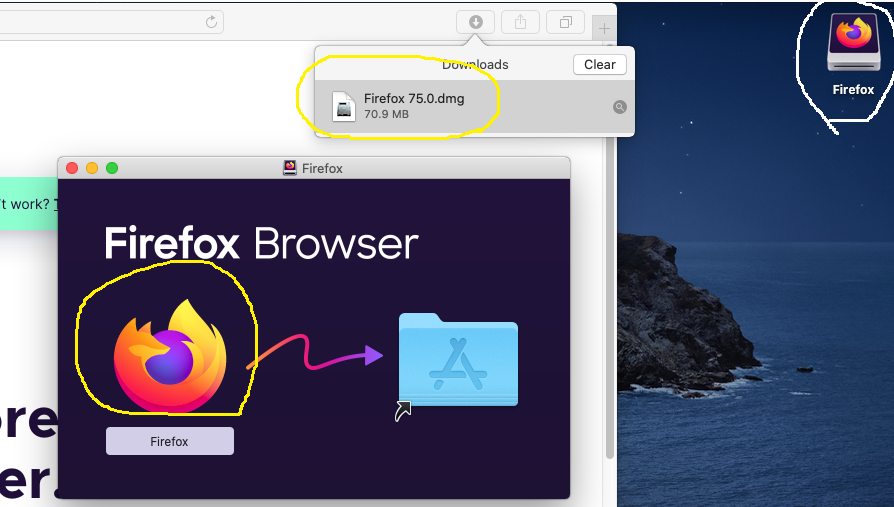
- Click the download button: Clicking this button will initiate the download of a
.dmgfile (Disk Image) to your Mac’s default download location, usually your “Downloads” folder. The file name will typically be something likeFirefox [version number].dmg.
Step 2: Install Firefox
Once the download is complete, you’ll need to run the installer to place Firefox on your Mac.
- Locate the downloaded file: Open your “Downloads” folder or the location where your browser saves downloaded files. You should see the
Firefox.dmgfile. - Open the disk image: Double-click the
Firefox.dmgfile. This will mount the disk image and open a new Finder window, showing the Firefox application icon and a shortcut to your “Applications” folder. - Drag Firefox to the Applications folder: In the Finder window that appears, you will see the Firefox application icon. You will also see a shortcut to your “Applications” folder. Click and drag the Firefox icon and drop it directly onto the “Applications” folder icon.
- Wait for the copy process: macOS will now copy the Firefox application to your “Applications” folder. This usually takes a few moments. You might see a progress bar.
- Eject the disk image: Once the copying is complete, you can close the Finder window that opened with the
.dmgfile. In the Finder sidebar, under “Locations,” you will see an icon for “Firefox” with an eject symbol next to it. Click the eject symbol to safely unmount the disk image. Alternatively, you can drag the Firefox disk image icon from your Desktop to the Trash (which will turn into an eject symbol).
Step 3: Launch Firefox and Initial Setup
With Firefox installed, you can now launch it and begin configuring it to your liking.

- Open your Applications folder: You can do this by clicking on the “Applications” icon in the Dock or by opening a new Finder window and navigating to “Applications” in the sidebar.
- Launch Firefox: Locate the Firefox application icon and double-click it.
- Security Warning: The first time you launch an application downloaded from the internet, macOS will present a security warning, asking if you are sure you want to open it. Click “Open.”
- Set as Default Browser (Optional but Recommended): Firefox will likely prompt you to set it as your default browser. If you want all your web links to open in Firefox, click “Set as Default.” If you want to keep another browser as your default, you can click “Not Now” or close the prompt. You can change this later in your Mac’s System Settings.
- Import Data from Another Browser (Optional): Firefox offers to import your bookmarks, history, passwords, and cookies from other browsers like Safari or Chrome. If you choose to do this, follow the on-screen prompts. This can save you a lot of time and effort in setting up your new browser.
- Explore Firefox Sync (Optional): If you have a Firefox account or want to create one, you can sign in to Firefox Sync. This will allow you to sync your browsing data across all your devices.
Customizing Your Firefox Experience
Once Firefox is installed and you’ve completed the initial setup, you can start tailoring it to your preferences.
Understanding Firefox Preferences
The Preferences menu is your central hub for configuring Firefox. To access it:
- Click on “Firefox” in the menu bar at the top of your screen.
- Select “Preferences” (or “Settings” on newer macOS versions).
This menu is organized into several categories, allowing you to manage:
- General: This section allows you to set your homepage, manage downloads, and adjust startup behavior.
- Search: Here, you can choose your default search engine, manage search suggestions, and add new search engines.
- Privacy & Security: This is a critical area where you can manage Firefox’s Enhanced Tracking Protection, cookies, site permissions, and browsing history settings.
- Sync: If you’re using Firefox Sync, you can manage your connected devices and synced data here.
- Extensions & Themes: This is where you can install, manage, and remove browser extensions and change the appearance of Firefox.
- Advanced: This section offers more granular control over network settings, performance, and other technical aspects of the browser.
Installing and Managing Extensions
Extensions are the key to unlocking Firefox’s full potential.
- Access the Add-ons Manager: You can access the Add-ons Manager by clicking the menu button (three horizontal lines) in the top-right corner of the Firefox window and selecting “Add-ons and themes.”
- Find and Install Extensions: In the Add-ons Manager, you can browse recommended extensions, search for specific ones, or visit the official Firefox Add-ons website (
addons.mozilla.org). Once you find an extension you want, click “Add to Firefox,” and then confirm the installation when prompted. - Manage Extensions: Within the Add-ons Manager, you can enable or disable extensions, remove them, or adjust their settings. For each extension, you can usually configure which websites it can access data from and whether it can run in Private Browsing windows.
Personalizing Your Browser’s Appearance
Firefox offers several ways to make it look and feel unique.
- Themes: Go to “Add-ons and themes” and click on “Themes” in the left-hand menu. You can browse and install various pre-designed themes to change the color scheme and style of your browser.
- Toolbar Customization: Click the menu button (three horizontal lines), then select “Customize Toolbar.” You can drag and drop icons for features and extensions to rearrange them, add new ones, or remove those you don’t use.
Troubleshooting Common Installation Issues
While Firefox installation on a Mac is usually seamless, you might occasionally encounter minor hiccups. Here are a few common issues and their solutions:
Application Won’t Open After Installation
- Check System Requirements: Ensure your macOS version is compatible with the latest version of Firefox. While rare, very old macOS versions might not be supported.
- Permissions: Sometimes, macOS security settings might interfere. Try right-clicking the Firefox icon and selecting “Open” instead of double-clicking.
- Re-download: The
.dmgfile might have been corrupted during download. Try downloading it again from the official Mozilla website. - Disk Image Issues: If the
.dmgfile itself seems problematic, try re-downloading it.
Firefox Crashes or Freezes
- Update Firefox: Ensure you have the latest version of Firefox installed. Updates often include bug fixes. Go to the menu button > Help > About Firefox to check for updates.
- Disable Extensions: A faulty extension is a common cause of instability. Try disabling all extensions from the Add-ons Manager and re-enable them one by one to identify the culprit.
- Clear Cache and Cookies: Corrupted cache or cookies can sometimes cause issues. Go to Preferences > Privacy & Security > Cookies and Site Data > Clear Data.
- Create a New Profile: Firefox profiles store your settings and data. A corrupted profile can lead to problems. You can create a new profile by typing
about:profilesin the address bar and clicking “Create a New Profile.”
Difficulty Setting Firefox as Default Browser
- Manual Change: If the prompt doesn’t work, you can set it manually. Go to Apple menu > System Settings (or System Preferences) > Desktop & Dock (or General). Scroll down to the “Default web browser” option and select Firefox from the dropdown menu.

Conclusion
Installing Firefox on your Mac is a simple yet rewarding process that opens the door to a more private, customizable, and feature-rich browsing experience. By following these steps, you can quickly have Firefox up and running, ready to be personalized with extensions and themes that suit your unique needs. Whether you’re a privacy advocate, a customization enthusiast, or simply looking for a robust alternative to your current browser, Firefox on your Mac is a powerful combination worth exploring. Remember to keep your browser and its extensions updated to ensure optimal performance and security. Enjoy your enhanced browsing journey!
aViewFromTheCave is a participant in the Amazon Services LLC Associates Program, an affiliate advertising program designed to provide a means for sites to earn advertising fees by advertising and linking to Amazon.com. Amazon, the Amazon logo, AmazonSupply, and the AmazonSupply logo are trademarks of Amazon.com, Inc. or its affiliates. As an Amazon Associate we earn affiliate commissions from qualifying purchases.