
In today’s digitally interconnected world, a reliable and efficient web browser is not just a convenience; it’s a fundamental tool. Among the plethora of options available, Google Chrome has consistently emerged as a dominant force, lauded for its speed, extensive feature set, and seamless integration with the Google ecosystem. Whether you’re a seasoned tech enthusiast looking to optimize your digital workflow or a complete beginner navigating the online landscape for the first time, understanding how to install Chrome is an essential skill. This guide will walk you through the process, covering everything from the initial download to setting up your browser for optimal performance, all while touching upon how Chrome can empower your journey in technology, branding, and even your financial endeavors.

Getting Started: Downloading and Installing Chrome on Your Device
The process of installing Google Chrome is straightforward and remarkably similar across different operating systems. The primary objective is to obtain the official installer from Google’s website, which ensures you’re getting a safe and up-to-date version of the browser.
For Windows Users: A Step-by-Step Installation
For those operating on a Windows machine, the installation is a breeze.
- Open Your Current Browser: Launch the web browser already present on your computer. This could be Microsoft Edge, Firefox, or any other browser you may have.
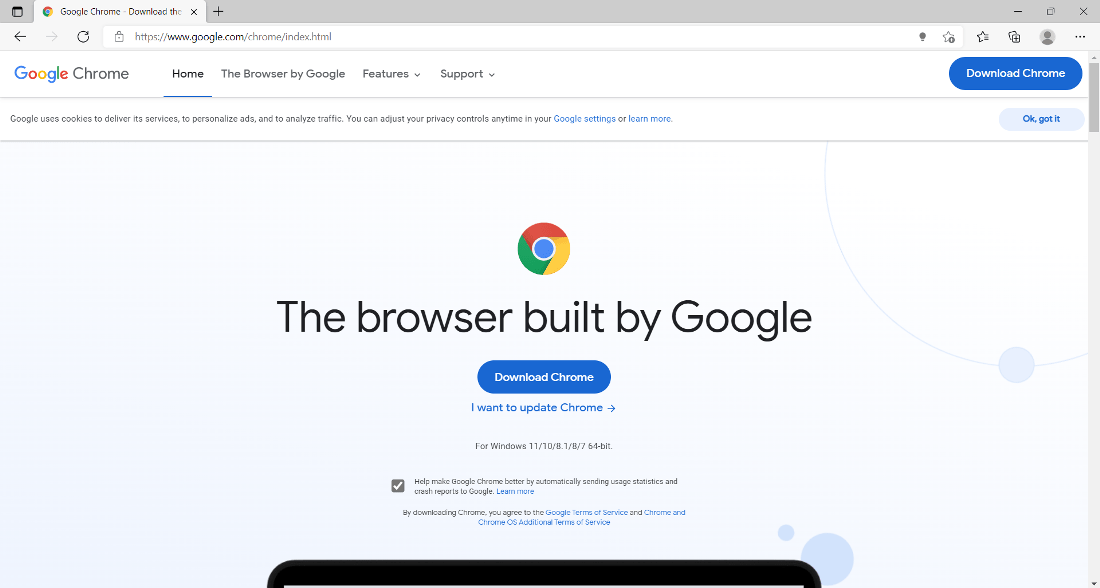
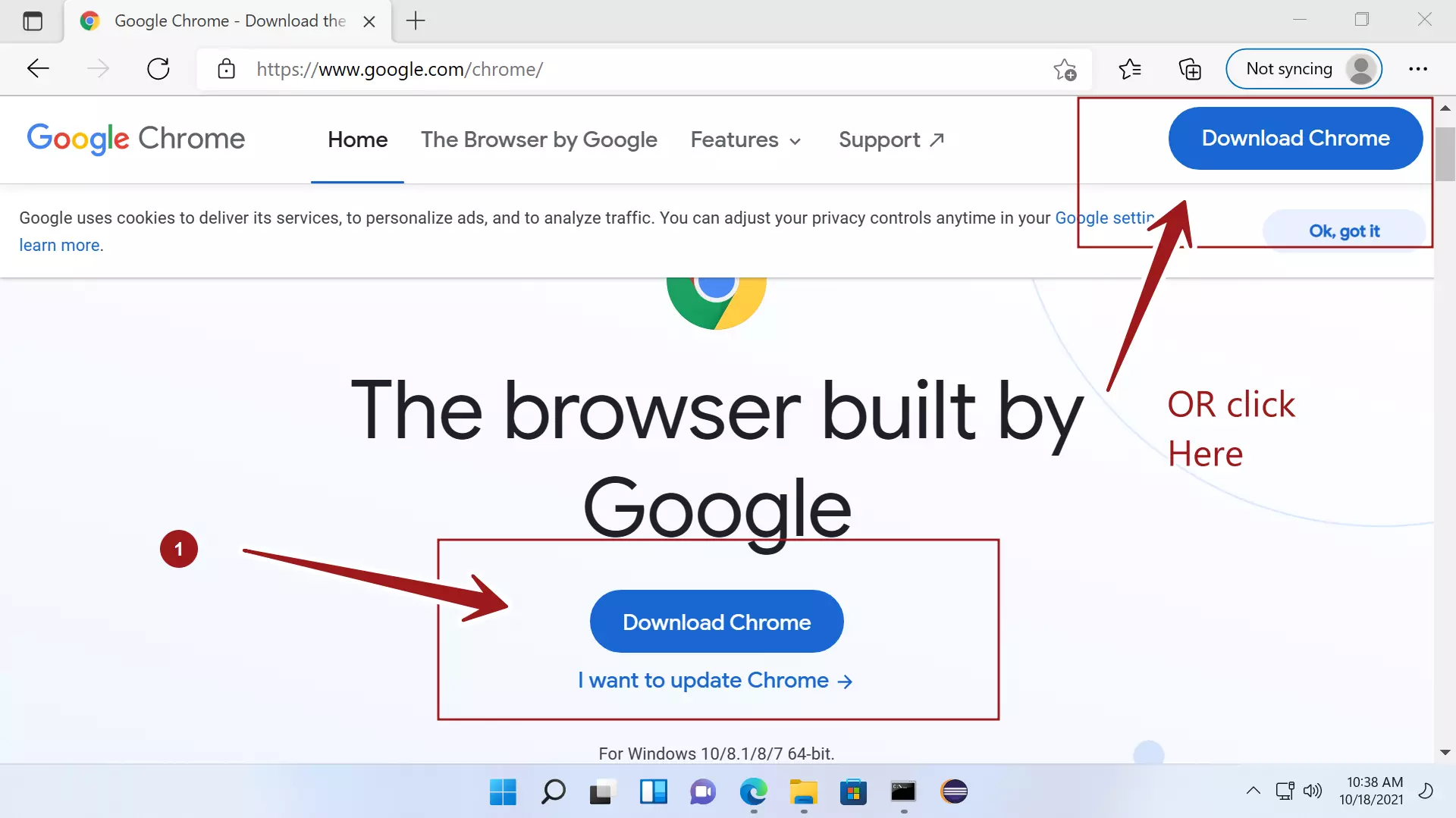
- Navigate to the Chrome Download Page: In the address bar of your current browser, type
google.com/chromeand press Enter. This will take you directly to the official Google Chrome download page. - Download Chrome: You’ll see a prominent button, usually labeled “Download Chrome.” Click this button. Before the download begins, you might be presented with an option to make Chrome your default browser. You can choose to accept this now or change it later.
- Run the Installer: Once the download is complete, you’ll find the installer file, typically named
ChromeSetup.exe, in your Downloads folder or at the bottom of your current browser’s download window. Double-click this file to start the installation process. - Grant Permissions: Windows User Account Control (UAC) may prompt you to allow the app to make changes to your device. Click “Yes” to proceed.
- Installation in Progress: Chrome will now download and install automatically. This process is usually quite quick.
- Chrome Opens Automatically: Upon successful installation, Google Chrome will launch automatically. You’ll be greeted with a welcome screen where you can sign in with your Google account to sync your bookmarks, history, passwords, and settings across devices.
For macOS Users: A Smooth Installation Experience
If you’re a Mac user, the installation process is equally intuitive.
- Open Safari or Another Browser: Launch the default web browser on your Mac, which is typically Safari.
- Visit the Chrome Download Page: Type
google.com/chromeinto the address bar and press Return. - Download Chrome for Mac: Click the “Download Chrome” button. Ensure you select the correct version for macOS. Similar to Windows, you’ll have the option to set Chrome as your default browser.
- Open the Downloaded File: Once the download finishes, you’ll have a disk image file, usually named
googlechrome.dmg, in your Downloads folder. Double-click this file. - Drag and Drop to Applications: A new window will appear, showing the Chrome icon and an Applications folder. Drag the Chrome icon into the Applications folder.
- Launch Chrome: You can now find Google Chrome in your Applications folder and launch it by double-clicking. The first time you open Chrome, you might be asked to confirm that you want to open an application downloaded from the internet. Click “Open.”
- Sign In and Sync: Similar to Windows, you’ll be prompted to sign in with your Google account to sync your browsing data.
For Linux Users: Tailoring the Installation
Linux users have a few more options depending on their distribution, but the most common methods involve downloading a .deb or .rpm package.
- Open Your Current Browser: Use your existing Linux browser (e.g., Firefox).
- Navigate to the Chrome Download Page: Go to
google.com/chrome. - Download for Linux: Click “Download Chrome.” You’ll need to select the appropriate package for your distribution. For Debian-based systems like Ubuntu, choose the
.debpackage. For Fedora or openSUSE, select the.rpmpackage. - Install the Package:
- For Debian/Ubuntu: Open your terminal, navigate to the Downloads directory where you saved the
.debfile, and run the command:sudo dpkg -i google-chrome-stable_current_amd64.deb(replace with the actual filename). If you encounter dependency issues, runsudo apt --fix-broken install. - For Fedora/openSUSE: Open your terminal, navigate to the Downloads directory, and run:
sudo rpm -i google-chrome-stable_current_x86_64.rpm(replace with the actual filename).
- For Debian/Ubuntu: Open your terminal, navigate to the Downloads directory where you saved the
- Launch Chrome: Once installed, you can launch Chrome from your application menu or by typing
google-chrome-stablein the terminal.
Optimizing Your Chrome Experience: Personalization and Productivity
Installing Chrome is just the first step. To truly leverage its power, personalization and understanding its features are key. This is where Chrome’s capabilities can significantly enhance your interactions with technology, your personal brand, and even your financial management.
Leveraging Chrome for Enhanced Productivity and Digital Security
Google Chrome is more than just a gateway to the internet; it’s a powerful productivity hub and a tool for safeguarding your digital life.
-
Extensions: The Power-Up for Your Browser: Chrome’s vast library of extensions is its secret weapon. These small add-ons can transform Chrome into a specialized tool for almost any task.
- Productivity: Tools like Momentum can replace your new tab page with a personalized dashboard featuring a to-do list, weather, and inspiring images. Todoist integrates your task management directly into your browser. For researchers, Zotero or Mendeley can help manage citations.
- Digital Security: HTTPS Everywhere automatically encrypts your communication with websites. LastPass or Bitwarden are excellent password managers that can generate and store strong, unique passwords for all your online accounts, significantly bolstering your digital security. uBlock Origin is a highly effective ad blocker that can speed up browsing and reduce exposure to malicious ads.
- Learning and Development: Tools for language learning, note-taking, and even coding can be integrated. Grammarly checks your grammar and spelling as you write online, crucial for maintaining a professional online presence.
-
Syncing Across Devices: The Unified Experience: Signing into Chrome with your Google account is a game-changer. This allows your bookmarks, browsing history, saved passwords, open tabs, and even extensions to sync seamlessly across all your devices where you use Chrome. This means you can start a research session on your desktop and pick up right where you left off on your tablet or smartphone, maintaining uninterrupted workflow. This consistency is vital for anyone looking to build a cohesive personal brand across multiple platforms.
-
Incognito Mode: Privacy and Experimentation: Chrome’s Incognito mode offers a private browsing experience. Websites visited in Incognito mode are not saved in your browsing history, cookies, or site data. This is useful for:
- Testing Website Appearance: Seeing how your personal website or blog appears to a first-time visitor without any cached data influencing the display.
- Researching Sensitive Topics: Browsing without leaving a trace in your personal history.
- Avoiding Personalized Pricing: Some online retailers adjust prices based on your browsing history. Incognito mode can help bypass this.
-
Google Safe Browsing: Chrome’s built-in Safe Browsing feature constantly checks websites against a list of known phishing and malware sites. If you attempt to visit a dangerous site, Chrome will display a warning, acting as a crucial line of defense for your digital security. Regularly updating Chrome ensures you have the latest security definitions.
Chrome as a Launchpad for Branding and Financial Growth
The browser you choose can subtly influence your professional and financial life. Chrome, with its integrated Google services, offers unique advantages.
-
Building Your Personal Brand:
- Content Creation and Management: Chrome is your primary tool for accessing social media platforms, blogging sites, and content management systems. Extensions like Canva’s browser extension can help you quickly grab assets for social media graphics. The ability to quickly research trends, competitor activities, and audience engagement metrics is all facilitated through a robust browser.
- Online Presence Management: Regularly checking your brand’s mentions, updating your website, and engaging with your audience all happen within Chrome. The sync feature ensures you can manage your brand presence from any device, maintaining consistency.
- Learning and Skill Development: Many online courses and tutorials for branding, marketing, and web design are accessed via browsers. Chrome’s ability to handle multiple tabs efficiently allows you to compare resources, take notes, and practice new skills concurrently.
-
Financial Management and Online Income:
- Online Banking and Investments: Chrome is your secure portal to manage your bank accounts, investment portfolios, and financial planning tools. Features like password managers and built-in security are paramount here.
- Researching Opportunities: Whether you’re looking into new investment avenues, side hustle ideas, or online income streams, Chrome provides the gateway. You can easily compare financial tools, read reviews of online platforms, and research market trends.
- Productivity for Side Hustles: For those pursuing online businesses or freelance work, Chrome extensions for project management, time tracking (like Toggl Track), and communication can significantly streamline operations.
- Accessing Financial Information: Chrome allows for easy access to financial news, market data, and budgeting apps, all of which are critical for smart financial decisions.
Troubleshooting Common Installation Issues
While Chrome’s installation is generally smooth, occasional hiccups can occur. Here are some common issues and their solutions.
Installation Fails or Chrome Doesn’t Launch
- Check Your Internet Connection: A stable internet connection is crucial for downloading and installing Chrome. Ensure your Wi-Fi or Ethernet connection is working properly.
- Antivirus/Firewall Interference: Your security software might be mistakenly blocking the installation. Temporarily disable your antivirus or firewall and try installing again. Remember to re-enable them afterward.
- Insufficient Disk Space: Ensure you have enough free space on your hard drive for Chrome to install.
- Corrupted Download: If the download was interrupted, the installer file might be corrupted. Delete the downloaded file and download it again from the official Google Chrome website.
- Administrator Privileges: On Windows, ensure you are running the installer as an administrator. Right-click on the installer file and select “Run as administrator.”
- System Requirements: While Chrome is designed to be compatible with most modern systems, ensure your operating system is up to date and meets the minimum requirements.
Chrome Crashes or Freezes
- Update Chrome: If Chrome is already installed but malfunctioning, the first step is always to update it. Go to Chrome’s Settings (three vertical dots in the top-right corner) > Help > About Google Chrome. Chrome will automatically check for and install updates.
- Clear Cache and Cookies: Corrupted cache or cookies can cause performance issues. Go to Settings > Privacy and security > Clear browsing data. Select “Cookies and other site data” and “Cached images and files,” choose a time range (e.g., “All time”), and click “Clear data.”
- Disable Extensions: A problematic extension is a frequent culprit. Go to Chrome’s Settings > Extensions. Disable them one by one to identify which one is causing the issue.
- Reset Chrome Settings: If the problem persists, you can reset Chrome to its default settings. Go to Settings > Advanced > Reset and clean up > Restore settings to their original defaults. This will disable extensions, clear temporary data, and reset your startup page, new tab page, search engine, and pinned tabs. Your bookmarks, history, and passwords will not be cleared.
- Check for Malware: Malware can affect browser performance. Run a full system scan with your antivirus software.
By following these steps, you can ensure a smooth installation of Google Chrome and set yourself up for a productive, secure, and efficient online experience, whether you’re diving deep into technology trends, building your personal brand, or managing your finances.
aViewFromTheCave is a participant in the Amazon Services LLC Associates Program, an affiliate advertising program designed to provide a means for sites to earn advertising fees by advertising and linking to Amazon.com. Amazon, the Amazon logo, AmazonSupply, and the AmazonSupply logo are trademarks of Amazon.com, Inc. or its affiliates. As an Amazon Associate we earn affiliate commissions from qualifying purchases.