
In the contemporary digital landscape, the “Subscription Economy” has transformed how we consume media, procure household goods, and utilize software. Amazon, as a global leader in cloud infrastructure and consumer technology, sits at the epicenter of this shift. From the multifaceted benefits of Amazon Prime to niche services like Kindle Unlimited, Audible, and the logistical automation of “Subscribe & Save,” the platform offers a dizzying array of recurring services.
However, as users integrate more services into their daily lives, the challenge shifts from discovery to management. Digital clutter can lead to “subscription fatigue,” where the complexity of managing multiple interfaces results in unnecessary expenditures and a fragmented digital experience. Understanding how to navigate the technical architecture of Amazon’s subscription management is a vital skill for any tech-savvy consumer looking to optimize their digital ecosystem.

Navigating the Amazon Digital Interface: Where the Management Tools Live
Amazon’s user interface (UI) is designed for high-velocity purchasing, but the tools for cancellation and management are often nested within several layers of the account hierarchy. To effectively manage or terminate a subscription, one must first understand where these digital switches are located within the Amazon infrastructure.
Accessing the Memberships & Subscriptions Hub
The primary command center for your recurring services is the “Memberships & Subscriptions” page. To reach this via a desktop browser, you must navigate to the “Account & Lists” dropdown menu located in the top-right corner of the homepage. Under the “Your Account” sub-section, you will find the link to “Memberships & Subscriptions.”
This dashboard is a centralized API-driven view that aggregates all active, paused, and canceled digital services linked to your account. It provides a high-level overview of renewal dates, payment methods, and pricing tiers. From a technical standpoint, this is the most efficient place to start because it bypasses the marketing-heavy landing pages of individual services.
The Mobile vs. Desktop Experience
It is important to note that the User Experience (UX) differs significantly between the Amazon mobile app (iOS/Android) and the desktop environment. In the mobile app, the path is often more streamlined: tap the user icon (the person silhouette), select “Your Account,” and scroll down to “Account Settings” to find “Memberships & Subscriptions.”
However, some complex cancellations—particularly those involving third-party “Channels” purchased through Prime Video—may occasionally require a desktop view or a mobile browser set to “Request Desktop Site” to expose all configuration options. Understanding these UI discrepancies prevents the frustration that often arises when a “Cancel” button appears to be missing from the mobile interface.
Step-by-Step Guide to Canceling Popular Amazon Services
Each service within the Amazon umbrella operates on a slightly different backend logic. While some can be terminated instantly, others involve retention loops—software-driven prompts designed to discourage cancellation by offering discounts or highlighting lost benefits.
Terminating Amazon Prime
Amazon Prime is the most complex service to cancel because it is an umbrella subscription covering shipping, streaming, and cloud storage. When you initiate the “End Membership” flow, you will encounter a three-step retention funnel.
- The Impact Summary: The system will show you exactly how much you have “saved” on shipping or how many Prime Video hours you have consumed.
- The “Remind Me Later” Option: A technical middle ground that allows the system to send you a notification three days before the renewal date.
- The Final Confirmation: Only after navigating through these screens will the cancellation be processed.
Once confirmed, the system marks your account for “non-renewal.” You typically retain access to all Prime features until the end of the current billing cycle.
Managing Kindle Unlimited and Audible
Digital content subscriptions like Kindle Unlimited and Audible are managed through specific content portals. For Kindle Unlimited, the management page allows you to see your “Returned” versus “Current” books. Canceling here immediately triggers a status update in your Kindle library; while you keep your notes and highlights (stored in the cloud), the books themselves will be “revoked” from your devices once the billing period ends.
Audible operates on a credit-based system. A critical technical detail to remember: if you cancel Audible, you may lose any unused credits. The software prompts usually warn you of this, but from a management perspective, it is best to “spend” your credits on permanent library additions before hitting the final cancellation button.
Managing “Subscribe & Save” for Physical Goods
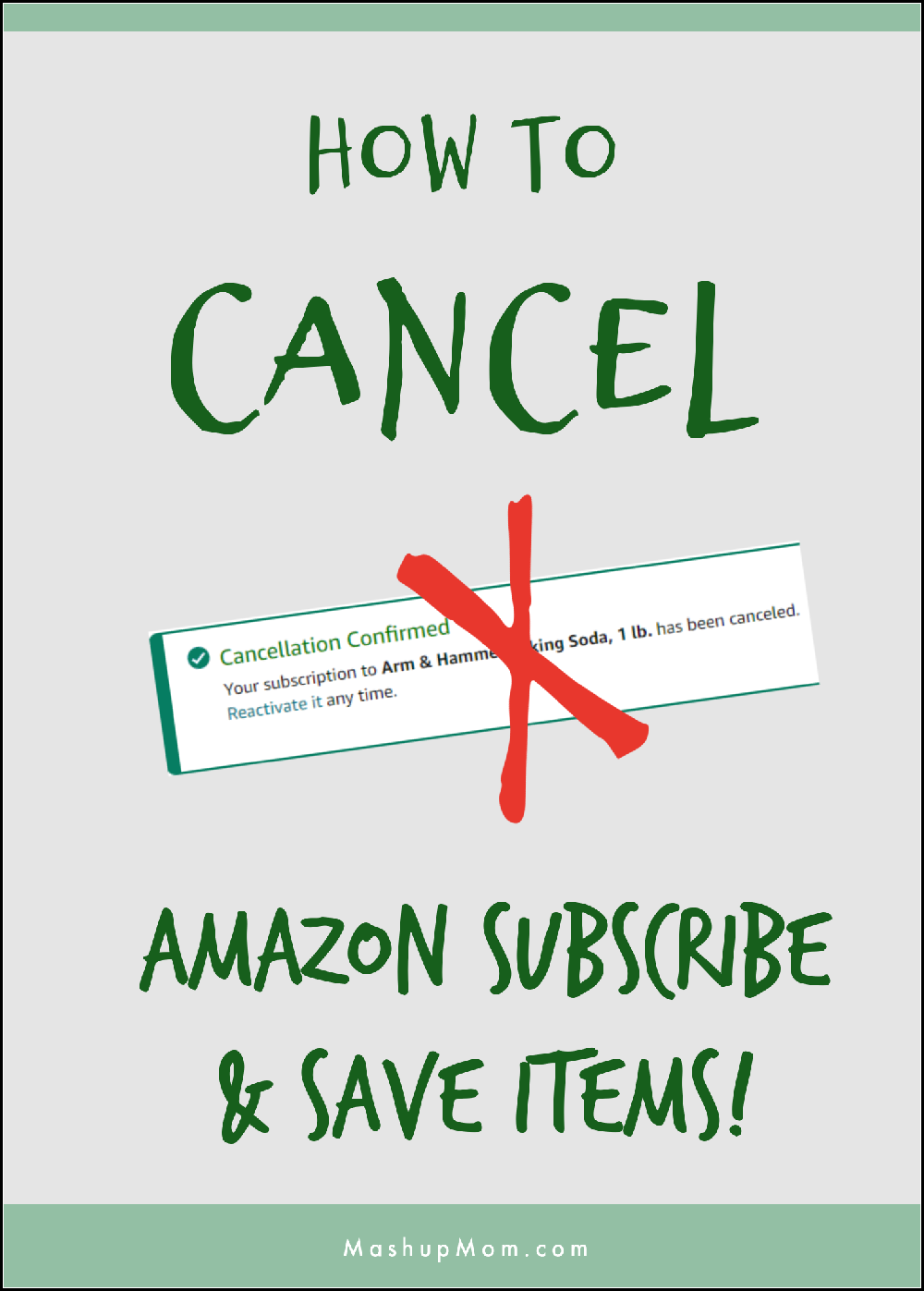
Unlike digital streaming, “Subscribe & Save” is a logistical automation tool. This is not managed under “Memberships,” but rather under “Your Recurrence.” To cancel these, you must navigate to the “Subscribe & Save” dashboard. Here, you can skip individual deliveries or terminate the subscription entirely. This interface interacts directly with Amazon’s inventory and shipping algorithms, so cancellations must typically be made at least 48 to 72 hours before the “Arriving By” date to prevent the automated warehouse picking process from initiating.
Understanding the Back-End Logic of Subscription Management
To master your digital footprint, you must understand what happens behind the scenes when you click “cancel.” Cancellation is rarely a simple “delete” command; it is a change in the state of your user permissions.
The Difference Between Cancellation and Deletion
When you cancel a subscription on Amazon, your data—such as watchlists, reading history, and preferences—is usually retained in a “dormant” state. This is a deliberate design choice. If you decide to reactivate the service months later, the system re-links your account ID to your previous metadata. Truly deleting your data is a separate process that involves GDPR or CCPA privacy requests, which is a much more intensive technical undertaking than simply stopping a recurring payment.
Pro-Rata Refunds and Access Windows
Amazon’s refund logic is largely automated. If you cancel a Prime membership within a few days of the renewal and have not utilized any benefits (like Prime shipping or Video streaming), the system may automatically offer a full or pro-rated refund. However, if the service has been used, the default setting is “Cancel at end of period.” This means your digital tokens for access remain valid until the timestamp of your next scheduled billing.
Tools and Tips for Digital Cleanup
In an era of “ghost subscriptions”—services we pay for but don’t use—relying solely on the vendor’s interface isn’t enough. A proactive tech strategy involves using external tools to monitor and manage these digital outflows.
Using Email Filters to Track Recurring Charges
Every Amazon subscription renewal triggers an automated email receipt. A simple but effective tech “hack” is to set up a dedicated folder or label in your email client (like Gmail or Outlook) using filters. Create a filter for emails from “amazon.com” containing the word “subscription,” “renewal,” or “order confirmation.” Reviewing this folder once a month provides a consolidated view of your digital spending that is often more readable than a bank statement.
Security Implications of Lingering Subscriptions
From a digital security perspective, every active subscription is a link between your financial data and a cloud service. While Amazon’s infrastructure is incredibly secure, reducing the number of active subscriptions reduces your overall “attack surface.” If an account is hijacked, active subscriptions can be leveraged to make unauthorized purchases. Regularly pruning unused services is not just a financial move; it is a form of “digital hygiene” that secures your account.
Future-Proofing Your Digital Wallet
As we look toward the future of software and services, the trend is moving toward even more granular subscriptions. Managing this requires a shift in mindset from “set it and forget it” to active curation.
The Role of Third-Party Subscription Management Apps
There are several fintech and “WealthTech” apps designed to scan your bank transactions via secure APIs (like Plaid) to identify recurring Amazon charges. Tools like Rocket Money or PocketGuard can provide an external dashboard of your Amazon subscriptions. While these tools are helpful, they can only identify the charge; they cannot usually execute the cancellation within Amazon’s proprietary system. They serve as an “alert” layer, while the actual technical execution must still happen within the Amazon UI.
Developing a Monthly Tech Audit Habit
The most effective way to manage Amazon subscriptions is to perform a “Monthly Tech Audit.” On the first of every month, spend ten minutes in the “Memberships & Subscriptions” hub. Evaluate each service: “Have I used this in the last 30 days?” If the answer is no, the technical cost of re-subscribing later is near zero, while the cost of maintaining the unused service accumulates.
By mastering the navigation, understanding the underlying logic, and implementing a routine for digital cleanup, you transform from a passive consumer into an active manager of your technology. Canceling a subscription on Amazon is more than just saving a few dollars; it is about reclaiming your digital space and ensuring that your tech stack serves your current needs, rather than your past habits.
aViewFromTheCave is a participant in the Amazon Services LLC Associates Program, an affiliate advertising program designed to provide a means for sites to earn advertising fees by advertising and linking to Amazon.com. Amazon, the Amazon logo, AmazonSupply, and the AmazonSupply logo are trademarks of Amazon.com, Inc. or its affiliates. As an Amazon Associate we earn affiliate commissions from qualifying purchases.