
In an increasingly digital world, cloud storage has become an indispensable tool for managing our digital lives. Apple’s iCloud service stands as a cornerstone for millions of users, seamlessly integrating with iPhones, iPads, Macs, and even Windows PCs to store everything from precious family photos to critical work documents. While its omnipresent nature offers unparalleled convenience and peace of mind through automatic backups and synchronization, it also raises a fundamental question for many: “How can I see what is stored on iCloud?” Understanding precisely what resides in your personal cloud is not just about curiosity; it’s a vital aspect of digital security, data management, productivity, and even financial prudence.
This comprehensive guide will demystify iCloud storage, offering step-by-step instructions on how to access and view your stored data across various devices. Beyond the ‘how-to,’ we’ll delve into the broader implications of effective iCloud management, touching upon its role in maintaining your digital security, optimizing your productivity, and making informed financial decisions regarding your storage needs.
Understanding iCloud Storage: More Than Just Files
Before we dive into the practical steps of viewing your data, it’s crucial to grasp the multifaceted nature of iCloud storage. It’s not a single, monolithic folder where everything is dumped; rather, it’s a sophisticated ecosystem designed to categorize and manage different types of data intelligently. This understanding is the first step towards truly seeing and controlling what you have in the cloud.
The Ecosystem of Your Digital Life in the Cloud
iCloud acts as a central hub for various categories of your digital information, each with its own purpose and access method:
- iCloud Photos: This service syncs and stores your entire photo and video library across all your Apple devices. Changes made on one device (like deleting a photo) are reflected everywhere. It’s distinct from your device’s local photo library and can save significant space on your physical devices using “Optimize Storage” options.
- iCloud Drive: Think of this as your personal cloud-based file system, akin to Dropbox or Google Drive. You can store documents, presentations, PDFs, and any other file type here. Files saved to iCloud Drive are accessible from the Files app on iOS/iPadOS, Finder on macOS, iCloud.com, and iCloud for Windows.
- iCloud Backup: This critical feature automatically backs up the data on your iPhone or iPad, including app data, device settings, Home screen layout, iMessage and SMS messages (if iCloud Messages is off), photos and videos (if iCloud Photos is off), purchase history, and more. Backups are crucial for device recovery and migration.
- iCloud Messages: When enabled, your iMessage and SMS conversations are synced and stored in iCloud. This ensures that your entire message history is consistent across all your Apple devices and takes up space in your iCloud storage.
- iCloud Mail, Contacts, Calendars, Reminders, Notes: These core productivity apps sync their data through iCloud, ensuring that your communication, scheduling, and organizational information is always up-to-date across your ecosystem.
- App Data: Many third-party applications also leverage iCloud to store their data, allowing for seamless usage across devices and preserving your progress or settings even if you switch devices.
- iCloud Keychain: Securely stores your passwords, credit card information, and Wi-Fi network information, making it accessible and consistent across your trusted Apple devices. While this data is encrypted and uses negligible space, it’s a vital part of your stored cloud information from a digital security perspective.
Understanding these categories is vital because how you “see” what’s stored often depends on the specific type of data you’re looking for. This differentiation also highlights the importance of “Digital Security” and “Productivity,” as managing these diverse data types directly impacts both.
Accessing Your iCloud Data: Multiple Pathways
Apple has ensured that you have multiple ways to view and manage your iCloud content, catering to the device you’re currently using. Each method offers a slightly different perspective and level of detail.
On Your iPhone, iPad, or iPod Touch
Your mobile device is likely your primary interface with iCloud. Here’s how to check your storage:
- Go to Settings: Tap the “Settings” app icon.
- Tap Your Apple ID: At the very top of the Settings menu, you’ll see your name and profile picture. Tap this banner.
- Tap iCloud: Within your Apple ID settings, you’ll find the “iCloud” option. Tap it.
- View Storage Bar: At the top of the iCloud screen, you’ll see a colorful bar visually representing how your iCloud storage is being used by different data types (Photos, Documents, Backups, Mail, etc.).
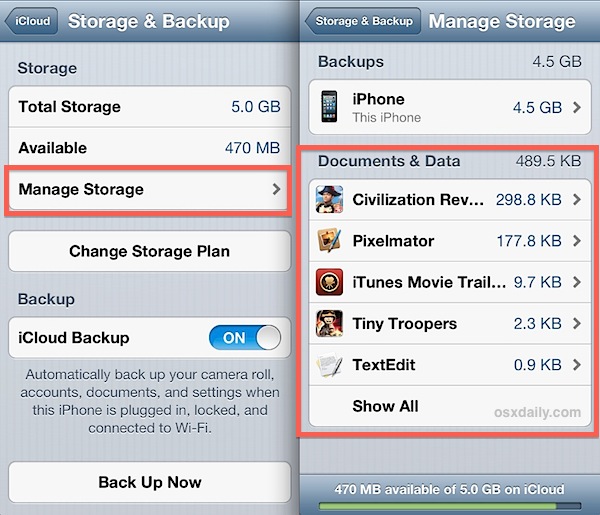
- Tap “Manage Account Storage” (or “Manage Storage”): This is where you get granular detail. Here, you’ll see a breakdown of all apps and services currently using your iCloud storage, listed by the amount of space they consume.
- Backups: Tap on “Backups” to see a list of all device backups stored in iCloud. You can tap on individual backups to see what specific apps are included and choose to delete old ones.
- Photos: This will show the total space iCloud Photos is using. To view the actual photos and videos, you’ll need to go to the “Photos” app itself.
- iCloud Drive: This section shows the total space occupied by files in iCloud Drive. To browse individual files, use the “Files” app.
- Messages: If enabled, this shows the space used by your iCloud Messages. You can manage attachments within the Messages app.
- Other Apps: Scroll down to see a list of individual apps storing data in iCloud. Tapping on an app might give you options to delete its data or disable it from using iCloud.
To view the actual content of specific data types:
- Photos/Videos: Open the Photos app. If iCloud Photos is enabled, your entire library is stored and accessible here.
- Files: Open the Files app. Under “Locations,” you’ll find “iCloud Drive” where you can browse all your documents and files.
- Notes, Reminders, Contacts, Calendars: Open their respective apps. If iCloud syncing is enabled, the content displayed in these apps is synchronized with iCloud.
- Messages: Open the Messages app. Your entire message history, if synced to iCloud, will be available here.
On Your Mac
Mac users have a similarly integrated experience, with various access points to iCloud data:
- Open System Settings (macOS Ventura or later) or System Preferences (earlier macOS): Click the Apple menu in the top-left corner and select “System Settings” or “System Preferences.”
- Click Apple ID: In the sidebar of System Settings or at the top of the System Preferences window, click “Apple ID.”
- Select iCloud: In the Apple ID pane, select “iCloud” from the sidebar.
- View Storage Bar and “Manage”: Similar to iOS, you’ll see a storage bar. Click the “Manage…” button (or “Manage Storage”) to view a detailed breakdown of how your iCloud storage is being used by different categories (Photos, Documents, Backups, Mail, etc.) and individual apps. From this window, you can manage specific data, such as deleting old backups or reviewing large files in iCloud Drive.
To view actual content on your Mac:
- iCloud Drive Files: Open Finder. In the sidebar, select “iCloud Drive.” All your files and folders stored in iCloud Drive will be displayed here, just like local files.
- Photos/Videos: Open the Photos app. If iCloud Photos is enabled, your entire photo and video library will be accessible here.
- Notes, Reminders, Contacts, Calendars, Mail: Open their respective apps. If iCloud syncing is active, the content in these apps reflects your iCloud data.
- Messages: Open the Messages app. Your iCloud-synced message history is available here.
Through iCloud.com
iCloud.com offers a web-based portal to access much of your iCloud data from any web browser, regardless of the operating system. This is especially useful if you’re on a non-Apple device or want a quick overview.
- Open a web browser and go to www.icloud.com.
- Sign in with your Apple ID and password. You may need to enter a two-factor authentication code.
- Explore the Web Apps: Once signed in, you’ll see a dashboard with icons for various iCloud services:
- Photos: Click this to view and download your entire iCloud Photo Library.
- iCloud Drive: Access, upload, download, and manage your files stored in iCloud Drive.
- Notes, Reminders, Pages, Numbers, Keynote, Contacts, Calendar: These apps allow you to view and edit their respective data directly in the browser.
- Settings: Click “Account Settings” (your name in the top right, then “iCloud Settings”) to view your overall storage usage and manage devices, but not individual app data breakdown in detail like on a device.
- Find My: Locate your Apple devices.
iCloud.com provides a comprehensive view of your media, documents, and PIM (Personal Information Management) data, making it a powerful tool for checking your stored content remotely.
On a Windows PC
Apple provides an “iCloud for Windows” application that integrates iCloud services with your Windows machine:
- Download and install iCloud for Windows: If you haven’t already, download it from the Microsoft Store or Apple’s website.
- Sign in: Launch iCloud for Windows and sign in with your Apple ID.
- Select services: Choose which iCloud services you want to sync with your PC (iCloud Drive, Photos, Mail, Contacts, Calendars, Bookmarks).
- Access Data:
- iCloud Drive: A “iCloud Drive” folder will appear in File Explorer, allowing you to browse and manage your cloud files just like local folders.
- iCloud Photos: A “iCloud Photos” folder will appear, where your photos and videos can be downloaded and uploaded.
- Outlook: Your iCloud Mail, Contacts, and Calendars can sync with Outlook.
- iCloud Passwords: With the iCloud Passwords Chrome or Edge extension, you can access your iCloud Keychain passwords on Windows.
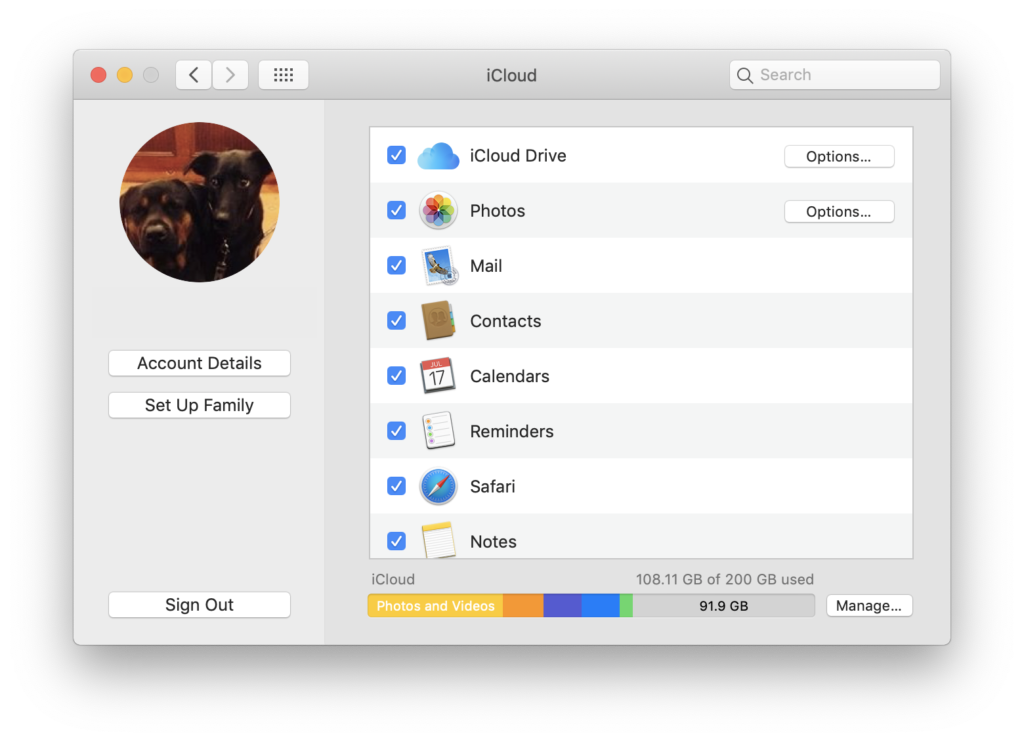
iCloud for Windows extends your ability to see and interact with your iCloud data beyond the Apple ecosystem, providing flexibility and convenience for users with mixed device environments.
Managing Your iCloud Storage: Optimizing and Securing
Simply seeing what’s stored on iCloud is only half the battle. Effective management is crucial for optimizing performance, maintaining digital security, and ensuring you’re getting the most value from your cloud service. This moves beyond mere observation to active control, a key aspect of “Digital Security” and “Productivity.”
Freeing Up Space and Optimizing Storage
Regularly reviewing your iCloud storage usage allows you to identify and remove unnecessary data, preventing you from hitting your storage limit and potentially needing to purchase more space. This aligns with “Personal Finance” in the broader context of managing expenses.
- Delete Old Backups: Go to
Settings > Apple ID > iCloud > Manage Account Storage > Backups(on iOS/iPadOS) orSystem Settings/Preferences > Apple ID > iCloud > Manage > Backups(on Mac). If you have backups from old devices you no longer own, or multiple backups for the same device, delete the redundant ones. These often consume significant space. - Review and Delete Large Photos/Videos: In
Manage Account Storage > Photos, you can see the total space. To truly prune, open the Photos app, identify large videos or duplicates, and delete them. Remember to check the “Recently Deleted” album to permanently remove them. Consider using tools like Google Photos (with its own free tier) for additional photo backups if you want to offload some from iCloud. - Manage iCloud Drive Files: Access iCloud Drive via the Files app (iOS/iPadOS), Finder (Mac), or iCloud.com. Review files and folders, deleting anything outdated, unnecessary, or duplicated. Large video files or application installers are common culprits.
- Disable Apps from Syncing Data: In
Manage Account Storage, you’ll see a list of apps using iCloud. If an app is storing data you don’t need synced or backed up, you can disable it from the list. This is particularly useful for apps that store large amounts of data you might not consider critical. - Use “Optimize Storage” Options: For Photos (on iOS/iPadOS and Mac) and Mac storage in general, Apple offers “Optimize Storage” options. This keeps full-resolution originals in iCloud and stores smaller, device-optimized versions locally, freeing up space on your physical device while retaining access to your full library.
Enhancing Digital Security and Privacy
Your iCloud account holds a treasure trove of personal information. Knowing what’s stored there is the first step; securing it is paramount. This directly addresses the “Digital Security” aspect of the website’s topics.
- Regularly Review Stored Data: Periodically check your iCloud contents, especially for sensitive documents, photos, or conversations. Ensure no unintended or outdated sensitive information is lingering in the cloud. This could include old tax documents, medical records, or personal diaries stored in Notes or Files.
- Enable Two-Factor Authentication (2FA): This is non-negotiable for iCloud security. 2FA adds an extra layer of protection, requiring a code sent to a trusted device in addition to your password when signing in on a new device or browser.
- Use Strong, Unique Passwords: Ensure your Apple ID password is complex and unique. Avoid reusing passwords across different services.
- Understand Data Categories: Be aware of where different types of sensitive data are stored. For example, financial documents in iCloud Drive, health information in Notes, or private conversations in Messages. Knowing this helps you assess potential risks and manage data accordingly.
- Review Device Access: In your Apple ID settings (
Settings > Apple ID), you can see a list of all devices associated with your Apple ID. Remove any old or unfamiliar devices that might still have access to your iCloud data.
iCloud and Your Digital Strategy: Tech, Brand, and Money Implications
Beyond the immediate technical utility, managing what’s stored on iCloud intersects significantly with broader themes of technology, personal/corporate branding, and financial acumen.
The Tech Advantage: Seamless Integration and Accessibility
iCloud exemplifies the power of modern cloud technology, offering users a robust, highly integrated, and largely invisible service that underpins the Apple ecosystem. For tech enthusiasts and everyday users alike, understanding how iCloud stores and syncs data highlights cutting-edge advancements in:
- Software Design: Apple’s approach to iCloud demonstrates sophisticated software engineering, providing seamless syncing across diverse platforms and applications, ensuring data consistency and availability.
- AI Tools and Productivity: While not explicitly an “AI tool,” iCloud’s intelligent optimization features (like “Optimize Storage”) leverage smart algorithms to enhance device performance and user productivity. Its integration with Siri Shortcuts also allows for automated workflows that can leverage stored data.
- Digital Security: The robust encryption, two-factor authentication, and privacy-by-design principles embedded within iCloud reflect leading practices in digital security, critical for protecting user data in the cloud.
By effectively managing your iCloud content, you are not just using a service; you are actively engaging with and benefiting from a sophisticated technological framework designed to enhance your digital life.
Brand and Reputation: Trust in the Cloud
In an era where personal and professional brands are increasingly digital, how you manage your cloud data can have indirect but significant implications:
- Personal Branding: For individuals, a securely managed iCloud account contributes to a perception of digital competence and responsibility. Conversely, a data breach stemming from poor cloud hygiene can damage personal reputation, especially if sensitive information is exposed. Understanding what’s stored helps in identifying and mitigating such risks.
- Corporate Identity and Security: For professionals using iCloud for work-related data, managing access and content is crucial for protecting client information, intellectual property, and maintaining corporate compliance standards. Companies relying on Apple devices often integrate iCloud into their “Digital Security” protocols, making employee awareness and management skills vital.
- Reputation Management: Apple’s brand reputation is heavily tied to the perceived security and reliability of its services, including iCloud. As users, our trust in the brand reinforces this. By understanding and actively managing our data, we become part of a larger ecosystem of digital trust.
Proper iCloud management isn’t just about personal convenience; it’s about safeguarding your digital footprint and, by extension, your brand and reputation in an interconnected world.
Financial Foresight: Understanding Storage Costs
The “Money” aspect of iCloud comes into play with storage costs, a common consideration for users as their digital lives expand:
- The Free Tier vs. Paid Plans: Every Apple ID starts with a generous but often insufficient 5GB of free iCloud storage. For many, this quickly fills up with photos and backups. Understanding what’s consuming space (by viewing your stored data) is key to determining if you need to upgrade.
- Cost-Benefit Analysis: iCloud offers various paid plans (50GB, 200GB, 2TB, etc.). By actively managing and deleting unnecessary data, you might be able to stay within a smaller, more affordable plan, or even the free tier. This proactive approach is a tangible “Personal Finance” strategy.
- iCloud+ and Family Sharing: Upgrading to iCloud+ often bundles additional features like Private Relay and Hide My Email, adding value beyond just storage. Family Sharing of iCloud+ plans also presents a “Financial Tool” for households, consolidating costs and extending benefits to multiple users.
- Alternative Storage Solutions: Knowing what’s in iCloud also helps you compare its value with other cloud storage providers (Google Drive, OneDrive, Dropbox). You might find it more cost-effective to store certain types of data (e.g., extensive photo archives) with a different service if iCloud costs become prohibitive for your budget, thus engaging in “Financial Tools” comparison and budgeting.
By actively “seeing what is stored on iCloud,” you gain the insight needed to make informed financial decisions about your digital storage, ensuring you’re paying only for what you truly need and use.

Conclusion
Understanding “how can I see what is stored on iCloud” is more than a simple technical query; it’s a doorway to mastering your digital environment. From the moment you begin to navigate its diverse data categories to the point where you actively manage, optimize, and secure your cloud content, you embark on a journey of digital literacy that touches upon critical aspects of technology, personal branding, and financial responsibility.
Regularly reviewing your iCloud storage across your devices and via iCloud.com empowers you to maintain control over your personal data, enhance your digital security, boost your productivity by decluttering, and make financially sound decisions about your storage needs. In an age where our lives are increasingly intertwined with the cloud, the ability to clearly see, understand, and manage what’s stored on iCloud is not just a convenience—it’s an essential skill for navigating the modern digital landscape effectively and responsibly. Embrace this knowledge, and take charge of your digital world.
aViewFromTheCave is a participant in the Amazon Services LLC Associates Program, an affiliate advertising program designed to provide a means for sites to earn advertising fees by advertising and linking to Amazon.com. Amazon, the Amazon logo, AmazonSupply, and the AmazonSupply logo are trademarks of Amazon.com, Inc. or its affiliates. As an Amazon Associate we earn affiliate commissions from qualifying purchases.