
In the rapidly evolving digital landscape, understanding the core components of your computer is no longer just for tech enthusiasts; it’s a fundamental step towards optimizing performance, ensuring compatibility, and making informed financial decisions. Among these crucial components, the graphics card, often referred to as the GPU (Graphics Processing Unit), stands out as the unsung hero behind everything from stunning game visuals and fluid video playback to complex professional applications and cutting-edge AI computations.
Yet, despite its pivotal role, many users are unsure how to pinpoint exactly which graphics card their system houses. Whether you’re a seasoned gamer eyeing the latest titles, a budding content creator, a professional navigating demanding software, or simply troubleshooting a performance issue, knowing your GPU model is the critical first step. This comprehensive guide will walk you through various straightforward methods to identify your graphics card across different operating systems, delve into why this knowledge is so vital, and explore its broader implications for technology trends, brand perception, and even your personal finances.

Why Knowing Your Graphics Card is More Than Just a Detail
Before we dive into the “how-to,” let’s establish the profound “why.” Your graphics card isn’t merely a piece of hardware; it’s a gateway to specific experiences, capabilities, and even limitations. Understanding its specifications is empowering, impacting everything from your digital productivity to your entertainment choices.
Gaming Performance and Future-Proofing
For gamers, the graphics card is paramount. It dictates the resolution you can play at, the texture quality you can enjoy, and, most importantly, the frame rate that determines the smoothness and responsiveness of your gameplay. Knowing your GPU allows you to:
- Assess Game Compatibility: Instantly determine if your system meets the minimum or recommended requirements for new game releases, saving you from frustrating purchases and performance bottlenecks.
- Optimize Settings: Fine-tune in-game graphics settings to balance visual fidelity with smooth performance, ensuring an enjoyable experience without unnecessary sacrifices.
- Plan Upgrades Strategically: If your current GPU is struggling, knowing its model helps you research suitable upgrades that offer a significant performance boost for your budget. This foresight prevents overspending on an underperforming card or underspending on one that offers marginal improvement.
Software Compatibility and Professional Workflows
Beyond gaming, the GPU plays an increasingly critical role in professional applications. Industries like graphic design, video editing, 3D rendering, engineering, and scientific research rely heavily on the parallel processing power of modern graphics cards.
- Enhance Productivity with AI Tools: Many modern AI tools and machine learning applications leverage GPU acceleration for faster processing, training models, and executing complex algorithms. Knowing your GPU’s capabilities, especially its VRAM (Video Random Access Memory), is crucial for utilizing these tools effectively.
- Accelerate Creative Tasks: Software like Adobe Premiere Pro, Blender, AutoCAD, and DaVinci Resolve utilize GPU power to speed up rendering, video effects, and complex simulations. An incompatible or underpowered GPU can lead to agonizingly slow workflows, hindering productivity and creative output.
- Ensure Driver Compatibility: Many professional applications require specific GPU drivers for optimal performance and stability. Identifying your card allows you to download and install the correct, up-to-date drivers, preventing crashes and unlocking new features.
Driver Management and Troubleshooting
Drivers are the software bridge between your operating system and your hardware. An outdated or incorrect graphics driver can lead to a multitude of problems, from display issues and poor performance to system instability and crashes.
- Optimal Performance: Manufacturers frequently release updated drivers that improve performance, fix bugs, and add support for new games or software features. Knowing your GPU model is the first step to downloading and installing these crucial updates.
- Effective Troubleshooting: When you encounter graphical glitches, display errors, or application crashes, one of the first troubleshooting steps is often to update or reinstall your graphics drivers. Without knowing your GPU, this becomes an impossible task. This knowledge is paramount for digital security, as outdated drivers can sometimes present vulnerabilities.
Practical Methods for Windows Users
The vast majority of PC users operate on Windows, and thankfully, the operating system provides several built-in utilities to quickly identify your graphics card. These methods require no additional software installation and are typically very reliable.
1. Using the DirectX Diagnostic Tool (DxDiag)
This is perhaps the most comprehensive and widely used built-in method. DxDiag provides detailed information about your system, including display devices.
Steps:
- Press the
Windows key + Rto open the Run dialog box. - Type
dxdiagand pressEnter. - If prompted to check for digital driver signatures, click
Yes. - The DirectX Diagnostic Tool window will appear. Navigate to the
Displaytab (orDisplay 1,Display 2if you have multiple monitors/GPUs). - Under the
Devicesection, you will find theNameof your graphics card (e.g., NVIDIA GeForce RTX 3080, AMD Radeon RX 6700 XT) and other details like manufacturer, chip type, and display memory (VRAM).
2. Checking Device Manager
The Device Manager is Windows’ central hub for all hardware components. It provides a hierarchical view of all installed devices and their drivers.
Steps:
- Right-click on the
Startbutton (or pressWindows key + X) to open the Power User Menu. - Select
Device Manager. - In the Device Manager window, expand the
Display adapterscategory. - You will see the name(s) of your graphics card(s) listed here. If you have integrated graphics (like Intel UHD Graphics) and a dedicated GPU, both will likely appear.
3. Using the System Information Utility
The System Information utility offers a snapshot of your entire system’s hardware and software environment.
Steps:
- Press the
Windows key + Rto open the Run dialog box. - Type
msinfo32and pressEnter. - In the System Information window, navigate to
Components>Display. - Under the
Itemcolumn, look forName, and the correspondingValuewill show your graphics card model.
4. Task Manager (Windows 10/11)
For Windows 10 and 11 users, the Task Manager has evolved to include real-time performance monitoring, including GPU usage and identification.
Steps:
- Press
Ctrl + Shift + Escto open Task Manager. - Click on the
Performancetab. - In the left sidebar, scroll down until you see
GPU(orGPU 0,GPU 1if you have multiple). - Click on the
GPUentry, and the top right corner of the window will display the name of your graphics card along with real-time usage metrics, GPU temperature, and dedicated memory.
Exploring Beyond Windows: Other Operating Systems and Physical Inspection
While Windows dominates the PC market, users of other operating systems and those needing to confirm details directly from the hardware also have straightforward options.
For macOS Users

Apple’s macOS provides an intuitive way to view system specifications.
Steps:
- Click on the
Apple menuin the top-left corner of the screen. - Select
About This Mac. - In the overview tab, you’ll see basic graphics information. For more detail, click on
System Report.... - In the System Information window, navigate to
Graphics/Displaysin the sidebar. Here you’ll find comprehensive details about your integrated or dedicated graphics processor.
For Linux Users
Linux, known for its powerful command-line interface, offers several commands to query hardware information.
Steps (via Terminal):
- Open a terminal window (
Ctrl + Alt + Tis a common shortcut). - You can use commands like:
lshw -c display: This command lists hardware information for display devices.lspci -k | grep -EA3 'VGA|3D|Display': This provides detailed PCI device information, filtering for graphics cards.glxinfo | grep "OpenGL renderer": If you have Mesa utilities installed, this can show the OpenGL renderer name.
- The output will typically display the manufacturer and model of your graphics card.
Physical Inspection
In some cases, especially with custom-built PCs, pre-built gaming desktops, or if software methods fail, a physical inspection might be necessary. This method requires a bit more caution but offers definitive identification.
Steps:
- Power Down and Unplug: Crucially, completely shut down your computer and unplug it from the power source.
- Open the Case: Remove the side panel of your computer tower.
- Locate the GPU: The graphics card is usually the largest expansion card, plugged into a PCI Express slot on the motherboard (often the top-most long slot). It typically has one or more fans and display output ports (HDMI, DisplayPort) on the back.
- Identify Branding: Look for a sticker or engraving on the card itself. You’ll often find the manufacturer’s name (e.g., ASUS, MSI, Gigabyte, EVGA, Zotac) and the specific model number (e.g., RTX 4070, RX 7800 XT). Sometimes, the GPU chip manufacturer (NVIDIA or AMD) will also be prominently displayed.
Leveraging Third-Party Tools for Deeper Insights
While built-in tools are excellent for quick identification, third-party applications can offer a much deeper dive into your GPU’s specifications, real-time performance, and health metrics. These tools are invaluable for enthusiasts, overclockers, and those doing advanced troubleshooting.
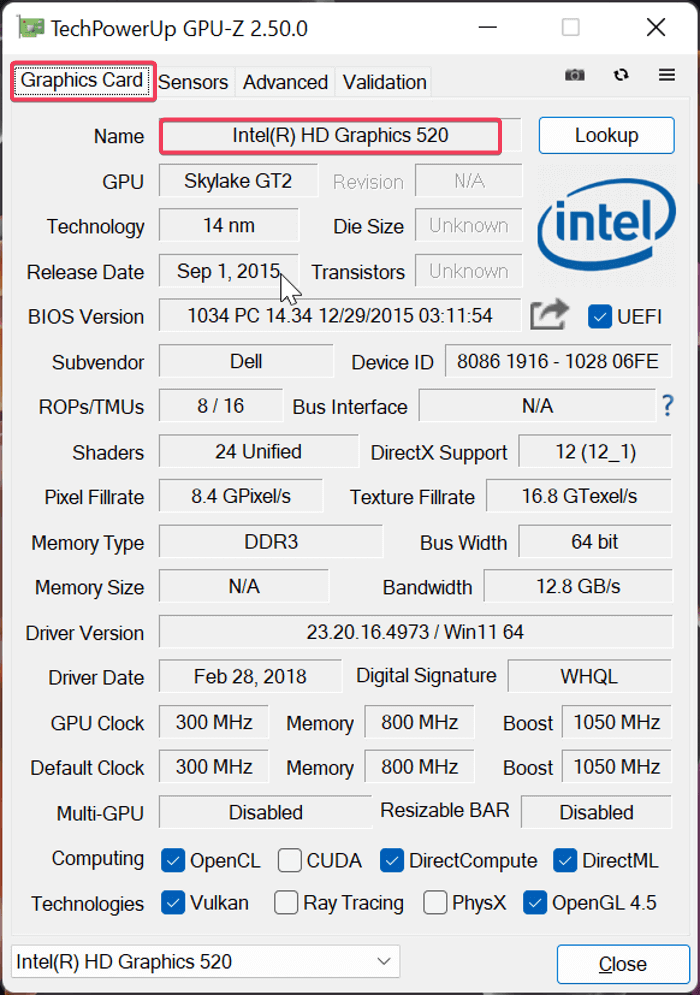
1. GPU-Z
GPU-Z is a lightweight, free utility specifically designed to provide comprehensive information about your graphics card. It’s a must-have for anyone serious about understanding their GPU.
Key Features:
- Detailed Specifications: Displays your GPU model, core clock, memory clock, memory type, VRAM size, BIOS version, driver version, and more.
- Sensor Monitoring: Provides real-time data on GPU temperature, fan speed, core clock, memory clock, and power consumption.
- Validation: Can validate the authenticity of your GPU, helpful when buying used hardware.
2. Speccy or HWMonitor
These are broader system information tools that also provide excellent GPU details.
- Speccy (by CCleaner): Offers a concise, easily readable overview of your entire system’s hardware, including the graphics card, CPU, RAM, and storage. It’s good for a general overview of all components.
- HWMonitor (by CPUID): Focuses on hardware monitoring, providing detailed sensor readings for temperatures, voltages, and fan speeds across your CPU, GPU, and hard drives. While not primarily an identification tool, it confirms the GPU name and monitors its health.
These tools, often recommended in tech tutorials and reviews, are excellent for productivity and maintaining digital security by monitoring component health.
The Broader Implications: Tech, Brand, and Money
Understanding your graphics card extends far beyond mere identification; it provides a lens through which to view broader industry trends, evaluate brand choices, and inform crucial financial decisions.
The Tech Landscape: Trends and Future-Proofing
Knowing your GPU places you firmly within the context of current and future technology trends.
- Ray Tracing and AI Upscaling: Modern GPUs feature dedicated cores for ray tracing (realistic lighting) and AI upscaling technologies like NVIDIA’s DLSS and AMD’s FSR. Knowing if your card supports these features is critical for experiencing the cutting edge of visual fidelity and performance.
- AI Tools and Acceleration: The rise of AI tools, from generative art to complex data analysis, increasingly leverages GPU power. Your graphics card dictates your ability to run these applications efficiently, impacting your tech productivity and potential for online income in creative or data-driven fields.
- Upgrade Cycles: Keeping track of your GPU model helps you understand its position in the market, anticipating when an upgrade might be beneficial or necessary to keep pace with new software and gaming demands. This ties into long-term technology planning and digital security by ensuring compatibility with newer, more secure software versions.
Brand Recognition and Value
The brand of your graphics card—whether it’s an NVIDIA GeForce or an AMD Radeon—carries significant weight in the tech community.
- Ecosystem and Features: Each brand offers its unique ecosystem of features, software, and driver support. NVIDIA boasts technologies like CUDA, DLSS, and Broadcast, while AMD counters with FidelityFX, FSR, and an open-source approach. Knowing your GPU’s brand informs your access to these specific features. This plays into “Brand Strategy” and “Corporate Identity” from a user perspective, as you’re buying into a specific tech ecosystem.
- Reputation and Support: The reputation of NVIDIA and AMD, and their board partners (ASUS, MSI, Gigabyte, etc.), influences perceived quality, driver stability, and customer support. Being aware of your card’s brand allows you to seek specific community support, access relevant forums, and manage your expectations regarding performance and longevity, which reflects on “Reputation.”
- Market Positioning: The brand and model of your GPU contribute to the overall “personal branding” of your PC setup, especially if you’re a streamer, content creator, or simply an enthusiast.
Financial Planning: Upgrades, Resale, and Value
Your graphics card is often the most expensive component in a gaming or professional PC, making its financial implications substantial.
- Budgeting for Upgrades: Knowing your current GPU allows you to set a realistic budget for future upgrades. You can research cards that offer a good performance-per-dollar ratio, preventing overspending or under-investing. This is fundamental to “Personal Finance” and “Investing” in your digital assets.
- Resale Value: When upgrading, your old graphics card can often be sold to recoup some of the cost. The brand and model directly influence its resale value in the used market. Understanding market trends for specific GPU models (linking to “Money” and “Online Income” for selling used parts) ensures you get a fair price.
- Informed Purchasing: For new builds or pre-built systems, identifying the included GPU is crucial for evaluating the overall value proposition. A system might look affordable, but if it comes with an outdated or underpowered GPU, it’s not a smart financial investment. This is where “Business Finance” principles apply to personal tech acquisitions.
- Energy Costs: More powerful GPUs often consume more power. Knowing your GPU model allows you to estimate potential electricity costs, which, while small for individual components, can add up, making it part of long-term “Financial Tools” for budgeting.
Conclusion
Knowing your graphics card is a foundational piece of knowledge for any PC user. Whether you’re navigating the immersive worlds of modern gaming, pushing the boundaries of creative software, exploring the capabilities of AI tools, or simply aiming for optimal system performance, identifying your GPU is the essential first step. From the built-in utilities in Windows and macOS to the command-line prowess of Linux and the detailed insights offered by third-party applications, the methods for discovery are numerous and accessible.
But the significance of this information extends far beyond mere technical identification. It empowers you to stay abreast of technology trends, make informed decisions about brand ecosystems, and engage in shrewd financial planning for upgrades and investments. In an age where digital security and productivity are paramount, understanding the core engine of your visual world is not just recommended—it’s indispensable. So, take a moment to uncover what GPU powers your machine; it’s a step that will unlock a deeper understanding of your PC’s potential and your place in the ever-evolving tech landscape.
aViewFromTheCave is a participant in the Amazon Services LLC Associates Program, an affiliate advertising program designed to provide a means for sites to earn advertising fees by advertising and linking to Amazon.com. Amazon, the Amazon logo, AmazonSupply, and the AmazonSupply logo are trademarks of Amazon.com, Inc. or its affiliates. As an Amazon Associate we earn affiliate commissions from qualifying purchases.