
In the modern digital landscape, the security of our financial information is paramount. As one of the world’s leading fintech platforms, PayPal serves as a bridge between consumers and global commerce. However, with this convenience comes the responsibility of maintaining robust digital hygiene. Changing your PayPal password is not merely a routine maintenance task; it is a critical defensive maneuver in an era where cyber threats are becoming increasingly sophisticated. Whether you are updating your credentials as a proactive security measure or responding to a potential breach, understanding the technical steps and the underlying security protocols is essential for every user.
Securing Your Digital Wallet: Why Password Hygiene Matters
In the realm of cybersecurity, the password remains the first line of defense. For a platform like PayPal, which stores sensitive banking details and facilitates billions of dollars in transactions, a weak password is a significant vulnerability. Password hygiene refers to the practices and habits users adopt to ensure their credentials remain secure and difficult to crack.
The Anatomy of a Strong Password in the Modern Age
The technology used by cybercriminals to bypass security has evolved. Brute-force attacks, which use automated software to guess millions of combinations per second, can crack simple passwords in an instant. To counter this, a modern password should leverage complexity and length. A secure PayPal password should ideally be at least 12 to 16 characters long, incorporating a mix of uppercase letters, lowercase letters, numbers, and special symbols. Avoiding dictionary words or predictable patterns (like “Password123”) is fundamental to thwarting automated hacking tools.
Two-Factor Authentication (2FA) as a Critical Fail-Safe
While changing your password is vital, the technical community emphasizes that a password alone is often insufficient. Two-Factor Authentication (2FA) adds a secondary layer of security. By requiring a code sent to a mobile device or generated by an authenticator app, PayPal ensures that even if a malicious actor acquires your password, they cannot access your funds without the physical possession of your secondary device. When you change your password, it is the perfect technical audit point to ensure your 2FA settings are also optimized.
A Step-by-Step Guide to Changing Your PayPal Password on Desktop
The desktop interface of PayPal provides the most comprehensive view of your account settings. Navigating the web-based UI requires a few specific steps to ensure you are in the correct security partition of the site.
Navigating the Security Interface
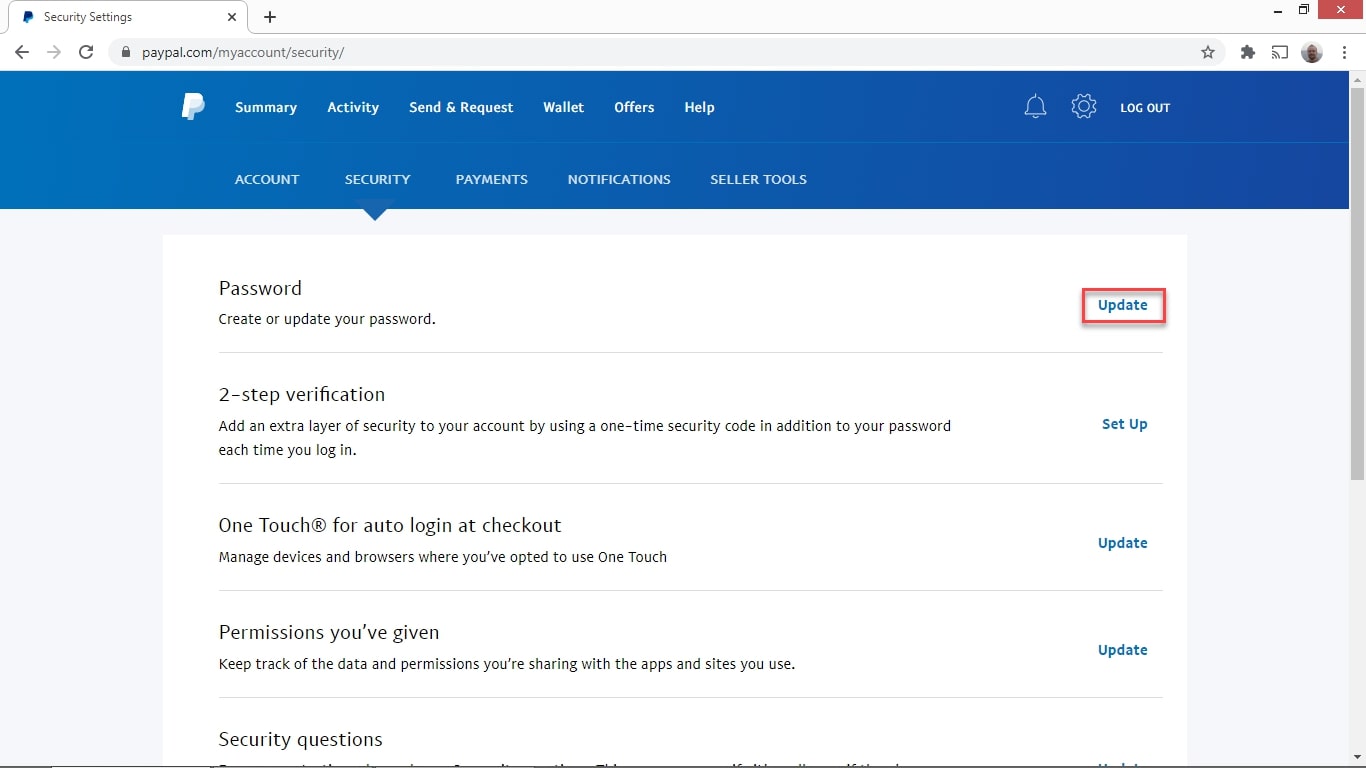
To begin the process, log into your PayPal account via a secure web browser. Once authenticated, look for the “Settings” icon (represented by a cogwheel) located at the top right of the dashboard. Within the Settings menu, you will find several tabs such as “Account,” “Payments,” and “Security.” Select the “Security” tab. This section is the central hub for all technical adjustments related to your account’s integrity, including your password, 2FA, and security questions.
Executing the Password Update
In the Security tab, the “Password” option will be listed at the top. Click on the “Update” link next to it. For security purposes, PayPal will typically require you to enter your current password before allowing a change. This is a technical safeguard to prevent unauthorized users who might have gained temporary access to an open browser session from locking you out of your own account.
Once you provide the current password, you will be prompted to enter a “New Password” and then “Confirm New Password.” It is highly recommended to use a password manager during this step to generate a high-entropy string of characters. After clicking “Change Password,” PayPal’s backend servers update your encrypted credentials and usually trigger a confirmation email to your registered address.
Mobile Security: Updating Your PayPal Password via the App
With the shift toward “mobile-first” technology, many users manage their finances exclusively through smartphones. The PayPal app for iOS and Android offers a streamlined experience, but the steps to change your password differ slightly from the desktop version due to UI/UX design constraints.
Mobile UI Navigation and Biometrics
Open the PayPal app and authenticate using your current credentials or biometric data (FaceID or TouchID). Tap on the “Profile” icon, usually located in the top-left corner of the screen. Scroll down to find the “Security and Privacy” section. Within this menu, you will find the option to change your password.
One of the technical advantages of the mobile app is the integration of system-level biometrics. While this doesn’t replace your password, it adds a layer of encrypted hardware security that makes accessing the app much faster and more secure on the go. However, when you change your password in the app, you may be required to re-authenticate your biometric settings to sync with the new credentials.
Syncing Across Devices
When you change your password on the mobile app, the update is instantaneous across PayPal’s global server network. This means any active sessions on other devices (tablets, laptops, or desktop computers) will likely be invalidated. You will need to log back into those devices using your new password. This “session termination” is a vital security feature that ensures any potentially compromised sessions are closed immediately upon a credential change.
Troubleshooting Common Password Issues
Technological transitions aren’t always seamless. Users often encounter hurdles when trying to update their security settings, ranging from forgotten old passwords to account lockouts.
Recovering a Forgotten Password
If you cannot remember your current password to initiate a change, you must utilize PayPal’s “Forgot Password?” protocol. This process involves a series of identity verification steps. PayPal might send a Secure Identification Code via SMS or email, or ask you to answer the security questions you set up during account creation. From a technical standpoint, this utilizes an “Out-of-Band” authentication method, ensuring that the person requesting the reset has access to the secondary communication channels linked to the account.
Resolving Account Lockouts and Technical Glitches
In some cases, multiple failed attempts to change a password can trigger a temporary account lock. This is an automated defense mechanism designed to prevent brute-force attacks. If this happens, the best course of action is to wait 24 hours for the lockout to expire or contact PayPal’s technical support. Additionally, ensure that your browser’s cache and cookies are cleared, or try a different browser, as localized data conflicts can sometimes interfere with the password-submission script on the website.
Enhancing Your Fintech Security Post-Password Change
Once your password has been successfully updated, the technical maintenance of your account does not end there. To truly secure your digital financial life, you should consider broader security configurations.
Auditing Authorized Applications and Permissions
Over time, many users link their PayPal accounts to third-party apps, such as e-commerce platforms, subscription services, or budgeting tools. These links use “tokens” to allow access without sharing your actual password. After a password change, it is a wise technical practice to visit the “Permissions” or “Data & Privacy” section of your PayPal settings. Review the list of authorized apps and revoke access to any services you no longer use. This minimizes your “attack surface”—the number of points where a security breach could potentially impact your account.
The Role of Password Managers in Digital Security
To avoid the common pitfall of “password reuse” (using the same password for PayPal as you do for your social media or email), tech experts recommend the use of dedicated password managers like LastPass, 1Password, or Bitwarden. These tools use high-level AES-256 encryption to store your credentials. By using a manager, you only need to remember one master password, allowing you to have a unique, 30-character complex password for PayPal that you never actually have to type manually. This significantly reduces the risk of keylogging—a type of malware that records your keystrokes to steal login data.

Staying Vigilant Against Phishing
Finally, be aware that changing your password often triggers automated notification emails. Cybercriminals often use this fact to send “phishing” emails that look like official PayPal communications, claiming there was a “suspicious login” and providing a fake link to “reset your password.” Always navigate directly to PayPal.com by typing it into your browser’s address bar rather than clicking links in emails. Check for the SSL/TLS padlock icon in the browser address bar to ensure your connection to the PayPal servers is encrypted and authentic.
By understanding the technical nuances of password management and the broader security ecosystem, you can ensure that your PayPal account remains a secure portal for your digital transactions. Password updates are more than a chore; they are a sophisticated component of modern financial technology that keeps your assets safe in an unpredictable digital world.
aViewFromTheCave is a participant in the Amazon Services LLC Associates Program, an affiliate advertising program designed to provide a means for sites to earn advertising fees by advertising and linking to Amazon.com. Amazon, the Amazon logo, AmazonSupply, and the AmazonSupply logo are trademarks of Amazon.com, Inc. or its affiliates. As an Amazon Associate we earn affiliate commissions from qualifying purchases.