
Windows 11, Microsoft’s latest operating system, brings a fresh interface, enhanced performance, and a suite of new security features designed to keep your system safe and efficient. However, with these advancements, users occasionally encounter hurdles when trying to install third-party applications, even well-established ones like BitTorrent. If you’ve found yourself frustrated, repeatedly trying to install BitTorrent on your shiny new Windows 11 machine only to be met with error messages or unresponsive installers, you’re not alone. This comprehensive guide is designed to walk you through the common causes of BitTorrent installation failures on Windows 11 and provide a structured approach to troubleshooting, ensuring you can get your preferred torrent client up and running smoothly.
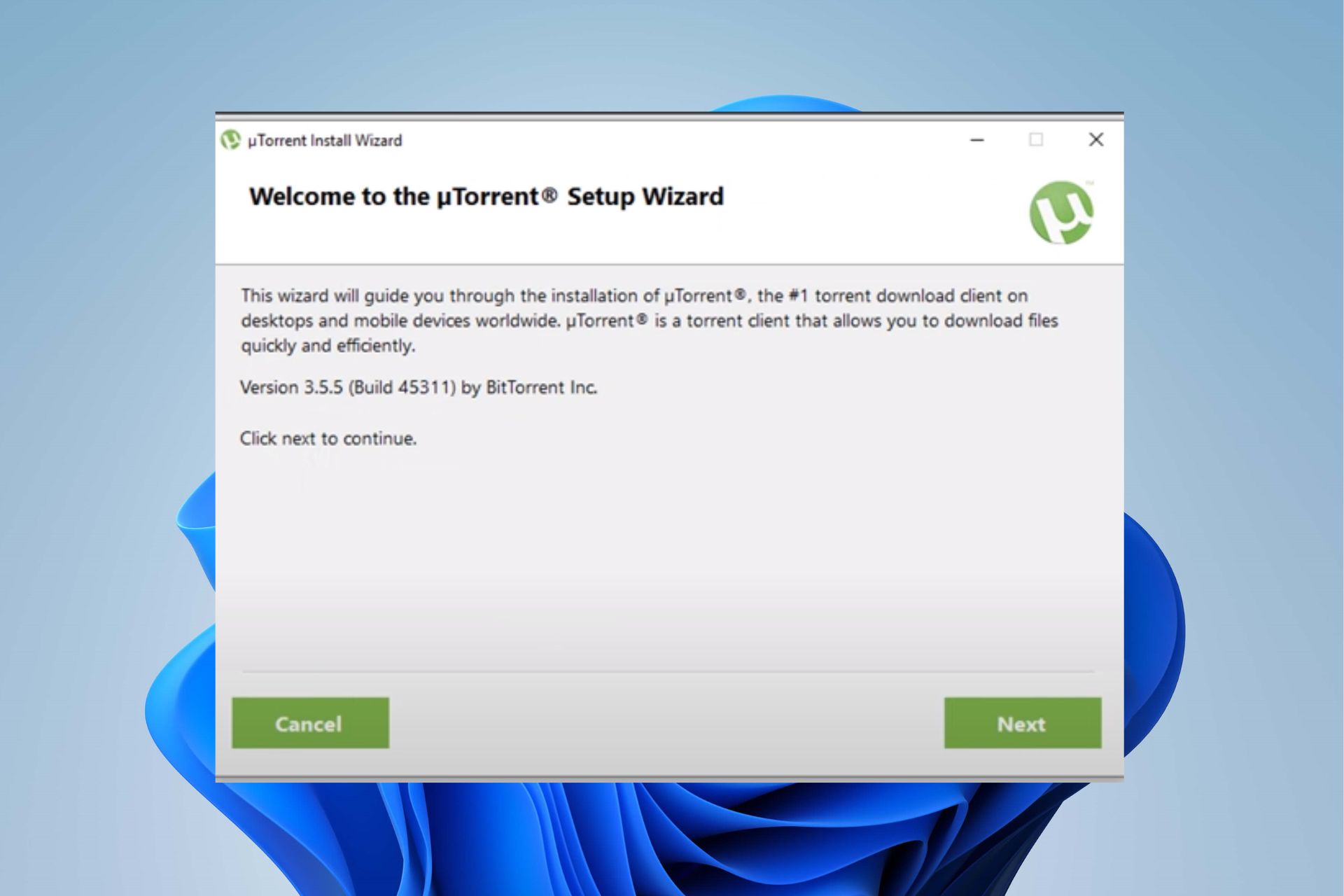
BitTorrent, as a protocol and a client, remains a cornerstone for peer-to-peer file sharing, offering an efficient way to distribute large files, whether they are open-source software distributions, creative commons licensed media, or updates for massive online games. While often associated with less legitimate uses, its underlying technology is incredibly powerful and, when used responsibly, a vital tool for many tech-savvy users and content creators. The inability to install such a fundamental piece of software can be a significant roadblock, impacting everything from accessing legitimate downloads to managing digital archives. Our aim here is to demystify the installation process, tackle common roadblocks, and provide clear, actionable solutions that leverage your understanding of Windows 11’s ecosystem and digital security best practices.
Why Can’t You Install BitTorrent on Windows 11? Common Causes Explained
Before diving into solutions, it’s crucial to understand why you might be experiencing difficulties. Installation issues are rarely random; they usually stem from specific conflicts or unmet requirements within your system. Windows 11, with its tighter security protocols and hardware requirements, can sometimes be more particular than its predecessors. Identifying the root cause is the first step toward a successful resolution, saving you time and frustration. Let’s explore the most common reasons behind BitTorrent installation failures.
1. Incompatible System Requirements or Corrupted Installer
Even seemingly simple applications have minimum system requirements. While BitTorrent is generally lightweight, an outdated or incompatible system configuration could be the culprit. More commonly, the installer file itself might be corrupt or incomplete due to a faulty download, an unstable internet connection during retrieval, or issues with the server it was downloaded from. A corrupted installer won’t just fail; it might throw obscure errors or simply refuse to launch.
2. Antivirus and Firewall Interference
Modern antivirus software and Windows Defender, including its SmartScreen feature, are incredibly proactive in protecting your system from perceived threats. Sometimes, this vigilance can extend to blocking legitimate software installers if they exhibit behavior that’s flagged as suspicious, even if benign. Torrent clients, due to their network-intensive operations and sometimes grey-area public perception, are occasionally caught in this dragnet, leading to installation failure or immediate quarantine after installation.
3. Insufficient Administrative Privileges
Installing software on Windows 11 often requires administrative rights to make changes to system directories, the registry, and other protected areas. If you’re attempting to install BitTorrent from a standard user account, or if the installer isn’t explicitly run with administrator privileges, the installation process might halt or fail silently, unable to write necessary files or create required system entries.
4. Conflicting Software or Previous Installations
Residual files from a previous, failed BitTorrent installation, or an older version of the client, can cause conflicts with a new installation attempt. Similarly, other peer-to-peer clients or network-monitoring software might interfere with the installation or operation of BitTorrent, leading to unexpected errors. Even certain VPN clients, if misconfigured, can cause network-related issues that prevent proper installation.
5. Outdated Windows 11 or System Drivers
While less common for a basic application installer, an outdated Windows 11 build might lack necessary components or patches required by the BitTorrent installer. Similarly, ancient network drivers or other critical system drivers could contribute to instability or prevent the installer from properly interacting with your hardware, especially if the application has specific network dependencies. Keeping your system up-to-date is a fundamental aspect of maintaining a healthy and compatible computing environment.
6. Disk Space and System Resource Limitations
Though BitTorrent itself doesn’t require vast amounts of disk space, the drive where you’re trying to install it might be full, or your system might be critically low on RAM during the installation process, leading to a crash or failure. While unlikely to be the primary cause for BitTorrent, it’s a basic check that should not be overlooked, especially if your system is generally sluggish.
Understanding these potential pitfalls forms the basis for effective troubleshooting. With a clearer picture of the problem, we can now move on to targeted solutions.
Step-by-Step Troubleshooting: Solutions to Get BitTorrent Running
Now that we’ve outlined the common reasons for installation failure, let’s dive into practical, step-by-step solutions. We’ll start with basic checks and progress to more advanced system diagnostics, ensuring you cover all bases.
1. Basic Checks and Preparations
These initial steps are quick to perform and often resolve the most straightforward issues. Don’t underestimate their effectiveness!
Verify System Requirements
While BitTorrent is generally light on resources, ensure your Windows 11 PC meets its basic requirements. This typically includes a compatible processor, sufficient RAM (usually 1GB or more is ample), and enough free disk space (a few hundred MB for the application itself, plus space for downloads).
Download from Official Sources
A common mistake is downloading installers from third-party websites that may offer outdated, modified, or even malicious versions. Always visit the official BitTorrent website (bittorrent.com) to download the latest stable installer. This mitigates risks of corruption and ensures you’re getting the genuine software. After downloading, check the file size and compare it with what’s listed on the official site, if available, as an informal check for complete downloads.
Run the Installer as Administrator
This is a critical step for many software installations on Windows.
- Navigate to where you saved the BitTorrent installer file.
- Right-click on the installer executable (
.exefile). - Select “Run as administrator” from the context menu.
- Confirm the User Account Control (UAC) prompt if it appears.
This grants the installer the necessary permissions to make system-level changes, which is often crucial for successful software installation.
Check Your Internet Connection

While it seems obvious, a stable internet connection is vital not only for downloading the installer but also for the installer itself to fetch any additional components during the setup process. Temporarily disable any VPNs or proxies you might be using, as they can sometimes interfere with connectivity for installers. Try accessing a few websites to confirm your internet connection is active and stable.
Temporarily Disable Antivirus and Firewall
This is a frequently effective solution, but it comes with a strong caveat: only do this temporarily, and ensure you’re downloading from a trusted source.
- For Windows Defender (built-in Antivirus/Firewall):
- Go to Settings > Privacy & security > Windows Security.
- Click “Open Windows Security”.
- Go to “Virus & threat protection” and click “Manage settings” under Virus & threat protection settings. Turn off “Real-time protection” temporarily.
- Go to “Firewall & network protection” and click on your active network profile (e.g., “Domain network,” “Private network,” or “Public network”). Turn off “Microsoft Defender Firewall” temporarily.
- For Third-Party Antivirus/Firewall: Consult your specific software’s documentation for instructions on how to temporarily disable it. This often involves right-clicking its icon in the system tray.
- Attempt the BitTorrent installation again.
- Crucially, re-enable your antivirus and firewall immediately after the installation is complete, regardless of whether it was successful. Running your system without protection is highly risky.
2. Advanced Solutions and System Diagnostics
If the basic checks don’t resolve the issue, it’s time to delve deeper into system diagnostics and more comprehensive troubleshooting steps.
Clear Temporary Files and Cache
Accumulated temporary files can sometimes interfere with installation processes.
- Press
Win + Rto open the Run dialog. - Type
%temp%and press Enter. This will open your user’s temporary files folder. - Select all files and folders (
Ctrl + A) and delete them (Del). Skip any files that are currently in use. - Repeat the process, but this time type
temp(without percentage signs) in the Run dialog. - Also, clear your browser cache, as this can sometimes hold onto corrupted download data.
Update Windows 11 and Drivers
Ensuring your operating system and hardware drivers are up-to-date can resolve compatibility issues and introduce necessary components.
- Update Windows 11: Go to Settings > Windows Update and click “Check for updates.” Install any available updates, including optional ones. Restart your PC if prompted.
- Update Drivers: Pay particular attention to network drivers, as torrent clients are heavily network-dependent.
- Press
Win + Xand select “Device Manager.” - Expand “Network adapters,” right-click your network adapter, and select “Update driver.” Choose “Search automatically for drivers.”
- You might also visit your PC manufacturer’s website or the website of your network card manufacturer for the latest drivers specific to Windows 11.
- Press
Use the Compatibility Troubleshooter
Windows 11 includes a built-in compatibility troubleshooter that can help older applications run on newer versions of Windows. While BitTorrent is generally kept up-to-date, this can sometimes help if the installer is having issues.
- Right-click on the BitTorrent installer
.exefile. - Select “Properties.”
- Go to the “Compatibility” tab.
- Click “Run compatibility troubleshooter” and follow the on-screen instructions. You might try running it in compatibility mode for a previous Windows version like Windows 10 or 8.
Inspect Windows Defender and SmartScreen Settings
Even after temporarily disabling, sometimes SmartScreen or specific Defender settings can persistently block installations.
- Go to Settings > Privacy & security > Windows Security > App & browser control.
- Under “Reputation-based protection,” click “Reputation-based protection settings.”
- Temporarily turn off “Check apps and files” and “Potentially unwanted app blocking.”
- Attempt the installation, then re-enable these settings immediately afterward. If the installation fails again, you can check the “Protection history” in Windows Security for specific alerts that might explain the blocking.
Perform a Clean Boot
A clean boot starts Windows with a minimal set of drivers and startup programs, helping to eliminate software conflicts.
- Press
Win + R, typemsconfig, and press Enter. - Go to the “Services” tab. Check “Hide all Microsoft services,” then click “Disable all.”
- Go to the “Startup” tab and click “Open Task Manager.”
- In Task Manager, disable all startup items one by one.
- Close Task Manager, click “OK” in System Configuration, and restart your computer.
- Attempt the BitTorrent installation.
- Remember to revert these changes after troubleshooting by going back to
msconfigand enabling services/startup items, or selecting “Normal startup” on the “General” tab.
Scan for Corrupt System Files (SFC and DISM)
Corrupted Windows system files can sometimes lead to installation failures. These tools can repair them.
- Open Command Prompt as an administrator: Search for “cmd,” right-click “Command Prompt,” and select “Run as administrator.”
- Type
sfc /scannowand press Enter. Let the scan complete. This tool checks for and repairs corrupted system files. - If SFC finds issues it can’t fix, or if the problem persists, run the DISM tool:
DISM /Online /Cleanup-Image /CheckHealthDISM /Online /Cleanup-Image /ScanHealthDISM /Online /Cleanup-Image /RestoreHealth
Execute these commands one by one. TheRestoreHealthcommand can take some time. Restart your PC after these scans.
Consider a Different Torrent Client
If, after trying all the above steps, BitTorrent still refuses to install, it might be an isolated issue with that specific client or its installer. Thankfully, the BitTorrent protocol is open, and several excellent alternative clients are available. These include:
- qBittorrent: Open-source, lightweight, ad-free, and highly recommended for its clean interface and comprehensive features.
- Transmission: Another open-source client known for its simplicity and efficiency.
- uTorrent: While part of the BitTorrent family, a different installer might work if the main BitTorrent client is problematic. Be mindful of ads and bundled software with older versions.
Often, a different client will install and function perfectly, allowing you to access the BitTorrent network without further hassle.
Ensuring Security and Exploring Alternatives
Even after successfully installing BitTorrent, maintaining a secure and efficient computing environment is paramount. Digital security is an ongoing process, especially when dealing with peer-to-peer networks.
Best Practices for Secure Torrenting
- Always Use Official Sources: Reiterate the importance of downloading installers and content from trusted, official sources. This minimizes the risk of malware.
- Keep Software Updated: Regularly update your torrent client, operating system, and antivirus software. Updates often include critical security patches.
- Employ a VPN (Virtual Private Network): A VPN encrypts your internet connection and masks your IP address, enhancing your privacy and security while torrenting. This is particularly important for users concerned about their anonymity or regional content restrictions.
- Scan Downloaded Files: Even from trusted sources, it’s wise to scan torrented files with your antivirus software before opening or executing them.
- Understand Legal Implications: Be aware of the legal aspects of torrenting in your region. Distributing copyrighted material without permission can have serious consequences.
Beyond BitTorrent: Other Ways to Get Files
While this guide focuses on resolving BitTorrent installation issues, it’s worth remembering that it’s not the only way to obtain files. For legitimate software, large game updates, or official media, direct downloads, cloud storage services (like Google Drive, Dropbox, OneDrive), or official distribution platforms (like Steam, Epic Games Store, GOG for games; app stores for software) often provide faster, more secure, and straightforward options. BitTorrent shines when distributing niche content, open-source projects with large user bases, or for efficient large-scale data transfer where a centralized server isn’t practical or desired.

Conclusion
Encountering installation problems with software on a new operating system like Windows 11 can be frustrating, but with a systematic approach, most issues can be resolved. By understanding the common causes – from administrative privileges and security software conflicts to corrupted installers and system file integrity – and applying the troubleshooting steps outlined in this guide, you should be able to get BitTorrent, or an alternative torrent client, successfully installed and running on your Windows 11 machine.
Remember the importance of digital security throughout this process: download from official sources, temporarily disable security software only when necessary and re-enable it promptly, and consider using a VPN for enhanced privacy. Your journey to a fully functional and secure Windows 11 experience, complete with your preferred torrent client, is well within reach. Should you encounter persistent issues, don’t hesitate to consult online forums or the official support channels for specific error codes, as the broader tech community is often a valuable resource for unique problems. Happy torrenting!
aViewFromTheCave is a participant in the Amazon Services LLC Associates Program, an affiliate advertising program designed to provide a means for sites to earn advertising fees by advertising and linking to Amazon.com. Amazon, the Amazon logo, AmazonSupply, and the AmazonSupply logo are trademarks of Amazon.com, Inc. or its affiliates. As an Amazon Associate we earn affiliate commissions from qualifying purchases.