
For decades, the Mac vs. PC debate has raged, often boiling down to operating system preferences, software exclusivity, and hardware ecosystems. Yet, for many users, the choice isn’t an either/or proposition. There comes a time when the powerful design and user-friendly interface of macOS meet the unavoidable necessity of Windows. Perhaps a crucial piece of software is only available on Microsoft’s OS, a specific game demands DirectX, or you’re a developer needing to test applications across platforms. Whatever the reason, the good news is that you don’t have to abandon your beloved Apple machine to dip into the Windows world. Installing Windows on your Mac is not only possible but also a well-trodden path that offers significant flexibility and extends the utility of your device.
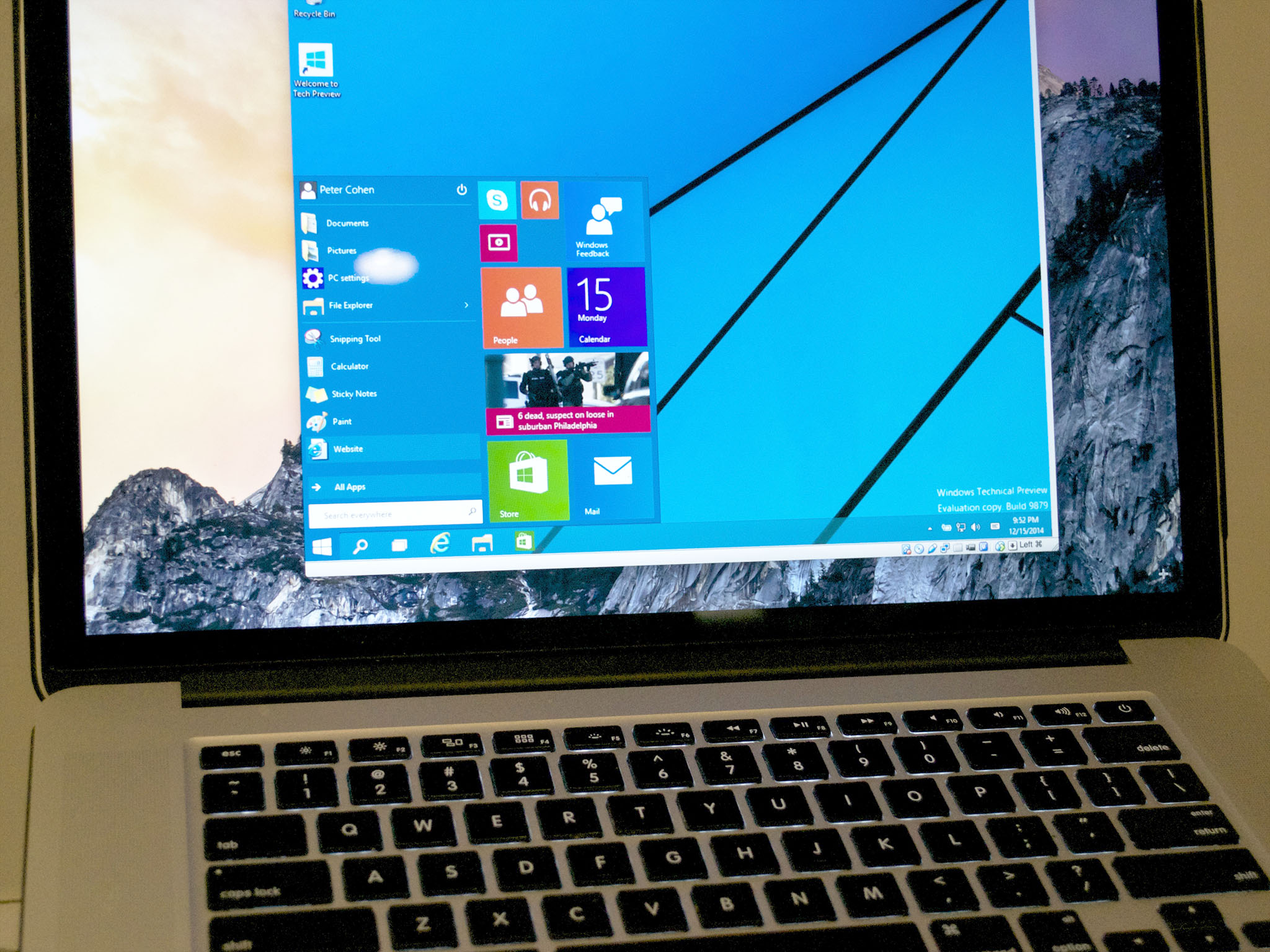
This comprehensive guide will walk you through the various methods of running Windows on a Mac, exploring the pros and cons of each, detailing the setup process, and helping you decide which approach best suits your needs. Whether you’re looking for native performance or seamless integration, your Mac has the potential to be a versatile powerhouse, bridging the operating system divide.
Why Bridge the OS Divide? Understanding the Need for Windows on Mac
The desire to run Windows on a Mac often stems from practical needs, transcending mere curiosity. While macOS boasts a robust software ecosystem, there are specific scenarios where Windows remains indispensable. Understanding these motivations is key to appreciating the value of a dual-OS setup.
Overcoming Software Exclusivity
Perhaps the most common reason to install Windows on a Mac is access to applications that are simply not available on macOS. This frequently includes industry-specific software, legacy programs, or even certain versions of popular software that offer features exclusive to Windows. From specialized engineering tools to specific accounting packages, some professional workflows are inextricably linked to the Microsoft environment. For creative professionals, while macOS excels in many areas, certain niche design or video editing tools might only exist or perform optimally on Windows.
Enhanced Gaming Experiences
While Mac gaming has made strides, Windows remains the dominant platform for PC gaming. Many AAA titles are developed with Windows’ DirectX API in mind, and frequently release with Windows-only support, or significantly better optimization on the Microsoft OS. Gamers who prefer the hardware of a Mac but don’t want to miss out on the latest gaming releases or demand peak performance will find installing Windows an appealing solution. Running Windows natively on your Mac often unlocks better frame rates and compatibility with a broader range of titles.
Development and Testing Environments
For software developers, web designers, and IT professionals, the ability to test applications across different operating systems is crucial. Running Windows on a Mac allows for a convenient, single-machine solution to ensure cross-platform compatibility. This is particularly useful for web browsers, desktop applications, or even mobile app testing that might require specific Windows-based emulators or tools. It streamlines the development pipeline, eliminating the need for separate hardware.
Legacy System Compatibility
In some corporate or educational environments, legacy systems or older peripherals might only have drivers and support for Windows. If your work or studies require interaction with such systems, installing Windows on your Mac can be a lifesaver. It ensures compatibility and avoids the hassle of maintaining an older, dedicated Windows machine or purchasing new hardware for specific tasks.
The Native Path: Installing Windows with Boot Camp
Boot Camp is Apple’s built-in utility that allows Intel-based Macs to run Windows natively. It’s a powerful solution that provides the best possible performance for Windows on your Mac hardware.
What is Boot Camp and How Does It Work?
Boot Camp Assistant is a utility included with macOS that helps you partition your Mac’s hard drive, install a Windows operating system, and install the necessary drivers for your Apple hardware. When you install Windows via Boot Camp, you are essentially dual-booting your Mac. This means you have two separate operating systems installed on different partitions of your hard drive. At startup, you choose which OS you want to boot into. Only one operating system runs at a time, giving Windows full access to your Mac’s processor, RAM, and graphics hardware, just as if it were a dedicated Windows PC.
Advantages and Disadvantages
Advantages:
- Native Performance: This is the primary benefit. Because Windows runs directly on the hardware without any virtualization layer, it offers the best possible performance for demanding applications and games.
- Full Hardware Access: Windows can fully utilize your Mac’s graphics card, CPU, and other hardware components.
- No macOS Overhead: macOS is completely shut down when you’re in Windows, freeing up all system resources.
- Free (Software-wise): Boot Camp Assistant itself is free and built into macOS. You only need to purchase a Windows license.
Disadvantages:
- Reboot Required: To switch between macOS and Windows, you must restart your computer. This can interrupt workflow if you frequently need to use apps from both operating systems.
- Storage Dedication: You must allocate a significant portion of your hard drive to Windows, which cannot be easily reclaimed without reinstalling Windows.
- Intel Macs Only: Boot Camp is not available on Apple Silicon (M1/M2/M3) Macs. It’s strictly for Intel-based Macs.
- Setup Complexity: While Boot Camp Assistant simplifies the process, it still involves partitioning and driver installation, which can be daunting for novices.
Essential Prerequisites and Preparations
Before embarking on a Boot Camp installation, ensure you have the following:
- Intel-based Mac: As mentioned, Boot Camp only works on Macs with Intel processors.
- Sufficient Storage: Apple recommends at least 64GB of free space, but for practical use and software installations, 100-150GB is a more realistic minimum.
- Windows ISO File: You’ll need a Windows 10 (or later) 64-bit ISO image. You can download this directly from Microsoft’s website.
- External USB Drive (Optional for Older Macs): For older Macs, a formatted USB drive (at least 16GB) might be required to create a bootable Windows installer. Newer Macs often install directly from the ISO.
- Stable Internet Connection: For downloading Windows and drivers.
- Power Adapter: Keep your Mac plugged in throughout the process to prevent unexpected shutdowns.
- Backup: Always back up your Mac using Time Machine before making significant system changes. This is crucial for data safety.
Step-by-Step Installation Guide
While precise steps can vary slightly by macOS version and Mac model, the general process is:
- Launch Boot Camp Assistant: Find it in
Applications/Utilities. - Introduction and Options: Read the introduction. Boot Camp Assistant will automatically download the necessary Windows support software (drivers).
- Partition Your Disk: Drag the slider to set the partition size for your Windows installation. Remember the recommended minimums.
- Select Windows ISO: Locate and select the downloaded Windows ISO file.
- Start Installation: Click “Install.” Your Mac will download Windows support software, then restart and boot into the Windows installer.
- Windows Installation: Follow the on-screen prompts for Windows installation. When asked where to install Windows, select the partition labeled “BOOTCAMP” and format it.
- Install Boot Camp Drivers: After Windows is installed, it will boot into the desktop. The Boot Camp installer should automatically launch. Follow the prompts to install all necessary Apple drivers for Wi-Fi, graphics, sound, etc.
- Restart and Enjoy: Once drivers are installed, restart your Mac. Hold down the Option (Alt) key during startup to choose between macOS and Windows.
The Flexible Approach: Running Windows as a Virtual Machine
Virtualization offers an alternative to dual-booting, allowing you to run Windows simultaneously with macOS without needing to reboot.
Understanding Virtualization on macOS
Virtualization software creates a “virtual machine” (VM) within your macOS environment. This VM emulates a complete computer system with its own virtual hardware (CPU, RAM, hard drive, network adapter) on which you can install an operating system like Windows. From Windows’ perspective, it’s running on a real PC, but in reality, it’s sharing your Mac’s hardware resources with macOS. This allows you to have both macOS and Windows running concurrently, making it easy to switch between them with a simple click.
Popular Virtualization Software Options
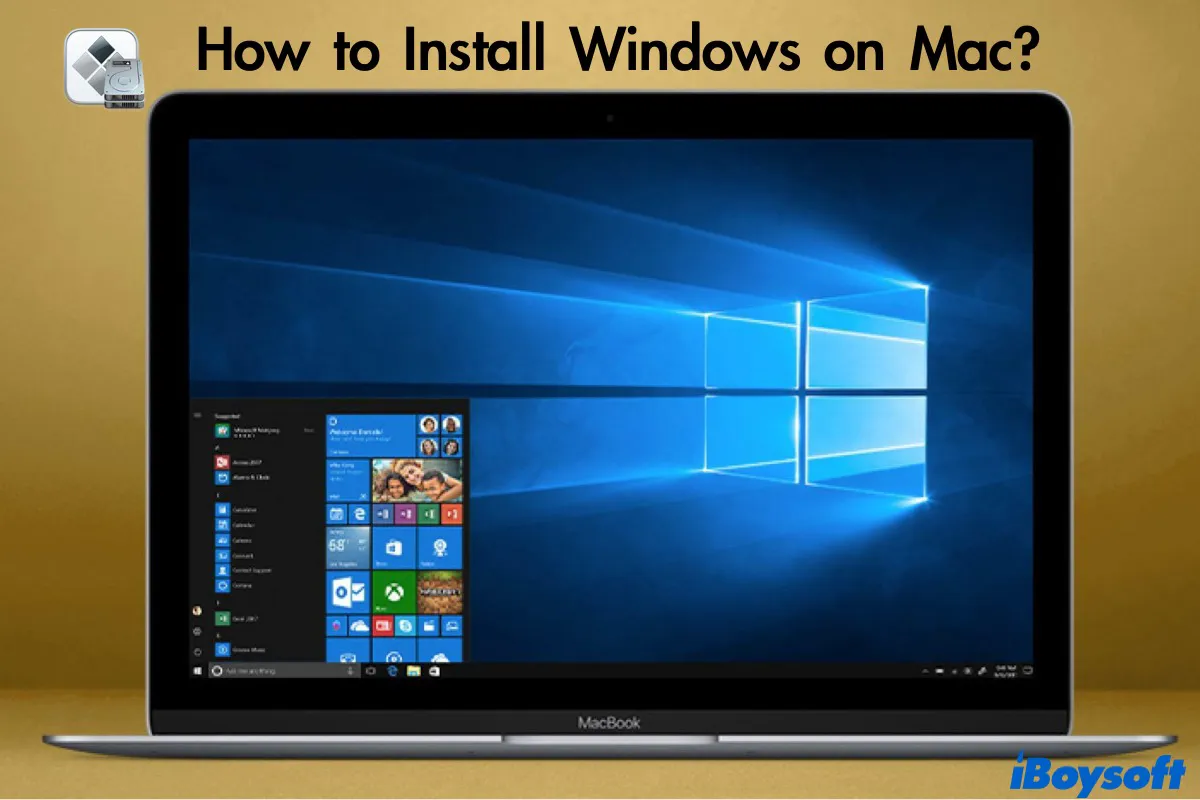
Several excellent virtualization solutions are available for macOS:
- Parallels Desktop: Known for its ease of use, seamless integration with macOS, and strong performance. It’s often considered the premium choice, especially for Apple Silicon Macs where it offers excellent Windows on ARM support.
- VMware Fusion: A powerful and reliable virtualization solution, popular among IT professionals and developers. It offers robust features and strong compatibility.
- VirtualBox: A free and open-source option from Oracle. While it might require a bit more technical know-how to set up, it’s a great choice for budget-conscious users or those who only need basic Windows functionality.
- UTM (for Apple Silicon): A free and open-source option leveraging QEMU, specifically designed for Apple Silicon Macs to virtualize various operating systems, including Windows on ARM.
Pros and Cons of Virtual Machines
Advantages:
- Simultaneous Use: Run Windows and macOS at the same time, copying and pasting between them, or dragging files.
- Convenience: No need to reboot to switch operating systems.
- Isolation: The virtual machine is isolated from macOS, meaning any issues within Windows (viruses, crashes) are less likely to affect your main macOS installation.
- Snapshots: Easily save the state of your VM and revert to it later, ideal for testing software or rolling back changes.
- Hardware Agnostic (for Intel Macs): You can easily move VM files between different Macs or even Windows PCs.
- Apple Silicon Support: Parallels Desktop, VMware Fusion, and UTM offer solutions for running Windows on ARM on M-series Macs.
Disadvantages:
- Performance Overhead: Because two operating systems are running simultaneously, a VM will generally not perform as fast as a native Boot Camp installation. Resources are shared and there’s a virtualization layer.
- Resource Demanding: Requires more RAM and CPU cycles, as both OSes need resources.
- Cost: Parallels Desktop and VMware Fusion are paid software, though VirtualBox is free. You still need a Windows license.
- Graphics Limitations: While good for most applications, VMs might struggle with high-end 3D games or graphic-intensive tasks compared to Boot Camp.
Setting Up Your Windows VM
The general steps for setting up a virtual machine are quite similar across different virtualization software:
- Install Virtualization Software: Download and install your chosen application (Parallels, VMware Fusion, VirtualBox, UTM).
- Create New Virtual Machine: Open the software and choose the option to create a new virtual machine.
- Select Windows ISO: Point the software to your Windows ISO file. Most applications will detect the OS automatically.
- Allocate Resources: Assign CPU cores, RAM, and virtual hard disk space to your VM. For basic use, 2-4 cores and 4-8GB RAM are typical. For storage, allocate at least 60GB, but more is better.
- Start Installation: The virtual machine will boot up and start the Windows installation process, just like on a physical computer.
- Install Guest Tools: Once Windows is installed, install the virtualization software’s “guest tools” (e.g., Parallels Tools, VMware Tools). These drivers enhance performance, enable seamless mouse integration, drag-and-drop, and shared folders.
- Customize and Enjoy: Personalize your Windows VM, install software, and use it alongside macOS.
Choosing Your Best Bet: Boot Camp vs. Virtualization Showdown
Deciding between Boot Camp and a virtual machine largely depends on your specific needs, your Mac’s hardware, and your priorities.
Performance: Raw Power vs. Convenience
- Boot Camp: If maximum performance is your top priority – for demanding games, video editing, CAD software, or any application that pushes hardware limits – Boot Camp is the undisputed winner. It gives Windows direct, unfettered access to all your Mac’s resources.
- Virtualization: If convenience and simultaneous use are more important than raw power, virtualization is the way to go. For productivity applications, web browsing, email, and lighter software, a VM offers a perfectly acceptable and highly integrated experience.
Resource Allocation and Storage Impact
- Boot Camp: Requires a fixed, dedicated partition of your hard drive. Once set, resizing can be complex. This can be a concern if your Mac has limited internal storage (e.g., 256GB SSD).
- Virtualization: Creates a virtual hard disk file that resides within your macOS partition. This file can often be dynamically sized, growing as you add more data, though it still consumes real space. RAM and CPU are shared dynamically, which can affect macOS performance if the VM is running resource-intensive tasks.
Cost and Licensing Considerations
- Boot Camp: The Boot Camp Assistant is free. The only cost is a legitimate Windows license (often around $100-$200 for Windows Home, more for Pro).
- Virtualization: The cost includes a Windows license plus the price of the virtualization software (Parallels Desktop, VMware Fusion are paid, often $80-$100+ annually or for a perpetual license; VirtualBox and UTM are free).
Workflow Integration and Switching Needs
- Boot Camp: Best if you primarily work in one OS for extended periods and are comfortable rebooting when you need to switch. Ideal for tasks that require full immersion in the Windows environment.
- Virtualization: Perfect for users who frequently need to access both macOS and Windows applications. The ability to copy, paste, and drag files between environments seamlessly makes it highly productive for cross-platform workflows.
Beyond Installation: Optimizing and Troubleshooting Your Dual-OS Setup
Installing Windows is just the first step. Proper maintenance and awareness of potential issues will ensure a smooth experience.
Maintaining Performance and Security
- Keep Drivers Updated: Regularly check for updates for your Boot Camp drivers (via Apple Software Update in Windows) or your virtualization software’s guest tools. This ensures optimal performance and compatibility.
- Windows Updates: Allow Windows to perform its regular updates. Security patches and feature improvements are vital.
- Antivirus Software: Just like any Windows machine, your Boot Camp or VM installation needs robust antivirus software and a firewall to protect against malware.
- Regular Backups: In addition to backing up macOS with Time Machine, consider backing up your Windows partition (or your entire VM file) as well. This protects against data loss.
- Disk Cleanup: Periodically run disk cleanup tools within Windows to remove temporary files and free up space.
Addressing Common Installation Challenges
- Driver Issues: After Boot Camp installation, if Wi-Fi, sound, or graphics aren’t working, manually run the Apple “Setup” application from the Boot Camp Support Software folder that was installed on your Windows drive.
- Storage Space: If you run out of space on your Windows partition, it’s difficult to resize a Boot Camp partition without reinstalling Windows. For VMs, you can often expand the virtual disk size through your virtualization software, but this requires sufficient free space on your macOS drive.
- Boot Issues: If your Mac isn’t booting into the correct OS, hold down the Option (Alt) key at startup to manually select your desired operating system.
- Windows Activation: Ensure you have a valid product key to activate your Windows installation.
The Apple Silicon Factor: What’s Next for Windows on Mac?
The introduction of Apple Silicon (M1, M2, M3 chips) marked a significant shift. These ARM-based processors are not natively compatible with the x86 architecture that traditional Windows (and Boot Camp) relies on.
- Boot Camp on Apple Silicon Macs: Boot Camp is not available for Apple Silicon Macs. This means you cannot install Windows natively on these machines.
- Virtualization on Apple Silicon: The landscape here is evolving rapidly. Parallels Desktop, VMware Fusion, and UTM have adapted to allow users to run Windows 11 for ARM as a virtual machine. This version of Windows can emulate x86 applications, but performance can vary, especially for highly demanding software or games. While not ideal for every scenario, it provides a viable solution for many users needing Windows on their M-series Macs. Microsoft has also recently made official licenses for Windows 11 on ARM available for these virtualized environments.
This means that while the “how” has changed, the “can you” for Apple Silicon Macs remains a conditional “yes” via virtualization of Windows on ARM.
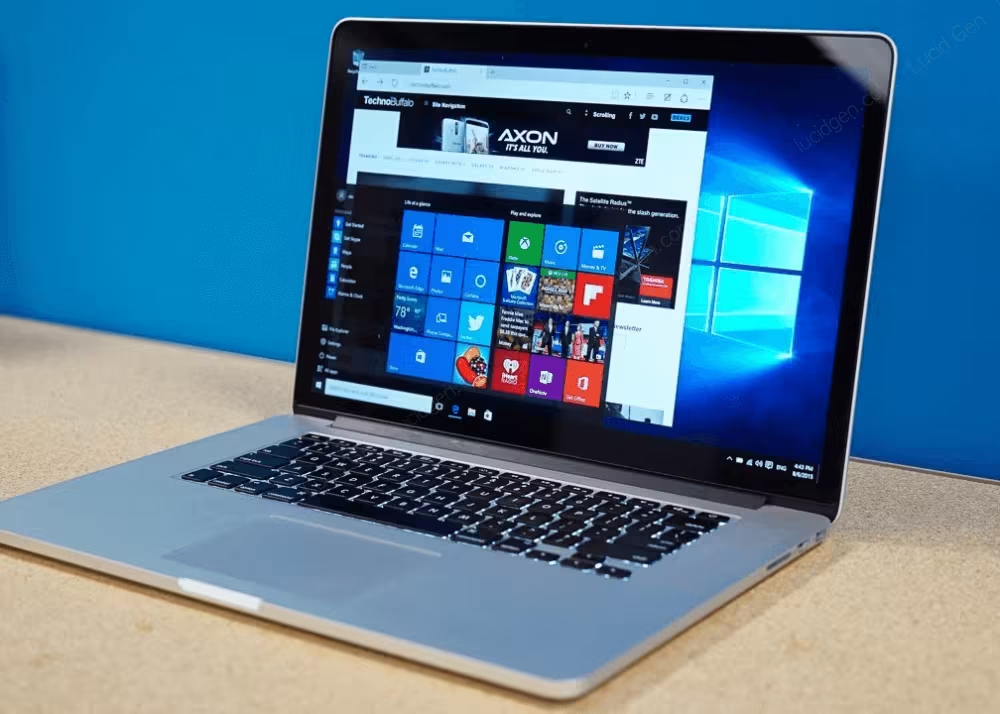
Conclusion: Maximizing Your Mac’s Potential
The ability to install Windows on a Mac transforms your device into an incredibly versatile tool, capable of handling a broader range of software and tasks. Whether you opt for the raw power of Boot Camp on an Intel Mac or the seamless integration of a virtual machine on either Intel or Apple Silicon, you’re unlocking a new dimension of functionality.
By carefully considering your performance needs, workflow preferences, and the specifics of your Mac model, you can choose the method that best serves you. This flexibility ensures that you never have to compromise between the elegance and power of macOS and the necessity of Windows applications. Your Mac isn’t just a Mac anymore; it’s a dynamic computing hub, ready to tackle any challenge thrown its way, truly maximizing its potential in both the Apple and Microsoft ecosystems.
aViewFromTheCave is a participant in the Amazon Services LLC Associates Program, an affiliate advertising program designed to provide a means for sites to earn advertising fees by advertising and linking to Amazon.com. Amazon, the Amazon logo, AmazonSupply, and the AmazonSupply logo are trademarks of Amazon.com, Inc. or its affiliates. As an Amazon Associate we earn affiliate commissions from qualifying purchases.