
In an increasingly cloud-centric world, the question of software compatibility often arises, particularly for users exploring alternative operating systems. One of the most common queries, especially for those considering a shift to Google’s lightweight Chrome OS, is whether they can run the ubiquitous Microsoft Office suite. This isn’t just a technical question; it’s a productivity imperative for millions who rely on Word, Excel, and PowerPoint daily. For individuals and businesses alike, understanding the nuances of integrating Microsoft Office with a Chromebook is crucial for maintaining workflow efficiency and making informed tech decisions that align with both budget and operational needs.

Chromebooks, with their streamlined design, robust security features, and emphasis on web-based applications, offer a compelling alternative to traditional Windows or macOS laptops. They’re often praised for their affordability, rapid boot times, and ease of use, making them popular choices for students, casual users, and increasingly, professionals seeking lightweight productivity solutions. However, their unique architecture, centered around the Chrome browser and Google’s ecosystem, means that software installation differs significantly from what users might be accustomed to. This article aims to demystify the process, exploring the various avenues available to bring Microsoft Office functionality to your Chromebook, weighing their benefits and limitations from a technological, branding, and financial perspective.
The Chromebook Ecosystem: Understanding the Basics of Chrome OS
Before diving into the specifics of Microsoft Office, it’s essential to grasp what a Chromebook is and how its operating system, Chrome OS, fundamentally operates. This understanding will illuminate why directly installing traditional desktop applications isn’t always straightforward and why alternative approaches are necessary.
What is a Chromebook? A Cloud-First Approach
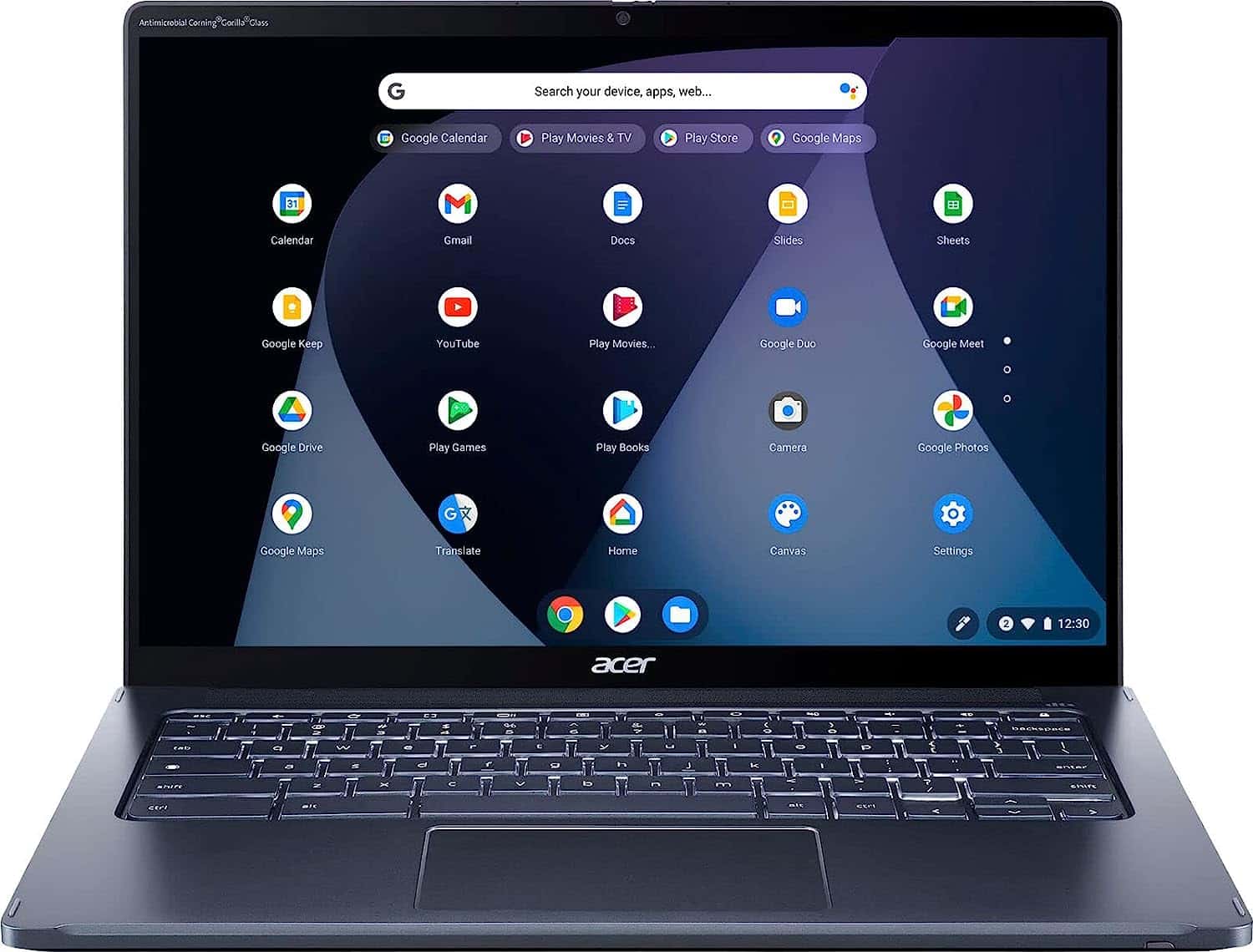
At its core, a Chromebook is a laptop or tablet running Google’s Chrome OS. Unlike Windows or macOS, Chrome OS is built upon the Linux kernel and uses the Chrome web browser as its primary user interface. This means that Chromebooks are designed to be “cloud-first” devices, relying heavily on internet connectivity and web applications rather than locally installed software. Most data is stored in Google Drive, and applications are primarily accessed through the Chrome browser or, more recently, via Android apps from the Google Play Store and Linux applications.
This architecture offers several distinct advantages:
- Simplicity and Speed: Chrome OS boots up incredibly fast and remains lightweight, contributing to snappy performance even on less powerful hardware.
- Security: With automatic updates, sandboxed applications, and verified boot processes, Chromebooks are inherently more secure against malware and viruses.
- Affordability: By leveraging cloud resources and simpler hardware, Chromebooks are often significantly more affordable than comparable Windows or macOS devices, presenting a strong “Money” advantage for individuals and organizations.
- Maintenance: Updates are handled in the background, minimizing user intervention and IT overhead, a boon for productivity.
Why the Native Office Experience Differs
The primary reason you cannot “install” Microsoft Office on a Chromebook in the same way you would on a Windows PC or Mac is due to fundamental operating system differences. The full desktop versions of Microsoft Word, Excel, and PowerPoint are Windows or macOS applications, compiled specifically for those environments. Chrome OS does not natively support these .exe or .dmg files. This distinction is critical for users accustomed to traditional software models and frames the challenge and the subsequent solutions we will explore. Microsoft, as a brand, has traditionally focused its premium, feature-rich software on its own OS and Apple’s, which has shaped user expectations and availability. However, as cloud computing gains dominance, even giants like Microsoft are adapting their strategies.
Accessing Microsoft Office on Your Chromebook: Multiple Avenues
While a direct, native installation of the full desktop Microsoft Office suite isn’t possible, Chromebook users are not left without options. Microsoft has embraced the cloud and mobile ecosystems, providing several ways to access and utilize Office applications, each with its own set of capabilities and limitations.
The Web-Based Solution: Microsoft Office for the Web
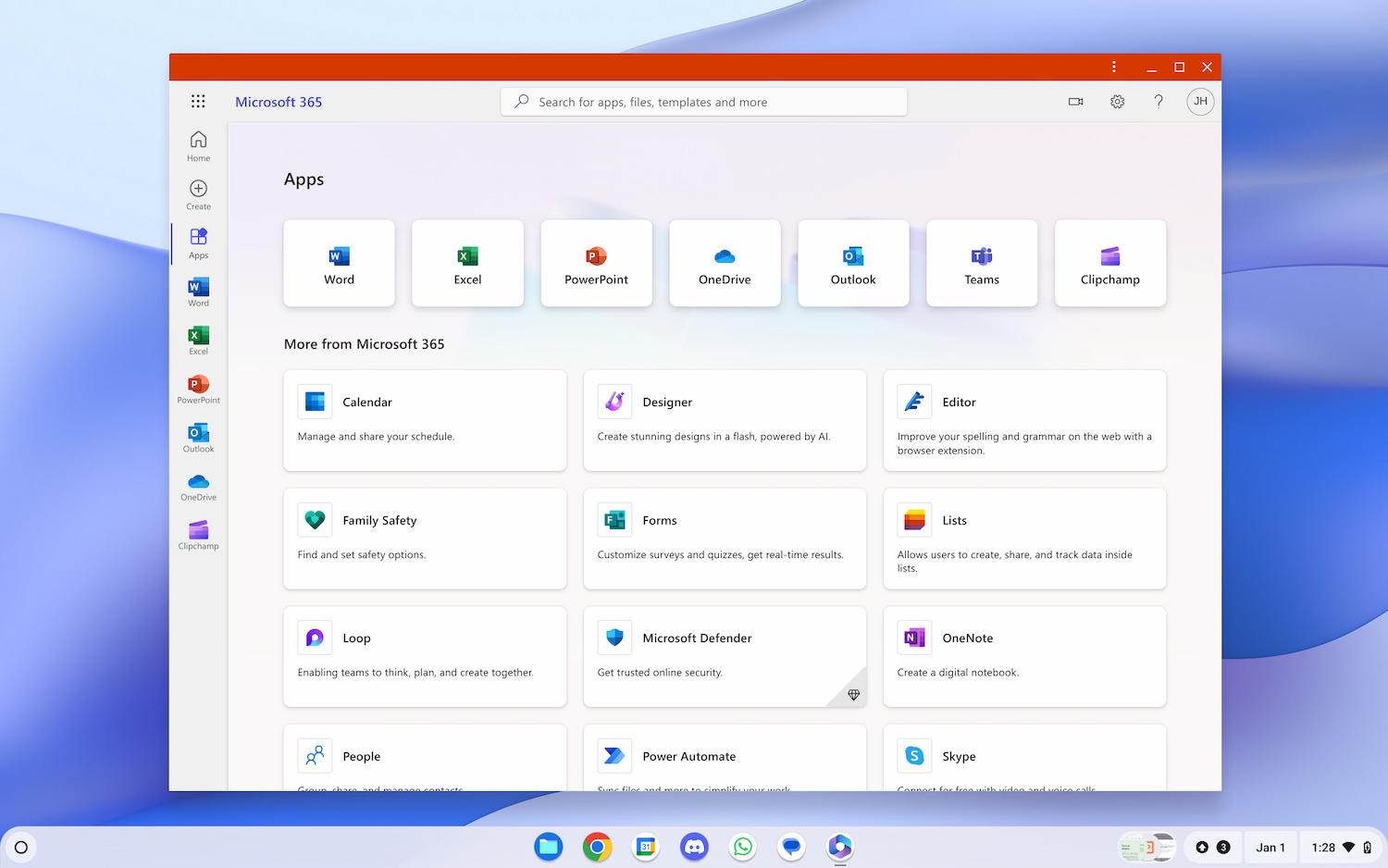
The most straightforward and widely recommended method for using Microsoft Office on a Chromebook is through Microsoft Office for the Web (formerly Office Online). This suite of free, web-based applications includes versions of Word, Excel, PowerPoint, OneNote, and Outlook that run directly within your Chrome browser.
How it Works:
Simply navigate to office.com, sign in with your Microsoft account, and you’ll have access to a streamlined version of the core Office applications. Documents created or edited here are automatically saved to your OneDrive cloud storage, ensuring accessibility from any device with an internet connection.
Advantages:
- Free: This is a significant “Money” advantage, as it requires no subscription (though a Microsoft 365 subscription enhances capabilities).
- No Installation Required: As a web application, there’s nothing to download or install, aligning perfectly with the Chromebook’s cloud-first philosophy.
- Cloud Integration: Seamlessly integrates with OneDrive, offering easy file storage, sharing, and real-time collaboration. This enhances productivity and digital security through consistent backups.
- Compatibility: Excellent file compatibility with their desktop counterparts, ensuring your documents look and function as intended when shared with Windows or Mac users.
- Always Up-to-Date: Microsoft continuously updates the web versions, so you always have the latest features without manual effort.
Limitations:
- Feature Set: While robust for most tasks, Office for the Web offers a reduced feature set compared to the full desktop applications. Advanced formatting, complex macros, and some specialized tools may be missing.
- Internet Dependent: Requires an active internet connection for full functionality. Basic offline viewing/editing might be available for some files via OneDrive sync, but it’s not the primary mode of operation.
For the vast majority of users who primarily create and edit documents, spreadsheets, and presentations, Office for the Web is an incredibly powerful, productive, and cost-effective solution.
Leveraging Android Apps: Office via the Google Play Store
Many modern Chromebooks support the Google Play Store, allowing you to download and install Android applications. This opens another avenue for accessing Microsoft Office, as Microsoft offers Android versions of Word, Excel, PowerPoint, and Outlook.
How it Works:
Open the Google Play Store on your Chromebook, search for “Microsoft Word,” “Microsoft Excel,” etc., and install them just like you would on an Android tablet or phone. You’ll need a Microsoft account to sign in and often a Microsoft 365 subscription to unlock full editing capabilities, though basic viewing might be free.
Advantages:
- Familiar Interface: The Android apps offer a more traditional app-like experience compared to the browser, with an interface optimized for touchscreens, which is beneficial for 2-in-1 Chromebooks.
- Enhanced Functionality: Generally offer more features than the web versions, bridging some of the gap with desktop applications, especially for those with a Microsoft 365 subscription.
- Offline Access: Once installed, these apps can often provide better offline functionality for working on documents, enhancing productivity when internet access is intermittent.
- Brand Consistency: For those deeply invested in the Microsoft brand ecosystem, these apps provide a consistent experience across mobile platforms.
Limitations:
- Tablet-Optimized: These are Android tablet versions, not desktop applications. While functional on a larger Chromebook screen, they may not feel as fluid or feature-rich as their Windows/macOS counterparts, particularly with keyboard and mouse input.
- Performance: Performance can vary depending on your Chromebook’s specifications. Some complex documents might strain the system or load slower.
- Subscription often Required: To unlock full editing and advanced features, a Microsoft 365 subscription is typically necessary, incurring a “Money” cost.
- Multitasking: Android apps on Chrome OS can sometimes have quirks with window management and multitasking compared to native Chrome apps.
Advanced Option: Running Office Through Linux (Crostini & Wine – for Power Users)
For the truly adventurous and technically proficient users, a more complex method involves enabling Linux (beta) on your Chromebook (also known as Crostini) and then attempting to install the Windows version of Microsoft Office using compatibility layers like Wine.
How it Works:
- Enable Linux: Go to your Chromebook’s settings and enable the Linux (Beta) environment. This installs a Debian-based Linux distribution within a virtual machine on your Chromebook.
- Install Wine: Within the Linux terminal, you’ll install Wine, a compatibility layer that allows certain Windows applications to run on Linux.
- Attempt Office Installation: Download the Windows installer for Microsoft Office (e.g., from a Microsoft 365 subscription page) and attempt to install it via Wine within your Linux environment.
Advantages:
- Closest to Desktop Experience: Theoretically, this method could provide the most feature-complete version of Microsoft Office available on a Chromebook, as it attempts to run the actual Windows binaries.
Limitations:
- Complexity: This is by far the most technically challenging method, requiring command-line proficiency and familiarity with Linux. It’s not for the casual user and poses digital security risks if not managed carefully.
- Performance Issues: Running Windows software through Wine on a virtualized Linux environment on a Chromebook is highly resource-intensive. Performance is often subpar, with slow loading times, crashes, and graphical glitches.
- Compatibility: Not all features or versions of Office work perfectly, or even at all. Stability is a major concern.
- Disk Space: Installing Linux, Wine, and Office consumes a significant amount of your Chromebook’s typically limited local storage.
- Unofficial and Unsupported: This method is not officially supported by either Google or Microsoft, meaning troubleshooting help is scarce, and future Chrome OS updates could break functionality.
This method is largely recommended only for power users with specific, non-negotiable feature requirements who are willing to invest significant time in setup and troubleshooting, understanding that it’s an experimental solution with inherent compromises.
Remote Desktop: Tapping into a Windows PC
Another viable solution, especially for those who need the full, uncompromised Microsoft Office experience, is to use a remote desktop connection to access a Windows PC that has Office installed.
How it Works:
You install a remote desktop client (like Chrome Remote Desktop, Microsoft Remote Desktop, TeamViewer, or similar) on your Chromebook. This client then connects to a Windows computer (your own or a company’s) where Microsoft Office is fully installed and running. You’ll see and interact with the Windows desktop and Office applications through your Chromebook screen, as if you were sitting in front of the Windows PC.
Advantages:
- Full Office Features: You get 100% of the features and performance of the desktop Microsoft Office suite, as it’s running natively on the host Windows machine.
- Seamless Experience: If you have a good internet connection, the experience can be surprisingly smooth, offering a powerful way to leverage existing hardware investments.
- Security: Remote desktop solutions often incorporate strong encryption and authentication, maintaining digital security.
Limitations:
- Requires Another PC: This method necessitates owning and maintaining a separate Windows computer with Office installed and powered on. This doubles the hardware “Money” investment.
- Internet Dependent: A stable, high-speed internet connection is crucial for a smooth and responsive experience. Lag can quickly degrade productivity.
- Licensing: You still need a valid Microsoft Office license for the Windows PC.
This option is excellent for users who need to occasionally access advanced Office features but primarily work in the cloud, or for business environments that already utilize remote access solutions for their “Brand” and “Productivity” standards.
Weighing Your Options: Performance, Productivity, and Cost
Choosing the right method for accessing Microsoft Office on your Chromebook involves a careful consideration of your specific needs, the level of functionality required, performance expectations, and budget. Each approach offers a different balance across these key factors.
Comparing Functionality and Features
- Office for the Web: Best for basic document creation, editing, and collaboration. Lacks advanced features like complex macro support, specialized charting, or specific desktop publishing tools. Ideal for students, casual users, and light professional work.
- Android Apps: Offers a slightly richer feature set than the web versions, particularly with a Microsoft 365 subscription. Suitable for more frequent mobile-style editing, but still not a full desktop replacement. Good for users who appreciate an app interface and some offline capability.
- Linux (Crostini + Wine): If it works, it theoretically offers the most features, but the practical usability is severely hampered by performance and stability issues. Only for niche, experimental use.
- Remote Desktop: Provides the absolute full feature set, as you are literally using the Windows desktop version. The gold standard for those who cannot compromise on features.
The Productivity Angle: Which Method Suits Your Workflow?
Your productivity hinges on how seamlessly Office integrates into your daily workflow.
- Web and Android apps offer instant access and cloud synchronization, ideal for fast-paced, collaborative, and mobile work. They align perfectly with the Chromebook’s philosophy of quick access and low overhead, enhancing overall productivity for cloud-centric users.
- Remote Desktop ensures maximal feature compatibility, critical for professions requiring specific, advanced Office functions (e.g., complex Excel modeling, professional Word formatting). However, the need for a separate PC and a reliable internet connection can introduce points of friction.
- Linux via Wine is generally a productivity drain due to its complexity and unreliability, making it counterproductive for serious work.
Cost Implications: Free Web vs. Microsoft 365 Subscription
The “Money” aspect is a significant differentiator.
- Office for the Web (basic features) is entirely free, making it the most budget-friendly option.
- Android apps often require a Microsoft 365 subscription to unlock full editing and creation capabilities. Microsoft 365 (formerly Office 365) is a subscription service that includes the full desktop applications for Windows/macOS, access to the Android/iOS apps, and enhanced web features, plus cloud storage. This represents an ongoing annual or monthly cost.
- Linux (Crostini + Wine) still requires a Microsoft Office license if you’re installing a paid version of the software. The cost is for the license, not the method of installation itself.
- Remote Desktop requires both a Windows PC and a valid Microsoft Office license for that PC, representing a potentially higher upfront and ongoing cost if you don’t already possess these assets.
Organizations considering Chromebooks for their workforce must factor in the “Money” implications of Office licensing. For many, the free web versions or the ability to integrate with Google Workspace (discussed next) can lead to significant cost savings in software licenses.
Beyond Microsoft: Chromebook’s Native Productivity Powerhouse
While Microsoft Office is a dominant force, it’s worth remembering that Chromebooks come with their own powerful and fully integrated productivity suite: Google Workspace.
Google Workspace: The Default Cloud Office Suite
Google Workspace (formerly G Suite) includes Google Docs, Sheets, Slides, Gmail, Calendar, Drive, and Meet. These applications are entirely web-based, cloud-native, and designed from the ground up to work seamlessly on Chrome OS.
Advantages:
- Deep Integration: Native to Chrome OS, offering unparalleled performance and integration with the operating system and Google Drive.
- Real-time Collaboration: Industry-leading real-time collaboration features, enabling multiple users to work on the same document simultaneously. This boosts productivity and team efficiency.
- Offline Mode: Robust offline capabilities for Docs, Sheets, and Slides, allowing you to work even without an internet connection.
- Free (Basic): A personal Google account grants free access to the core applications. Business and enterprise versions offer more features and storage at a subscription cost.
- Security and Updates: Inherits the strong security and automatic updates of Chrome OS and Google’s cloud infrastructure.
Integrating Google and Microsoft: Coexistence and Compatibility
Many users find that Google Workspace can handle 90% or more of their productivity needs. For the remaining tasks that specifically require Microsoft Office, they can leverage the web versions of Office for minor edits or use the Android apps. Google Workspace also boasts excellent compatibility with Microsoft Office file formats. You can open, edit, and save Word, Excel, and PowerPoint files directly in Docs, Sheets, and Slides, respectively. While not 100% perfect, especially with highly complex formatting or macros, it handles most standard documents with ease. This interoperability ensures that users aren’t locked into one ecosystem, allowing for flexible “Brand” and “Tech” choices.
Making the Right Choice for Your Chromebook Productivity
The answer to “Can you install Microsoft Office on a Chromebook?” is nuanced, evolving from a simple “no” to a resounding “yes, with caveats.” It largely depends on your specific requirements and how deeply you need to interact with the full-featured desktop versions.
Assessing Your Specific Needs
- Basic editing and viewing, light collaboration? Microsoft Office for the Web or Google Workspace are your best, most cost-effective, and most productive options.
- Need a more app-like experience with some offline capability and slightly more features? Consider the Android Office apps, especially if you have a Microsoft 365 subscription.
- Absolute requirement for full desktop Office features, and you have another Windows PC? Remote Desktop is the most reliable path.
- Technically proficient, willing to experiment, and need a specific feature only available on desktop? The Linux (Crostini) method is an option, but proceed with caution and tempered expectations.
Optimizing Your Chromebook for Office Work
Regardless of the method chosen, certain aspects can optimize your Chromebook for productivity:
- Internet Connection: A stable and fast internet connection is paramount for cloud-based Office use and remote desktop.
- RAM and Storage: While Chromebooks are lightweight, more RAM (8GB or more) will significantly improve performance, especially when multitasking, running Android apps, or using Linux. Sufficient local storage is also important for Android/Linux apps.
- Screen Size and Resolution: For prolonged Office work, a larger, higher-resolution screen improves usability and reduces eye strain.
- Input Devices: A comfortable keyboard and a precise mouse are essential for efficient document creation and editing, enhancing the overall user experience and productivity.
In conclusion, Chromebooks are powerful and versatile productivity machines, and the inability to natively install desktop Microsoft Office doesn’t hinder their utility. With robust web versions, capable Android apps, and clever remote access solutions, along with Google’s excellent native Workspace suite, Chromebook users have a wealth of options to stay productive, secure, and cost-efficient in today’s dynamic digital landscape. The future of productivity is increasingly about flexibility and cloud access, areas where the Chromebook truly shines, making it an intelligent choice for discerning users and businesses.
aViewFromTheCave is a participant in the Amazon Services LLC Associates Program, an affiliate advertising program designed to provide a means for sites to earn advertising fees by advertising and linking to Amazon.com. Amazon, the Amazon logo, AmazonSupply, and the AmazonSupply logo are trademarks of Amazon.com, Inc. or its affiliates. As an Amazon Associate we earn affiliate commissions from qualifying purchases.