
Chromebooks, with their lightweight ChromeOS and focus on cloud-based computing, have carved out a significant niche in the personal computing landscape. They are renowned for their simplicity, security, and affordability, making them popular choices for students, casual users, and professionals seeking a streamlined experience. However, their tight integration with Google’s ecosystem often leads users to wonder about the feasibility of stepping outside the default browser experience. Specifically, a common question arises: can you install Firefox, Mozilla’s privacy-focused and highly customizable web browser, on a Chromebook?
The short answer is yes, you absolutely can install Firefox on a Chromebook, but the “how” isn’t always as straightforward as installing an app on a traditional Windows or macOS device. The process involves navigating a few distinct pathways, each offering a different level of functionality and integration. For users deeply invested in Firefox’s robust feature set, its commitment to privacy, or simply a desire for a familiar browsing environment, understanding these methods is key to unlocking a more versatile Chromebook experience. This article will delve into the various approaches to getting Firefox up and running on your Chromebook, exploring the benefits, challenges, and everything you need to know to make an informed decision.
The Chromebook Ecosystem and Browser Choices
Before diving into the technicalities of installing Firefox, it’s essential to understand the unique environment of a Chromebook. This insight will help contextualize why installing an alternative browser isn’t always a one-click affair and what expectations to set regarding performance and integration.
Understanding ChromeOS and Its Design Philosophy
ChromeOS is fundamentally a Linux-based operating system developed by Google, built around the Chrome web browser. Its core design philosophy prioritizes speed, simplicity, and security. Most of what you do on a Chromebook happens within the browser or through web-based applications. The operating system itself is deliberately minimalist, designed to boot quickly, run efficiently on less powerful hardware, and receive frequent, seamless security updates.
This design choice has several implications. Firstly, traditional desktop applications designed for Windows or macOS are not natively compatible with ChromeOS. Secondly, security is paramount; ChromeOS employs a multi-layered security model, including sandboxing and verified boot, to protect users from malware. This robust security, while beneficial, can also restrict the types of software that can be easily installed, hence the need for specific methods to run non-native applications like Firefox.
Why Consider an Alternative Browser Like Firefox?
Given the seamless integration of Google Chrome into ChromeOS, one might ask why bother with an alternative browser at all. The reasons are varied and often deeply personal, touching upon aspects of digital security, productivity, and user experience, all core tenets of the “Tech” focus of many websites.
- Privacy Concerns: For many, Firefox’s primary appeal lies in its strong commitment to user privacy. Unlike Chrome, which is developed by an advertising company (Google), Mozilla Firefox positions itself as an open-source, non-profit organization dedicated to a free and open internet. Firefox offers advanced tracking protection, enhanced security features, and a clear stance against data monetization, which resonates with users concerned about their online footprint and digital security.
- Customization and Control: Firefox is renowned for its extensive add-on ecosystem and robust customization options. Users can fine-tune nearly every aspect of their browsing experience, from themes and interfaces to powerful extensions that block ads, manage passwords, enhance productivity, or even augment web page functionality. This level of control appeals to power users and those who want their browser to truly reflect their workflow.
- Familiarity and Cross-Platform Sync: Many users come to Chromebooks from Windows, macOS, or Linux environments where Firefox has been their long-standing browser of choice. The familiarity of Firefox’s interface, settings, and behavior can be a comforting and productive factor. Furthermore, Firefox Sync allows users to keep their bookmarks, passwords, history, and open tabs synchronized across all their devices (desktop, laptop, mobile), ensuring a consistent experience regardless of the operating system. This is a significant productivity booster, allowing seamless transitions between devices.
- Breaking the Google Monoculture: For some, choosing Firefox is a conscious decision to diversify their digital tools and reduce reliance on a single tech giant. It’s about exercising choice and supporting alternative ecosystems that align with different values regarding internet freedom and user agency.
The Default: Google Chrome and Its Integration
It’s important to acknowledge that Google Chrome is an excellent browser, especially on ChromeOS. It’s deeply integrated into the operating system, offering optimal performance, battery life, and access to Google services. For most users, Chrome provides a fast, secure, and perfectly adequate browsing experience. However, for the reasons outlined above, a segment of users actively seeks alternatives, and Firefox stands out as a leading contender due to its distinct value proposition.
Navigating the Installation Pathways for Firefox
While ChromeOS doesn’t natively support desktop Firefox applications, Google has thoughtfully incorporated several technologies that allow users to run other types of software, including Linux applications and Android apps. These are the primary avenues for getting Firefox onto your Chromebook.
Method 1: The Android App Approach
Since many Chromebooks support running Android applications from the Google Play Store, the simplest method for installing Firefox is often through its Android version.
How it Works and Its Limitations
Many modern Chromebooks come with built-in support for the Google Play Store. This allows you to download and install Android apps just as you would on an Android smartphone or tablet. Mozilla offers a robust Firefox browser app for Android, which is available in the Play Store.
Steps to Install Firefox Android App:
- Check for Play Store Support: Ensure your Chromebook model supports Android apps. Most newer models do, but older ones might not. You can usually find the Google Play Store icon in your app launcher.
- Open the Google Play Store: Click on the Play Store icon.
- Search for Firefox: In the search bar, type “Firefox” and press Enter.
- Install Firefox: Locate the official “Firefox: Fast, Private & Safe Web Browser” app by Mozilla and click the “Install” button.
- Launch Firefox: Once installed, you’ll find the Firefox app icon in your Chromebook’s app launcher. Click it to open.
Pros of the Android App Approach:
- Simplicity: This is by far the easiest method, requiring no complex configurations or command-line inputs.
- Familiarity (for Android users): The interface will be familiar to anyone who has used Firefox on an Android device.
- Basic Functionality: It provides core browsing capabilities, including tabbed browsing, bookmarks, and some privacy features.
Cons and Limitations:
- Not a Desktop Experience: The Android app is optimized for touchscreens and mobile interfaces, not the traditional desktop experience. While it runs on a Chromebook, it often behaves like a stretched-out phone app rather than a full-fledged desktop browser.
- Limited Add-on Support: The Android version of Firefox has a significantly smaller selection of compatible add-ons compared to its desktop counterpart. Many popular desktop extensions might not be available or function correctly.
- Potential Performance Issues: While generally good, some users might experience performance quirks or less fluid operation compared to the native Chrome browser or even the Linux version of Firefox.
- No PWA Integration: The Android app won’t integrate with Progressive Web Apps (PWAs) in the same seamless way that desktop browsers do.
For users who need a quick and easy way to access Firefox and are not reliant on its advanced desktop features or extensive add-on ecosystem, the Android app can be a perfectly acceptable solution.
Method 2: Unleashing Linux (Crostini) on Your Chromebook
For those seeking the full desktop Firefox experience, complete with all its add-ons and a traditional user interface, the most robust solution is to install the Linux version of Firefox. This is made possible by a feature called Crostini, which allows Chromebooks to run a virtualized Linux environment.
How it Works: Crostini and Its Capabilities
Crostini is a project that brings a fully functional Linux terminal and environment to your Chromebook. It runs Linux applications in a secure container, isolated from the main ChromeOS, ensuring that Linux apps don’t compromise the security or stability of your device. This capability transforms a Chromebook into a surprisingly powerful development machine or a versatile platform for running a wider range of software, including desktop browsers like Firefox. This is a significant aspect of extending the “Productivity” and “Software” capabilities mentioned in the website’s tech topics.
Prerequisites: Enabling the Linux Development Environment
Before you can install Firefox via Linux, you need to enable the Linux development environment on your Chromebook.
- Open Chromebook Settings: Click on the time/status area in the bottom-right corner of your screen, then click the gear icon to open Settings.
- Navigate to Linux: In the left-hand menu, scroll down and click on “Linux development environment (Beta).”
- Turn On Linux: Click the “Turn on” button.
- Follow On-Screen Prompts: A setup wizard will guide you through the installation. You’ll be prompted to create a username and choose a disk size for your Linux environment. The default settings are usually sufficient for most users, but you can allocate more space if you plan to install many Linux apps. This process can take several minutes to complete, as it downloads and sets up the necessary components.
- Open the Linux Terminal: Once the installation is finished, a Linux terminal window will automatically open. If it doesn’t, you can find “Terminal” in your Chromebook’s app launcher.
Installing Firefox via the Linux Terminal
With the Linux environment enabled and the terminal open, you can now use standard Linux commands to install Firefox. The most common and recommended way is through the apt package manager, which is used by Debian-based Linux distributions, the foundation of Crostini.
-
Update Package Lists: It’s good practice to update your package lists before installing new software. This ensures you’re getting the latest available versions and dependencies.
bash

sudo apt update
Enter your Linux password if prompted. -
Upgrade Existing Packages (Optional but Recommended): You can also upgrade any already installed packages to their latest versions.
bash

sudo apt upgrade
This might take some time. PressYwhen prompted to continue. -
Install Firefox: Now, you can install Firefox. There are generally two main ways to install the official Firefox package on a Debian-based system:
- From Debian Repositories (ESR version): This usually installs the Extended Support Release (ESR) version of Firefox, which is stable and receives security updates but might not have the absolute latest features.
bash

sudo apt install firefox-esr
This is often the default and easiest method for a stable experience. - From Mozilla’s Official PPA (Latest Stable Version – More Complex): For the absolute latest features and rapid updates, you might prefer to install directly from Mozilla’s official repositories. This involves adding a PPA (Personal Package Archive). This method is more involved, but ensures you always have the cutting-edge version.
- First, add the PPA:
bash

sudo add-apt-repository ppa:mozillateam/ppa
You’ll need to press Enter to confirm. - Then, modify preferences to prioritize the Mozilla PPA:
bash

echo 'Package: *' | sudo tee /etc/apt/preferences.d/mozilla-firefox

echo 'Pin: release o=LP-PPA-mozillateam' | sudo tee -a /etc/apt/preferences.d/mozilla-firefox

echo 'Pin-Priority: 1001' | sudo tee -a /etc/apt/preferences.d/mozilla-firefox
- Update package lists again:
bash

sudo apt update
- Finally, install Firefox:
bash

sudo apt install firefox
This will install the latest stable version of Firefox.
- First, add the PPA:
Note: If you encounter issues with
add-apt-repository, you might need to installsoftware-properties-commonfirst:sudo apt install software-properties-common. - From Debian Repositories (ESR version): This usually installs the Extended Support Release (ESR) version of Firefox, which is stable and receives security updates but might not have the absolute latest features.
-
Wait for Installation: The installation process will download and install Firefox and its dependencies. This can take a few minutes depending on your internet speed. Press
Ywhen prompted to continue.
Launching and Managing Firefox
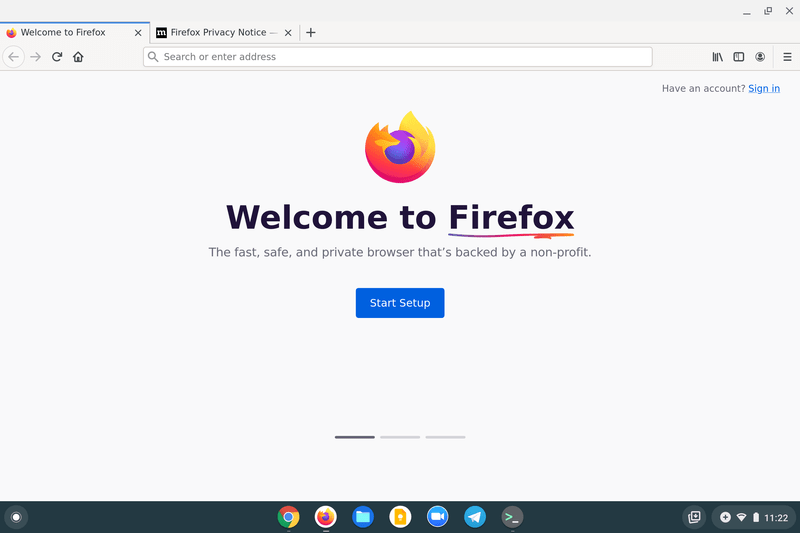
Once installed, Firefox will appear in your Chromebook’s app launcher alongside your other apps. It will typically be nested under a “Linux apps” folder.
- Launch Firefox: Open your app launcher, find the “Linux apps” folder, and click on the Firefox icon.
- Pin to Shelf (Optional): For quick access, you can right-click on the Firefox icon in the shelf (the taskbar at the bottom) and select “Pin” or “Pin to shelf.”
- Updating Firefox: To update Firefox in the future, you’ll need to open the Linux terminal again and run the following commands:
bash

sudo apt update

sudo apt upgrade
This will update Firefox along with any other Linux applications and system packages.
Pros of the Linux (Crostini) Approach:
- Full Desktop Experience: You get the complete, uncompromised desktop version of Firefox, including its full add-on ecosystem and traditional UI.
- Performance: Generally offers better performance and integration for a desktop-like experience compared to the Android app.
- Versatility: Once Linux is enabled, you can install many other Linux applications, significantly expanding your Chromebook’s capabilities.
- Privacy-Focused: Retains all of Firefox’s privacy and security features inherent to the desktop version.
Cons and Limitations:
- More Complex Setup: Requires enabling Linux and using the command line, which might be intimidating for new users.
- Resource Usage: Running a Linux container and a desktop browser can consume more system resources (RAM, CPU) than native ChromeOS apps, potentially impacting battery life and overall performance on lower-end Chromebooks.
- Storage Space: The Linux environment itself and installed applications will take up a significant amount of your Chromebook’s internal storage.
- Integration Quirks: While largely seamless, some minor integration quirks (e.g., file saving dialogs, printer access) might occur as it’s not a native ChromeOS application.
- Not All Chromebooks: While most modern Chromebooks support Crostini, some older or entry-level models might not.
Less Common or Unofficial Methods
While the Android app and Linux (Crostini) methods are the primary and most recommended ways to install Firefox, other, less common avenues exist. For instance, advanced users might explore Flatpak or Snap packages within the Linux environment, which are universal packaging systems that simplify software installation across different Linux distributions. However, these generally rely on Crostini already being enabled and configured, and for a general user, apt is usually sufficient and simpler. There are also highly experimental methods like dual-booting a full Linux distribution, but these are complex, risky, and fall outside the typical Chromebook user’s scope. We focus on the most accessible and stable methods.
Why Choose Firefox: Features and Benefits for Chromebook Users
Beyond the technicalities of installation, the decision to install Firefox on a Chromebook often comes down to its distinct features and philosophical underpinnings. For users invested in “Digital Security” and “Productivity,” Firefox offers compelling advantages.
Prioritizing Privacy and User Control
Firefox has long been a champion of user privacy. Its Enhanced Tracking Protection (ETP) blocks a wide range of common trackers, crypto miners, and fingerprinting scripts by default, giving users a more private browsing experience. Firefox also offers features like DNS over HTTPS (DoH) for encrypted DNS queries, protecting your browsing history from prying eyes on public Wi-Fi networks. This strong emphasis on privacy aligns perfectly with a proactive approach to “Digital Security,” a vital aspect of the modern tech landscape. For individuals and businesses alike, protecting data and maintaining a secure online presence can even tie into “Brand Reputation.”
Customization and Extensive Add-on Ecosystem
The ability to customize one’s browser is a significant draw for Firefox users. Its robust add-on ecosystem features thousands of extensions that can transform the browsing experience. From powerful ad blockers like uBlock Origin to productivity tools like tab managers, note-taking extensions, and password managers, Firefox allows users to tailor their browser precisely to their needs. This level of personalization can significantly boost “Productivity,” making workflows smoother and more efficient. For a Chromebook user, who might otherwise feel restricted by the ChromeOS environment, Firefox’s customization options offer a liberating sense of control.
Cross-Platform Sync and Familiarity
As mentioned, Firefox Sync is a powerful tool for maintaining consistency across devices. Whether you’re switching between a Windows desktop, an Android phone, and a Chromebook, your bookmarks, passwords, open tabs, and browsing history remain synchronized. This seamless transition is a massive advantage for productivity and convenience. For those new to ChromeOS, having a familiar browser like Firefox can ease the learning curve and ensure that their established online habits are not disrupted.
Open Source Philosophy and Community Support
Firefox is open-source software, meaning its code is publicly available for scrutiny and modification. This transparency fosters trust and allows a global community of developers to contribute to its improvement and security. Supporting Firefox is, for many, a way to contribute to a healthier, more open internet ecosystem, contrasting with the proprietary nature of some other browsers. This open-source philosophy also means a vast community is often ready to offer support and troubleshoot issues, an invaluable resource for users exploring alternative software installations on platforms like Chromebooks.
Performance, Challenges, and Optimizations
While installing Firefox on a Chromebook offers many benefits, it’s important to set realistic expectations regarding performance and potential challenges. Running non-native applications, especially a full desktop browser within a virtualized Linux environment, inherently comes with some considerations.
What to Expect: Performance and Integration Realities
- Resource Consumption: The Linux container itself requires a certain amount of RAM and CPU cycles to run. When Firefox is launched within this container, it adds to the overall system load. On lower-end Chromebooks with less RAM (e.g., 4GB), you might notice a slight slowdown, particularly when running multiple demanding applications simultaneously. Chromebooks with 8GB RAM or more will generally offer a smoother experience.
- Battery Life: Increased resource usage can translate to slightly reduced battery life compared to using the highly optimized native Chrome browser.
- Startup Time: Launching Firefox from the Linux environment might take a few extra seconds compared to opening Chrome, as the Linux container needs to spin up if it’s not already running.
- File System Integration: While Linux apps can access your Chromebook’s Downloads folder (and other shared folders), the integration isn’t always as seamless as native ChromeOS apps. Saving files from Firefox might sometimes feel like navigating a separate file system.
Common Issues and Troubleshooting Tips
- Installation Errors: If
sudo apt install firefoxfails, double-check your spelling and ensure your internet connection is stable. Runningsudo apt updatefirst is crucial. - Firefox Not Launching: If Firefox doesn’t open, try restarting your Chromebook. Sometimes, the Linux container might need a fresh start. You can also try launching it from the terminal to see if any error messages are displayed: simply type
firefoxin the terminal and press Enter. - Font Rendering Issues: Occasionally, fonts in Linux applications might appear blurry or pixelated. This can often be fixed by installing Microsoft fonts or adjusting font settings within Firefox or the Linux environment.
- Audio/Video Playback: While generally good, some specific audio or video codecs might not be pre-installed in the default Linux container. You might need to install additional packages if you encounter issues. A quick search for “install media codecs debian” can provide the necessary commands.
- Performance Lags: If Firefox feels sluggish, try closing other open applications (both ChromeOS and Linux apps). Consider removing any unnecessary Firefox add-ons that might be resource-intensive.
Optimizing Your Firefox Experience on ChromeOS
- Allocate More Linux Disk Space: During the initial Linux setup, or later in ChromeOS settings, you can increase the amount of disk space allocated to the Linux container if you plan on installing many apps.
- Regular Updates: Keep both your ChromeOS and Linux packages updated. This ensures you have the latest performance improvements and security patches.
- Choose a Capable Chromebook: If you anticipate heavy use of Linux apps, consider a Chromebook with at least an Intel Core i3 processor (or equivalent) and 8GB of RAM for the best experience.
- Manage Firefox Add-ons: While a strength, a multitude of add-ons can slow down any browser. Be judicious about which ones you install.
- Firefox Preferences: Adjust Firefox’s internal settings, such as hardware acceleration (if available and stable) or content blocking preferences, to fine-tune performance.
Concluding Thoughts: Is Firefox on Chromebook Right for You?
The ability to install Firefox on a Chromebook is a testament to the increasing versatility of ChromeOS. It opens doors for users who value Firefox’s privacy features, extensive customization, and cross-platform synchronization, allowing them to leverage the best of both worlds: the security and simplicity of a Chromebook coupled with the power and flexibility of a desktop-grade browser.
Weighing the Pros and Cons
Pros of Installing Firefox on Chromebook:
- Enhanced Privacy: Superior tracking protection and a strong privacy-first stance.
- Deep Customization: Access to a vast add-on ecosystem and fine-grained control over the browsing experience.
- Familiarity: A consistent user interface for long-time Firefox users.
- Cross-Device Sync: Seamless synchronization of data across all your platforms.
- Open Source: Supports an open and transparent internet ecosystem.
- Expanded Productivity: Tailor your browser to specific workflows with powerful extensions.
Cons of Installing Firefox on Chromebook:
- Complexity: Linux installation requires command-line interaction, which can be daunting for novices.
- Resource Intensity: Can consume more RAM and CPU than the native Chrome browser, potentially affecting performance and battery life on less powerful devices.
- Storage Usage: The Linux environment and Firefox installation require significant internal storage.
- Integration Gaps: Minor quirks with file system integration or other native ChromeOS features.
- Android App Limitations: The Play Store version is not a full desktop browser experience.
Alternative Browser Options for Chromebooks
If Firefox’s installation methods or potential quirks seem too challenging, but you still desire an alternative to Chrome, other options exist:
- Brave Browser (Android/Linux): Brave offers strong privacy features, built-in ad blocking, and a rewards program based on cryptocurrency. It’s available as an Android app and can also be installed via Linux.
- Microsoft Edge (Android/Linux): Edge, built on Chromium, offers good performance and Microsoft account integration. It’s also available as an Android app and can be installed via Linux, though it’s less commonly sought after on Chromebooks.
- Vivaldi (Linux): A highly customizable browser built on Chromium, known for its extensive features and power-user options. It can be installed via Linux.
- Opera (Android/Linux): Another feature-rich browser with a built-in VPN and ad blocker, available as an Android app and a Linux version.

Final Recommendation and Future Outlook
For users prioritizing privacy, extensive customization, and a familiar desktop browsing experience, installing Firefox via the Linux (Crostini) method on a Chromebook is highly recommended. While it requires a bit more effort upfront, the rewards in terms of control and functionality are significant, offering a robust alternative to the default Chrome browser. It transforms your Chromebook into a more versatile and powerful tool, aligning with the “Tech” website’s focus on “Software” and “Productivity” enhancements.
The Android app is a simpler entry point but comes with limitations in terms of desktop functionality. Ultimately, the choice depends on your technical comfort level and your specific browsing needs. As ChromeOS continues to evolve, potentially integrating Linux applications even more seamlessly, the experience of running alternative browsers like Firefox on Chromebooks is only likely to improve, further empowering users with choice and flexibility in their digital lives. Whether you’re a privacy advocate, a customization enthusiast, or simply seeking a change, Firefox on your Chromebook is a compelling and achievable reality.
aViewFromTheCave is a participant in the Amazon Services LLC Associates Program, an affiliate advertising program designed to provide a means for sites to earn advertising fees by advertising and linking to Amazon.com. Amazon, the Amazon logo, AmazonSupply, and the AmazonSupply logo are trademarks of Amazon.com, Inc. or its affiliates. As an Amazon Associate we earn affiliate commissions from qualifying purchases.