
The allure of a Chromebook is undeniable: its simplicity, speed, and affordability have made it a popular choice for students, casual users, and those seeking a streamlined computing experience. However, a common question arises for those who find themselves needing more than ChromeOS offers: “Can Windows be installed on a Chromebook?” The answer, much like technology itself, is not a simple yes or no. It’s a nuanced exploration of compatibility, workarounds, and the fundamental differences between these two distinct operating systems.
This article will delve into the intricacies of attempting to run Windows on a Chromebook, examining the technical hurdles, available methods, and the potential implications for your device and user experience. We’ll navigate the world of virtualization, dual-booting, and even consider alternative solutions that might achieve similar goals without directly installing Windows.

Understanding the Core Differences: Chromebooks vs. Windows Laptops
Before we even consider installing Windows on a Chromebook, it’s crucial to understand why it’s not a straightforward process. Chromebooks and traditional Windows laptops are built on fundamentally different architectures and philosophies.
ChromeOS: The Cloud-Centric Lightweight
ChromeOS is a Linux-based operating system developed by Google, designed to be lightweight, secure, and heavily reliant on web applications and cloud storage. Its core strength lies in its speed and simplicity. Boot times are incredibly fast, and the user interface is clean and intuitive, primarily revolving around the Chrome browser.
- Hardware: Chromebooks typically feature less powerful hardware compared to many Windows laptops, prioritizing efficiency and battery life. This often includes lower-end processors, less RAM, and smaller storage capacities. While this is perfectly adequate for web browsing, document editing, and running Android apps, it can be a limiting factor for demanding Windows applications.
- Software Ecosystem: The ChromeOS app ecosystem is primarily composed of web applications, Progressive Web Apps (PWAs), and Android apps available through the Google Play Store. While this covers a vast range of common tasks, it excludes many specialized desktop applications that are exclusive to Windows.
- Security Model: ChromeOS boasts a robust security model with features like sandboxing, verified boot, and automatic updates, making it less susceptible to traditional malware. This security is deeply integrated into the operating system’s design.
Windows: The Versatile Powerhouse
Windows, developed by Microsoft, is the dominant desktop operating system globally, known for its immense software compatibility and flexibility. It’s designed to run a vast array of applications, from casual games to professional creative suites and complex business software.
- Hardware: Windows laptops come in a wide range of configurations, from budget-friendly models to high-performance workstations and gaming rigs. This hardware diversity allows for a broad spectrum of performance capabilities.
- Software Ecosystem: The Windows Store exists, but the vast majority of Windows applications are traditional desktop programs that are installed directly onto the hard drive. This provides unparalleled software choice but also opens the door to a wider range of potential security vulnerabilities.
- Control and Customization: Windows offers a high degree of control and customization, allowing users to tweak settings, install drivers, and manage system resources extensively.
The inherent differences in how these operating systems are designed, the hardware they typically run on, and the software they support are the primary reasons why installing Windows on a Chromebook isn’t as simple as inserting a disc or downloading an installer.
Exploring the Possibilities: Methods for Running Windows on a Chromebook
While a direct, native installation of Windows on most Chromebooks is not supported by Google or hardware manufacturers, there are several workarounds and methods that users have explored to achieve some level of Windows functionality. These methods vary in complexity, performance, and success rate.
1. Virtualization: Running Windows Within ChromeOS
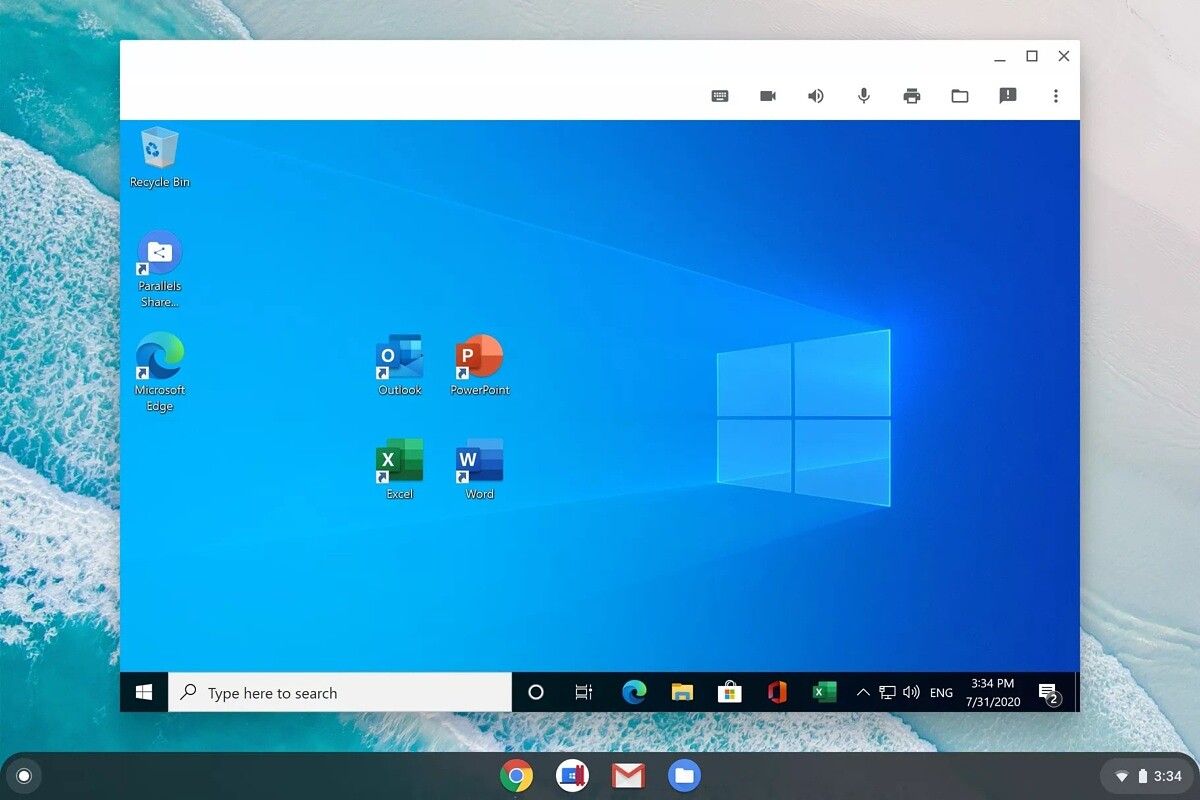
Virtualization is a technology that allows you to run an operating system within another operating system, essentially creating a “virtual machine” (VM). This is arguably the most common and accessible method for running Windows on a Chromebook, though it comes with significant caveats.
How Virtualization Works on Chromebooks
To run Windows via virtualization on a Chromebook, you’ll typically need to use a dedicated virtualization application. Some popular options include:
- Crostini (Linux Beta): Chromebooks with Linux support enabled can run Linux applications. Within a Linux environment, you can then install virtualization software like VirtualBox or VMware Workstation Player. This allows you to install a Windows VM within your Linux container.
- Process: Enable the Linux development environment on your Chromebook. Install a Linux distribution (if necessary). Download and install VirtualBox or a similar hypervisor on your Linux environment. Obtain a Windows ISO file and install it as a virtual machine within VirtualBox.
- Considerations: This method requires a Chromebook that supports Linux. Performance can be a bottleneck, especially on lower-end hardware, as both ChromeOS and the Linux environment are running, in addition to the Windows VM. Graphics-intensive applications or games will likely perform poorly. You’ll also need sufficient storage space for the VM.
- Third-Party Virtualization Apps: There are some third-party applications that offer more direct virtualization of Windows on ChromeOS, often through the Google Play Store or as web apps. These might offer a more streamlined experience but can come with subscription fees or limitations.
- Examples: While specific apps can change rapidly, historically, solutions like Parallels Access (though more for remote access) or other niche virtualization tools have emerged. Researching current offerings is crucial.
Pros and Cons of Virtualization
Pros:
- Relatively Easy to Set Up: Compared to other methods, virtualization is generally more straightforward for users comfortable with basic software installation.
- Non-Destructive: Virtualization doesn’t alter your Chromebook’s core operating system, making it easy to revert or remove.
- Access to Windows Applications: You can run a wide range of Windows software, provided your hardware can handle it.
Cons:
- Performance Limitations: This is the biggest drawback. Running a VM consumes significant system resources (CPU, RAM, storage). Chromebooks, often equipped with less powerful hardware, will struggle with demanding Windows applications. Expect lag, slow loading times, and reduced responsiveness.
- Graphics Intensive Tasks: Gaming, video editing, and other graphically demanding tasks will likely be unplayable or severely compromised.
- Storage Space: Windows installations and applications require substantial storage, which can be a premium on many Chromebooks.
- Compatibility Issues: Not all Windows applications may function perfectly within a virtualized environment.
- Battery Drain: Running multiple operating systems and resource-intensive applications will significantly impact battery life.
2. Dual-Booting: A More Advanced (and Risky) Path
Dual-booting involves installing Windows alongside ChromeOS on your Chromebook’s storage, allowing you to choose which operating system to boot into when you start your device. This offers the potential for better performance than virtualization, as Windows would have direct access to the hardware. However, this method is significantly more complex, carries a higher risk of bricking your device, and is not officially supported.
The Dual-Booting Landscape
Historically, dual-booting Windows on a Chromebook has been possible primarily on older Chromebooks with specific chipsets (often Intel-based) and by making significant modifications to the device’s firmware. This typically involves:
- Enabling Developer Mode: This disables some of ChromeOS’s security features and allows for greater system access.
- Replacing Firmware: This is the most critical and riskiest step. It involves flashing custom firmware (like MrChromebox’s UEFI firmware) that allows the Chromebook to boot from standard operating system installers.
- Partitioning Storage: You’ll need to partition your Chromebook’s internal storage to make space for both ChromeOS and Windows.
- Installing Windows: Once the firmware is modified and storage is partitioned, you can boot from a Windows installer USB drive and install Windows as you would on any other PC.
The Challenges and Risks of Dual-Booting
Challenges:
- Hardware Compatibility: Not all Chromebook hardware is compatible with this process. ARM-based Chromebooks are generally not suitable. Even Intel-based ones may have specific components that lack Windows drivers.
- Driver Availability: Finding appropriate Windows drivers for all of your Chromebook’s hardware (touchpad, Wi-Fi, keyboard, etc.) can be a significant challenge. Without proper drivers, certain functionalities may not work.
- Complexity and Technical Skill: This process requires a high level of technical expertise and comfort with command-line interfaces, firmware flashing, and partitioning.
- Loss of ChromeOS Features: Depending on how the process is executed, you might lose some of ChromeOS’s seamless update capabilities or integrated security features.
Risks:
- Bricking Your Device: Improperly flashing firmware or making mistakes during the partitioning process can render your Chromebook unusable (“bricked”). This is a very real risk.
- Voiding Warranty: Modifying your device’s firmware and attempting to install an unsupported operating system will almost certainly void your manufacturer’s warranty.
- Data Loss: The process involves wiping your device, so backing up all essential data is paramount.
- Instability and Performance Issues: Even if successful, you might encounter driver conflicts, system instability, or subpar performance due to hardware limitations or driver issues.
Note: Due to the complexity and inherent risks, dual-booting Windows on a Chromebook is generally not recommended for the average user. It’s a path for advanced tinkerers who understand the potential consequences and are willing to accept the risks.
3. Cloud-Based Solutions: Remote Access to Windows
For users who primarily need access to specific Windows applications but don’t necessarily need a full, installed Windows environment on their Chromebook, cloud-based solutions offer a compelling alternative. These services allow you to remotely access a Windows desktop or specific applications running on a powerful server in the cloud.
Popular Cloud Solutions
- Remote Desktop Applications: Services like Microsoft Remote Desktop, Chrome Remote Desktop, TeamViewer, and AnyDesk allow you to connect to another Windows computer (if you have one) from your Chromebook. This is an excellent option if you already own a Windows PC and want to access its resources remotely.
- Cloud Computing Platforms: Platforms like Amazon WorkSpaces, Microsoft Azure Virtual Desktop, and Google Cloud offer virtual desktop infrastructure (VDI). You can rent a virtual Windows machine in the cloud and access it from your Chromebook through a web browser or dedicated client.
- Considerations: These services are often subscription-based and can become costly, especially for continuous use. However, they offer significant processing power and can run demanding applications smoothly.
- Application Streaming Services: Some services specialize in streaming specific Windows applications to your device, bypassing the need for a full OS installation.
Benefits of Cloud-Based Solutions
- No Installation Required: You don’t need to install anything directly on your Chromebook beyond a remote access client or web browser.
- Access to Powerful Hardware: You can access high-performance computing resources in the cloud, overcoming the limitations of your Chromebook’s hardware.
- Flexibility and Accessibility: Access your Windows environment from anywhere with an internet connection.
- Security: Your data remains on secure cloud servers, and your Chromebook itself is less exposed to direct threats.
Drawbacks of Cloud-Based Solutions
- Internet Dependency: A stable and fast internet connection is absolutely essential for a smooth experience.
- Cost: Subscription fees can add up, making it an ongoing expense.
- Latency: Depending on your internet connection and the server’s location, you might experience some latency, which can affect real-time applications.
Alternatives to Installing Windows on a Chromebook
Given the complexities and limitations of installing Windows on a Chromebook, it’s often more practical to consider alternatives that leverage the strengths of ChromeOS or offer comparable functionality through different means.
1. Leveraging Android Apps and Web Apps
For many users, the primary reason for wanting Windows is access to specific applications. However, the ChromeOS ecosystem has grown significantly.
- Google Play Store: Most modern Chromebooks can run Android apps, offering access to millions of applications designed for smartphones and tablets. Many popular productivity, creative, and entertainment apps are available on Android.
- Progressive Web Apps (PWAs): Websites can be packaged as PWAs, offering an app-like experience directly from your browser, often with offline capabilities and desktop shortcuts. Many services now offer robust PWAs.
- Web-Based Alternatives: For tasks traditionally done on Windows, consider if there’s a capable web-based alternative. For example, Google Workspace (Docs, Sheets, Slides) is a powerful suite that rivals Microsoft Office for many users.
2. Utilizing Linux on Chromebooks
As mentioned in the virtualization section, enabling the Linux development environment on your Chromebook opens up a world of possibilities.
- Linux Software: You can install a vast array of open-source software on your Chromebook through the Linux terminal, including powerful alternatives to many Windows applications. Examples include LibreOffice (for productivity), GIMP (for image editing), Blender (for 3D modeling), and various coding IDEs.
- Command-Line Tools: For technically inclined users, the Linux command line offers immense power and flexibility.
3. When a Chromebook Isn’t Enough: Considering a Windows Laptop
Ultimately, if your primary need is to run specific Windows-only software, especially demanding applications like professional design suites, complex CAD software, or high-end games, and you’ve explored all workarounds with limited success, the most practical solution might be to invest in a dedicated Windows laptop.
Chromebooks are optimized for their intended purpose: a fast, secure, and cloud-centric computing experience. For users whose workflows are deeply rooted in the Windows ecosystem, attempting to force-fit Windows onto a Chromebook can be a frustrating and ultimately unproductive endeavor.

Conclusion: A Calculated Decision
So, “Can Windows be installed on a Chromebook?” The answer remains nuanced: technically, with significant effort, risk, and compromises, it’s possible for some users on specific devices. However, for the vast majority of users, it’s not a straightforward or recommended path.
The methods of virtualization offer a way to run Windows applications within ChromeOS, but performance is often a major limitation. Dual-booting is a complex and risky undertaking that can void warranties and potentially “brick” your device, reserved for advanced users willing to gamble. Cloud-based solutions provide excellent remote access to Windows environments but come with ongoing costs and internet dependency.
Before embarking on the journey of installing Windows on your Chromebook, it’s crucial to:
- Clearly define your needs: What specific Windows applications do you absolutely need to run?
- Assess your Chromebook’s hardware: Is it powerful enough to handle virtualization or potential dual-booting?
- Understand the risks: Are you prepared for potential data loss, hardware damage, or voiding your warranty?
- Explore alternatives: Can your needs be met with Android apps, web apps, or Linux software?
For many, the beauty of a Chromebook lies in its simplicity and efficiency. If you find yourself consistently needing the full power and software compatibility of Windows, it might be more cost-effective and less frustrating in the long run to purchase a dedicated Windows laptop. However, for those who enjoy tinkering and understand the trade-offs, the possibilities, though limited, do exist.
aViewFromTheCave is a participant in the Amazon Services LLC Associates Program, an affiliate advertising program designed to provide a means for sites to earn advertising fees by advertising and linking to Amazon.com. Amazon, the Amazon logo, AmazonSupply, and the AmazonSupply logo are trademarks of Amazon.com, Inc. or its affiliates. As an Amazon Associate we earn affiliate commissions from qualifying purchases.