
The allure of a Chromebook is undeniable: sleek design, rapid boot times, and a streamlined operating system focused on web-based tasks and cloud integration. For many, they represent the perfect balance of portability and productivity for everyday use. However, a common question arises for users who might need more specialized software or a familiar desktop environment: “Can I install Windows on my Chromebook?” The answer, as with many tech-related queries, is a nuanced “yes, but…”
This article delves into the possibility of running Windows on your Chromebook, exploring the various methods, their inherent challenges, and what you should consider before embarking on this journey. We’ll navigate the technicalities, discuss the implications for your Chromebook’s performance and functionality, and touch upon the alternative solutions that might better suit your needs, all within the broader context of technology trends and the ever-evolving digital landscape.

Understanding the Chromebook Ecosystem
Before we dive into installing Windows, it’s crucial to understand why Chromebooks are designed the way they are. Chrome OS, developed by Google, is fundamentally different from Windows. It’s built around the Chrome browser and designed for a cloud-centric workflow. This means:
- Lightweight and Fast: Chrome OS requires fewer system resources, leading to quick startup times and smooth performance, especially on less powerful hardware.
- Security Focused: With an emphasis on sandboxing and automatic updates, Chrome OS is generally considered very secure.
- App Ecosystem: While the Google Play Store offers a vast selection of Android apps, and Linux app support has improved significantly, the native application library is not as extensive as Windows.
- Hardware Limitations: Many Chromebooks are designed with less powerful processors and limited storage compared to traditional laptops, optimized for Chrome OS’s resource efficiency.
This inherent design choice is the primary hurdle when considering Windows installation. Windows is a resource-intensive operating system designed for a wide range of hardware, and it expects certain drivers and system architecture that are not standard on most Chromebooks.
Exploring the Possibilities: Methods to Run Windows on a Chromebook
While not officially supported, there are several methods people have used to get Windows running on their Chromebooks. Each comes with its own set of pros and cons, and success can vary wildly depending on your specific Chromebook model.
Method 1: Dual Booting (Challenging and Model-Specific)
Dual booting involves installing Windows alongside Chrome OS, allowing you to choose which operating system to boot into when you power on your device. This is often the most desired method as it preserves your Chrome OS installation and allows for seamless switching between operating systems.
The Process (Generally):
- Enable Developer Mode: This is a prerequisite for most advanced modifications on a Chromebook. It disables certain security features, allowing for deeper system access. This process will wipe your device, so ensure you back up all your local data.
- Install a Custom Firmware (UEFI/BIOS): Chromebooks use a proprietary firmware. To install Windows, you’ll likely need to replace it with a UEFI firmware that can boot standard operating systems. Projects like MrChromebox.tech offer scripts and firmware for various Chromebook models. This is a critical and potentially risky step.
- Partition Your Storage: You’ll need to shrink your existing Chrome OS partition to make space for Windows.
- Install Windows: Once the custom firmware is in place and you have a partition ready, you can boot from a Windows installation USB drive and proceed with the installation as you would on a normal PC.
Challenges and Considerations:
- Hardware Compatibility: This is the biggest hurdle. Even with a custom firmware, finding drivers for your Chromebook’s specific hardware (Wi-Fi, Bluetooth, touchpad, audio, keyboard, etc.) for Windows can be incredibly difficult, if not impossible. Many Chromebook components are highly integrated and not designed for Windows compatibility.
- Performance Degradation: If you manage to get Windows installed, the performance might be significantly hampered, especially on lower-end Chromebooks. Windows requires more processing power and RAM than Chrome OS, and the hardware might struggle.
- Risk of Bricking: Modifying your Chromebook’s firmware carries a risk of rendering your device unusable (bricking). You must be prepared for this possibility.
- Updates: Windows updates and Chrome OS updates can sometimes conflict, requiring you to reapply modifications or troubleshoot issues.
- Storage Limitations: Most Chromebooks come with limited eMMC storage. Installing Windows, which can take up a significant portion of that space, will leave little room for applications and files.
When is this feasible? Dual booting is most viable on Chromebooks with x86 processors (Intel or AMD), as opposed to ARM-based processors. Even then, it’s a complex undertaking that requires a good understanding of operating system installation and hardware. It’s generally not recommended for beginners.
Method 2: Running Windows Apps via Emulation or Virtualization (Limited)
If your primary goal is to run specific Windows applications, you might have alternative, less invasive options.
Running Android Apps (Built-in)
Chrome OS can run Android apps from the Google Play Store. Many common productivity and entertainment apps are available on both platforms. However, this won’t help you run complex, legacy Windows software.
Running Linux Apps (Built-in)
Modern Chromebooks have built-in support for running Linux applications. This opens up a world of open-source software that can often serve as alternatives to Windows programs. For example, you can run LibreOffice instead of Microsoft Office, GIMP instead of Photoshop, and various development tools.
Windows Emulators (Generally Not Recommended)
There are software emulators that claim to run Windows applications on other operating systems. However, these are often very slow, unreliable, and may not support a wide range of applications. Performance is usually a major issue, making them impractical for most users.
Virtual Machines (Resource Intensive and Model Dependent)
It’s technically possible to install a virtualization software (like VirtualBox or VMware) within the Linux environment of a Chromebook and then install Windows within that virtual machine.
Challenges and Considerations:
- Performance: Virtualizing Windows on a Chromebook will be very demanding on the hardware. You’ll need a powerful Chromebook with ample RAM to achieve even basic usability.
- Driver Issues: Similar to dual booting, getting drivers for your Chromebook’s hardware to work within the virtual machine can be problematic.
- Complexity: Setting up a virtual machine and installing an operating system within it requires technical knowledge.
- Storage: A Windows virtual machine will consume a significant amount of storage space.
When is this feasible? This method is more about running Windows within Chrome OS rather than replacing it. It’s an option for users who need to run a specific Windows application occasionally and have a high-end Chromebook with plenty of resources.
Method 3: Cloud-Based Solutions (The Smart Alternative)
Given the significant challenges of running Windows natively on a Chromebook, many users find that cloud-based solutions offer a far more practical and seamless experience for accessing Windows environments or specific applications.
Remote Desktop Access
If you already own a Windows PC, you can use Remote Desktop applications (like Google Chrome Remote Desktop, Microsoft Remote Desktop, or TeamViewer) to access your Windows machine from your Chromebook. This effectively allows you to control your Windows PC from your Chromebook, running any application you need.
Pros:
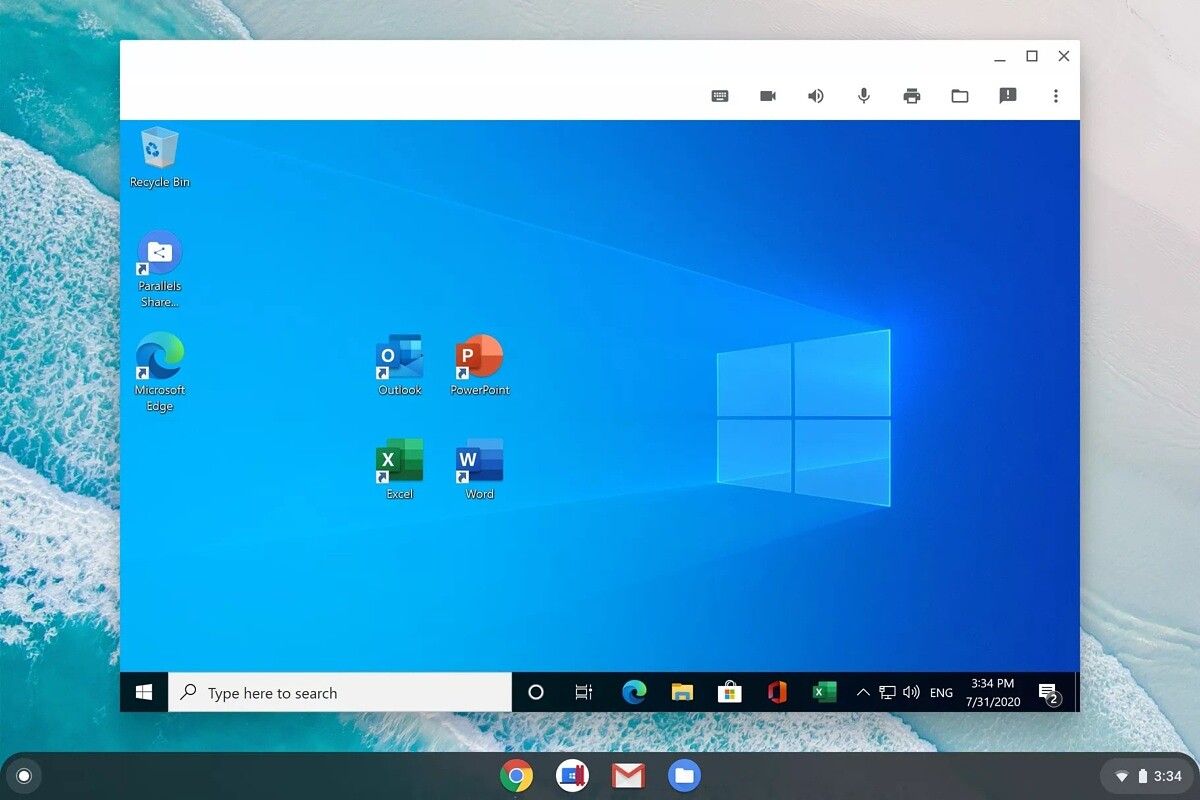
- Full Windows Experience: You’re using your actual Windows PC, so all your software and files are accessible.
- No Hardware Modifications: Your Chromebook remains untouched and its security is maintained.
- Relatively Simple Setup: Most remote desktop solutions are easy to set up.
Cons:
- Requires a Separate Windows PC: You need to have a functioning Windows computer to connect to.
- Internet Dependency: A stable internet connection is crucial for a smooth experience.
- Performance: Lag can occur depending on your internet speed and the complexity of the task.
Cloud PCs and Virtual Desktops
Companies like Microsoft (Windows 365), Amazon (WorkSpaces), and others offer “cloud PC” services. These services provide you with a fully functional Windows desktop that you access through a web browser or a dedicated client application from any device, including your Chromebook.
Pros:
- Accessible Anywhere: Access your Windows environment from any device with an internet connection.
- Managed Environment: The IT infrastructure is managed by the provider, reducing your maintenance burden.
- Scalability: You can often scale the resources (CPU, RAM, storage) of your cloud PC as needed.
- No Hardware Constraints: Your Chromebook’s hardware limitations become irrelevant.
Cons:
- Subscription Cost: These services typically come with a recurring monthly fee.
- Internet Dependency: As with remote desktop, a good internet connection is essential.
- Potential for Latency: Depending on your location and the provider’s data center, you might experience some input lag.
Web-Based Alternatives and Progressive Web Apps (PWAs)
For many common tasks, there are powerful web-based alternatives or Progressive Web Apps (PWAs) that offer a near-native experience directly within your Chrome browser.
- Productivity Suites: Google Workspace (Docs, Sheets, Slides) and Microsoft 365 Web offer robust online versions of their office suites.
- Creative Tools: Websites like Canva offer powerful graphic design tools directly in the browser.
- Project Management: Tools like Asana, Trello, and Monday.com are entirely web-based.
Pros:
- Seamless Integration: Works directly within your Chrome browser, no extra installation needed.
- Always Up-to-Date: Web apps are automatically updated by the provider.
- Lightweight: They don’t tax your Chromebook’s resources significantly.
Cons:
- Limited Functionality: Web versions might not have all the features of their desktop counterparts.
- Internet Dependency: Requires an active internet connection for most functionalities.
Making the Right Choice: Factors to Consider
Deciding whether to attempt to install Windows on your Chromebook, or to explore alternatives, depends heavily on your individual needs and the capabilities of your device.
1. Your Chromebook Model and Specifications
- Processor: Is it x86 (Intel/AMD) or ARM-based? x86 is generally more compatible with Windows.
- RAM and Storage: How much RAM and storage does your Chromebook have? Windows and its applications are resource-intensive.
- Specific Model: Some Chromebook models have better community support for custom firmware and driver development than others. Research your specific model thoroughly.
2. Your Technical Skill Level
Are you comfortable with command-line interfaces, flashing firmware, partitioning drives, and troubleshooting driver issues? If not, attempting a native Windows installation is likely to lead to frustration and potentially a bricked device.
3. Your Software Requirements
- What specific Windows applications do you absolutely need? Are there Linux or web-based alternatives that would suffice?
- Is it a single application, or a suite of programs? The more specialized or complex the software, the harder it will be to find a workaround.
4. Your Budget
Native Windows installation, while seemingly “free” after purchasing the Chromebook, can incur costs in terms of time, potential repair if something goes wrong, and potentially a Windows license if you don’t already have one. Cloud solutions involve recurring subscription fees.
5. Your Tolerance for Risk and Inconvenience
Are you willing to risk bricking your device for the sake of running Windows natively? Are you prepared for a potentially laggy, unstable experience with missing drivers?

Conclusion: The Path of Least Resistance
While the technical possibility of installing Windows on a Chromebook exists, it’s a path fraught with challenges, requiring significant technical expertise and often yielding suboptimal results, especially for typical consumer Chromebooks. The hardware is not designed for it, drivers are scarce, and the risk of damaging your device is real.
For most users, the question “Can I install Windows on my Chromebook?” should be met with a strong recommendation to explore alternatives. The power of cloud computing, the increasing robustness of Linux on Chrome OS, and the availability of excellent web-based applications offer compelling solutions that leverage the strengths of your Chromebook without the inherent risks and frustrations of trying to force a square peg into a round hole.
If you absolutely require a full Windows experience, it’s often more practical and reliable to:
- Utilize cloud-based services like Windows 365 or remote desktop.
- Consider purchasing a dedicated Windows laptop that is designed to run the operating system natively and without compromise.
Chromebooks excel at what they do best: providing a fast, secure, and user-friendly computing experience for the modern, connected world. By understanding their limitations and exploring the available alternatives, you can ensure your technology serves your needs effectively and reliably.
aViewFromTheCave is a participant in the Amazon Services LLC Associates Program, an affiliate advertising program designed to provide a means for sites to earn advertising fees by advertising and linking to Amazon.com. Amazon, the Amazon logo, AmazonSupply, and the AmazonSupply logo are trademarks of Amazon.com, Inc. or its affiliates. As an Amazon Associate we earn affiliate commissions from qualifying purchases.