
The allure of Apple’s sleek and powerful MacBooks is undeniable. Their intuitive operating system, robust hardware, and seamless ecosystem have earned them a dedicated following. However, the world of computing isn’t solely dominated by macOS. Many users, for a myriad of reasons, find themselves needing or wanting to run Windows on their MacBook. Whether it’s for specific software compatibility, gaming, or a familiar operating system interface, the question frequently arises: “Can I install Windows on my MacBook?” The answer, emphatically, is yes.
This guide will delve into the various methods and considerations for installing Windows on your MacBook. We’ll explore the different approaches, from Apple’s own official solution to third-party virtualization software, and discuss the pros and cons of each. We’ll also touch upon factors like hardware compatibility, performance implications, and the overall user experience. By the end of this article, you’ll have a clear understanding of how to bring the Windows experience to your Apple hardware, maximizing your device’s potential and bridging the gap between two dominant operating systems.
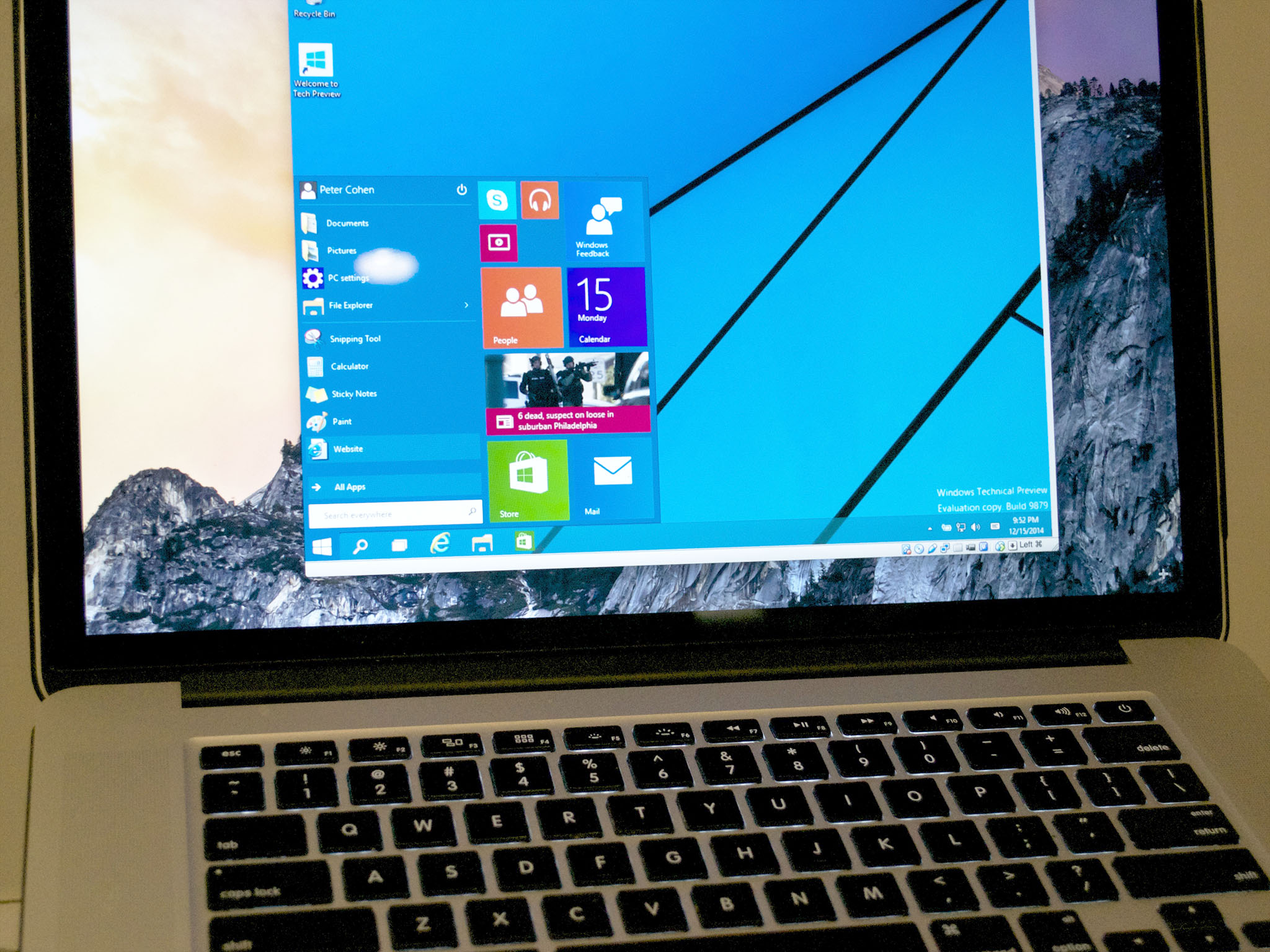
Understanding Your Options for Running Windows on macOS
The ability to install and run Windows on a MacBook isn’t a recent development. Apple has long recognized the need for its users to access Windows-specific applications and environments. This has led to the development of robust solutions that allow for seamless integration, catering to a wide range of user needs. The primary methods for achieving this can be broadly categorized into two main approaches: native installation (also known as dual-booting) and virtualization. Each offers a distinct experience and comes with its own set of advantages and disadvantages.
Boot Camp: Apple’s Native Solution for Windows Installation
For users who require the full power and performance of Windows without any compromises, Apple’s Boot Camp Assistant is the definitive solution. Boot Camp is a utility pre-installed on most Intel-based Macs that allows you to partition your hard drive and install a separate copy of Windows. This means that when you boot up your MacBook, you can choose whether to load macOS or Windows, each operating system running directly on the hardware.
How Boot Camp Works
Boot Camp essentially creates a dedicated space on your Mac’s storage for Windows. The process involves using the Boot Camp Assistant application, found in the Utilities folder within your Applications. This assistant guides you through resizing your existing macOS partition to make room for Windows, downloading the necessary Windows support software (drivers for your Mac’s hardware to function correctly within Windows), and then initiating the Windows installation process. Once Windows is installed, you’ll have a completely separate operating system that can be booted into by restarting your Mac and holding down the Option (Alt) key during startup.
Advantages of Using Boot Camp
The primary advantage of Boot Camp is performance. Because Windows runs natively on your Mac’s hardware, you get direct access to all its resources – CPU, RAM, GPU, and storage. This is crucial for demanding applications, resource-intensive software, and gaming, where even a slight performance bottleneck can significantly impact your experience. You won’t encounter the overhead associated with running an operating system within another.
Another benefit is compatibility. Many Windows applications, especially older ones or those designed with specific hardware in mind, may not function optimally, or at all, within a virtualized environment. Boot Camp ensures that these applications run as if they were on a dedicated Windows PC.
Considerations and Limitations of Boot Camp
While Boot Camp offers peak performance, it comes with certain trade-offs. The most significant is that you can only run one operating system at a time. To switch between macOS and Windows, you must restart your Mac. This can be inconvenient if you frequently need to access applications from both operating systems.
Furthermore, Boot Camp is only available on Intel-based Macs. Newer Macs equipped with Apple’s M1, M2, or M3 series of chips (Apple Silicon) do not support Boot Camp. This is due to the fundamental architectural differences between Intel processors and Apple Silicon. For these newer Macs, virtualization is the primary route for running Windows.
Finally, installing Windows via Boot Camp will consume a significant portion of your storage space. You’ll need to allocate enough space for Windows itself, its applications, and any data you plan to store within the Windows environment.
Virtualization: Running Windows within macOS
For users who need to run Windows applications alongside their macOS environment without constant reboots, virtualization software offers a flexible and powerful alternative. Virtualization allows you to create a “virtual machine” (VM) on your Mac, essentially a software-based computer that runs within your macOS. Within this virtual machine, you can install and run Windows, as well as other operating systems.
Popular Virtualization Software for Mac
Several excellent virtualization solutions are available for macOS, each with its own strengths:
-
Parallels Desktop: Widely considered the industry leader for running Windows on Mac, Parallels Desktop is known for its seamless integration, performance, and ease of use. It offers features like “Coherence mode,” which allows Windows applications to run in windows alongside your macOS apps, making the transition almost imperceptible. Parallels Desktop is a paid application, but its feature set and performance often justify the cost for power users.
-
VMware Fusion: Another robust and highly capable virtualization software, VMware Fusion is a strong competitor to Parallels Desktop. It offers a comprehensive set of features, good performance, and excellent compatibility with various operating systems. Like Parallels, it is a paid product.
-
VirtualBox: Developed by Oracle, VirtualBox is a free and open-source virtualization solution. While it might not offer the same level of deep integration or polished user experience as its paid counterparts, it is a perfectly capable option for many users. It provides a solid foundation for running Windows and other operating systems without an upfront cost, making it an attractive choice for budget-conscious users or those who only need occasional Windows access.
How Virtualization Works
When you use virtualization software, you create a virtual machine file on your Mac. This file acts as the hard drive for your virtual computer. You then install Windows within this virtual machine, just as you would on a physical PC. The virtualization software manages the allocation of your Mac’s hardware resources (CPU, RAM, storage) to the virtual machine. You can run the virtual machine in a separate window, or in some cases, its applications can be integrated directly into your macOS desktop.
Advantages of Virtualization
The most significant advantage of virtualization is the ability to run both macOS and Windows simultaneously. You can easily switch between operating systems with a click of a button, allowing for seamless multitasking and quick access to applications from both platforms without rebooting. This is invaluable for professionals who need to test software on different operating systems or developers who need to run Windows-specific development tools.
Virtualization also offers flexibility. You can create multiple virtual machines, each with its own operating system and configuration. This is perfect for testing different software versions, experimenting with new operating systems, or creating isolated environments for security purposes.
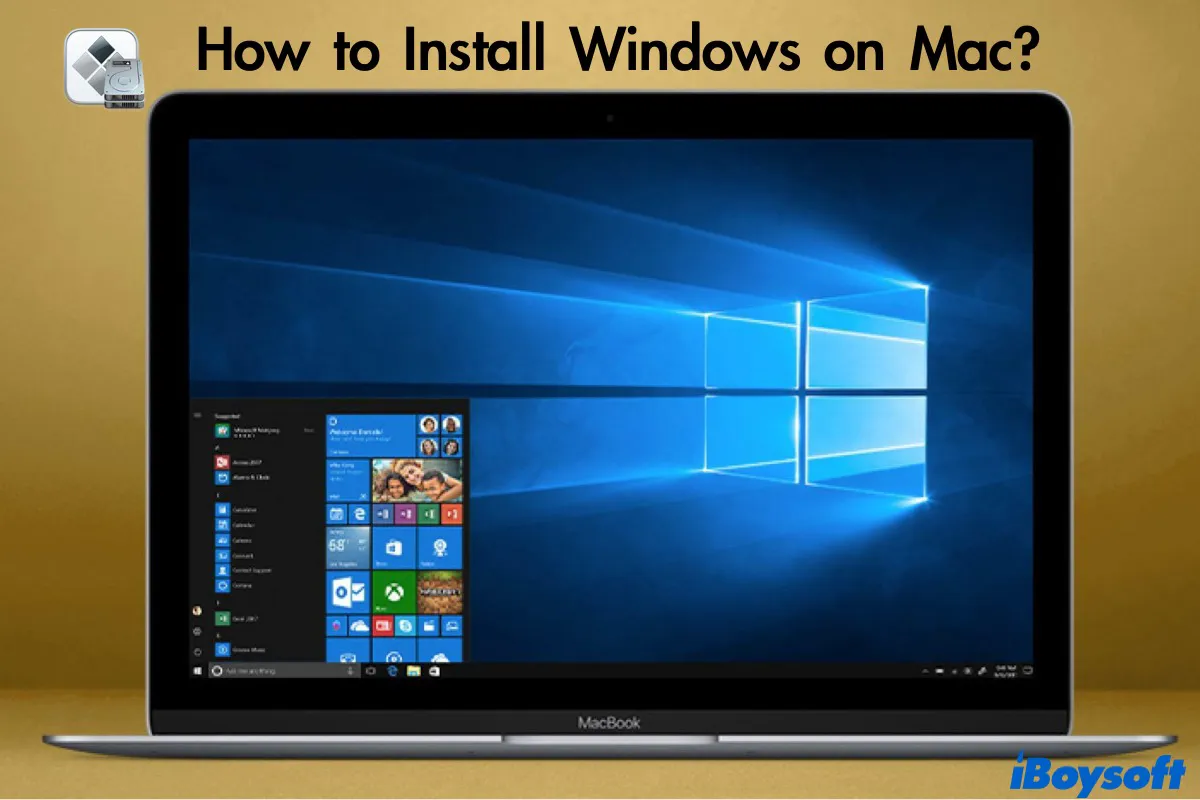
Finally, virtualization is the primary method for running Windows on Apple Silicon Macs. Since Boot Camp is not supported, virtualization software is the only way to get a Windows experience on M1, M2, and M3 powered MacBooks.
Considerations and Limitations of Virtualization
The main drawback of virtualization is performance overhead. Because Windows is running within macOS, it doesn’t have direct access to your Mac’s hardware. The virtualization software acts as an intermediary, and this layer of abstraction can lead to a performance hit, especially for graphics-intensive applications or games. While modern virtualization software has significantly improved, it’s unlikely to match the raw performance you’d get with Boot Camp.
Resource Allocation is another consideration. You’ll need to decide how much of your Mac’s RAM, CPU cores, and storage space to allocate to the virtual machine. Insufficient resources can lead to a sluggish Windows experience, while allocating too much can impact the performance of your macOS.
For running Windows on Apple Silicon (M1, M2, M3 chips), you’ll be installing Windows ARM. While Windows ARM is increasingly capable and compatible with many applications, it might have limitations with certain older or niche software that was designed exclusively for x86 (Intel/AMD) processors. However, Microsoft and third-party developers are actively working to improve ARM compatibility.
Which Method is Right for You?
The choice between Boot Camp and virtualization ultimately depends on your specific needs and how you intend to use Windows on your MacBook.
For Maximum Performance and Dedicated Windows Use: Boot Camp
If your primary goal is to run Windows for demanding tasks like gaming, professional video editing, CAD software, or any application that requires the absolute best performance, and you don’t mind restarting your Mac to switch between operating systems, then Boot Camp is likely your best option, provided you have an Intel-based Mac. It offers an uncompromised, native Windows experience.
For Seamless Multitasking and Flexibility: Virtualization
If you need to frequently switch between macOS and Windows applications, run Windows for occasional use of specific software, or are working with an Apple Silicon Mac, then virtualization software is the way to go. It provides unparalleled flexibility, allowing you to run both operating systems side-by-side and integrate their functionalities for a smoother workflow. For Apple Silicon Mac owners, it’s not just an option; it’s the only viable path.
The Installation Process: A Step-by-Step Overview
While the exact steps might vary slightly depending on the method you choose, here’s a general outline of what you can expect during the installation process.
Preparing Your MacBook for Windows Installation
Before you begin any installation, it’s crucial to prepare your MacBook properly. This ensures a smooth and successful process and minimizes the risk of data loss.
- Back Up Your Data: This is the most critical step. Before making any significant changes to your hard drive, back up all your important files, documents, photos, and applications. You can use Time Machine, an external hard drive, or cloud storage solutions.
- Ensure Sufficient Disk Space: Both Boot Camp and virtualization require a considerable amount of disk space. For Boot Camp, you’ll need to allocate at least 64GB, but 128GB or more is highly recommended for a comfortable Windows experience. For virtualization, the space required depends on the OS and applications you plan to install within the VM.
- Download the Windows ISO File: You’ll need a Windows installation image, typically in the form of an ISO file. You can download this directly from Microsoft’s website. For Apple Silicon Macs, you’ll be looking for the ARM version of Windows.
- Gather Necessary Drivers (for Boot Camp): Boot Camp Assistant will typically handle downloading Windows support software (drivers). Ensure your Mac is connected to the internet during this process.
- Update macOS: It’s always a good idea to have the latest version of macOS installed before proceeding, as this can ensure compatibility with Boot Camp Assistant or virtualization software.
Installing Windows with Boot Camp (Intel Macs)
- Launch Boot Camp Assistant: Navigate to
Applications > Utilitiesand open Boot Camp Assistant. - Follow On-Screen Instructions: The assistant will guide you through partitioning your drive. You’ll choose how much space to allocate to Windows.
- Install Windows: Once the partition is created, Boot Camp Assistant will prompt you to insert your Windows installation media (USB drive or ISO file). Follow the on-screen prompts to install Windows.
- Install Windows Support Software: After Windows is installed, your Mac will boot into Windows. You’ll then need to run the Boot Camp installer from the USB drive or the folder created by Boot Camp Assistant to install necessary drivers for your Mac’s hardware.
- Restart and Choose Your OS: Restart your Mac and hold down the Option (Alt) key to choose whether to boot into macOS or Windows.
Setting Up a Virtual Machine for Windows
- Install Virtualization Software: Download and install your chosen virtualization software (Parallels Desktop, VMware Fusion, or VirtualBox).
- Create a New Virtual Machine: Launch the virtualization software and select the option to create a new virtual machine.
- Configure VM Settings: You’ll be prompted to allocate resources like RAM, CPU cores, and disk space for your virtual machine.
- Install Windows: The virtualization software will guide you through installing Windows using your downloaded ISO file. This process is similar to installing Windows on a physical PC.
- Install Guest Additions/Tools: Most virtualization software offers “Guest Additions” or “VMware Tools” which install drivers and utilities within the virtual machine to improve performance, enable features like shared folders, and better integration with the host OS.
Maximizing Your Windows on Mac Experience
Once you have Windows up and running on your MacBook, there are several ways to enhance your experience and ensure smooth operation.
Optimizing Performance
- For Boot Camp: Ensure you’ve installed all the necessary Windows Support Software from Boot Camp. Keep both Windows and macOS updated. Avoid running extremely demanding applications simultaneously in both operating systems if you’re tight on resources.
- For Virtualization: Allocate sufficient RAM and CPU cores to your virtual machine. Close unnecessary applications on your host macOS to free up resources. Ensure you have the latest Guest Additions/Tools installed. Consider using SSD storage for the virtual machine to improve read/write speeds.
File Sharing and Integration
Both Boot Camp and virtualization offer ways to share files between macOS and Windows.
- Boot Camp: You can access your macOS partition from Windows, and vice versa, though it might require some manual setup in Windows to access Mac drives.
- Virtualization: Parallels Desktop and VMware Fusion excel at this, offering seamless integration. You can often drag and drop files between the two operating systems, access shared folders, and even run Windows applications that appear as if they are macOS apps.

Dual Booting vs. Virtualization: A Final Thought
The decision of whether to “Can I install Windows on my MacBook?” is a resounding yes. The method you choose – Boot Camp for native power or virtualization for seamless multitasking – hinges on your individual requirements. Both solutions empower you to leverage the best of both worlds, transforming your MacBook into a versatile computing powerhouse capable of handling any task you throw at it, regardless of the operating system.
aViewFromTheCave is a participant in the Amazon Services LLC Associates Program, an affiliate advertising program designed to provide a means for sites to earn advertising fees by advertising and linking to Amazon.com. Amazon, the Amazon logo, AmazonSupply, and the AmazonSupply logo are trademarks of Amazon.com, Inc. or its affiliates. As an Amazon Associate we earn affiliate commissions from qualifying purchases.