
Chromebooks have carved out a significant niche in the computing landscape, celebrated for their simplicity, security, and lightning-fast boot times. Running on Google’s ChromeOS, they offer a streamlined experience primarily centered around web applications and cloud services. However, for a segment of users, the inherent simplicity of ChromeOS can sometimes feel like a limitation. Developers, power users, or those simply seeking access to a broader range of desktop applications often find themselves asking a crucial question: “Can I install Linux on a Chromebook?”
The answer, happily, is a resounding yes – and in more ways than one. What began as a series of ingenious but unofficial workarounds has evolved into a robust, officially supported feature. Installing Linux on a Chromebook transforms it from a web-centric device into a versatile, full-fledged development machine or a productivity powerhouse capable of running a vast ecosystem of software. This guide will delve into the various methods, benefits, and considerations of integrating Linux into your Chromebook experience, empowering you to unlock its full potential.
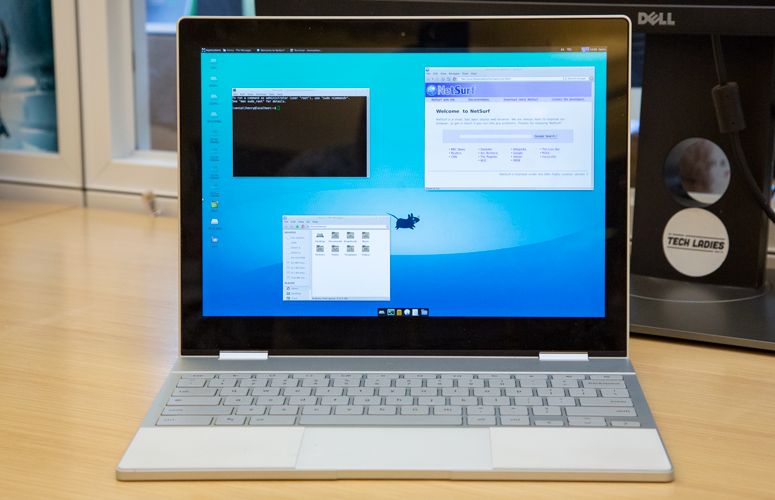
The Evolving Relationship Between Chromebooks and Linux
The journey of Linux on Chromebooks is a testament to the open-source spirit and Google’s increasing recognition of its user base’s diverse needs. Initially, the idea of running a traditional desktop operating system on a device designed for the cloud seemed counter-intuitive. However, the underlying architecture of ChromeOS, which is itself based on Linux, always hinted at the possibility.
Why Consider Linux on Your Chromebook?
The motivations for installing Linux on a Chromebook are manifold. For many, it boils down to expanding capabilities beyond what ChromeOS natively offers:
- Software Development: Linux is the de facto operating system for many developers. Access to command-line tools, compilers, IDEs (Integrated Development Environments) like VS Code, Docker, and various programming language runtimes (Python, Node.js, Ruby, Go, Java) makes a Chromebook running Linux an excellent portable development environment.
- Access to Desktop Applications: While ChromeOS offers web apps and Android apps, there are countless powerful desktop applications available only on Linux. Think of GIMP for advanced image editing, LibreOffice for a full-featured office suite, Steam for a wider array of games (though performance varies), or specialized scientific and engineering software.
- Greater Control and Customization: Linux offers unparalleled control over your operating system, allowing users to deeply customize their environment, install specific drivers, and fine-tune performance in ways ChromeOS simply doesn’t permit.
- Learning and Exploration: For tech enthusiasts, installing Linux can be a valuable learning experience, introducing them to command-line interfaces, package managers, and the fundamentals of a different operating system.
- Repurposing Older Hardware: Breathe new life into an aging Chromebook that might be struggling with ChromeOS updates or simply feels too limited. A lightweight Linux distribution can make it feel snappier and more useful.
- Privacy and Security Tools: Many advanced privacy and security tools are primarily developed for Linux, offering enhanced capabilities for those concerned with digital hygiene.
A Brief History: From Hacky Workarounds to Official Support
Early attempts to run Linux on Chromebooks were largely community-driven efforts, often involving complex procedures that risked bricking the device or voiding warranties.
- Crouton (circa 2013): This was one of the earliest and most popular methods. Developed by a Google engineer, Crouton allowed users to install a full Linux distribution (like Ubuntu) alongside ChromeOS. It ran Linux in a “chroot” environment, sharing the same kernel as ChromeOS but offering a separate userland. This meant you could switch between ChromeOS and Linux with a simple keyboard shortcut, making it incredibly flexible. However, it required putting the Chromebook into “developer mode,” which disabled certain security features and wiped local data.
- Dual-Booting (More Advanced): Some intrepid users went further, flashing custom firmware to their Chromebooks to enable true dual-booting, allowing them to choose between ChromeOS and a completely separate Linux installation at startup. This was the most invasive method, requiring significant technical expertise and carrying the highest risk.
- Project Crostini (2018 onwards): Recognizing the demand and the potential, Google officially introduced “Linux (Beta)” functionality, codenamed “Crostini.” This marked a paradigm shift, providing a secure, sandboxed virtual machine environment for running Linux applications without compromising the core ChromeOS experience or requiring developer mode. Crostini quickly became the recommended and safest method for most users.
This evolution demonstrates Google’s commitment to making Chromebooks more versatile, bridging the gap between a simple cloud device and a powerful, customizable computing platform.
Official Integration: Linux (Beta) via Crostini
For the vast majority of Chromebook users today, Project Crostini, rebranded simply as “Linux (Beta)” in ChromeOS settings, is the preferred and recommended method for installing Linux. It offers a secure, integrated, and relatively simple way to get a functional Linux environment up and running.
Understanding Crostini: What It Is and How It Works
Crostini isn’t a traditional dual-boot or even a chroot environment like Crouton. Instead, it leverages a lightweight virtual machine (VM) technology and containers. Here’s a simplified breakdown:
- Virtual Machine (VM): When you enable Linux (Beta), ChromeOS provisions a lightweight virtual machine specifically for Linux. This VM runs a minimalist version of Debian Linux (by default, though other distributions can be installed manually later). The VM is isolated from the main ChromeOS system, enhancing security.
- Containers: Within this VM, applications run in Linux containers (specifically LXC containers). This allows multiple applications to share the same Linux kernel inside the VM while remaining isolated from each other.
- Integration: Google has done a remarkable job integrating the Linux environment with ChromeOS.
- File Sharing: You can easily access your ChromeOS “Files” app folders (like Downloads) from within the Linux environment, and vice versa.
- Clipboard: Copy and paste works seamlessly between ChromeOS and Linux applications.
- Graphics Acceleration: Modern Chromebooks often offer hardware-accelerated graphics within the Linux VM, improving performance for graphical applications.
- Network Access: Linux applications share the Chromebook’s network connection.
- Launcher Integration: Linux applications appear directly in the ChromeOS app launcher, behaving much like native ChromeOS or Android apps. You can pin them to the shelf and launch them just as you would any other app.
- USB Device Support: You can often connect USB devices and make them available to the Linux environment.
This architecture ensures that even if something goes wrong in the Linux environment, it’s contained within the VM and won’t destabilize your primary ChromeOS system. It also means you don’t need to put your device into developer mode, maintaining ChromeOS’s robust security posture.
Step-by-Step Activation: Getting Started with Linux (Beta)
Enabling Linux (Beta) is straightforward on most modern Chromebooks. Here’s a general outline:
- Check Compatibility: Ensure your Chromebook is compatible. Most Chromebooks released since 2019, and many older models, support Crostini. You can usually find a list on Google’s support pages or by checking your device’s settings. Crucially, you’ll need sufficient free storage (at least 8-10 GB recommended for basic use, more for development).
- Open Settings: Navigate to your Chromebook’s Settings app.
- Find “Linux (Beta)”: In the left-hand menu, scroll down until you see “Linux (Beta)” or “Developers.” Click on it.
- Turn On: You’ll see an option to “Turn on” Linux. Click this button.
- Installation Process: Follow the on-screen prompts. ChromeOS will download and install the necessary files, set up the virtual machine, and create a default Debian container. You’ll be asked to choose a username and allocate disk space (you can usually accept the default and expand it later if needed). This process can take several minutes, depending on your internet speed and Chromebook’s performance.
- Terminal App: Once installed, a Linux terminal window will automatically open. This is your gateway to the Linux environment. You can now use standard Linux commands (
sudo apt update,sudo apt upgrade) to update the system and install new software. - Install Applications: To install a graphical application, use the terminal. For example, to install GIMP, you’d type
sudo apt install gimp. Once installed, the application will appear in your ChromeOS app launcher.
Benefits and Limitations of Crostini
Benefits:
- Security: Runs in a sandboxed VM, protecting ChromeOS.
- Ease of Use: Simple setup, no developer mode required, good integration with ChromeOS.
- Stability: Google actively maintains and updates Crostini.
- Access to a vast software library: Debian’s repositories offer thousands of applications.
- Seamless Switching: Linux apps integrate directly into the ChromeOS launcher and taskbar.
Limitations:
- Resource Intensive: Running a VM requires RAM and storage. Older Chromebooks with limited resources (e.g., 4GB RAM, 32GB storage) might struggle with performance, especially with multiple demanding Linux applications.
- Hardware Access: Direct hardware access can be limited compared to a native Linux installation. For instance, specific GPU drivers or complex peripheral support might be challenging.
- Container Isolation: While a benefit for security, it can sometimes complicate advanced networking setups or direct kernel module loading.
- Gaming Performance: While some games may run, Crostini isn’t designed for high-performance gaming. Dedicated Linux gaming setups offer better frame rates and compatibility.
Exploring Alternative Methods: Crouton and Beyond
While Crostini is the go-to for most users, it’s worth understanding the alternatives, especially if you have specific needs or an older Chromebook that might not support Crostini.
Crouton: The Chroot Method for Deeper Integration
Crouton, which stands for “Chromium OS Universal Chroot Environment,” was the original popular method for running Linux. It allows you to install a full-fledged Linux distribution (like Ubuntu, Kali, or Fedora) alongside ChromeOS, rather than in a virtual machine.
How it Works:
Crouton creates a “chroot” environment on your Chromebook’s storage. A chroot (change root) essentially tricks the Linux installation into believing its root directory is a different directory on the file system. In this case, it’s a directory on your ChromeOS file system. The key difference from a VM is that Crouton shares the same Linux kernel as ChromeOS. This allows for closer integration and potentially better performance because there’s no virtualization overhead.
Key Features of Crouton:
- Developer Mode Required: To use Crouton, you must put your Chromebook into “developer mode.” This is a critical security consideration as it disables verified boot, meaning the device won’t check the integrity of the ChromeOS software at boot, potentially making it vulnerable to tampering. Activating developer mode also wipes all local data.
- Direct Hardware Access: Because it shares the kernel, Crouton can offer more direct access to hardware components compared to Crostini, which can be beneficial for specific use cases (e.g., certain drivers or peripheral interactions).
- Full Linux Experience: You can install various desktop environments (XFCE, Unity, KDE) and have a completely custom Linux experience.
- Switching: You can switch between ChromeOS and your Crouton Linux environment instantly using keyboard shortcuts (e.g., Ctrl+Alt+Shift+Forward/Back arrow).

Why You Might Still Consider Crouton (Rarely):
- Older Chromebooks: If your Chromebook is very old and doesn’t support Crostini, Crouton might be your only option for a full Linux environment.
- Specific Hardware Needs: For niche cases requiring very direct hardware interaction that Crostini might not fully support.
- Performance on Low-End Devices: Due to less virtualization overhead, Crouton might sometimes feel snappier on extremely low-spec Chromebooks than Crostini, though this is often debatable and depends on the specific Linux distribution and desktop environment used.
Drawbacks of Crouton:
- Security Risk: Developer mode significantly reduces the security of your Chromebook.
- Complexity: Installation is more involved, requiring command-line usage.
- Maintenance: Less officially supported than Crostini; updates are community-driven.
- Risk of Data Loss: Entering and exiting developer mode wipes your local data.
Dual-Booting Linux: The Advanced, Less Recommended Path
Dual-booting refers to installing a completely separate operating system alongside ChromeOS, allowing you to choose which one to boot into at startup. This is the most invasive method and generally not recommended for the average user, especially with the maturity of Crostini.
How it Works:
Dual-booting typically involves:
- Disabling Write Protection: Physically or electronically disabling the write protection on your Chromebook’s firmware.
- Flashing Custom Firmware (BIOS/UEFI): Replacing the stock ChromeOS firmware with a custom UEFI firmware (like those provided by MrChromebox.tech). This allows the Chromebook to boot generic operating systems.
- Partitioning the Drive: Resizing the ChromeOS partitions and creating new partitions for your chosen Linux distribution.
- Installing Linux: Performing a standard Linux installation directly to the new partitions.
Why it’s Less Recommended Now:
- High Risk: The process carries a significant risk of bricking your device if done incorrectly.
- Voids Warranty: Almost certainly voids your Chromebook’s warranty.
- Complex: Requires advanced technical knowledge, familiarity with firmware flashing, and Linux installation.
- Security Implications: Disabling write protection and flashing custom firmware introduces potential security vulnerabilities.
- Crostini’s Capabilities: For most use cases, Crostini now offers sufficient functionality without the risks of dual-booting.
Comparing the Methods: Which Approach is Right for You?
| Feature | Crostini (Linux Beta) | Crouton | Dual-Booting |
|---|---|---|---|
| Ease of Setup | Easy (few clicks in settings) | Moderate (command line, developer mode) | Difficult (firmware flash, partitioning) |
| Security | High (sandboxed VM, ChromeOS secure) | Low (developer mode, verified boot disabled) | Low (custom firmware, direct OS access) |
| Integration | Excellent (apps in launcher, file sharing) | Good (keyboard shortcuts to switch) | Minimal (separate OS, choose at boot) |
| Performance | Good (some VM overhead) | Excellent (shared kernel, less overhead) | Excellent (native OS performance) |
| Hardware Access | Limited (VM layer) | Good (shared kernel) | Full (native OS) |
| Risk of Bricking | Very Low | Low (if careful) | High |
| Recommendation | Recommended for 99% of users | Niche/Legacy (for older devices or specific needs) | Advanced Users Only (usually not worth the risk now) |
For the vast majority of users wanting to explore Linux on their Chromebook, Crostini is the unequivocally superior choice, offering the best balance of security, ease of use, and functionality.
Practical Applications and Considerations
Once you’ve decided on a method and installed Linux, a world of new possibilities opens up. However, it’s essential to understand what you can realistically achieve and what considerations to keep in mind.
What Can You Do with Linux on a Chromebook?
The capabilities of your Chromebook with Linux extend far beyond its native ChromeOS:
- Software Development: This is arguably the biggest game-changer. Install Git for version control, Docker for containerization, various programming language interpreters and compilers (e.g.,
python3,node,ruby,go,gcc), and powerful IDEs like Visual Studio Code or IntelliJ IDEA. You can set up local web servers, build Android apps, or even develop for embedded systems. - Graphics and Multimedia: Run powerful open-source applications like GIMP (image manipulation), Inkscape (vector graphics), Audacity (audio editing), and Kdenlive (video editing). While demanding tasks might strain lower-end Chromebooks, these tools offer professional-grade functionality.
- Office Productivity: Install LibreOffice for a comprehensive suite of word processing, spreadsheet, and presentation tools, providing a robust offline alternative to Google Docs.
- Advanced Networking Tools: Access a plethora of command-line networking utilities, VPN clients, and network analysis tools that aren’t available on ChromeOS.
- Terminal Power: For those comfortable with the command line, Linux offers unparalleled power for automation, scripting, and system administration tasks.
- Linux-Specific Tools: Many niche tools for data science, engineering, or specialized academic fields are Linux-native.
Hardware Impact: RAM, Storage, and Performance
The performance of Linux on your Chromebook will heavily depend on its hardware specifications:
- RAM: 8GB of RAM is generally recommended for a smooth Linux experience, especially if you plan on running IDEs, multiple browser tabs, and other applications concurrently. 4GB can work for very light use, but you’ll feel the limitations quickly.
- Storage: While Crostini only requires a few GB initially, installing multiple applications and storing project files can quickly consume space. Aim for at least 64GB of internal storage; 128GB or more is ideal. Remember that Crostini allocates a dynamic amount of space by default, which can be expanded later.
- Processor: Most modern Intel or AMD processors in Chromebooks are perfectly capable. Higher-end processors will naturally offer better performance, particularly for compilation or resource-intensive applications. ARM-based Chromebooks also support Crostini, though software compatibility within Linux might vary slightly (some pre-compiled binaries are x86-64 only).
You should manage your expectations. A Chromebook, even with Linux, is not a high-end gaming rig or a workstation for heavy video rendering. It’s best suited for general productivity, web development, light programming, and accessing a broader range of desktop applications.
Essential Tips for a Smooth Linux Experience
To maximize your Linux on Chromebook journey, keep these tips in mind:
- Regular Updates: In your Linux terminal, frequently run
sudo apt updatefollowed bysudo apt upgradeto keep your system and installed software up-to-date. This ensures security patches and the latest features. - Manage Disk Space: Linux installations can grow. Periodically check your disk usage (
df -h) and consider uninstalling unused applications. You can also adjust the allocated disk space for Crostini in your ChromeOS settings. - Backup Your Work: While Crostini is stable, it’s always wise to back up important files, especially if they reside solely within the Linux container. Cloud storage (Google Drive, Dropbox) or external drives are excellent options.
- Learn Basic Linux Commands: Even if you’re using graphical applications, knowing basic terminal commands (like
ls,cd,mkdir,rm,nano,grep) will significantly enhance your control and troubleshooting abilities. - Resource Monitoring: If performance feels sluggish, use tools like
htop(in the Linux terminal) to monitor CPU and RAM usage, identifying resource-hungry processes. - Community Resources: The ChromeOS and Linux communities are vast. Websites like Reddit (r/Crostini, r/Chromebooks), official Google support forums, and Linux distribution forums are excellent places to find help, tutorials, and share experiences.
The Future of Linux on Chromebooks
Google continues to invest in Crostini and the broader developer experience on ChromeOS. We’ve seen improvements in graphics acceleration, USB device passthrough, and better integration over time. This indicates a clear strategy to position Chromebooks not just as simple web terminals but as capable, secure, and versatile platforms for a wider range of computing tasks.
Enhancements and Future Outlook
Future developments are likely to focus on:
- Further Hardware Acceleration: Improved support for GPUs, potentially enhancing performance for demanding graphical applications and even some light gaming.
- Deeper Integration: Even more seamless interaction between ChromeOS and Linux, perhaps including better access to system sensors or more advanced display configurations.
- Enhanced Tooling: Google may introduce more developer-centric features directly within ChromeOS to simplify Linux setup and management.
- Wider Architecture Support: As ARM-based Chromebooks become more prevalent, ensuring consistent and optimized Linux performance across different chip architectures will be key.
Making an Informed Decision
Ultimately, the decision to install Linux on your Chromebook depends on your individual needs and comfort level. If you’re a developer, a power user, or simply someone who wants to explore beyond the confines of ChromeOS, Linux (Beta) via Crostini offers an unparalleled opportunity to transform your device. It provides a secure, efficient, and increasingly powerful environment for a vast array of desktop applications and development tools, effectively turning your Chromebook into a much more capable and versatile machine without sacrificing the core benefits of ChromeOS.
Embracing Linux on your Chromebook is more than just installing software; it’s about unlocking a new realm of possibilities and pushing the boundaries of what a lightweight, affordable laptop can achieve.
aViewFromTheCave is a participant in the Amazon Services LLC Associates Program, an affiliate advertising program designed to provide a means for sites to earn advertising fees by advertising and linking to Amazon.com. Amazon, the Amazon logo, AmazonSupply, and the AmazonSupply logo are trademarks of Amazon.com, Inc. or its affiliates. As an Amazon Associate we earn affiliate commissions from qualifying purchases.