
In the contemporary digital landscape, the Graphics Processing Unit (GPU) has evolved from a niche component for gamers into a cornerstone of modern computing. Whether you are rendering 4K video, training machine learning models, or navigating complex architectural visualizations, the efficiency of your hardware is dictated by the software that manages it. Graphics drivers serve as the essential bridge between your operating system and your hardware, translating code into the visual splendor we see on our screens. However, despite their importance, many users neglect driver maintenance until a catastrophic failure occurs. This guide provides a comprehensive analysis of how to update graphics drivers, why it is necessary, and the technical nuances involved in maintaining a high-performance system.

Understanding the Importance of Graphics Drivers in the Modern Tech Ecosystem
Before diving into the procedural aspects of updates, it is crucial to understand what a graphics driver actually does. At its core, a driver is a specialized piece of software that allows the operating system (OS) to communicate with hardware devices. Without a driver, the OS cannot utilize the GPU’s capabilities, often defaulting to a “Basic Display Adapter” mode with limited resolution and zero acceleration.
What is a Graphics Driver?
Think of the graphics driver as a translator. Your software (like a web browser or a video game) sends instructions in a high-level language. The driver receives these instructions and converts them into low-level machine code that the GPU’s thousands of tiny cores can process. Because software is constantly evolving—new APIs like DirectX 12 Ultimate or Vulkan emerge frequently—the “translator” must be updated to understand these new languages and optimize how the hardware responds to them.
Signs Your Drivers Need an Update
While many users follow a “if it isn’t broken, don’t fix it” philosophy, driver updates provide more than just bug fixes. Key indicators that an update is overdue include:
- Visual Artifacts: Strange flickering, “tearing” of images, or misplaced pixels on the screen.
- Performance Degradation: A noticeable drop in frames per second (FPS) or stuttering during hardware-intensive tasks.
- System Crashes: The dreaded “Blue Screen of Death” (BSOD) or “TDR” (Timeout Detection and Recovery) errors, where the system resets the driver because it stopped responding.
- Software Incompatibility: New creative suites (like Adobe Premiere Pro) or modern games may refuse to launch if they detect an outdated driver version.
Step-by-Step Guide: Updating Drivers on Windows and macOS
The process of updating drivers varies significantly depending on your operating system and the specific hardware manufacturer. In the Windows ecosystem, which supports a massive variety of hardware configurations, the process is more manual than the streamlined, integrated approach used by Apple.
Using Windows Update and Device Manager
For general users who prioritize stability over cutting-edge performance, Windows Update is the first line of defense. Microsoft works with hardware vendors to distribute “WHQL” (Windows Hardware Quality Labs) certified drivers.
- Windows Update: Go to Settings > Update & Security > Windows Update. Click “Check for updates.” This often catches major driver revisions.
- Device Manager: For a more targeted approach, right-click the Start button and select “Device Manager.” Expand the “Display adapters” section, right-click your GPU, and select “Update driver.” Choose “Search automatically for drivers.” While convenient, this method often fails to find the absolute latest version released by the manufacturer.
Manual Updates for NVIDIA, AMD, and Intel
Power users and professionals should always opt for manual updates directly from the silicon manufacturer. This ensures you have access to “Day 0” optimizations for new software.
- NVIDIA: Visit the NVIDIA Driver Downloads page. You must select your product type (e.g., GeForce), series (e.g., RTX 40-series), and operating system. You will often choose between “Game Ready Drivers” (optimized for gaming) and “Studio Drivers” (optimized for stability in creative apps like DaVinci Resolve).
- AMD: Navigate to the AMD Support page. You can use their “Auto-Detect and Install” tool or manually select your Radeon series. AMD’s drivers are bundled into the “Adrenalin” software suite.
- Intel: For those using integrated graphics or the new Arc discrete GPUs, the “Intel Driver & Support Assistant” (DSA) is the most effective way to keep your system current.
Managing Graphics Drivers on macOS
Apple handles graphics drivers differently. Because Apple controls both the hardware and the software, drivers are baked directly into the macOS updates. To update your graphics drivers on a Mac, you simply update the OS:
- Go to the Apple Menu > System Settings > General > Software Update.
- If an update is available, installing it will automatically update the drivers for your integrated M1/M2/M3 chips or legacy AMD GPUs.
Specialized Software and Automated Tools
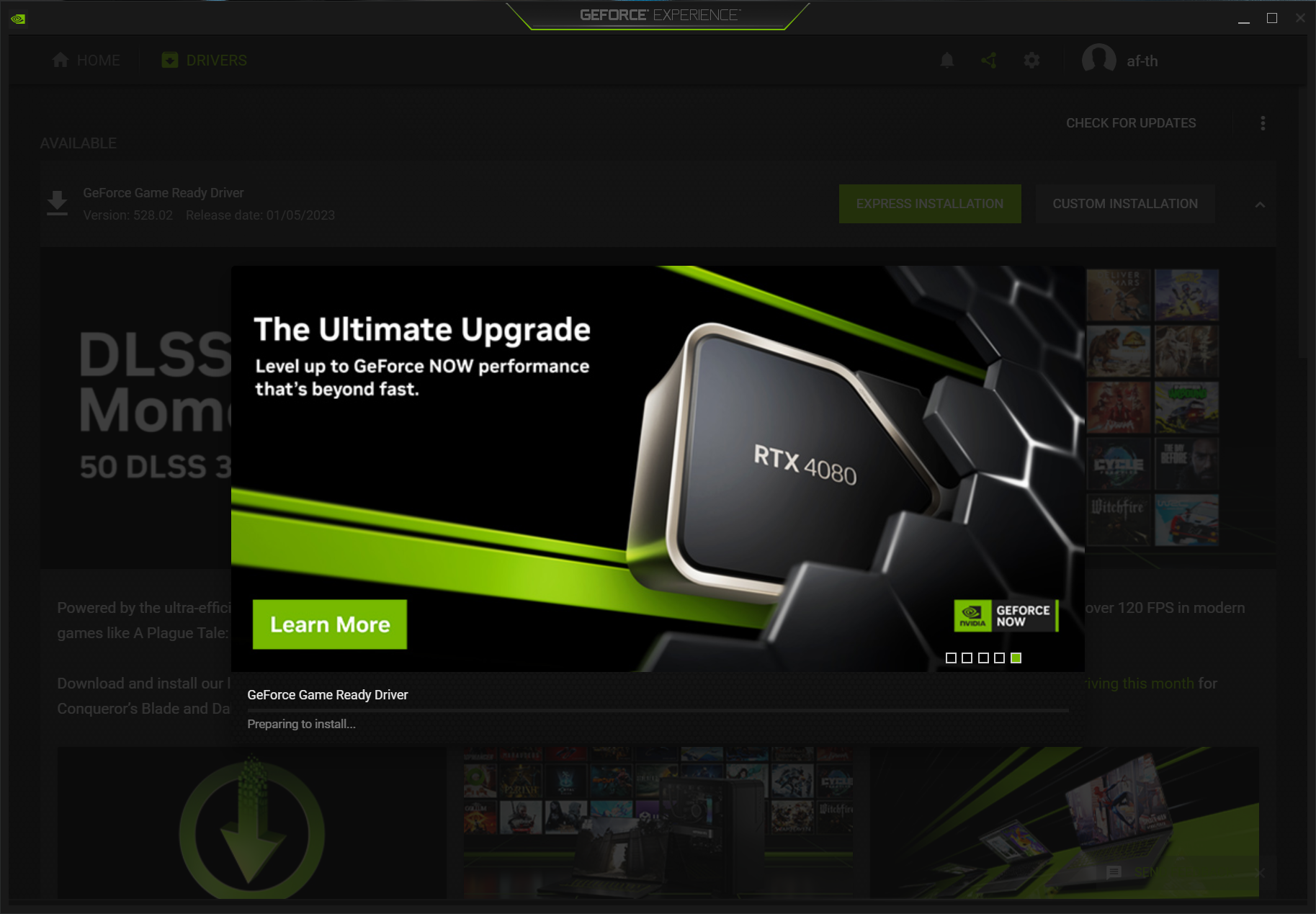
In the quest for convenience, manufacturers have developed robust software suites that handle the heavy lifting of driver management. These tools do more than just download files; they provide a portal for system optimization.
Manufacturer Suites: GeForce Experience and Adrenalin
NVIDIA’s GeForce Experience and AMD’s Software: Adrenalin Edition are the gold standards for automated maintenance. Once installed, these applications run in the background and notify you the moment a new driver is released.
- Optimization: These tools can scan your library and automatically adjust your software settings to match your hardware’s capabilities.
- Features: They also include built-in tools for screen recording, performance monitoring, and even overclocking, making the driver suite a central hub for the entire computing experience.
Third-Party Driver Updaters: Pros and Cons
There is a massive market for third-party “Driver Updater” tools. While some are legitimate, users must exercise caution.
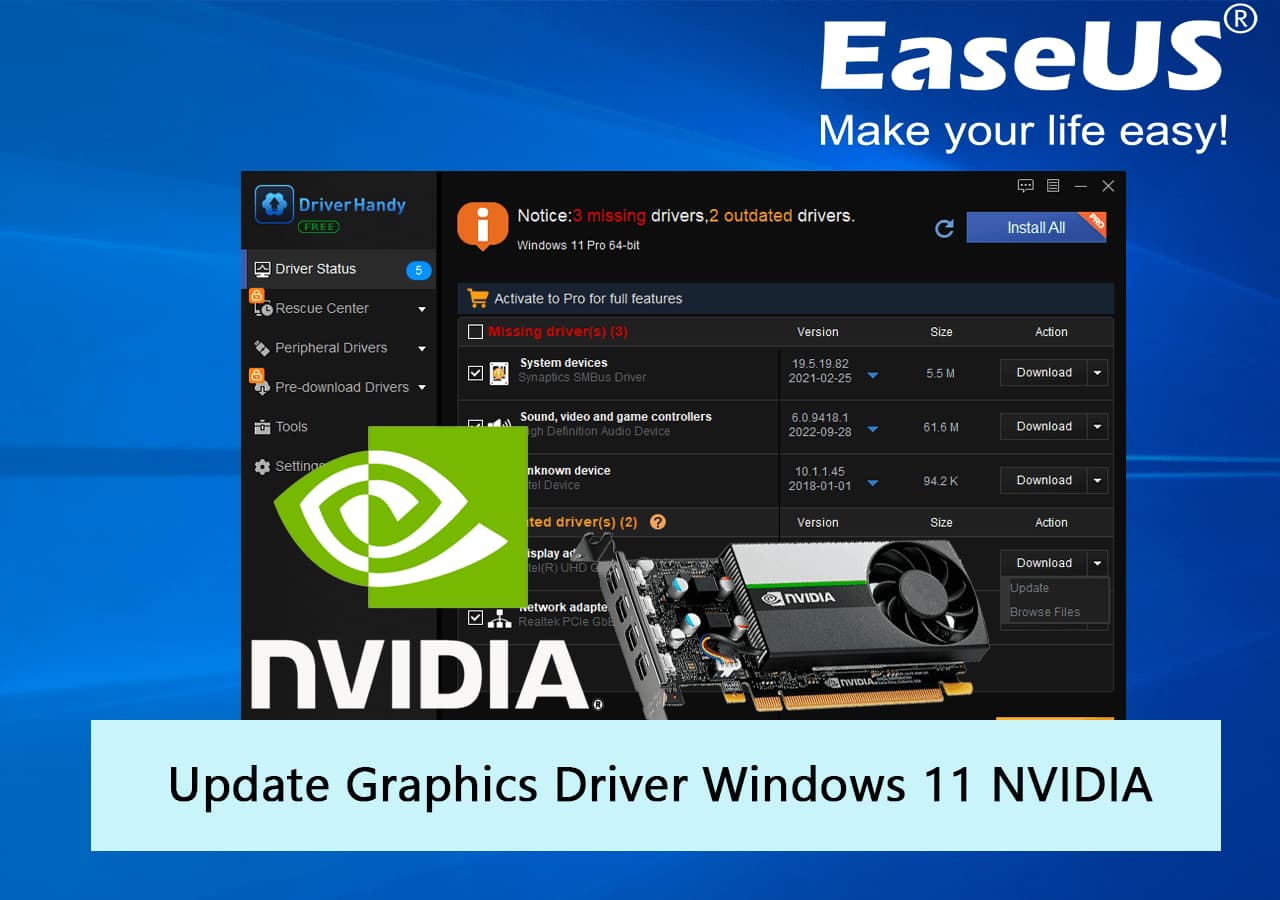
- Pros: They can update all system drivers (chipset, audio, network) at once, which is helpful for older machines or custom-built PCs.
- Cons: Many are “bloatware” that can install incorrect or generic drivers, leading to system instability. In the tech community, it is generally recommended to stick to official manufacturer tools to avoid security risks and compatibility issues.
Troubleshooting Common Driver Installation Issues
Updating drivers is usually a seamless process, but the complexity of modern operating systems means things can occasionally go wrong. Conflicts between old files and new code can cause installation loops or performance regressions.
Dealing with Installation Failures
If a driver installation fails, the first step is a simple system reboot. Often, a pending OS update or a locked file prevents the new driver from writing to the system folder. If the problem persists, ensure that your antivirus software is not blocking the installer, as driver updates require deep system access that can sometimes trigger false positives in security software.
Using Display Driver Uninstaller (DDU) for a Clean Slate
When a standard update fails or when you are switching from one GPU brand to another (e.g., moving from NVIDIA to AMD), a “Clean Install” is necessary. The most effective tool for this is Display Driver Uninstaller (DDU).
DDU is a specialized utility that removes all traces of previous driver installations, including registry keys and stray files that the standard uninstaller might miss. By running DDU in Windows “Safe Mode,” you strip the system back to a blank canvas, allowing the new driver to be installed without any legacy interference. This is often the “silver bullet” for fixing persistent graphical glitches or crashes.
Future Trends: AI-Driven Drivers and the Evolution of GPUs
As we look toward the future of technology, the role of the graphics driver is shifting. We are moving away from static instructions toward dynamic, AI-enhanced performance.
How AI is Optimizing Real-Time Rendering
Modern drivers are increasingly integrated with AI models. Technologies like NVIDIA DLSS (Deep Learning Super Sampling) and AMD FSR (FidelityFX Super Resolution) rely on the driver to manage AI-driven upscaling. The driver no longer just tells the GPU what to draw; it uses machine learning to predict what pixels should look like, allowing low-resolution images to be upscaled to 4K in real-time with minimal performance cost. Keeping drivers updated is now a requirement to access these evolving AI “weights” that improve over time.
The Shift Toward Cloud-Based Driver Management
As cloud computing and VDI (Virtual Desktop Infrastructure) become more prevalent, driver management is moving to the server side. In environments like NVIDIA GeForce Now or enterprise cloud workstations, the user never manually updates a driver. Instead, the service provider maintains the “Golden Image” of the driver on the data center hardware. However, for the local user, the local “client” driver still requires updates to ensure low-latency communication with the cloud. This hybrid model suggests a future where the “update” process becomes even more invisible, yet more critical than ever for maintaining the seamless synchronization of global tech networks.
By following these professional protocols and understanding the underlying tech, users can ensure their systems remain stable, secure, and capable of handling the most demanding visual tasks of the digital age. Regular driver maintenance is not just a chore; it is a vital practice for anyone looking to maximize their technological investment.
aViewFromTheCave is a participant in the Amazon Services LLC Associates Program, an affiliate advertising program designed to provide a means for sites to earn advertising fees by advertising and linking to Amazon.com. Amazon, the Amazon logo, AmazonSupply, and the AmazonSupply logo are trademarks of Amazon.com, Inc. or its affiliates. As an Amazon Associate we earn affiliate commissions from qualifying purchases.