
The iPhone Lock Screen serves as the primary gateway to your device, a sophisticated digital barrier designed to protect your personal information while simultaneously offering convenient access to essential functions. Far more than just a static wallpaper, it’s a dynamic interface that blends robust security measures with intuitive user experience, reflecting Apple’s philosophy of privacy, personalization, and seamless integration. Understanding the nuances of the Lock Screen is crucial for any iPhone user, as it dictates how you interact with your device from the moment you pick it up.
The Core Purpose of the iPhone Lock Screen
At its fundamental level, the Lock Screen fulfills several critical roles, each contributing to the overall utility and security of the iPhone. These roles have evolved significantly over successive iOS updates, transforming a simple security measure into a powerful, customizable dashboard.
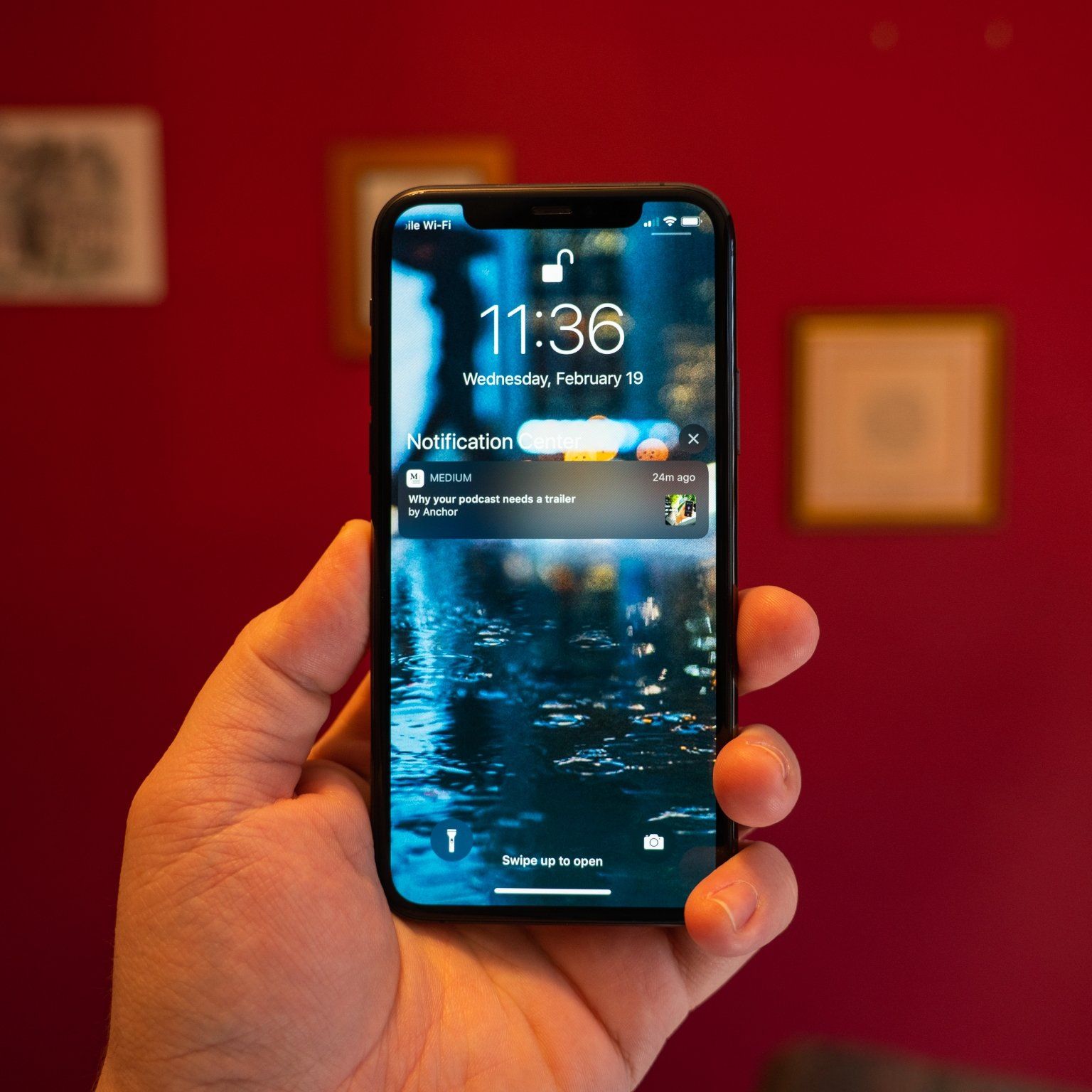
Security: Safeguarding Your Digital Life
The most apparent function of the Lock Screen is security. In an era where smartphones contain an individual’s entire digital footprint – from financial data and personal communications to health records and private photos – unauthorized access can have severe repercussions. The Lock Screen acts as the first line of defense, requiring authentication before anyone can delve into the phone’s contents.
This authentication mechanism has progressed from simple four-digit passcodes to more complex alphanumeric ones, and subsequently to biometric solutions like Touch ID (fingerprint recognition) and Face ID (facial recognition). These technologies leverage unique biological characteristics, making it exceedingly difficult for anyone other than the device owner to gain entry. Furthermore, the Lock Screen often includes features like “Erase Data” after multiple failed passcode attempts, providing an ultimate layer of defense against brute-force attacks and protecting sensitive information even if the device is lost or stolen.
Privacy: Controlling Access to Your Data
Beyond outright security, the Lock Screen plays a pivotal role in maintaining user privacy. It allows users to control what information is visible to others without unlocking the device. For instance, while notifications from various apps may appear on the Lock Screen, users can choose to hide their content until the phone is authenticated. This prevents sensitive messages, email previews, or calendar appointments from being viewed by casual glances.
Moreover, certain features and app functionalities can be restricted from the Lock Screen. A user might allow access to the camera or flashlight for convenience but prevent access to the Control Center, Siri, or Wallet until the device is unlocked. This granular control ensures that even when the device is locked, the user retains agency over the exposure of their data and capabilities.
Convenience: Quick Access to Essential Information
While security and privacy are paramount, the iPhone Lock Screen is also engineered for convenience. It’s designed to provide glanceable information and quick access to frequently used tools without the need to fully unlock the device. This balance between protection and accessibility is a hallmark of the iPhone experience.
From the Lock Screen, users can check the time, date, and battery level. They can view incoming notifications, control media playback, and often see crucial information from widgets like weather updates, upcoming calendar events, or activity summaries. This immediate access to contextually relevant data minimizes the need to navigate through menus, streamlining daily interactions and enhancing efficiency.
Navigating and Interacting with Your Lock Screen
Interacting with the Lock Screen is designed to be intuitive, yet it offers a surprising depth of functionality. Understanding these interactions unlocks the full potential of your iPhone without compromising security.
Unlocking Methods: Face ID, Touch ID, Passcode
The primary interaction with the Lock Screen is, of course, unlocking the device.
- Face ID: Available on newer iPhones, Face ID uses advanced TrueDepth camera technology to securely authenticate your identity by mapping the unique geometry of your face. A quick glance is often all it takes to unlock the device, making it one of the most seamless unlocking methods.
- Touch ID: Found on older models and some current iPads, Touch ID uses a capacitive fingerprint scanner, typically integrated into the Home button or a side button. Placing a registered finger on the sensor authenticates the user.
- Passcode: The traditional method, a numerical or alphanumeric code, serves as a fallback for biometric failures or as the primary method if biometrics are disabled. It’s crucial to use a strong, unique passcode to maximize security.
Accessing the Camera and Flashlight
For quick captures or illumination, dedicated shortcuts are often available directly from the Lock Screen. A swipe left typically activates the camera app, allowing users to snap photos or record videos instantly without navigating through the device. A long press on the flashlight icon, usually located in the bottom left corner, toggles the flashlight on or off, providing immediate utility in low-light situations.
Viewing Notifications and Notification Management
Notifications from apps appear on the Lock Screen, stacked or grouped, informing you of new messages, emails, social media updates, and more.
- Viewing: A simple tap on a notification or a swipe to the side can reveal more details or provide options to respond.
- Management: Users can customize how notifications appear (e.g., show previews always, when unlocked, or never) and can swipe to manage specific notifications, clear them, or adjust their settings directly from the Lock Screen without unlocking the device. This fine-grained control is vital for privacy.
Control Center Access
The Control Center offers quick access to essential system toggles like Wi-Fi, Bluetooth, Airplane Mode, brightness, and volume. On most iPhones, it can be accessed by swiping down from the top-right corner (for Face ID devices) or swiping up from the bottom edge (for Touch ID devices). While accessible from the Lock Screen, this access can be disabled in Settings for enhanced security, preventing anyone from toggling system settings without authentication.
Wallet and Apple Pay Access
For quick payments, Apple Pay can be initiated directly from the Lock Screen by double-clicking the side button. This brings up your default payment card, allowing for swift, secure transactions with Face ID or Touch ID confirmation. This feature significantly enhances convenience, enabling payments without fully unlocking and navigating to the Wallet app.
Siri Integration
Siri, Apple’s intelligent assistant, can often be invoked from the Lock Screen by saying “Hey Siri” or by pressing and holding the side/Home button. While Siri can perform many tasks (like setting timers or making calls), access to sensitive information or actions that require authentication can be restricted from the Lock Screen settings, ensuring privacy is maintained even with voice commands.
Customizing Your Lock Screen Experience
With iOS 16 and later, the iPhone Lock Screen underwent a significant transformation, evolving into a highly personalizable canvas. Users now have unprecedented control over its aesthetics and functionality.
Personalizing Wallpapers and Photo Shuffle
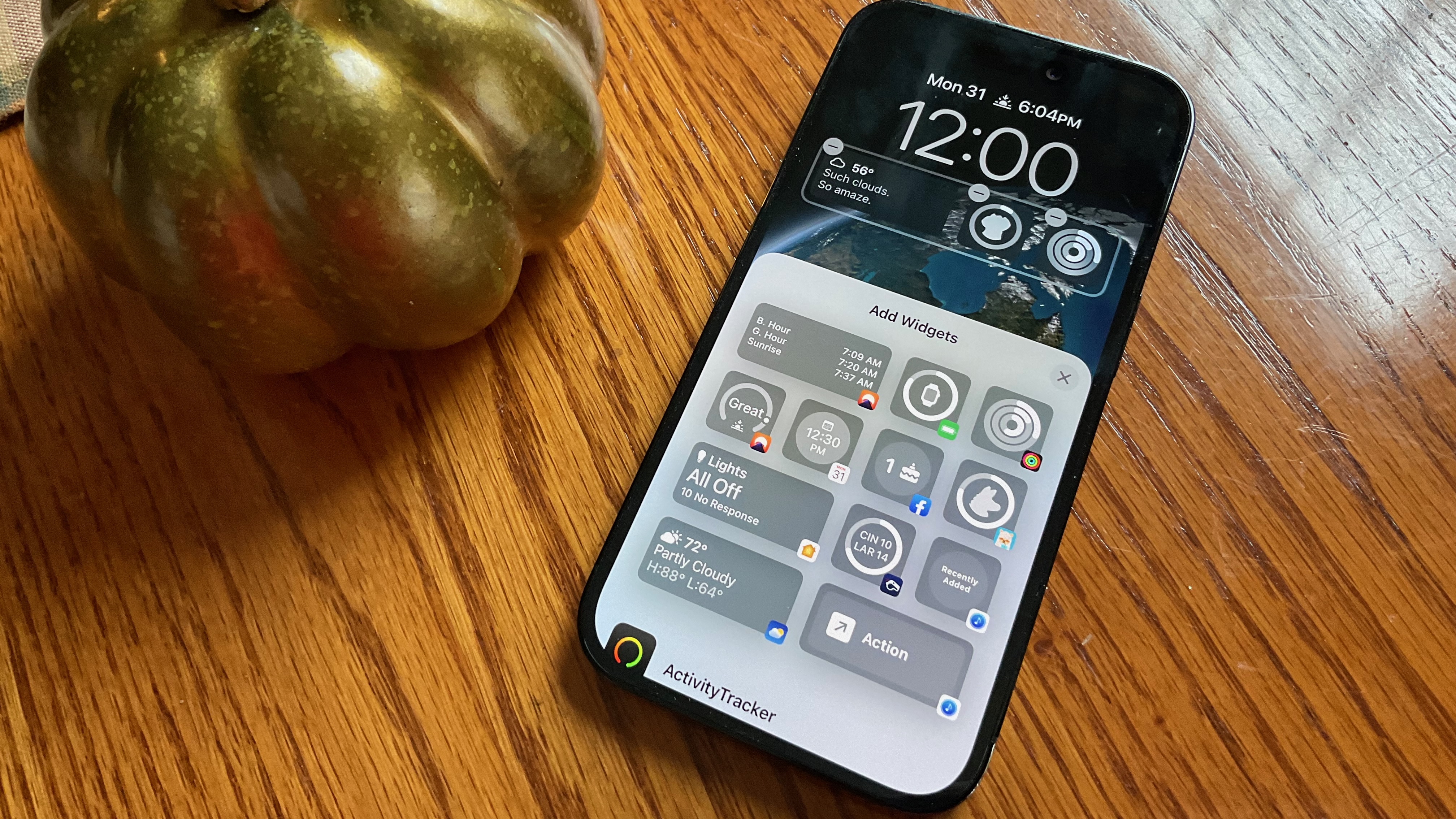
The wallpaper is the most visible element of the Lock Screen. Users can choose from a vast library of dynamic, still, and live wallpapers, including stunning astronomical views, vibrant color gradients, and expressive emojis. A standout feature is the ability to create a “Photo Shuffle,” where a curated selection of photos rotates throughout the day, offering a fresh visual experience each time you glance at your phone. These photos can be automatically suggested by AI based on relevance or selected manually.
Adding and Managing Widgets
Widgets bring dynamic, glanceable information directly to the Lock Screen. Positioned above and below the clock, these small app extensions can display data like weather forecasts, battery levels of connected devices, upcoming calendar events, fitness activity, stock prices, or smart home controls. Users can add, remove, and rearrange widgets to tailor the information displayed to their specific needs and priorities, creating a personalized dashboard without unlocking.
Focus Modes Integration
The Lock Screen is deeply integrated with Focus Modes. Users can link specific Lock Screens to different Focus Modes (e.g., a “Work” Focus linked to a Lock Screen with calendar and news widgets, or a “Personal” Focus linked to a Lock Screen with activity and weather widgets). As you activate a Focus Mode, your Lock Screen automatically transforms, not just muting notifications but also presenting a contextually relevant visual and informational layout. This seamless transition enhances productivity and reduces distractions.
Font and Color Customization
Beyond images and widgets, iOS allows users to customize the font and color of the clock on the Lock Screen. A range of distinct fonts and a full-spectrum color picker enable users to match the clock’s appearance to their chosen wallpaper or personal aesthetic, further enhancing the personalization capabilities.
Creating Multiple Lock Screens
A key enhancement is the ability to create and save multiple Lock Screens. Each Lock Screen can have a unique wallpaper, widget layout, font style, and be optionally linked to a Focus Mode. Users can easily swipe between these personalized Lock Screens, allowing for quick adaptation to different contexts or moods throughout the day. This feature encourages creativity and offers unparalleled flexibility.
Advanced Features and Security Best Practices
Beyond everyday interactions and customization, the Lock Screen incorporates critical security and emergency features that every user should be aware of.
Emergency SOS and Medical ID Access
The Lock Screen provides vital access to emergency services and medical information without unlocking the phone.
- Emergency SOS: By rapidly pressing the side button multiple times (or holding it with a volume button, depending on the model), users can initiate an emergency call to local services.
- Medical ID: A Medical ID, set up by the user, can be accessed from the emergency call screen. This displays critical health information like allergies, medical conditions, emergency contacts, and blood type, proving invaluable to first responders in an emergency.
Erase Data After Failed Passcode Attempts
For maximum security, iPhones offer an option to automatically erase all data after ten consecutive failed passcode attempts. While this can prevent unauthorized access to data on a lost or stolen device, users should be absolutely certain of their passcode and have regular backups if they enable this feature, as it is irreversible once triggered.
Restricting Access to Features While Locked
In Settings > Face ID & Passcode (or Touch ID & Passcode), users can granularly control what features are accessible from the Lock Screen. This includes options for:
- Today View and Search
- Control Center
- Siri
- Reply with Message
- Home Control
- Wallet
- Return Missed Calls
- USB Accessories (for data transfer protection)
Carefully configuring these settings allows users to strike the perfect balance between convenience and security based on their personal risk assessment.
Understanding the Always-On Display (for Pro models)
On iPhone 14 Pro and newer Pro models, the Lock Screen benefits from an Always-On Display. This feature intelligently dims the entire Lock Screen, showing the time, date, widgets, and a muted version of the wallpaper without fully waking the display. It leverages ProMotion technology to drop the refresh rate to as low as 1Hz, conserving battery life while providing constant, glanceable information. When the phone is face down, in a pocket, or connected to CarPlay, the display intelligently turns off completely to save power.
Regular Software Updates
Staying updated with the latest iOS versions is a critical security best practice. Apple regularly releases software updates that include patches for security vulnerabilities, ensuring that the Lock Screen’s protective mechanisms remain robust against evolving threats. These updates also often introduce new features and improvements, enhancing both security and user experience.
The Evolution and Future of the Lock Screen
The iPhone Lock Screen has come a long way from its initial, more basic iteration. What began as a simple security gate has blossomed into a sophisticated, highly customizable, and deeply integrated component of the iOS ecosystem.
From Simple Security to Dynamic Personalization
Early iPhone Lock Screens were minimalistic, primarily displaying the time, date, and notifications. Security was paramount, but personalization options were limited to wallpaper changes. With each successive iOS update, Apple has incrementally added layers of functionality, culminating in the expansive customization options introduced in iOS 16. This shift reflects a broader trend in technology towards user empowerment and the desire for devices to truly feel “personal.”
Integration with the iOS Ecosystem
The Lock Screen is no longer an isolated feature but is deeply intertwined with other core iOS functions. Its integration with Focus Modes, the notification system, Siri, and various app widgets makes it a central hub for interaction. This seamless integration enhances the overall user experience, making the iPhone feel more cohesive and intelligent.

Potential Future Enhancements
The trajectory of the Lock Screen suggests continued evolution. Future iterations may see even deeper integration with augmented reality, more intelligent AI-driven personalization (e.g., dynamically changing widgets based on context or location), or further enhancements to always-on display technologies. As wearable tech like the Apple Watch continues to evolve, the Lock Screen might also see tighter integration with these devices, allowing for more streamlined handoffs and context-aware information display. The Lock Screen is a testament to Apple’s ongoing commitment to balancing robust security with an intuitive, personal, and continuously evolving user experience.
aViewFromTheCave is a participant in the Amazon Services LLC Associates Program, an affiliate advertising program designed to provide a means for sites to earn advertising fees by advertising and linking to Amazon.com. Amazon, the Amazon logo, AmazonSupply, and the AmazonSupply logo are trademarks of Amazon.com, Inc. or its affiliates. As an Amazon Associate we earn affiliate commissions from qualifying purchases.