
In the vast ecosystem of modern computing, where sleek graphical user interfaces (GUIs) dominate personal interaction, the Command Line Interface (CLI) stands as a foundational and enduring pillar. Often perceived as a relic of an earlier digital age, the CLI remains an indispensable tool for developers, system administrators, data scientists, and power users alike, offering a level of control, efficiency, and automation that GUIs simply cannot match. At its core, a CLI is a text-based interface used to operate software and operating systems, allowing users to issue instructions to a computer by typing commands in a terminal or console window.

Understanding the Core Concept
The fundamental premise of a CLI revolves around direct communication with a computer’s operating system or an application through text commands. Unlike a GUI, which presents visual elements like windows, icons, menus, and pointers for user interaction, a CLI relies solely on typed input and textual output.
The Text-Based Paradigm
When you open a CLI environment, you are typically greeted by a prompt (e.g., $ for Unix-like systems, > for Windows Command Prompt), indicating that the system is ready to receive your input. You type a command, press Enter, and the system executes it, often displaying the result as text back in the console. This interaction model is direct and unambiguous. Each command usually follows a specific syntax, often including the command name itself, followed by arguments that specify what the command should act upon, and flags or options that modify how the command should operate. For instance, a command might be ls -l /home/user/documents, where ls is the command to list directory contents, -l is an option for a long format listing, and /home/user/documents is the argument specifying the target directory.
Contrast with Graphical User Interfaces (GUIs)
The distinction between CLIs and GUIs is profound. GUIs abstract away the underlying complexity of the operating system, presenting a more intuitive, user-friendly experience suitable for general users. Dragging and dropping files, clicking buttons, and navigating menus are all visual metaphors designed to simplify interaction. While excellent for many tasks, this abstraction comes with limitations. GUIs can be less efficient for repetitive tasks, offer limited avenues for scripting, and often consume more system resources.
CLIs, conversely, offer granular control. Every action, from navigating directories to manipulating files, installing software, or configuring network settings, is performed with precise, text-based instructions. This precision, while requiring a steeper initial learning curve, unlocks unparalleled power and flexibility for users who need to perform complex operations, automate workflows, or manage systems remotely without the overhead of a graphical environment.
Why CLIs Remain Indispensable
Despite the widespread adoption of GUIs, CLIs have not only survived but thrived, proving their enduring value in specific contexts. Their advantages are particularly evident in scenarios demanding efficiency, automation, and powerful system management.
Efficiency and Speed
For experienced users, interacting with a CLI can be significantly faster than navigating a GUI. Once commands are learned, complex operations that might require multiple clicks and dialog boxes in a GUI can be executed with a single line of text and a press of Enter. This speed is amplified when dealing with large numbers of files or performing repetitive tasks across multiple directories. Typing a command to delete 1,000 files based on a pattern is far quicker than individually selecting and deleting them in a file explorer.
Automation and Scripting
Perhaps the most compelling advantage of CLIs is their inherent suitability for automation. Sequences of commands can be strung together into scripts (e.g., shell scripts, batch files, PowerShell scripts) that execute automatically. This capability is fundamental to modern software development, DevOps, system administration, and data processing. Tasks like daily backups, software deployment, server provisioning, log analysis, and continuous integration/continuous deployment (CI/CD) pipelines rely heavily on scripted CLI commands. Automation through CLIs reduces manual errors, saves considerable time, and ensures consistency across operations.
Remote Management and Server Control
Servers, especially those running in data centers or cloud environments, often operate without a dedicated GUI. Managing these systems remotely is almost exclusively done via a CLI, typically through secure shell (SSH) connections. This allows administrators to log into a server from anywhere in the world and perform all necessary operations, from monitoring resource usage and troubleshooting issues to deploying applications and applying security patches, all through text commands. The lightweight nature of CLI interactions makes them ideal for environments where network bandwidth or system resources are at a premium.
Resource Efficiency
CLIs consume far fewer system resources (CPU, RAM, GPU) compared to GUIs. This makes them ideal for low-power devices, embedded systems, or situations where maximizing available resources for core applications is critical. Even on powerful machines, using a CLI frees up resources that would otherwise be allocated to rendering graphical elements, contributing to a snappier overall system performance for background tasks.
Precision and Power
The directness of a CLI translates into unparalleled precision. Users can specify exact file paths, apply complex filters, and combine multiple commands using pipes (|) to create highly specific and powerful operations. This fine-grained control is invaluable for tasks like advanced file manipulation, process management, network configuration, and debugging, where ambiguity can lead to errors. Many powerful system utilities and development tools are designed primarily with a CLI in mind, offering a richer feature set than their GUI counterparts.
Common CLI Environments and Tools
Various operating systems and applications provide their own CLI environments, each with its unique characteristics and command sets.
Unix-like Shells (Bash, Zsh)
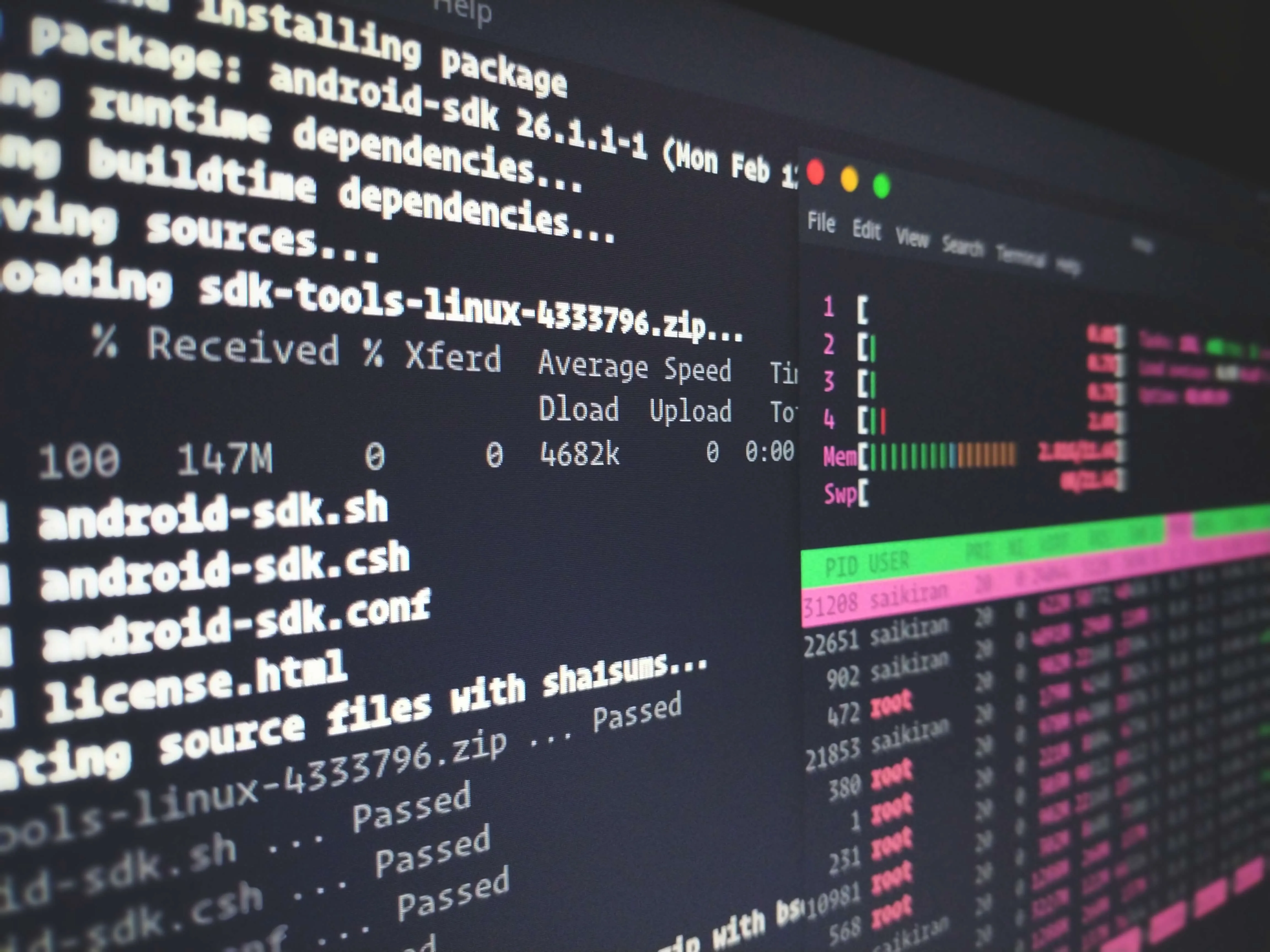
For macOS and Linux users, the most common CLI environment is a “shell.” Bash (Bourne Again SHell) has historically been the default shell for most Linux distributions and macOS until recently. Zsh (Z Shell) is a more modern, feature-rich alternative that has become the default on recent macOS versions, offering enhanced auto-completion, plugin support, and customization options. These shells provide access to a vast array of powerful utilities like grep for searching text, awk and sed for text processing, find for locating files, and ssh for remote access.
Windows Command Prompt and PowerShell
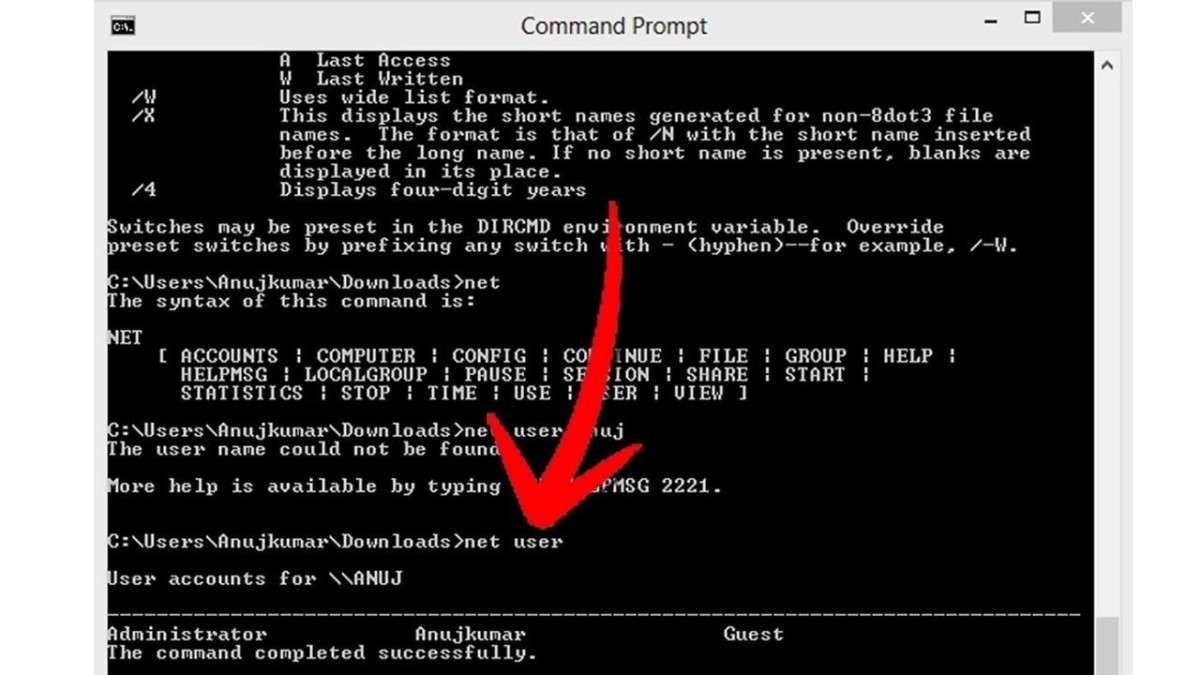
On Windows, the traditional CLI is the Command Prompt (cmd.exe), which offers a basic set of commands for file management and system operations. A more powerful and modern alternative is PowerShell, a command-line shell and scripting language built on the .NET framework. PowerShell provides extensive capabilities for system administration, offering access to virtually all aspects of Windows management through cmdlets (command-lets), which are specialized functions designed for specific administrative tasks. Its object-oriented nature makes it incredibly powerful for automating complex administrative workflows across local and remote Windows systems.
Essential CLI Commands
While specific commands vary slightly between environments, many core functionalities have direct parallels:
cd(change directory): Navigates the file system.ls(Linux/macOS) /dir(Windows): Lists the contents of a directory.mkdir(make directory): Creates a new directory.rm(remove, Linux/macOS) /del(delete, Windows): Deletes files or directories.cp(copy, Linux/macOS) /copy(Windows): Copies files or directories.mv(move, Linux/macOS) /move(Windows): Moves or renames files/directories.cat(concatenate, Linux/macOS) /type(Windows): Displays the contents of a file.man(manual, Linux/macOS) /Get-Help(PowerShell): Provides help documentation for commands.
Package Managers
Beyond basic file operations, CLIs are central to software management. Package managers like apt (Debian/Ubuntu), yum (Red Hat/CentOS), and brew (macOS Homebrew) allow users to install, update, and remove software packages with simple commands. For developers, language-specific package managers such as npm (Node.js), pip (Python), and gem (Ruby) are essential CLI tools for managing project dependencies.
The Learning Curve and Best Practices
Embracing the CLI involves a learning curve, but the investment pays significant dividends. Starting with fundamental concepts and gradually building expertise is key.
Navigating the File System
One of the first skills to master is navigating the file system. Understanding absolute paths (e.g., /home/user/documents) and relative paths (e.g., ../pictures) is crucial. Commands like pwd (print working directory) help orient users, while ls or dir provide visibility into directory contents.
Command Syntax and Arguments
Learning the basic syntax of commands, including how to use arguments and flags (e.g., -a for “all”, -h for “human-readable”), is fundamental. The man command (on Unix-like systems) or Get-Help (in PowerShell) is invaluable for looking up documentation for any command.
Piping and Redirection
Advanced CLI usage often involves “piping” (|) the output of one command as the input to another, allowing for powerful command chaining. For example, ls -l | grep "report" lists files and then filters for those containing “report.” Redirection (>, >>) allows sending command output to a file instead of the screen, enabling logging and data manipulation.
Aliases and Customization
CLIs are highly customizable. Users can create “aliases” – shorthand names for longer, frequently used commands or sequences of commands. Shell configuration files (e.g., .bashrc, .zshrc, profile.ps1) allow for persistent customization of the environment, including prompt appearance, environment variables, and custom functions.
Safety and Best Practices
Given the power of CLIs, it’s vital to exercise caution. Commands like rm -rf / (remove recursively and forcefully from the root directory) can delete an entire system if executed without proper understanding. Always double-check commands, especially those involving deletion or significant system changes. Starting with less destructive commands, experimenting in safe environments, and using options like -i (interactive, prompt before deletion) are good practices.
Who Benefits from Using CLIs?
The utility of CLIs extends across various professional domains and user types.
Developers and Programmers
Developers use CLIs extensively for compiling code, running tests, managing version control (e.g., Git), deploying applications, interacting with development tools (e.g., Docker, Kubernetes), and utilizing language-specific tools and package managers. Command-line environments are often the native habitat for modern development workflows.
System Administrators
For system administrators, CLIs are the primary interface for managing servers, networks, and large-scale computing infrastructure. They use commands to configure services, monitor performance, automate maintenance tasks, troubleshoot issues, and ensure system security, often remotely.
Data Scientists and Analysts
In data science, CLIs are used for data preparation, processing large datasets, running statistical scripts, automating data pipelines, and interacting with big data tools (e.g., Hadoop, Spark). The ability to script complex data transformations makes CLIs invaluable for these professionals.
Power Users
Beyond professionals, many power users leverage CLIs to gain deeper control over their operating systems, perform advanced troubleshooting, customize their environments, and automate personal workflows. Whether it’s batch renaming files or precisely managing running processes, the CLI offers an unparalleled degree of control.
In conclusion, while the graphical user interface provides an accessible gateway to computing for the masses, the Command Line Interface remains an essential, powerful, and efficient tool for those who demand precision, speed, and automation. Its text-based nature, far from being a limitation, is its greatest strength, enabling a level of control and scripting capability that underpins much of the digital infrastructure we rely on today. Mastering the CLI is not just about learning commands; it’s about understanding a fundamental mode of interaction that unlocks profound computational power.
aViewFromTheCave is a participant in the Amazon Services LLC Associates Program, an affiliate advertising program designed to provide a means for sites to earn advertising fees by advertising and linking to Amazon.com. Amazon, the Amazon logo, AmazonSupply, and the AmazonSupply logo are trademarks of Amazon.com, Inc. or its affiliates. As an Amazon Associate we earn affiliate commissions from qualifying purchases.