
Accessing your favorite sports content through satellite television providers like Dish Network involves navigating a sophisticated technological ecosystem. From the physical dish on your roof to the digital interface on your screen and the mobile applications on your smartphone, each component plays a crucial role in delivering the live action. Understanding how to efficiently locate specific channels, troubleshoot common issues, and leverage modern streaming capabilities is essential for any sports enthusiast. This guide delves into the technical aspects of finding CBS Sports Network on Dish, ensuring you’re always ready for game time.
Navigating Your Dish Network Interface: The Basics
Dish Network’s user interface is designed for intuitive navigation, but beneath the surface lies a complex array of software and hardware working in concert. Familiarity with its core functionalities is the first step toward seamlessly accessing any channel, including CBS Sports Network.
Understanding Dish’s Channel Lineup Structure
Dish organizes its vast array of channels into logical groupings based on programming packages, genres, and sometimes even regional availability. Channels are typically assigned a numerical identifier, often with both Standard Definition (SD) and High Definition (HD) versions. HD channels are usually found on lower numbers within a specific range, or sometimes appended with specific digits (e.g., .0 or .1). Your specific programming package (e.g., America’s Top 120, America’s Top 200) dictates which channels you have access to, a critical factor when a channel appears to be missing. This tiered system is a fundamental aspect of digital television service delivery, managed by sophisticated backend systems that authenticate your subscription against available content.
Essential Remote Control Functions for Channel Surfing
The Dish remote control is your primary interface with the receiver, acting as a gateway to its various functions. Beyond simple channel up/down buttons, several features streamline your viewing experience:
- Direct Channel Entry: The fastest way to access a known channel. Simply punch in the channel number using the remote’s keypad.
- Guide Button: This activates the Electronic Program Guide (EPG), a graphical interface displaying current and upcoming programming. The EPG is a sophisticated piece of software that fetches real-time broadcast schedules and overlays them onto a grid, allowing you to browse, search, and set recordings.
- Favorites List: Most Dish receivers allow you to create custom lists of your most-watched channels. This personalized filtering system, stored in the receiver’s memory, can significantly reduce browsing time.
- Search Functionality: Modern Dish remotes, especially those with voice control, often include a search button. This powerful feature allows you to find specific programs, movies, or even channels by typing or speaking their name, utilizing the receiver’s internal search engine to query the EPG data.
Leveraging the Electronic Program Guide (EPG)
The EPG is more than just a channel list; it’s a comprehensive information hub. When you press the “Guide” button, your receiver communicates with Dish’s servers to download the latest programming data, presenting it in an organized grid. You can filter the guide by date, time, and genre. For example, to find sports programming, you can often filter by “Sports” to narrow down the vast selection. The EPG also provides program details, including synopses, air times, and often cast or participant information, all transmitted digitally alongside the broadcast signals.
Locating CBS Sports Network on Dish: Step-by-Step
Finding CBS Sports Network involves utilizing the navigation tools described above, combined with specific channel information and an understanding of your subscription package.
Direct Channel Number for CBS Sports Network
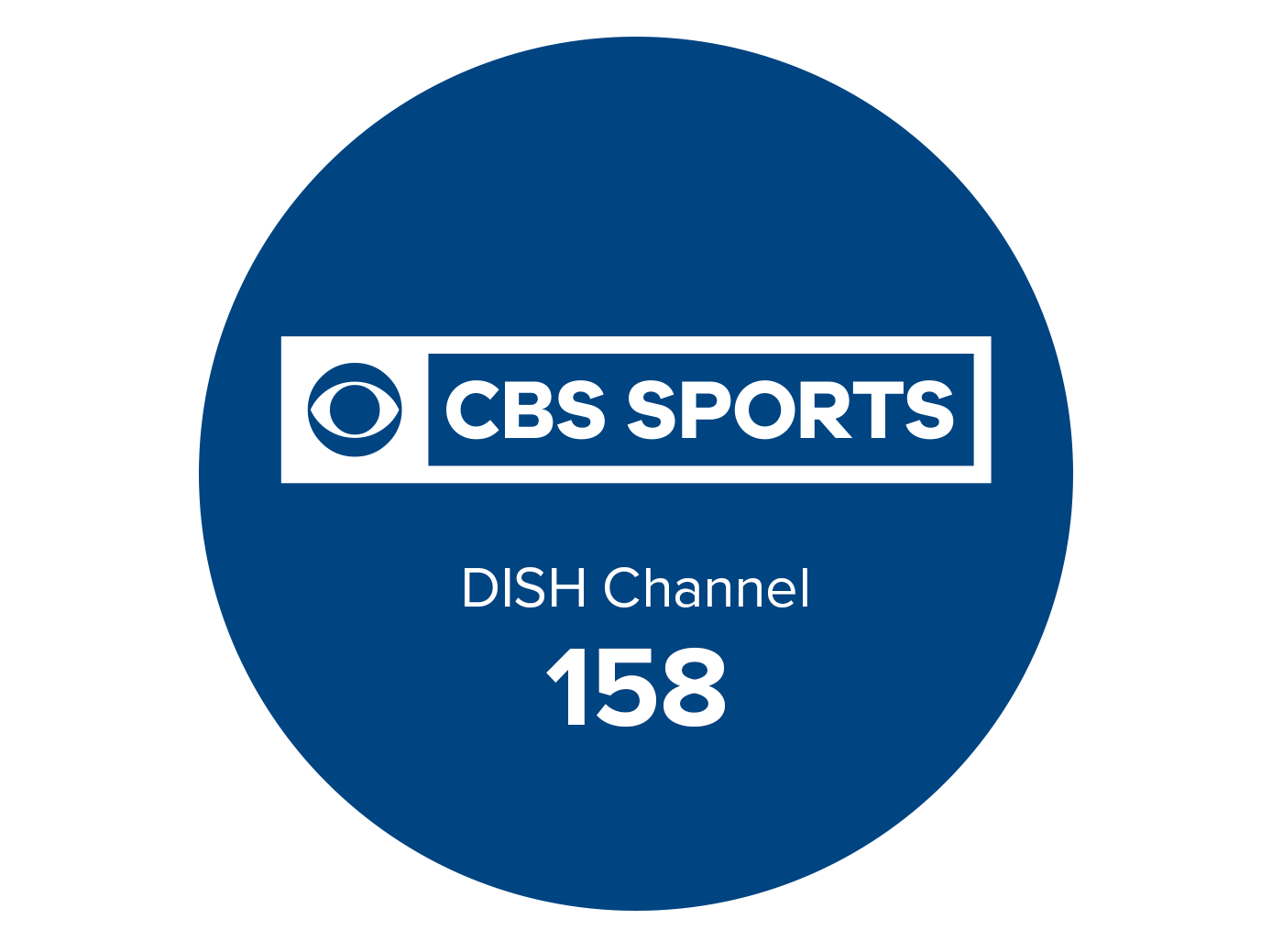
For most Dish Network subscribers across the United States, CBS Sports Network (CBSSN) is typically found on Channel 158 (HD). It’s important to note that while this is the most common channel number, minor regional variations can sometimes occur, or your receiver might default to an SD version if HD is not available or preferred in your settings. Always use your local EPG as the definitive source for current channel assignments. When you directly enter “158,” your receiver executes a command to tune its internal tuner to the specific frequency and transponder carrying that channel’s data stream, then decodes the video and audio for display.
Utilizing the Search Function
If you’re unsure of the channel number or simply prefer a text-based search, the built-in search functionality of your Dish receiver is highly effective:
- Press the “Search” button on your remote (often represented by a magnifying glass icon or a dedicated voice control button).
- Input “CBS Sports Network” using the on-screen keyboard or voice command feature.
- The receiver will display search results, including upcoming programs on CBSSN and a direct link to the live channel.
This feature relies on the receiver’s integrated search engine to query the vast database of EPG information it stores or accesses in real-time.
Verifying Your Dish Package
A common reason for not being able to access CBS Sports Network, even if you know the channel number, is that it may not be included in your current Dish Network programming package. CBS Sports Network is generally part of Dish’s higher-tier packages, such as America’s Top 120+, America’s Top 200, America’s Top 250, or sometimes a specific sports add-on package.
To verify your subscription:
- Navigate to your receiver’s “Menu” and look for “Account” or “My Programming.”
- Alternatively, log in to your Dish Network account via the official website or the MyDish app. These digital platforms provide a clear overview of your subscribed services, including channel lineups.
- If CBSSN is not included, you would need to contact Dish customer service to upgrade your package. The backend systems at Dish process these upgrades, dynamically updating your receiver’s access permissions to decrypt the necessary channel feeds.
Beyond the Remote: Accessing CBS Sports Network Digitally
The evolution of television technology extends beyond the traditional set-top box. Dish Network embraces multi-platform access, allowing subscribers to watch CBS Sports Network on a variety of digital devices, leveraging internet-based streaming protocols.
The Dish Anywhere App: Your Mobile Hub for Live Sports
The Dish Anywhere app is a powerful mobile application that extends your Dish Network subscription to your smartphones, tablets, and computers. It transforms your mobile device into a portable TV, offering live TV streaming, On Demand content, and access to your DVR recordings.
Key technical aspects of Dish Anywhere:
- Authentication: Requires your Dish Network account login credentials. This secure login process authenticates your subscription against Dish’s user database, granting access to licensed content.
- Device Compatibility: Available for iOS, Android, and accessible via web browsers. The app is optimized for various screen sizes and operating systems.
- Features: Provides a real-time stream of live channels, including CBS Sports Network. It also offers DVR functionality, allowing you to watch recordings stored on your home receiver (requires a compatible Hopper DVR). This “TV Everywhere” functionality is enabled by specialized encoders at Dish’s headend, which transcode broadcast signals into internet-friendly streaming formats (e.g., H.264/H.265) and adaptive bitrate streaming (e.g., HLS, DASH) for optimal viewing across varying internet speeds.
Streaming Through the CBS Sports App/Website
Many sports networks, including CBS Sports, offer their own dedicated apps and websites for streaming content. As a Dish Network subscriber, you can often “authenticate” your subscription on these third-party platforms to unlock live streams of CBS Sports Network.
Here’s how this “TV Everywhere” technology works:
- Download the CBS Sports app or visit the CBS Sports website.
- Look for a “Live TV” or “Watch Now” option.
- You’ll typically be prompted to select your TV provider from a list. Choose “Dish Network.”
- Enter your Dish Network account login credentials.
Once authenticated, the CBS Sports platform verifies your subscription with Dish Network’s authorization servers, granting you access to the live stream. This system relies on industry-standard authentication protocols (like SAML or OAuth) to securely link your subscription without sharing sensitive data directly between platforms.
Smart TV Integration and Cast Devices
To enjoy CBS Sports Network on a larger screen without your Dish receiver, you can leverage smart TV technology or casting devices:
- Smart TV Apps: Some smart TVs might have the CBS Sports app available for direct installation.
- Casting Devices (Chromecast, Apple AirPlay): Stream content from the Dish Anywhere app or CBS Sports app on your mobile device directly to a compatible smart TV or casting dongle. This involves your mobile device acting as a controller, sending the video stream’s URL to the casting device, which then fetches and displays the content over your home Wi-Fi network. Ensure both devices are on the same local network for seamless connectivity.
Troubleshooting Common Access Issues
Despite the robust technology, occasional glitches can prevent access to CBS Sports Network. Understanding common error messages and basic troubleshooting steps can often resolve these issues swiftly.
“Not Subscribed” Messages
If you encounter a “Not Subscribed” or “Authorization Required” message when attempting to tune to Channel 158, it almost always indicates that CBS Sports Network is not part of your current programming package.
Technical Resolution:
- Verify Package: Double-check your Dish Network programming package through your online account or by contacting customer service.
- Upgrade: If CBSSN is missing, you’ll need to upgrade your package. Once the upgrade is processed by Dish’s billing and authorization systems, a signal is typically sent to your receiver to update its channel entitlements. This may require a brief receiver reset.
Signal Loss and Technical Glitches
Issues like a black screen, pixelation, or freezing video on any channel, including CBSSN, can point to signal loss or receiver malfunctions.
Technical Resolution:
- Check Connections: Ensure all cables from your satellite dish to the receiver, and from the receiver to your TV, are securely connected. Loose coaxial or HDMI cables can disrupt signal flow.
- Receiver Reset: Performing a power cycle (unplugging the receiver for 10-15 seconds and plugging it back in) can often resolve minor software glitches by clearing temporary memory and reinitializing the system.
- Dish System Check: Modern Dish receivers have built-in diagnostic tools accessible via the menu, which can check signal strength and system health.
- Contact Dish Support: If basic troubleshooting fails, there may be an issue with your satellite dish alignment, an LNB (Low-Noise Block Downconverter) on the dish, or an internal receiver component, requiring professional technical assistance.
App Login and Authentication Problems
When using Dish Anywhere or the CBS Sports app, login failures or authentication errors are usually related to incorrect credentials or internet connectivity.
Technical Resolution:
- Verify Credentials: Ensure you are using your correct Dish Network username and password. These are separate from any email or other service passwords.
- Internet Connection: Confirm your device has a stable internet connection. Streaming apps require consistent bandwidth to function correctly.
- App Updates: Outdated app versions can sometimes cause compatibility issues. Ensure both the Dish Anywhere and CBS Sports apps are updated to their latest versions through your device’s app store.
- Cache/Data Clear: For persistent app issues, try clearing the app’s cache and data in your device settings. This effectively resets the app without reinstalling it.
- Password Reset: If you’ve forgotten your Dish login, use the “Forgot Password” option on the Dish website or app. Password reset mechanisms employ secure cryptographic protocols to protect user data during the recovery process.
Maximizing Your Sports Viewing Experience on Dish
Beyond merely finding CBS Sports Network, Dish Network offers a suite of technological features designed to enhance your sports viewing. Leveraging these tools transforms passive watching into an immersive experience.
Harnessing DVR Capabilities for Uninterrupted Action
Dish’s Hopper DVR systems are at the forefront of home entertainment technology, offering multi-tuner capabilities and vast storage. For sports fans, features like these are invaluable:
- Series Recordings: Set your DVR to automatically record all upcoming broadcasts on CBS Sports Network, ensuring you never miss a game or analysis show.
- Pause and Rewind Live TV: This buffer-based technology allows you to pause a live game to step away and then pick up exactly where you left off, or rewind to re-watch a pivotal play. The DVR constantly records the current channel to its internal hard drive, creating a temporary buffer.
- Sports Bars Mode: Specific Hopper models offer unique features like the “Sports Bars Mode,” which can display up to four live channels simultaneously on a single screen, a feat of advanced video processing and multi-stream decoding.
Exploring Dish’s Multi-Sport and Pay-Per-View Options
Dish Network provides access to an extensive array of sports content beyond standard channels. Dedicated sports packages and pay-per-view (PPV) events offer specialized access:
- Multi-Sport Pack: This add-on package often includes a wide range of collegiate and professional sports channels. While CBS Sports Network is usually in higher base packages, the Multi-Sport Pack complements it with other niche sports content, delivered via additional encrypted satellite feeds.
- Pay-Per-View Events: For major boxing, MMA, or wrestling events, Dish utilizes secure PPV systems. When you purchase a PPV event, your receiver receives an authorization signal to decrypt that specific event’s broadcast stream for a limited time, a sophisticated form of digital rights management.
Optimizing Your Home Entertainment Setup
The quality of your CBS Sports Network experience is not solely dependent on Dish Network’s signal. Your home entertainment setup plays a crucial role:
- TV Calibration: Properly calibrating your television’s picture settings (brightness, contrast, color, sharpness) can significantly enhance the visual fidelity of sports broadcasts. Many modern TVs offer specific “Sports” picture modes that optimize motion and color for fast-paced action.
- Sound Systems: A good sound system (soundbar, surround sound) can immerse you in the game with clear commentary and dynamic crowd noise. Technologies like Dolby Digital or DTS decode multi-channel audio transmitted alongside the video, creating a richer auditory experience.
- Internet Speed for Streaming: If you’re relying on Dish Anywhere or the CBS Sports app, a robust and stable internet connection is paramount. High-definition streaming requires sufficient bandwidth (typically 5-25 Mbps for HD, higher for 4K) to prevent buffering and maintain picture quality. Wi-Fi 6 or a wired Ethernet connection can ensure optimal streaming performance.
By understanding these technological facets, from basic channel navigation to advanced streaming and troubleshooting, Dish Network subscribers can fully unlock the potential of their service and ensure they never miss a moment of the action on CBS Sports Network.
aViewFromTheCave is a participant in the Amazon Services LLC Associates Program, an affiliate advertising program designed to provide a means for sites to earn advertising fees by advertising and linking to Amazon.com. Amazon, the Amazon logo, AmazonSupply, and the AmazonSupply logo are trademarks of Amazon.com, Inc. or its affiliates. As an Amazon Associate we earn affiliate commissions from qualifying purchases.